If you haven't yet, follow us on X (Twitter), Mastodon, or Bluesky to know when we post new articles, and join our Reddit or Subscribe to us on YouTube to check out our content and interact with our awesome community. Thank you for supporting us!
As someone who downloads games on the Steam Deck constantly, I am always leaving it around and using plugins to turn the screen off. It doesn't literally do this, but instead puts up a black wallpaper. I tend to do this because I don't like leaving the OLED screen in one spot for too long, and it saves battery. Well, now I won't have to do that, because there's a brand new update for the Steam Deck for this exact issue!
Today, Valve added Display-Off Downloads. Now, the Deck will default to this new low-power Display-Off mode when plugged in where it will continue downloading whatever game you are actively downloading and turn the screen off. This will not only save some battery life, but will also help to reduce any risk of OLED burn in, however low it already was.
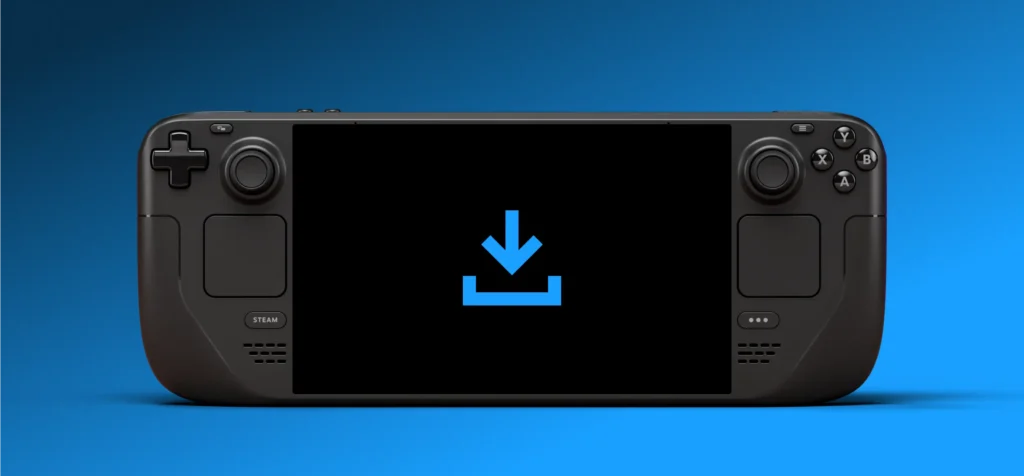
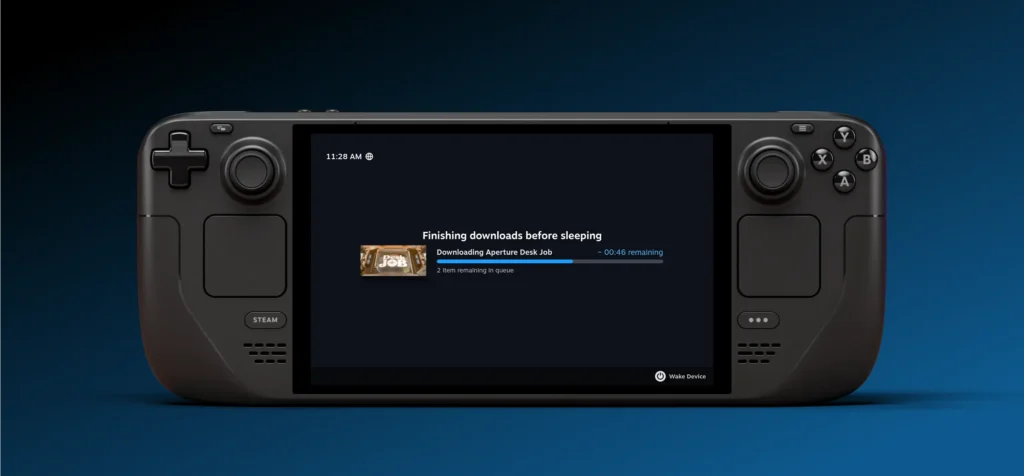
There are two ways to take advantage of this. First, you can press the power button and it will bring up a new dialogue option to ask if you want to continue downloading with the screen off or the Deck will just automatically go into this mode after being idle for awhile. If you press a button during this mode, a new status screen will show up that shows what you are downloading and how much time is remaining withinout going all the way back into your library.
As I mentioned, the mode is automatically on when plugged in, but you can turn it on for battery power as well. When this is done, if the battery level falls below 20%, it will just fully sleep.
Currently, you can only access the feature in the Steam Deck Beta Client branch right now, but it's an awesome feature to have. I am constantly deleting and downloading games, so having this is going to make my life so much easier, especially since I worry about OLED burn in more than I should. This is an awesome feature, and I am so glad it is here.
You can download the update yourself in the System Settings on the Steam Deck. Make sure your update channel is set to Beta or Preview.
If you enjoyed this article, check out the rest of the content on SteamDeckHQ! We have a wide variety of game reviews and news that will help your gaming experience. Whether you're looking for news, tips and tutorials, game settings and reviews, or just want to stay up-to-date on the latest trends, we've got you covered!

RECENT NEWS
Categories
Accessories
Anbernic
Android
ASUS ROG Ally
ROG Xbox Ally
Classics on Deck
Community
Cryobyte33
Deals
Deck Mods
Emulation
Events
Featured Post
Game News
Game News
General Game News
HandheldHQ
Hardware
Lenovo
Linux
MagicX
MSI
Nintendo
ONE-NETBOOK
Opinion
Other Reviews
Accessory Reviews
Handheld Reviews
PlayStation
Proton
Retro Handhelds
Anbernic
AYANEO
AYN
GPD
MagicX
MANGMI
Miyoo
Retroid
Rumors
TrimUI
SDHQ
Steam
Steam Controller
Steam Frame
Steam Machine
SteamOS
The Unsupported Report
Uncategorized
Uncategorized
VR
Recent Tips & GUIDES
recent reviews