


If you haven't yet, follow us on X (Twitter), Mastodon, or Bluesky to know when we post new articles, and join our Reddit or Subscribe to us on YouTube to check out our content and interact with our awesome community. Thank you for supporting us!
One of the best parts about PC gaming is the ability to mod games. It breathes new life into games, giving us more content, new mechanics, or modifications that we'd like to see in the games we play. As soon as I could, I brought in Keyblades and Naruto Jutsu into Skyrim, and I have no regrets. I love seeing new mods that can alter our perspectives and truly bring new life into games, and that's exactly what I felt when I saw the Stardew Valley VR mod.
Made by GingasVR, the mod allows us to play the entire game in VR, which generally isn't compatible with the Steam Deck. However, the mod also allows us to just play the game in 3D, offering a completely new perspective in the game. So, in this guide, I am going to go over how to set it up so you can try it for yourself.
Just a heads up, this implementation isn't perfect and can feel awkward due to its controls and model pop-in. However, since it is interesting and we can switch from 2D to 3D at will, I wanted to show it off anyway. I don't recommend playing like this, but it's a cool proof of concept that is worth checking out.
How To Play Stardew Valley In 3D On Steam Deck
Step 1:
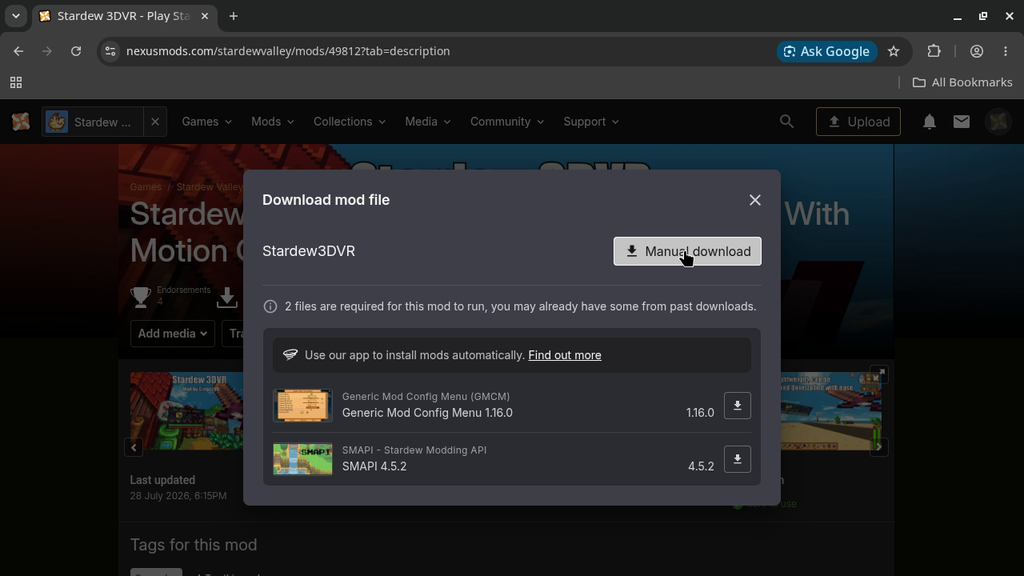
Download all three files you are going to need: SMAPI, Generic Generic Mod Config Menu, and Stardew3D (the VR mod).
Step 2:
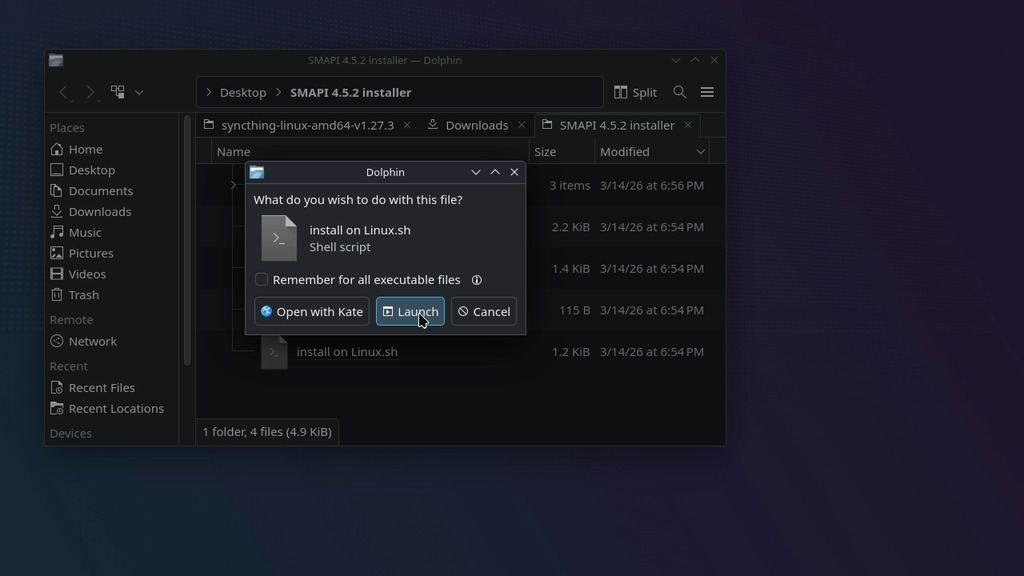
First, we need to install SMAPI. To do this, extract the SMAPI folder to your Desktop and then run the "Install on Linux.sh" file. From there, follow the prompts by bringing up the virtual keyboard (Steam + X). If you install Stardew through Steam, the process will be 2, 1, 1.
Step 3:
Now, we have to navigate to our Stardew Valley folder. We can find this at:
/home/deck/.steam/steam/steamapps/common/Stardew Valley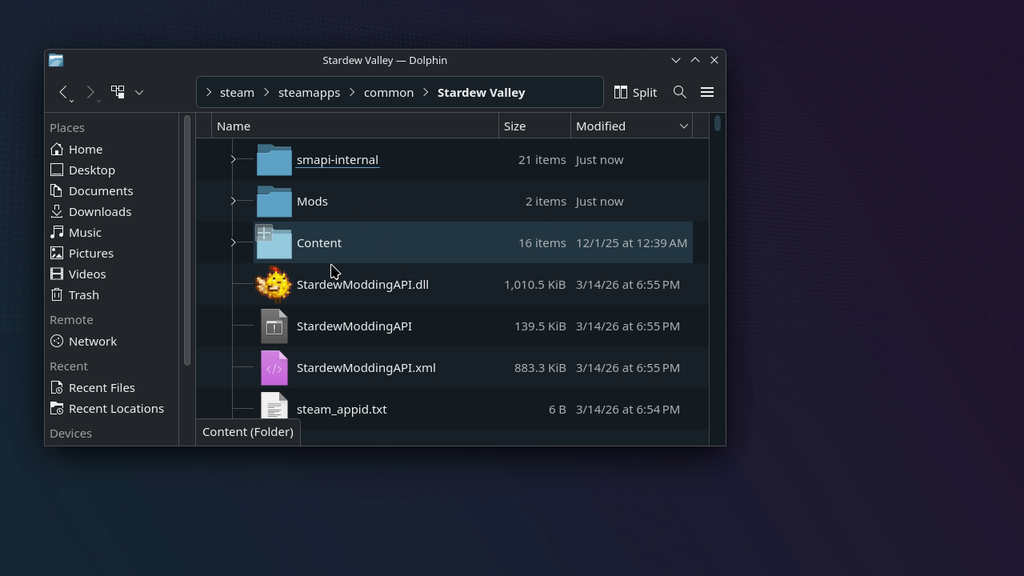
Step 4:
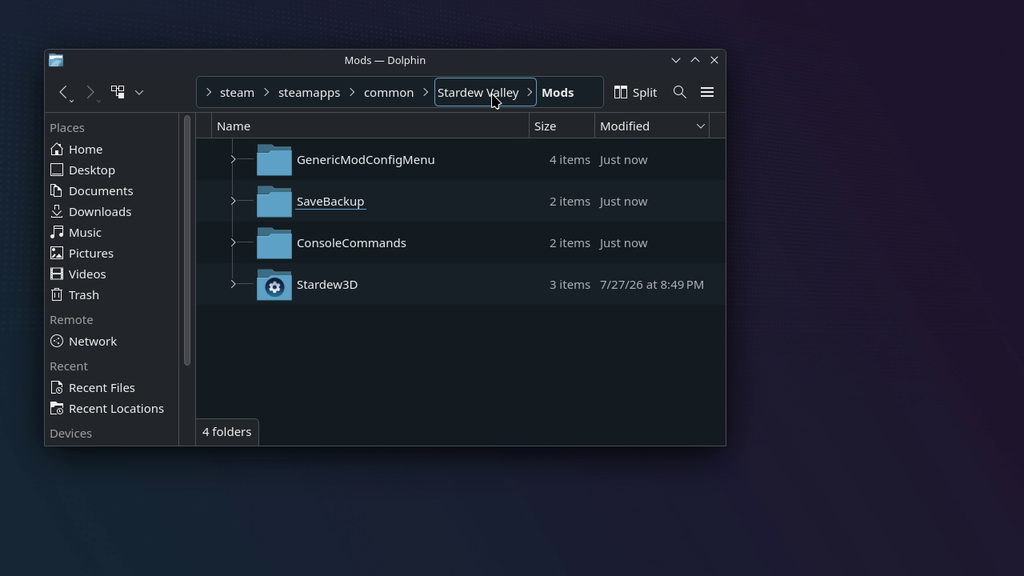
Once we are in the Stardew Valley folder, there should be a new "Mods" folder. Open that up and drag both the Generic Mod Config Menu and Stardew3D folders into it.
Step 5:
Back in the Stardew Valley folder, find the StardewModdingAPI executable and add it to Steam. This is not a .exe file, it's a native Linux executable.
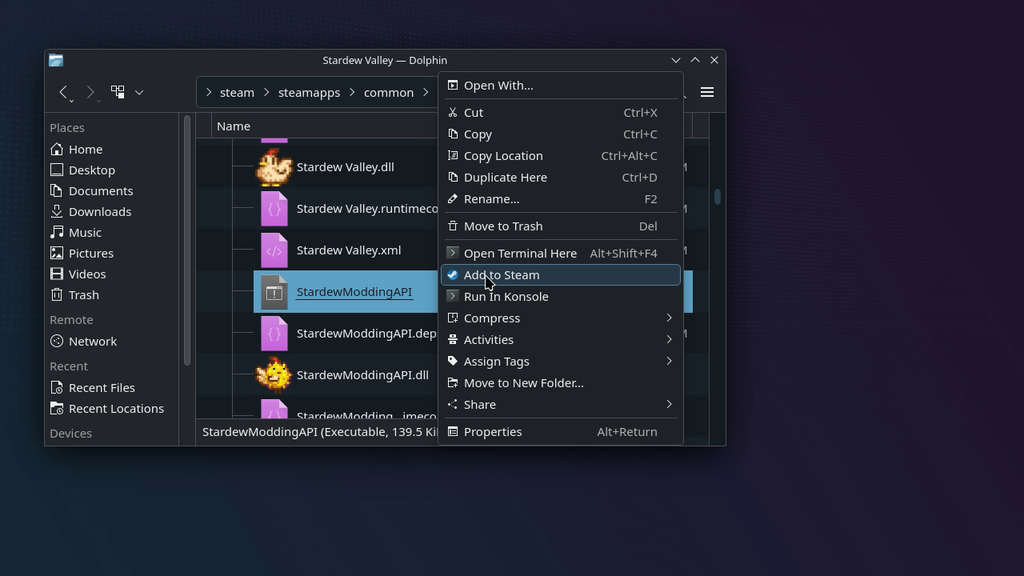
Step 6:
Head back to Game Mode and find your SteamModdingAPI non-Steam game. Go to the game's preferences and force it to run with Steam Linux Runtime 3.0 (Sniper).
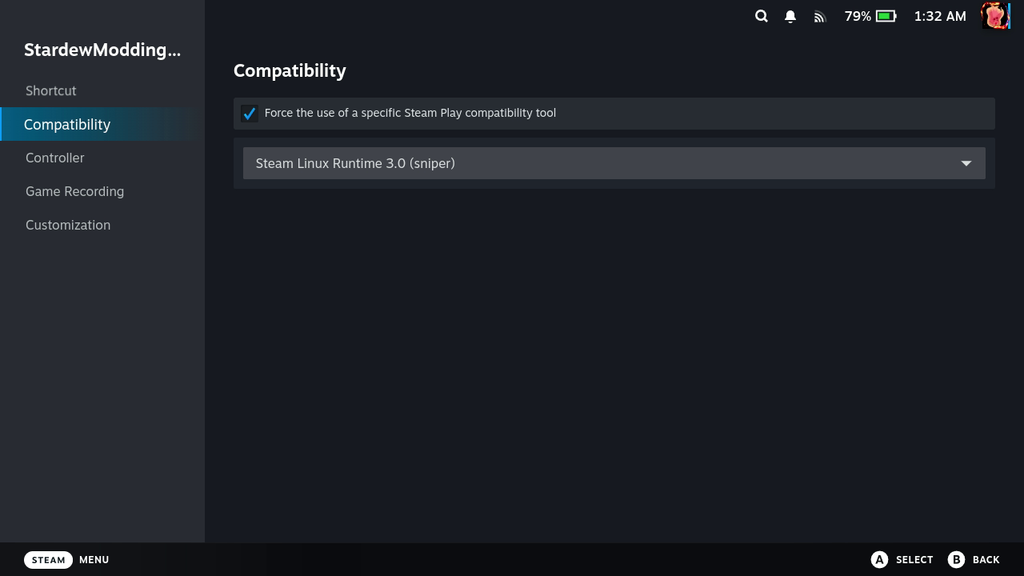
Step 7:
And finally, we have to modify the controller layout to enable/disable 3D. You have to set a button to the F5 keyboard input to go back and forth. I recommend setting this to one of the back buttons of the Steam Deck.
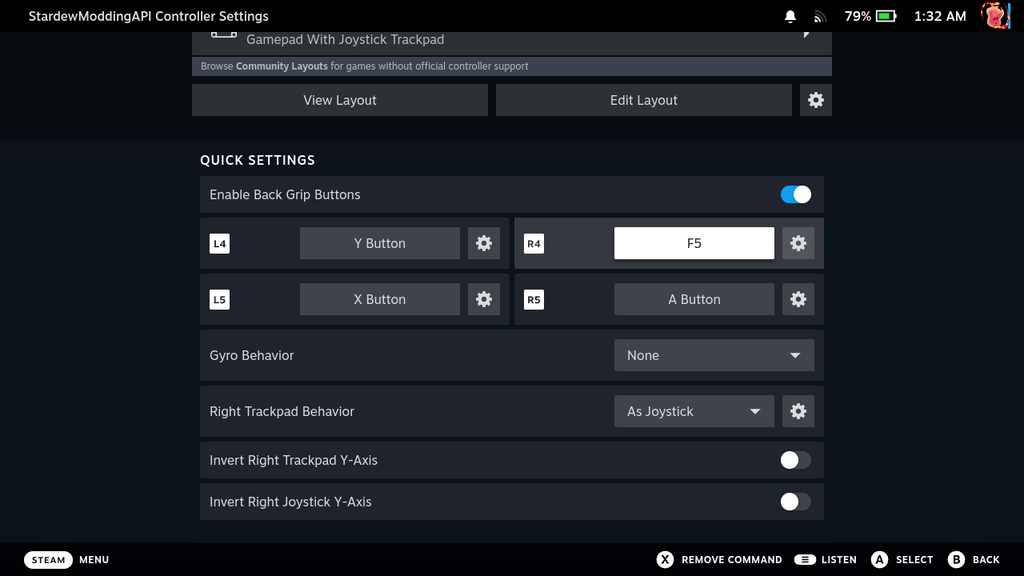
And that's it! Now, you can play Stardew Valley in 3D just by launching the StardewModdingAPI executable, and we can play in 3D. I still wouldn't necessarily recommend it; it's difficult to control, and the model pop-in is jarring, but it's still interesting to see and try, especially since it doesn't cost anything.
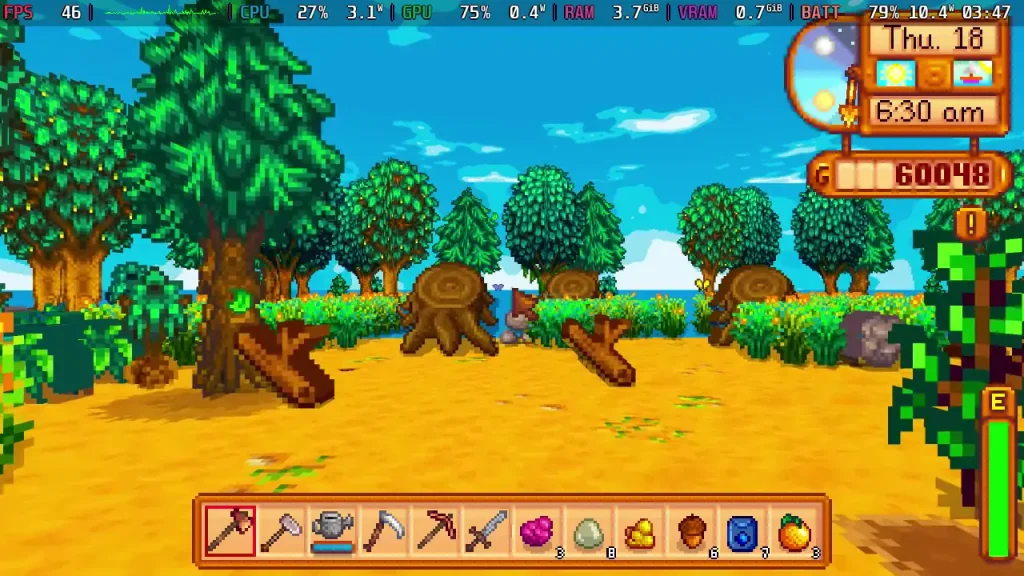
If you enjoyed this guide, check out the rest of the content on SteamDeckHQ! We have a wide variety of game reviews and news that will help your gaming experience. Whether you're looking for news, tips and tutorials, game settings and reviews, or just want to stay up-to-date on the latest trends, we've got you covered!


I have tried a few Stardew Valley mods before, but seeing the familiar farm from a 3D perspective sounds like a completely different experience.
Backing up your save before installing major visual mods is a simple precaution that can save a lot of trouble.