If you haven't yet, follow us on X (Twitter), Mastodon, or Bluesky to know when we post new articles, and join our Reddit or Subscribe to us on YouTube to check out our content and interact with our awesome community. Thank you for supporting us!
Playing games from storefronts outside of Steam may not be straightforward, but it's definitely possible. However, one of my favorite ways to access them is NonSteamLaunchers. This is a script that will automatically install the third-party launcher you select, like the Epic, GOG, and Itch.io storefronts, and add them to Steam. It makes everything significantly easier, and the new update adds a nice feature to the script.
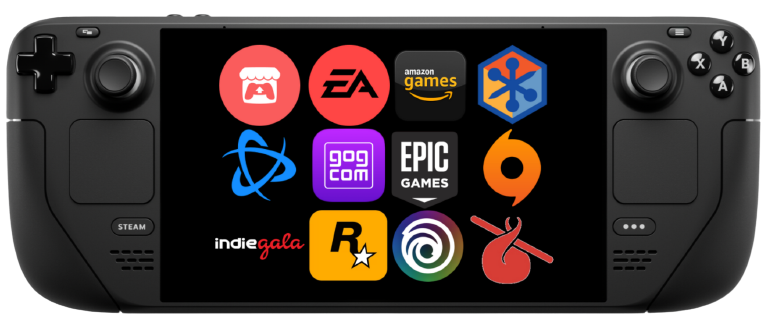
The new 4.2.2 update, which was released a couple of days ago, we now have real time shortcuts! This means there's no more restarting Steam when applying icons or artworks, and it sounds like this could include the actual shortcuts for the launchers being installed. Most programs require closing and re-opening Steam for changes to take effect, and while this isn't the end of the world, it's nice to be able to change what we need without needing to restart the program.
While this is the only current change, developer moraroy did tease the next big feature coming, which would be Steam integration with controller support. From the screenshot provided, it appears you will be able to launch and install launchers directly through Steam, as well as update Proton GE and such. One thing I don't see is being able to install launchers into Separate App IDs, which gives each launcher its own Proton Prefix. This is something I do recommend and is in the current 4.2.2 version of the script, so I hope this makes its way over, too.

Hopefully, these changes do include the separate app IDs, but I am happy to see how progress is being made. I remember first seeing the program when it launched, and I have been using it since for all my launchers that aren't covered by the Heroic Launcher.
If you already have NonSteamLaunchers downloaded on your Steam Deck, just run it, and it will auto-update to the newest version. It may give a pop-up that you should update to 4.2.2, but just hit ok and ignore it. If you don't, you can follow our guide on how to get it set up.
If you enjoyed this article, check out the rest of the content on SteamDeckHQ! We have a wide variety of game reviews and news that will help your gaming experience. Whether you're looking for news, tips and tutorials, game settings and reviews, or just want to stay up-to-date on the latest trends, we've got you covered!

RECENT NEWS
Categories
Accessories
Anbernic
Android
ASUS ROG Ally
ROG Xbox Ally
Classics on Deck
Community
Cryobyte33
Deals
Deck Mods
Emulation
Events
Featured Post
Game News
Game News
General Game News
HandheldHQ
Hardware
Lenovo
Linux
MagicX
MSI
Nintendo
ONE-NETBOOK
Opinion
Other Reviews
Accessory Reviews
Handheld Reviews
PlayStation
Proton
Retro Handhelds
Anbernic
AYANEO
AYN
GPD
MagicX
MANGMI
Miyoo
Retroid
Rumors
TrimUI
SDHQ
Steam
Steam Controller
Steam Frame
Steam Machine
SteamOS
The Unsupported Report
Uncategorized
Uncategorized
VR
Xbox
Recent Tips & GUIDES
recent reviews