If you haven't yet, follow us on X (Twitter), Mastodon, or Bluesky to know when we post new articles, and join our Reddit or Subscribe to us on YouTube to check out our content and interact with our awesome community. Thank you for supporting us!
I have played with a lot of different devices in my life, but none have intrigued me quite like the Steam Machine. Not only does it allow me to play my PC games in a similar form factor to other consoles, but it has some unique features that help it stand out. One of those is its swappable faceplate. We can take off the faceplate and replace it, giving it a different look and feel. While we can make our own, thanks to Valve releasing the CAD files, JSAUX has taken it upon themselves to make their own line of faceplates. Right now, they have three lined up, but we had a chance to try out two of them, and I fell in love with them way more than I expected.
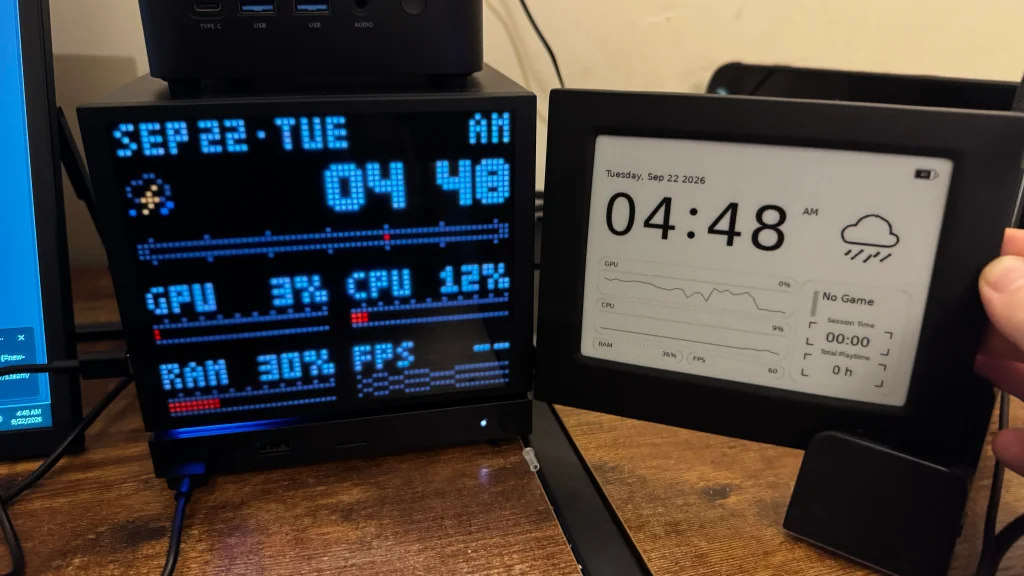
I never really thought a different faceplate could make the Machine feel so different, but it really does. As soon as I put one of the other faceplates on, it started to look like a completely different device. And at the end of the day, it’s hard not to recommend having them.
Installation
Installation for both of these panels is very similar to each other, and they will require a few steps in Desktop Mode. You have to make sure the Decky Loader Plugin Framework is installed, which is fairly easy to do, and then you’re going to have to download the appropriate package and install the program. There’s a program for each faceplate, and once all is done, it’ll be accessible in both Desktop Mode and Game Mode via Decky.
The instructions they gave were a little bit confusing, but it’s essentially just downloading and installing two programs. Not super complicated or difficult, but it does require taking these steps. However, once done, they are fairly easy to access and control.
E-Ink Faceplate
The first of the two faceplates I wanna talk about is the E-Ink. This is the same type of faceplate that Valve showed off to showcase the intricacies of the faceplates we can create and use. JSAUX decided to create their own, and I was blown away by how great it looked and how much I’d like the display.
The display gives off the same look as if we were writing with a pen on a piece of paper, and I love it. It’s a similar screen and style to the Kindle, but it feels more defined and easier to read. It fits in nicely and completely changes how the front of the Machine looks, for the better.
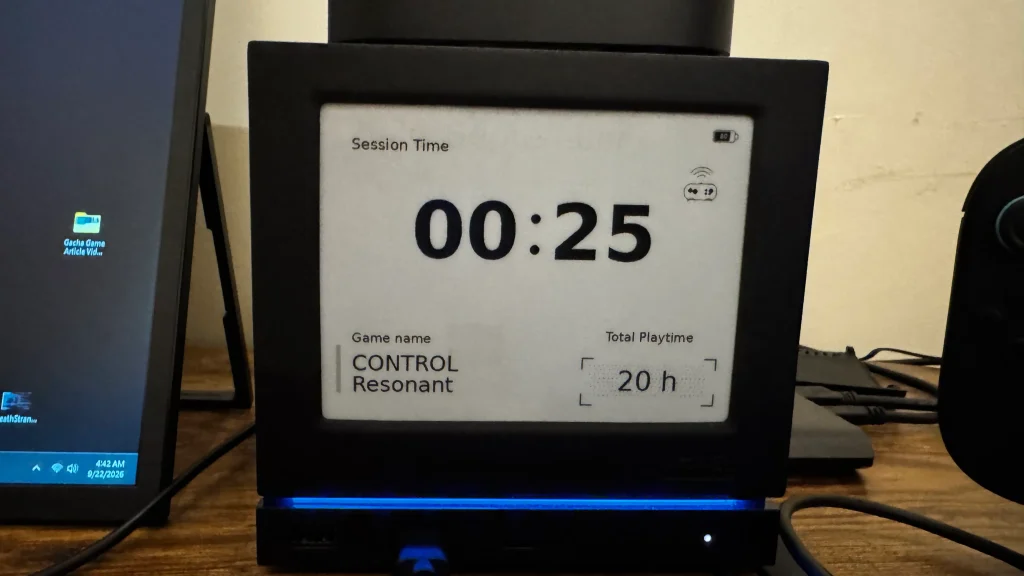
The biggest downside is that there’s no backlight, so if you’re playing in the dark, you won’t be able to see what’s actually on the screen. This can be a little bummer when trying to play after you’ve turned the lights off and are just sitting in bed, but if you’re trying to play in the afternoon or when the lights are still on, it’s fairly easy to read.
The panel has 7 ”modules” we can choose from, and each one displays different information on the screen:
Composite - Shows a little from each other module with a clock, weather picture, performance stats, game name, session time, and total playtime.
Clock - Shows the time, date, weather, and “Year Progress”.
Weather - Shows the current weather where you are, with temperature, humidity, and wind speed. It also has predictions for the next 3 days.
Performance - Shows different performance stats, like GPU and CPU percentage, how much RAM is used, and current FPS.
Calendar - Shows a calendar with the current day highlighted.
Game Time - Shows the session time, game name, and total playtime for the game you’re playing.
Photo Frame - Choose different photos to appear on the E-Ink panel by uploading specific folders to the application.
There are also two extra features that we can use to automatically switch between modules and photos on the panel. We can set specific time windows for when these modules can switch between each other, and when photos can switch between each other when they’re in the same folder. These are both easy to access on Desktop Mode, but I wasn’t able to switch on the Image Switch in the Decky plugin. I could switch on the Module Switch from the plugin, but not the images.
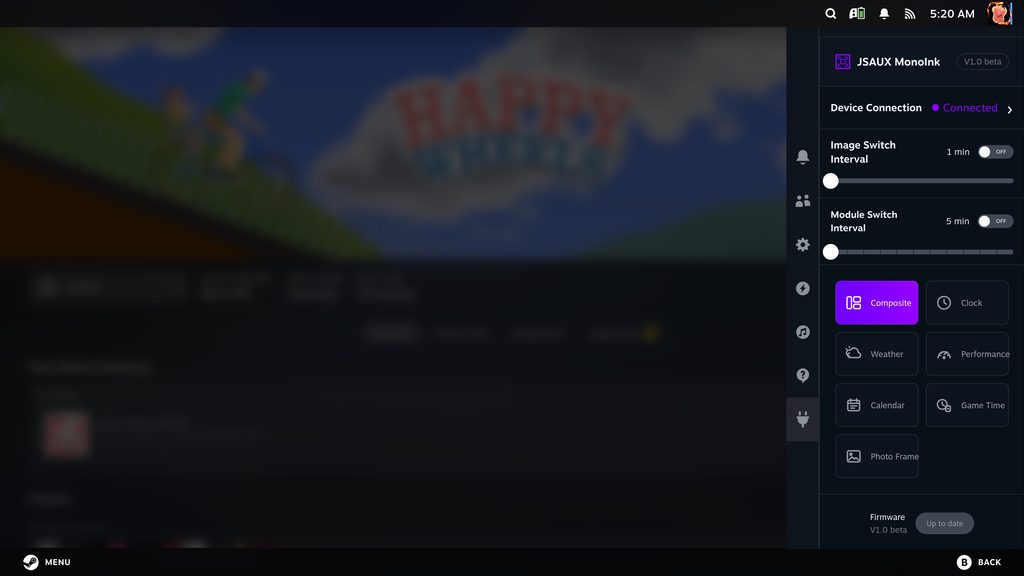
All seven different modules have their own charms, so there is one that I found relatively useless and another that’s a little obnoxious to set up. For the most part, the Composite module has the best layout and a little bit of everything mixed in. It shows all the relevant information that makes sense to have on the screen in a way that makes it all easy to read. This was one of my two favorites out of all of the modules, since I felt it had everything I would want to see.
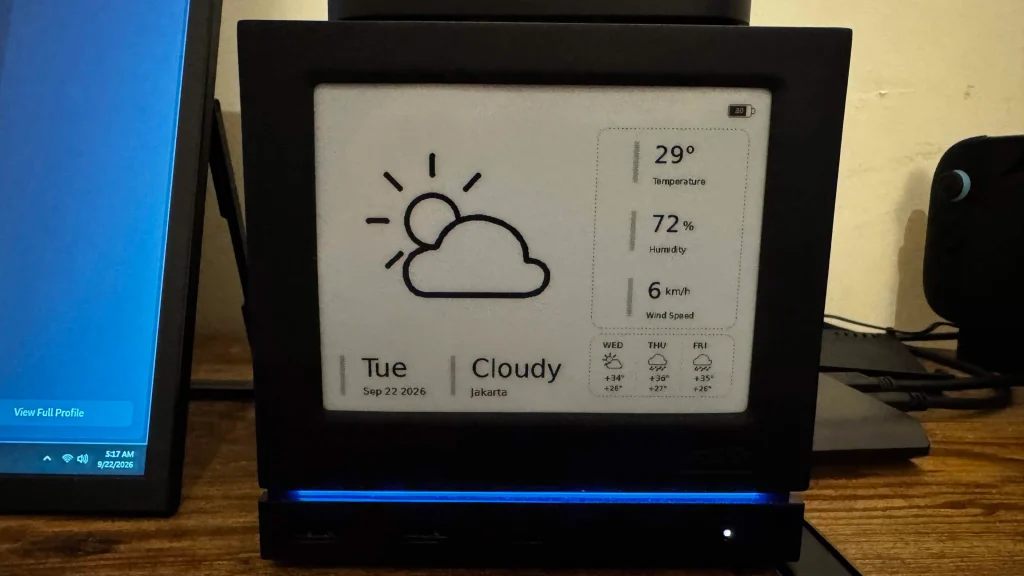
The other modules are interesting; they are nice to show if you only want to see specific information. However, the Performance module feels a bit useless. The panel will auto-update every minute, which means the performance stats we are seeing are a snapshot of what the performance stats were. It’s a nice concept, but in this case, it would just show inaccurate information when you’re looking at it unless the game is completely stable. The Clock module is similar, since it will update the current time late, but since it’s only off by a minute, it wasn’t as much of an issue.
The Photo Frame module is the only other one I feel deserves special mention, because it has pros and cons. It’s the other module that I loved, and it’s super cool seeing my personal screenshots on the E-Ink panel. The problem is that setting it up is a chore. We will have to put together a folder of screenshots for the program to take from, which we can do by finding pictures online and putting in a folder, or by navigating to that folder directly. The navigation screen for the application feels archaic, and we will need to manually navigate through each specific folder to get to the one we want. It would’ve been nice to be able to copy a folder location and paste it. I also had issues trying to do this through the Decky plugin, with folders not showing up at all. It’s worth it once it’s all set up, but there are limitations that get on my nerves.
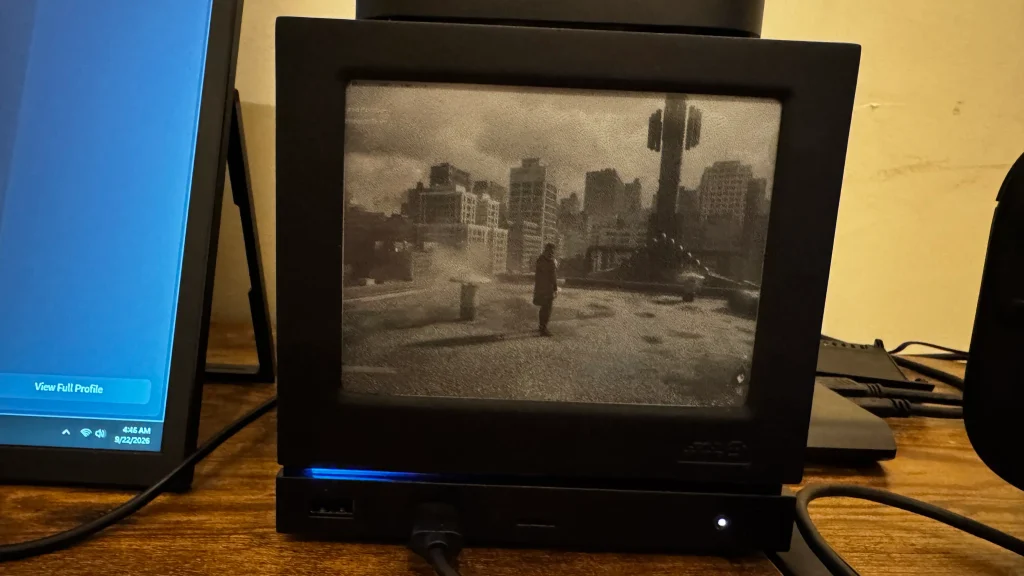
Still, I would consider the pros of the panel, weighing the cons easily. The installation is easy, the default Composite module is one of the best, and once we set it up, the Photo Frame is great. It may be a little tough to use this in the dark, but I would ultimately consider the E-Ink faceplate worth it.
Dot-Matrix Faceplate
Then, we have the Dot-Matrix display. Instead of the classic ink on paper approach, they’re using larger square dots to paint a picture. Just like the E-Ink panel, it has its pros and cons, and it provides a completely different experience from the previous panel.
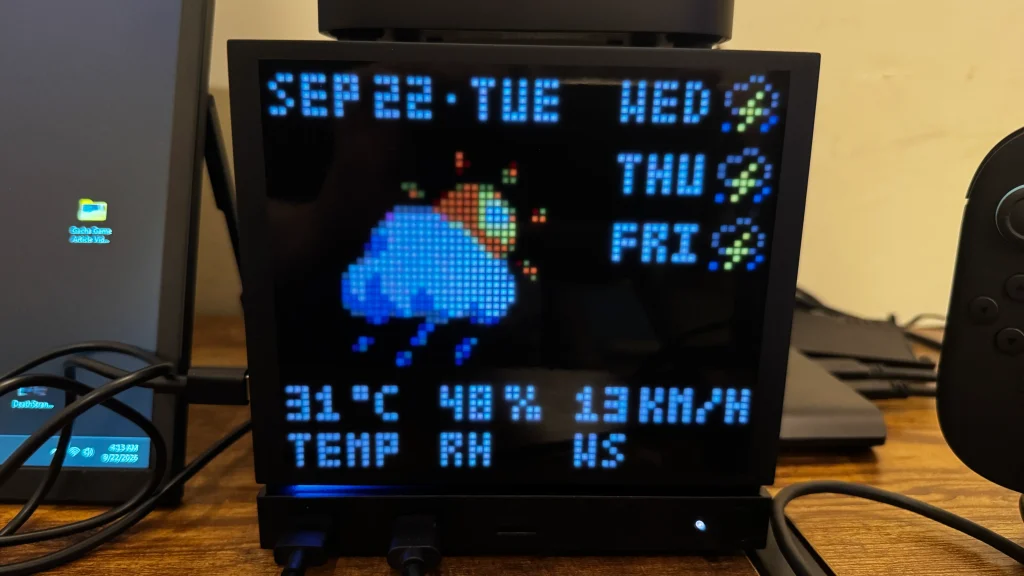
With this using a Dot-Matrix display, we have options in both real time and in color. The screen updates every second, and we get to see a lot more color and some cool designs. Some of the little icons and designs are awesome, like the sunny and cloudy weather, trophy, and game controller, and even the hourglass for the countdown. It makes the display feel more vibrant, and I really appreciate that.
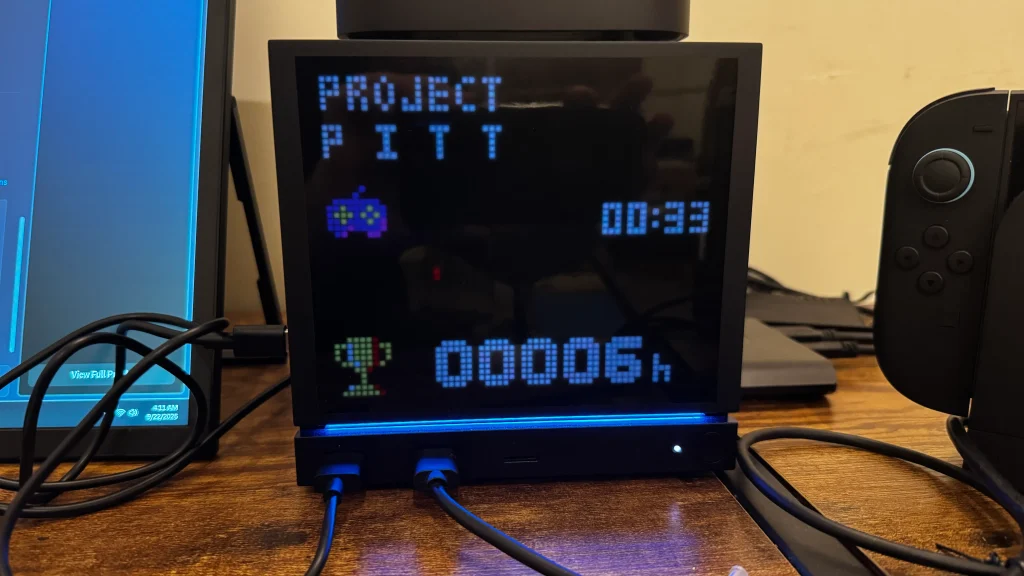
Since it does have a backlight, it can be seen easily in the dark, and we can adjust the brightness accordingly. However, the downside is it needs its own power supply. We can connect this with the USB-C cable it comes with, so it’s not difficult to set up, but it is an extra requirement that could use up one of the ports on your Steam Machine. I’ve also noticed that the brightness of the screen went down randomly from time to time.
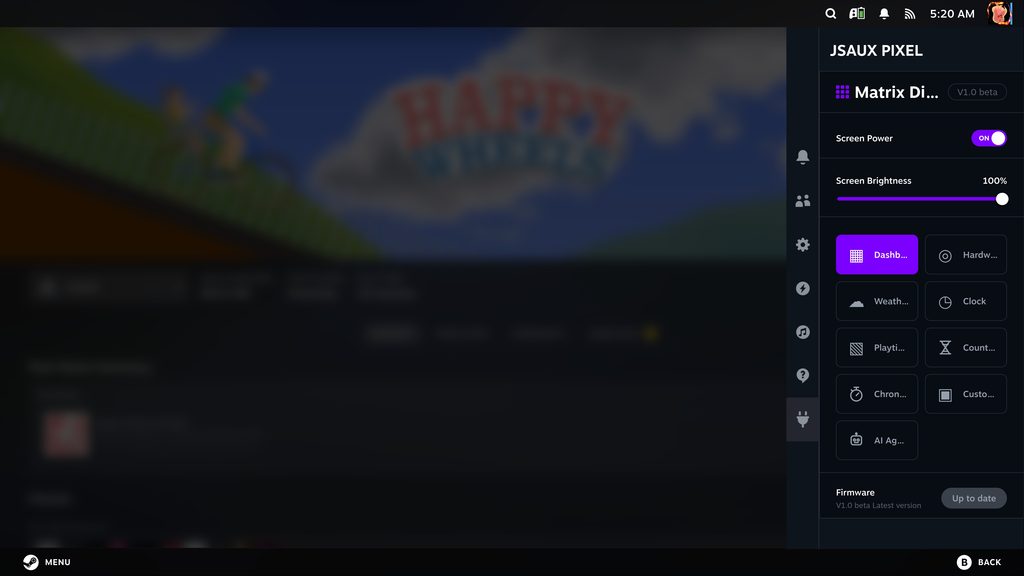
The Dot-Matrix display has 9 modules that can change what’s being shown on the screen:
Dashboard - Shows a summary of the other modules, including date, time, GPU/CPU/RAM usage, and current FPS.
Hardware - Shows the GPU, CPU, and RAM usage with bars for how much is being used.
Weather - Shows the current weather, temperature, humidity, and wind speed.
Clock - Shows the current time, along with a bar to show how many seconds have passed.
Playtime - Shows the current game, session playtime with a seconds bar, and total playtime for the game.
Countdown - A timer that counts down from a defined time.
Count Up - A stopwatch that counts up to a set time.
Custom - Shows a custom picture we set.
AI Agent - Shows details about AI agents we set it up with.
For the most part, this felt like a market really different experience than the previous faceplate, with its highlights and drawbacks, and some aspects that made me miss the E-Ink display.
I love the designs and color of each module, especially when it comes to the weather. I appreciate how often it updates, and that makes the stats it shows more accurate and helpful. I especially appreciate the countdown or count-up timers. I can see it being useful for setting it if you only wanna play for a certain amount of time, and since it updates every second, it will accurately show it. The playtime module was really nice as well, and I like the controller and trophy designs, along with how the name of each game looks on the plate.
However, I did notice that the FPS counter didn’t update correctly. It always showed 60 FPS, even when the game was running at 37 or 38, and the custom image module wasn’t as great as I would have liked. The images always showed up a little too dark, and because of its mosaic style, it just didn’t look that great. I’m sure there are pictures. We can find a way to take advantage of these, but with most of the screenshots I found, it looked way too dark or moody, even if the picture was extremely bright. In this case, I preferred the way the E-Ink panel showed images.
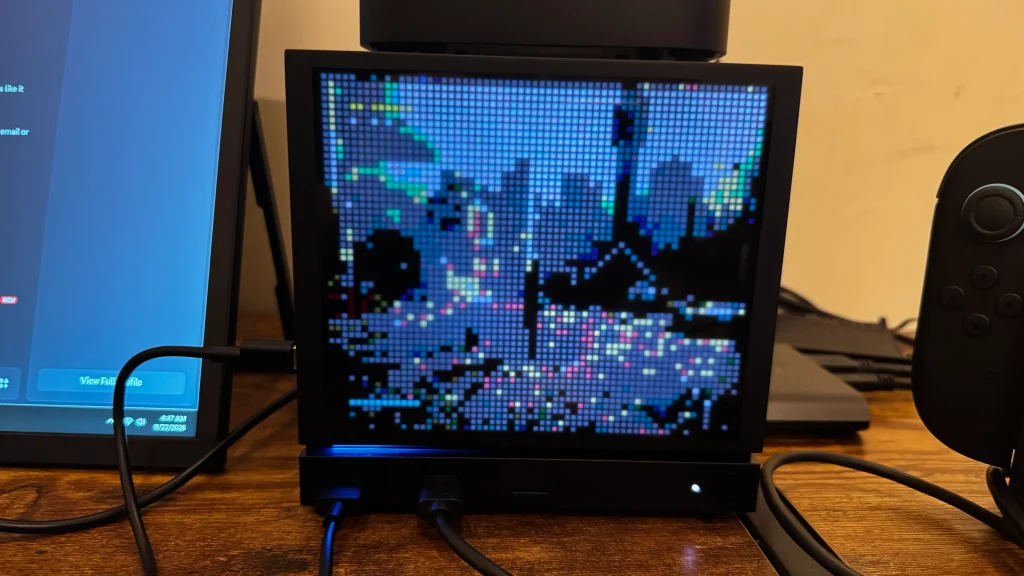
And just like the E-Ink panel, it does require some manual setup to get the images on there. It’s impossible to do via the Decky plugin, since it won’t show any files at all, and we do have to manually add one image at a time to the program. I do prefer this method, since it means we can put in whatever images we want without needing to put them all in the same folder, but we also don’t have any slider or option to cycle through them automatically. So, we have to choose one image at a time to display; in most cases, they don’t look great.
At the end of the day, one thing is certain: these faceplates completely changed how I view the Steam Machine. I knew that changing the plates would be interesting, but I didn’t expect it to change the entire vibe of the machine when looking at it. Both of these faceplates from JSAUX are great, with each having its own reason to use it. Of the two, the E-Ink panel stands out more, but I see a reason to use both of them, depending on what you’re after. But either way, they are worth having.
The JSAUX links above are using an affiliate link, which gives us a little back from sales at no extra charge to you. All proceeds go back into SDHQ and its development.
If you enjoyed this article, check out the rest of the content on SteamDeckHQ! We have a wide variety of game reviews and news that will help your gaming experience. Whether you're looking for news, tips and tutorials, game settings and reviews, or just want to stay up-to-date on the latest trends, we've got you covered!

RECENT NEWS
Categories
Accessories
Anbernic
Android
ASUS ROG Ally
ROG Xbox Ally
Classics on Deck
Community
Cryobyte33
Deals
Deck Mods
Emulation
Events
Featured Post
Game News
Game News
General Game News
HandheldHQ
Hardware
Lenovo
Linux
MagicX
MSI
Nintendo
ONE-NETBOOK
Opinion
Other Reviews
Accessory Reviews
Handheld Reviews
PlayStation
Proton
Retro Handhelds
Anbernic
AYANEO
AYN
GPD
MagicX
MANGMI
Miyoo
Retroid
Rumors
TrimUI
SDHQ
Steam
Steam Controller
Steam Frame
Steam Machine
SteamOS
The Unsupported Report
Uncategorized
Uncategorized
VR
Xbox
Recent Tips & GUIDES
recent reviews