


The Steam Controller was provided by Valve for review. Thank you!
One of the things I loved about the Steam Deck was not just portable PC gaming, but its incredible gamepad. The button spacing, symmetrical joysticks, four back buttons, and the two trackpads all blended together to make any game playable and accessible. Mixed with Steam Input, we could configure macros and translate keyboard and mouse-only games into gamepad controls with ease. One of my biggest wishes has been for Valve to bring that layout into controller format, so I could use it for desktop gaming. And now, they have done just that with the brand new Steam Controller.
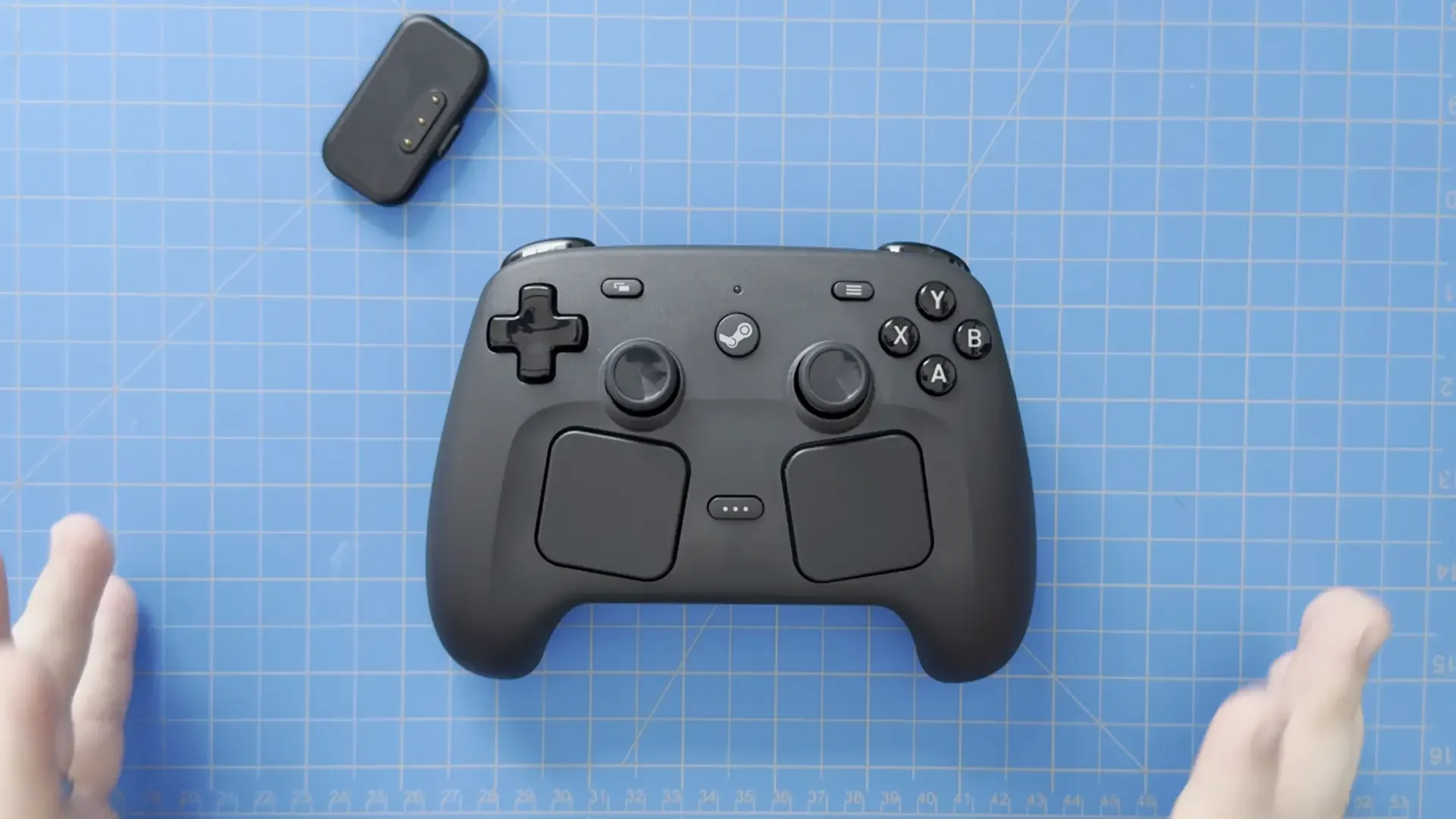
The controller was announced with Valve’s new hardware lineup, which includes the Steam Frame and Steam Machine. And after some unfortunate delays due to the current market climate, the Steam Controller has been released. I have been using it for quite some time now, playing hundreds of games and putting the controller through the wringer. And after all is said and done, this is going to be the best controller for PC gaming, especially if you primarily use Steam.
Build Quality
The build quality of this controller is great. The plastic casing used to cover the entirety of the controller is a mix of smooth and coarse textures that ultimately create a comfortable feel on the skin. Usually, controllers will have two different textures, with one being a smoother front-facing and the other being rougher to make sure our hands stay in place. The Steam Controller only has one texture, but it combines both aspects to feel smooth to the touch and easy to keep our grip. It’s also very solid, and I don’t feel any moving parts if I shake it wildly. It’s just one solid brick.
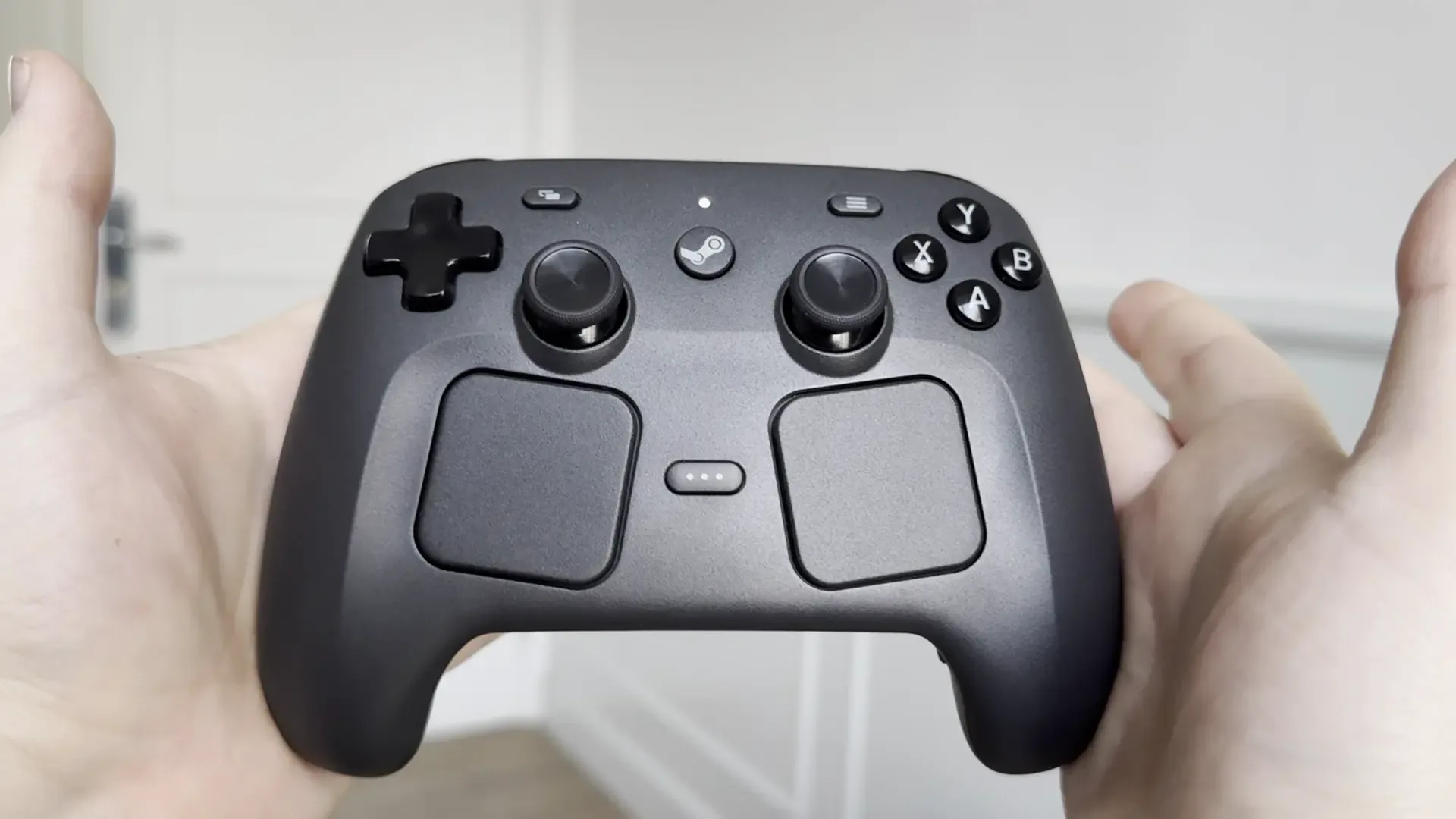
I also want to praise Valve for equipping the controller with TMR joysticks. These are not only more accurate than usual analog joysticks, but they will also last longer and are less at risk for drift. It ensures longevity of the controller itself, and I am glad they made the decision. As someone who has experienced stick drift with my original Steam Deck LCD, having this added protection is comforting. I haven't had the Steam Controller long enough to test its lifespan, but I have used other controllers with TMR and Hall Effect sticks, and they still don't have any drift and stay accurate after 4 years. The controller should be similar in this sense, and that makes me happy.
The only knock I could have against it is the weight. It’s a little on the heavier side, and it does feel like I have to tense my fingers up if I’m holding the controller with one hand. It’s a significant difference compared to the Hori Steam Controller, and even a little bit heavier than the 8BitDo Ultimate. This is due to all the tech that is in the controller, including the trackpads and grip sensors. It gets a little bit lighter if the wireless puck is not attached to the back, but I would still say it’s heavier than I would’ve liked. I prefer my controllers on the lighter side, but I would consider this starting to teeter on too heavy.
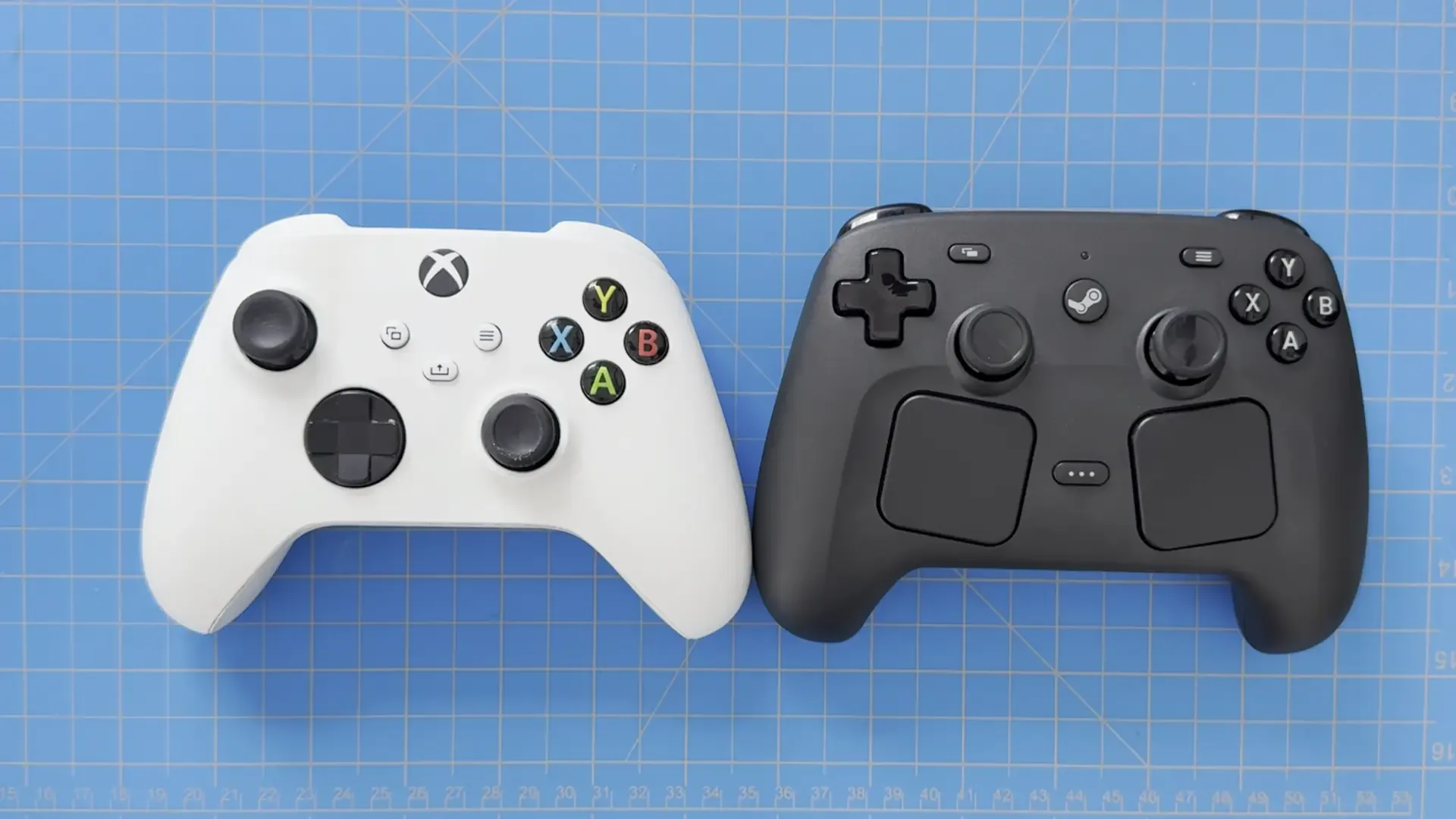
It’s also a little bit bigger than my other controllers, but not enough to where it’s taking up too much space. It does hurt portability a little bit, and it doesn’t fit in the usual controller sleeve of my backpack when I travel, but I don’t mind too much. It's slightly bigger than the Xbox Wireless Controller and Dualsense, and much bigger than the Switch Pro Controller and 8BitDo Ultimate, but it's about as big as the Hori Steam Controller, so it isn't too bad.
Design
As for the design, well, I’m pretty biased here. I love the Steam Deck’s layout, and this is pretty much a copy-and-paste of it. All the buttons I need to use are very accessible, and they all feel fantastic to push down. There is no digital feel to any part of the controller; every single button can be pushed down and feel impactful when they go down. The Dpad feels great to use, the triggers have enough pushback to them, and even the back buttons feel great to use.
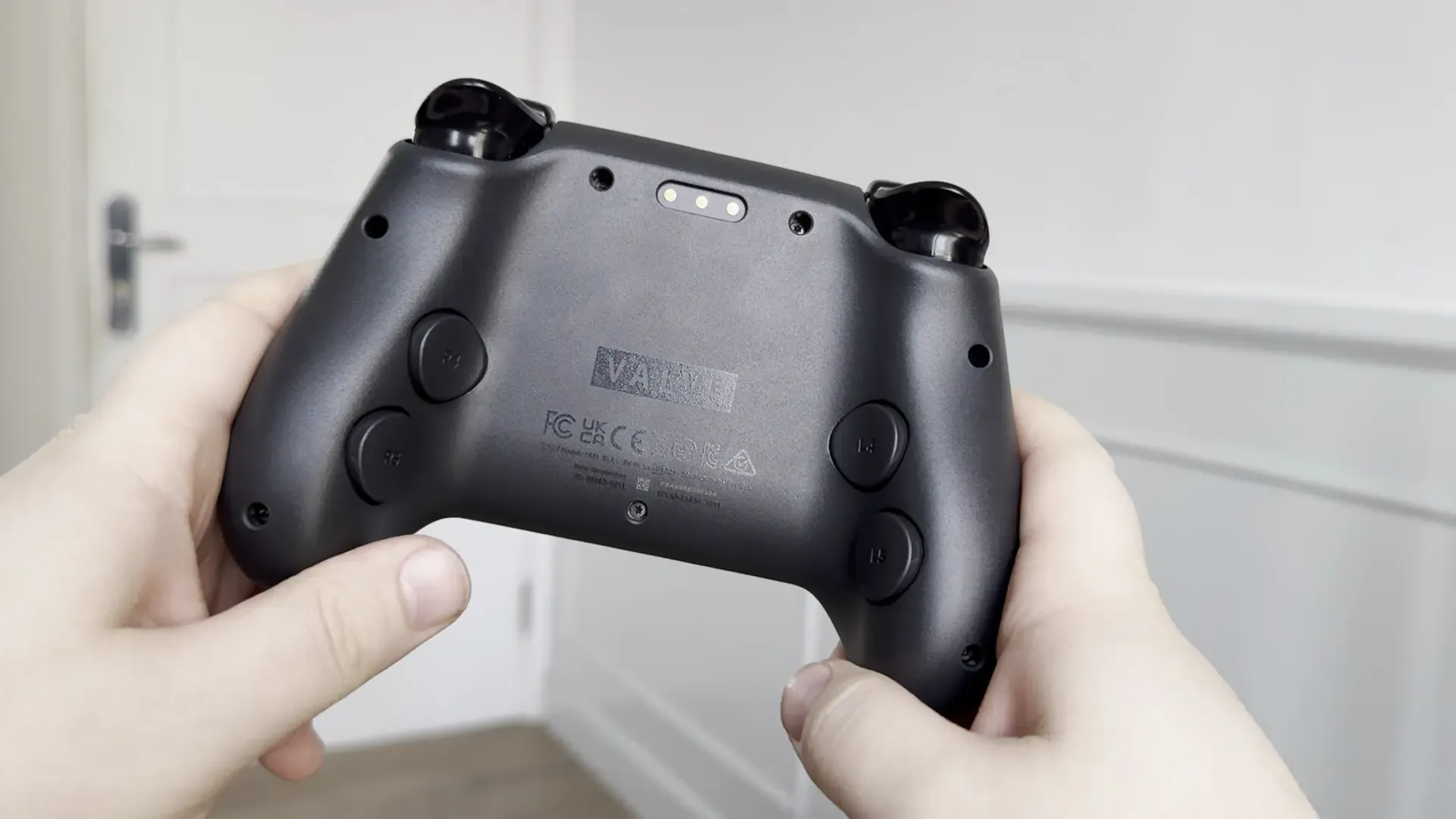
The biggest change in the design, compared to the Steam Deck, would be the trackpads and quick-access menu button. The trackpads are now slanted a little, with the quick access button slapped in the middle of them. This doesn’t change much about usability, and it’s very easy to reach the trackpads without moving my hand. I do need to move my hand a little to use the quick access button, but not enough that I would feel like I’m stretching. The back buttons are also smaller circles now instead of squares, but the placement is perfect. Gripping the controller normally has my pinky and ring finger placed perfectly on the buttons.
And while I mentioned the joysticks briefly before, I want to praise them once again. They have a great size to them, with the top being a little concave, so my thumb can sit in it without it moving around too much. On top of that, they are both easy to reach and clearly have a full range of motion when moving them around. I also love that Valve went with the symmetrical placement for the sticks. It is something I have always loved with the Steam Deck, so it's nice they continued that trend.
I feel like I’ve noted in every one of my reviews, but this is the exact layout I wanna see. No digital buttons, symmetrical joysticks, and everything is easily accessible. If I had to nitpick, it would be nice to have the quick access button in an easier-to-reach spot, but I don’t mind it one bit. It might look a little chunky, but this design has everything I could want.
Features
Now, let’s talk about the features, and this controller is packed with them. Probably my favorite part of this controller is the trackpads, which I have loved ever since I got the Steam Deck. Trackpads have made it easier to navigate the desktop and play point-and-click games without needing to put my fingers on the screen. Bringing those over to a controller is exactly what I was hoping for, and these trackpads feel fantastic. On top of that, they are pressure sensitive and have their own haptic feedback. This will be great for configuration in Steam Input, which I will go into in a little bit.
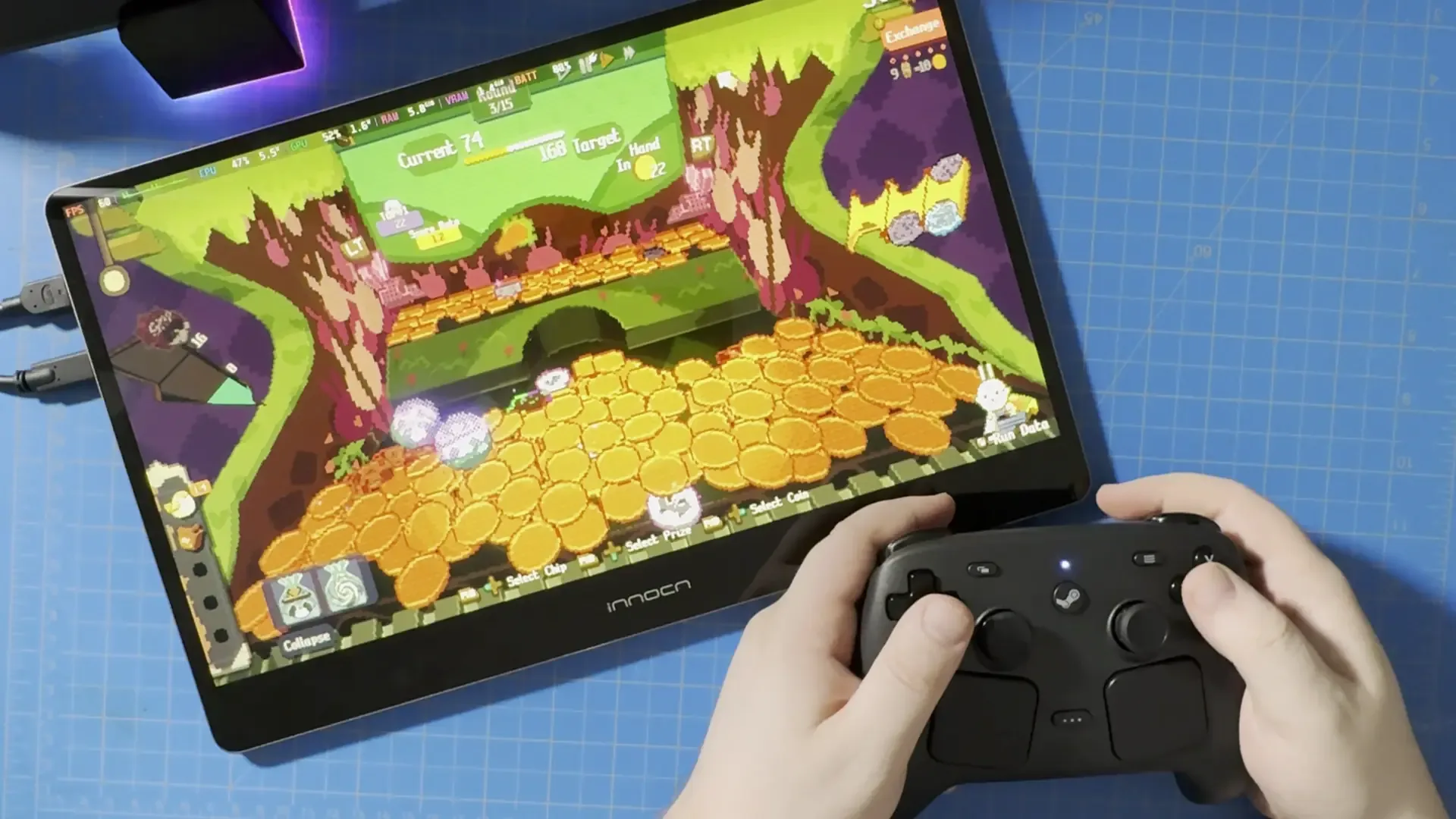
We also have grip sensors on both of the handles of the controller, which use the same capacitive touch technology that the joysticks use to detect if we are touching them. I am all for new features, but I personally didn’t use the grip sensors that much. There’s only one use case I found that I really liked, but otherwise, I wasn’t really taking my hands off the controller enough to utilize those sensors.
The handles also have their own haptics, which can be used for high-definition rumble. And of course, we do have a 6-axis gyro. The rumble/haptics are nice and work as intended, though I am admittedly not a fan of rumble. This didn't change my mind, and while they work, it still doesn't come close to Nintendo's HD Rumble. As for gyro, I use that much more often, and I enjoy it a lot. Making micro adjustments in first-person shooters to get headshots has always been why I use gyro, and it works like a charm with the Steam Controller.
What makes all of it really special is how easy it is to use with Steam Input. Now, one of my favorite features of the Steam client is Steam Input. This is basically a way for you to rebind controls for your controller in the client instead of in the game. This makes it so we can emulate other buttons when we press down on inputs. This becomes extremely useful when trying to play games that don’t have controller support or don’t support rebinding yet. We can bind keyboard inputs to the controller to essentially play games without controller support, with the controller easily. Steam Input is also quite complex, allowing us to create virtual menus, macros, and specific actions if a developer programs it.
With the Steam Controller, we have extensive support in the Steam Client. Not only can we regularly rebind keys, but we can also attach inputs to the grip sensors. The one use case I found that I really liked was mapping the pause or escape button to the grip, so if I ever took my hands off the controller, it would automatically pause the game. I have read about some others doing different things, like someone mapping, throwing a flare in Deep Rock Galactic, letting go of the right side of the controller, or someone making it so removing your hand on the left side opens the map, but none of that really appealed to me. It’s nice to have the option, and I will never say no to more options, but I could only find one use that actually excited me.
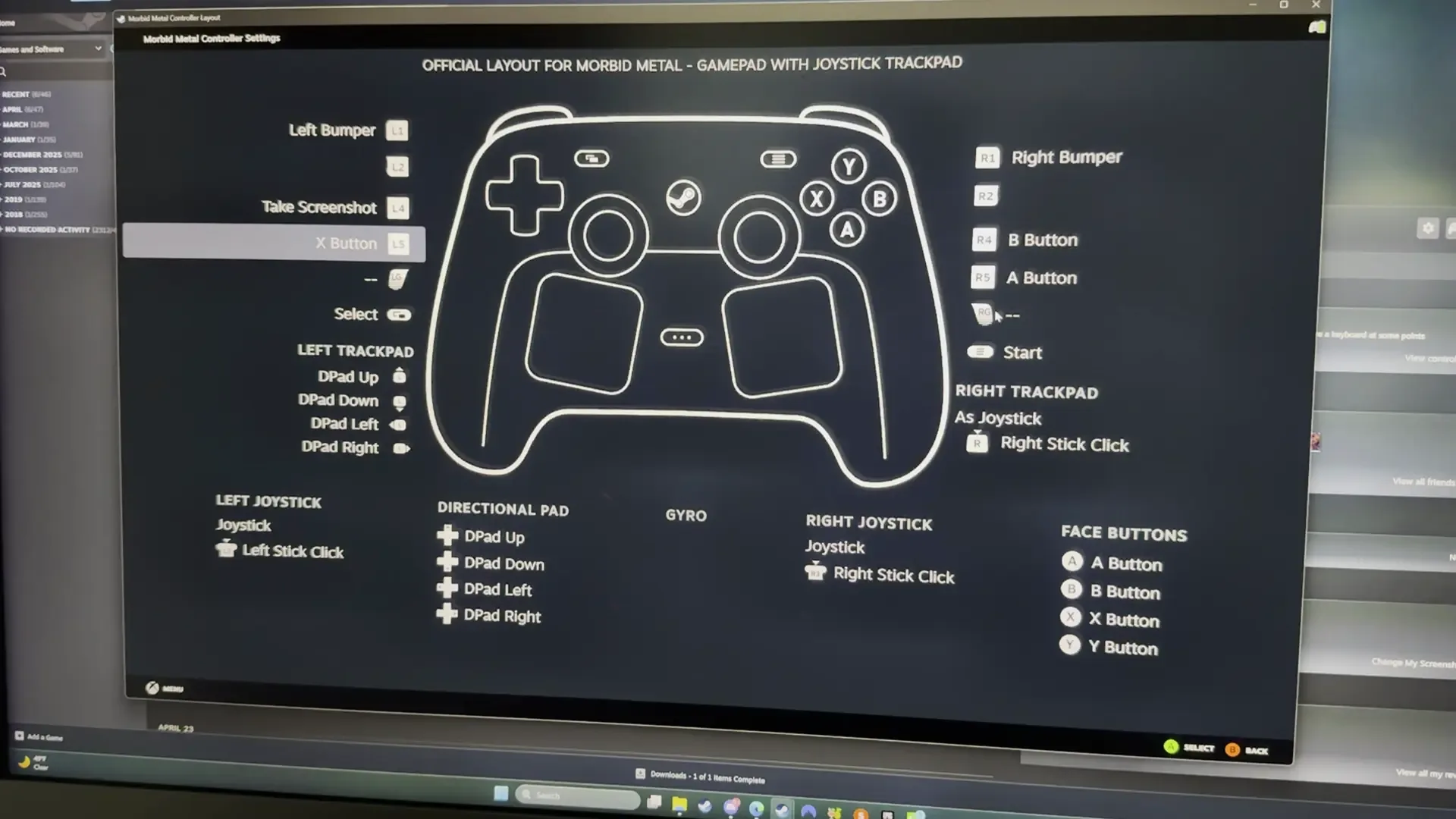
But that shouldn’t be a knock against Steam Input. We can configure so much more, from specific Gyro options to creating virtual menus easily accessible with the trackpads. And if you have enough experience with it, you can get crazy with nested menus and deep macros. Every button on the controller can be reconfigured, not including the quick access button, with whatever we want. I know Steam Input isn’t really a feature of the controller, and more a feature for the Steam Client, but I decided to talk about it anyway, because of its extensive integration for the Steam Controller.
That said, another reason I am bringing up the Steam Client is that that’s really the only place we can use the controller. Valve didn’t include any XInput support, which means that using this controller outside of Steam, like if you want to use a controller for Xbox Game Pass or Epic Games Store, it won’t work. As someone who primarily uses Steam already, I didn’t feel the impact of this, but it is a limitation I want to bring up. Now there are ways around this, whether it be with community tools or upcoming updates, but the lack of support for using the controller outside of Steam felt weird.
Like I said, though, if you primarily use Steam to play PC games, you won’t feel this at all. And if you add the Games to Steam as a Non-Steam Game, you can use the controller easily. To me, the controller clearly sets up its primary use for the upcoming Steam Machine; we’re adding games to use in Game Mode, which will be the main way to play games. This is already the primary way I play games on the Steam Deck, and I ended up playing games from different storefronts this way without issue. But if you’re someone who likes to use other storefronts independently, or wants to use Xbox Game Pass, you will have to find a way to get it to run through Steam to recognize the controller.
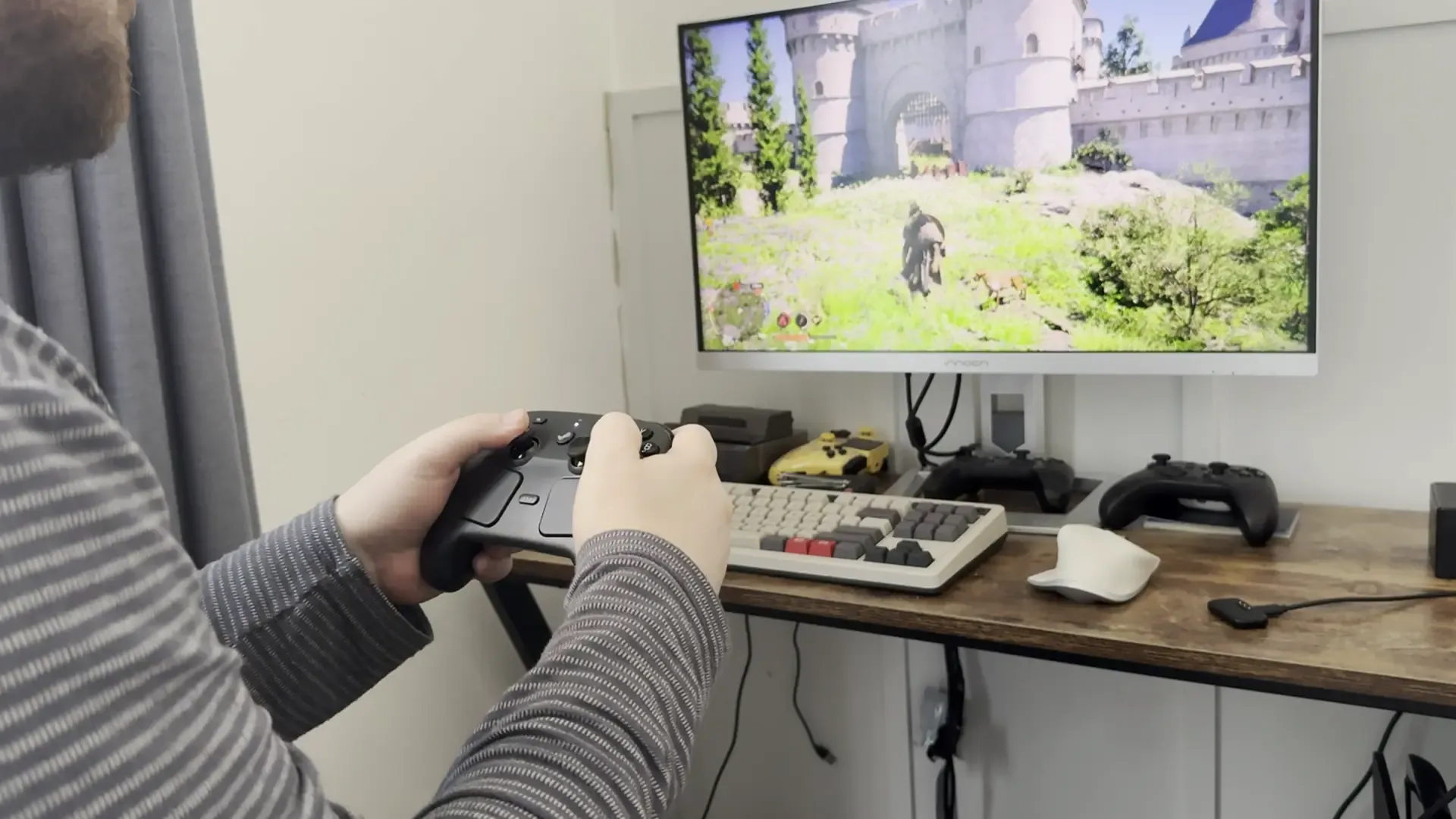
And of course, we can't forget the small easter eggs inside the controller, like dropping it to make it scream at you or using a community tool to make the haptics play music. These are small extras that shouldn't be a defining reason why you get the Steam Controller, but it's hard not to love it.
Connectivity and the Wireless Puck
We actually have three different ways to connect the controller to different devices. We have a direct wired connection, Bluetooth, and the wireless puck. Now, when all is said and done, I love this wireless puck. This acts like a pairing station, allowing us to connect up to four Steam Controllers to each one at a time. And once it’s all set up, all we have to do is plug in the puck to any computer, and there is no more setup that needs to be done. Your controller will automatically be recognized and usable. It makes sense when you think of it like a pairing station, but I still found it really cool that it was so easy to just unplug and re-plug into other computers and just start using it.
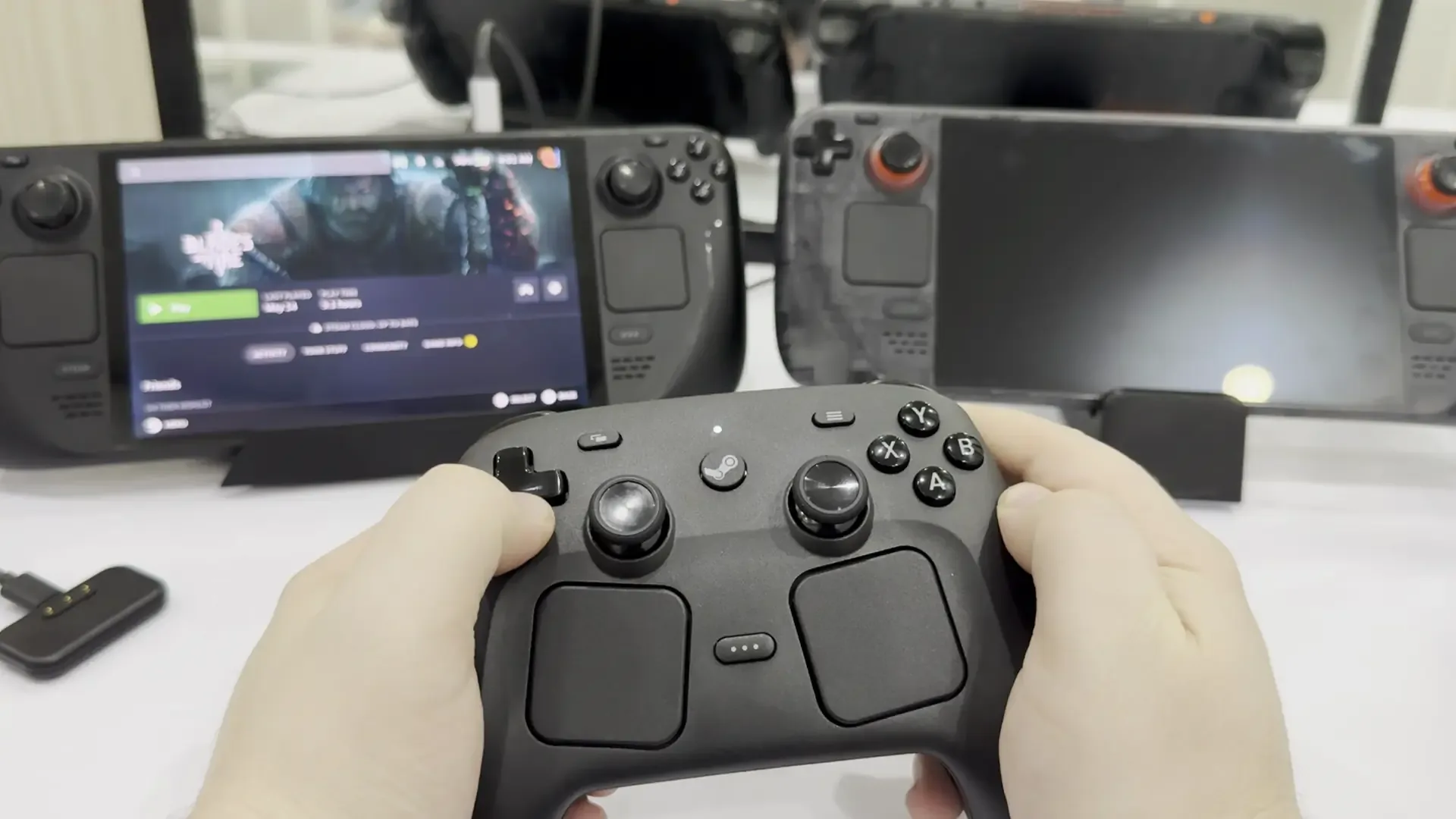
It also doesn’t get rid of saved connections from Bluetooth. I had connected the controller to my Steam Deck via Bluetooth, and I was able to go back and forth from the puck connection mode (Steam + A + RB) to the Bluetooth connection mode (Steam + B + RB), with both of them being saved. This means I can leave the puck connected to my PC, and just switch the Bluetooth mode whenever I want to use my Steam Deck. And I loved it.
The one criticism I want to make here is that the setup was a little annoying. I tried to set up the controller by only using my Steam Deck, and that’s when I learned that Bluetooth is not supported without an update. And to update the controller, you have to connect it directly to the computer. This is not a huge deal, since the controller appeals more to those who either use a desktop or dock their handhelds, but I was still surprised that I needed to update the controller to utilize Bluetooth.
Price
Now, let's talk about the price of this controller. The Steam Controller is $99 MSRP, costing more than most other controllers out there, including the PlayStation Dualsense ($74), Xbox Wireless Controller ($65), and Switch 2 Pro Controller ($89). When the price of the Steam Controller was first announced, even I was a little skeptical, but I knew I would get it anyway because it has all the inputs I could want.
Now, after using it, I would say the price is justified. The ergonomics, comfort, and wealth of features elevate this controller passed a lot of its competitors. But in the end, it all comes down to usability. The back buttons allow for extra inputs and macros, the gyro can help us fine-tune first-person shooters, and Steam Input's integration helps us customize the experience as we want. And while all of these are stuff we can find and use in other controllers, the trackpads are not. These allow us to play point-and-click games and control our desktop comfortably, making it feel like there's no need to use a keyboard and mouse for light browsing.
I haven't used any other controller that has all of these put together and feels as good to use, which is why I would say the price isn't too much.
Conclusion
At the end of the day, the Steam Controller is the perfect PC gamepad. It’s comfortable to hold, all the buttons are accessible, and it has every input that would be necessary to play every game released on the PC, even if they don’t actually have controller support. I love the design, and despite being a little on the bulky side, its quality feels unmatched. The biggest issue is going to be compatibility outside of Steam, but that doesn’t change how great this controller is to use for PC gaming and sets the standard for what I want to see with controllers on PC.
If you enjoyed this review, check out the rest of the content on SteamDeckHQ! We have a wide variety of game reviews and news that will help your gaming experience. Whether you're looking for news, tips and tutorials, game settings and reviews, or just want to stay up-to-date on the latest trends, we've got you covered!


RECENT NEWS
Categories
Accessories
Anbernic
Android
ASUS ROG Ally
ROG Xbox Ally
Classics on Deck
Community
Cryobyte33
Deals
Deck Mods
Emulation
Events
Featured Post
Game News
Game News
General Game News
HandheldHQ
Hardware
Lenovo
Linux
MagicX
MSI
Nintendo
ONE-NETBOOK
Opinion
Other Reviews
Accessory Reviews
Handheld Reviews
PlayStation
Proton
Retro Handhelds
Anbernic
AYANEO
AYN
GPD
MagicX
MANGMI
Miyoo
Retroid
Rumors
TrimUI
SDHQ
Steam
Steam Controller
Steam Frame
Steam Machine
SteamOS
The Unsupported Report
Uncategorized
Uncategorized
VR
Xbox
Recent Tips & GUIDES
recent reviews



Nice Review!
But comparing the price of this controller against base controllers instead of the proper "pro" controllers with enhanced functionality, (like the Dualsense Edge and Xbox Elite Controller) feels kind weird considering all the extra functions and buttons the Steam Controller has
I see you refer to them as symmetrical further down, so I suppose it is a typo in the beginning.
It was. I actually caught it earlier and thought it saved, but it’s possible it didn’t. It’s fixed now! Thank you for pointing it out.
I would call them symmetrical joysticks, not asymmetrical.
Nice review!
I don’t normally bother pointing out typos (they happen to everyone, sometimes), but I did want to point out that “And after all of a sudden and done” near the beginning should be “And after all is said & done”
Thank you! And I appreciate the comment. There are things we miss sometimes, so comments like this help a lot.