If you haven't yet, follow us on X (Twitter), Mastodon, or Bluesky to know when we post new articles, and join our Reddit or Subscribe to us on YouTube to check out our content and interact with our awesome community. Thank you for supporting us!
In my endless pursuit of optimizing games for the Steam Deck, there have been multiple tools. I’ve come across a way to help performance. While most of them are great, some of them have made me a little wary. One of the ones that keeps coming up whenever I look at optimization is called the Eclipse Mod. These are mods created by a user named Eclipse that can heavily optimize some of the hardest games to run. However, it’s all in Russian and posted primarily on Telegram. This has raised a lot of red flags for me, so it’s not something that I’ve covered in the past.
However, I decided to try it after seeing one of their mods released for Death Stranding 2. The results are undeniable; it actually makes the game playable in most circumstances. It’s not a perfect fit; there are still some pretty heavy drops, but the improvements are obvious.
So, I want to go over how to set this up for yourself if you decide to try it out and see the improvements on your own.
And just to reiterate, while our scans have not found any viruses, this is still a mod that is not being uploaded on more official channels like Nexusmods, so there is risk involved. Be mindful of this if you’re going to be trying it for yourself. This was also tested on the newest current version of Death Stranding 2 (1.0.48), and it may not work for future versions.
How To Set Up The Eclipse Mod For Death Stranding 2 On Steam Deck
Step 1:
Head to Desktop Mode and download the Eclipse mod onto your Steam Deck.
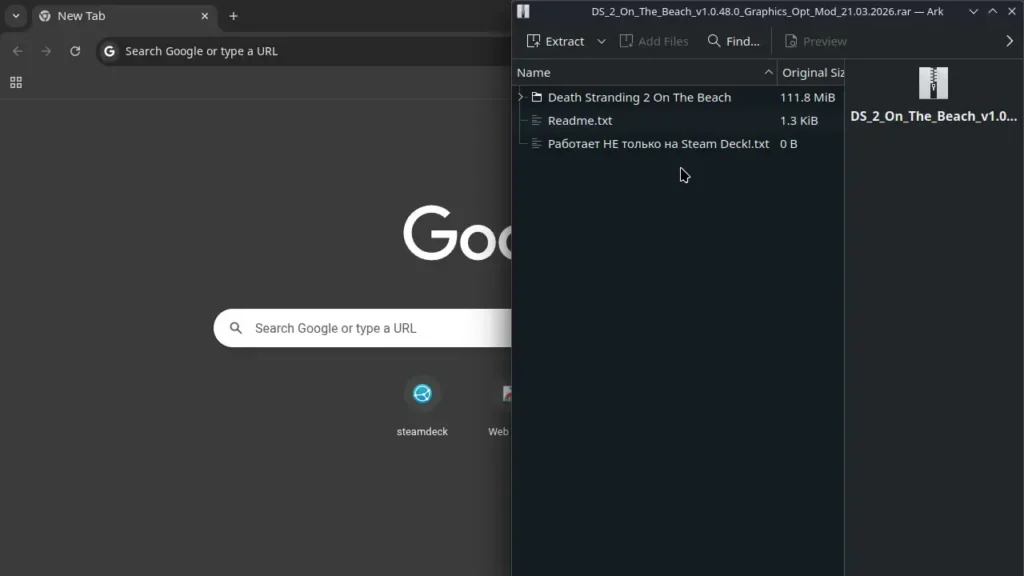
Step 2:
Go to your installation of Death Stranding 2. The easiest way to do this is by going into Steam and right-clicking on Death Stranding 2. An option should appear to "Browse Local Files", which will open up the local installation.
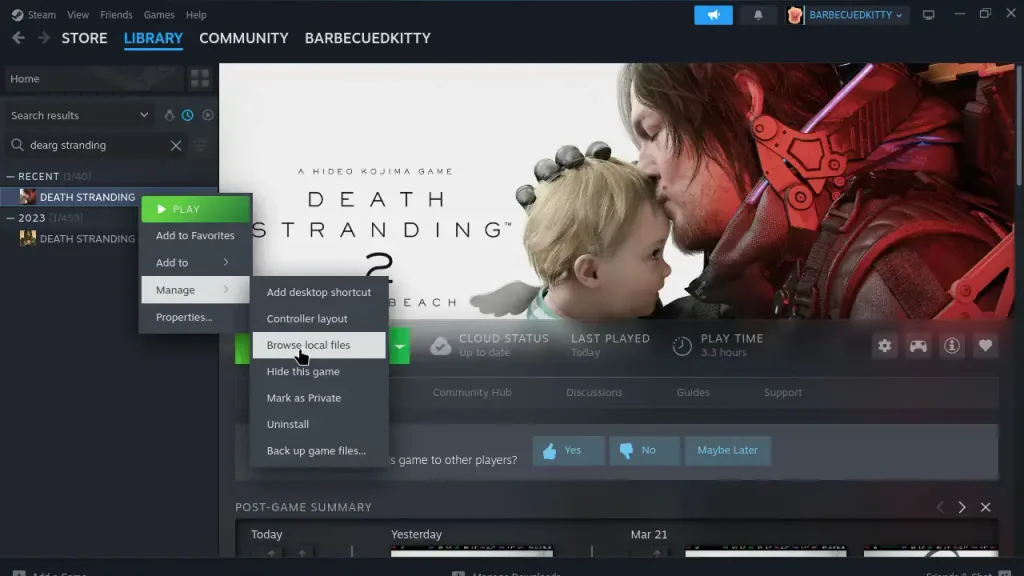
Step 3 (optional):
I recommend backing up the three files you will be replacing with this mod. This is optional because if anything happens, you can just delete the three files and reacquire them through the "Verify Game Files" option on Steam. So, if you plan to back up the files, make sure to move these three files into a folder on your Desktop:
- DS2.exe
- dstorage.dll
- dstoragecore.dll
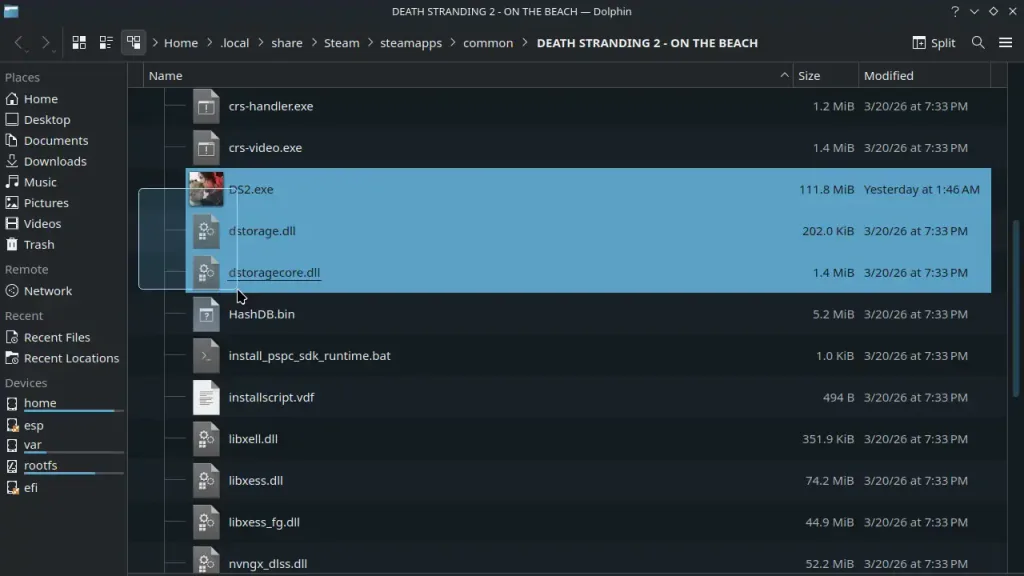
Step 4:
Delete or remove the original three files listed above and move the Eclipse Mod's files into the game's installation location.
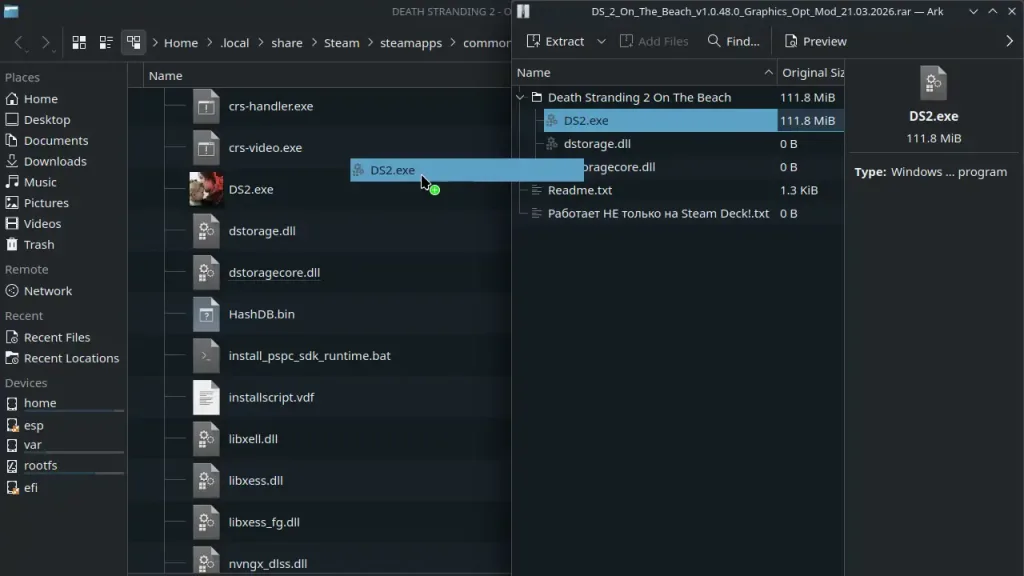
Step 5:
After that, go back to Steam and click on Death Stranding 2 and head to the game's properties.
Step 6:
From there, scroll down a little to find the "Launch Option" box. Copy and paste this into the box:
-job_background_thread_count=1 -job_thread_count=7 -run_async_compute_async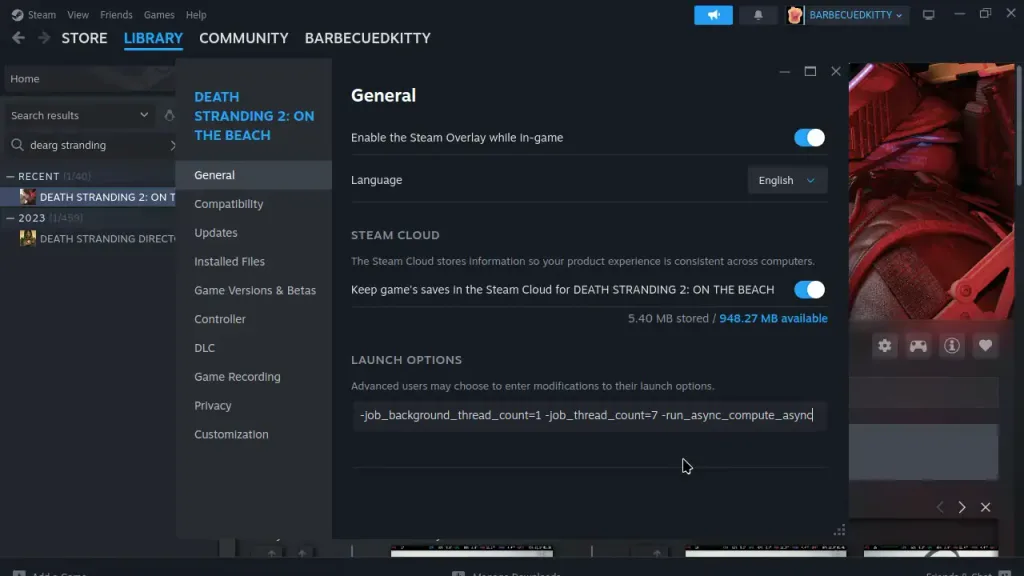
Step 7:
Close the window and head back into Game Mode. You should now be able to play and enjoy the game at higher framerates!
Now, you should immediately start seeing the framerate improvements. It isn't perfect, and there are still some spots that will fall below 30 FPS, but it's still going to be significantly better than before. If you want to see more details on the improvements and some recommendations, head to our other article where we go over the improvements and do some comparisons.
If you enjoyed this guide, check out the rest of the content on SteamDeckHQ! We have a wide variety of game reviews and news that will help your gaming experience. Whether you're looking for news, tips and tutorials, game settings and reviews, or just want to stay up-to-date on the latest trends, we've got you covered!