If you haven't yet, follow us on X (Twitter), Mastodon, or Bluesky to know when we post new articles, and join our Reddit or Subscribe to us on YouTube to check out our content and interact with our awesome community. Thank you for supporting us!
The Razer Kishi V3 Pro was provided by Razer for review. Thank you!
I will admit, using a telescopic controller on my phone to play games is not something I would have ever felt the desire to try, and I wasn’t sure I would even slightly enjoy it. I have seen pictures and videos of others using similar products, and it always looked awkward to me. But, after using the Razer Kishi V3 Pro, I can see why others have taken the leap and bought it for themselves.
With the rise of mobile gaming and titles like Resident Evil 2 and Vampire Survivors being ported over to mobile platforms, controllers like the Kishi are becoming way more prominent and useful. With how expensive handhelds are getting, being able to turn a smartphone into a viable gaming device is still a great way to play games, and the Kishi enhances the experience monumentally.
Build Quality and Design
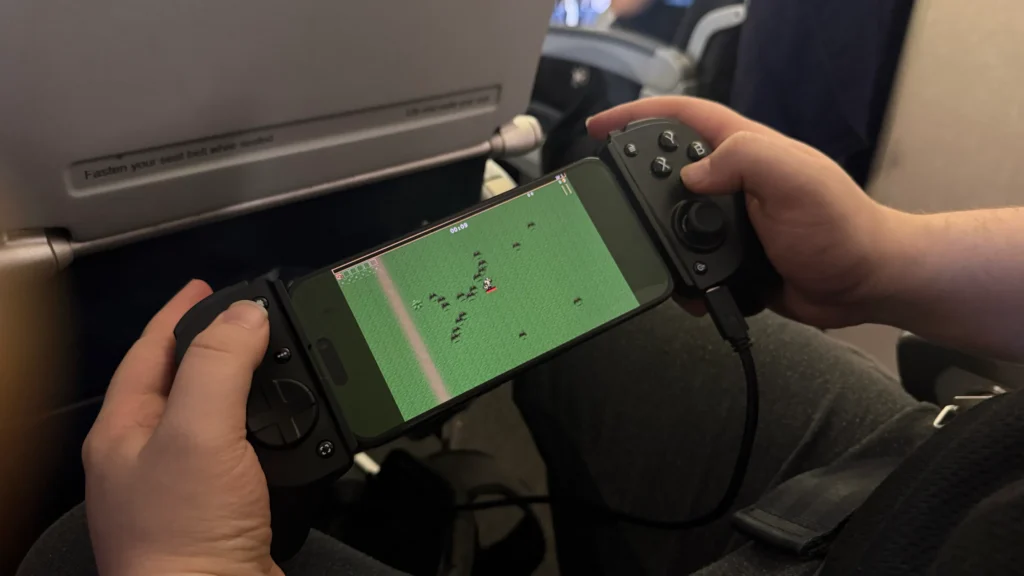
There were a lot of things that shocked me about this controller, but let’s start off talking about the design. The Razer Kishi is geared towards mobile phones, so it features a giant emptiness in the middle, directly where the phone will sit when in use. It’s designed for us to plug in and put the controller on both of its sides, so it acts as a screen in the middle of the controller. It’s unlike any controller I would typically use, but it’s way more comfortable than I expected.
The handles are a bit bulky, but my hands wrap perfectly around them. The handles have a texture that makes them rougher than the rest of the controller, which makes it easier to hold onto and grip. And despite the bulkiness, my fingers rest almost perfectly on every single button. And because of the extra USB-C port at the bottom, charging the phone is possible without having it get in the way of play sessions. It’s in a perfect spot that stays away from where our hands would be and doesn't influence the movement of our gaming sessions.
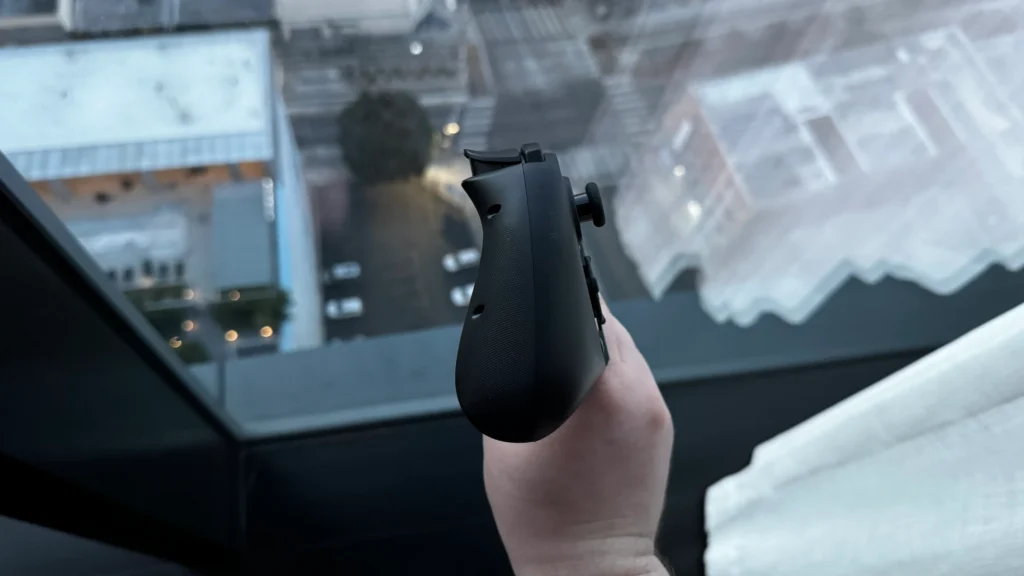
Usually, I’m not a fan of digital buttons, but there’s enough depth to each one that I don’t mind as much. The action buttons, d-pad, L4 and R4, and two back buttons immediately feel digital when pressing them down. But there’s enough depth to their utilization that it doesn’t bother me as much. It might just be the sound that gives me a digital vibe, but they feel great to push down.
I was also quite surprised by the weight. The Razer Kishi is extremely light, more than I would’ve expected. It makes sense, since it’s not a regular controller with a battery and tons of special internal features. This makes it quite comfortable to use when the phone is attached. It obviously becomes heavier with the phone attached, because of the weight of the phone, but it stays very comfortable to use.
Speaking of which, the Kishi still feels solid when the phone is attached. I was worried it would wiggle around a lot when the phone is attached, since it’s really only connected by a USB-C and the sides of the controller pushing into the phone. There’s a good amount of force that comes from the controller, since it expands sideways to accommodate different phone sizes. The force isn’t too powerful to damage the phone, but it’s enough to hold it in place, and it works extremely well. The weight isn’t too bad either, feeling around the same as a Steam Deck when my iPhone 15 Pro Max is attached.
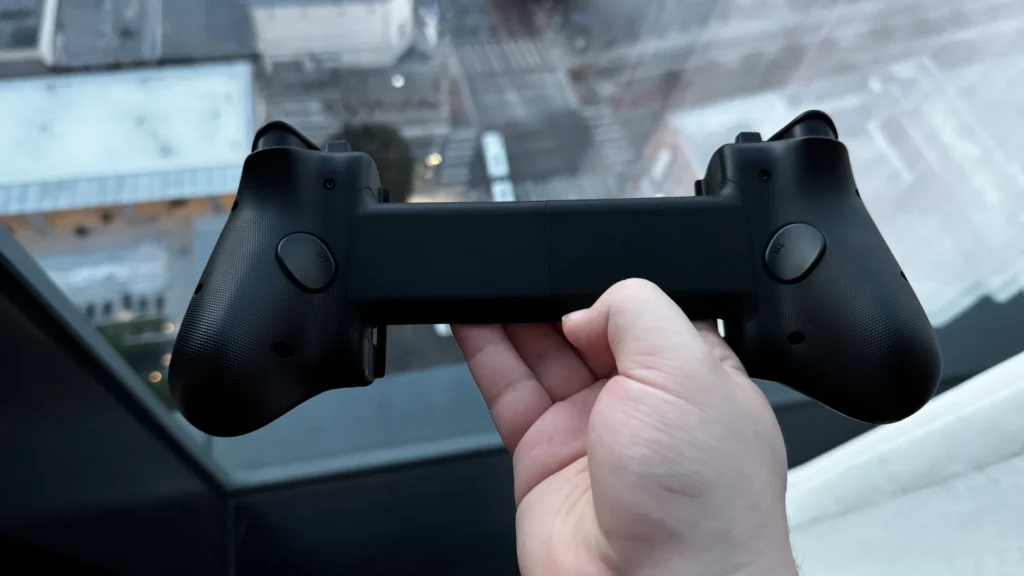
However, the Kishi isn’t super compatible with cases. Unless your case is on the thinner side, any thicker case is going to need to be taken off to use the controller. With a thicker case for protection, so it can be a little annoying having to take it off each time a gameplay session is on the horizon.
Usability
Another big thing I was surprised by is how easy it is to just use the controller. Once it’s plugged in, you’re good to go. All I had to do was plug in my phone, and games would automatically recognize the controller without any issue. Of course, the ease of using this is going to depend on the game and phone, but it’s amazing when it just works. Resident Evil 2 and Wuthering Waves, as well as streaming services like Xbox Game Pass, all automatically recognize the controller, so I didn’t have to configure anything, which is great because the Kishi is perfect for games like this.
Using it with games that have this automatic controller recognition is wonderful, and it elevates the experience of just playing on the phone. Coupled with the Share button, which you can double-press to take screenshots and hold down to record video, it was a nice all-in-one tool to play games and capture moments. The Share button doesn’t work without the Razer Nexus app installed, but it works well.
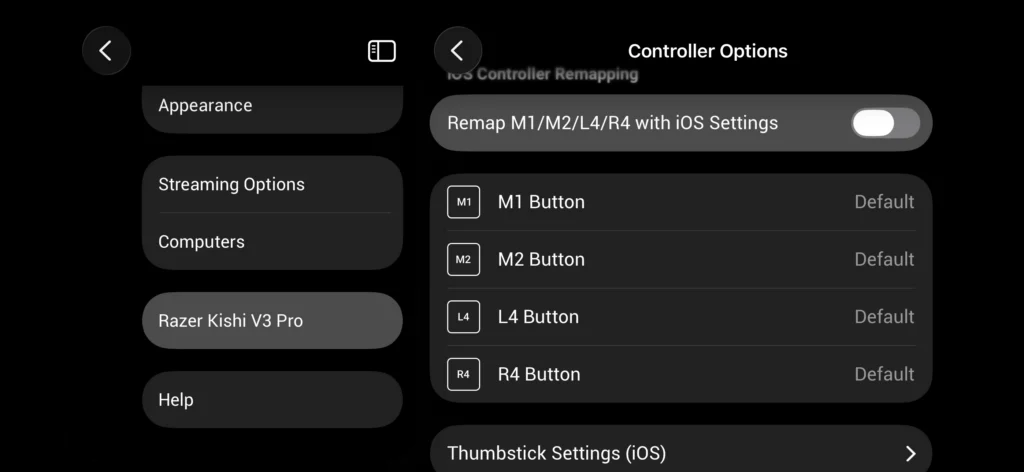
Speaking of which, while the basic controller works without the app, there are some pretty key features missing if you don’t have it downloaded. Things like the Share button, adjusting settings, or setting macros for the back buttons will need Nexus installed. It’s nice that the basic controller can work without the app, but I do wish more of the functionality was tied to the controller directly than requiring yet another app to take full advantage of it.
The Nexus App and Gaming Experience
To easily navigate through all of the games and apps that you may use this for, Razer has built a gaming front-end, the Razer Nexus app.
The app acts like a hub, logging all of the games that you have, along with game and streaming recommendations, in one accessible spot that can be navigated entirely by the controller. Before, I was worried that I would have to use my finger to swipe around and find the games to play, but this makes it significantly easier to just pick up and keep playing. The Kishi has a dedicated button that can bring you to the app no matter where you are, so as soon as the controller is connected, your finger never has to touch the screen.
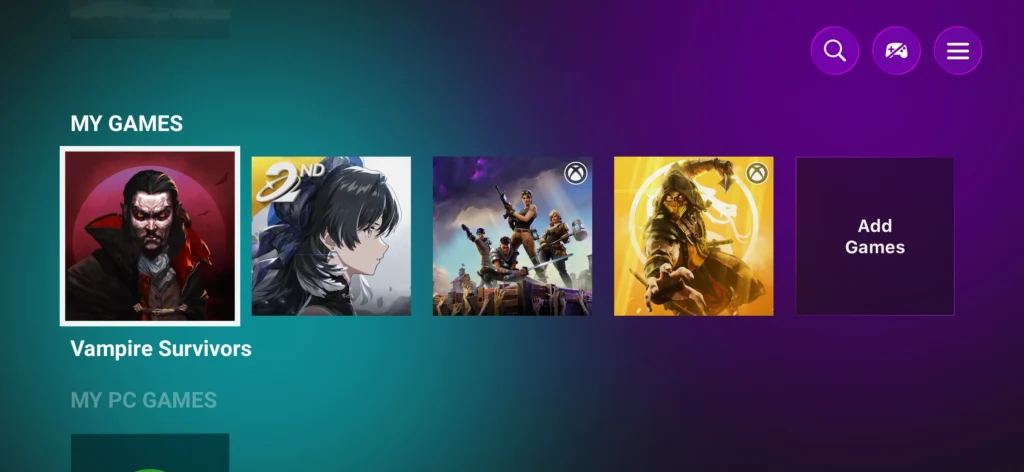
Again, I appreciate how the Nexus app recommends games and streaming options that support the controller. One of the big things I was worried about when receiving the Kishi was finding games easily that support the controller. The Nexus app makes it much easier. And while some games need some changes to work well, like having to force Vampire Survivors into landscape mode using the settings menu in-game, most of the issues come from the games themselves and not the controller.
It’s relatively easy to add games to the app as well. The Kishi has a dedicated button to press whenever you are in another app, and it will automatically add it to the Nexus. As much as it would be nice for it to automatically do it, I understand why it has a little bit of a workaround because of the phone itself. The Nexus app will also include the options to customize our controller, including configuring the macro buttons on the back of it, adjusting trigger behavior, and changing polling rate, which can go up to 4000 Hz on phones. They’re also specific settings for both mobile and PC controls, in case you connect to the PC via Razer Cortex.
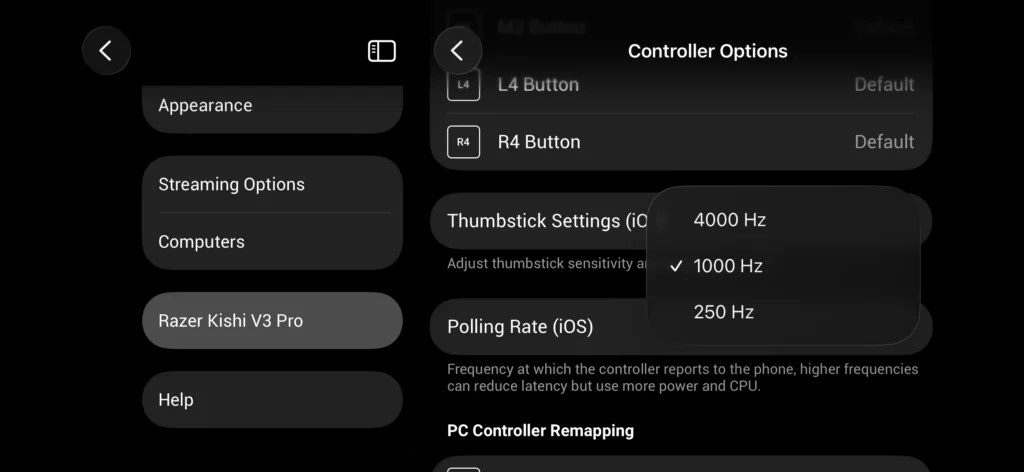
However, there are a few things keeping me from loving the Nexus app. While it works well to find games that support the controller, as well as access streaming services with some individual entries for specific games, there’s little to no organization. We can see the games we have played recently, and there are some specific categories like “Hot on Xbox” and Apple Arcade, and we can specifically favorite games, but that’s about it. I would’ve loved to see more ways to customize, like creating custom lists or folders.
On top of that, Nexus doesn’t completely recognize if a game is installed. It should automatically boot games in the My Games section, but if you find that same game in one of the pre-made lists, it will not recognize it’s already installed and bring you to a store page to get it. It’s not the end of the world, but if you have a lot of games installed and you find them this way, it’s an extra step.
While I do find it handy, Razer Nexus isn’t required to use the controller. If we press the Home button in the top left, it will bring us to Apple’s own Games app, which works perfectly with a controller and is completely functional. I like the layout of the Games app more than Nexus, but I still recommend getting Nexus to be able to change settings as needed. I end up utilizing both, and since they are both very interactive with the press of a button, it didn’t feel like a chore.
I do appreciate that there are specific settings for when connecting to a PC, which needs the Razer Nexus app on the phone and Cortex on the computer. Being able to set an individual polling rate and macros just for PC connectivity is a nice bonus. I can’t say it’s something I found myself using a lot, mostly because I have other handhelds that are PCs, but it works swimmingly when streaming through online-based platforms like Xbox Cloud and Steam Link.
Conclusion
I’m someone who prefers gaming on PC devices, including handheld PCs, but the Razer Kishi V3 Pro surprised me. Its comfortable, lightweight design and how easy it is to use made gaming on my phone feel significantly better than ever before. I hope more games come to mobile and fully support controllers, because the Razer Kishi is by far the best way to get a true gaming experience with a smartphone.
If you enjoyed this article, check out the rest of the content on SteamDeckHQ! We have a wide variety of game reviews and news that will help your gaming experience. Whether you're looking for news, tips and tutorials, game settings and reviews, or just want to stay up-to-date on the latest trends, we've got you covered!

RECENT NEWS
Categories
Accessories
Anbernic
Android
ASUS ROG Ally
ROG Xbox Ally
Classics on Deck
Community
Cryobyte33
Deals
Deck Mods
Emulation
Events
Featured Post
Game News
Game News
General Game News
HandheldHQ
Hardware
Lenovo
Linux
MagicX
Nintendo
ONE-NETBOOK
Opinion
Other Reviews
Accessory Reviews
Handheld Reviews
PlayStation
Proton
Retro Handhelds
Anbernic
AYANEO
AYN
GPD
MagicX
MANGMI
Miyoo
Retroid
Rumors
TrimUI
SDHQ
Steam
Steam Controller
Steam Frame
Steam Machine
SteamOS
The Unsupported Report
Uncategorized
Uncategorized
VR
Recent Tips & GUIDES
recent reviews