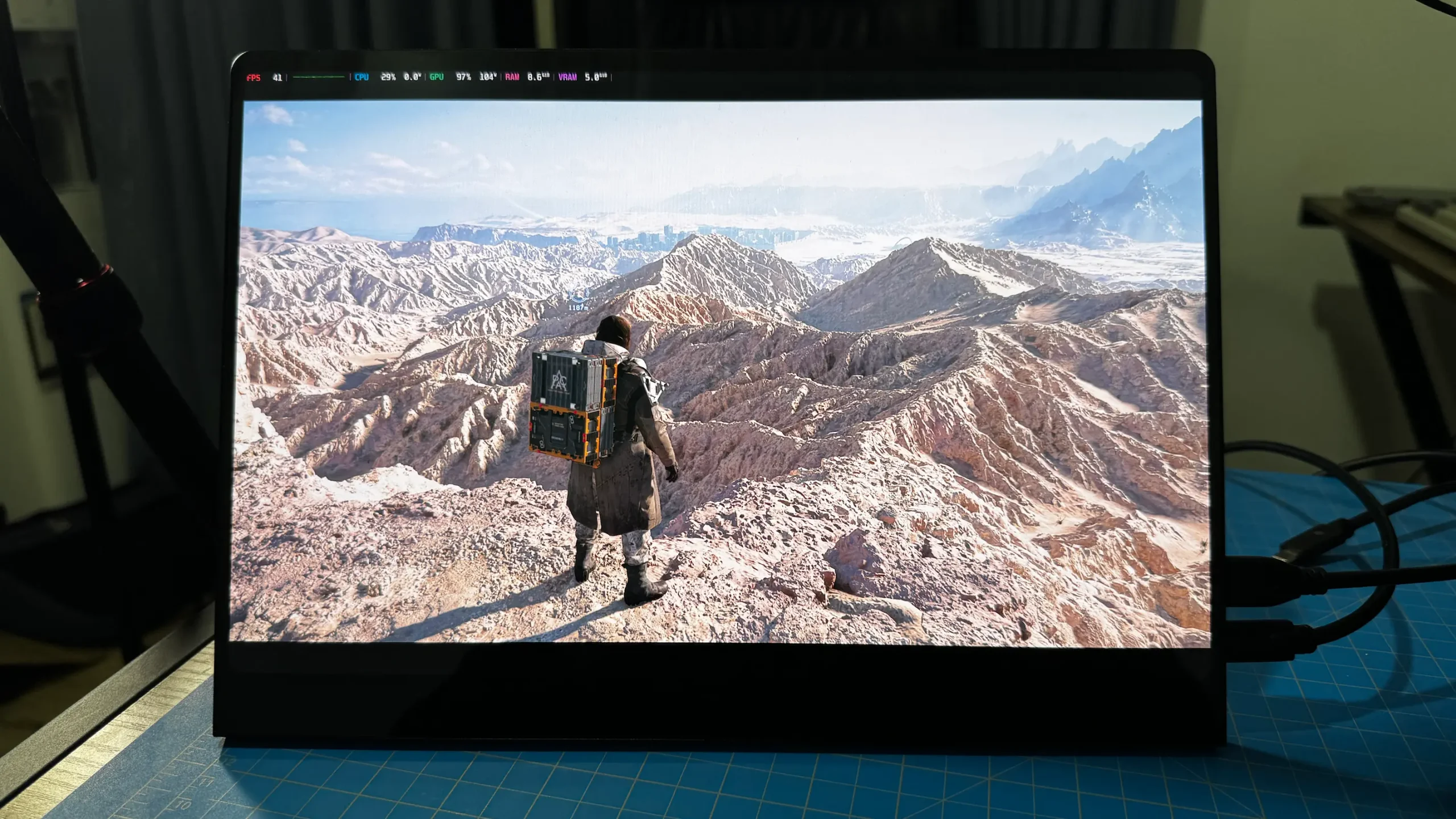
The xbx a01+ was provided by XREAL for review. Thank you!
Ever since the announcement of the Steam Frame, I have been looking for ways to enhance my gaming experience. There are so many different ways to do it, whether it's a Steam Machine-esque PC for gaming in the living room, a VR headset for immersive experiences, or even speakers that can blast game audio with full bass so I can really feel it. However, I want to talk about a very different experience I’ve had the pleasure of trying out lately: AR glasses.
With these glasses, I can plug into my devices, and it will project the screen right in front of me. It’s an incredible experience, one that has made it easy to just pick up the Steam Deck, lie down on my bed, and put on glasses to project the game I’m playing onto the ceiling, making it feel like I’m in a private movie theater. And with that in mind, I want to talk about the xbx a01+, a new budget-friendly pair of glasses from XREAL, and why I have started to fall in love with XR glasses like this.
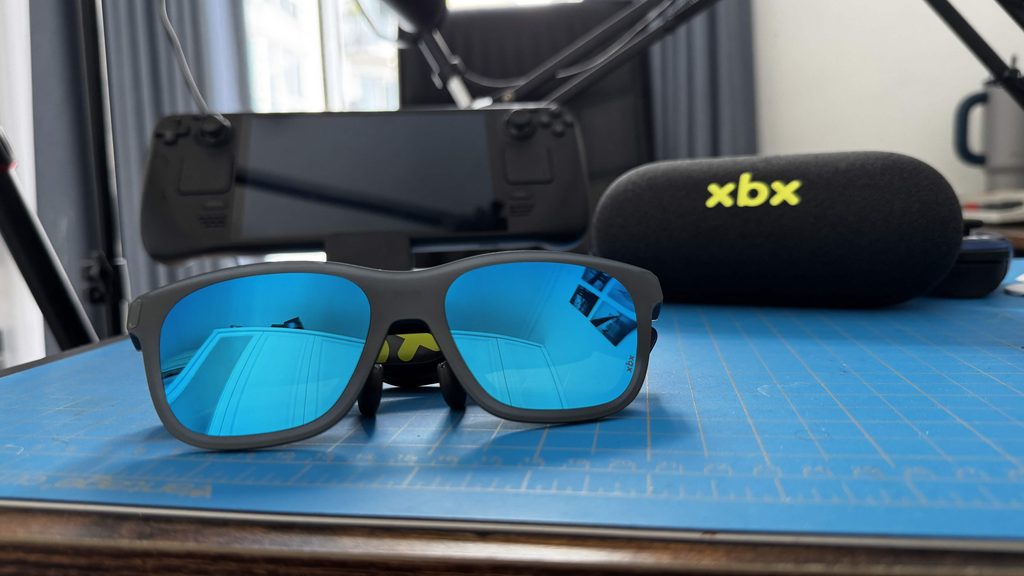
Build Quality and Design
With glasses that sit on my head, there are a few things that I look at to make sure I will be comfortably using them. It needs to have great build quality with a light frame to ensure comfort when sitting on my head, and that’s the first part of what shocked me with the xbx.
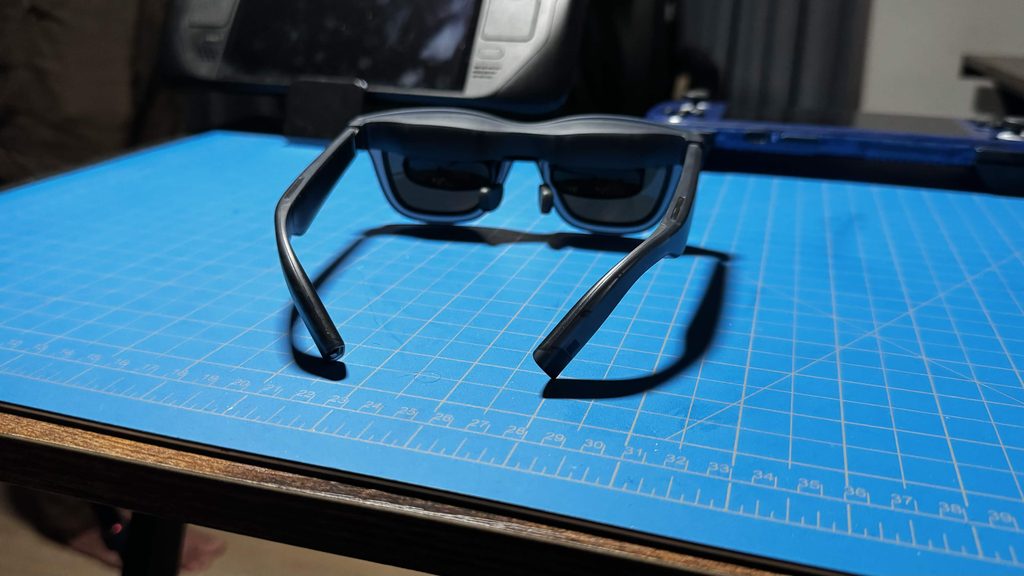
It’s extremely lightweight, something that astounded me a bit when I first picked it up. I do wear prescription glasses, so I am used to having them on my head, but I expected these AR glasses to be a bit heavier. I have used some in the past, but they are definitely heavier than this one. The xbx are only around 62g, which feels great on my ears. It’s about three times heavier than the glasses I wear now, which may not sound like a lot, but it makes a difference when it gets over the 100g mark, which this doesn’t. The weight can be reduced even further by taking off the front frame, but it’s minuscule and not a reason that I would take it off. Still, the fact that it felt so light helped with comfort for longer play sessions, and it did make a difference.
The weight is fantastic, but the arms can make the glasses feel a little tight sometimes. There have been times when, when I use glasses, they don’t actually sit on my ears, but the arms are so tight that they hold in place right above my ears because of the force pushing them together. I had to adjust the position a couple of times, and it was uncomfortable at first, but I did get used to it.
Otherwise, the casing is pretty solid. The front frame felt a little thin and flimsy, but the casing around the lenses and arms of the glasses felt solid and smooth. It’s very clearly plastic, but it does feel like it has some quality to it, especially around the arms. I wouldn’t say I have the confidence to drop it on the ground and know it’ll still work perfectly fine, but it’s nice to hold and wear.
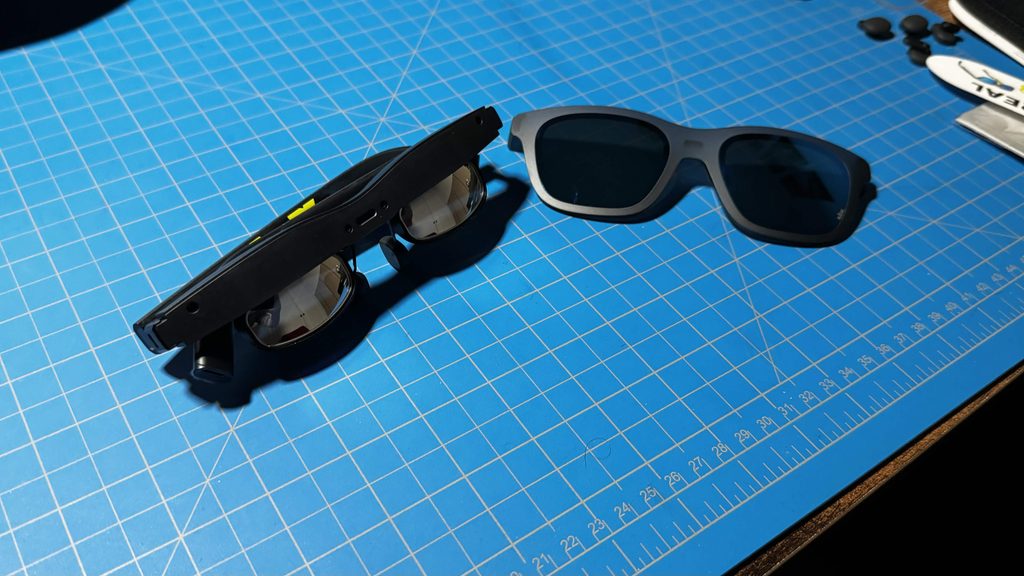
I also love the aesthetic and design choices they made with that front cover. I already do like the default design choice, and the lime green text with the gray plastic looks nice. However, because the front cover can be removed, we actually have the ability to make our own or buy different ones to customize the look. It’s completely interchangeable, and XREAL has provided 3D print files to create our own with a 3D printer. I’ve seen some really crazy designs so far, and because the screen is digital, it doesn’t really matter what could be blocking in front of the glasses (unless you’re trying to move around). The ability to have personal designs like that is pretty incredible, and it should just snap on if printed correctly.
The heat was also a bit surprising for me. I expected the glasses to get a little hot, but they only really got hot on the left arm near where the USB-C port and speaker are. It starts to get a little too hot to touch, but because of the design of the glasses, the part that heats up does not touch your head. I’m glad they did this, because it would have been very uncomfortable if the heat had been against my head the whole time. I also noticed areas above the lenses that got a little hot, but nowhere near as bad as the left arm. However, if you keep your glasses up as close to your face as I usually do, you may start to feel heat in the middle of the glasses touching your head, which can be uncomfortable in longer sessions.
But one thing that didn’t disappoint was the display itself. The gorgeous OLED panels make the screen look absolutely incredible. The colors pop, thanks to being able to cover 145% of the sRGB gamut and having a 2,000,000:1 contrast ratio. It was beautiful playing games through that display, and I found myself consistently playing for longer periods of time than I planned to.
アクセサリー
The xbx a01+ comes with a few external accessories on top of the glasses. We have three different sets of nose pads, a light shield, the glasses case, and a lime green USB-C cable. The nose pads are going to be extremely important, since they’re going to change where the glasses sit on your face. One of my biggest issues with previous glasses was the fact that whenever I would put the glasses in a comfortable position, the bottom of the screen would start to disappear, and I would see too much of the top of the screen. However, using the correct nose pads can make a huge difference, and as soon as I put the small ones on, I could see the entire screen comfortably.
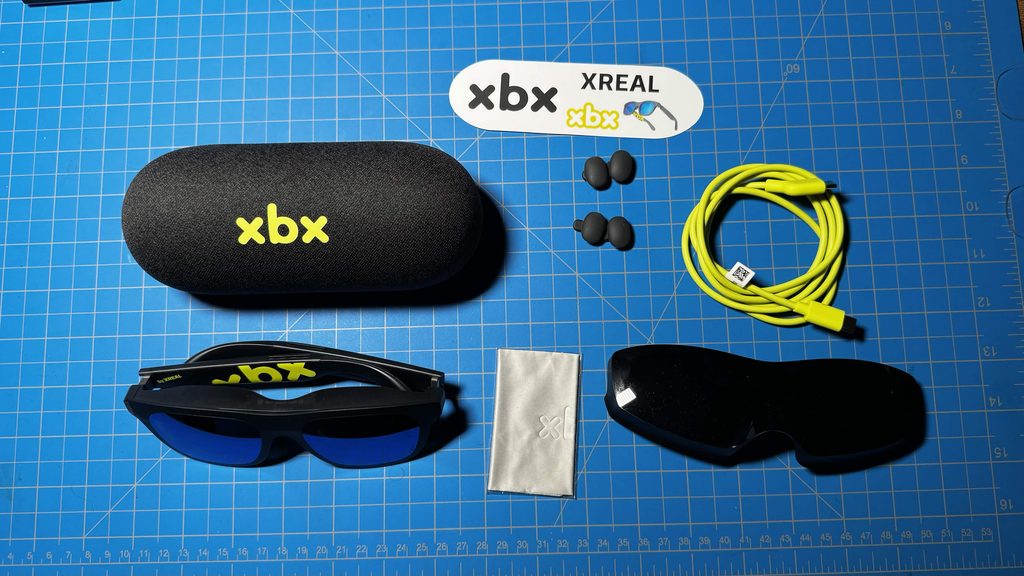
The xbx also comes with a light shield, which replaces the front cover. While the default front cover filter filters out some light, it still makes the background very visible. However, the light shield completely eliminates light coming in from the front. It works extremely well and makes it especially easy to see the screen. It worked perfectly, even when light was directly shown on my face; the screen was completely visible.
And if someone uses prescription glasses, we can purchase prescription lenses to use with the xbx a01+. These fit in easily next to the nose pads and make it so I can see the screen clearly. If you use prescription glasses at all to see clearly, you will need some sort of lenses like this to make everything out. However, after taking them out and putting them in a few times, I noticed they became a little bit flimsy. While the lenses could stay in the glasses if I didn’t touch them too much, I know that they were really easy to pop out afterward. I assume if these glasses are for an individual, you won’t be changing out the lenses too much. However, if you are showing it off to multiple people, just be aware that taking them out and putting them back in may result in them not being as secure as they were.
Features
One of the things I love about these kinds of glasses is just how easy they are to use with all types of devices. It’s as simple as plugging in and playing, and I love it. It was immediately recognized by my Steam Deck, Odin 3, and ROG Xbox Ally X, as well as my phone, which mirrors the screen on my iPhone 15 Pro Max. I can see this being a great way to watch some movies on a plane from the phone that have been downloaded.
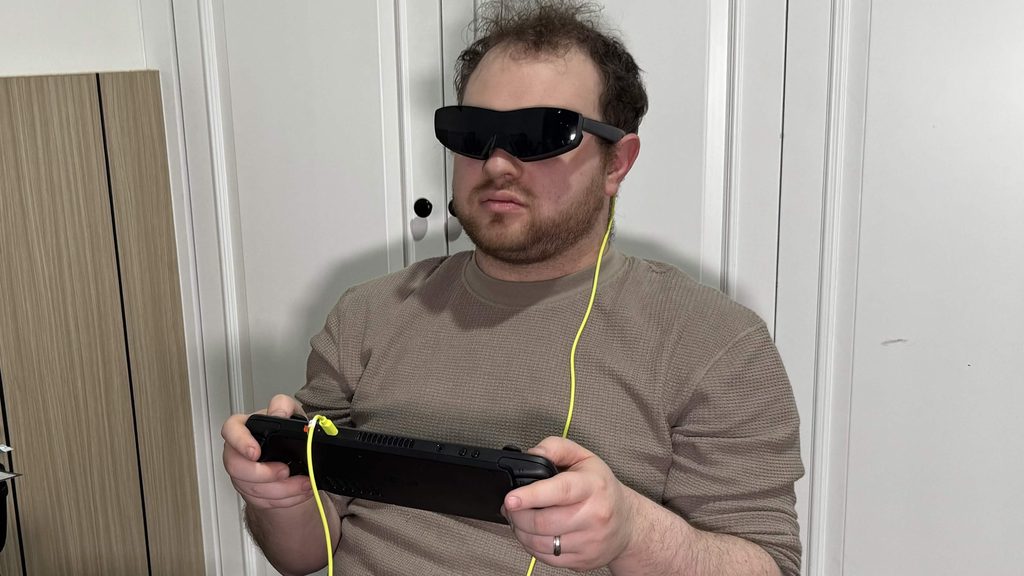
And with how easy the xbx a01+ is to just plug and play, there are a good chunk of features to enhance our experience, both visually and through its audio. With its visuals, we can choose between three different display modes: Standard, Cinema, and Eye Comfort. Standard just shows the usual screen and colors, while Eye Comfort reduces some of the blue light to not strain our eyes as much, which is something I use all the time since my eyes already need prescription glasses.
We also have options for HDR, and this is pretty interesting. There’s a default SDR mode, which is pretty much the norm, but we have two HDR modes: AI-HDR and HDR10. HDR10 is a more common version of HDR that we’ve heard of and is specifically for content that supports the HDR10 format. AI-HDR, however, is a version that uses some form of automatic enhancement. It supports the same 8-bit color depth as SDR and can give us a similar feel to actual HDR. This was a mixed bag for me, since I felt it made the colors a little bit too vibrant when I was playing Wuthering Waves on my Odin 3. However, it felt way more appropriately balanced playing Resident Evil Requiem through the Steam Deck and actually improved the image quality instead of making it feel like the contrast value was pumped up dramatically. So, it will be a case-by-case basis, but for PC gaming through the Steam Deck, it was great.
There’s also a 3D mode to watch specific stereoscopic 3D videos in. It’s a cool concept, but the application isn’t amazing. It does work with those specific videos, but it was still very obvious. I was watching in 2D, and it didn’t give me that 3D amazement. I could also tell that there was a reduction in quality in each of the multiple different videos I watched compared to what was being shown on screen. It’s a nice idea, but not one that I see myself utilizing.
We also have a few different audio modes to change up and enhance our experience: Standard, Cinema, Whisper, and Surround. Standard is the one that I preferred most of the time, since it offered a good, clear, crisp sound that I was satisfied with. Cinema mode was solid for movies and games with voice acting, which would be my second favorite. However, Whisper mode felt unnecessary. It’s nice that they offer an audio mode when you need to be quiet, but I felt it was just as effective to stay on Standard and turn down the volume. That way, we got clearer audio that is just quieter. Surround was a mixed bag for me, and I ultimately didn’t use it much since I preferred Standard or Cinema.

There’s also an option for Stabilization, which aims to reduce slight head-movement jitter to keep the image still and reduce dizziness. Now, this is a great feature if you’re on a plane or sitting down watching a movie and you wanna keep the images as still as possible, but I did not like using it. The slight blurriness from slight movement, as well as the fact that sometimes moving can cut off the image as it gets back into your line of sight, was more of a headache than just those slight jitters. It’s a cool concept, and I can see it working in some scenarios, but it's not something I would want to use again.
The Steam Deck Experience
Now, playing games through the xbx a01+ is a wonderful experience, and once everything is set up correctly with the nose pads, it’s so easy to just plug it in and play. This is true on the Steam Deck, and it was so easy to just get started and keep playing. The fact that there really isn’t any extra setup beyond plugging it in to start using it makes this kind of product way more accessible to way more people; that’s great. However, there are a few things to keep in mind when actually playing games on it.
I primarily used these glasses with the Steam Deck, and it’s important to keep in mind that there are generally two ways to play games using the glasses, each with its own compromise. Because of the new updates, the Steam Deck defaults to 1280x720 resolution, but the xbx a01+ display is 1920x1080. So, if you play at 720p, your image may look a little bit blurry or pixelated. The game is still blown up to the entire screen of the glasses, but it’s very obvious that the resolution is lower than it should be.


Resident Evil Requiem on xbx a01+ 720p (left) vs 1080p (right)
The other option is to allow it to play at 1080p, which looks significantly better, but game performance is going to drop. This is pretty normal since we’re rendering at a higher resolution, but it’s important to note regardless.
Personally, I prefer playing at 720p and maintaining performance levels comparable to the native Steam Deck screen. It would be nice to play at 1080p, but the performance drops will make playing more intensive titles, like Resident Evil Requiem and Cyberpunk 2077, a worse experience overall. There may be a bit of blur or pixelation at 720p, but performance is stable.
With the glasses powered by an external device, we do see an impact on the Steam Deck. With the same settings at the same 720p resolution, we can see that the battery drains around 1.5-2W higher when the xbx is connected. The Cyberpunk scene goes from 21.5W to 23W, while Dungeons and Degenerate Gamblers goes from 5.9W to 7.1W. So, we are going to have lower battery life on average while using the xbx with the Steam Deck or any handheld device.
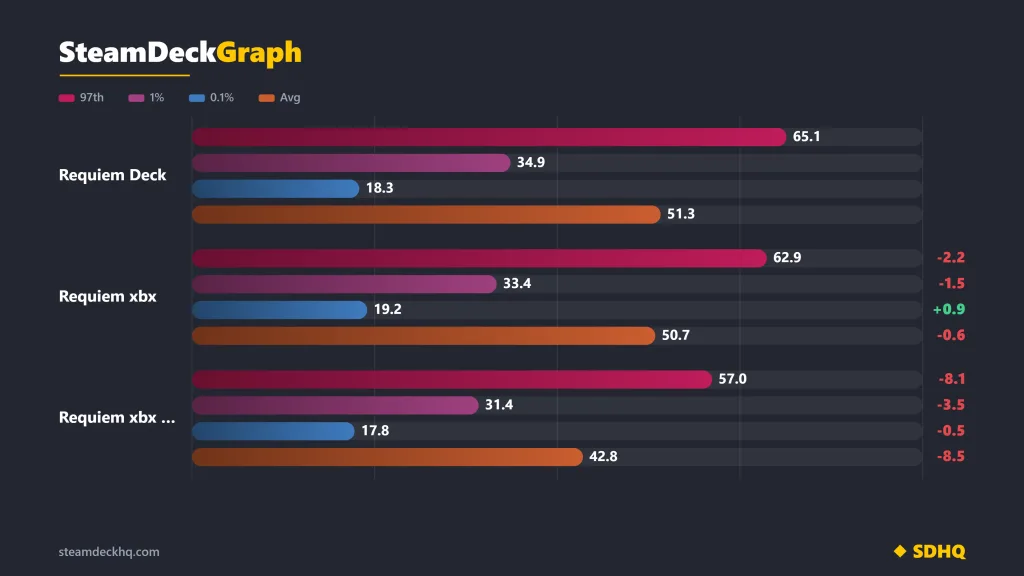
And it starts to show when looking at the raw performance data. In Resident Evil Requiem, we can see reductions across the board by a minor degree, with a slightly higher 0.1% low. It’s not a huge difference, but it is a difference that does result in slightly lower performance. This is reduced even further when trying to play the game at the 1080p resolution for a clear image.
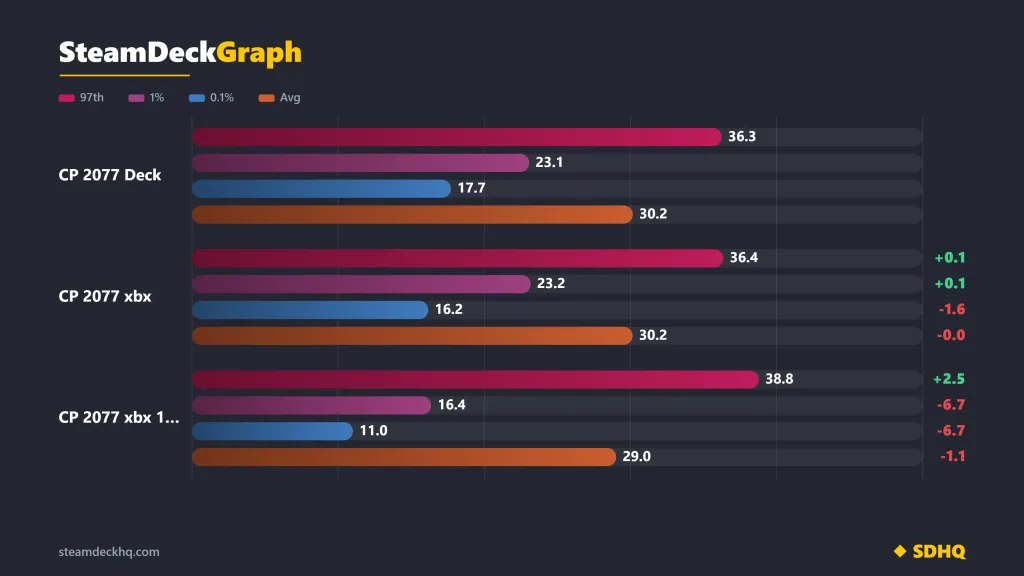
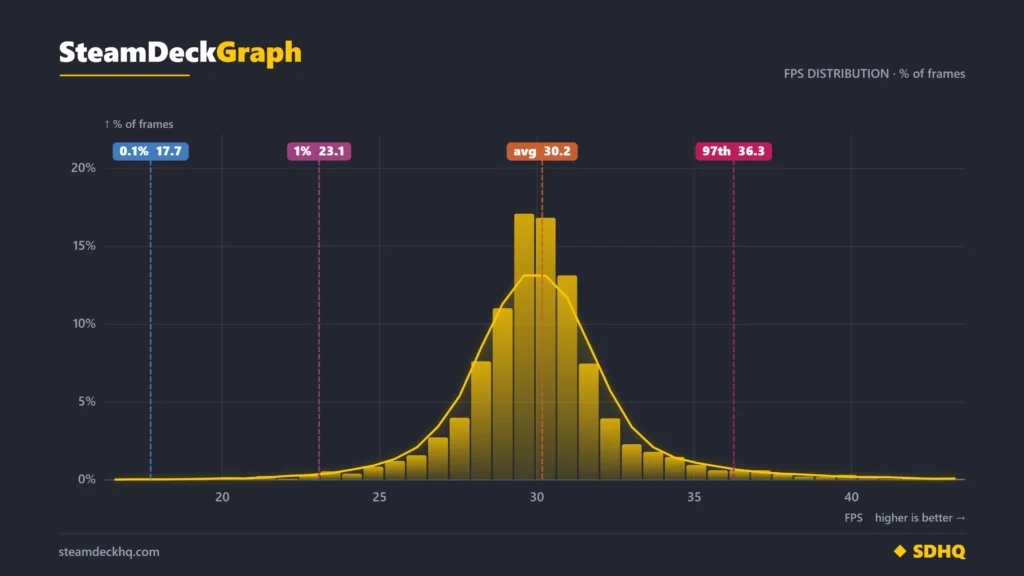
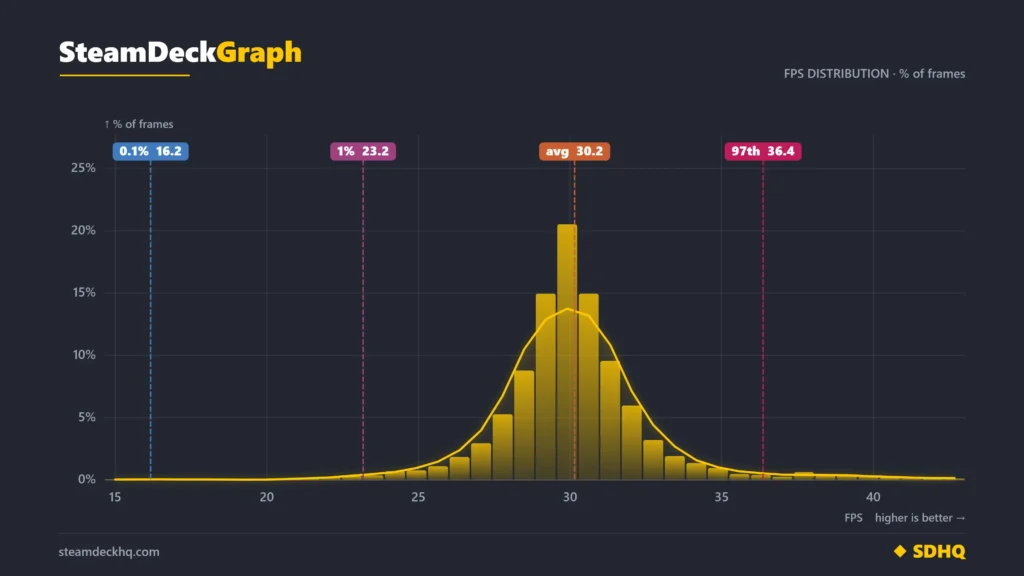
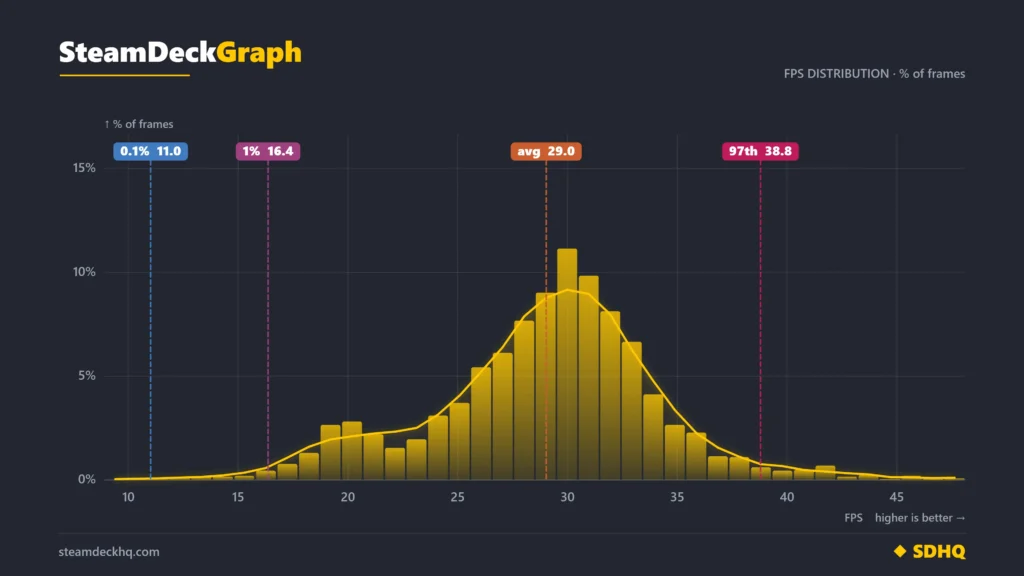
This is similar to Cyberpunk 2077, but the results for the Deck and xbx at 720p are almost identical, apart from the 0.1% low. This corresponds with their frame rate distribution graph, which is nearly identical. However, we can see that the xbx at 1080p shows some weird variables, with a similar average framerate to 720p. This is odd, but it can be explained by looking at the distribution graph. The average framerate can be easily swayed by very good or very bad variables, and that’s exactly what happened here.
As we can see, the xbx at 1080p had higher frame rates than 720p, which skewed it higher. But as we can see, the game had way more low framerate moments as well. This can also be accurately seen with its lower 1% and 0.1% lows. So, while there were a few more moments that had a higher frame rate, there were many more that had a lower frame rate, which made it a worse experience overall.
However, the trade-off for all of this is a significantly larger screen that follows wherever our head goes. We can lie down on the bed and look up at the ceiling and see a giant, gorgeous OLED display of the game in front of us. It’s not something I would play the most intensive games on, and the blown-up 720p resolution is more noticeable in some games than others, but I can easily see myself getting lost in the games I’m playing. I can even say I did a few times; I had a hard time stopping myself from continuing Vampire Crawlers this way.
結論
Ultimately, it’s hard not to see the value in XREAL’s xbx a01+. The display is incredible; it’s got a great set of features, and it’s so easy to just plug and play. The extras that come with it not only can make using them more comfortable, but also customize the glasses the way we want to, and I just love that light blocker. Some of the features are a bit of a mess, and I can’t see myself using Stabilization or 3D modes, but I really do appreciate the “eye care” blue light blocker. At the end of the day, for under $300, it’s a fantastic pairing for Steam Decks, handheld PCs, and phones, elevating the experience in a fresh way.
The XREAL links above are using an affiliate link, which gives us a little back from sales at no extra charge to you. All proceeds go back into SDHQ and its development.
If you enjoyed this review, check out the rest of the content on SteamDeckHQ! We have a wide variety of game reviews and news that will help your gaming experience. Whether you're looking for news, tips and tutorials, game settings and reviews, or just want to stay up-to-date on the latest trends, we've got you covered!

最近のニュース
カテゴリー
Accessories
Anbernic
Android
ASUS ROG Ally
ROG Xbox Ally
Classics on Deck
Community
Cryobyte33
Deals
Deck Mods
Emulation
Events
Featured Post
Game News
Game News
General Game News
HandheldHQ
Hardware
Lenovo
Linux
MagicX
MSI
Nintendo
ONE-NETBOOK
Opinion
Other Reviews
Accessory Reviews
Handheld Reviews
PlayStation
Proton
Retro Handhelds
Anbernic
AYANEO
AYN
GPD
MagicX
MANGMI
Miyoo
Retroid
Rumors
TrimUI
SDHQ
Steam
Steam Controller
Steam Frame
Steam Machine
SteamOS
The Unsupported Report
Uncategorized
Uncategorized
VR
最近のヒント&GUIDES
新着レビュー