まだの方は、X(Twitter)、Mastodon、Blueskyでフォローし、新しい記事が投稿されたらお知らせください。また、Redditに参加したり、YouTubeに登録して、私たちのコンテンツをチェックしたり、素晴らしいコミュニティと交流してください。応援ありがとうございました!
It feels like the best way to play classic games has become native PC ports. Recently, these have become a lot more popular. There are fantastic members of the community who will decompile older games and then recompile them into native ports for PC. Compared to emulation, native PC ports have significantly more features and support on PC, including higher resolution, different aspect ratios, higher frame rate, better mod support, and much more.
Today, I covered a trilogy of ports, which finally got support for the last game in the series. The Jak and Daxter games are classics, and are one of the defining series from the PS2 era. And with the OpenGOAL project, it has been enhanced when playing on PC, effectively making it the best way to experience these games. So, I wanted to take a look and see how the games run on the Steam Deck, and I wrote a dedicated goal to go over that experience.
However, I wanted to write up a guide to show step-by-step how I got the games up and running on the Steam Deck, so you can try for yourself with your legally dumped copies of the games. It isn’t hard to set up, but I still want to create this just in case.
How To Set Up The Jak And Daxter Trilogy's Native PC Ports On Steam Deck
ステップ1:
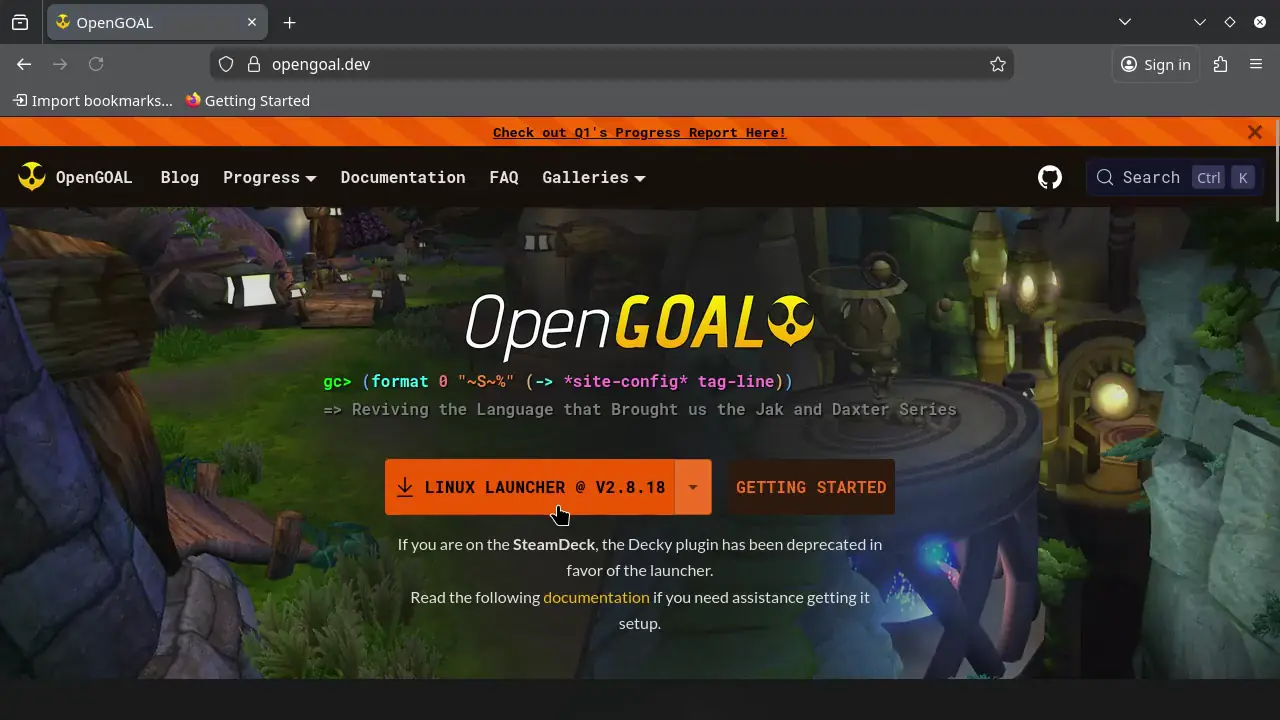
First, we have to get the launcher we’re going to use. So head to desktop mode and go to the OpenGOAL website. From there, download the newest Linux version of the launcher, which will be an AppImage.
ステップ2:
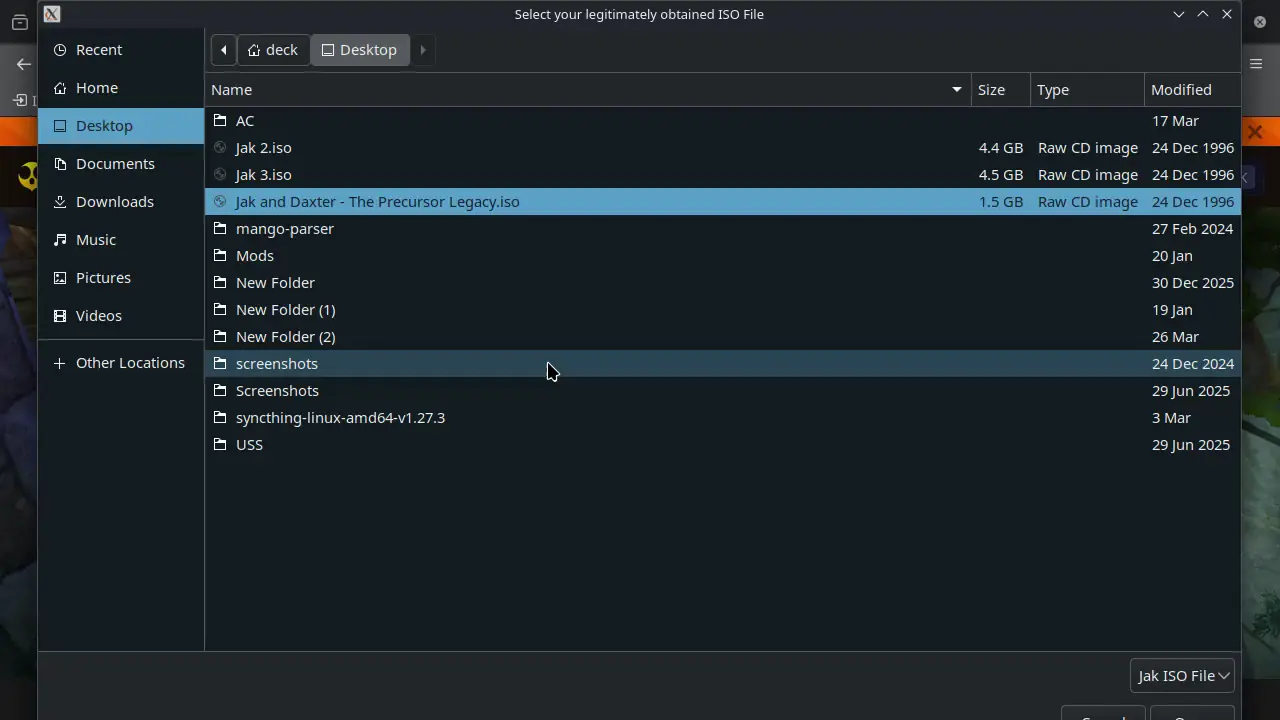
Next, make sure your legally dumped copies of the games are on your desktop. This will just make it easier for us to find them when we need them.
ステップ3:
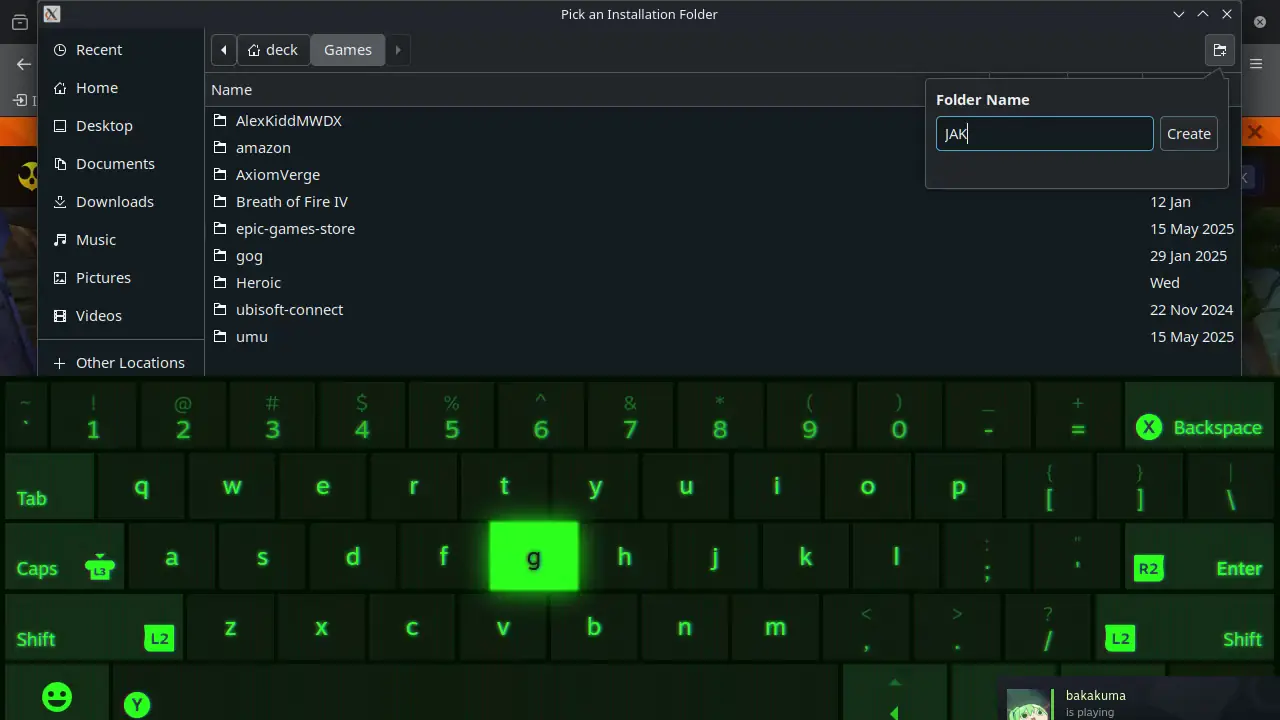
After that, go ahead and open the launcher. Choose your preferred language and create a folder for the games to be installed too. You can create the folder anywhere, but for the purposes of this guide, I just put the folder in the Games folder.
ステップ4:
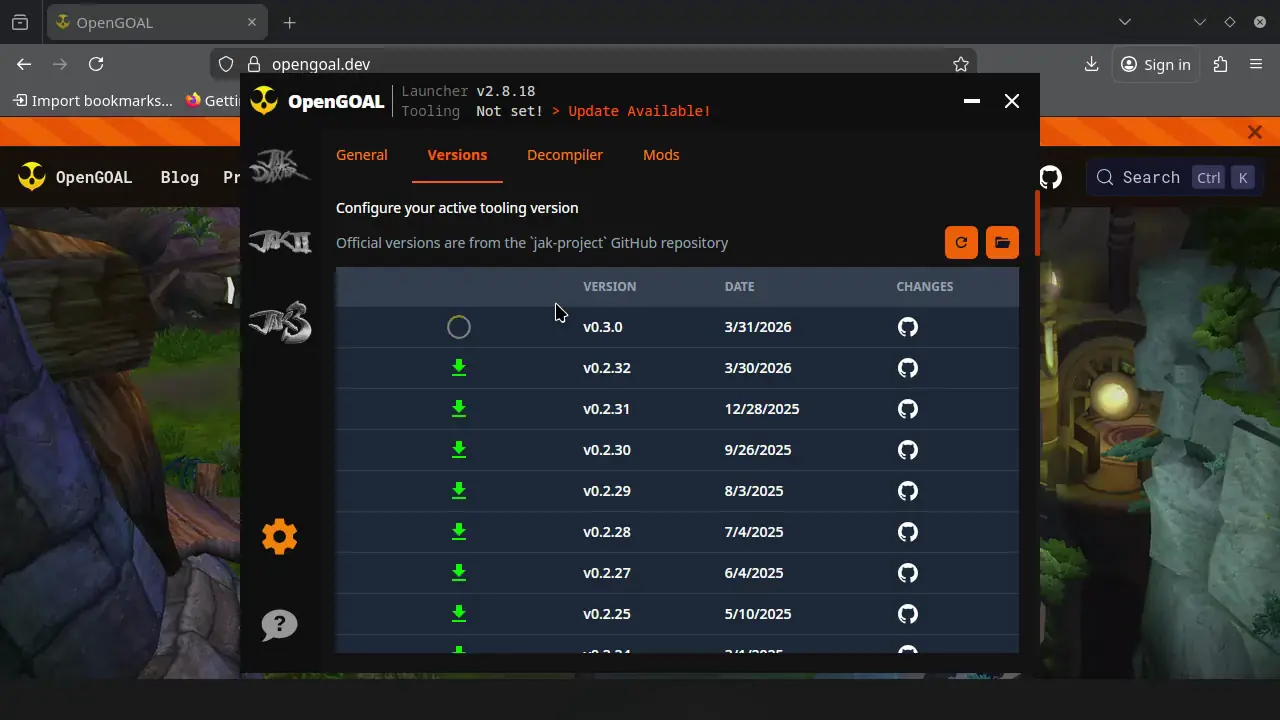
Once that’s done, go ahead and install the latest tooling, which at the time of writing is version 0.3.0.
ステップ5:
Now, navigate to the game you want to install and click on Choose ISO. This is where you will find the ISO on your desktop, so you won’t have to navigate too far. Once you've chosen the corresponding ISO, you should be all set. The launcher will decompile and recompile the game automatically.
ステップ6:
Once all that is done, you can delete the old legally dumped copy to save some space. And make sure to go to the AppImage that you downloaded and right-click on it to add it to Steam.
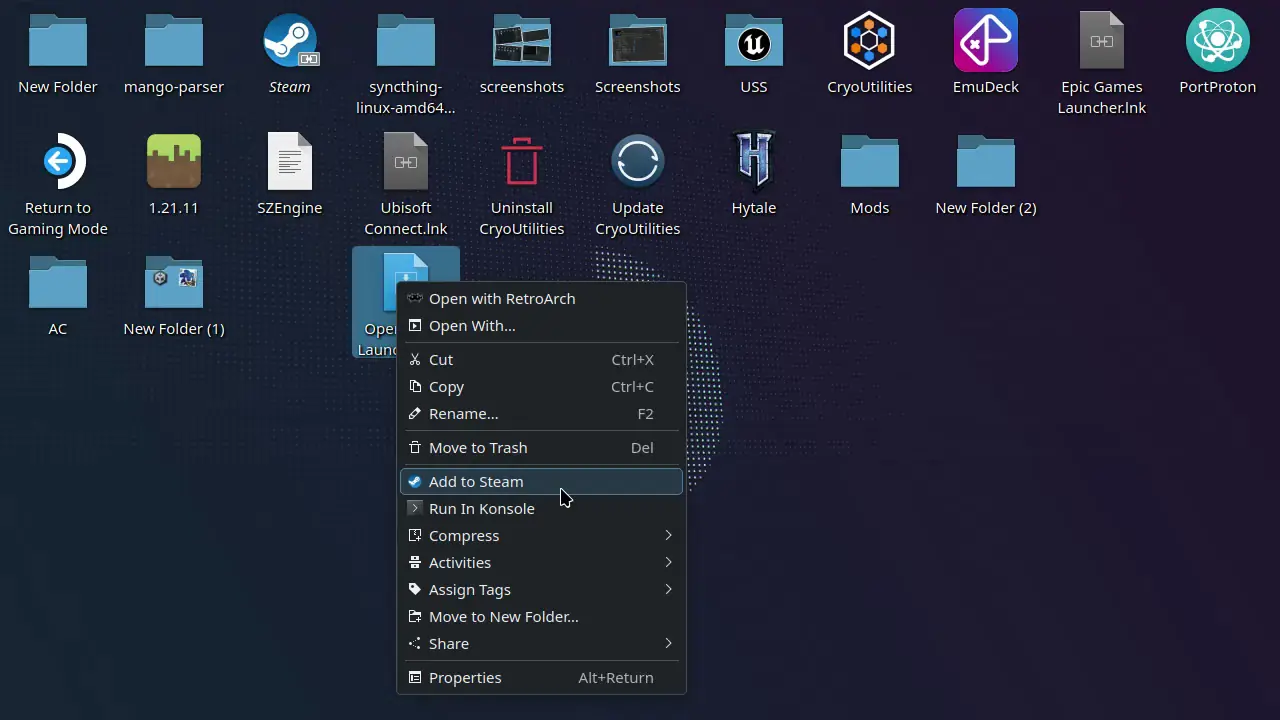
ステップ7:
Now, you can return to the game mode and play to your heart‘s content.
And that's all! You can check out our thoughts on how the games run and feel on the Steam Deck, and why they are the best way to play these games.
このガイドを楽しんでいただけたなら、SteamDeckHQ の他のコンテンツもチェックしてみてください!あなたのゲーム体験に役立つゲームレビューやニュースを幅広く取り揃えています。ニュース、ヒントやチュートリアル、ゲーム設定やレビュー、最新のトレンド情報など、あらゆる情報をお届けします。 カバーしています!