The GameSir G7 Pro 8K was provided by GameSir for review. Thank you!
Finding the right controller is very important, especially as Mini PCs, like the Steam Machine, are gaining popularity. Being able to sit down and find the most comfortable controller with extra features to maximize its use when playing games is great, and with so many controllers out right now, there are lots of options to choose from. For PC gaming, the Steam Controller set a very high bar, and I honestly didn't think any other controller would come near it. However, GameSir swooped in and surprised me.
The GameSir G7 Pro 8K is an incredible gamepad that I found myself using all the time, sometimes more than the Steam Controller. This shocked me, because I love the trackpads and dual back buttons of the Steam Controller. However, the comfortable design and wealth of features, along with how easy it is to modify and change the buttons and joysticks to match your preferences, make this one of the best controllers I have ever used.
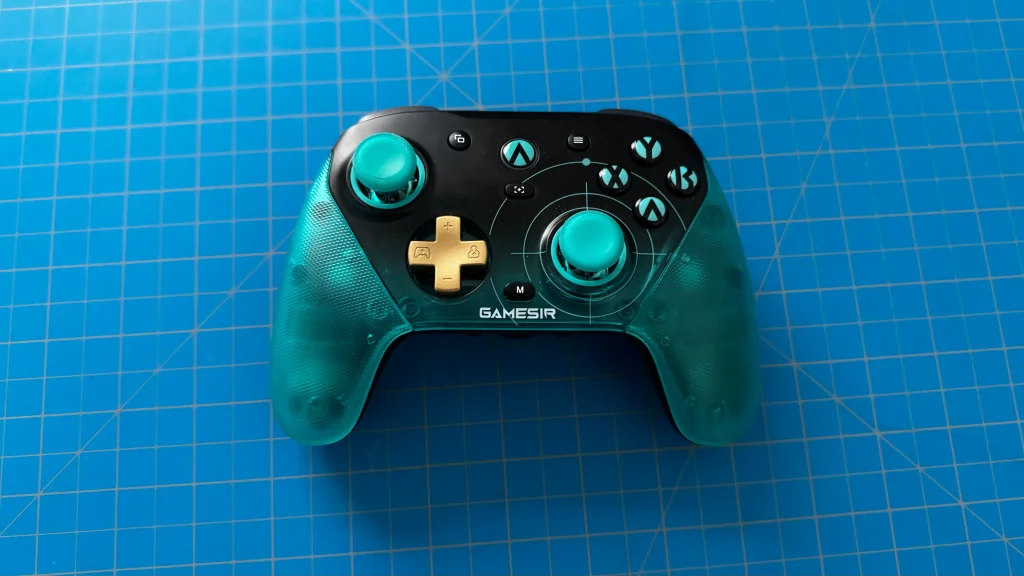
Build Quality + Design
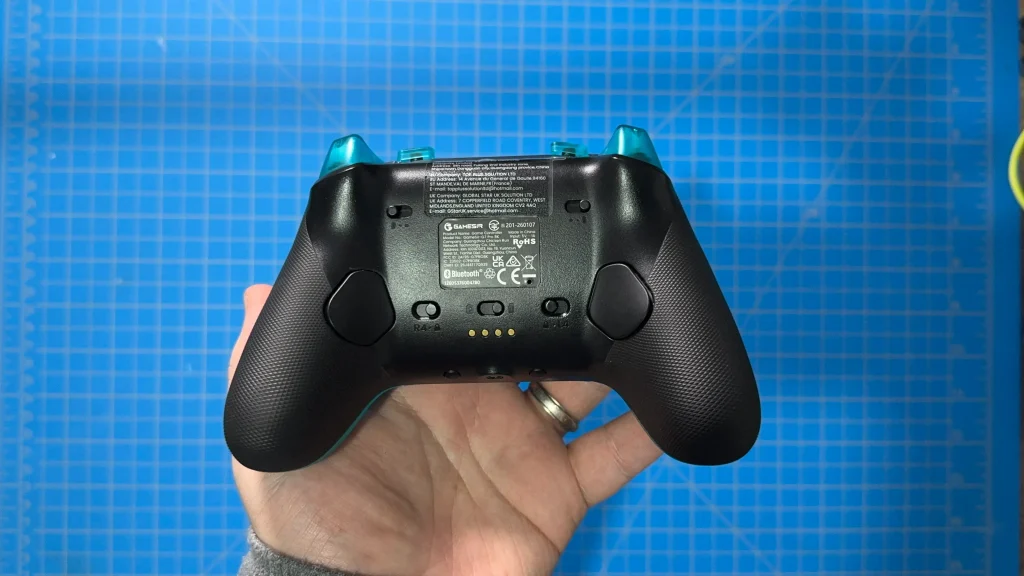
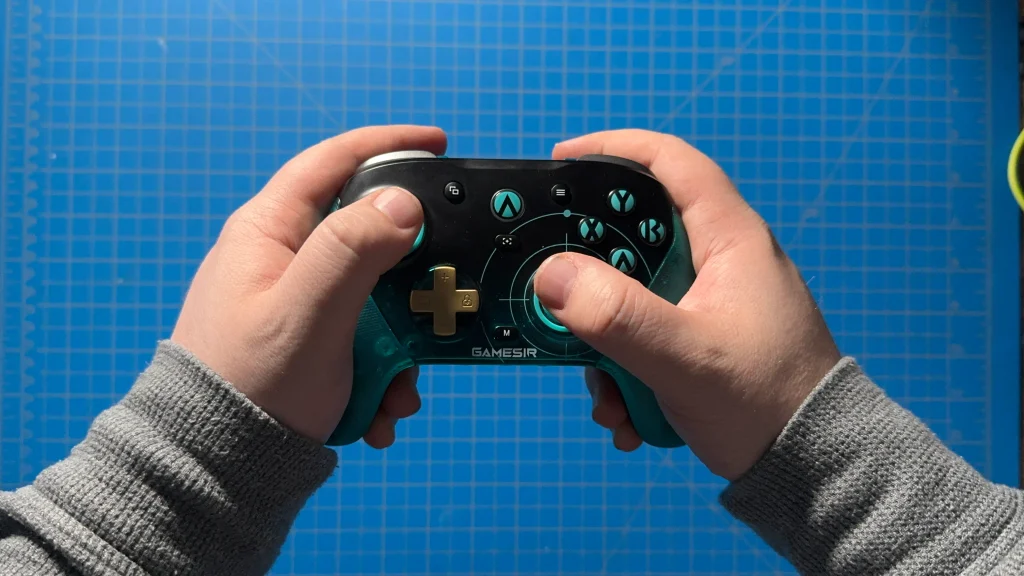
Let me start off this section by saying the GameSir G7 Pro is probably the most comfortable controller I’ve ever held. I love my other controllers, especially the Steam Controller, but this beats it out in comfort. The grips fit perfectly in my hands, with a great, smooth angle toward the back that lets my fingers comfortably fit behind it. The back buttons are also very in line with the casing, which means they fit in and help create a smooth back. For games I don’t use the back buttons on, this is phenomenal and keeps it feeling extremely comfortable.
The buttons generally feel great to press as well. ABXY have a good distance for being pushed down, the bumpers don’t feel digital, and the Hall Effect triggers have great resistance for precise control. Even the back buttons and extra shoulder buttons feel great to push down. However, the Dpad feels a little too digital to me, and it doesn’t feel like I’m able to push it down as much as I would like. I also dislike the default design of the Dpad, but we do have options to change it, which I will go into a little later.
I also don’t really like how it feels to actually push down the ABXY buttons. There’s something about the feel and clicking noise that makes me think of pushing down a slinky. It’s a weird feeling, not completely off-putting, but definitely off.
In general, I’ve been pretty vocal about my preferred controller layout, usually opting for symmetrical joysticks. The GameSir G7 Pro doesn’t utilize this, going to the usual asymmetrical layout, but I actually didn’t mind it as much. Because of the grips and how close all the buttons are, it was very comfortable to use the joystick despite the layout I don’t like as much. However, we do have TMR joysticks, which means it will be very precise and have no drift, which I love.
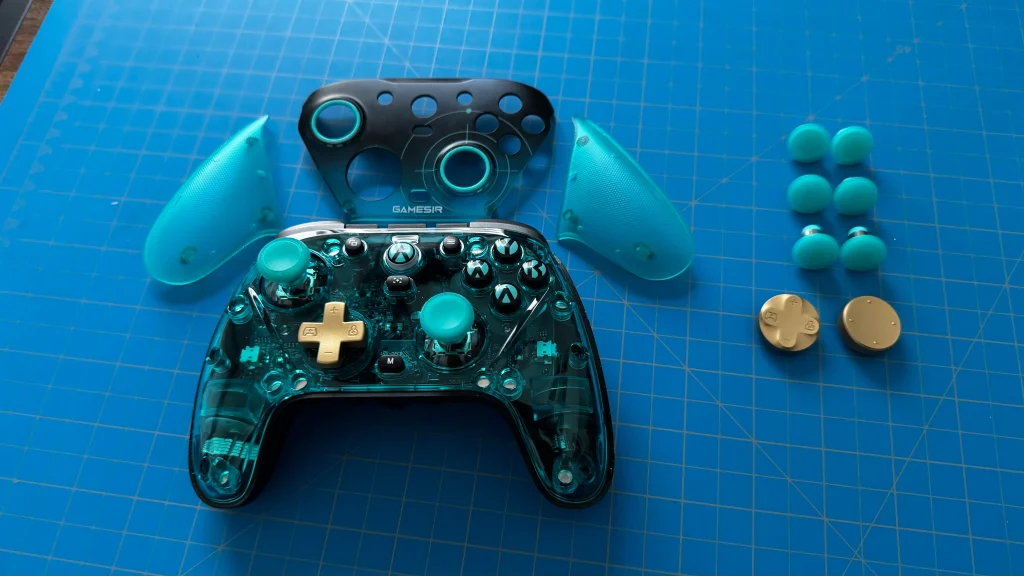
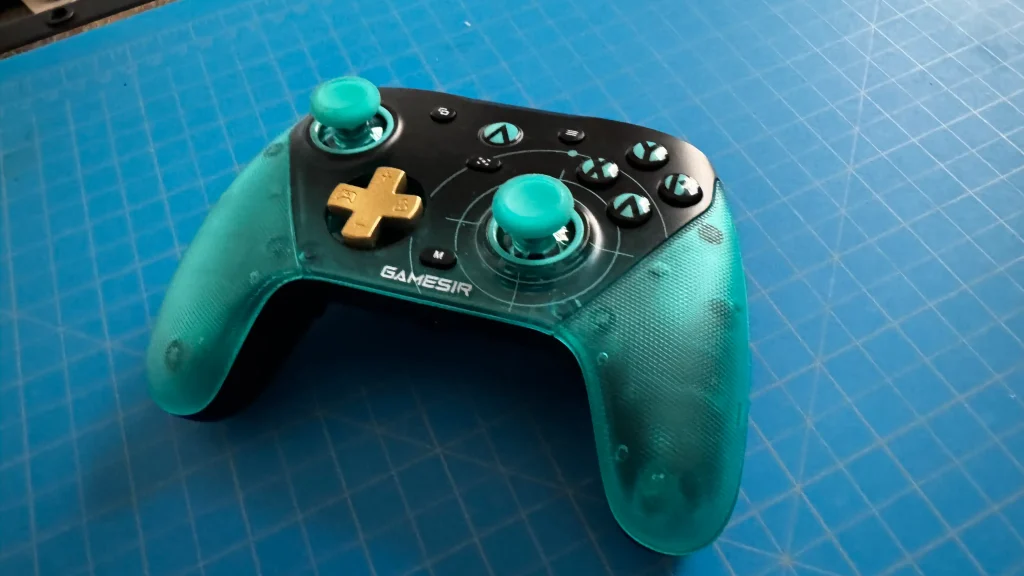
And, as I mentioned a few paragraphs ago, we can very easily change out the Dpad and Joysticks. The G7 Pro comes with three Dpad designs and three sets of joysticks with different tops and lengths. By removing the grip covers and the middle cover, we can easily take out each of these and put new ones in. Then, we just magnetically put the covers back on one at a time. It has a satisfying click and is super easy to do, which makes me extremely happy since I found the perfect joystick caps and Dpad that make this controller feel even better.
The controller also comes with a charging dock we can use, which I do like in theory, and a dongle. However, I felt the controller was too slippery on the dock, and a slight touch could move it off the spots needed for charging. It works when it’s put down in the correct spot, but it can move so easily that I just almost never used it. As for the dongle, this allows us to use a 2.4GHz signal via the USB to connect the controller. We do have a Bluetooth option, and we can always connect the controller via USB-C, so it’s nice having multiple options to connect.
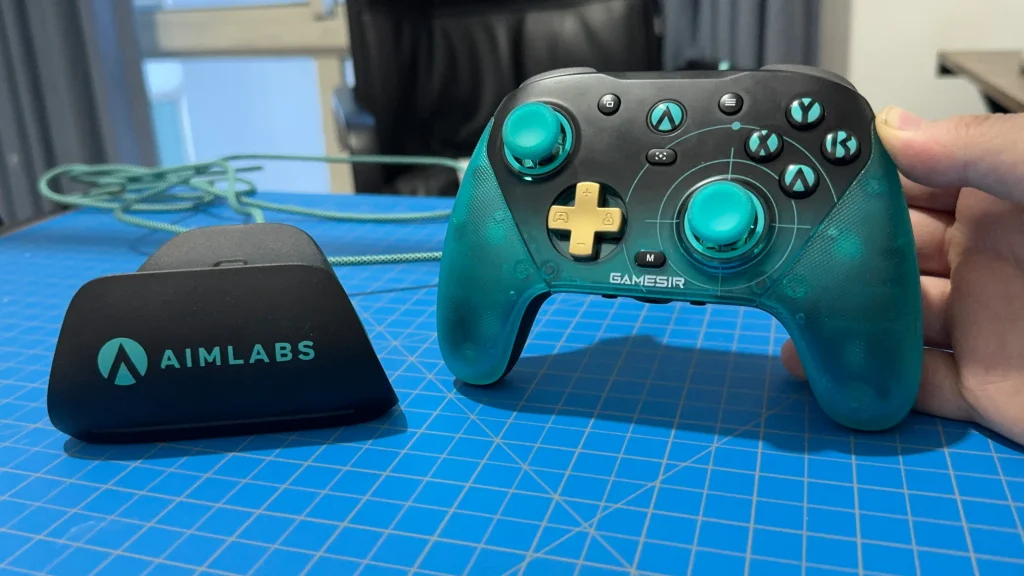
The GameSir G7 Pro 8K has multiple different versions and designs, and the one I got is the Aimlabs edition. This special version is designed with collaboration from Aimlabs, an aim trainer program to help players train their FPS skills. While I don’t use the program myself, I really like the controller's design. I’m a fan of the color scheme and designs on it, and if you’re interested in using the program, it comes with a code for your first free month of Aimlabs+ Premium. It’s an extra little bonus that came specifically with my controller, which is nice.
Features
The GameSir G7 Pro 8K has a good chunk of features embedded into the controller, as well as compatibility with its program. Together, there is a wealth of ways you can use it, with a lot of compatibility across multiple different devices.
We can switch between Xinput, DualShock 4, and Nintendo Switch modes for different devices by holding down the Start and Select buttons, and we also have a dedicated M button to access other features. By holding down the M button in conjunction with another button, we can access all of these features. These include setting macros for the L4/R4 and L5/R5 buttons, toggling the deadzone for a joystick, changing the vibration level, changing the layout for the ABXY buttons to match the Switch layout, turning on Turbo mode with three different intensity levels, and changing between four specified configurations that are created in the GameSir application.
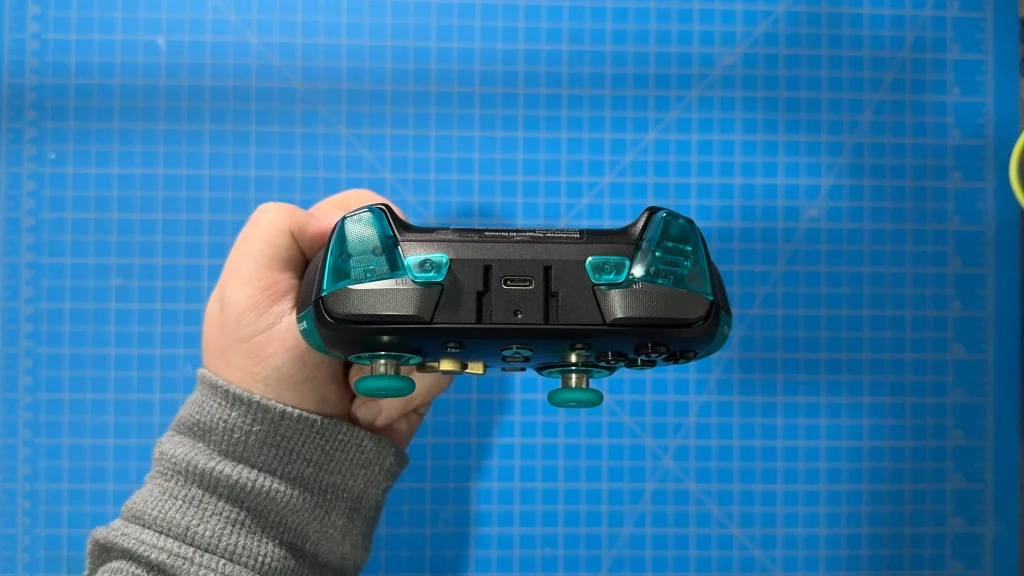
We even have a button combination that can reset the controller's gyroscope, in case it ever needs to be reconfigured.
A lot of these can be done right within the application, which I will go more into detail about below, but the fact that we can do some of this directly on the controller ultimately makes it more compatible with the Steam Deck and SteamOS devices like the Steam Machine. It allows us to use the extra buttons to some degree, which I really appreciate. Usually, the back buttons and L5/R5 top buttons wouldn’t be recognized on Steam Input, so being able to configure them like this is extremely helpful. It does take a little bit of extra time to set up, and it does have some limitations, but it’s a solution to a problem that I’ve seen on many other controllers.
On top of that, the controller itself has a few other buttons that provide specific features. One of my favorites is a toggle on the back that will lock the back buttons in place. There are some games that I don’t use the back buttons, and accidentally hitting them can be a little annoying. So, being able to lock them in makes it feel like I'm holding a smooth back, and I can’t push the buttons in. I love having this option, and I found myself using it way more often than I expected.
At the bottom of the controller, we have a 3.5mm audio jack, so we can plug in our headphones directly into the controller. There’s also an accompanying mute button to go along with it. This will be great for devices that don’t have a 3.5mm audio jack, which is something I do appreciate since that seems to be disappearing from other tech.
Along with those, we can also connect to a multitude of devices. This includes PCs, mobile phones (iPhone and Android), and the Nintendo Switch 1/2. We can even set up the controller to wake up the Switch 2 when it's docked. I primarily used it with my PCs and handheld PCs, but I do like having multiple ways to use the controller.
And as advertised, the controller also has an 8K polling rate. For those who play games competitively, this is pretty significant. A higher polling rate means that the controller's inputs are being logged more frequently. For those who play multiplayer games that require quick movements and immediate reactions, we will see a major difference in how fast the game will react to your button presses if you have a higher polling rate. However, this won’t be super important for casual gamers. A 1000Hz polling rate is perfectly fine, and even a 4000Hz polling rate is fantastic for competitive gaming. 8000Hz is a little overkill in general. Yes, any minor improvement will still be felt for competitive gaming, but after 4000, the returns are diminishing.
I also want to mention how much I ended up missing the trackpads of the Steam Controller after using this. I’ve been spoiled with the Steam Deck and Steam Controller, and I love having the trackpads to use for games that don’t have native gamepad support. There are ways around this: we can use the keyboard and mouse configuration in Steam Input to register the joystick as a mouse and the right trigger as a left mouse click, but it’s not the same as using a full-on trackpad. Since this isn’t the norm, I’m not gonna hold it against the controller too much, but I hope it’s a feature that future controllers will integrate into their design.
GameSir Connect + App
One of the standout features of the G7 Pro has to be the level of customizability that comes with it, and most of that comes from GameSir Connect. This is a program created by GameSir for managing their controllers and changing their settings.
For a basic rundown, we can change the lights on the ring around the home button, modify the deadzone, change gyroscope activation methods and mode, change button inputs, adjust the sensitivity curves for both joysticks and triggers, and more. All of it can be done easily and with nice visuals through the GameSir Connect program, which I enjoyed using.
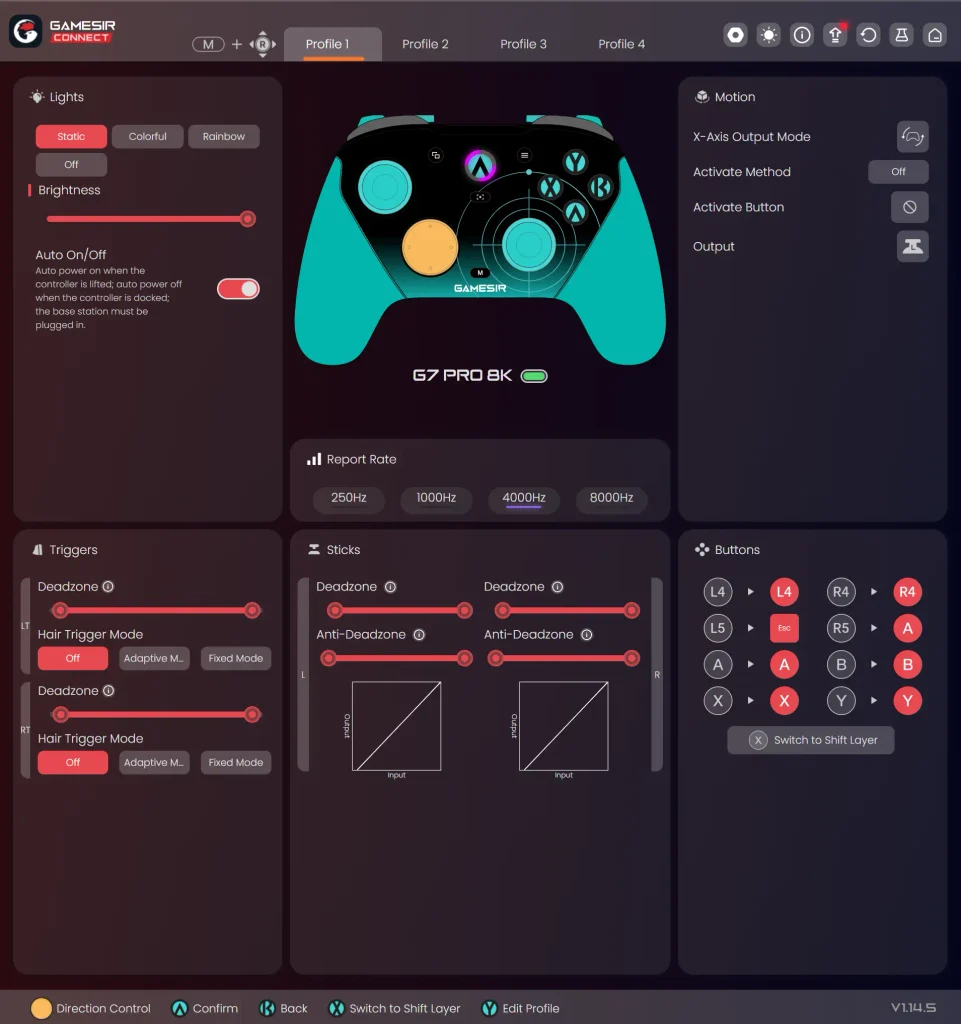
Some of these changes will also be saved on the controller, like the ring light, and it will be remembered whether the program is launched or not. It doesn't work on every configuration, as I mention below with SteamOS devices, but it's still very cool.
There's a mobile GameSir app that has some of these functions, and can even update the controller. I had connected my controller to my iPhone via Bluetooth and updated the firmware that way, which was pretty neat.
スチームモス
With us primarily playing games on the Steam Deck and SteamOS, I specifically wanted to talk a little bit more about the experience using this controller with SteamOS devices. Overall, it works, just like any other controller, whether we connect it via Bluetooth or using the USB dongle. It connects very easily, and it is great to use once it’s set up.
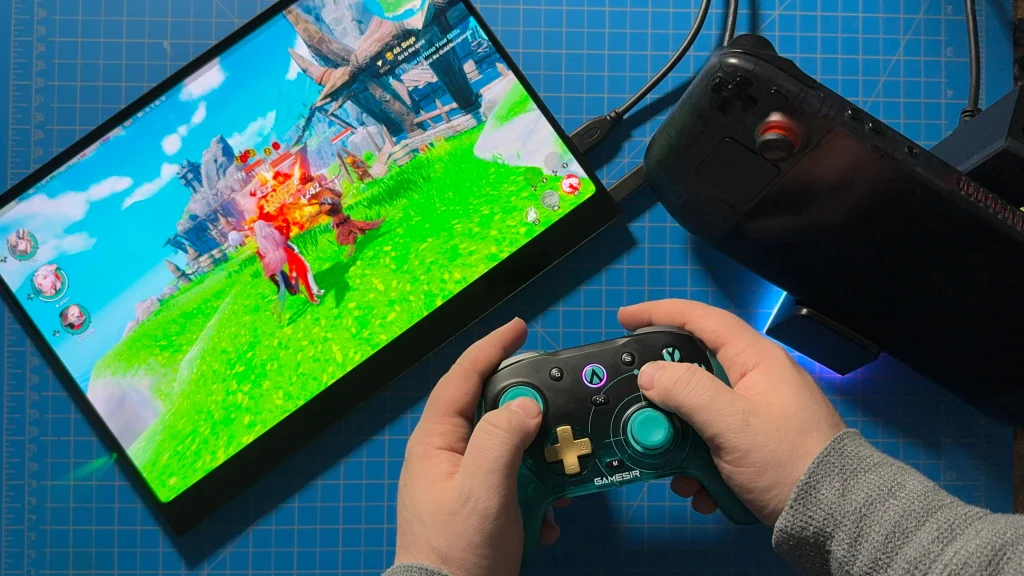
On top of that, I actually want to applaud GameSir for making the G7 Pro controller be recognized by default as a PS4 controller in both wired and wireless connections. Most of these controllers that I’ve been playing around with don’t have Steam Input support for all of their extra buttons, which means that the back buttons in these third-party controllers aren’t recognized. The G7 Pro has two extra buttons on the top and two back buttons. The button on top does not work with Steam Input, but because this controller is recognized as a PS4 Controller in Steam Input, we can still use the back buttons, as they are recognized as touching the two different sides of the PS4 Trackpad. By using the mode switch, we can make it recognize as an Xbox controller when plugged in directly or using the USB Receiver, but keeping it this way is better so we can use the back buttons.
So, if I want to make one of the back buttons trigger, taking a screenshot, I can do that by going to Steam Input and setting the left or right trackpad touch option to take a screenshot. It’s not the easiest or most straightforward way to do this, but it’s possible, and that’s more than I can say for most other third-party controllers in this case.
Otherwise, I ran into no issues at all using this controller on Steam Deck and SteamOS devices. It works wonderfully via Bluetooth or the included dongle, and quickly became one of my favorite controllers to use.
However, I do wish all of the features from GameSir Connect would carry over. We can’t install GameSir Connect on the Steam Deck and SteamOS, and it will crash immediately when trying to launch it. And while we can use the app on other computers, not all of the changes carry over. We can change the ring light, and that will change permanently, but trying to modify the L5/R5 buttons on the top with keyboard buttons won’t carry over. It would have been cool if we could, though I understand that would still require an extra computer.
The macros feature can help a bit with this, but it’s not the same as having Steam Input support. I would’ve loved to be able to attach specific actions or keyboard controls to those buttons. We are limited only to the buttons on the controller, not including the “home” button, which means special features like the quick access menu and other Steam button shortcuts will still be impossible to access.
And because the GameSir Connect program won't run on SteamOS, we can't update the controller via the Deck or Machine. Luckily, we can use our phones and the GameSir app to update it, so you don't need to go through another computer, but it will be required for updates.
結論
Overall, I was blown away by the GameSir G7 Pro 8K controller, even after all of my testing with the Steam Controller. It’s by far the most comfortable controller I’ve ever used, with a good chunk of features that make all the buttons that would usually be impossible to use on the Steam Deck possible. The clicky buttons aren’t my favorite, and the asymmetrical joystick layout is something I’d rather avoid, but it isn’t bad enough to stop me from using it; the comfort of the controller made the layout ok to use. If you’re going to use it on a Windows PC or handheld, we have access to the fantastic GameSir program that can more deeply customize the controller, changing all of its inputs if we want to, and setting multiple profiles; we can swap to it anytime.
With how compatible it is with a multitude of devices and how comfortable it is to use, the GameSir G7 Pro 8K controller is one of the best controllers for PC gaming, and has earned its spot as one of the controllers I’ll be taking with me whenever I travel.
If you enjoyed this review, check out the rest of the content on SteamDeckHQ! We have a wide variety of game reviews and news that will help your gaming experience. Whether you're looking for news, tips and tutorials, game settings and reviews, or just want to stay up-to-date on the latest trends, we've got you covered!


最近のニュース
カテゴリー
Accessories
Anbernic
Android
ASUS ROG Ally
ROG Xbox Ally
Classics on Deck
Community
Cryobyte33
Deals
Deck Mods
Emulation
Events
Featured Post
Game News
Game News
General Game News
HandheldHQ
Hardware
Lenovo
Linux
MagicX
MSI
Nintendo
ONE-NETBOOK
Opinion
Other Reviews
Accessory Reviews
Handheld Reviews
PlayStation
Proton
Retro Handhelds
Anbernic
AYANEO
AYN
GPD
MagicX
MANGMI
Miyoo
Retroid
Rumors
TrimUI
SDHQ
Steam
Steam Controller
Steam Frame
Steam Machine
SteamOS
The Unsupported Report
Uncategorized
Uncategorized
VR
Xbox
最近のヒント&GUIDES
新着レビュー