


まだの方は、X(Twitter)、Mastodon、Blueskyでフォローし、新しい記事が投稿されたらお知らせください。また、Redditに参加したり、YouTubeに登録して、私たちのコンテンツをチェックしたり、素晴らしいコミュニティと交流してください。応援ありがとうございました!
There have been so many great PC ports that have come out, and this new one might be one of my favorites. Yesterday, The Legend of Zelda: Twilight Princess’ PC port was released, giving us the ability to play the game with new features, fixes, and enhancements that elevate the experience beyond what it was originally capable of. It’s an incredible way to experience a game, so in this Guide, I’m gonna go over how to set it up on Steam Deck and some changes that I would make in the game to enhance the experience.
If you want to know about how the game is running, battery life, and some details on the settings you can change, you can check out our other article that goes over them more in-depth.
You are going to need your own legally dumped copy of Twilight Princess (USA or EUR) for this. SteamDeckHQ does not encourage piracy and will never discuss or link to it. You will need to own your own physical copy of the game and dump it.
How To Install The Legend of Zelda: Twilight Princess PC Port On Steam Deck
ステップ1:
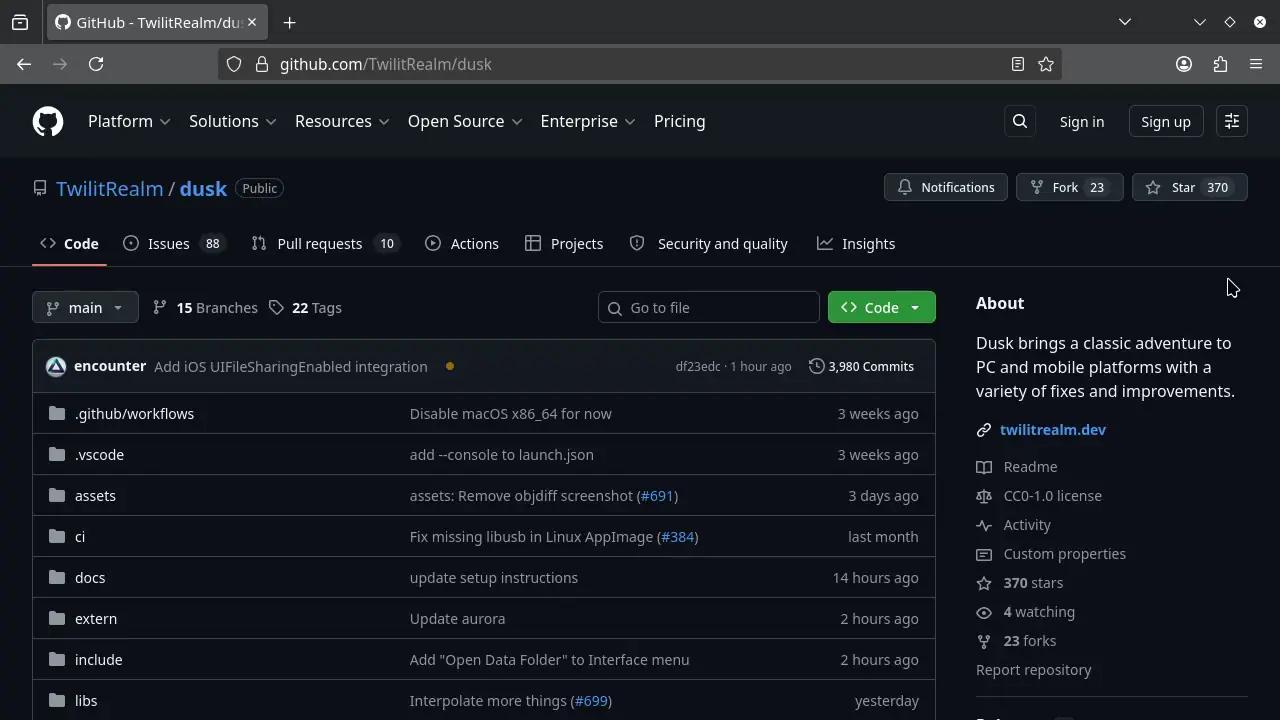
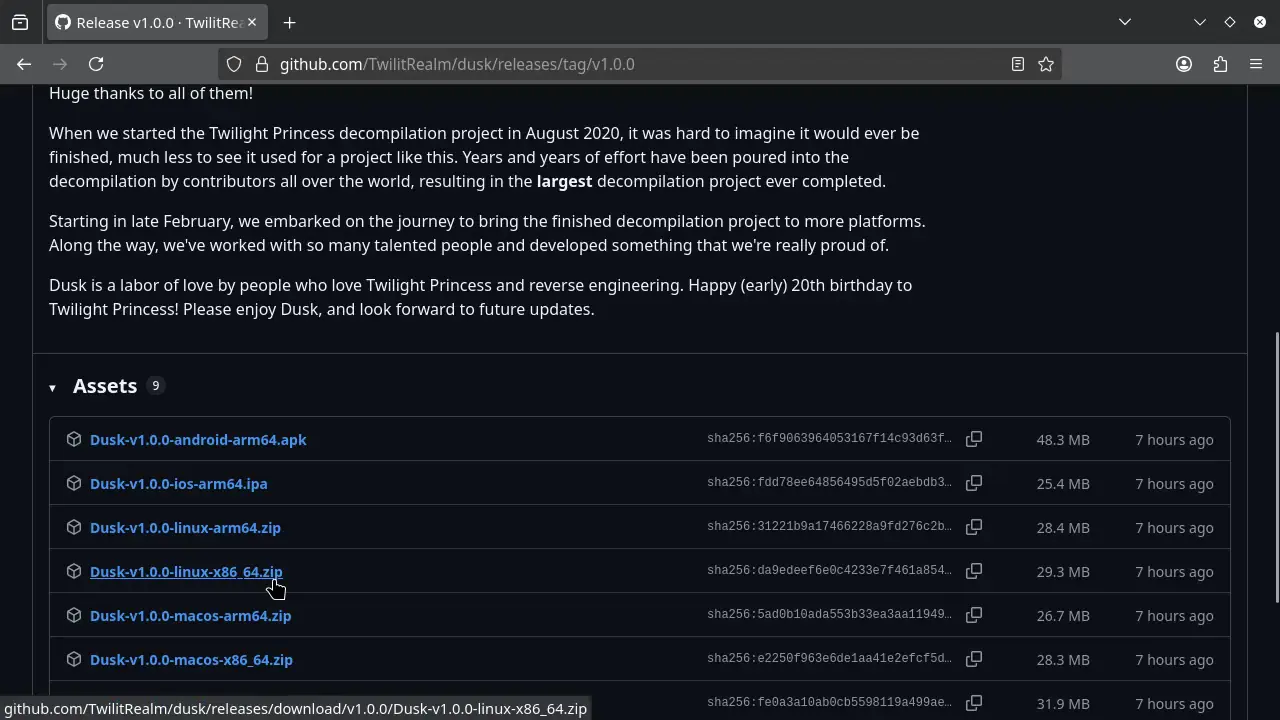
In desktop mode, Head to the Dusk GitHub page and download the newest version (1.0.0 at the time of writing). You will need to download the Linux x86 version of the file, which contains an AppImage.
ステップ2:
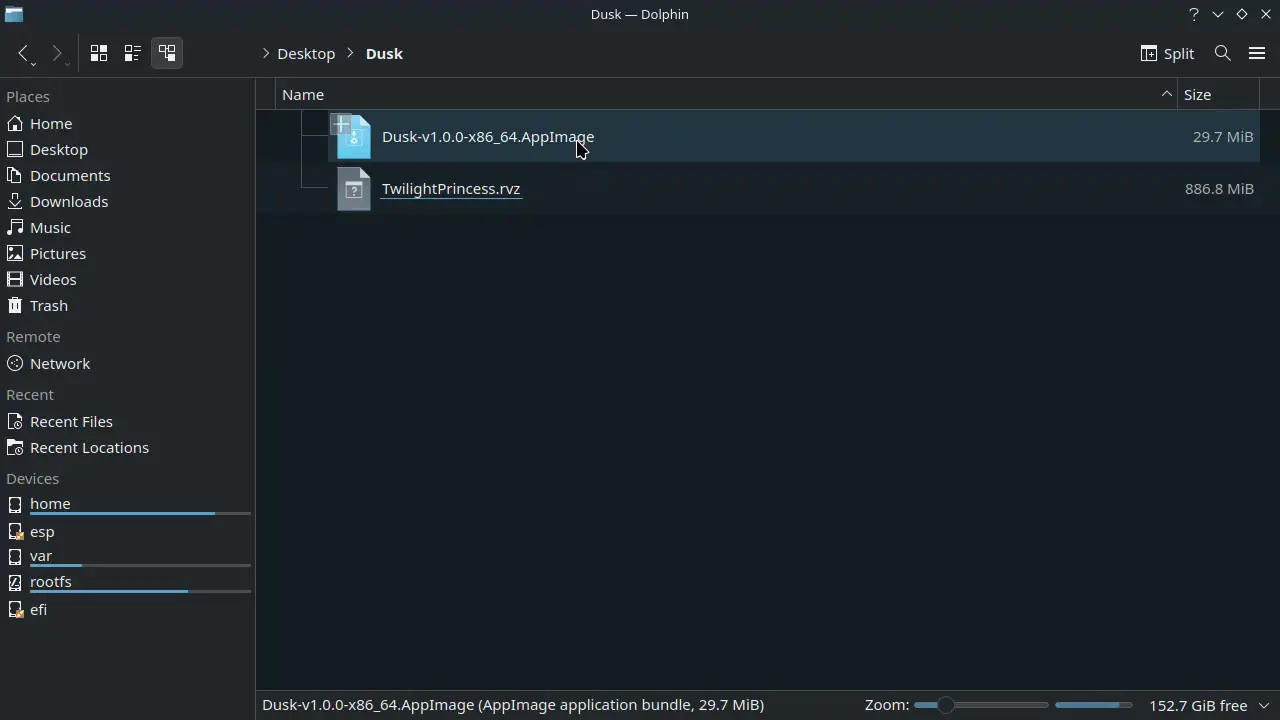
I recommend creating a dedicated folder for this port and moving the downloaded AppImage into it. I have also put my copy of the game here to make it easy to find.
ステップ3:
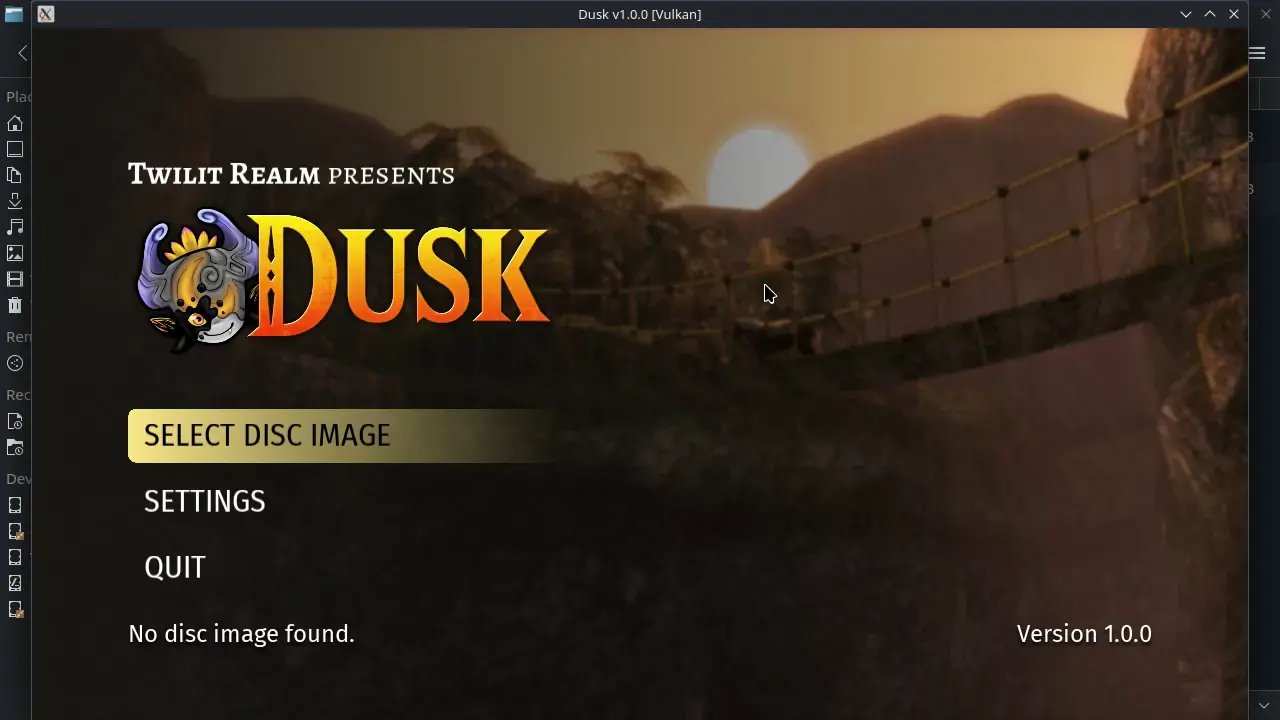
Once that’s done, go ahead and start the AppImage. You will see it says to “Select Disc Image”, so go ahead and select it and navigate to your dumped copy of the game. After double-clicking it, it will check to make sure it can be used with this port.
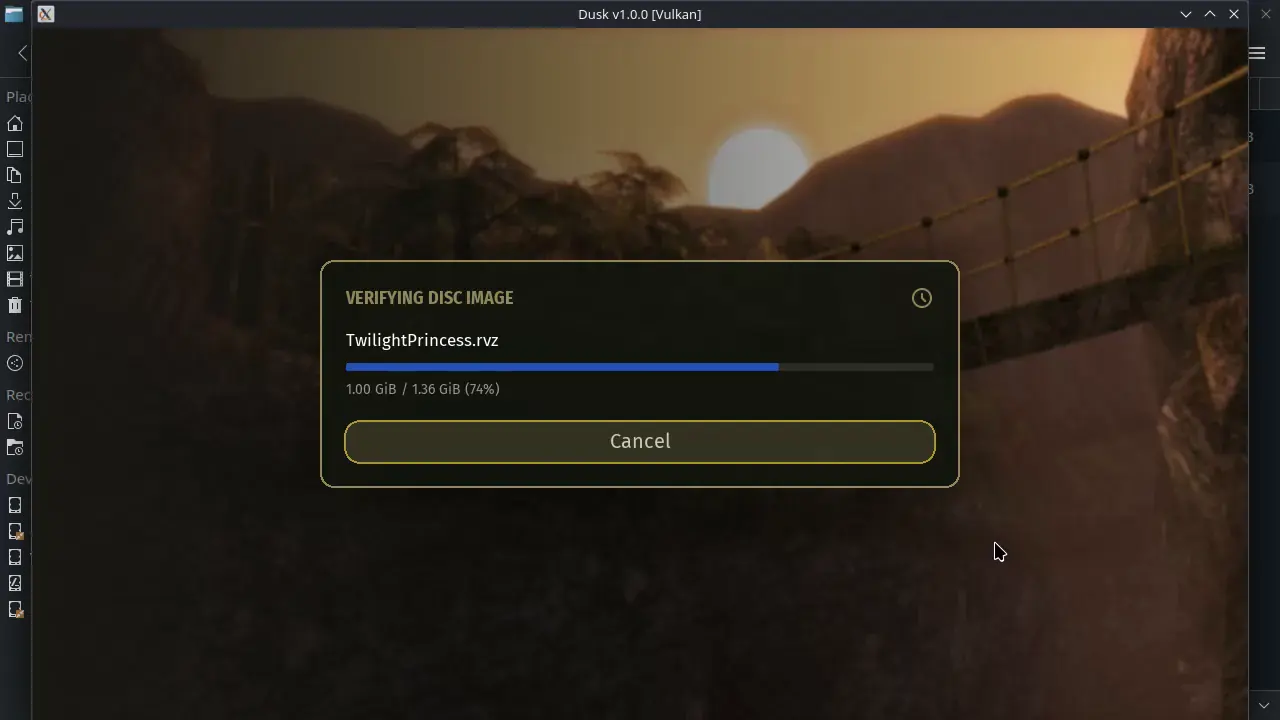
ステップ4:
Exit the port and right-click on the AppImage. Then, click on “Add to Steam.” This will easily allow us to access support in Game Mode.
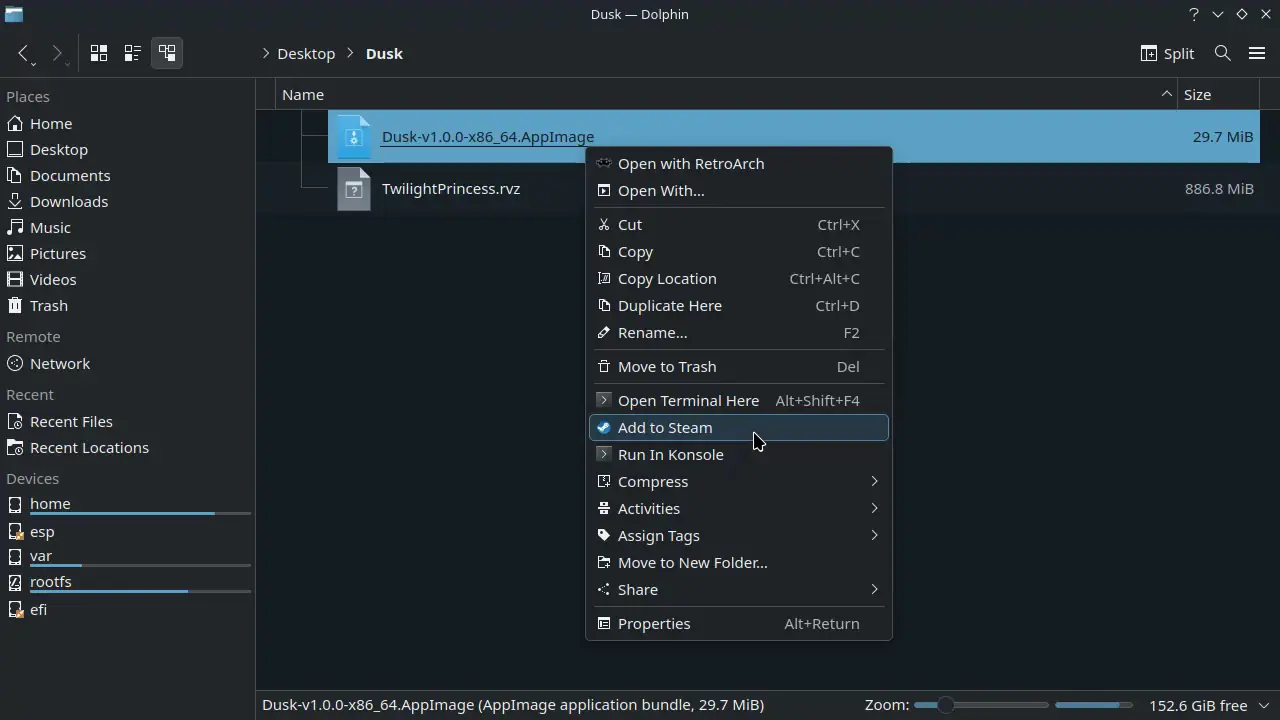
Now, you can go back to game mode and technically just start playing the game. It will automatically find the Steam Deck gamepad, and it will automatically upscale the resolution and unlock the framerate. However, there are two changes that I would make that will make playing easier.
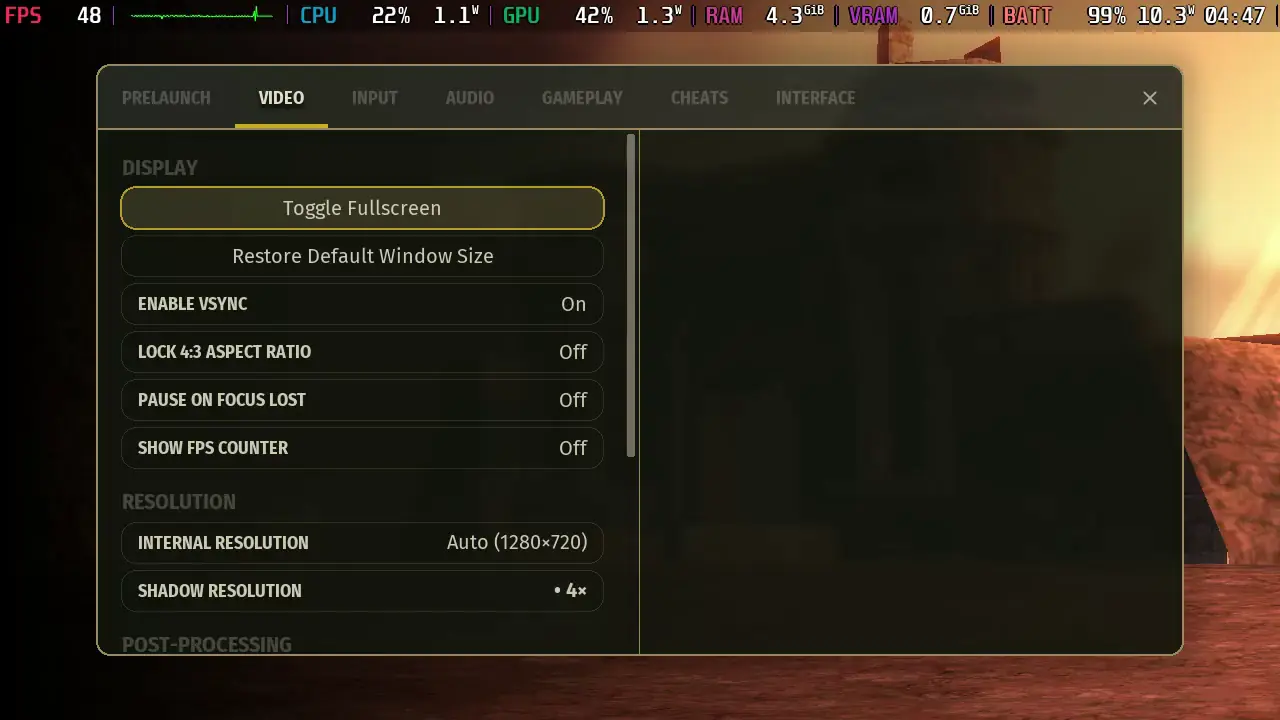
First, go ahead to the settings and to the Video tab. Then, click on “Toggle Fullscreen.” The game defaults to sticking with the original’s 4:3 aspect ratio, but by toggling the fullscreen, it will take up the entire Deck screen. Because this is a port, it supports the Steam Deck’s 16:10 aspect ratio with no stretching, so it won’t harm the experience.
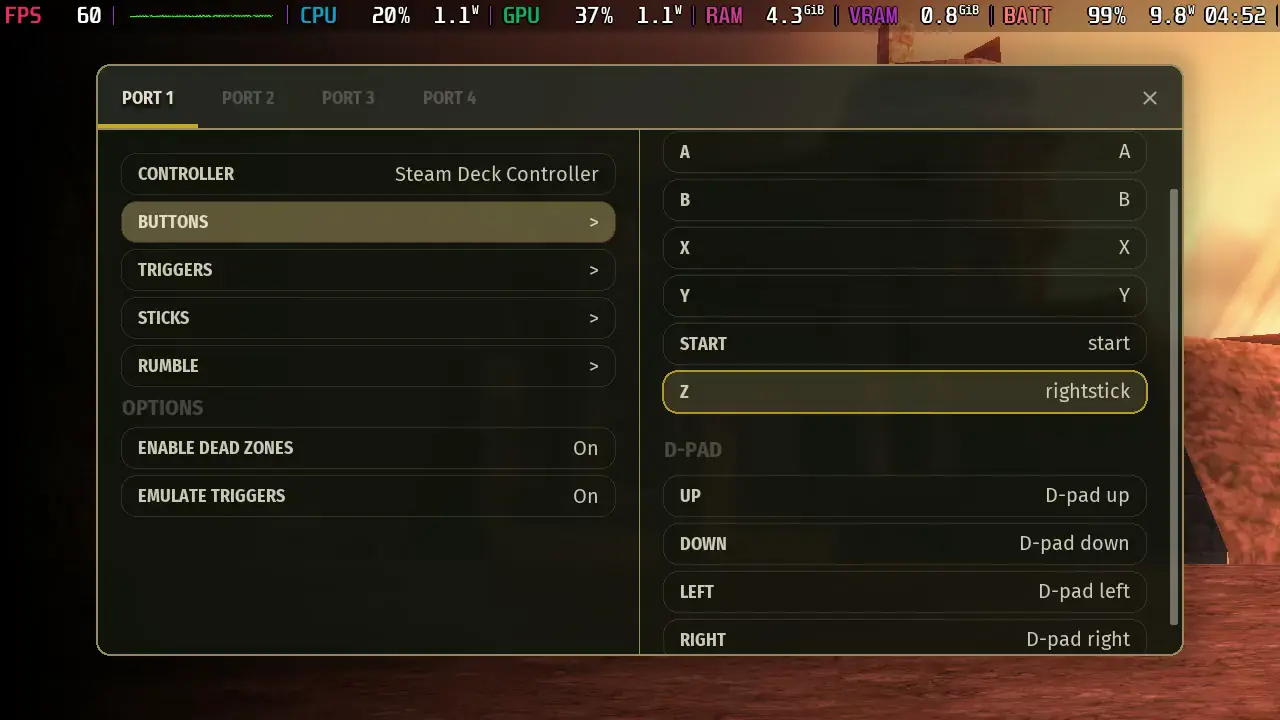
Second, go to the “Controls” tab and rebind the Z input. This is going to be something you need once you meet Midna, and the default binding didn’t work for me. I bound it to clicking down on the right joystick, which worked perfectly for me. You can rebind it to a different button of your choice, but that’s the one I recommend using.
Now, you should be all set. This is the best way to enjoy one of the best Zelda games that has been made. I couldn’t be happier that this port is out. Make sure to check out our other article for details on how it performs and an overview of the settings you can change.
このガイドを楽しんでいただけたなら、SteamDeckHQ の他のコンテンツもチェックしてみてください!あなたのゲーム体験に役立つゲームレビューやニュースを幅広く取り揃えています。ニュース、ヒントやチュートリアル、ゲーム設定やレビュー、最新のトレンド情報など、あらゆる情報をお届けします。 カバーしています!




"SteamDeckHQ does not encourage piracy and will never discuss"
What about the repacks mentioned in the Classics on Deck article's?
You know that the first 2 steps are basically skip able by simply installing `tp-dusk` via `yay -S tp-dusk` from the AUR, then ot will even update automatically with the system updates like all other packages.
Torben - would you elaborate, since some of us are Linux novices? Auto updates sound great.