

Final Fantasy 14 (FF XIV) is one of the largest MMOs on the market since its release, and it's clear as day why. The constant support, huge player base, engaging gameplay, and new content have made it a worthwhile experience to dive into. I have already put in almost 5,000 hours myself, and I don't see that stopping anytime soon, especially with the new Beastmaster update dropping today. On top of that, it's one of the few MMOs that has found its way to consoles with full controller support.
And that makes Final Fantasy 14 an almost perfect match for the Steam Deck. However, the default experience only scratches the surface of what you can do. With the right controller configuration, Cross Hotbar setup, Steam Input tweaks, performance settings, UI layout, and a few optional additions, the Steam Deck can become one of the best ways to play Final Fantasy 14.
So, in this guide, we're going all the way. From installing and configuring the game to building an optimized controller and UI setup, this is how to get the most out of Final Fantasy 14 on the Steam Deck.
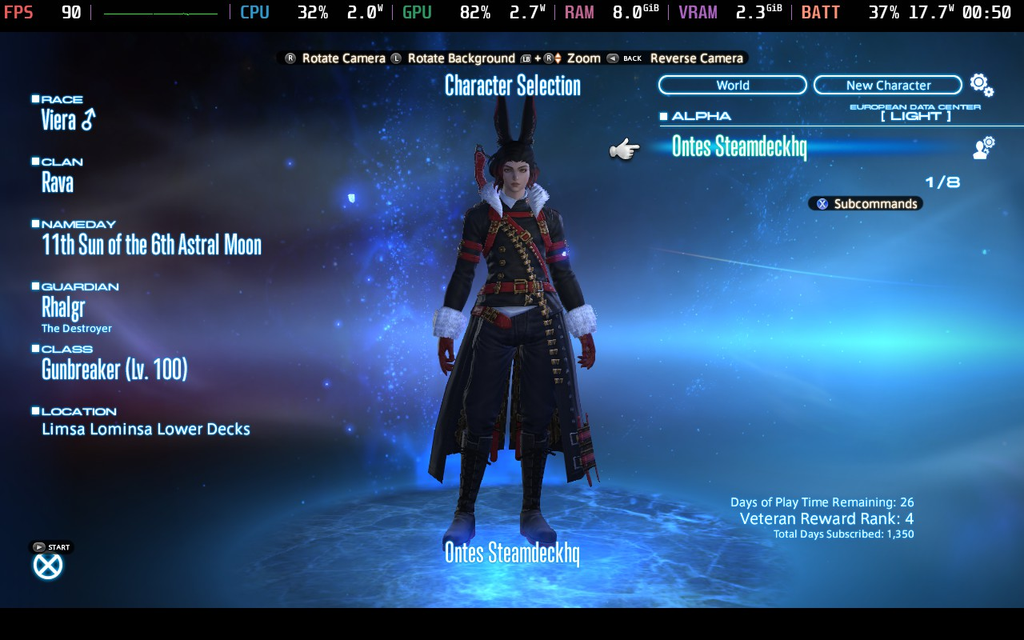
Launcher
Let's start with the most obvious thing: the game launcher.
The default FF XIV launcher sucks. It's slow, it's ugly, and it forces you to manually enter your password every time you log in. It needs to go.
It also handles the game's installation in a rather unusual way. Steam itself only downloads and manages the launcher, which is why FF XIV may appear to take up barely any space in Steam even after you've installed the entire game. The actual game is downloaded separately through the launcher. This also means that simply uninstalling FF XIV through Steam may leave the actual game files behind, secretly eating up well over 100GB of storage until you manually remove them.
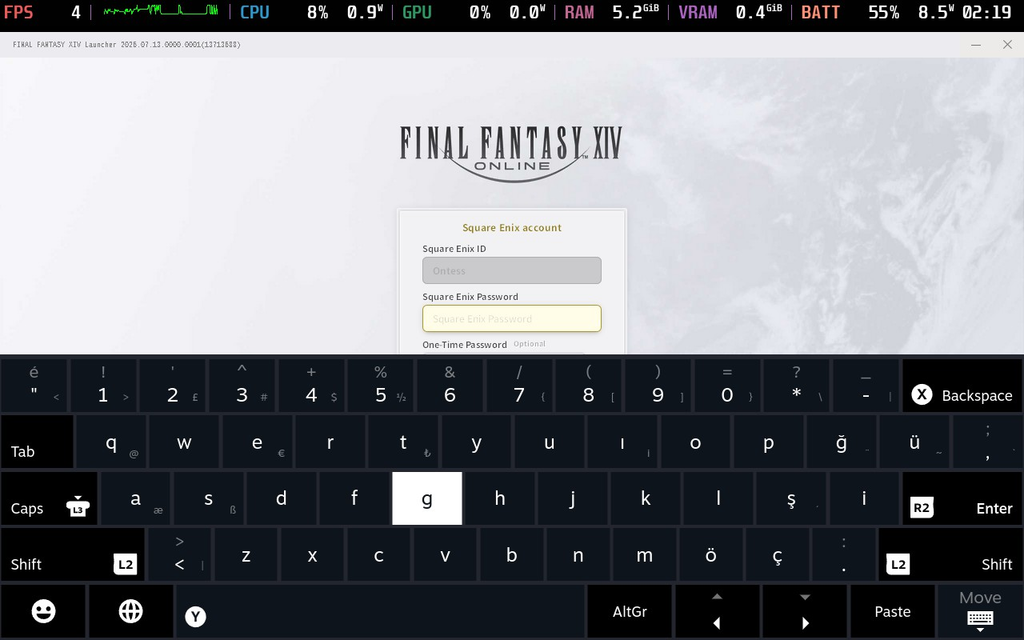
Luckily, PC players have had access to XIVLauncher for years, and it's an incredible alternative that fixes many of these annoyances. It offers automatic login, a much better installation and update experience, proper game management, and, most importantly, support for Dalamud and its huge ecosystem of community-made plugins/addons.
And I'm extremely happy to say that XIVLauncher also has a native Linux version designed with the Steam Deck in mind.
So let's get rid of the default launcher and set up XIVLauncher.
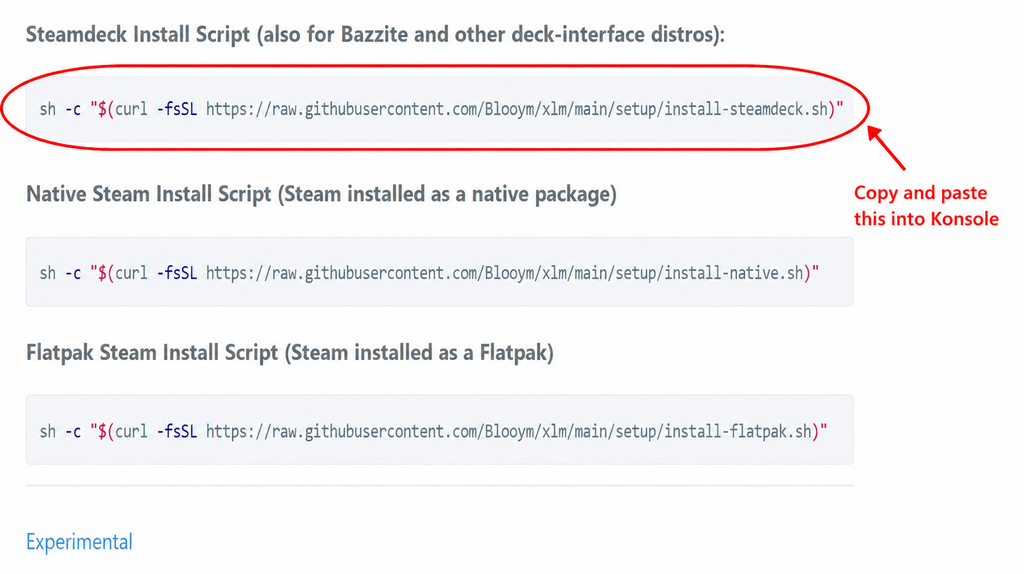
To install it, just go to the https://goatcorp.github.io/faq/steamdeck , and copy and paste the ''Steamdeck Install Script'' command into the Konsole while on Desktop Mode and press Enter. It will install the XIVLauncher.
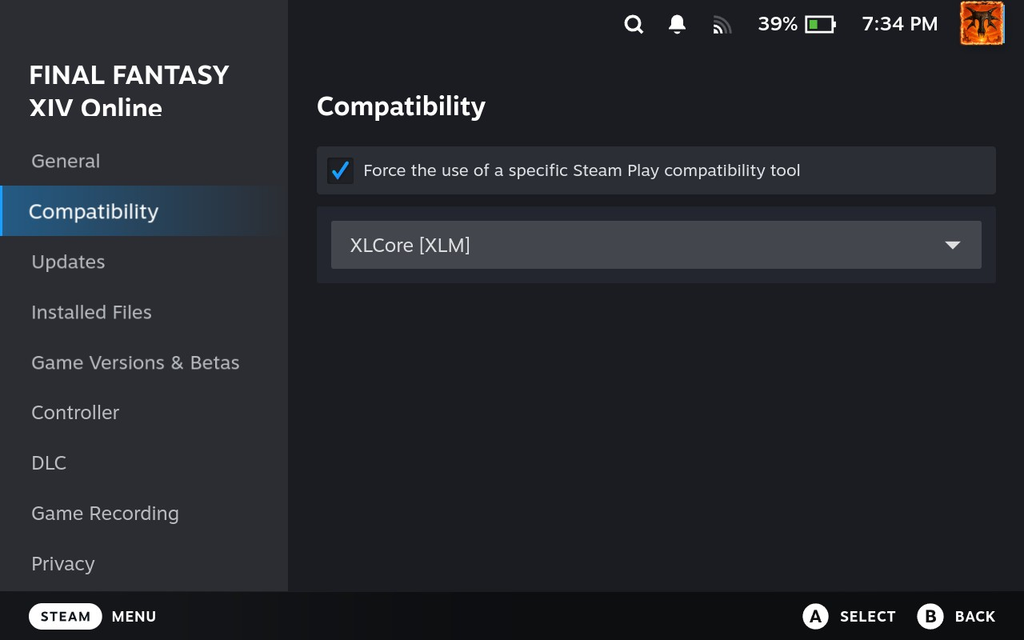
Once the installation is complete, return to Gaming Mode, open FF XIV's Properties, and head to the Compatibility tab. Enable “Force the use of a specific Steam Play compatibility tool” and select “XLCore [XLM]” from the dropdown menu. If XLCore doesn't appear, make sure you've fully restarted Steam after completing the installation. From this point on, you can launch FF XIV normally through Steam, and XIVLauncher will automatically install itself and launch in place of the default launcher. It's really that simple!
The Dalamud Plugins
Once you've launched the game and logged into your character, you'll notice a new “Dalamud Plugins/Settings” section in the main menu. And this is where the real magic happens.
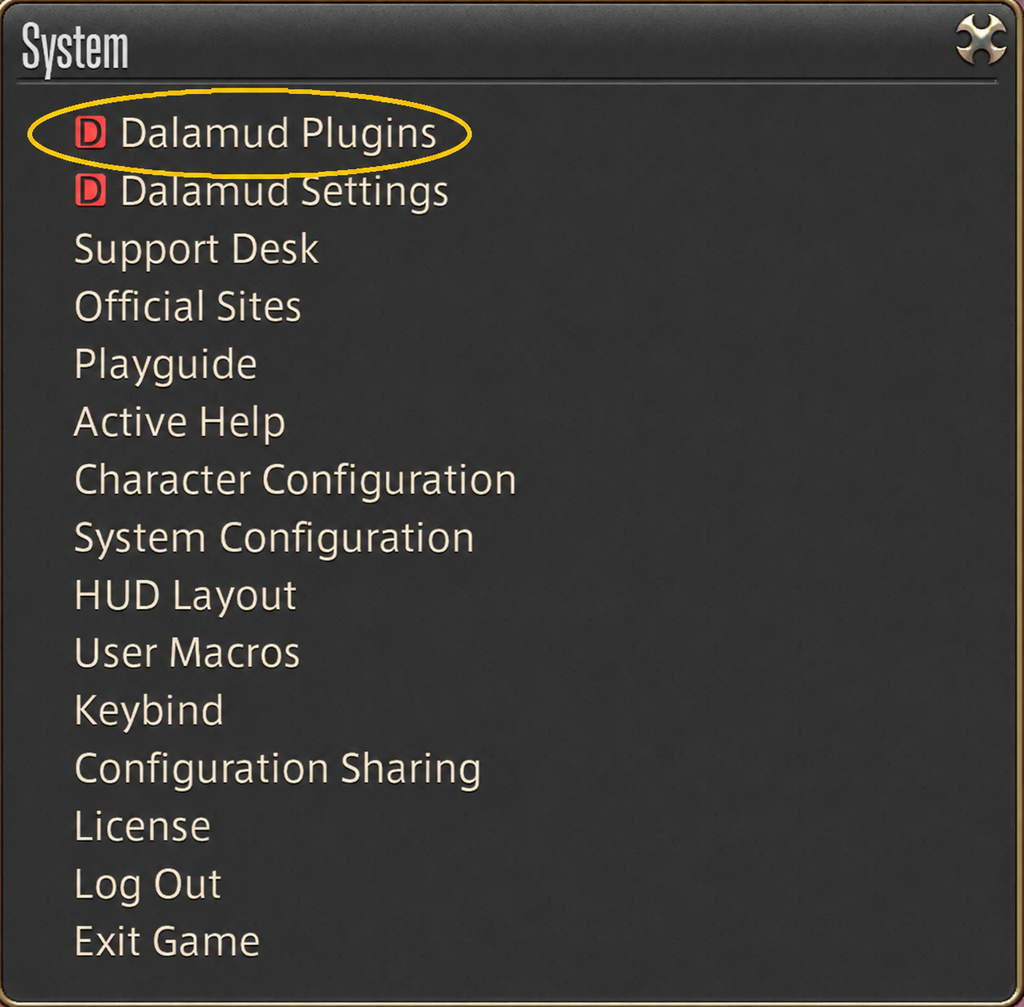
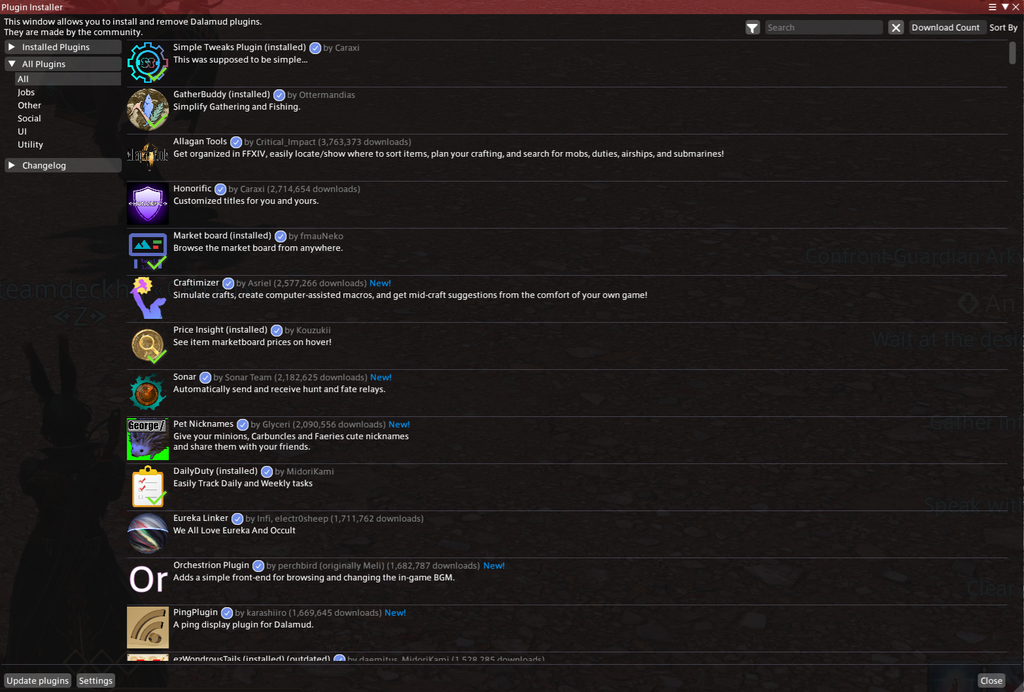
Dalamud offers a huge collection of quality of life plugins that can make the FF XIV experience significantly better. I'm not going to go through every plugin individually, as there are far too many and you can browse through them yourself and install whatever suits your preferences. Generally, though, you'll find incredibly useful additions for things like checking Market Board prices from anywhere, setting timers and daily checklists, finding which vendors sell specific items, tweaking the UI, helping with fishing and certain mini-games, checking item prices, displaying your latency, and countless other conveniences.
It is possible to manually add third-party repositories through the experimental settings to access plugins outside the default selection, but we strongly discourage doing so without knowing exactly what you're installing. Square Enix officially prohibits third-party tools, and plugins that automate gameplay, provide unfair advantages, or otherwise alter how the game is played can put your account at risk.
There are tons of great plugins to use to customize your experience, but if you aren't sure where to start, I recommend the Market Board plugin to see prices anywhere.
グラフィック:
Now let's get to the graphics settings. The first thing you should do is set the game to 1280x800 resolution. FF XIV natively supports the Steam Deck's full 800p display, but it doesn't use it by default, so make sure to change this before touching anything else.

Since this is an MMO, performance can vary dramatically depending on what you're doing, which makes recommending one definitive graphics configuration rather difficult. Luckily, FF XIV comes with four well-optimized presets that make switching between visual quality and performance incredibly easy: High (Desktop), High (Laptop), Standard (Desktop), and Standard (Laptop).
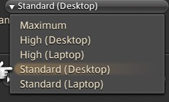
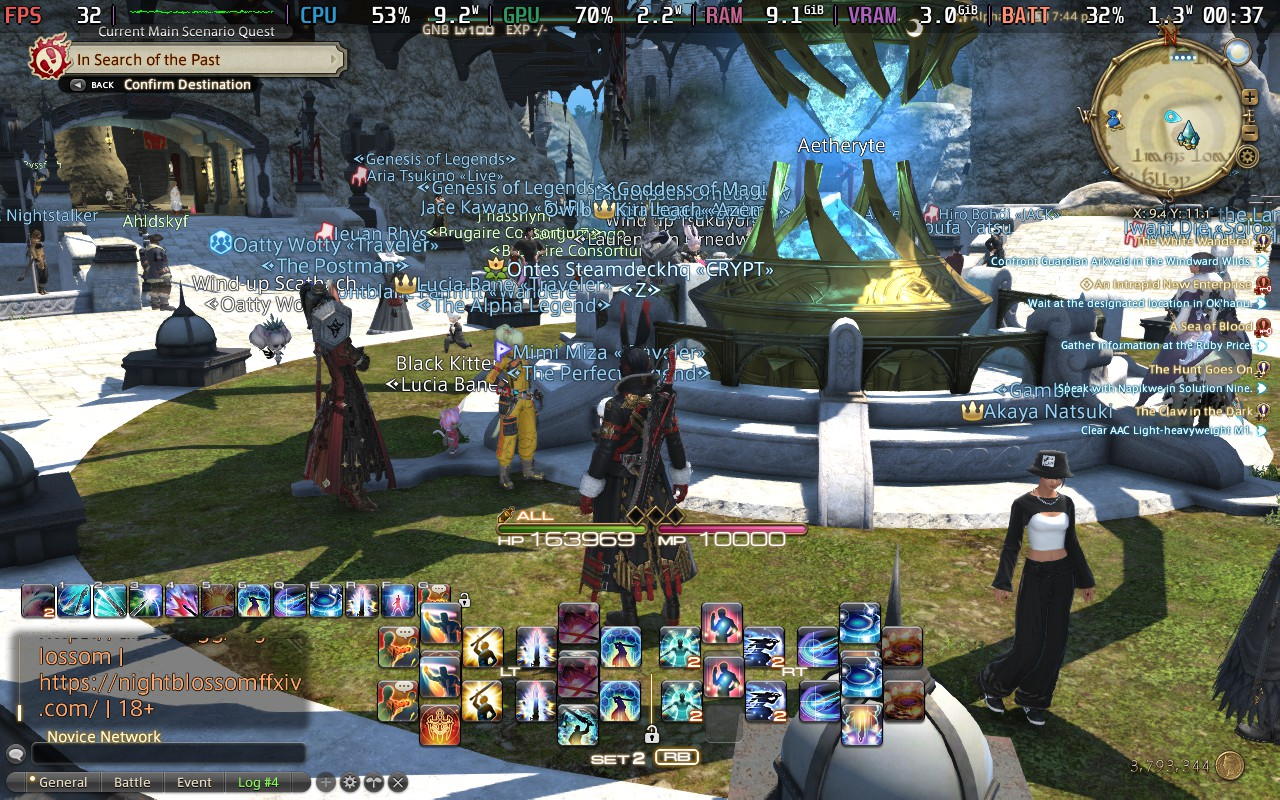
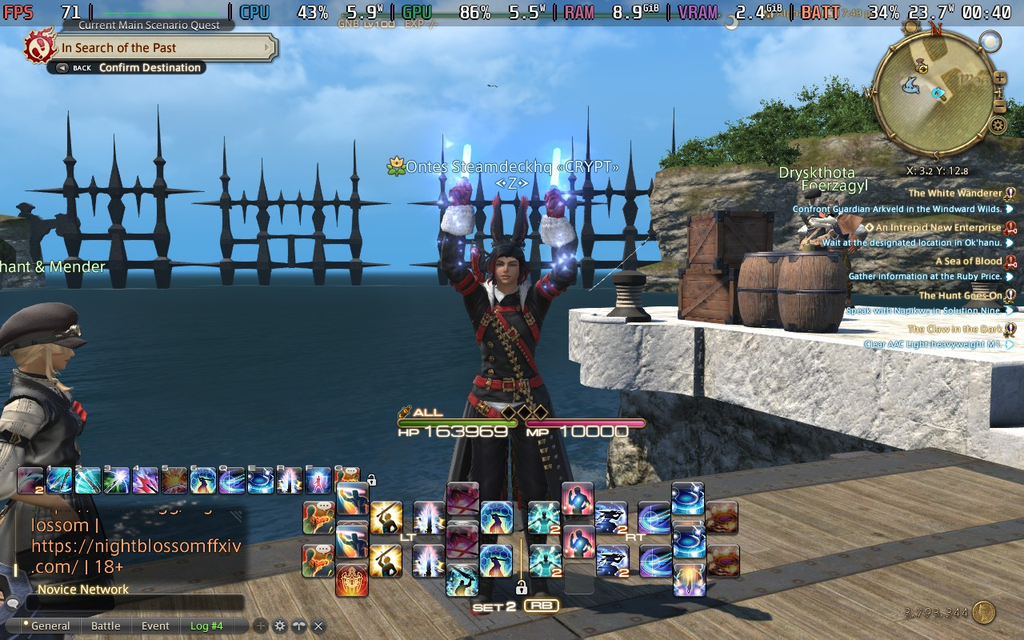
The default Standard (Desktop) preset is what I use for the vast majority of the game. During questing, open-world exploration, social activities, and lower-level dungeons, it generally delivers around 45-90 FPS depending on the content, while still looking great on the Deck's small screen. The major exception is Limsa Lominsa, where the frame rate can drop into the 30s simply because of the ridiculous number of players gathered there. This isn't really a Steam Deck-specific problem either; Limsa is one of the game's biggest social hubs and can have hundreds of players hanging around at once.
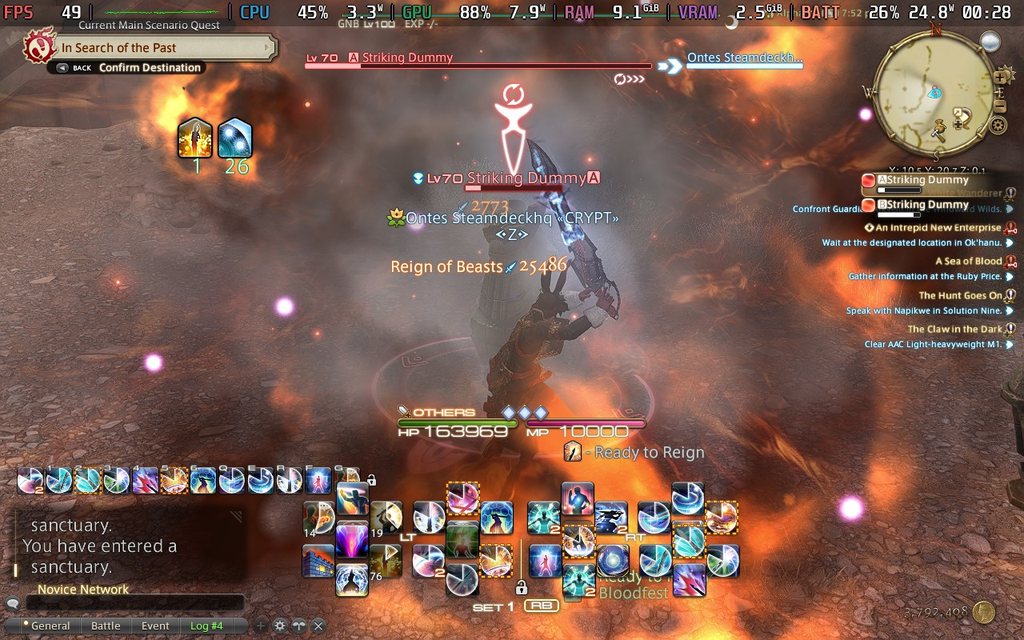
More demanding content is a different story. Newer expansion dungeons, 24-player Alliance Raids, and especially the massive PvP battles in Frontline can struggle to maintain the 50-60 FPS range on Standard (Desktop). Whenever I'm doing this type of content, I simply switch over to Standard (Laptop) for some extra performance and switch back once I'm done. Changing presets takes about five seconds, so there's really no reason to sacrifice visual quality throughout the entire game just for the relatively small amount of content that needs the extra headroom.
Overall, FF XIV gives you a ton of flexibility on the Steam Deck. Rather than forcing the entire game into one compromised configuration, you can enjoy better visuals during less demanding content and instantly grab some extra performance whenever things get hectic. It's a wonderfully optimized game for the Steam Deck overall.
コントロール
Controls are probably the most important topic in this entire guide. I've already talked about how FF XIV has arguably the best controller support of any MMO, and there's a reason the system is so highly praised by the community. However, as good as it is, there are still a few minor inconveniences that can make certain actions feel unnecessarily clunky on the Steam Deck.
This is where the back grip buttons completely change the experience.
If you're playing on a Steam Deck, Steam Controller, DualSense Edge, or basically any controller with additional back buttons, my setup eliminates most of those remaining annoyances and makes playing FF XIV on a controller significantly more comfortable.
First, let's talk about hotbars. FF XIV has a lot of abilities and some pretty complicated rotations. Controller players primarily use L2 and R2 combined with the D-pad and X/Y/A/B to access them. Holding L2 gives us eight abilities, while holding R2 gives us another eight, for 16 immediately accessible actions.
That's nowhere near enough for a Level 100 character, though. Especially with more bloated Jobs like Astrologian or Gunbreaker, you can easily need around 30 buttons, and potentially even more if you're min-maxing your setup with macros.
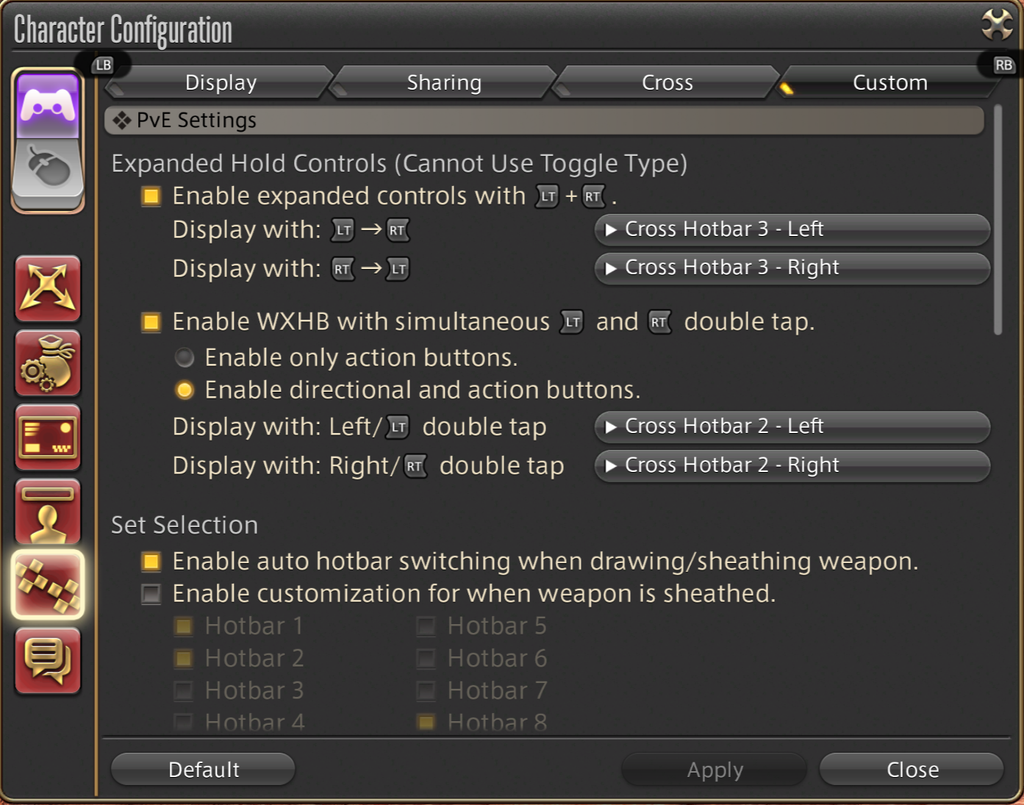
FF XIV has two excellent solutions for this: Expanded Hold Controls and the WXHB. In practice, this means either pressing R2 + L2 together in a specific order to access another set of abilities, or double-tapping L2 or R2 to bring up an additional hotbar.
I personally already use the L2 + R2 combinations for my additional hotbars, but back when I played on PS4, I still had to rely heavily on double-tapping the triggers for everything else. Once you develop the muscle memory, it becomes surprisingly natural, but it's still a lot of finger movement. During fast-paced rotations on Jobs like Monk or Dragoon, messing up a double tap or switching to the wrong set can also cost you valuable uptime.
For years, I wished I could simply dedicate a completely separate button to another set of abilities instead of constantly double-tapping triggers.
Thanks to the Steam Deck's back buttons, that's now unofficially possible.
We're still going to use the double-tap method, but instead of physically double-tapping the triggers ourselves, we're going to make L4 and R4 do it automatically and almost instantly. I managed to achieve this through Steam Input by assigning multiple commands to a single button.
For L4, assign Left Trigger and change its activation type to Start Press. Don't add any delay to this first input. Then, open the options next to that command and add an Extra Command, once again assigning Left Trigger. This time, leave it as a Regular Press and set its Fire Start Delay to 48ms. Through my testing, 48ms was the earliest delay at which FF XIV consistently recognized the two inputs as a double tap.
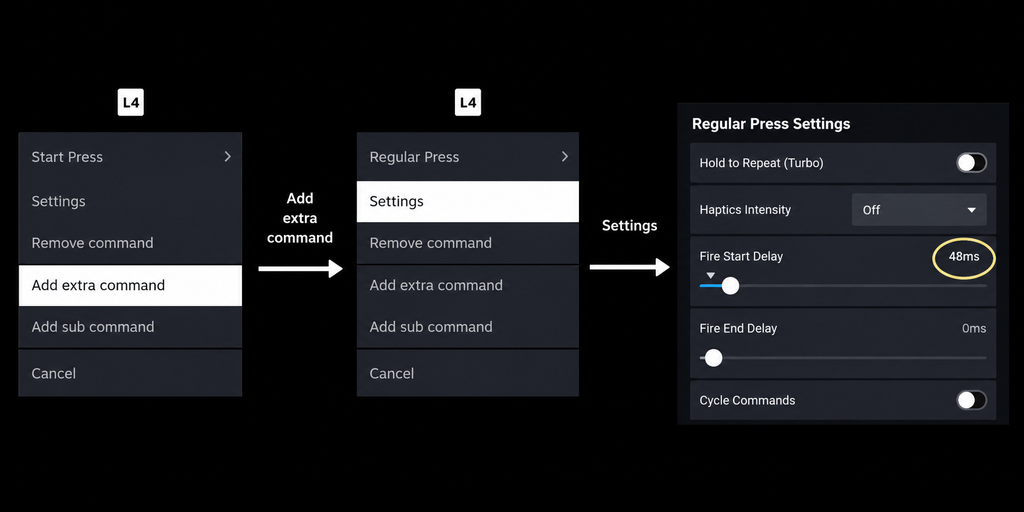
Now simply repeat the same process for R4, using Right Trigger instead.
And voila! You can now instantly access another 16 abilities with a single press of L4 or R4 instead of physically double-tapping your triggers. But we still have two back buttons left, and this is where my personal setup gets even more useful.
As I mentioned earlier, several abilities on the Cross Hotbar are assigned to the directional D-pad buttons. The problem is that reaching for the D-pad requires you to physically take your thumb off the left analog stick, which controls your movement. When you're not holding L2 or R2, D-pad Left and Right are also used for cycling through targets, making them two of the most frequently used buttons during combat.
That's why I assign L5 to D-pad Left and R5 to D-pad Right.
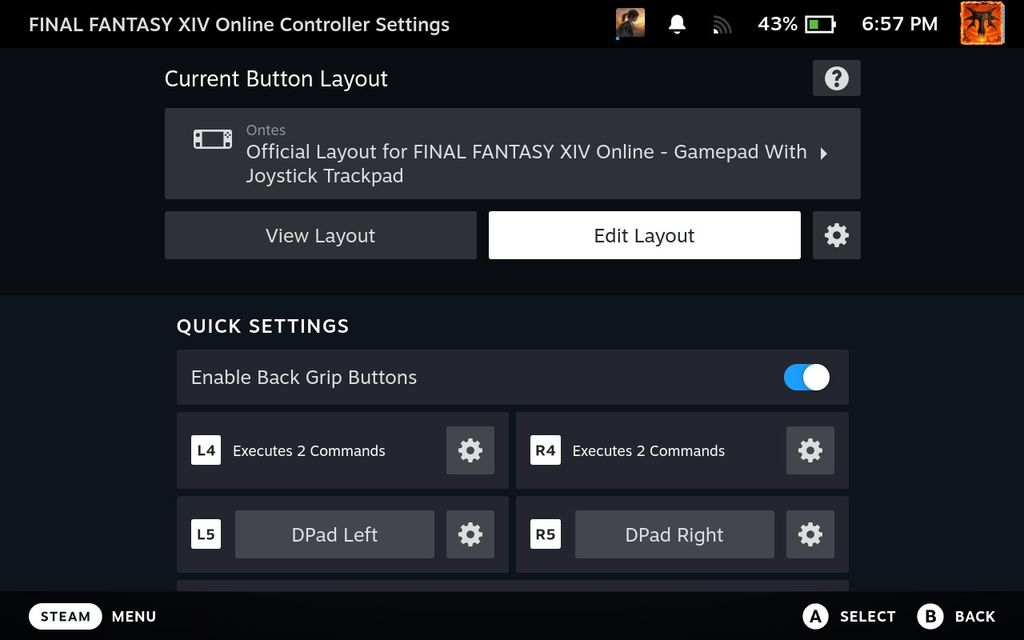
This lets me cycle through targets without ever taking my thumb off the analog stick. Even better, because those buttons still behave exactly like D-pad Left and Right, they can also activate the corresponding Cross Hotbar abilities while you're holding L2, R2, or using the new L4/R4 instant double-tap setup. In other words, those two back buttons aren't just making targeting easier; they're also giving you much more comfortable access to another set of hotbar actions while maintaining full movement control.
The difference in practice is huge. Previously, if I wanted to switch to an enemy and immediately use an ability assigned to a directional slot on my additional hotbar, I might have to take my thumb off the analog stick, use the D-pad to select my target, double-tap L2, and then move my thumb back to the D-pad again to activate the ability.
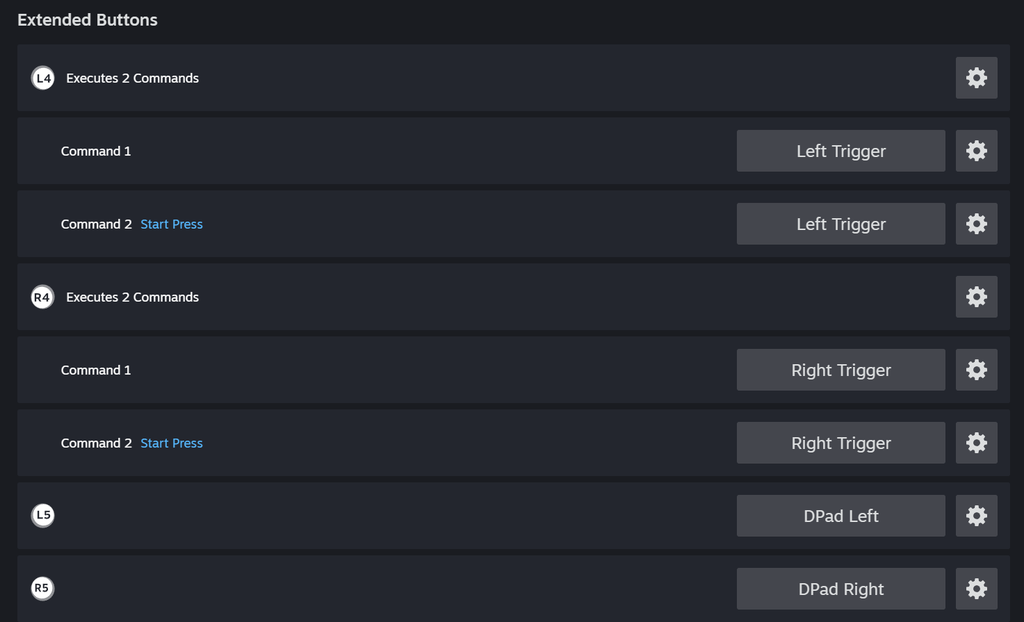
With this setup, all of that functionality is accessible from the back of the controller. I can keep my thumbs on the analog sticks, switch targets with L5/R5, instantly access my additional hotbars with L4/R4, and continue my rotation without constantly moving my fingers around the controller.
The only directional input I still occasionally need to physically reach for is D-pad Up, but I simply place abilities I rarely use there, so in practice it has never been a deal breaker.
This setup has worked wonders for me, and it's probably the single biggest improvement I've made to FF XIV's already excellent controller controls.
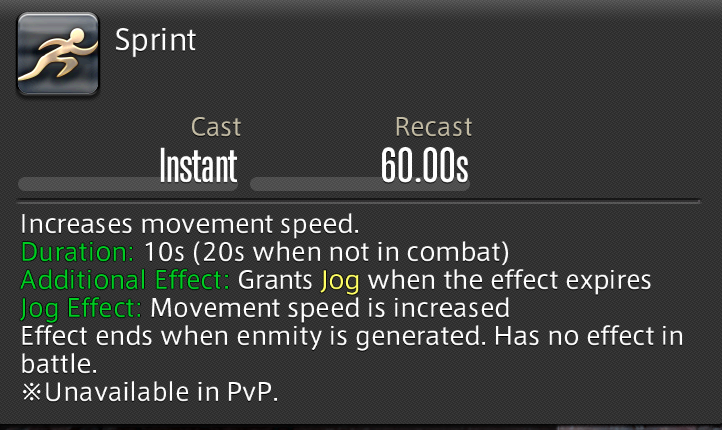
Now let's talk about Sprint. Sprint is a universal action shared across every Job, and since it's something you'll constantly use throughout the entire game, dedicating one of your precious Cross Hotbar slots to it has always felt like a waste of space to me. Luckily, there's an incredibly simple macro that solves this problem.
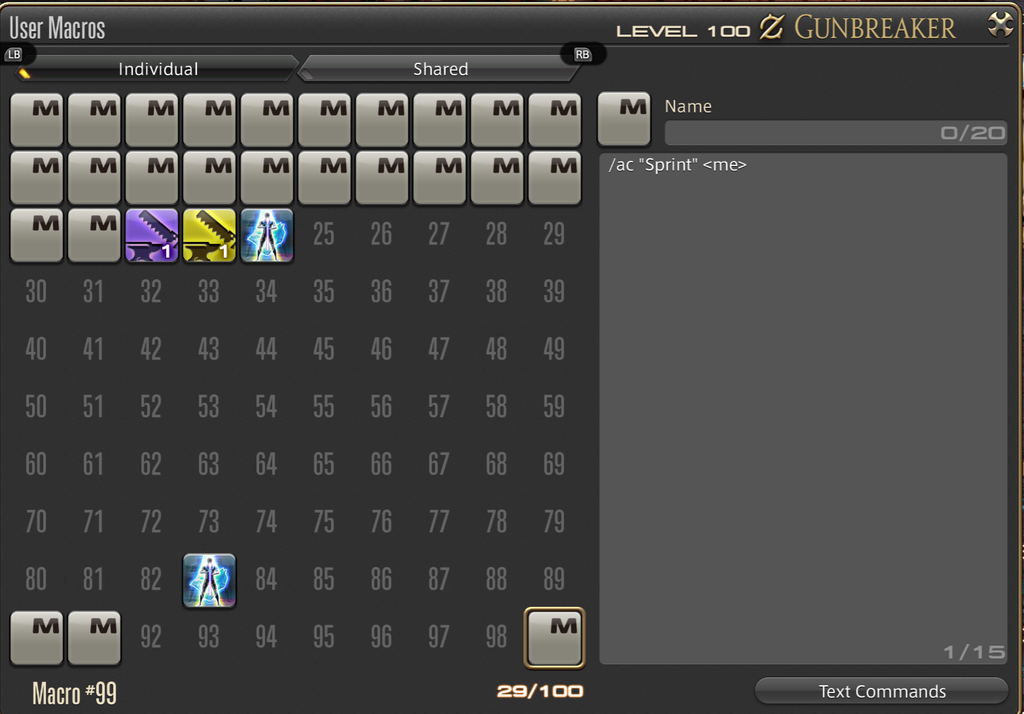
Open the Main Menu, select User Macros, scroll all the way down to Macro 99, and enter:
/ac "Sprint" <me>
Then head into System Configuration → Gamepad Settings → Button Configuration and choose either L3 or R3, whichever you prefer. Assign Macro 99 to that button, and that's it! You now have a dedicated Sprint button without sacrificing a Cross Hotbar slot.
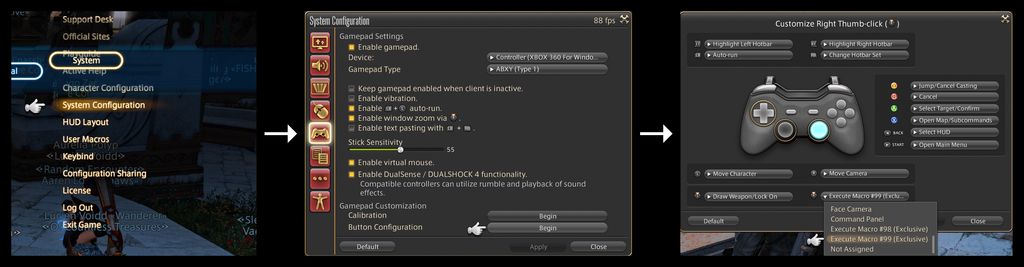
This one is mostly personal preference, though. Some players prefer assigning L3 and R3 to D-pad inputs for even easier access to their abilities, and that's perfectly valid too. That's one of the best things about FF XIV's controller support: there isn't really one definitive setup. Between the game's native controller customization, macros, Steam Input, and the Steam Deck's four back buttons, the possibilities are almost endless.
HUD:
Another important thing to consider when playing FF XIV on the Steam Deck is the HUD. There's a lot of information on screen at any given time, and squeezing all of it onto a small handheld display can make things feel cluttered pretty quickly.
Luckily, FF XIV's HUD customization is just as flexible as its controller settings. Head into HUD Layout from the System menu and you can move practically every individual element wherever you want. You can either use the touchscreen and simply drag things around with your finger, or use Steam Deck's right trackpad while holding Steam button as a mouse for more precise adjustments.
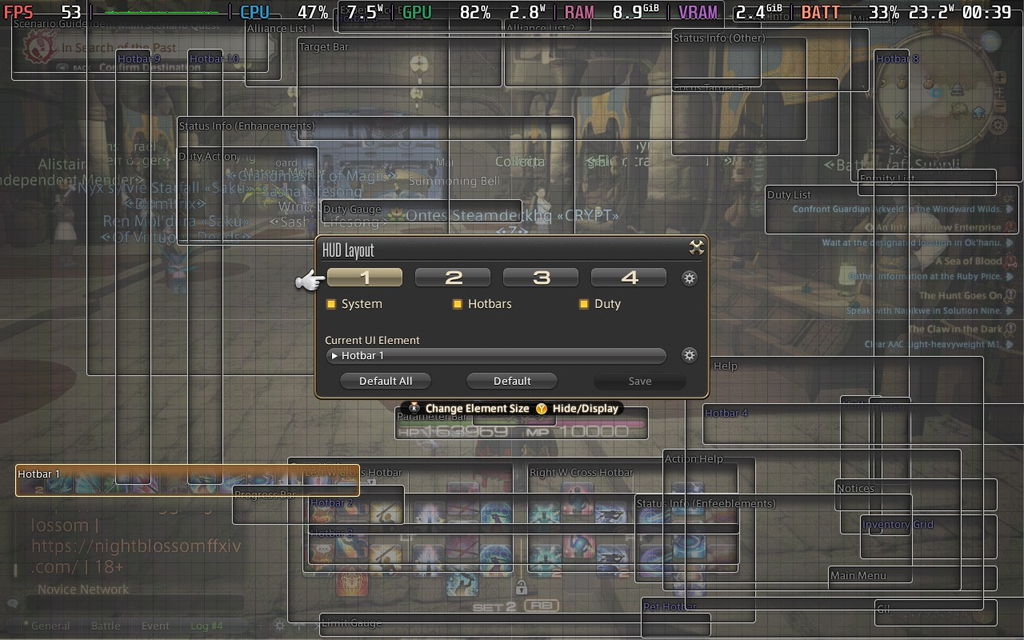
Selecting an individual HUD element also lets you adjust things like its size and opacity, so you don't have to scale the entire interface just to make more room. You can keep important combat information such as your Party List, Target Bar, Job Gauge, buffs and debuffs clearly visible while shrinking or moving less important elements out of the way.
There really isn't a definitive “best” HUD layout here. Everyone has different preferences, and different Jobs and roles benefit from having different information front and center. Just move things around, resize what feels too large, hide anything you don't need, and experiment until the screen feels comfortable to you.
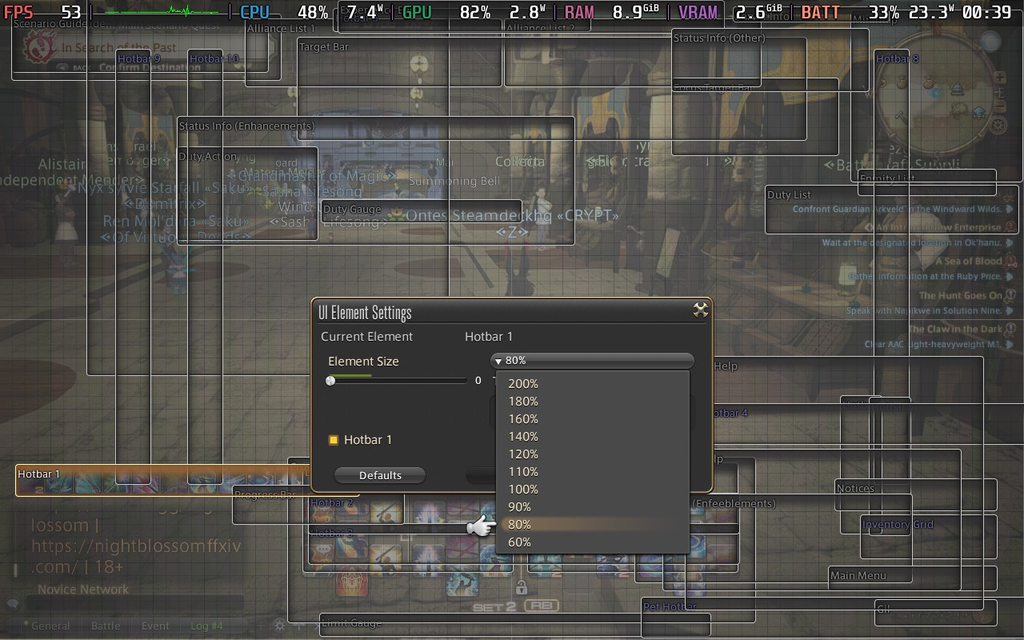
It only takes a few minutes, and FF XIV gives you pretty much everything you need to make the HUD feel completely at home on the Steam Deck.
Final Fantasy 14 and Steam Deck:
I think Final Fantasy 14 is one of the greatest games you can play on the go. Not just because its controller support translates so perfectly to a handheld or because the game runs remarkably well on the Steam Deck, but because of the sheer amount of content available. FF XIV may be an MMO, but it also offers hundreds of hours of story-driven and solo-friendly content, alongside dungeons, raids, PvP, crafting, gathering, exploration, mini-games, and countless other activities. It's not just a game you occasionally jump into; it's an entire world you can carry around with you.
And there's even more solo-focused content on the horizon. The long-awaited Beastmaster is joining the game as a new Limited Job in Patch 7.56 today/s, bringing its own monster-taming and collection-focused gameplay. It's exactly the kind of content that makes FF XIV such a great fit for a handheld: something you can jump into and make meaningful progress in even when you don't want to commit to traditional multiplayer content.
Whether you're a longtime Warrior of Light looking for a portable way to play or you're about to set foot in Eorzea for the first time, the Steam Deck is an incredible way to experience Final Fantasy 14. And with the right setup, you don't have to settle for a compromised handheld version of the game. You get the full FF XIV experience, wherever you want to play it.
If you enjoyed this guide, check out the rest of the content on SteamDeckHQ! We have a wide variety of game reviews and news that will help your gaming experience. Whether you're looking for news, tips and tutorials, game settings and reviews, or just want to stay up-to-date on the latest trends, we've got you covered.


Thank you for sharing this guide! I downloaded FFXIV yesterday, and I’m almost finished setting up the control layout you recommended. From what I’ve experienced so far, I’m really impressed with how well the game runs and how great it looks. It definitely gives me some Lineage II vibes, which I love!