


まだの方は、X(Twitter)、Mastodon、Blueskyでフォローし、新しい記事が投稿されたらお知らせください。また、Redditに参加したり、YouTubeに登録して、私たちのコンテンツをチェックしたり、素晴らしいコミュニティと交流してください。応援ありがとうございました!
Just like a majority of people, I have been extremely excited for the Steam Controller. I fell in love with the Steam Deck’s layout, and I’ve always wanted it in controller format. And now, I don’t have to wait any longer to get it. I love this controller so far, which surprisingly feels quite comfortable to use. I will go into that more in my review, but in this guide, I just want to talk about how to get it connected to your Steam Deck.
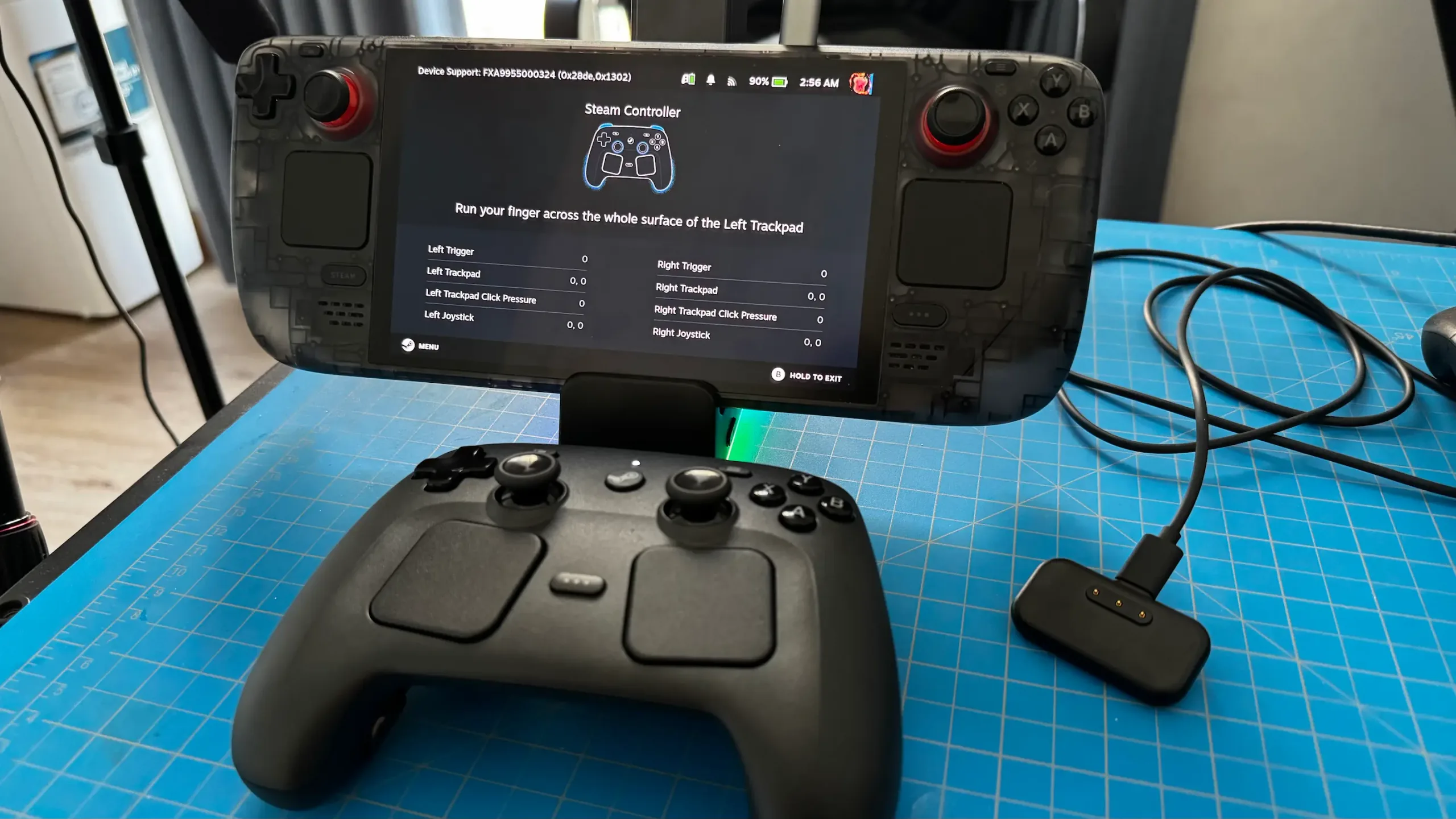
When I got the controller, I initially tried to connect to my Deck via Bluetooth, but I quickly realized it needed to update before it could even enter Bluetooth mode. So, I wanted to make a quick guide to go over how to get it connected to your Deck and show the different ways it can be connected so you can play easily on the go.
Before we get started, you are going to need some sort of dock, desktop computer, or laptop to connect the Steam Deck to. Unfortunately, there’s no way around it; we can’t just immediately connect it to the Deck. Luckily, if we do have a dock, everything can be done with the Deck.
How to Set Up The Steam Controller on the Steam Deck
ステップ1:
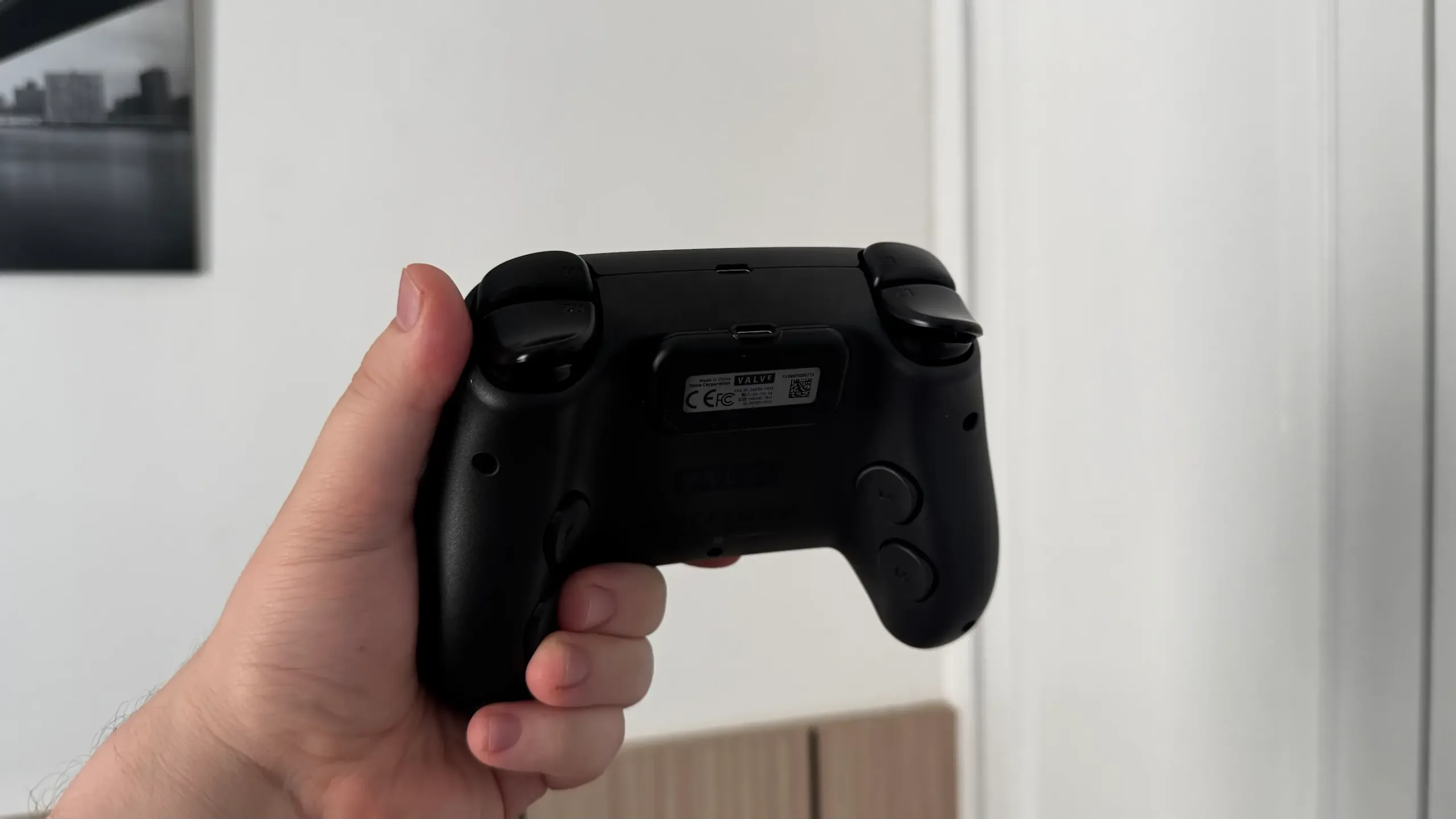
Open up your Steam Controller box and connect the wireless puck to the back of the controller.
ステップ2:
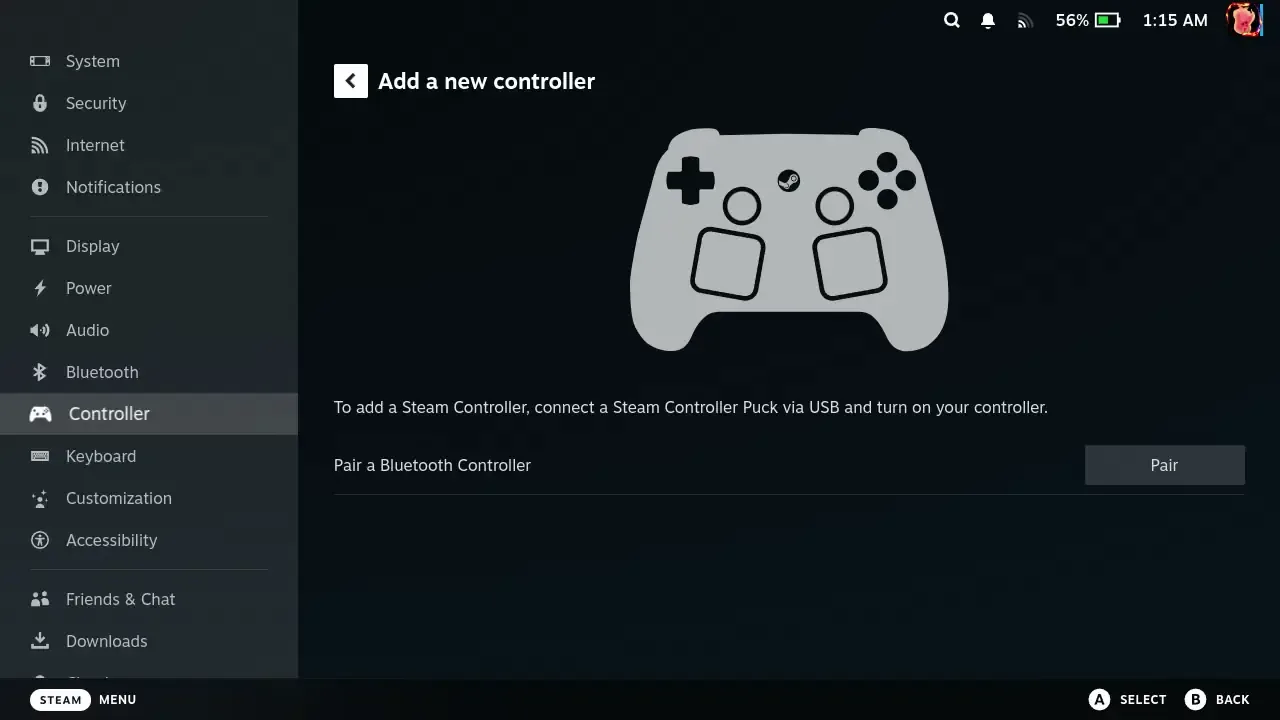
If you are using the Steam Deck, you can go to the controller tab in the settings. And make sure it is connected to a dock that has a USB-A port available.
ステップ3:
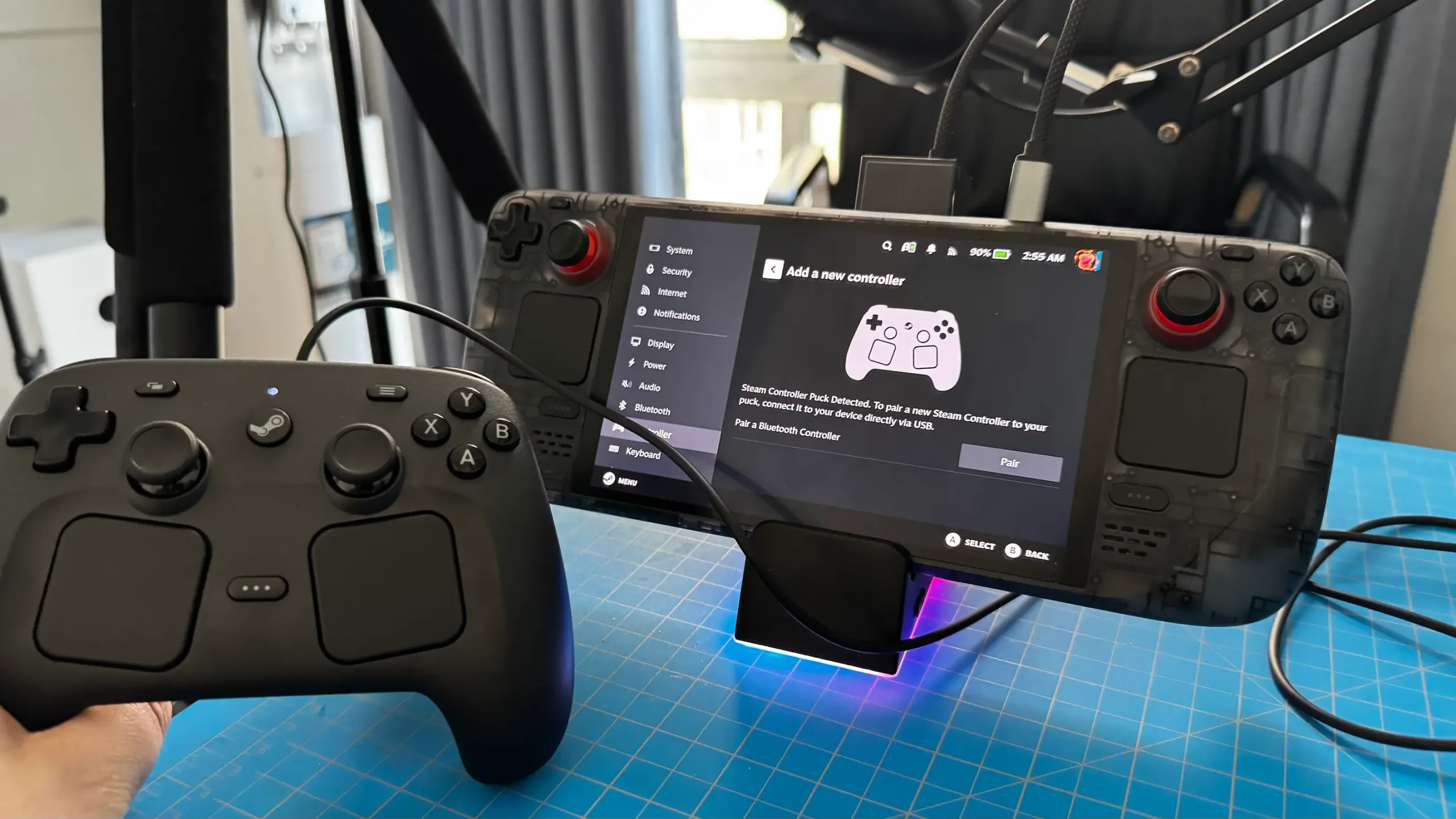
Take out the USB-C to USB-A cable that comes with the controller and connect one end to the puck, and the other to your Steam Deck dock or other PC.
ステップ4:
Follow the on-screen prompts to update the puck and then update the controller. You will need to take out the USB-C from the puck and move it to the controller when it says.
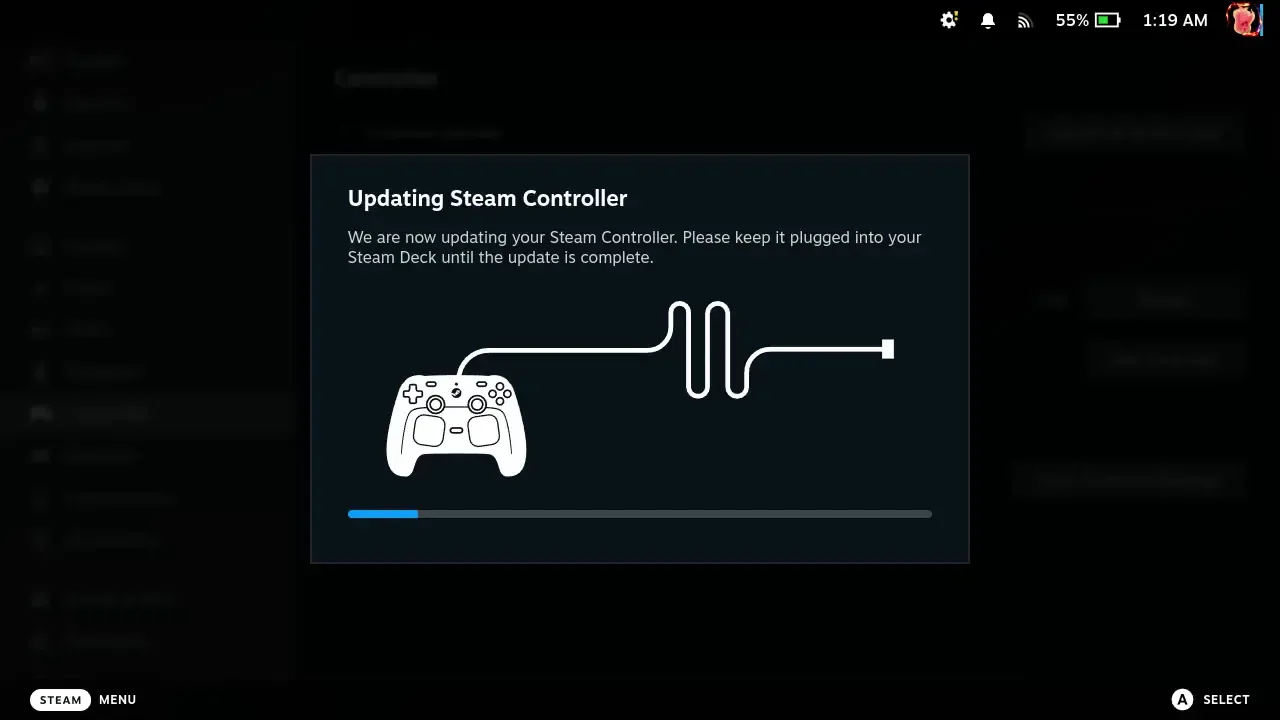
Once that’s done, your controller will now be paired with the wireless puck. Now, you can remove the puck from the controller and use it wirelessly. However, you may not want to connect the puck every time you use the Deck, especially if you’re traveling. The Steam Controller does have a Bluetooth mode, but it’s not blatantly obvious how to enable it.
So, to get to Bluetooth mode, turn off your Steam Controller (if it isn’t already off) by holding down the Steam button for 6 to 7 seconds. Once that’s done, hold down the B and RB buttons, then press the Steam button (B + RB + Steam). This will change the LED to blue, which indicates that Bluetooth mode is enabled. Then, all you have to do is go to the Deck’s Bluetooth settings and add the controller. We can always go back to puck connection mode by turning off the controller and holding down the A + RB + Steam buttons to turn it on.
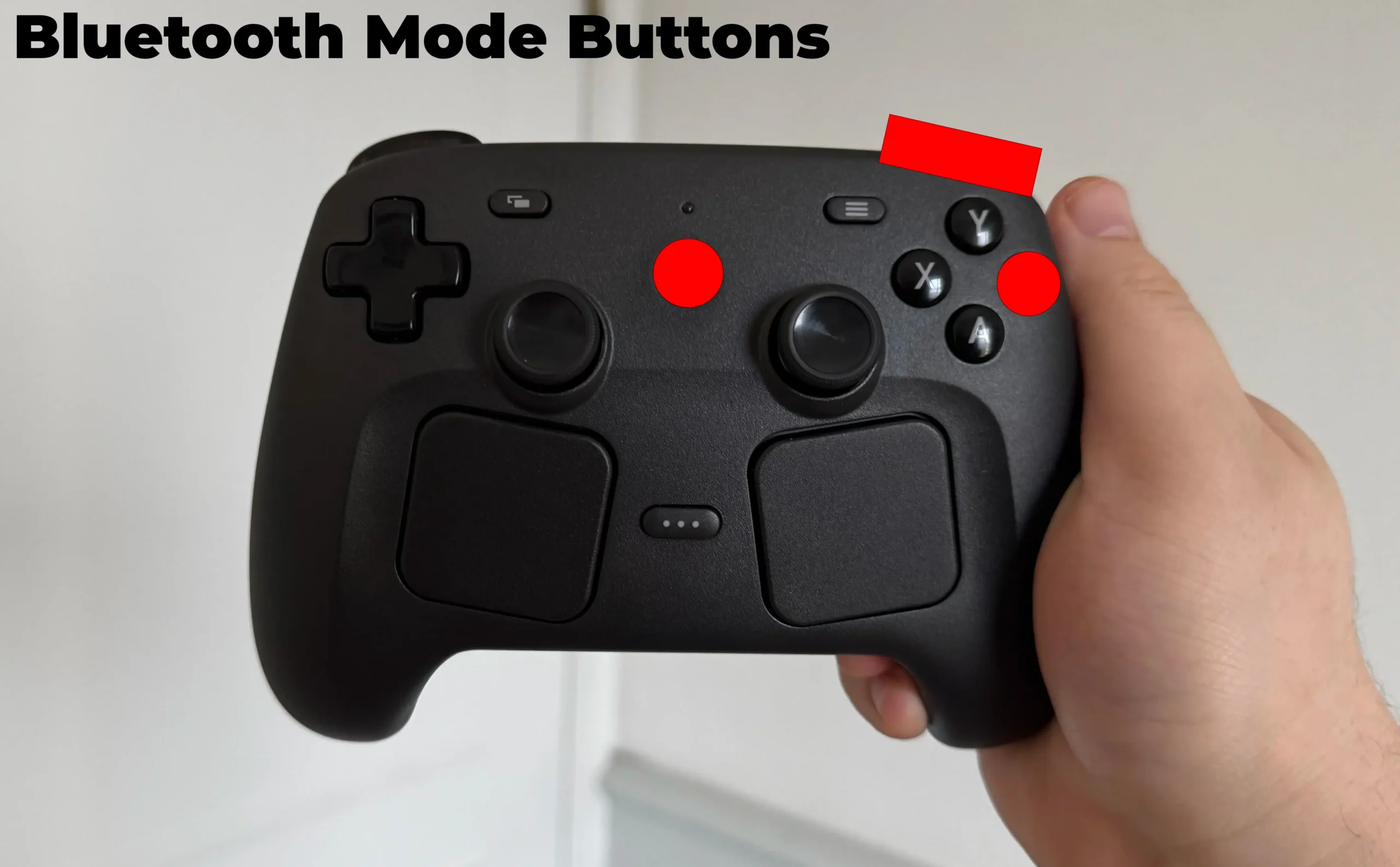
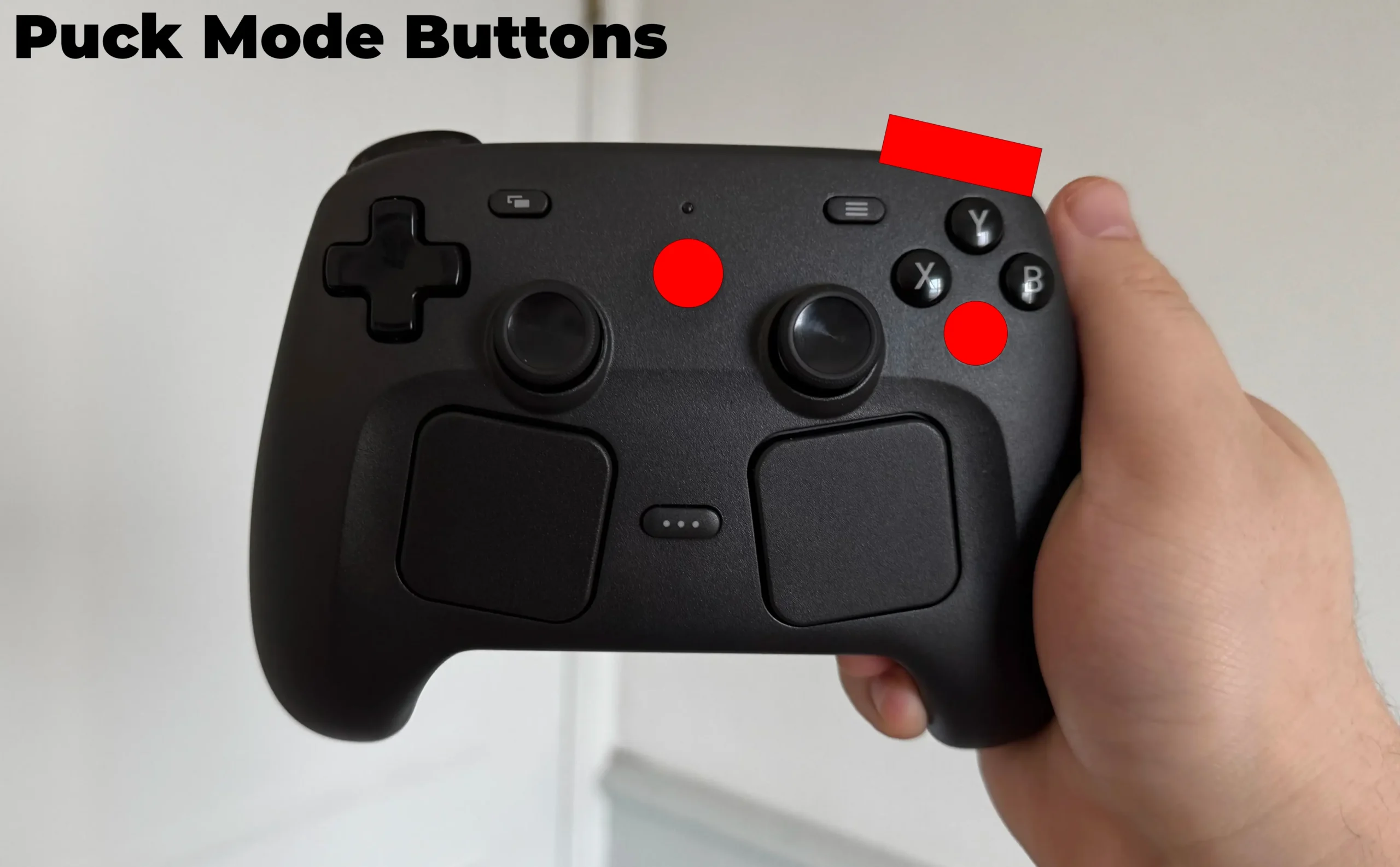
Interestingly, I also learned that we can switch between puck and Bluetooth modes without it forgetting where it’s connected. So, if I have the puck always connected to my desktop PC, I can switch to PC mode, and it will automatically recognize it on the computer. Then, if I switch back to Bluetooth mode, it will automatically recognize where it was connected last, in this case, the Steam Deck. And since it’s connected to the puck, you don’t need to go through any setup again if you disconnect the puck from a PC and connect it to a different one. So, we can disconnect the puck from my desktop PC and connect it to my laptop, and the controller will automatically connect.
But that’s it! Once you’re done with this, you should be able to use the Steam Controller with your Steam Deck with or without the puck. I do wish it were easier to get it set up if we only had the Deck, but I’m glad that we can do it without the puck once it’s all done.
このガイドを楽しんでいただけたなら、SteamDeckHQ の他のコンテンツもチェックしてみてください!あなたのゲーム体験に役立つゲームレビューやニュースを幅広く取り揃えています。ニュース、ヒントやチュートリアル、ゲーム設定やレビュー、最新のトレンド情報など、あらゆる情報をお届けします。 カバーしています!




If the puck is connected to the official deck dock, can it be used to charge the controller, when not playing? I assume not as, so far as I know, the dock's usb ports aren't powered when no deck is connected, or even if it is but sleeping or turned off.