まだの方は、X(Twitter)、Mastodon、Blueskyでフォローし、新しい記事が投稿されたらお知らせください。また、Redditに参加したり、YouTubeに登録して、私たちのコンテンツをチェックしたり、素晴らしいコミュニティと交流してください。応援ありがとうございました!
The Steam Controller is by far one of the best PC controllers out there. It has all of the inputs necessary to play any game on PC, while also feeling comfortable to hold and giving extra buttons to attach macros to using Steam Input. It does require Steam to use, but it more than justifies the price with all of the features and options it has. While those who have a Steam Deck are used to the layout and what Steam Input can do, a lot of newcomers who get the controller may not be aware of it. So, Valve has posted some new guides to go over how to get the most out of your Steam Controller.
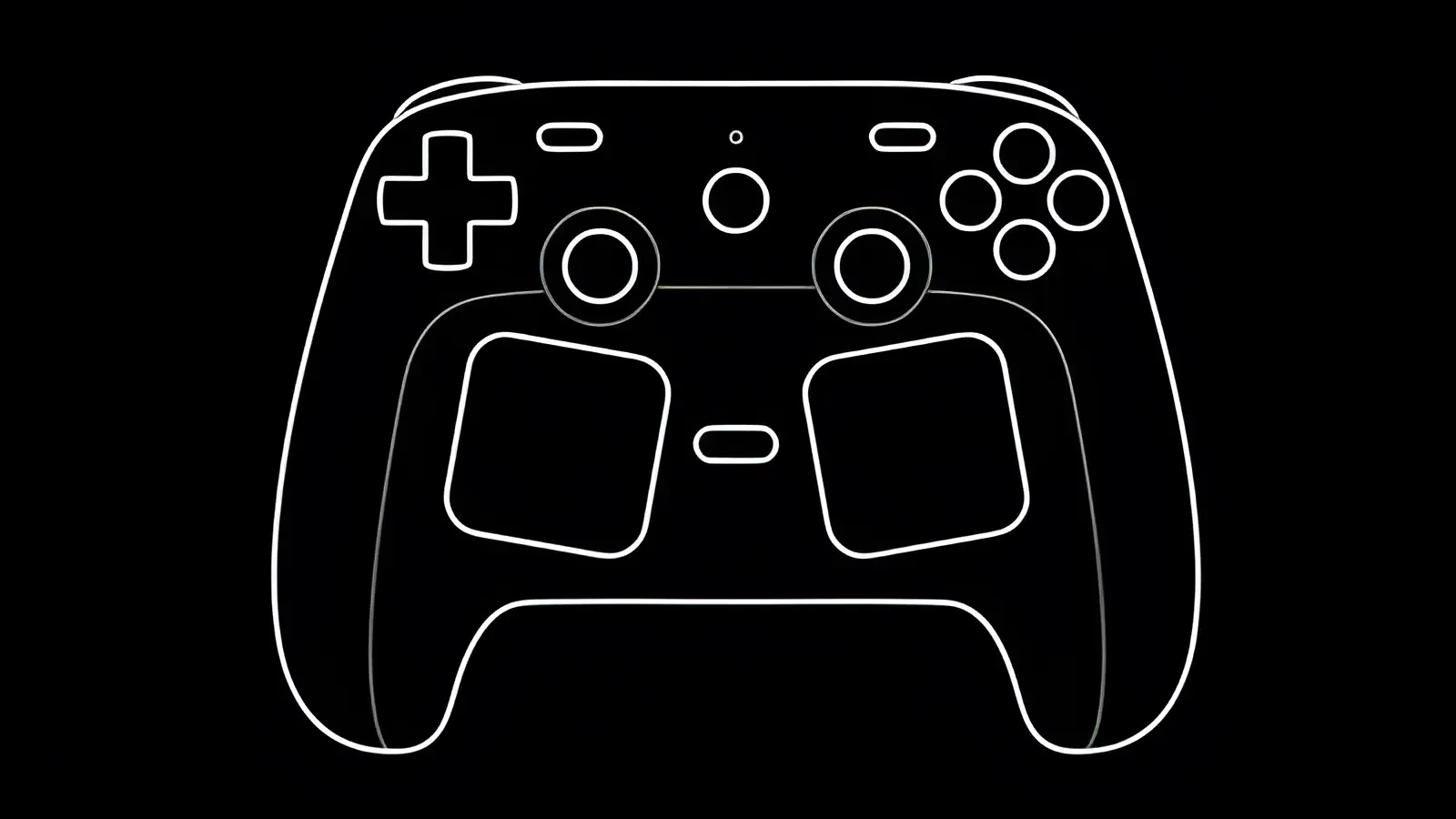
Two days ago, Valve posted two new guides on the Steam Controller and how to make the most of it. These follow a post made at the beginning of this month that went over Steam Input. The Steam Input blog post dove into remapping, adjusting behavior, and adjusting settings, like sensitivity and saving your own layout. Now, Valve has posted two guides to expand on it, focusing on virtual menus and the trackpads.
In the virtual menus post, Valve goes over everything revolving around making your own virtual menus. They start off by going over the three types of menus you can create, and then going into how to use those menus. While they feel the best using the trackpads, we can also use joysticks and even gyro to control them. They then go over how to create the menus, customize them, and how to use them in the game. They even show how to customize the appearance of the menus, ranging from placement of the menu to the individual icons inside it. It can get pretty detailed the longer you play around with it, and it’s one of my favorite features of Steam Input.
The second blog post is all about the trackpads. The post starts off by going over the primary use cases for the trackpads, which include using them as a mouse, as a joystick, as a directional pad, or to control virtual menus. However, there are a lot of options for each of these. Valve breaks each of these options down, going into the specifics of what they mean. Then, they detail how you can use your trackpad as a mouse replacement, which is something I use it for in desktop mode on the Steam Deck. It also touches on using directional swipes, which can be used in a multitude of ways, like changing volume, or even using the trackpad to bring up the virtual keyboard.
While both of these posts are about using the Steam Controller, they can both apply to the Steam Deck. Setting up virtual menus and using the trackpads on the Deck are exactly the same, so the content of those posts applies to the Deck, too. It can be extremely worthwhile to set up, so I highly recommend checking both of them out if you are curious about how Steam Input can improve the experience for some games. The possibilities are endless, and that’s what makes using it so much fun.
この記事を楽しんでいただけたなら、SteamDeckHQ の他のコンテンツもチェックしてみてください!あなたのゲーム体験に役立つゲームレビューやニュースを幅広く取り揃えています。ニュース、ヒントやチュートリアル、ゲーム設定やレビュー、最新のトレンド情報など、あらゆる情報をお届けします。 カバーしています!

最近のニュース
カテゴリー
Accessories
Anbernic
Android
ASUS ROG Ally
ROG Xbox Ally
Classics on Deck
Community
Cryobyte33
Deals
Deck Mods
Emulation
Events
Featured Post
Game News
Game News
General Game News
HandheldHQ
Hardware
Lenovo
Linux
MagicX
MSI
Nintendo
ONE-NETBOOK
Opinion
Other Reviews
Accessory Reviews
Handheld Reviews
PlayStation
Proton
Retro Handhelds
Anbernic
AYANEO
AYN
GPD
MagicX
MANGMI
Miyoo
Retroid
Rumors
TrimUI
SDHQ
Steam
Steam Controller
Steam Frame
Steam Machine
SteamOS
The Unsupported Report
Uncategorized
Uncategorized
VR
最近のヒント&GUIDES
新着レビュー