The GuliKit TT Max was provided by AKNES for review. Thank you!
Even though controllers aren’t a priority for the majority of PC gamers, I believe they’re going to be more important moving forward. There has been a big shift in PC gaming as a whole, and we are starting to see it with console-like PCs coming out, like the Steam Machine and Playnix. I have been lucky enough to check out GuliKit’s ES Pro, which is decent for the price, but I could not comfortably use it. However, I had a lot of hope riding on the GuliKit TT Max. Not only did it look more comfortable, but it has more features and a significantly better layout with its joysticks and face buttons. While it does still suffer from some comfort issues, it’s a major step in the right direction and shows how close GuliKit is to making an incredible gamepad.
Build Quality
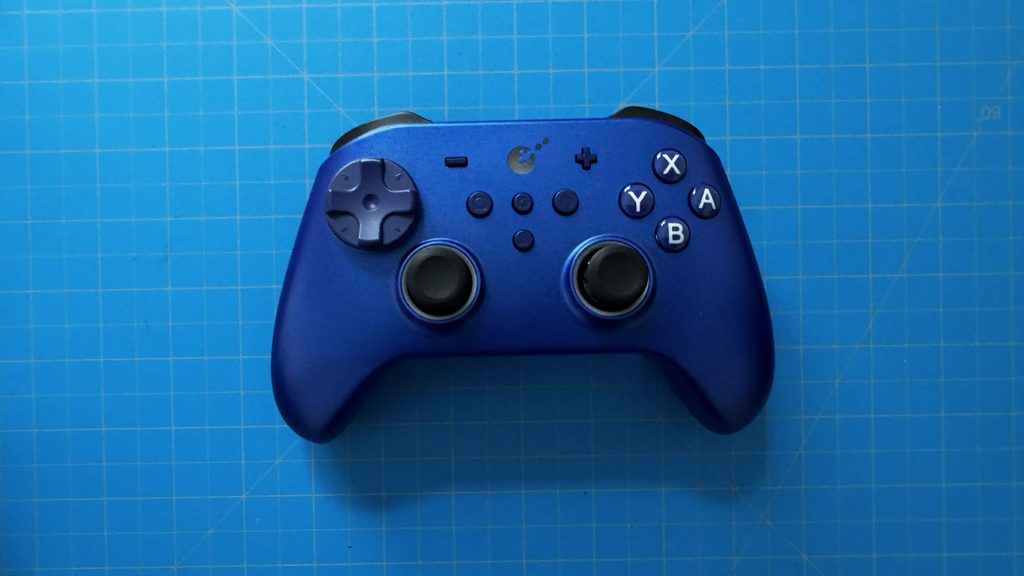
As for the actual texture of the controller, I think it’s great. The front is smooth and shiny, which is appealing to look at, while the handles are more coarse, which holds my hands in place. It’s just enough to keep the grip without feeling too sharp or uncomfortable. It also has a nice weight to it, and it doesn’t feel too heavy to hold for longer periods of time.
However, the back of the controller has a very sharp incline, which is very uncomfortable to hold. This is only applicable when the back buttons are not attached, since it becomes much more comfortable to hold when they are.
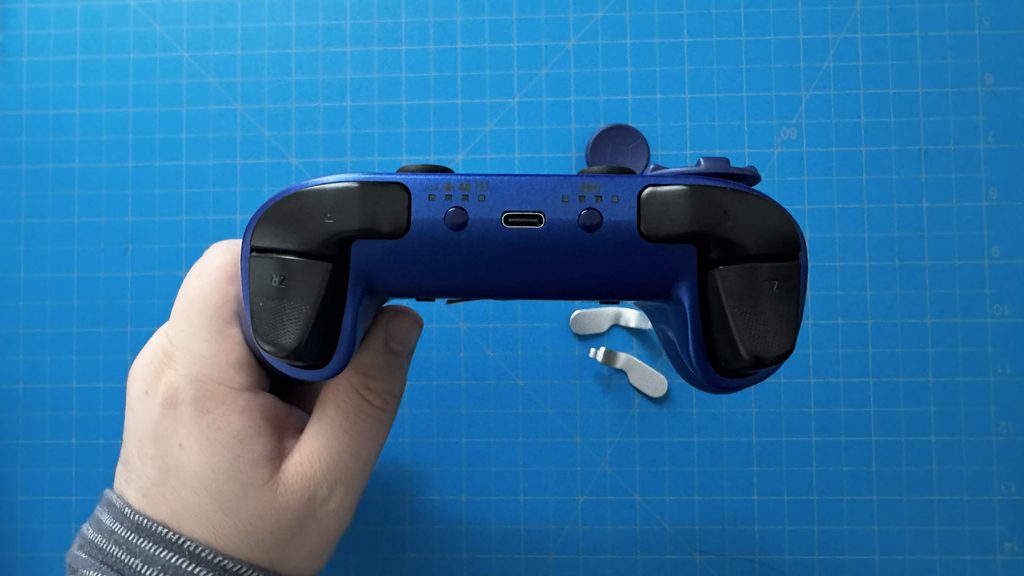
Ultimately, this is a solidly built controller. It feels great, has fantastic grips, and has a good weight to it. Apart from the steep angle of the back, which isn’t always an issue, it’s great to use.
Design
When I picked up the TT Max, I was initially quite worried about how it would feel. I’ve noticed that the GuliKit controllers all have very sharp backs, which is uncomfortable to rest my fingers on when holding the controller. The TT Max has this as well, but because the controller is bigger, the slants weren’t as dramatic, and it was more comfortable. And surprisingly, when I had the back buttons installed, they rested perfectly on my fingers. This makes the controller extremely comfortable to hold when they are installed, which was shocking. It took me a minute to get used to it, because both of the buttons rested on two different fingers perfectly, but it’s easy to use, and I love it.
However, one of the big downsides of the larger controller is button placement. It is easy to use the DPad, ABXY, triggers (whether they are switched to analog or digital mode), and joysticks, but I did have to stretch my hand to press Start and Select and use the other buttons in the middle. This forced me to shift the position of my hand, which is a little bit of a nuisance. Thankfully, those buttons are not necessary when playing games as much as the others, but I still find it worth mentioning.
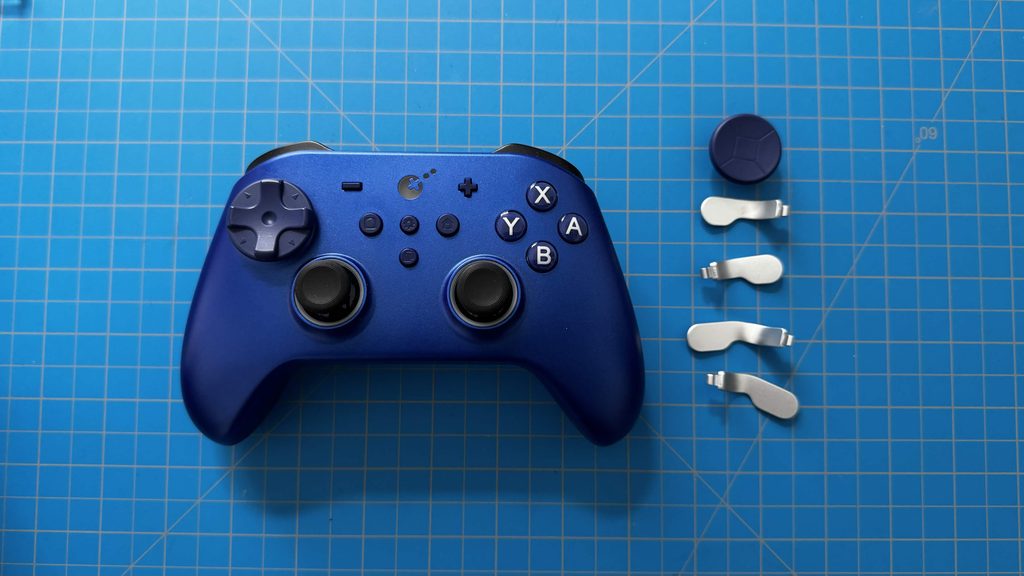
I also want to make special mention of the ABXY buttons. The button placement is similar to the Nintendo layout, which means the A/B and X/Y buttons are switched. This can be a little jarring if you’re going to be using this on a PC or Steam Deck, since it will default to the Nintendo layout. I almost forgot about the switch and kept wondering why I was booting a game when I was trying to back out of the page. This is an easy fix on Steam, where we just need to go to its settings and disable the Nintendo layout. We can also do this directly on the controller, so we don’t have to rely on any third-party programs; that’s always an option. Still, as a primary PC gamer, it’s important to mention that switching will be helpful if you’re used to the Xbox/PC controller layout.
I generally don’t like the circular eight-directional D-pads, but we do have an option to change the default, circular one to one with a more defined D-pad design. It’s not perfect, but it alleviates some of the discomfort I feel when using it. Having the choice does help a lot, but it still clearly feels like an eight-directional pad, since it’s still in the form of a circle; it does lessen the discomfort from a regular eight-directional D-pad. Swapping it out is also very easy to do, just pulling it out and then lining up the other one and pushing it in.
On top of that, the controller uses TMR Joysticks, so they are precise and will last a long time. They feel extremely smooth to use, and have a great range of motion. The tops of the joysticks are a little too smooth, and I could feel my thumb slipping off of them with intense use, but they have slight grooves that can be gripped onto without issue. The placement is also just how I like it, symmetrical and below the ABXY buttons.
Speaking of which, the placement of all the buttons is great. The controller is small enough where it’s very easy to reach every button needed for gaming without issue. This extends to the four back buttons, which are completely optional to use and easy to attach. The controller comes with the four back buttons that can be taken off of the controller entirely, and can be put on at any given time. When they’re on, they fit perfectly on the controller and allow my middle and ring finger to rest on them comfortably.
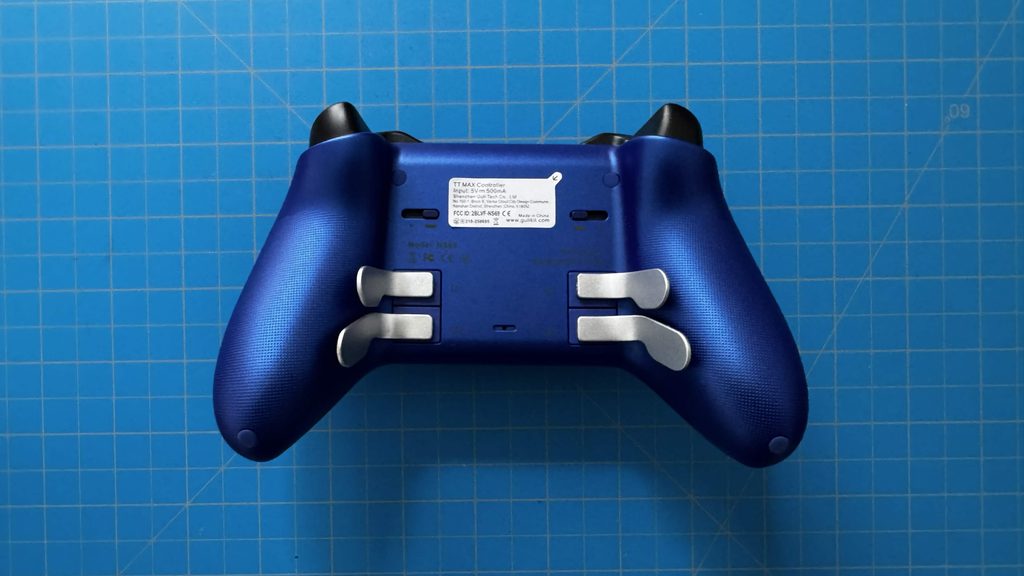
However, this becomes a bit of an issue after extended use. I found myself regularly shifting my hands to find a more comfortable way to hold the controller with the back buttons on, never completely feeling like it was exactly the way I wanted. I wasn’t expecting this, since it was so comfortable initially, but it just never stayed that way the longer I used it. It wasn’t awful, and still very comfortable otherwise, but I actually enjoyed taking off the back buttons if I was going to be using the controller for a longer period of time. So, this one will come down to personal preference, but for me, I would have to say taking off the back buttons is better overall.
It also comes with a nice protective case that can house the controller and its detachable D-pad, but you have to take the back buttons off to fit it in there. It feels a little odd to make a concession like that to use the case, and I would much rather have a case that supports keeping the back buttons on.
Features and Usability
While the TT Max has some great features, the way they are utilized is what makes them a treat. Almost all of the extra features are controlled by the Settings button placed directly in the middle of the gamepad. By holding it down with another button, we can enable features to use while gaming, and I think it’s ingenious.
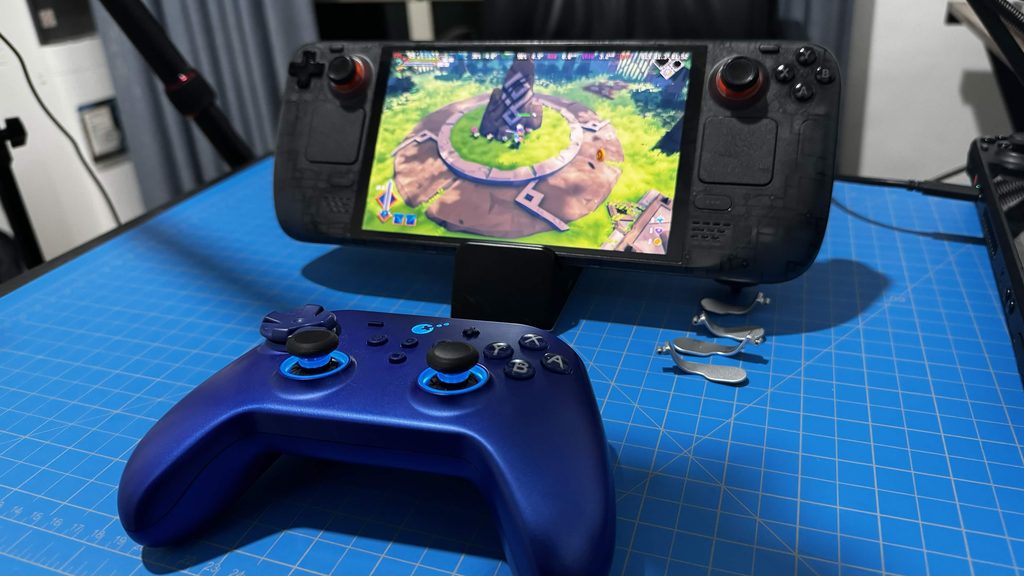
One of my biggest worries with the controller was the back buttons. I primarily play games on my Steam Deck or other Linux device, and the controller is only recognized as an Xbox Series S controller. This means that it won’t recognize the back buttons to configure in Steam Input. However, by holding the Settings button with one of the back buttons, we can map a button on the gamepad to it. It doesn’t give us the full functionality of Steam Input, so I can’t map taking screenshots to one of the back buttons like I normally do, but at least I can configure them so they aren’t useless, and I can do it directly on the controller.
We also have a dedicated button for what GuliKit calls Auto Pilot Gaming (APG). Essentially, we can record inputs from the controller, and then use this button to automatically replay those inputs a single time or on repeat. I don’t really have many uses for it, but I could see it for single uses in specific games if there’s a complex string of inputs to put in. For example, I can configure a Strategem input combination from Helldivers 2 to automatically be activated by the press of a button, and it’s a cool idea when the use case arises.
Then, there’s the settings button, which can allow us to easily change the joystick deadzone, swap the AB/XY input placement, change the intensity of the vibration, swap between 4-directional and 8-directional Dpad, change the lighting effects on the controller, and turn on the built-in gyro (Motion Aim Assist) without needing any external software. The gyro isn’t this great in this as it is in other controllers, but for slightly adjusting aim in shooters, it works. It isn’t as comfortable to use as regular gyro, so I tend to avoid it. Still, I like having the option, and GuliKit doing it this way means we can enable gyro easily for games that don’t support it.
The controller is packed with these features that enhance the way we play games, and I really do appreciate how easy it is to change. Being able to do so directly from the controller is especially wonderful, since most controllers rely on third-party software that isn't compatible with Linux. This makes configuration simple and easy to get going.
And we can’t forget device compatibility. The controller has a dedicated button to switch between modes to make it compatible with different devices. This includes any Windows PC, the Nintendo Switch/Switch 2 (which supports waking from sleep), iPhones, and Android phones. The broad compatibility makes it so we can take it wherever we go and have no worry about it being usable with any devices we might be using for gaming, and it’s a simple double press to change modes. There’s also a battery indicator on the controller, which is nice for seeing how much battery is left on it. Thankfully, we do have a battery indicator on Steam, so it wasn’t as necessary to use for most of my testing, but it’s a nice addition nonetheless.
結論
The GuliKit TT Max is a step in the right direction for the controller, and is getting close to being one of my favorites to use. The layout is fantastic; it’s easy to hit all the buttons, the joysticks feel great, and it has great compatibility with a multitude of devices. Even with the issues I did find, like the comfort with the back buttons and D-pad style, it’s a major step up from the ES Pro. This is a great controller in its own right, and is by far my favorite GuliKit controller to use for gaming right now.
The AKNES links above are using an affiliate link, which gives us a little back from sales at no extra charge to you. All proceeds go back into SDHQ and its development.
If you enjoyed this review, check out the rest of the content on SteamDeckHQ! We have a wide variety of game reviews and news that will help your gaming experience. Whether you're looking for news, tips and tutorials, game settings and reviews, or just want to stay up-to-date on the latest trends, we've got you covered!

最近のニュース
カテゴリー
Accessories
Anbernic
Android
ASUS ROG Ally
ROG Xbox Ally
Classics on Deck
Community
Cryobyte33
Deals
Deck Mods
Emulation
Events
Featured Post
Game News
Game News
General Game News
HandheldHQ
Hardware
Lenovo
Linux
MagicX
MSI
Nintendo
ONE-NETBOOK
Opinion
Other Reviews
Accessory Reviews
Handheld Reviews
PlayStation
Proton
Retro Handhelds
Anbernic
AYANEO
AYN
GPD
MagicX
MANGMI
Miyoo
Retroid
Rumors
TrimUI
SDHQ
Steam
Steam Controller
Steam Frame
Steam Machine
SteamOS
The Unsupported Report
Uncategorized
Uncategorized
VR
Xbox
最近のヒント&GUIDES
新着レビュー