


If you haven't yet, follow us on X (Twitter), Mastodon, or Bluesky to know when we post new articles, and join our Reddit or Subscribe to us on YouTube to check out our content and interact with our awesome community. Thank you for supporting us!
Slowly but surely, Unifideck has become one of the two main ways I play third-party games on the Steam Deck. This Decky Loader plugin pulls games from Epic, GOG, and Amazon and integrates them into your Steam library. The management can be a little confusing, especially when you have large libraries outside of Steam, but it works well and feels like I don't need to do much outside of Game Mode to get them running. The plugin also just got a new update, making it easier to install games and putting it more on-par with Valve's default game pages.
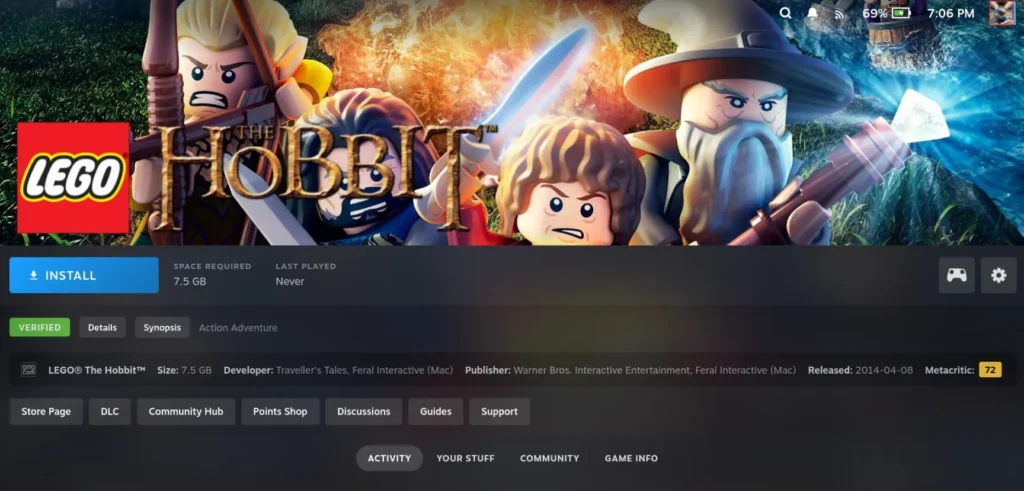
The newest update for Unifideck has a wealth of great new features to make using it significantly easier. Game pages for games being installed by Unifideck will now have their own custom setup above Steam's buttons, which includes a custom Install button, details for the game, showing which store it's from, and Metacritic score. It looks similar to the default pages now, while also simplifying the installation button and showing relevant information.
Along with the newest update, we also have a language selector for GOG games, if they support multiple languages, and Epic games can now run in offline mode without issue. The plugin will also now respect whatever Proton version is forced through the compatibility tab, and a new beta feature to support Steam Account Switching has been implemented.
To install this new update, you will have to do it manually in Desktop Mode. Head over to Unifideck's latest release from GitHub, which is version 0.5.4 at the time of writing, and download the unifideck.prod.v0.5.4.zip. After that, head back into Game Mode, go to the Decky Loader developer tab, and install the new version from the ZIP. It should automatically replace Unifideck if you have an old version installed already. You can also stay in Desktop Mode and just move the downloaded Unifideck folder into the homebrew/plugins folder and replace the old Unifideck folder.
To use Unifideck, you will also need the Decky Plugin Framework installed. You can follow our guide on how to get it up and running if you haven't yet.
If you enjoyed this article, check out the rest of the content on SteamDeckHQ! We have a wide variety of game reviews and news that will help your gaming experience. Whether you're looking for news, tips and tutorials, game settings and reviews, or just want to stay up-to-date on the latest trends, we've got you covered!

RECENT NEWS
Categories
Accessories
Anbernic
Android
ASUS ROG Ally
ROG Xbox Ally
Classics on Deck
Community
Cryobyte33
Deals
Deck Mods
Emulation
Events
Featured Post
Game News
Game News
General Game News
HandheldHQ
Hardware
Lenovo
Linux
MagicX
Nintendo
ONE-NETBOOK
Opinion
Other Reviews
Accessory Reviews
Handheld Reviews
PlayStation
Proton
Retro Handhelds
Anbernic
AYANEO
AYN
GPD
MagicX
MANGMI
Miyoo
Retroid
Rumors
TrimUI
SDHQ
Steam
Steam Machine
SteamOS
The Unsupported Report
Uncategorized
Uncategorized
Recent Tips & GUIDES
recent reviews


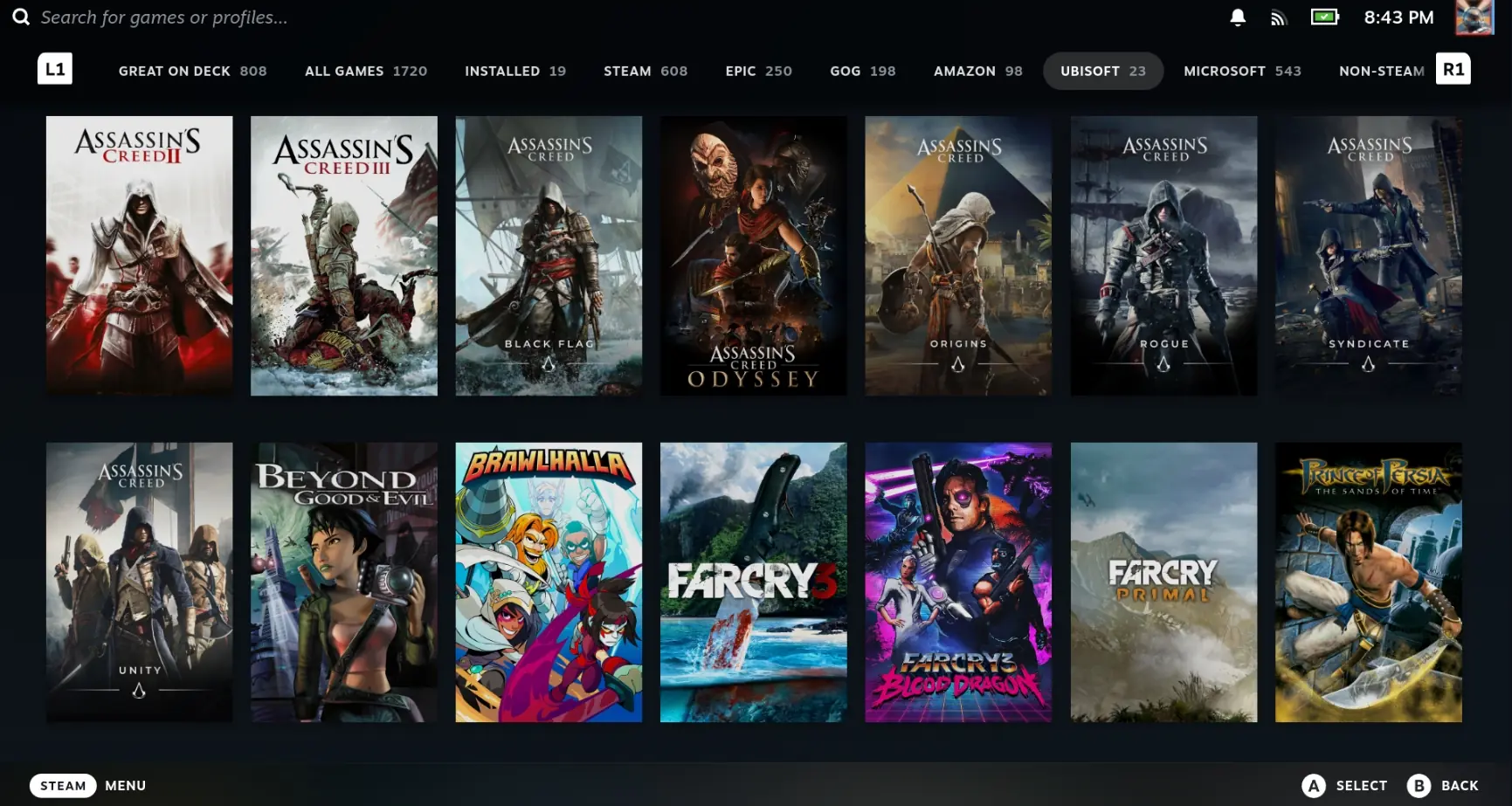

I just ended up using the SteamGriDB plugin to use both official tiles and fan made art.
It runs wonderful, I really love it so far. The only thing I'm wondering, maybe I just did not checked enough, where are my games installed? Usually I install older games on my SD card and just the newest on the internals memory but I could not find any info about where the games are installed or about a way to change it
Anybody know how to get the tile artwork to show up? This plugin is great, just wish I could visually see the games.
Usually I am using the Heroic Launcher but pretty often when games just launched through Heroic added to steam the controls of the games are a mess. So usually I add the eye directly to steam without heroic. But yeah the not able to play offline was always an issue for me and I "patched" those games to be playable offline.
I never hear from this Specific Decky Loader Plugin and I think I will try it 🙂
I’ve tried this update this week, and although this update is much appreciated, it’s also bugged as hell for me. Now any Game View for Epic/GOG Games has two Play Buttons (basically two times everything actually). I don’t know if it’s some incompatibility with CSS Loader, but I’ve tried disabling all my CSS plugins and it still happens. I hope it gets fixed soon, because this is becoming the best option for these stores on the Deck.
How odd. I haven't seen any conflicts like that on my end. I hope it's something they do fix.