


まだの方は、X(Twitter)、Mastodon、Blueskyでフォローし、新しい記事が投稿されたらお知らせください。また、Redditに参加したり、YouTubeに登録して、私たちのコンテンツをチェックしたり、素晴らしいコミュニティと交流してください。応援ありがとうございました!
We're back with another Classics on Deck! This time, we're looking at the amazing racer "Blur" (Oliver Stogden) from back in 2010, as well as Mechwarrior 4: Mercenaries from 2002! (Michael Baker).
Classics on Deck #14:
Blur (2010)
- Digital Availability: None, Disc or ISO Only
- Version Tested: Pre-Installed Game
- Wine/Proton Version Used: Wine GE 8-26
Installation
The hardest part of getting Blur running on the Steam Deck is actually finding the game in the first place. The game isn't currently sold on digital storefronts, and searching on eBay or other second-hand shops in the UK yielded 0 results, so there is no way to legitimately obtain a copy. Therefore, you are best using your own methods to get a copy of Blur, or if you are lucky enough to live in a place where physical copies of the game are available, get hold of a DVD copy.
Personally, I recommend installing this game on your Windows device (or getting a pre-installed copy of the game) and installing Patch 1.2 on it. Then copy the installation over to your Steam Deck.
At this point, it's a simple case of adding the "Blur.exe" in your game directory as a non-Steam game, and then going into the game's properties in Steam and forcing the Steam Play compatibility tool to use "Proton 10.0-3".
Once this is done, you can boot the game and get to playing!
Steam Deck Performance & Issues
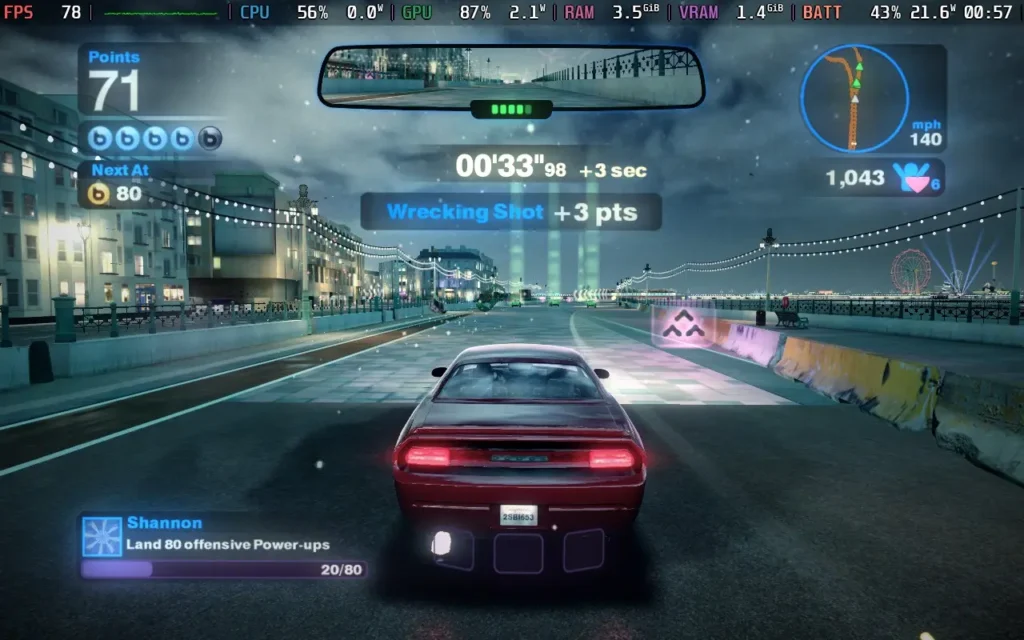
Blur runs pretty seamlessly on the Steam Deck. However, if you have an OLED model, make sure to restrict the frame rate to 60 FPS, as running at 90 FPS introduces audio glitches if you have patch version 1.2. You can comfortably up the graphics settings to their maximum and still easily maintain 60 FPS throughout. The controls work flawlessly, although the button prompts on the menus do display keyboard icons and not gamepad ones.
Gameplay
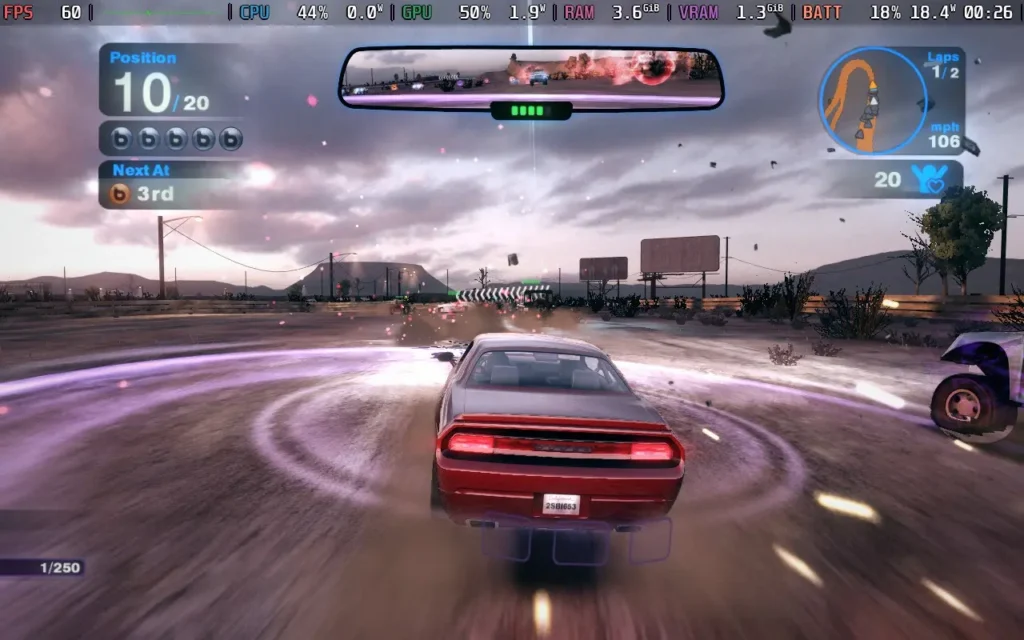
Blur was one of my favorite racing games on the Xbox 360, alongside the Forza Motorsport series and Burnout Paradise (What a time to be a gamer!). It still holds up today, with some great neon visuals, fantastic multiplayer gameplay, and plenty of single-player content too.
It's quite unusual to have a semi-realistic driving game with power-ups and licensed cars, and that's what made Blur unique. I'm not sure we'll ever see a game quite like it, even though we sorely need a remaster of this one, given its lack of availability these days.
Mechwarrior 4: Mercenaries (2002)
- Digital Availability: None. Used Mektek Repack
- Version Tested: Latest Version of the game
- Wine/Proton Version Used: Proton Experimental
Installation
This is such a blast from the past for me. As much as I love Mechwarrior 5: Mercenaries and Mechwarrior 5: Clans, the prequel still holds a special place in my gaming soul. Getting access to it is challenging now, with no commercial digital copies available anywhere, and it can be a technical nightmare to get it working even on Windows using physical disks. However, there is a version called the Mektek repack that makes it simple, so that is what I will use. It comes with a full installation with patches and maps, good to go, and it is just a matter of extracting the folder onto your main folder in Desktop mode.
Regardless, getting a physical disc to work is an option too. I won’t provide any download links as usual, but it should be an easy search. I’ll provide guides for both methods, but my main focus is the Mektek repack because it is already set up for ease of use.
Physical Disc
If you have a physical disc of the game, you can use a USB DVD drive or an ISO and use Lutris to install. Insert the Mechwarrior 4: Mercenaries disc into your USB DVD Drive and select “Install a Windows game from an executable” when adding a game to Lutris. I named my folder "Mechwarrior 4 Mercenaries”, but you can name it whatever you want. Proceed along the Lutris steps. Select the “Setup.exe” file on the root of the disc as the setup file for the game when Lutris prompts you for one. Proceed with the installation as usual. It will take a while.
Once you’ve saved the new configuration, you can boot the game as normal from Steam if you made a Steam Shortcut, or from Lutris otherwise. If all else fails, or if you run into a problem with Lutris, you can install it on another platform, transfer the installed folder to the Steam Deck via a flash drive, and then create a shortcut in Steam.
Mektek
Incredibly simple, it is just a matter of downloading the zipped file and extracting it somewhere onto your Steam Deck with the file manager. Any place will do, though I put it in the /home folder.
From there, Log onto Steam and add a shortcut by pointing it at the main executable. Proton Experimental is the way to go for the Proton version I found. In the controller settings, use a default Keyboard WASD and Mouse profile to get going.
Steam Deck Performance & Issues
While surprisingly playable, the game will boot into a fuzzy screen of rainbow lights, which is usually when the intro movie refuses to work. Don’t worry about this, as the game should boot successfully.
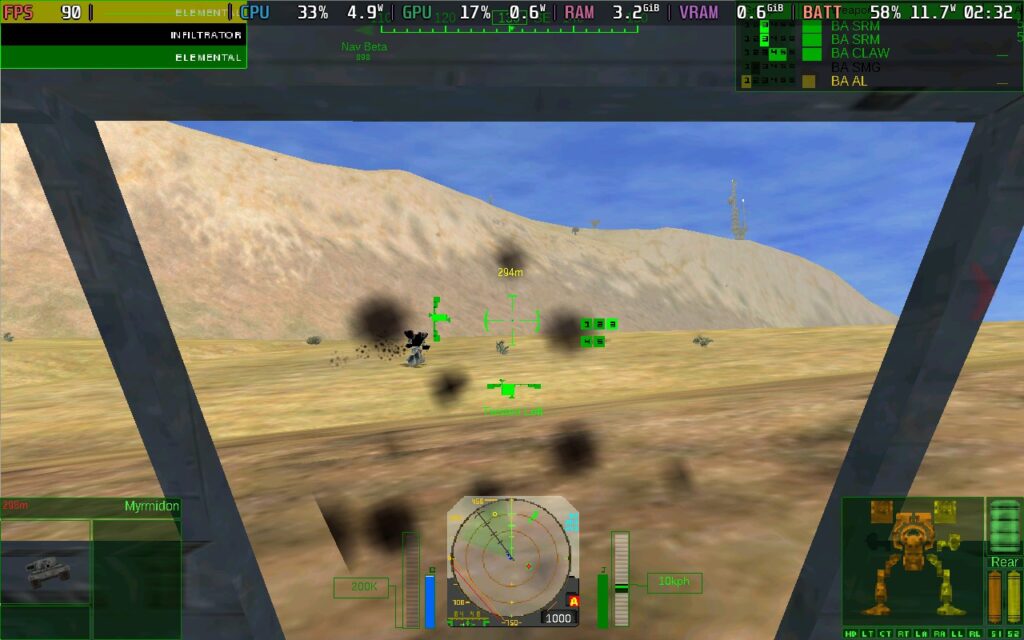
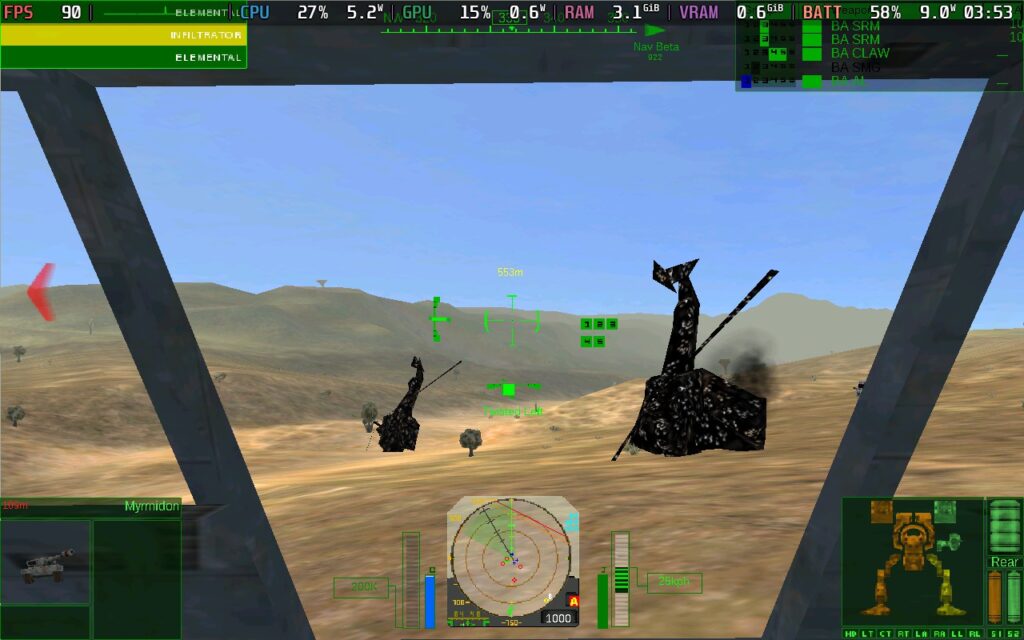
With the controller profile mentioned, Mechwarrior 4: Mercenaries plays rather well. I had no issues with the controls, although the complexity takes some getting used to. At a full TDP I saw no problems with framerate at max graphical settings, and the power drain is surprisingly decent. I saw an average power draw of 12 watts during a skirmish mission, translating to around 4.5 hours on the Steam Deck OLED.
Gameplay
Mechwarrior 4: Mercenaries takes on many types of missions while managing a mech mercenary company, customizing a fleet of gigantic robots in a galactic battlefield. Factions rise and fall in a constant battle for survival, with civilians little more than collateral damage. The amount of customization and fun to be had with these kind of games is incredible and despite its age, Mechwarrior 4 has impressive depth.
That's it for this week's Classics on Deck. We'll return with more classic games on your Steam Deck next week.
Please let us know in the comments below if you'd like us to review any specific games as well, and we'll add them to the list of games we plan to find and test.
この記事を楽しんでいただけたなら、SteamDeckHQ の他のコンテンツもチェックしてみてください!あなたのゲーム体験に役立つゲームレビューやニュースを幅広く取り揃えています。ニュース、ヒントやチュートリアル、ゲーム設定やレビュー、最新のトレンド情報など、あらゆる情報をお届けします。 カバーしています!

最近のニュース
カテゴリー
Accessories
Anbernic
Android
ASUS ROG Ally
ROG Xbox Ally
Classics on Deck
Community
Cryobyte33
Deals
Deck Mods
Emulation
Events
Featured Post
Game News
Game News
General Game News
HandheldHQ
Hardware
Lenovo
Linux
MagicX
MSI
Nintendo
ONE-NETBOOK
Opinion
Other Reviews
Accessory Reviews
Handheld Reviews
PlayStation
Proton
Retro Handhelds
Anbernic
AYANEO
AYN
GPD
MagicX
MANGMI
Miyoo
Retroid
Rumors
TrimUI
SDHQ
Steam
Steam Controller
Steam Frame
Steam Machine
SteamOS
The Unsupported Report
Uncategorized
Uncategorized
VR
Xbox
最近のヒント&GUIDES
新着レビュー



Wow, I can't believe I haven't seen the classics on deck series yet. It's been amazing seeing all these games you've done so far thank you!
Games I'd love to see on future entries:
- MechWarrior 3 (and Pirates Moon expansion)
- Star Wars: Dark Forces 2 and Mysteries of the Sith