


まだの方は、X(Twitter)、Mastodon、Blueskyでフォローし、新しい記事が投稿されたらお知らせください。また、Redditに参加したり、YouTubeに登録して、私たちのコンテンツをチェックしたり、素晴らしいコミュニティと交流してください。応援ありがとうございました!
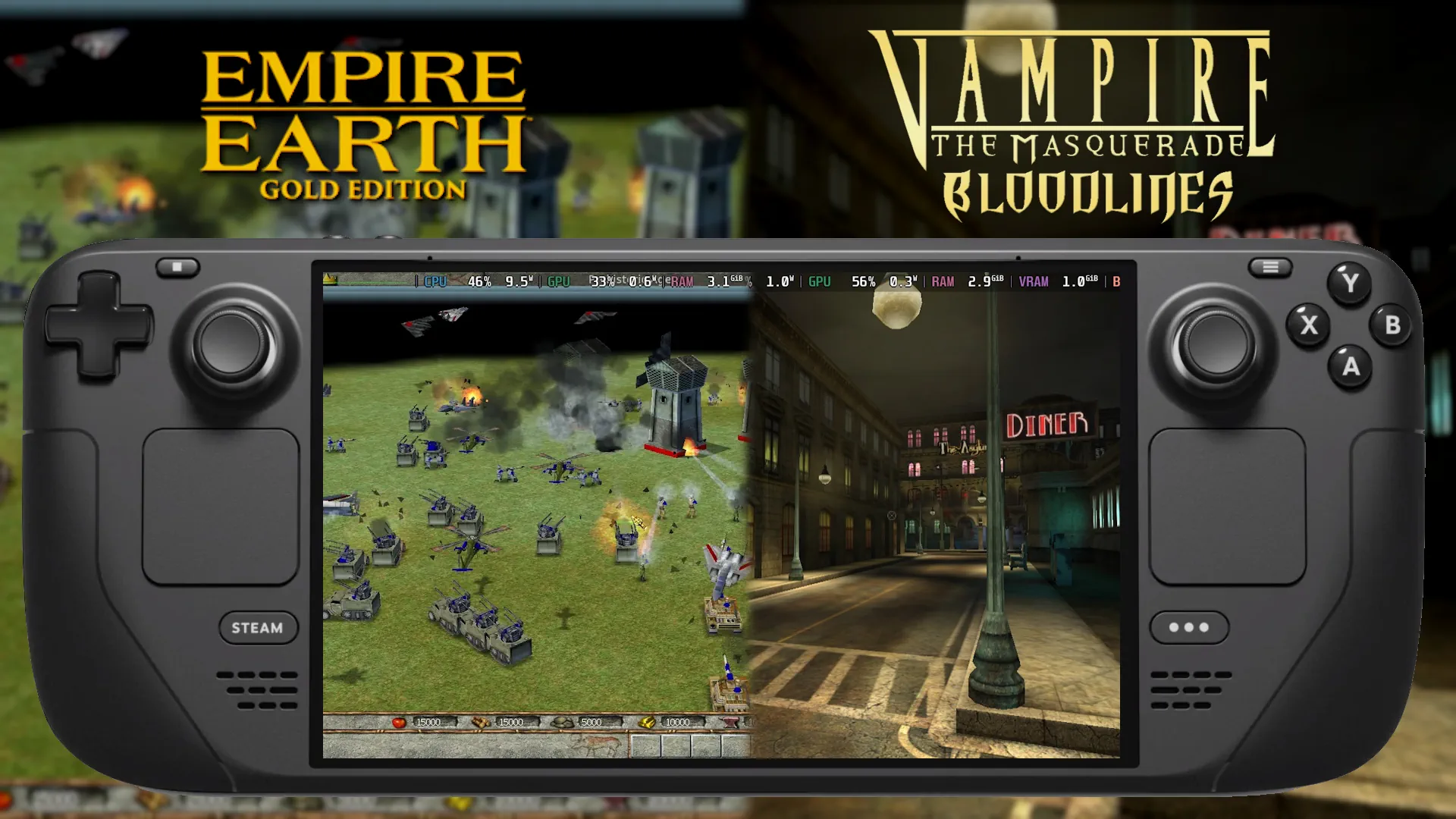
Classics on Deck is back after a bit of a hiatus! Last time, we took a look at the RTS classic Empire Earth and the cult-classic, Vampire: The Masquerade - Bloodlines. Now we're switching gears with Need For Speed Underground 2, one of my childhood favorite games, and LEGOLAND, one of my childhood not-so-favorite games, but it's still an interesting one, nonetheless!
Classics on Deck #13:
Need For Speed Underground 2 (2004)
- Digital Availability: None, Disc or ISO Only
- Version Tested: ISO
- Wine/Proton Version Used: Wine GE 8-26
Installation
Somehow, Need For Speed Underground 2 has never received a digital release or an official remaster, so the only way to legally obtain the game is by having a physical disc copy, which can be quite rare and expensive, at least here in the UK, where the PC version of the game wasn't nearly as popular as the PS2 and Xbox releases. You can make an ISO image of the game to install it on your Steam Deck if you don't have a USB DVD drive to connect.
Once you have your disc or ISO ready, open Lutris and add a game, use the "Search Lutris Website for Installers" option, search for Need For Speed Underground 2, then find and install the "2 Disc" option. Follow the instructions given and proceed as you would on Windows. Note that it may take a while to extract the files from your disc at first.
I used ISO images as I found it easier to make my Steam Deck detect me swapping the disc. For whatever reason, swapping physical discs in my USB DVD Drive wasn't detected, and I got stuck being asked for Disc 2 in the installation process.
After the installation is finished, Lutris will ask you to set up the widescreen patch; just select whatever, we're going to change this next anyway.
Configuring Widescreen Patch
After Lutris has done its thing, navigate to your game files by right-clicking on NFSU2 in your Lutris library and clicking "Browse Files", then go to drive_c/Program Files/EA GAMES/Need For Speed Underground 2/scripts/ now we will open the ".ini" file in this folder.
In the .ini file, edit the following lines:
ResX=1280
ResY=800
ImproveGamePadSupport=1
Steam Deck Performance & Issues
Unfortunately, Need For Speed Underground 2 on the PC does not support controllers by default. There is a mod to help, but it crashed my game when I attempted to use it, so we can't use our Steam Deck to control the game straight away. I've made a Steam Deck controller layout, entitled "SteamDeckHQ Layout", which you should be able to find and download from the "Community Layouts" tab when you go into your SteamOS controller settings for the game.
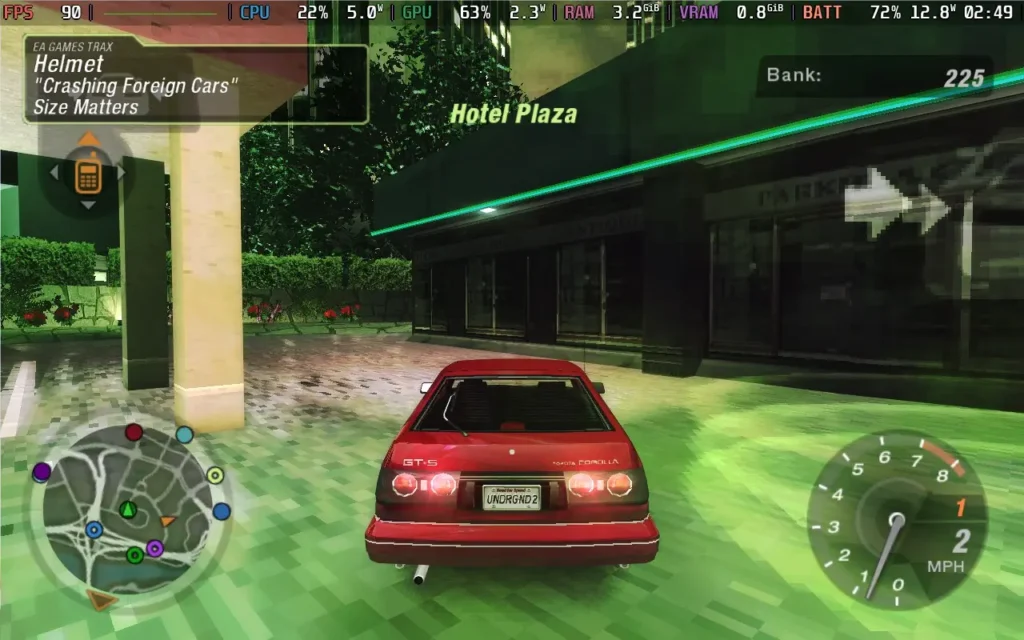
As for performance, the game easily holds a locked 60 or 90. I didn't encounter any frame drops, and you can boost the graphics settings as high as you want. Just leave the resolution options alone in the settings so you can keep your 1280x800 widescreen fix.
Gameplay
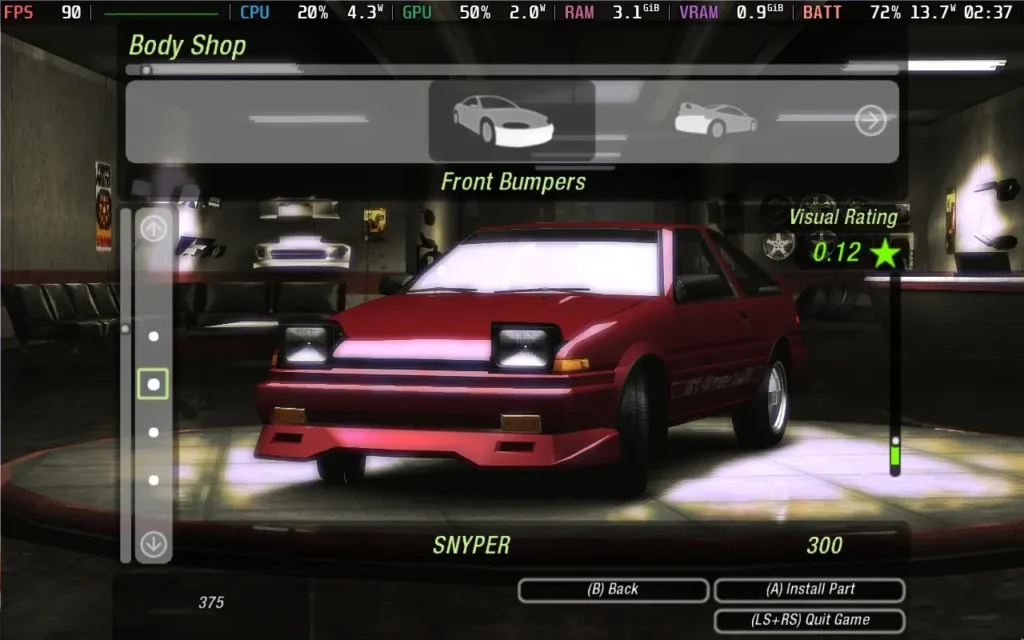
I shouldn't really need to say much about Need For Speed Underground 2, it's a stellar game, and its fun driving model still holds up today. There are plenty of cars, some great car customization, both cosmetically and mechanically, and a good amount of event types to enjoy in the career mode.
This is probably my favorite NFS game from my childhood, and was my favorite racing game on the original Xbox, which is where I owned it as a kid. Being able to free roam around a city with your tuned car, custom paint jobs, and all of it sounding pretty great (for the time) really was something special, and there's plenty of nostalgia here for me.
LEGOLAND (2000)
- Digital Availability: None, Disc or ISO Only
- Version Tested: ISO
- Wine/Proton Version Used: Wine GE 8-26
Installation
LEGOLAND is a bit of an interesting one, as it's a pretty old game, and it barely ran on modern systems when it launched back in 2000, but we can get it working on Linux and our Steam Decks.
First, either insert your CD or mount your ISO, then open Lutris and add a game, choosing to "Install a Windows game from an executable". Make sure your "Installer Preset" is set to Windows XP (32-bit). Select the "Setup.exe" on your disc, and proceed with the installation as you would on Windows.
Once the game is installed, create a copy of your CD or extract your ISO image somewhere on your Steam Deck, then, in Lutris, right-click and "configure" the LEGOLAND game in your library. Go to "Game Options" and click on the "..." next to the "Executable" field. Navigate to where you just copied the Disc's files and select the "Autorun.exe" file. Also, make sure you change the "Prefix architecture" to "32-bit".
Now go and boot LEGOLAND. You should be asked to install some Intel video codecs; do so, or else the game will not boot. Once these are installed, you should be able to boot and play LEGOLAND.
Note: We did have an issue with the game detecting our CD-ROM, whether that be a physical disc or a mounted ISO, so you may have to use a No CD executable if the game does not detect your disc.
Steam Deck Performance & Issues
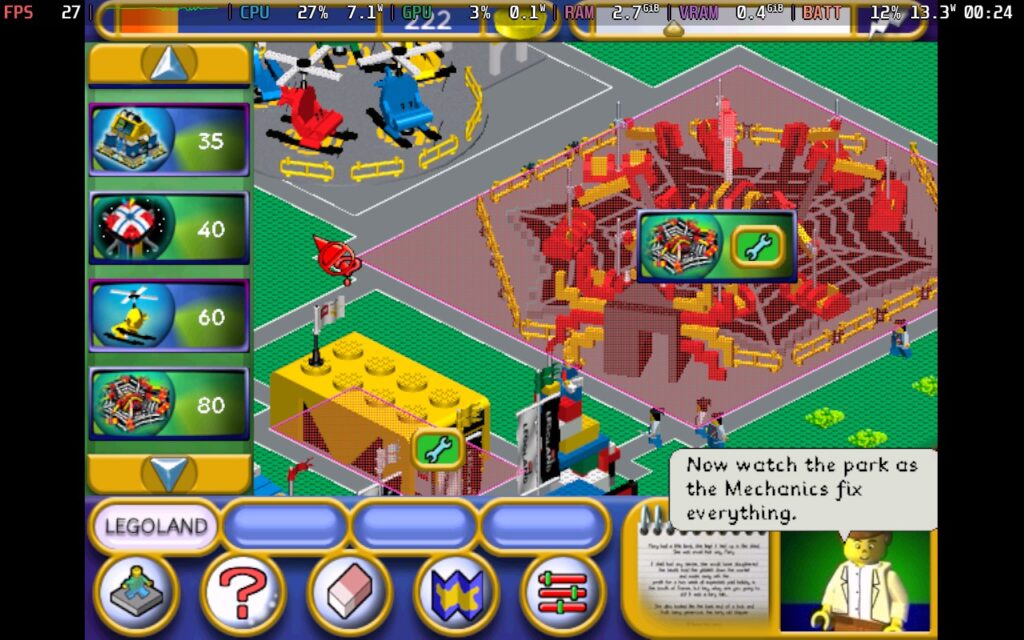
As you would expect, LEGOLAND does not have controller support, so you will need to use the Keyboard (WASD) & Mouse controller layout to play the game. The mouse sensitivity was a bit high, so you may want to adjust that down, but you're able to play the entire game with the default layout.
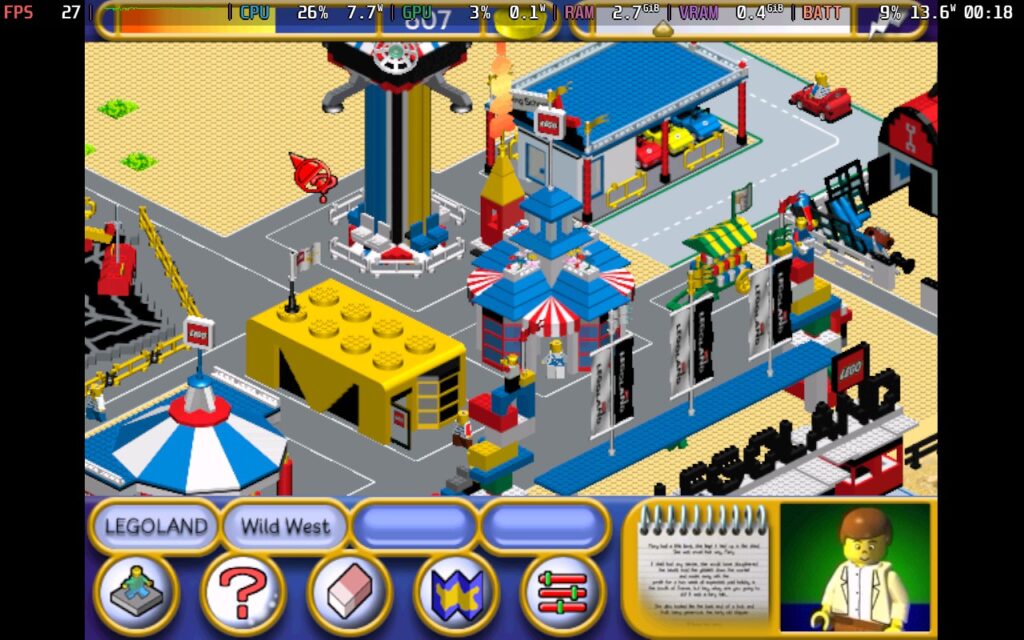
Performance-wise, LEGOLAND is restricted to 30 FPS and tends to run at around 27-30 FPS at all times. It also runs in a 4:3 resolution, it's perfectly playable, but do expect black borders on the left and right sides of your display, and it doesn't feel all that smooth thanks to the framerate cap built into the game.
Gameplay
LEGOLAND is very much a management-lite game. Yes, it does follow in a similar vein to Theme Park and Rollercoaster Tycoon in parts, but really, its mechanics are greatly simplified. You do have some freedom in designing your own rides, but not to the extent of Rollercoaster Tycoon. Your guest's expectations are fairly low, and it's a much more relaxed game, definitely designed more for kids in single digits. Older players may get annoyed with the narrator constantly describing what you're looking at, but you can disable this in the options menu.
This game might be more for those who have nostalgia for it in the past, or for hardcore LEGO fans, but there are definitely better theme park management sims out there.
That's it for this week's Classics on Deck. We'll return with more classic games on your Steam Deck next week.
Please let us know in the comments below if you'd like us to check out any specific games as well, and we'll add them to the list of games we plan to find and test.
この記事を楽しんでいただけたなら、SteamDeckHQ の他のコンテンツもチェックしてみてください!あなたのゲーム体験に役立つゲームレビューやニュースを幅広く取り揃えています。ニュース、ヒントやチュートリアル、ゲーム設定やレビュー、最新のトレンド情報など、あらゆる情報をお届けします。 カバーしています!

最近のニュース
カテゴリー
Accessories
Anbernic
Android
ASUS ROG Ally
ROG Xbox Ally
Classics on Deck
Community
Cryobyte33
Deals
Deck Mods
Emulation
Events
Featured Post
Game News
Game News
General Game News
HandheldHQ
Hardware
Lenovo
Linux
MagicX
MSI
Nintendo
ONE-NETBOOK
Opinion
Other Reviews
Accessory Reviews
Handheld Reviews
PlayStation
Proton
Retro Handhelds
Anbernic
AYANEO
AYN
GPD
MagicX
MANGMI
Miyoo
Retroid
Rumors
TrimUI
SDHQ
Steam
Steam Controller
Steam Frame
Steam Machine
SteamOS
The Unsupported Report
Uncategorized
Uncategorized
VR
Xbox
最近のヒント&GUIDES
新着レビュー


Glad to see that the "column" is back.
About NFS, I think that creating an ISO of the PS2 version and using PCSX2 is probably the better option. No issues with installation + controller support 😉