まだの方は、X(Twitter)、Mastodon、Blueskyでフォローし、新しい記事が投稿されたらお知らせください。また、Redditに参加したり、YouTubeに登録して、私たちのコンテンツをチェックしたり、素晴らしいコミュニティと交流してください。応援ありがとうございました!
Every now and then, there will be a new way to customize our experience on the Steam Deck that intrigues me so much to the point that I have to try it immediately. That was me when I first saw CSS Loader, the lossless scaling plugin, and EmuDeck/RetroDECK. And now, a new Decky Loader plug-in caught my eye.
As I was scrolling through Reddit, I saw Deck Shelves. Made by santojon on GitHub, this plugin does exactly as the name suggests: it adds shelves. In a similar vein to TabMaster, we can customize our home screen and add new carousels of games beneath the main one to look through based on our setup preferences. And honestly, I’m surprised I haven’t seen it yet.
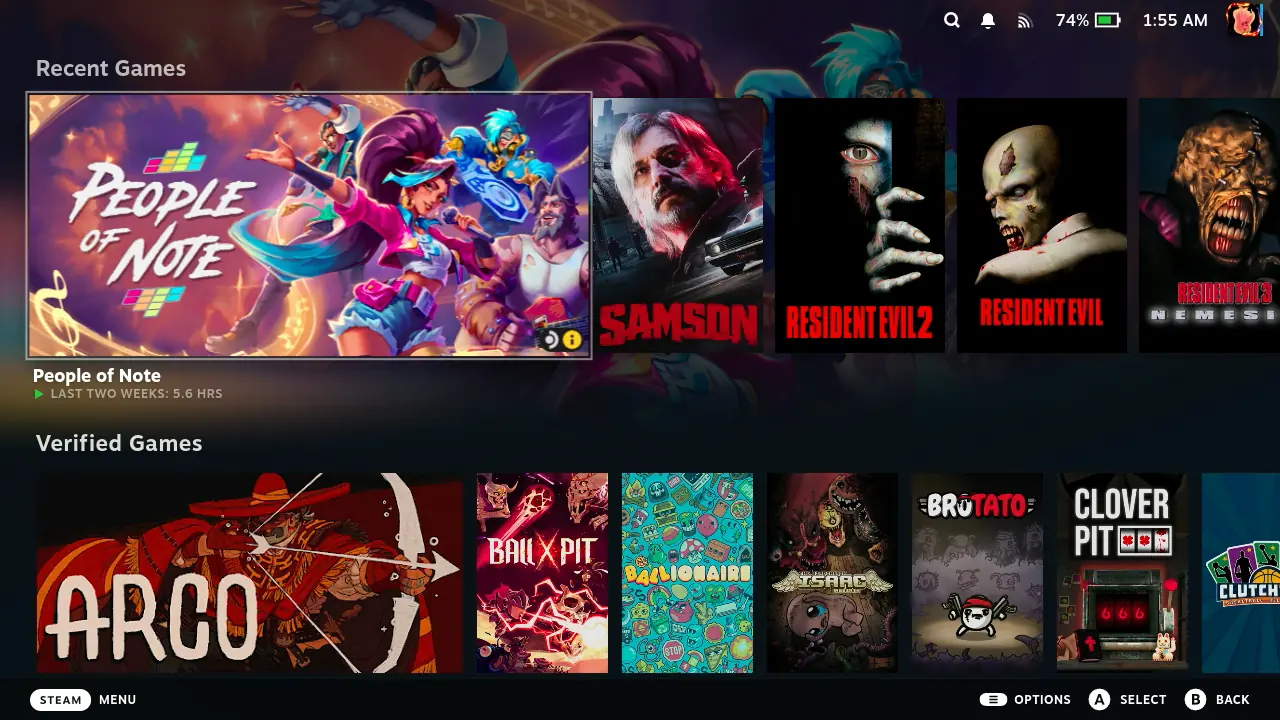
You will need to have the Decky Framework already installed to use this. I couldn’t find the plug-in on the Decky Loader store, so I had to install it manually. You can do this by going to the GitHub page and finding the newest release. Once you find it, download the ZIP file. Now, you could manually move it to your homebrew/plugins folder on your desktop, but I prefer doing it in game mode by enabling developer mode for Decky, going to the developer settings, and installing the plugin from the ZIP file.
Setting up the shelves is extremely easy to do, and I figured it all out relatively easily. There are some presets to choose from, like showing only installed games, recently played, or even games that we’ve favorited. But at the bottom, we can add a blank shelf, which allows us to assign filters to customize which games are shown. For example, I created a carousel to only show installed games that are Steam Deck Verified, as well as one to only show games that are part of a Collection I created.
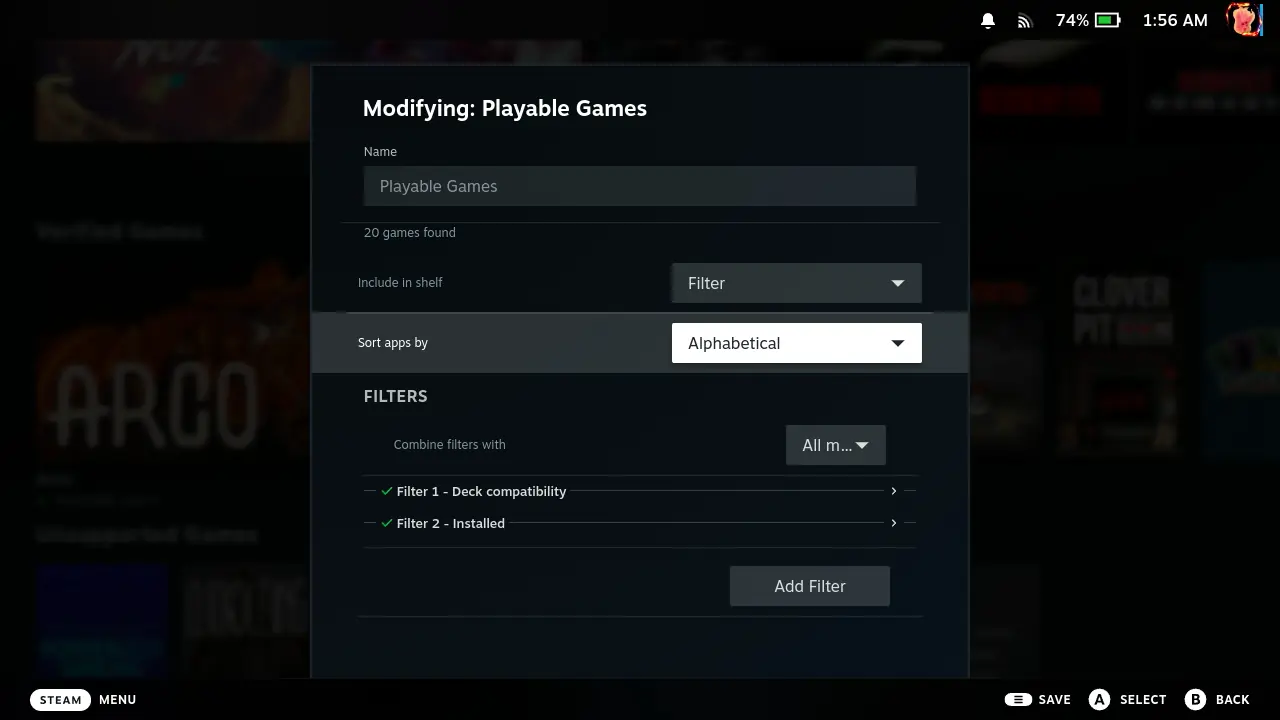
There are even options to have the carousels more closely match our main one. We can make it so the first game has a landscape image and the same size as the main carousel to match it more closely.
And if we don’t want the shelves showing up, we can just disable them in the plugin. It doesn’t delete any shelves we’ve already created, so we can reenable them whenever we want, and all of our shelves will come back without issue.
On top of that, there have been a good chunk of updates to make it compatible with some of the most popular plugins that are being used today. The shelves are compatible with CSS Loader and can include games that are added by UnifiDeck. This means we cannot only include games that are from other launchers outside of Steam, but they will fit in with any themes that we have loaded from CSS.
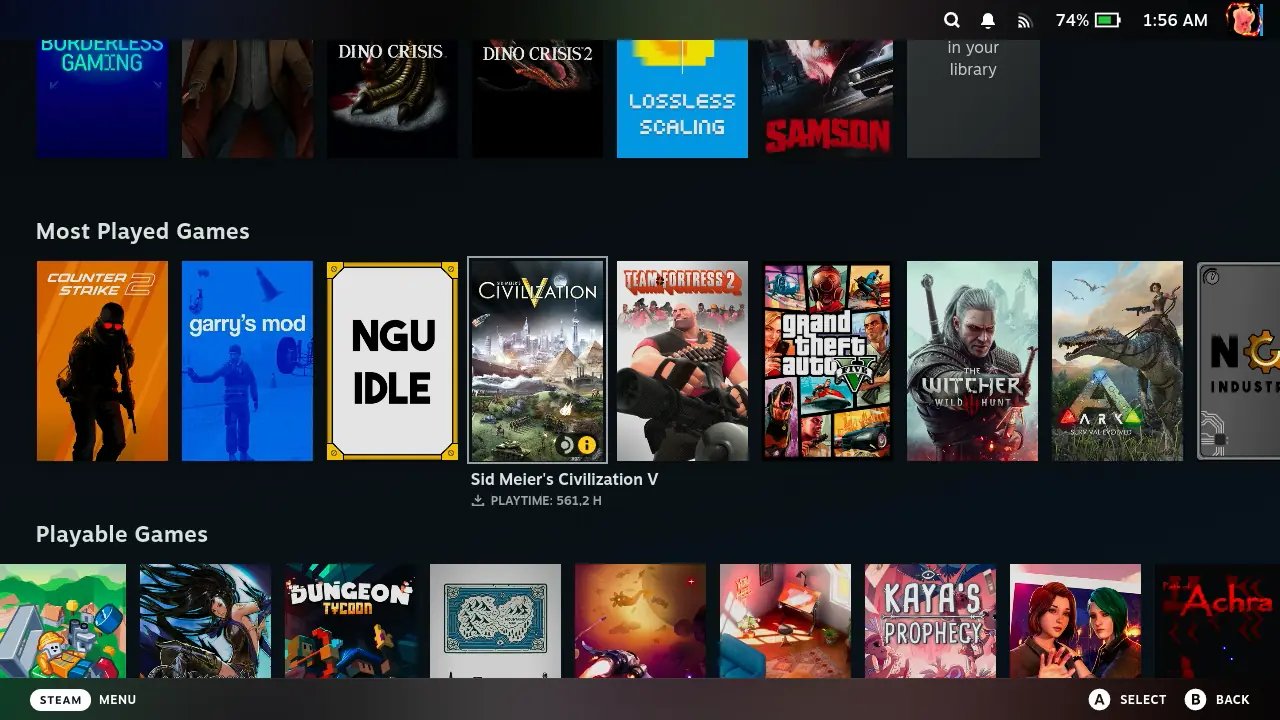
Now the plugin isn’t perfect, and I have noticed a few little issues here and there. It doesn’t feel as fluid to go through the games compared to the main one, and I have to click the B button to back out of selected games sometimes, but otherwise, they fit in very well. It auto-updates when new games are installed or uninstalled, which would’ve been an issue that I would’ve hated.
この記事を楽しんでいただけたなら、SteamDeckHQ の他のコンテンツもチェックしてみてください!あなたのゲーム体験に役立つゲームレビューやニュースを幅広く取り揃えています。ニュース、ヒントやチュートリアル、ゲーム設定やレビュー、最新のトレンド情報など、あらゆる情報をお届けします。 カバーしています!

最近のニュース
カテゴリー
Accessories
Anbernic
Android
ASUS ROG Ally
ROG Xbox Ally
Classics on Deck
Community
Cryobyte33
Deals
Deck Mods
Emulation
Events
Featured Post
Game News
Game News
General Game News
HandheldHQ
Hardware
Lenovo
Linux
MagicX
MSI
Nintendo
ONE-NETBOOK
Opinion
Other Reviews
Accessory Reviews
Handheld Reviews
PlayStation
Proton
Retro Handhelds
Anbernic
AYANEO
AYN
GPD
MagicX
MANGMI
Miyoo
Retroid
Rumors
TrimUI
SDHQ
Steam
Steam Controller
Steam Frame
Steam Machine
SteamOS
The Unsupported Report
Uncategorized
Uncategorized
VR
Xbox
最近のヒント&GUIDES
新着レビュー