


If you haven't yet, follow us on X (Twitter), Mastodon, or Bluesky to know when we post new articles, and join our Reddit or Subscribe to us on YouTube to check out our content and interact with our awesome community. Thank you for supporting us!
I have been on a Genshin Impact kick ever since I got the AYN Thor to review, and I have been loving it. It's way more fun than I remember, and playing it on the Thor has been a treat. However, I am not a fan of the predatory Gacha mechanics. So, when I got an email about a game like Genshin Impact with no gacha mechanics for characters, I was interested. Duet Night Abyss is an awesome game to play, and while I am enjoying it so far, getting it set up on the Steam Deck was difficult.
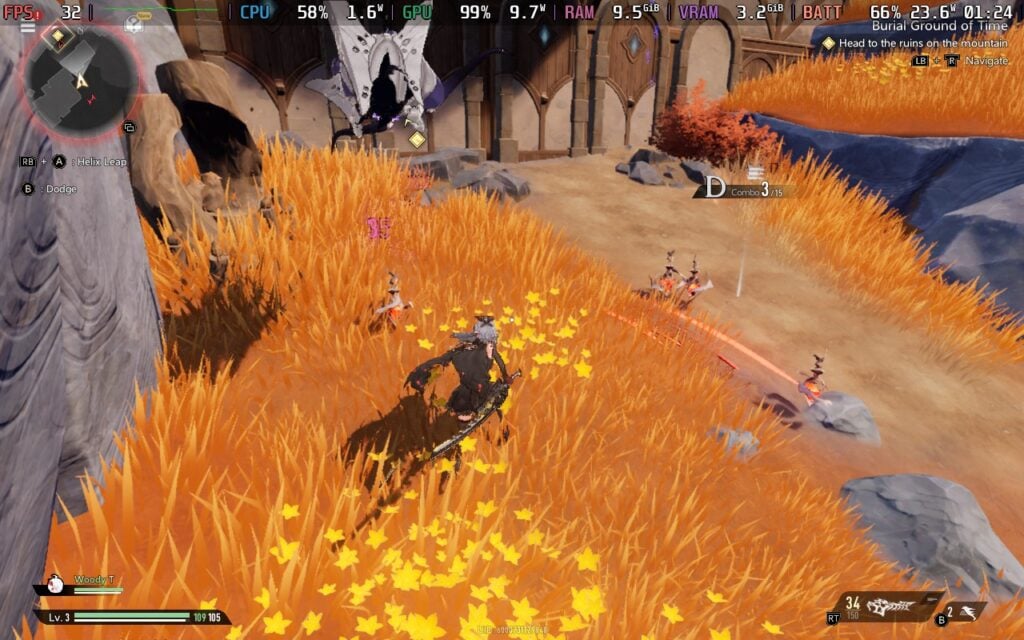
I had tried everything I could think of, reinstalling the game over 8 times to try to make the login screen pop up. I went with the installer by itself and install through Heroic, but nothing worked. However, I had an epiphany as I was trying, and I am happy to say I finally got it working. It was a little complicated though, so I am creating a guide where anyone could follow and get it set up for themselves!
This will probably not be necessary once the Steam version releases, but until then, here is how you can play Duet Night Abyss on the Steam Deck:
How to Play Duet Night Abyss On The Steam Deck
Pre-Requisites:
Before we get into the guide, you will need to make sure you have installed the newest version of Proton GE (10-24). You can do this by following our guide and using the program ProtonUp-QT. Otherwise, you should have everything you need to get it set up!
Step 1:
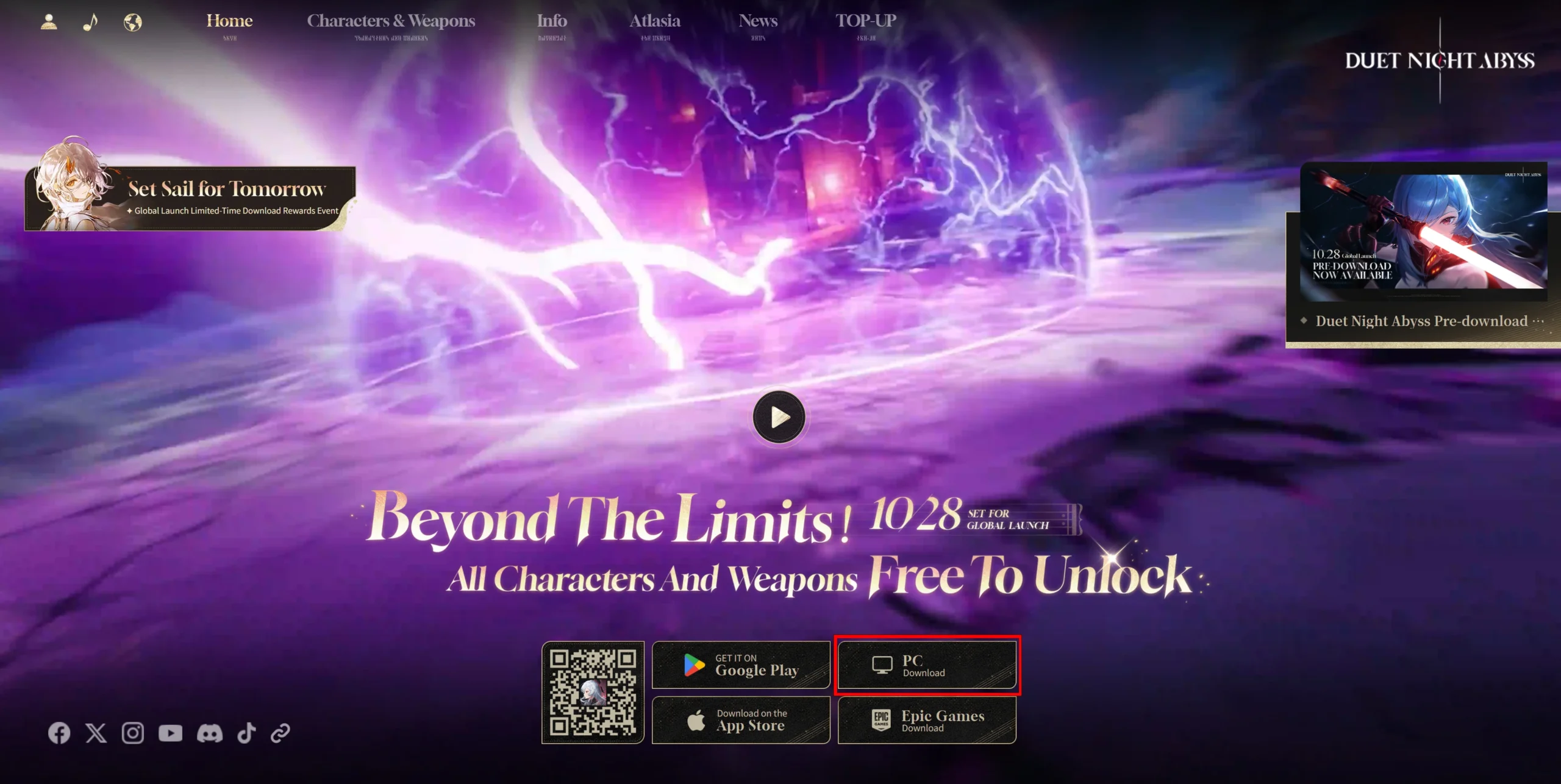
Download the launcher from the official Duet Night Abyss website. You can download it by pressing the "PC Download" button at the bottom of the screen.
Step 2:
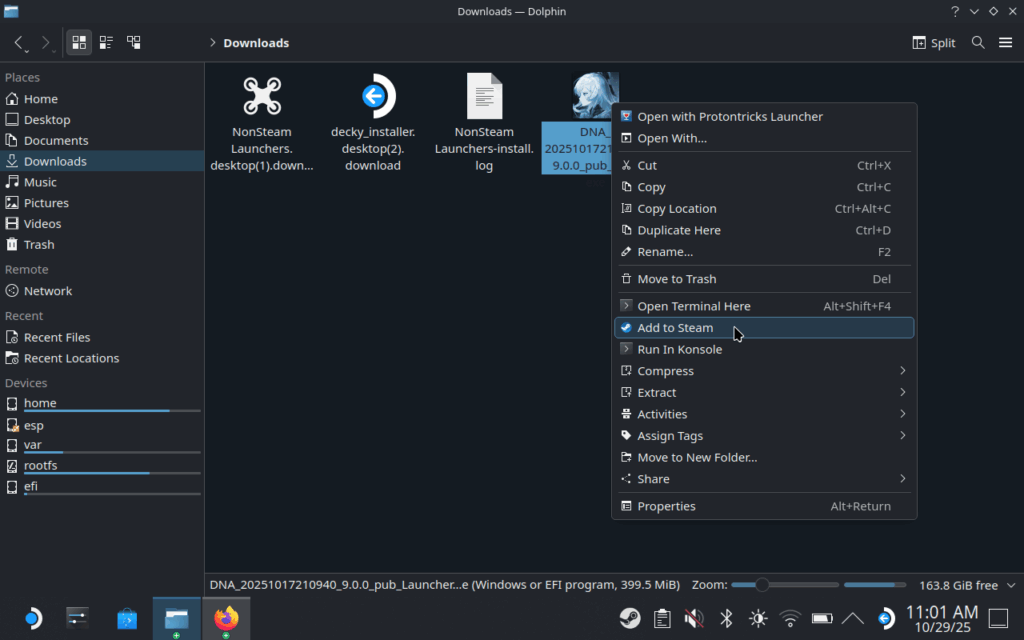
Once that's done, go to the file in your downloads folder, right-click it, and add it to Steam.
Step 3:
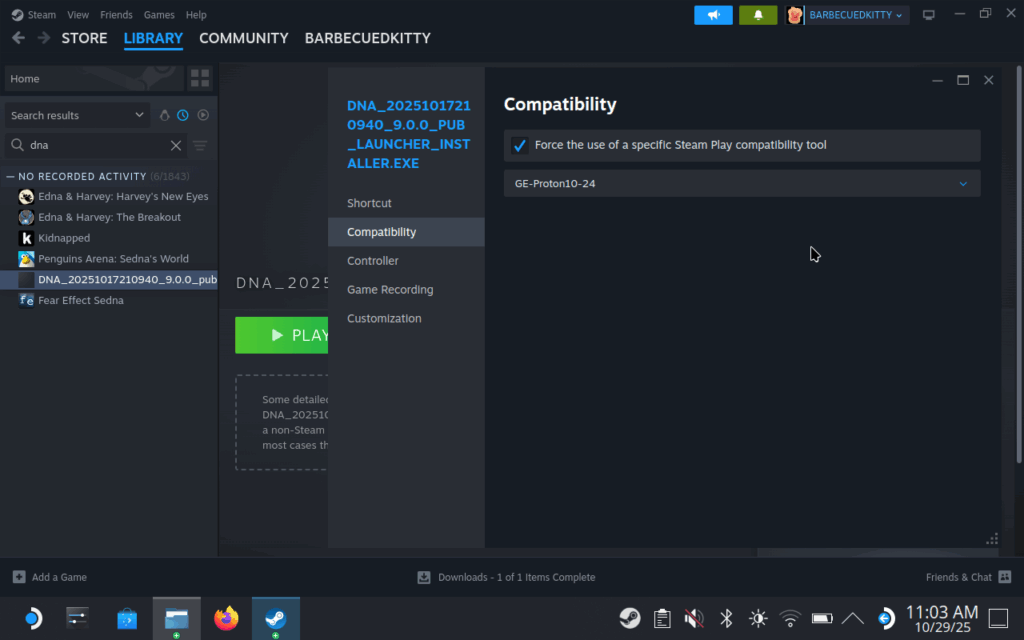
Now, head to Steam. Go to your newly made shortcut for the launcher installer and go to its properties. This can be done by either selecting the cogwheel when looking at it or right-clicking the name in our library. Once done, go to the compatibility tab and select "GE-Proton10-24" from the list. Now, close it and launch the installer.
Step 4:
In the installer, go ahead and just hit install. Do not change where the game is installed; just let it install. It should default to a Program Files (x86) folder in the C: drive, and that's right where we want it.
This is because, for it to work correctly and for the login window to even show up, everything needs to stay inside the same prefix. I tried installing the files somewhere else and adding them manually, I tried using Heroic, I tried using the same prefix as the launcher with files installed on the desktop, but nothing worked. This is the only way I could get the game to open the login window. Otherwise, it would either not show up at all or a pop up would say the login failed.
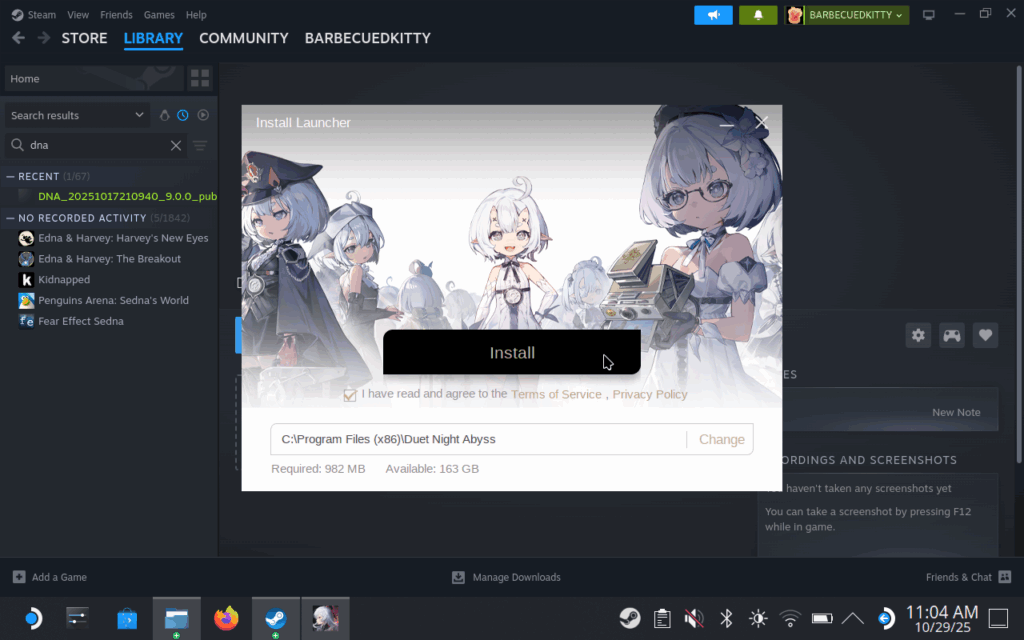
Step 5:
Follow the prompts. Once it is done, boot the launcher. Then, you can let it install, launch the game once, and let it install its second update. From there, you can actually just login and play the game, but there is another few steps we need to take to make sure we can keep booting it.
Step 6:
Go ahead and exit the game. Head back into Desktop mode if you left it and now we have to find the prefix everything is installed to. To do this, we will head to this file location posted below, which you can copy/paste into your Dolphin bar at the top.
/home/deck/.steam/steam/steamapps/compatdata/
Step 7:
Once there, we have to now find the prefix folder with our game. This is a little tough to do on our own, so we will sort the folder by "Modified." This will put the most recently modified folder at the bottom, and if we are doing this without playing any other game, that will be our folder. You can find the "Sort By" option using the three horizontal lines at the top right, but if you right click between all the folders, you can change the "View Mode" to "Details", which I find easier to look at. The number on the folder will be different for everyone.
If you chose the correct folder, you can go into the prefix, drive_c, and you will find a Duet Night Abyss folder within Program Files (x86).
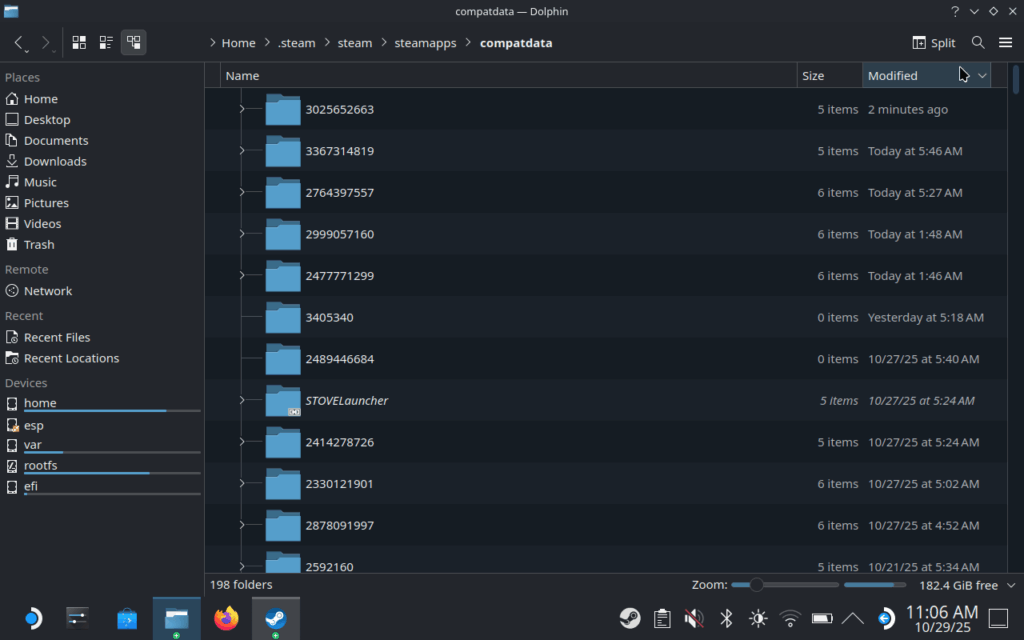
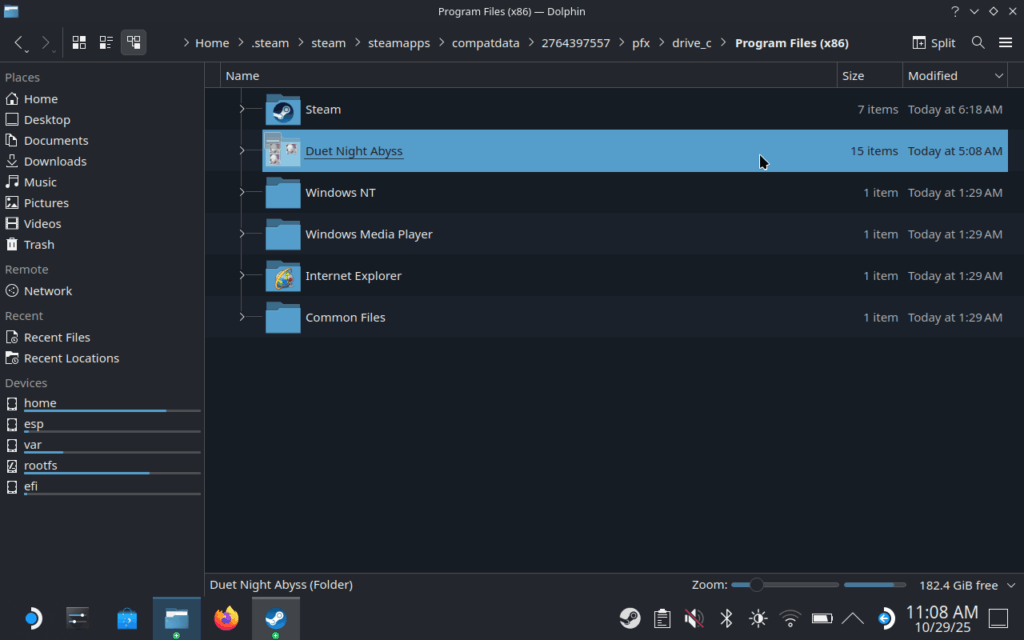
Step 8:
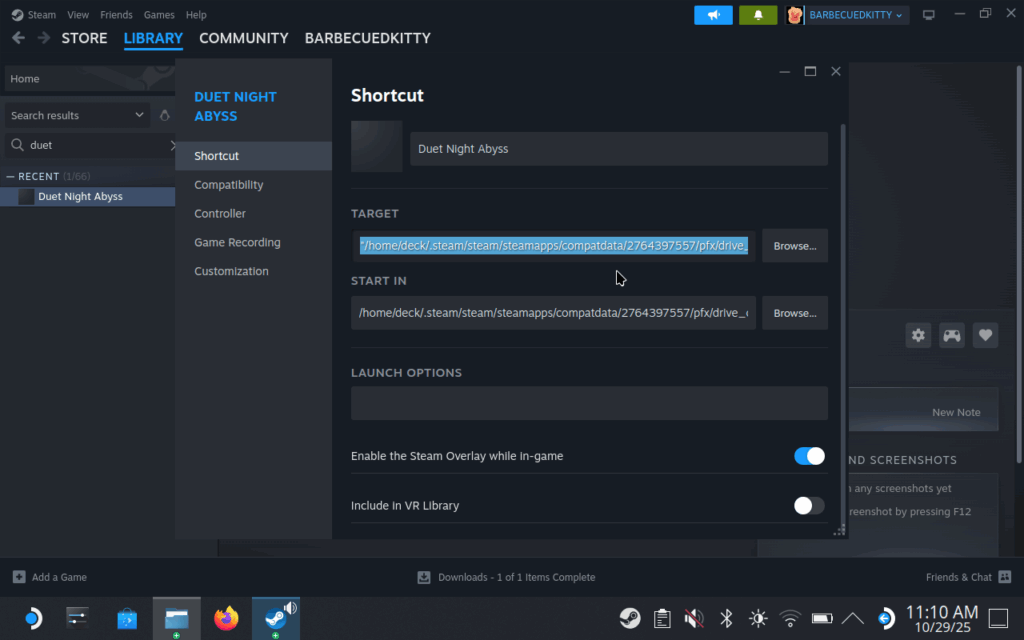
Once there, find the EMLauncher.exe and right click it. Click on "Copy Location." Then, head back to Steam. Find the shortcut for the launcher installer from your Steam library and go to its properties. In the Shortcut tab, you are going to paste into the "Target" text bar within the quotation marks (or you can just add quotation marks at the front and back of the pasted file location if you override them).
In my screenshots, I changed the name of the launcher install to "Duet Night Abyss", since that will be the same shortcut we launch the game from.
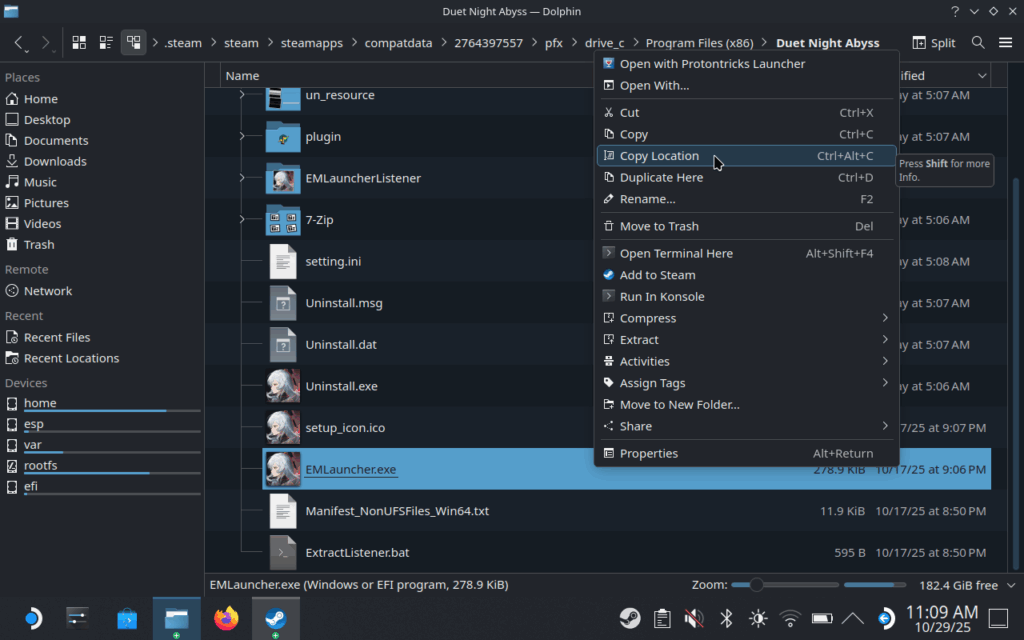
Step 9:
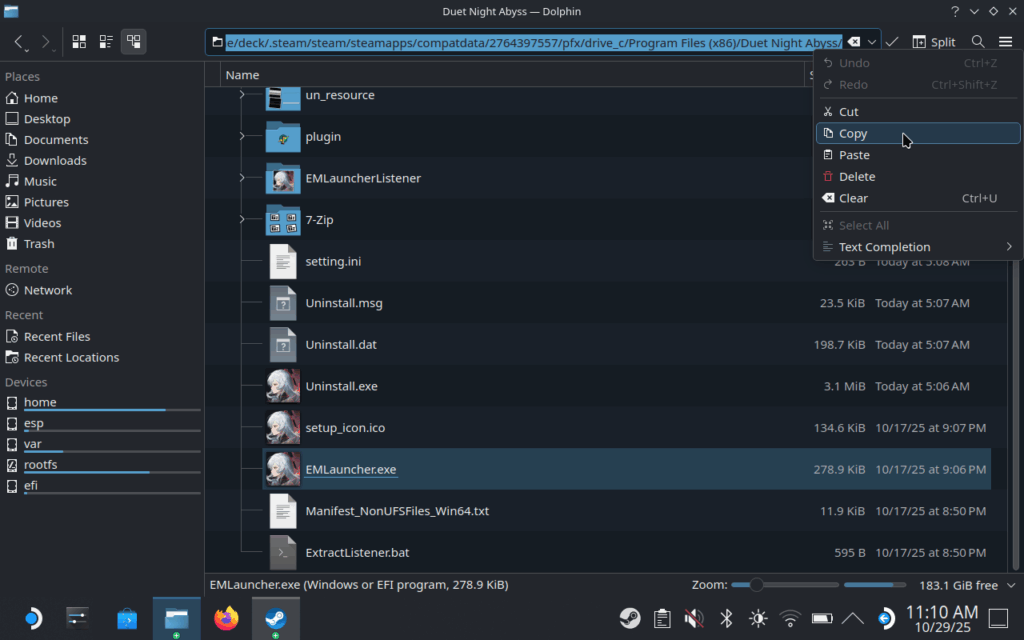
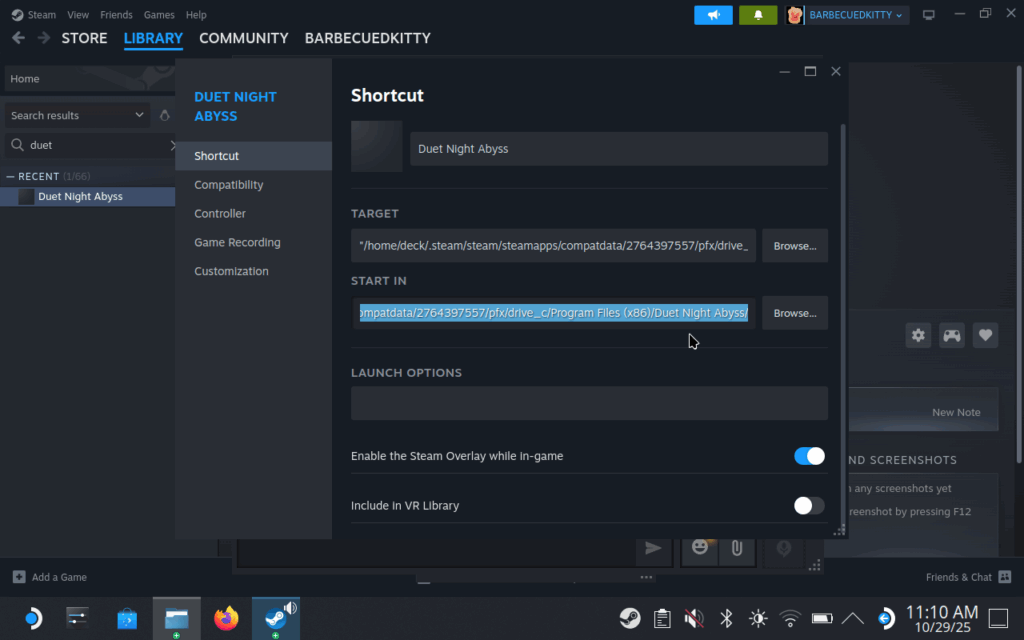
Leaving all of that open, go back to the Duet Night Abyss install folder and copy the folder location at the top of the Dolphin window. Copy that and then paste it in the "Start In" text bar in Steam, right under the "Target" bar we just pasted in.
Step 10:
And that should be it! Once you are done, you should be good to go and boot it up whenever you want, in Desktop or Game Mode. Logging in is a little difficult due to the text being white on white text bars, but at least we can log in and play!
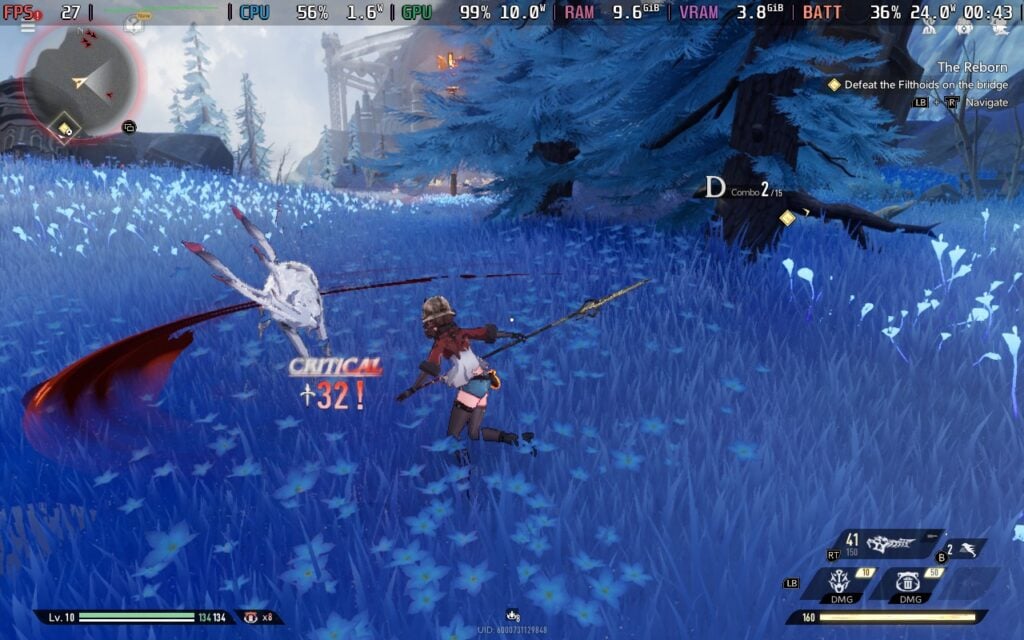
I still need to play more of the game, but I will be back with another article discussing performance and recommended settings so far. I am enjoying it though, and I can't wait to play more on the Steam Deck!
If you enjoyed this guide, check out the rest of the content on SteamDeckHQ! We have a wide variety of game reviews and news that will help your gaming experience. Whether you're looking for news, tips and tutorials, game settings and reviews, or just want to stay up-to-date on the latest trends, we've got you covered!




The issue I'm facing right now is the login button not working at all. Like i can click on it, there is no lag at all, the game process is running all fine, it's just nothing happens when I press the login button.
So do the mentioned steps work for this issue as well?
I'm on vanilla arch Linux, i3wm, installed the game via non-steam game method. I have tried 2 different versions of cachyos-proton(very recent ones) and also the Last protonGE-10.25 as well. All of them are available to run the game well, but cannot go past the login button after booting the game.
It should. I had the same issue on the Deck, so my guess is probably yes.
I followed your steps but the login button won't work. Same issue as Sakuya.
Hey thanks for the guide it worked! But can you offer some help on improving performance? The game is running at 15 to 20 FPS for me on extremely low settings while docked.
We are still working on it, but there seems to be little we can do right now. Not much to change yet, but we are testing some ideas out.
Great, I'll be on the lookout for any updates 🙂