With a gritty take on a genre dominated by FromSoftware, Thymesia embraces the souls influence and decides to go on a slightly different path. As a man codenamed "Corvus", you must recover your memories to save the kingdom and decide the fate of Hermes. Harnessing the plague as your weapon, you will encounter unforgiving enemies and horrifying bosses which you must defeat to find out how to save this world. You will be able to level up your plague weapons throughout the game, as well as upgrade potions and even your own basic movements, giving you more freedom to play the way you want to. Thymesia sounds like a gem for the Steam Deck, but of course, we have to really find out for sure just how well it can run.
Thymesia is a gorgeous looking game, it really is, and at max settings that is still true. Unfortunately, max settings is definitely not the way to play. Not only will you have an unstable framerate, but you will also be met with a 25W drain and 80c-85c temps. Now, if you are fine with that, the framerate will generally stay above 30 FPS so you could cap it there, but with a drain like that, I wouldn't. You would get maybe 1 hour of battery, 1.5 if you stay in smaller areas. Luckily, there's a couple ways that we can fix this while retaining a significant amount of the quality of the game!
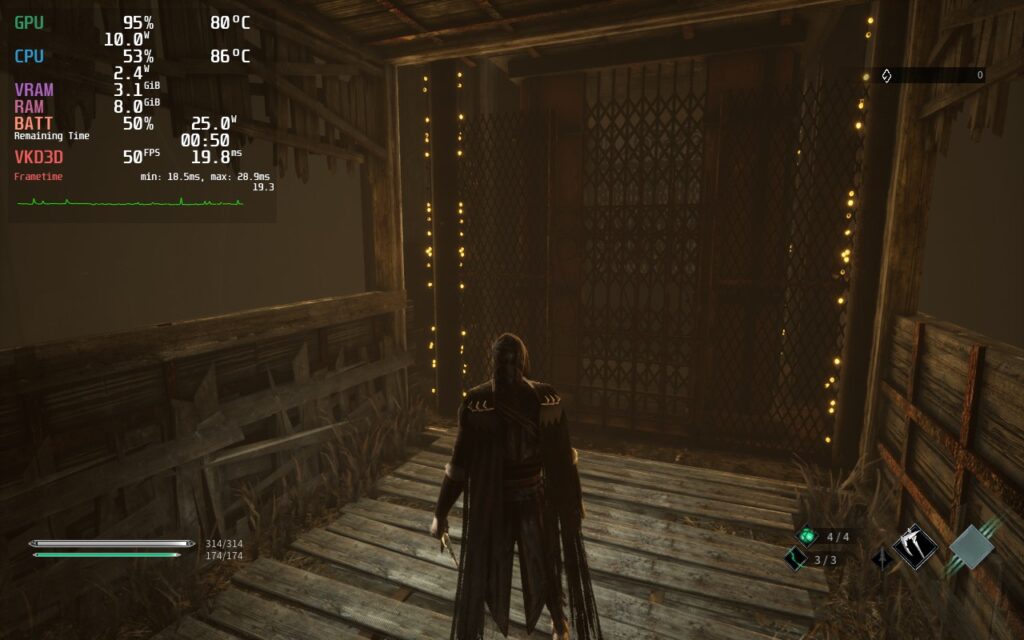
Thymesia at max settings can hit higher framerates...sometimes...but it generally dips below 32 and drains battery way too much!
When opening Thymesia, I had a feeling I was going to want more smooth gameplay over visuals. This is a souls-like game and that means more intense action and precise movements. My goal was to keep visuals looking sharp while holding a stable 40 framerate. Through my testing though, I found a decent build that keeps a stable 40 around 95% of the time. Now I know it isn't stable, but let me tell you, 40 vs 30 makes a big difference. Though, I did notice some settings interact oddly with each other. I noticed this primarily with anti-aliasing quality and the in-game FSR. The FSR felt like it did nothing, but as soon as I turned anti-aliasing down to medium, it became significantly more pixelated with no changes to battery drain or temps.
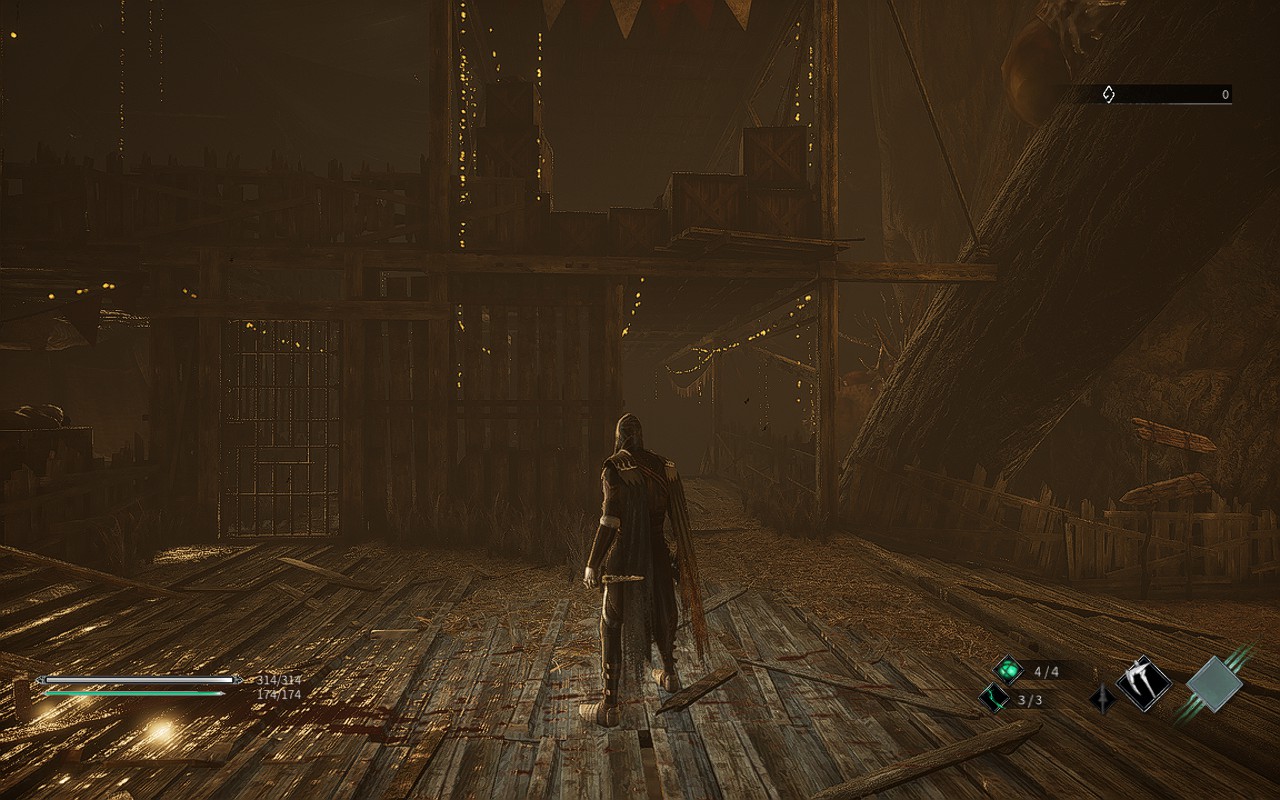
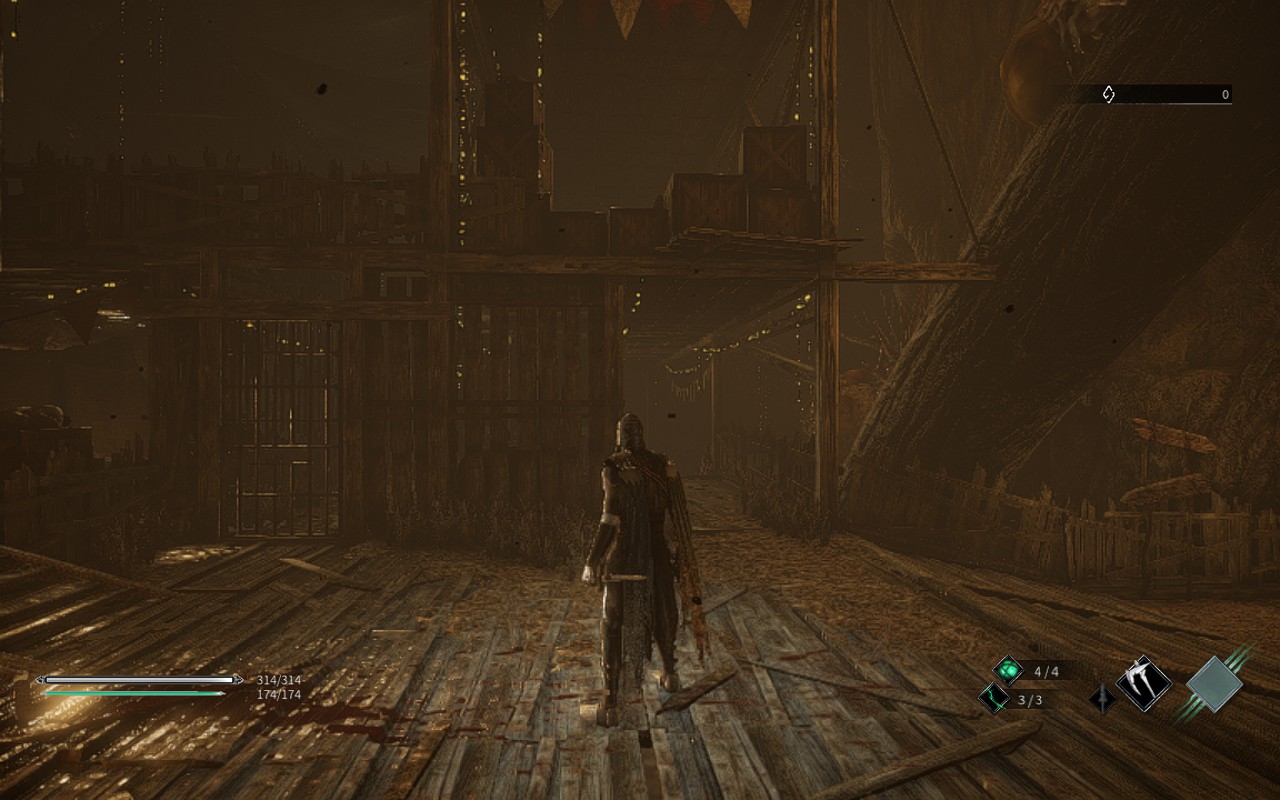
Changing Anti-Aliasing from High to Medium shows a significant change in quality, way more than it should. And yes, this was the only setting I changed here.
Though, with textures and FSR being low, Shadows and Filter being on medium, anti-aliasing on high, and using 1152x720 with SteamOS FSR on with sharpness of 0, you get a very clear picture with almost no visual difference on the surface. Turning TDP limit to 10 and GPU Clock Speed Frequency to 1100 helps with keeping battery below a 18W drain with most microstuttering solved. Battery will generally stay around 13W - 16W with spikes to 18W. The hub world will experience a significant slowdown (down to 30 FPS), and while it can be fixed by increasing the TDP limit, I felt it wasn't worth it as you don't spend enough time in the hub world at all. We also changed FPS limit to unlimited while the screen refresh rate is set to 40hz. This is to ensure the least amount of input lag possible, as Thymesia definitely needs more precise timing.
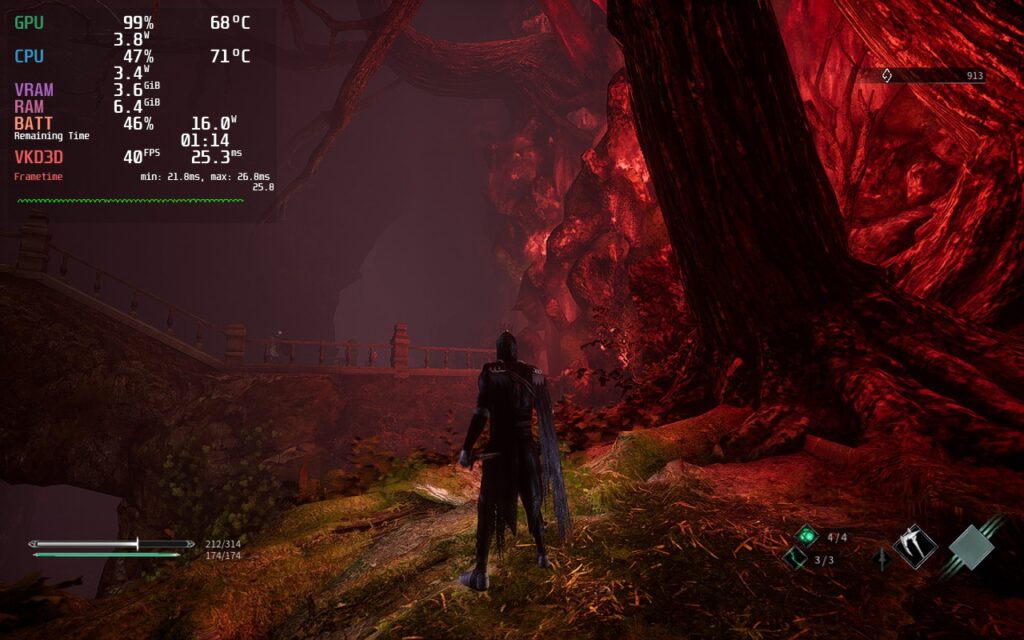
Recommended Build screngrab. Thymesia looks absolutely gorgeous, and thanks to TDP limits, stays well underneath the 20W drain mark!
Now even with the more instability, I felt this was the best way to play. The smoothness of running around and fighting was just so fluid and wonderful. I did, however, want an option to increase quality even further and provide a more stable framerate with lower battery drain. By capping to 30 FPS, I was able to set all the settings to High while lowering TDP limit to 8. This brought the overall drain to around 14W-15W while keeping temps cool below 72c. The framerate at this is stable, but comparing 30 to 40 in a game like this is...well hard.
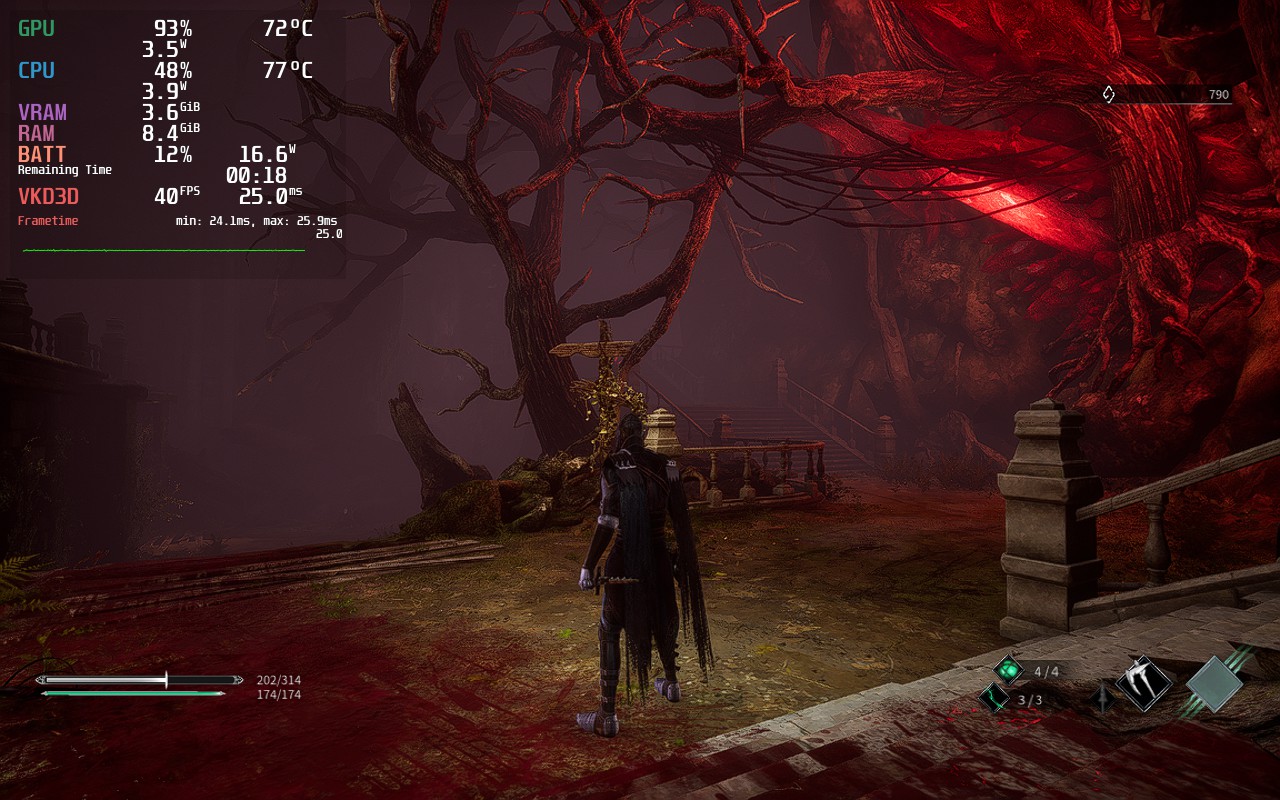
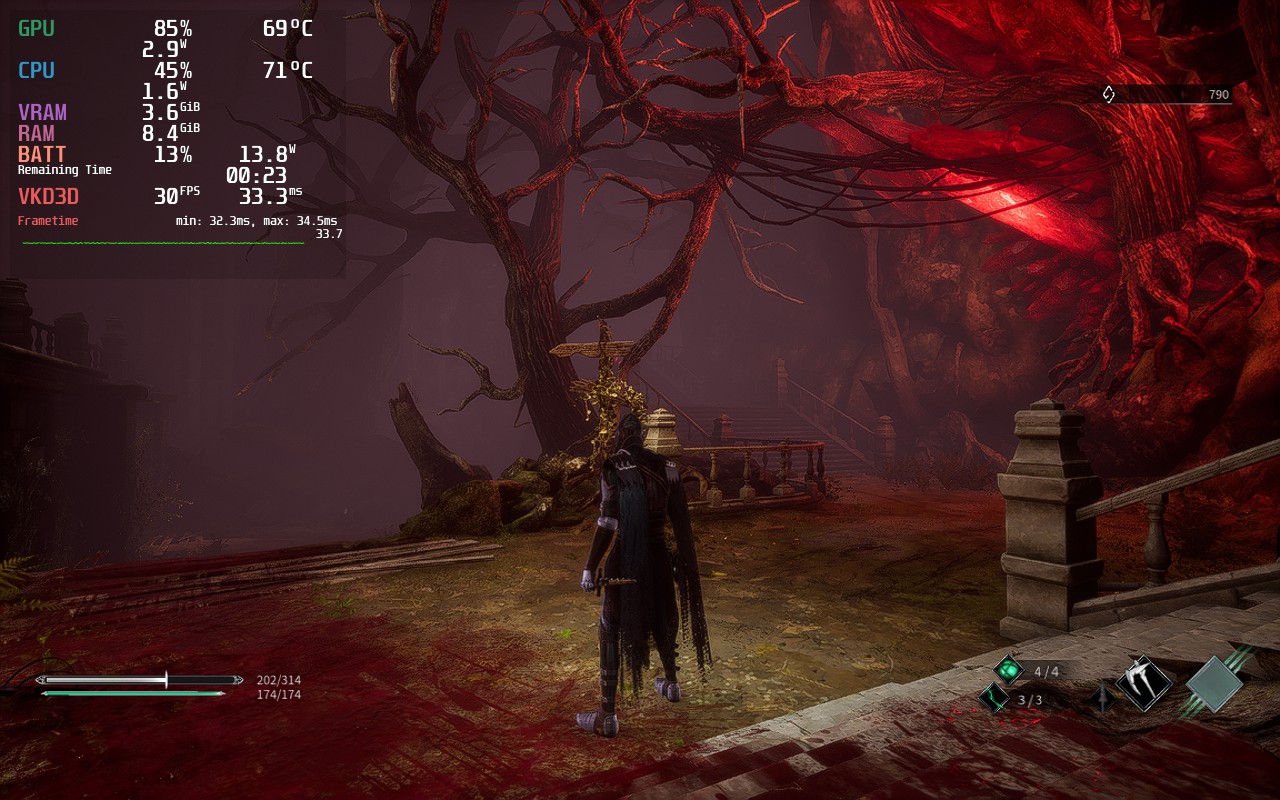
Recommended build vs Battery build. The battery build does have better quality too, and it does show a difference, but it is very minor.
The game itself runs really well for the most part, controls felt nice and easy to utilize, though some in-game settings are not implemented well. Like I mentioned above, the in-game FSR doesn't work correctly. While it does have some impact, it is not as much as it should. Hopefully future patches can fix this behavior so we can utilize it much more effectively in Thymesia.
For the first time, I am recommending an unstable build. This is in part due to the kind of game it is and input. You will experience slowdowns in the main hub of the game, like stated before, but since you don't stay in the hub that much, it feels like a mute point. I did experience some other spikes here and there, but it was much less noticeable with the framerate graph off. Some executions did cause slowdowns too, but then bounced right back when you could control Corvus again.
I would recommend, if you decide to tinker with the settings further, keeping "Shadows" and "Filters" Medium or above. Anything lower dramatically affects how the game looks and it loses a lot of the gloomy charm it has.
I personally really like Thymesia. It feels like a faster-paced souls game that utilizes some unique mechanics, while still retaining some of the aggravating staples that makes other games in the same genre flourish. The performance could be better, and FSR could work correctly, but it wasn't terrible. While it is playable and runs well at 40 FPS, I felt keeping it unstable and saving more battery was more worthwhile than pushing it further. This could change in the future and I will update this review if it does! Overall, I would recommend the game and I genuinely had a good time with Thymesia, even if it just reaffirmed how terrible I am at souls-like games.
Our review is based on the PC version of this game.
If you enjoyed this review, be sure to check out the rest of the content on SteamDeckHQ! We have a wide variety game reviews and news that are sure to help your gaming experience. Whether you're looking for news, tips and tutorials, game settings and reviews, or just want to stay up-to-date on the latest trends, we've got your back!
Star Wars: Jedi Fallen Order was released in 2019 as a new take on the Star Wars gaming genre. Mixing “Dark Souls”-esque combat, action-RPG elements, and “Uncharted” styled platforming, the AAA release sought to immerse players in a graphically detailed environment containing new characters and a style of gameplay that is distinctly different from past Star Wars games. Having completed my first playthrough on Playstation 4 at release, I was excited to pick this up during the Steam Summer sale and evaluate how the game would perform on the Steam Deck.
When I first booted into the game, I intended to push the Deck as far as it could go. I installed the game to the internal SSD (my Deck has the 256GB NVME SSD) and fired it up with Steam OS set to 60fps and all in-game settings set to maximum quality. While the game was certainly playable, I found it maxed out in the low 40 FPS range, frequently dropping as low as 25 FPS during heavy combat or cutscenes.
Using these settings, the game was consistently drawing 25+ watts from the Deck, leading to GPU temperatures in the high 80s and overall poor battery life of only 1.5 hours. Any changes to TDP essentially made the game unplayable, with it performing in the 15-20 FPS range. With this, I promptly decided to configure a 40 FPS build.
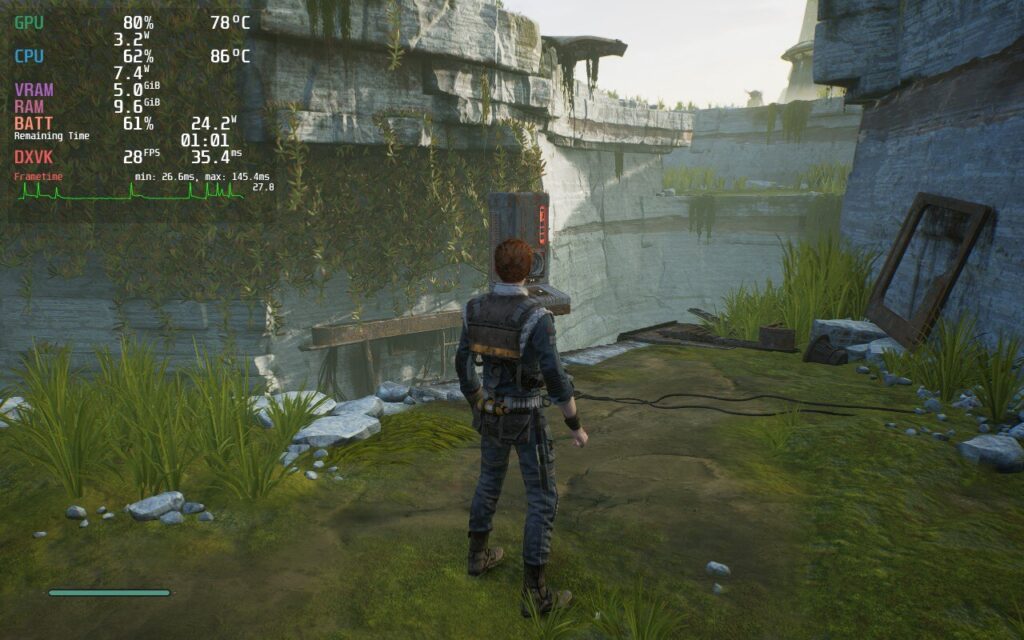
While max settings can look nice, the battery drain, temps, and framerate instability make it not playable.
I reduced the refresh rate in SteamOS to 40hz and set my framerate cap to match. Overall, the game performed better than when set at 60 FPS, even off the Micro SD card. I did notice slightly longer loading times, and framerate drops of 10-15 FPS when loading or entering areas with more than 4 or 5 enemies.
Upon returning to those areas, however, there wasn’t any lag, leading me to believe the stutters had more to do with the read/write speeds of the Micro SD card rather than the Deck hardware itself. Looking into it further, the Fallen Order PC port seems to suffer from “micro-stutters,” which could be what I was experiencing. Also noteworthy, menus seemed to behave in the 20-35 FPS range in each configuration I tried.
The framerate in Star Wars averaged around 35-40fps in this 40 FPS configuration, dipping as low as 25fps for a second or two when loading, which is more than playable for me. The battery lasted about an hour and a half pulling around 20 watts on average.
Further optimizing the 40 FPS build, I lowered the in-game resolution to 1152x720, set the display to fullscreen, applied FSR scaling with 0 sharpness, reduced the TDP to 10 watts, manually set the GPU clock to 1000hz, and lowered the settings to medium. I didn’t notice any difference in overall performance or visuals, but gained an extra 30 minutes of battery life and the Deck ran at lower temperatures, which is a bonus in itself.
While the issues at 40hz were minor, I did end up dropping down to 30 FPS on 60hz, which performed the best and bought me an extra 30 minutes of battery life. The only time these settings suffered was during the final cutscene (no spoilers) and menus, where the framerate dipped as low as 20 FPS.
I retained the resolution, FSR, and GPU clock settings from the 40 FPS build, but dropped the TDP even lower to 8. This build, by far, provided the best battery life, and the TDP drop had minimal impact on performance. I did notice some of the visuals weren’t as vivid as they were on high settings, but the increased battery life was worth it for me.
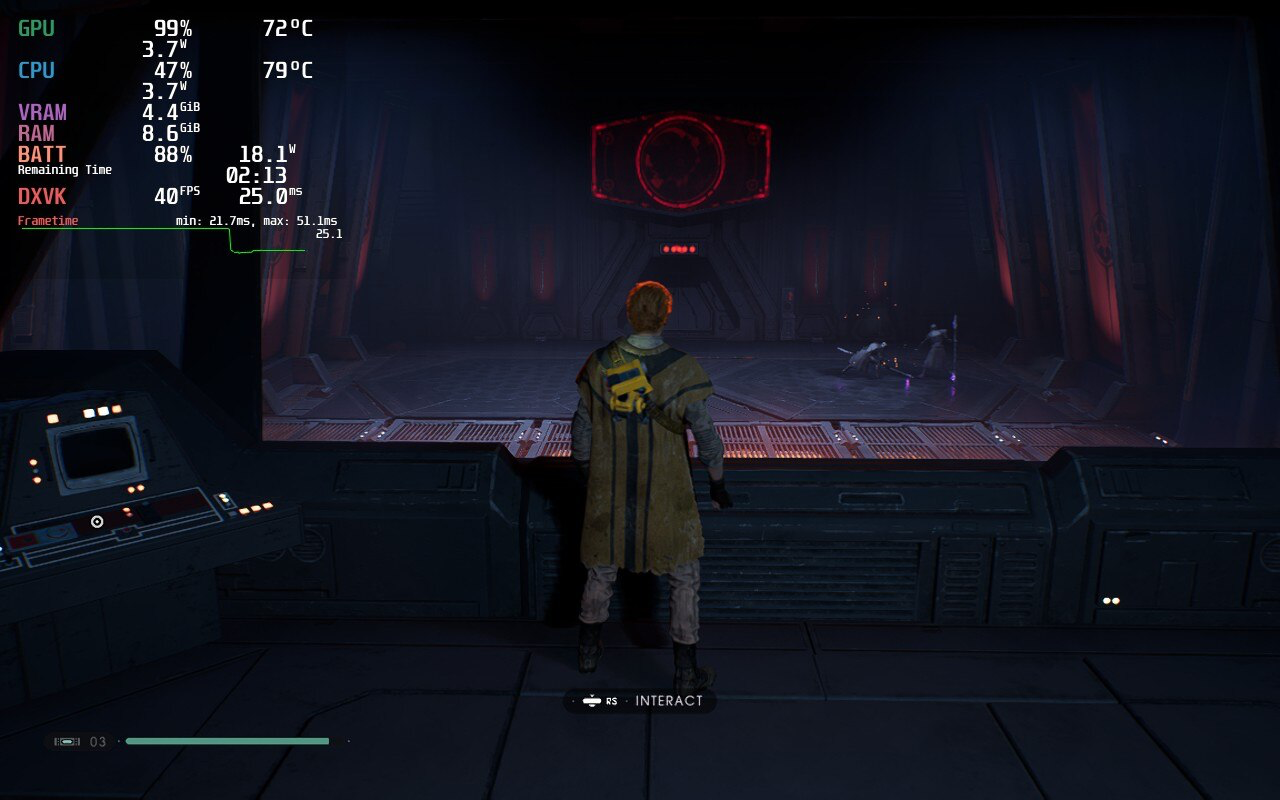
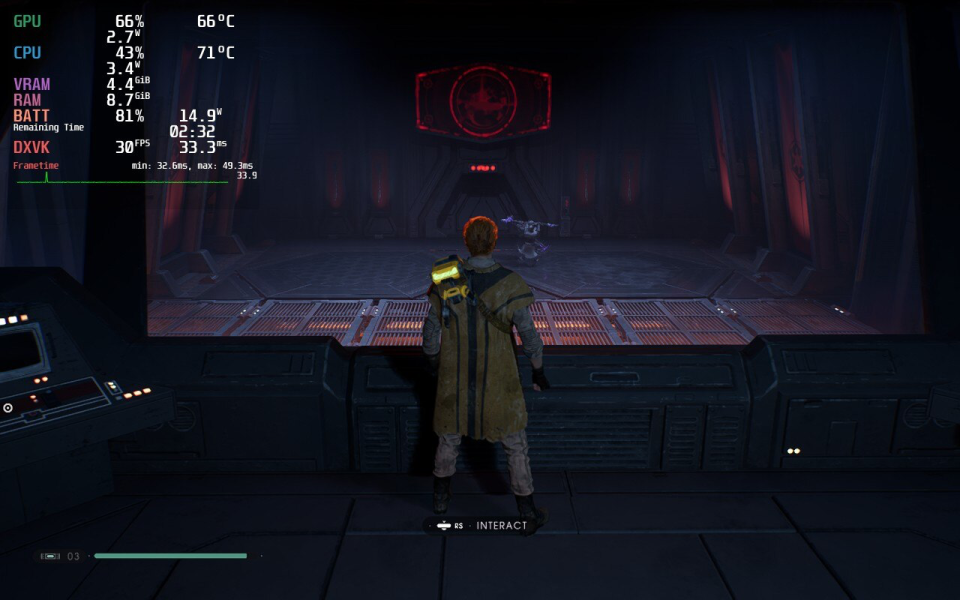
Both the 40 FPS and 30 FPS builds performed well, but I’d recommend the 40 FPS build due to its decent battery life, low temperatures and GPU utilization, and overall performance. If you’ll be away from a charger for a long period of time, the 30 FPS build is an excellent alternative. There is also some stuttering in every build we tested, but this could be due to the PC port and there are reports of stuttering not just on Deck, but on desktop PCs as well.
As far as controls go, the default configuration works great out of the box. I found myself preferring the left trackpad over the D-pad for actions like using stims and switching lightsaber configurations. Even though my hands are rather large, it was easier to reach the trackpad with my normal grip.
I haven’t explored the possibility, but thought the rear buttons (L4-5 and R4-5) would work well mapped to some lightsaber combos, such as jump attack (A then X), double power strike (Y then Y), throwing your lightsaber (LB + Y), etc. I didn’t end up trying this in game, but did create a controller layout, details below the review. Feel free to modify it for your own uses.
Overall, I am thoroughly impressed with the Steam Deck’s ability to handle such a graphically intense AAA game and I found myself surprised several times during the playthrough. The visuals are stunning, even on the 1280x800 screen, and I found new appreciation in the color balance.
Notably, the blacks were “blacker,” making the areas where I needed to use my lightsaber as a flashlight much more realistic. Combat and platforming were fluid, and although temperatures and battery life varied, the experience was enjoyable overall. If the upcoming sequel, Star Wars: Jedi Survivor, plays this well on the Deck, it will be a “must have” in my game library.
Need some help understanding how we got to our score? Check out our Guide to Steam Deck HQ.
Our review is based on the PC version of this game.
If you enjoyed this review, be sure to check out the rest of the content on SteamDeckHQ! We have a wide variety game reviews and news that are sure to help your gaming experience. Whether you're looking for news, tips and tutorials, game settings and reviews, or just want to stay up-to-date on the latest trends, we've got your back!
Elden Ring is an open world Souls game, which features a large variety of enemies and areas with plenty to explore and experience. With many possible builds to play your way, you will trek across a unique land that makes you want to explore every inch of it. Use magic, swords, halberds, and even prayer, to dispatch a variety of enemies that can range from giant crows to giant shrimp to giant dragons...I might be seeing a pattern here. Be ready though, this game is not for the faint of heart. Plan your strategy wisely and enlist the help of your friends, though this could be your undoing. Now, how does this open-world AAA game that came out last year run on Steam Deck?
When trying Elden Ring out at max settings, it actually ran ok. It would stick above 30 FPS, which would mean capping it could be do-able. The biggest problem though was temps being around 80c just standing still and a whopping 24.9W battery drain. To me, the best way to play is a combination of high, medium, and low settings, but set to a locked 30 FPS. This was by far the smoothest and most stable way to play, while also allowing a longer battery life. Sadly, the game does have about 6 areas that I can’t list, due to spoilers, that no matter what the settings are, drop 1-2 frames. The good thing is that those frames don’t cause a noticeable stutter so gameplay felt quite smooth. I also locked the TDP to 9, making sure the battery usage doesn't go up much further than 16W almost the entire time. I also tried Elden Ring with this build while docked to my TV and thought the game was still able to look quite appealing even on the larger screen.
I really wanted to do everything I could to get a 40 FPS build up and running. Unfortunately, I couldn’t get a fully stable build for it. I was able to get very close, with framerate dips down to 36-37 that weren’t super noticeable, but it did come with a cost. Pushing the resolution down to 1152x720, and turning graphics settings to lowest, got Elden Ring the closest it possibly could to a stable 40. There is a quite noticeable difference, and the framerate isn’t stable, but it is the closest I believe is possible to hit something higher than 30 FPS without the Deck overheating and losing too much battery.
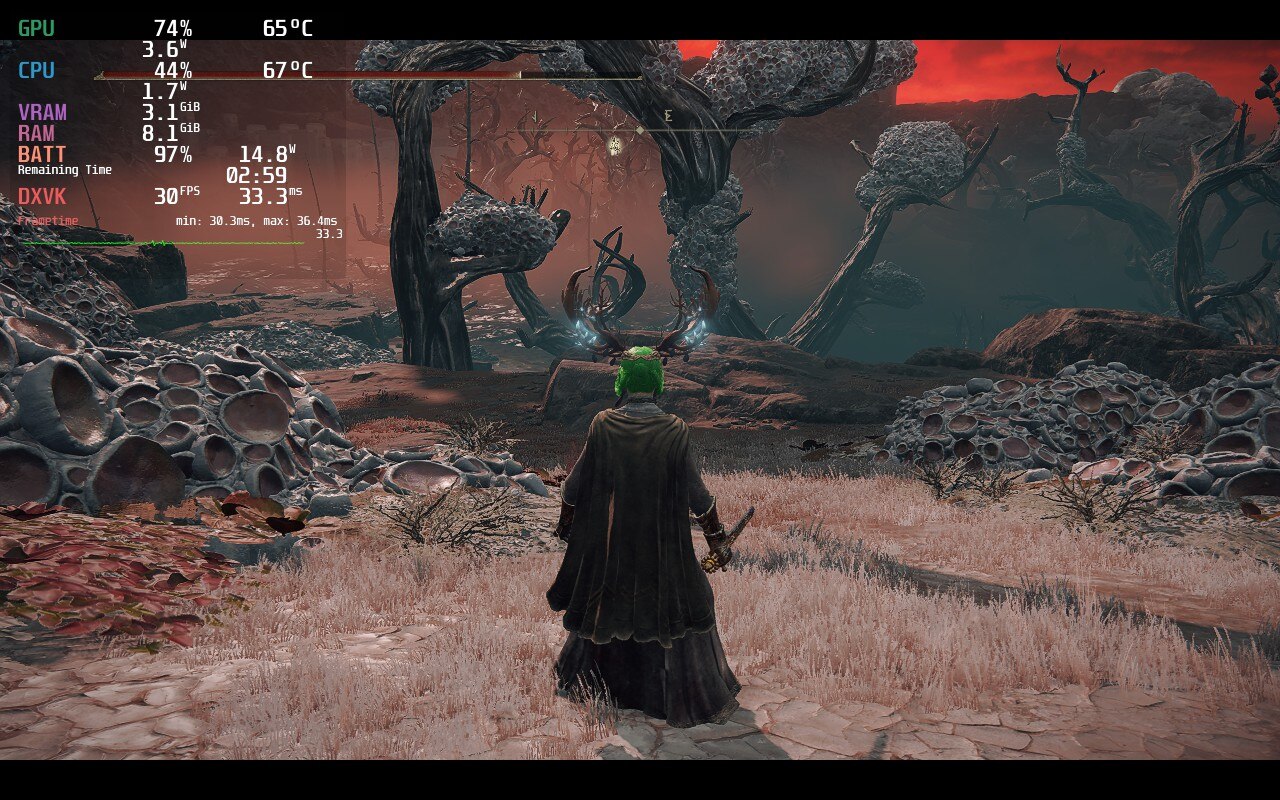
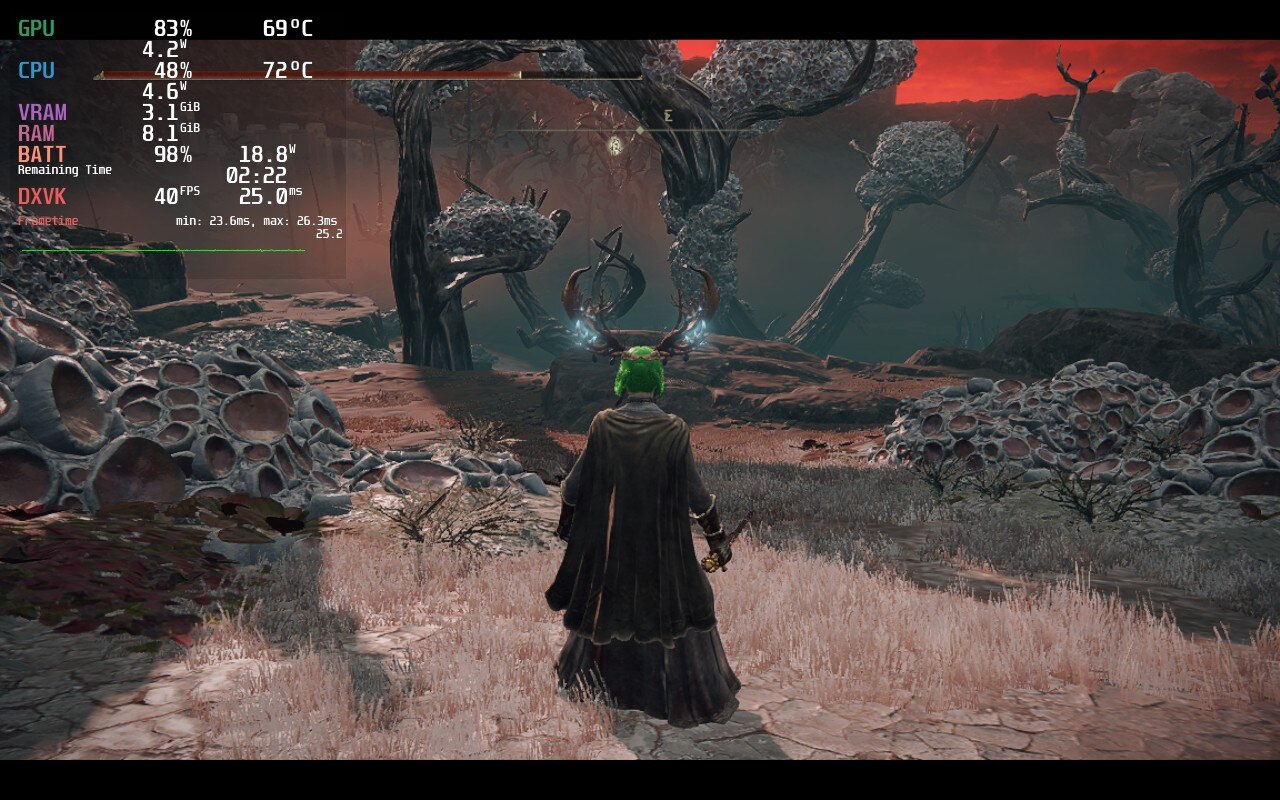
While both are stable here the recommended has much better temps and battery, while looking much more sharp.
In the end, the game finds it impossible to hit 60 FPS, but can be stable at 30 FPS and low battery usage with some compromises. Elden Ring on the deck is for people that will accept those shortcomings in exchange for portability, which still baffles me. This is a AAA open-world game that just came out and looks sharp and beautiful, but still runs at a stable rate. While it cannot hit 40 FPS, Elden Ring runs like a charm with minimal issues and will be a fantastic addition to anyone’s library for their Deck.
Liked this review? Check out our Game Review page for more reviews and optimizations!
Our review is based on the PC version of this game.
If you enjoyed this review, be sure to check out the rest of the content on SteamDeckHQ! We have a wide variety game reviews and news that are sure to help your gaming experience. Whether you're looking for news, tips and tutorials, game settings and reviews, or just want to stay up-to-date on the latest trends, we've got your back!
Tunic is a top-down isometric action game reminiscent of the good old Zelda days. You play as a little fox and explore an island filled to the brim with secrets, treasure, and pages of the game’s manual that you can put together. You will also come across unique enemies and colossal beasts while uncovering new secret techniques and relics. The world is absolutely gorgeous with a colorful, yet simple art style that pops out and pleases the eye at every turn. Paired with a pleasing combat system and a plethora of secrets, Tunic is a game worth discovering.
Luckily for Deck users, Tunic is not an intensive game. The game’s recommended settings were actually the maxed out ones at native resolution, and after some initial testing, I can happily say it will run most of the time at 60 FPS. With temps around 65-70, depending on the area, and battery sticking average around 15W, playing like this is possible, but it can be improved. If you do decide to play at max settings, make sure the TDP is set to 8 as well to avoid it using too much power.
I decided to try to curb these FPS spikes first. Through my testing, it turns out SSAO (Screen Space Ambient Occlusion) was causing most of them. SSAO is used a lot in Tunic and really makes the world pop just a bit more, but turning it off almost instantly fixed most of the spikes. I do believe that SSAO on medium works very well while retaining the quality it gives.
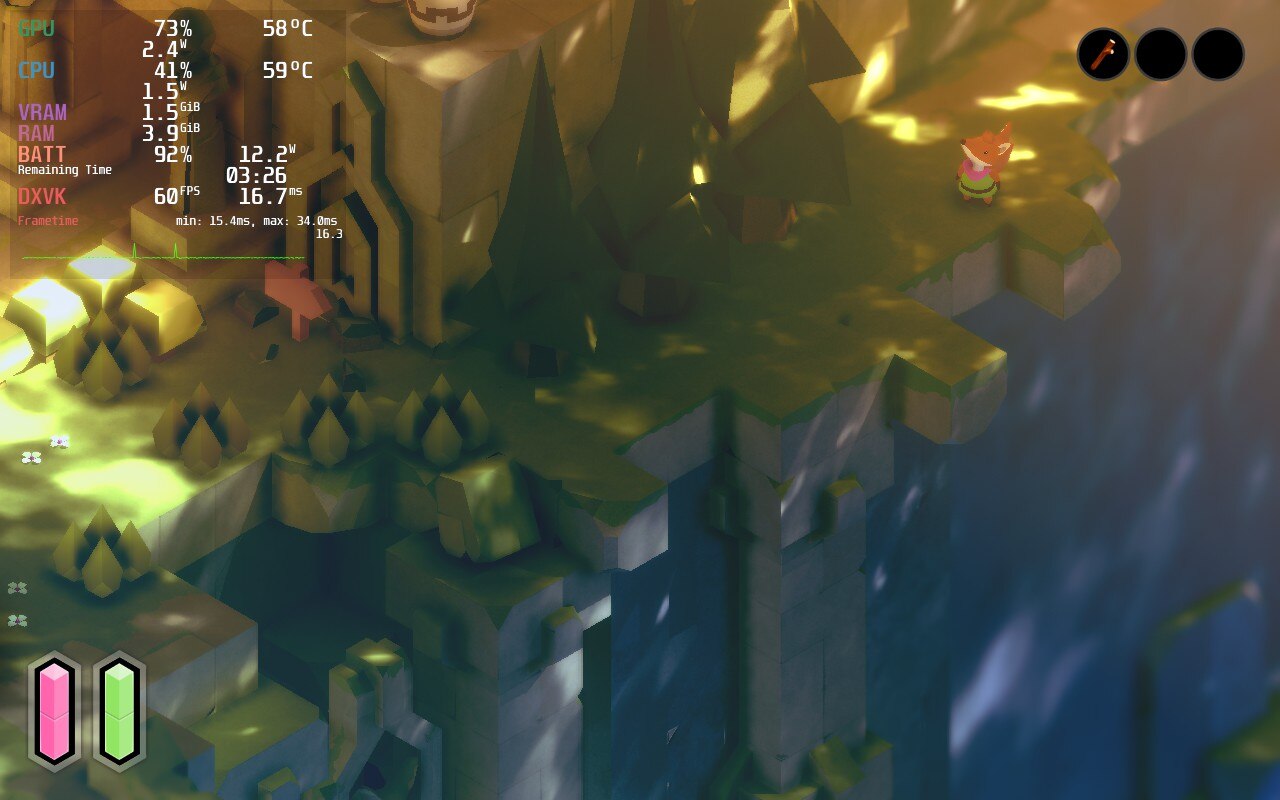
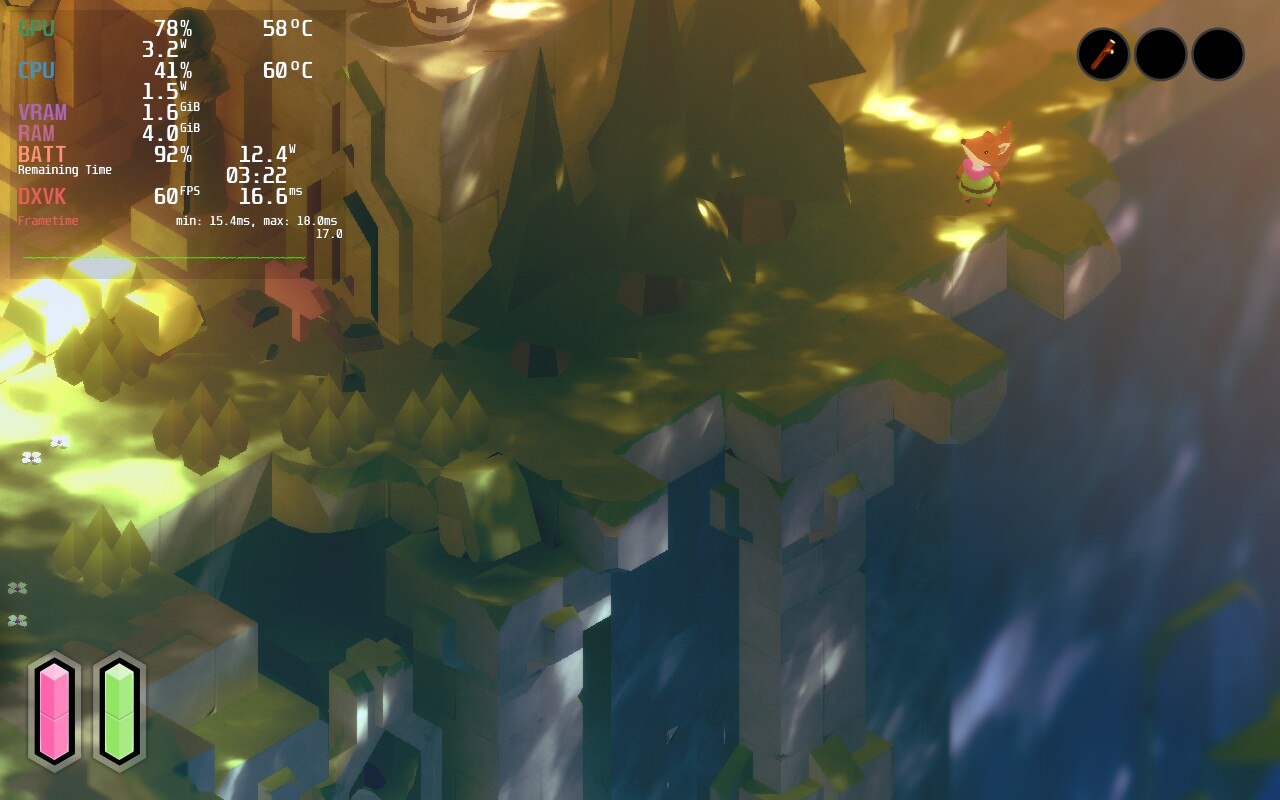
While there is a difference, it didn't affect the overall aesthetic of the game and ran much more smoothly.
I also decided to limit the TDP to make sure it didn’t try to go overboard on power consumption. I landed on using 8 as it kept the game at 60 FPS and temps down to an average of 65. Limiting the TDP did mean some of the graphically intensive areas ended up causing framerate drops to around 45-50, but I remedied that by turning shadows to low (which showed almost no visual difference to me) and brought resolution down to 1152x720. Paired with FSR upscaling and sharpness of 1, the game looked almost exactly the same as native. I did turn off FXAA as well, which made corners of all models look sharper, but I feel it makes the game stand out more with reduced graphical quality.
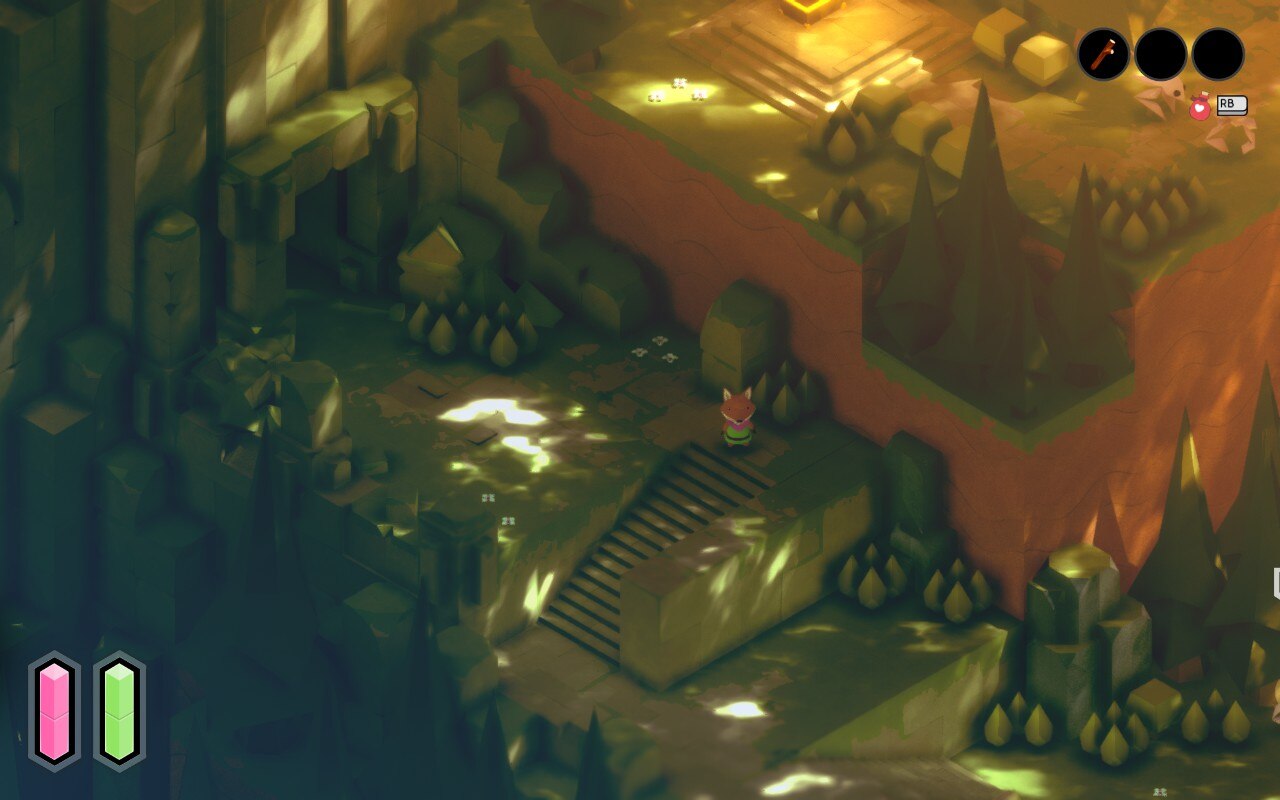
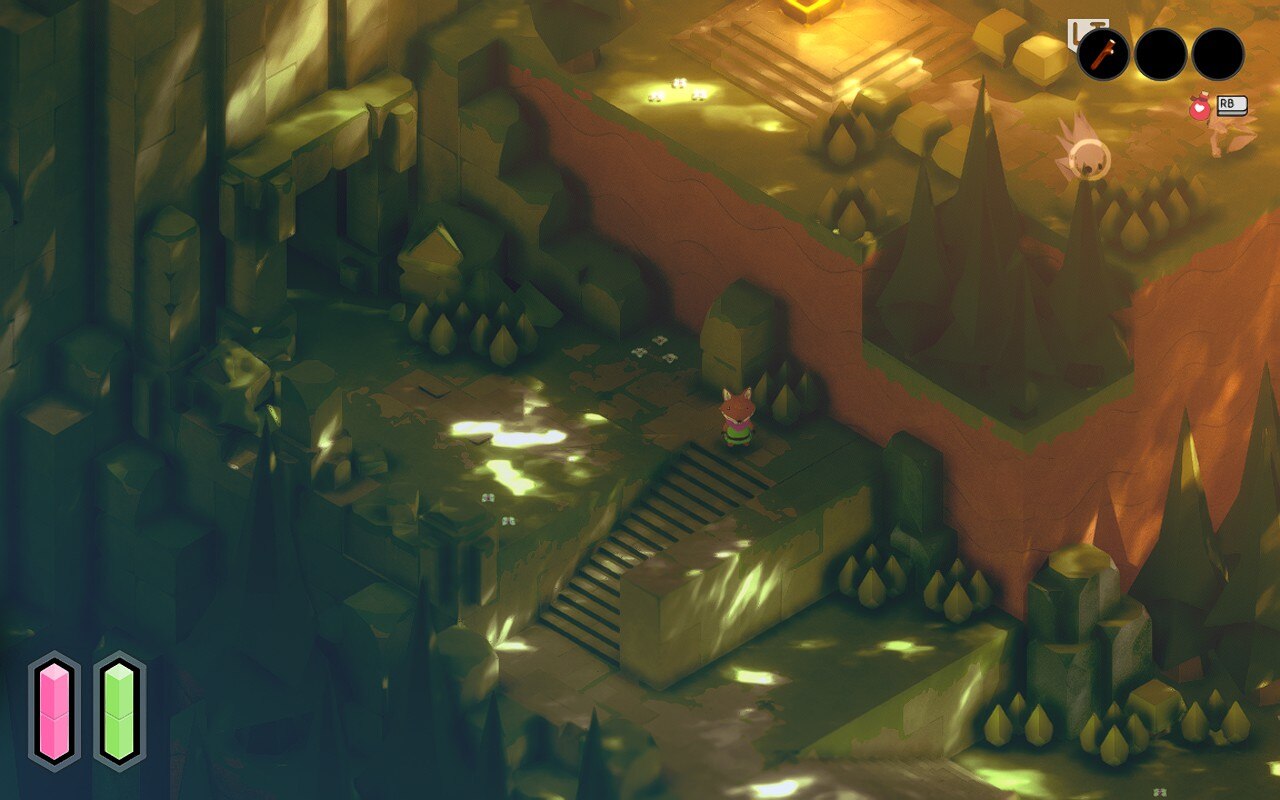
1280x800 vs 1152x720 really didn't show a significant difference to quality, but did provide a more stable 60 FPS.
It is possible to turn everything off or to low and set the resolution to 960x600 and upscale that to save as much battery as humanly possible while still looking pretty decent. While changing resolution down to 1152x720 didn’t affect the battery as much, going to 960x600 with the same settings did lower it by about 1-2W. This also creates a super stable 60 FPS with almost 0 drops at all. The game still looked quite good for the most part though, but it was obvious that there were some downgrades to it. Turning FXAA off does help tremendously with a lower resolution and FSR though.
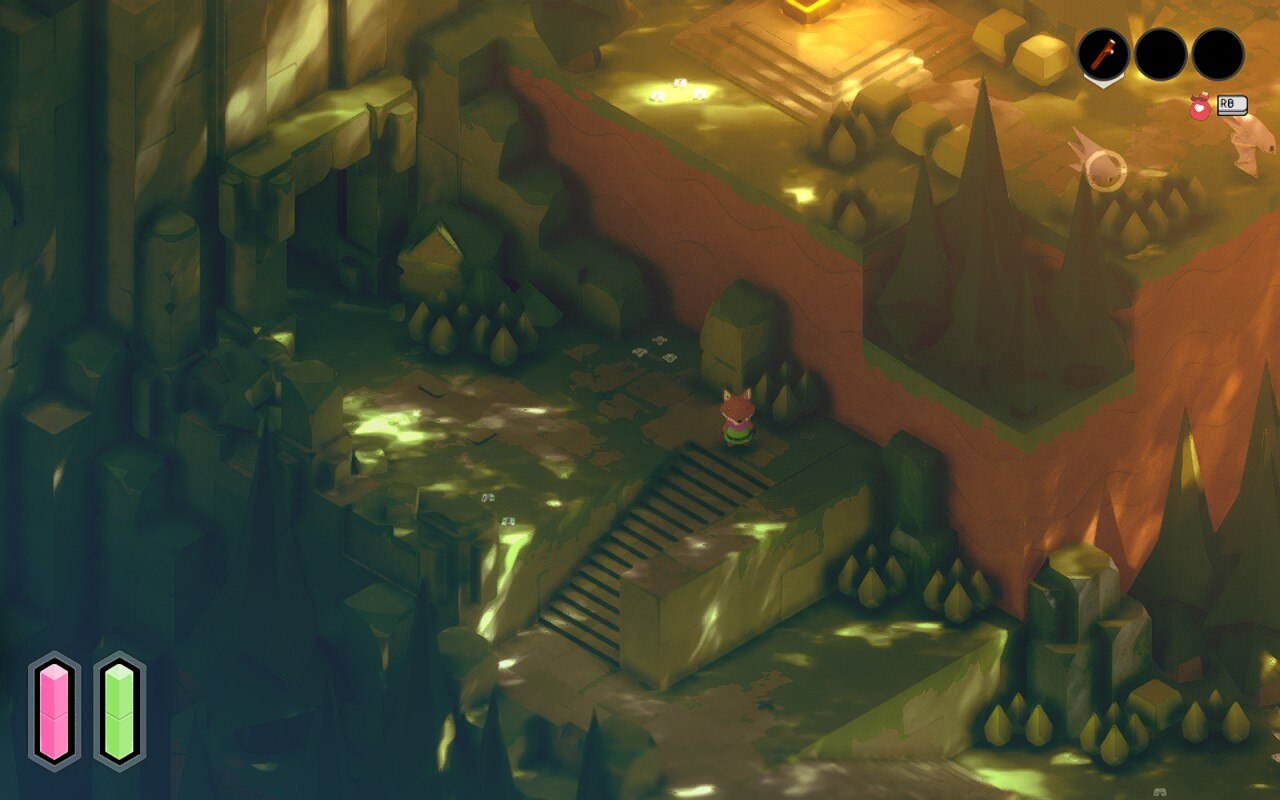
1280x800 vs 960x600 definitely showed more of a downgrade in quality, but it wasn't horrible.
Luckily, no bugs or glitches were caught and the game ran smoothly in general. Tunic is a game meant to be played at 60 FPS though, so any drops were quite noticeable. If it wasn’t, I would say the game is 100% playable from maxed settings all-around, but it did hurt my eyes a bit in the areas where there were a lot of SSAO effects on screen and the framerate dropped to 45.
All-in-all, Tunic is a really fun game to play. The gameplay and artstyle mesh together very well, while the stable performance on the Deck make this a wonderful game to take on the go. I didn’t expect it to be a powerhouse game really, but it did perform better than I expected after minimal changes to the settings. Personally, I prefer a sharper look and stable 60 FPS for a game like this, and luckily, it was able to hit that quite easily.
Our review is based on the PC version of this game.
If you enjoyed this review, be sure to check out the rest of the content on SteamDeckHQ! We have a wide variety game reviews and news that are sure to help your gaming experience. Whether you're looking for news, tips and tutorials, game settings and reviews, or just want to stay up-to-date on the latest trends, we've got your back!



