God of War (2018) is the first game in the rebooted-ish God of War series. You play as angry man Kratos who, with his son Atreus, must honor his partner’s dying wish. Along the way, you will travel across the land, encountering the gods of the norse mythology, all while training his son to be an angry boy. This game detracts from its predecessors heavily, focusing on telling a compelling story in a third person view over a beat-em-up style game. The game is phenomenal all around and is easily one of the greatest games to have ever been made. Saying this was a worthwhile experience is an understatement, so I was praying this would run well on the Steam Deck.
Knowing how this would turn out, I started my benchmarking with everything set to max. Lo and behold, it was horrible. Everything set to max with native resolution and no caps resulted in a 20 FPS average with a 24W+ battery drain and temps that were rising up to the high 80s. And this was in one of the less heavy areas of the game. I had no intention of using max settings though and here is where the review gets a bit tricky.
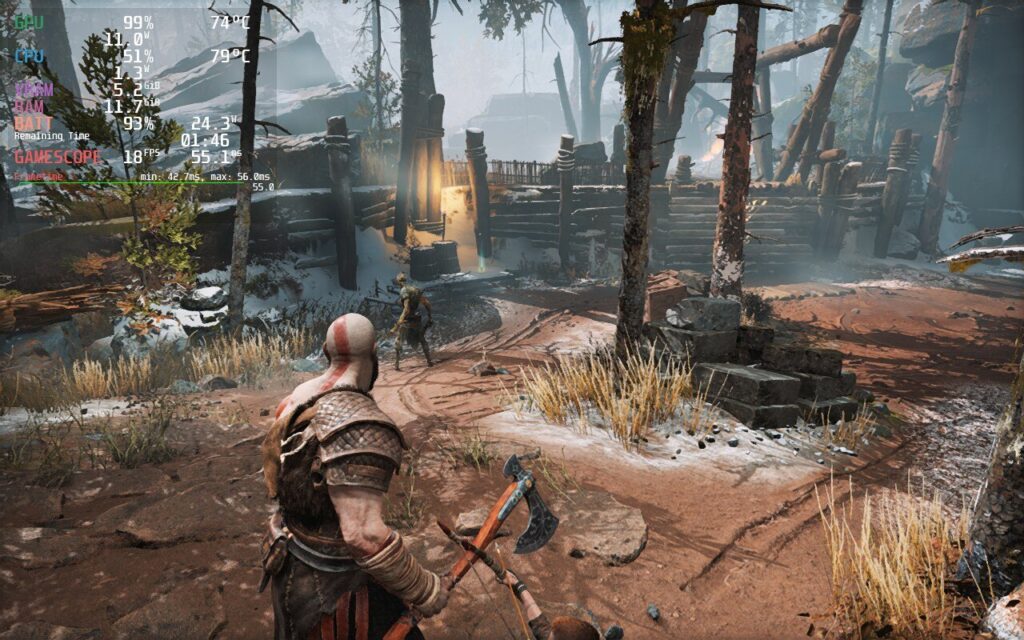
While God of War looks beautiful, battery drain and temps are high, as well as the framerate hanging around 20 FPS or lower.
God of War is a super intensive game and I feel there are two ways to play this: 30 FPS with a battery/quality focus and 40 FPS with a performance focus. In my testing, having a specific quality-focus build results in battery drain that hits a bit too hard, though it is possible to play.
Seeing as how draining God of War is, I wanted to see how far I could get the drain and temps down while keeping a stable 30. Thankfully, God of War does have FSR 2.0 integration, so I didn’t have to turn the resolution down as much to save battery. I set the TDP to 9 and started reducing some quality settings to make sure the stable framerate was hit. I ended up with a nice mix of original and high settings, with 3 of them being low. With those settings and a 1152x720 resolution with FSR 2.0 set to quality, we get a fairly nice picture with a mostly stable 30 FPS. There are some framerate spikes, but I don’t feel they are noticeable in general play without the graph there. I have seen some minor slowdowns too, but these tend to happen in cutscenes or entering new areas, which don’t impact gameplay as much. Turning up TDP could mitigate some of these, but will also drain everything much faster. Even when all the settings are set to low, I still experienced some form of spike, so while these settings may cause a little more, they still don’t feel noticeable and give more to the game while saving a significant amount of battery drain.
When it comes to 40 FPS, it is possible to achieve it while still looking quite good, though at a cost to stability. I would say overall, the game is 80% stable at 40 with these settings, though there are still mini spikes which are much more noticeable due to the increased framerate. On top of that, battery drains significantly more and temps get up to 80c, which in itself is still not that bad. It is also slightly blurrier as the resolution is changed down to 960x600, and FSR 2.0 set to balanced, but the smooth framerate does make up for this. It is still decent looking, though personally, the upgrades to quality and less noticeable spikes win out for me.
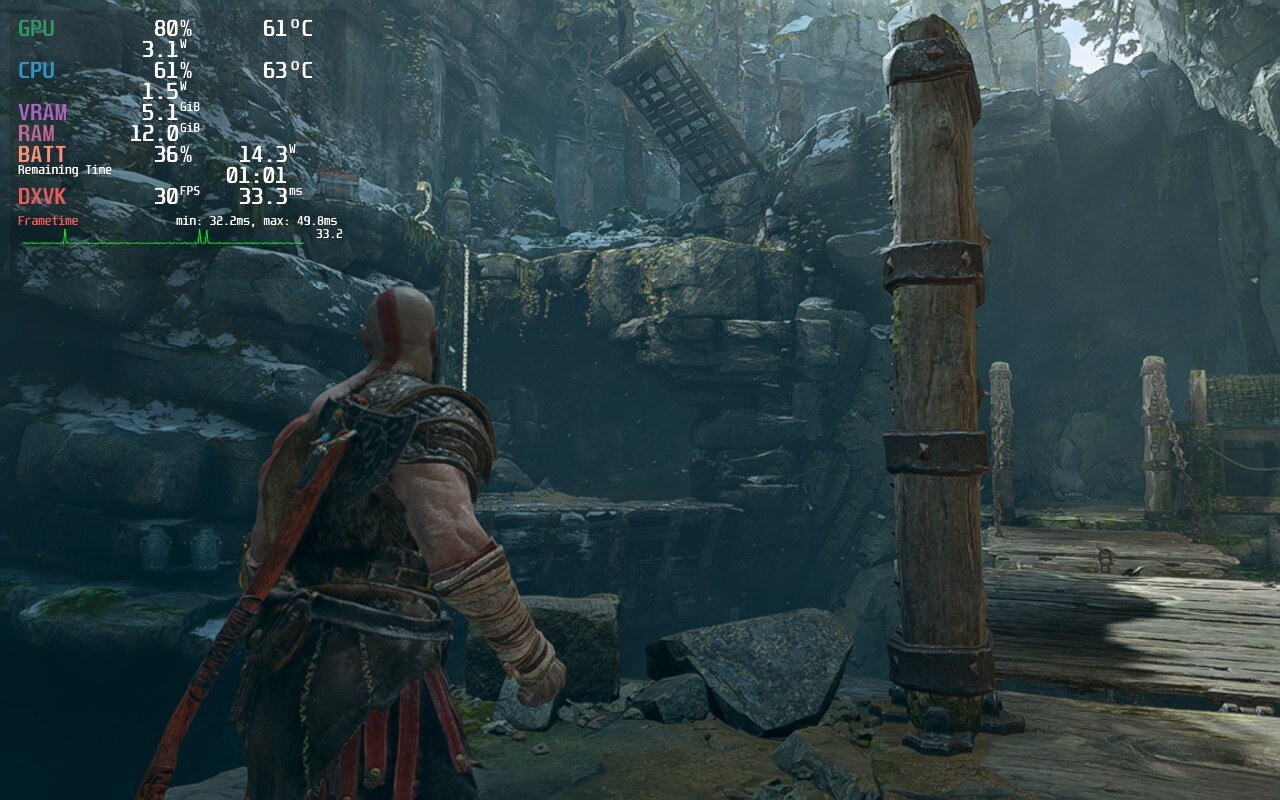
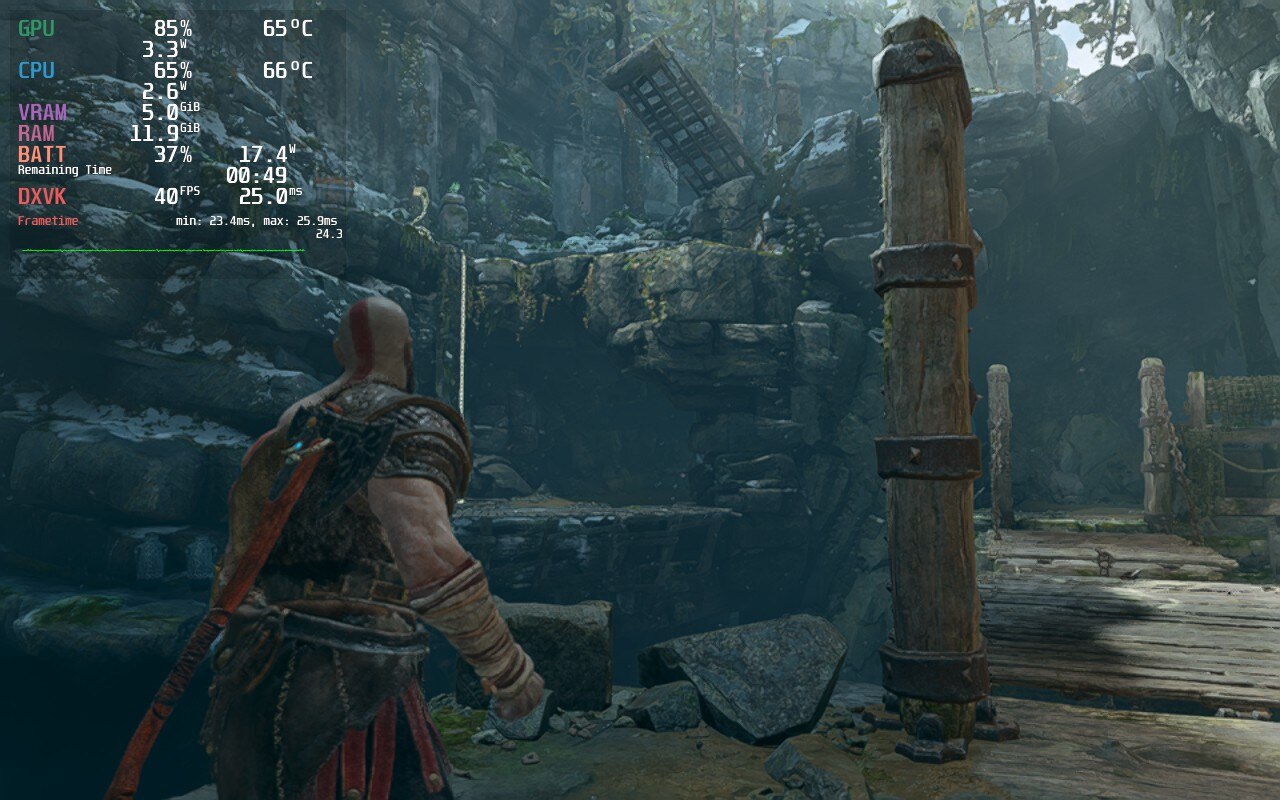
The difference in quality is clear and while 40 FPS can be hit, the temps and battery drain are massive.
There were no clear differences when using a different Proton version for God of War, so you can pick and choose which one you would like to use. I prefer using Proton GE when I can. If you don't know about it or want to install, you can follow our guide for it!
I did also encounter a couple bugs with the Deck. I noticed that after some cutscenes in God of War, my controls would stop working. This was easily fixed by hitting the "Steam" button and then going back into the game, but it was a bit annoying to deal with. I also did notice that moving the left analog stick has a very slight delay. I tested to see if this was due to SteamOS's cap, though even when Vsync in game was on with no cap, there was still that delay. It wasn't really noticeable when getting into the game though, just when I specifically stopped to test it.
I still am in shock as I tested and wrote this review, I was playing God of War on a handheld device. This game is so good and I was pleased with the performance. Of course, in terms of technicality, it could be better. It does still have framerate spikes and some bugs, but overall, this is a huge AAA game that has no business running as well as it does on Deck. If you haven't played the game before, or on the fence about it, do yourself a favor and grab the game. The compromises are well worth it.
Our review is based on the PC version of this game.
If you enjoyed this review, be sure to check out the rest of the content on SteamDeckHQ! We have a wide variety game reviews and news that are sure to help your gaming experience. Whether you're looking for news, tips and tutorials, game settings and reviews, or just want to stay up-to-date on the latest trends, we've got your back!
Star Wars: Jedi Fallen Order was released in 2019 as a new take on the Star Wars gaming genre. Mixing “Dark Souls”-esque combat, action-RPG elements, and “Uncharted” styled platforming, the AAA release sought to immerse players in a graphically detailed environment containing new characters and a style of gameplay that is distinctly different from past Star Wars games. Having completed my first playthrough on Playstation 4 at release, I was excited to pick this up during the Steam Summer sale and evaluate how the game would perform on the Steam Deck.
When I first booted into the game, I intended to push the Deck as far as it could go. I installed the game to the internal SSD (my Deck has the 256GB NVME SSD) and fired it up with Steam OS set to 60fps and all in-game settings set to maximum quality. While the game was certainly playable, I found it maxed out in the low 40 FPS range, frequently dropping as low as 25 FPS during heavy combat or cutscenes.
Using these settings, the game was consistently drawing 25+ watts from the Deck, leading to GPU temperatures in the high 80s and overall poor battery life of only 1.5 hours. Any changes to TDP essentially made the game unplayable, with it performing in the 15-20 FPS range. With this, I promptly decided to configure a 40 FPS build.
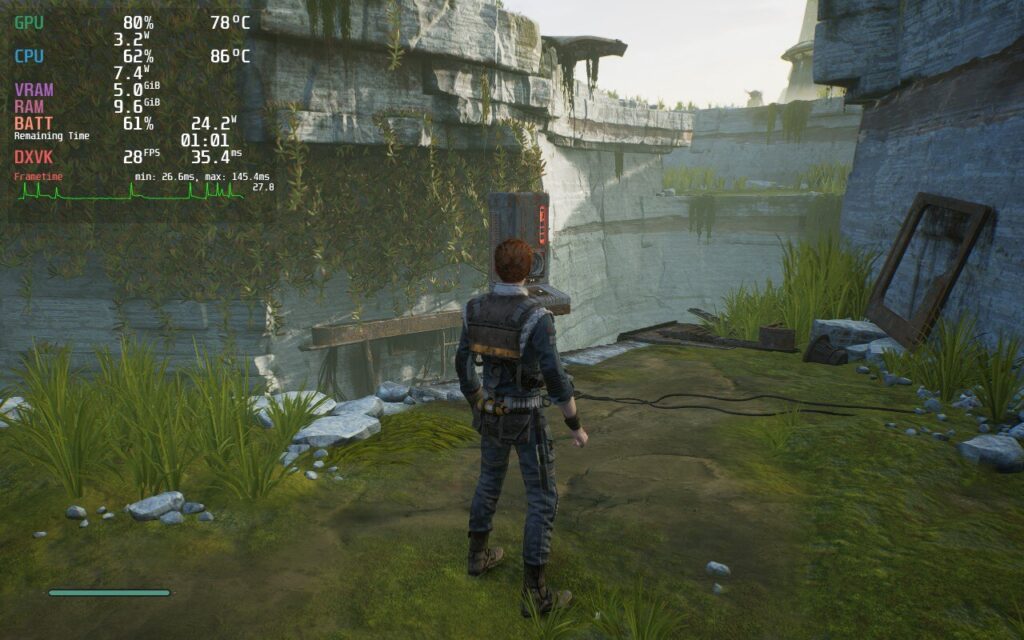
While max settings can look nice, the battery drain, temps, and framerate instability make it not playable.
I reduced the refresh rate in SteamOS to 40hz and set my framerate cap to match. Overall, the game performed better than when set at 60 FPS, even off the Micro SD card. I did notice slightly longer loading times, and framerate drops of 10-15 FPS when loading or entering areas with more than 4 or 5 enemies.
Upon returning to those areas, however, there wasn’t any lag, leading me to believe the stutters had more to do with the read/write speeds of the Micro SD card rather than the Deck hardware itself. Looking into it further, the Fallen Order PC port seems to suffer from “micro-stutters,” which could be what I was experiencing. Also noteworthy, menus seemed to behave in the 20-35 FPS range in each configuration I tried.
The framerate in Star Wars averaged around 35-40fps in this 40 FPS configuration, dipping as low as 25fps for a second or two when loading, which is more than playable for me. The battery lasted about an hour and a half pulling around 20 watts on average.
Further optimizing the 40 FPS build, I lowered the in-game resolution to 1152x720, set the display to fullscreen, applied FSR scaling with 0 sharpness, reduced the TDP to 10 watts, manually set the GPU clock to 1000hz, and lowered the settings to medium. I didn’t notice any difference in overall performance or visuals, but gained an extra 30 minutes of battery life and the Deck ran at lower temperatures, which is a bonus in itself.
While the issues at 40hz were minor, I did end up dropping down to 30 FPS on 60hz, which performed the best and bought me an extra 30 minutes of battery life. The only time these settings suffered was during the final cutscene (no spoilers) and menus, where the framerate dipped as low as 20 FPS.
I retained the resolution, FSR, and GPU clock settings from the 40 FPS build, but dropped the TDP even lower to 8. This build, by far, provided the best battery life, and the TDP drop had minimal impact on performance. I did notice some of the visuals weren’t as vivid as they were on high settings, but the increased battery life was worth it for me.
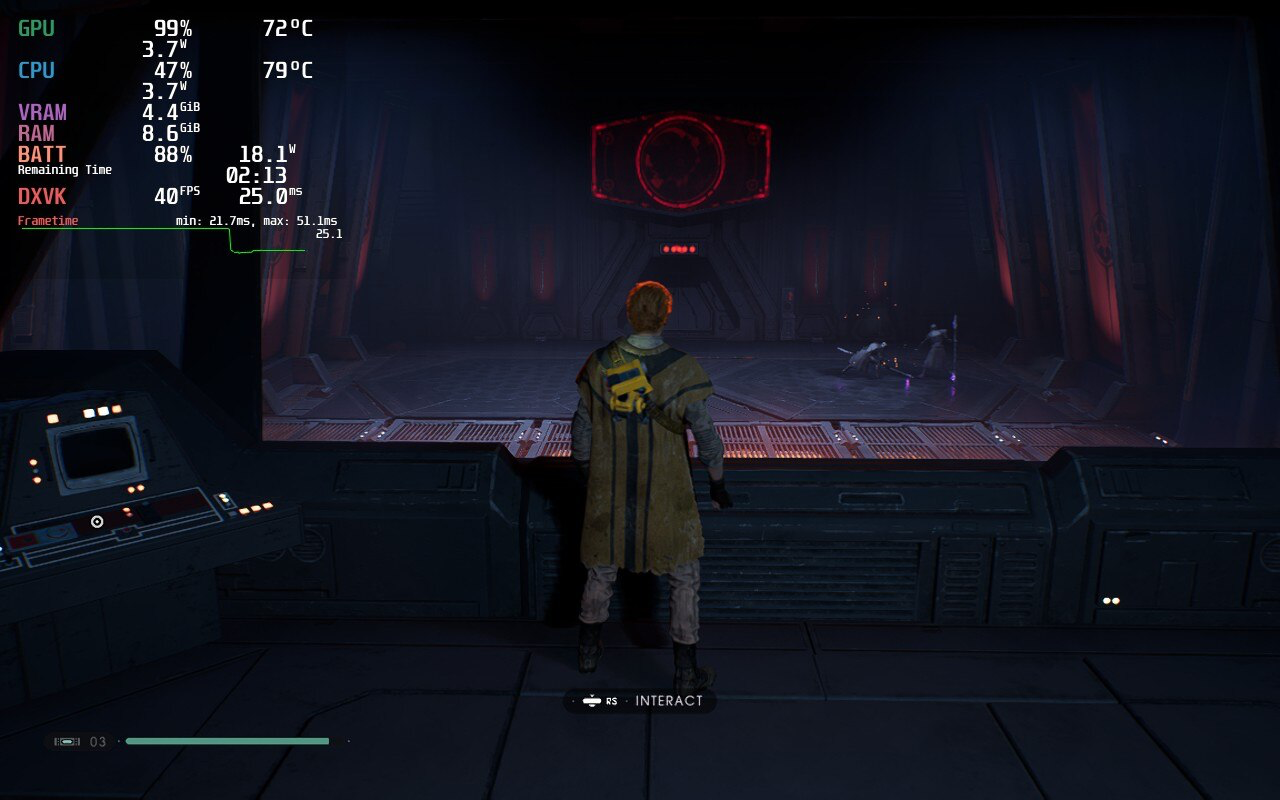
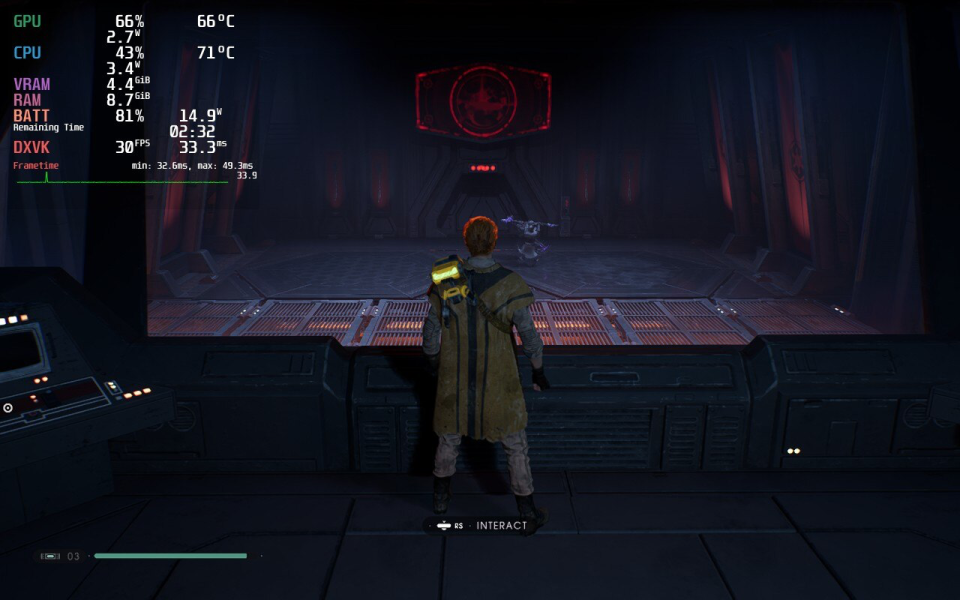
Both the 40 FPS and 30 FPS builds performed well, but I’d recommend the 40 FPS build due to its decent battery life, low temperatures and GPU utilization, and overall performance. If you’ll be away from a charger for a long period of time, the 30 FPS build is an excellent alternative. There is also some stuttering in every build we tested, but this could be due to the PC port and there are reports of stuttering not just on Deck, but on desktop PCs as well.
As far as controls go, the default configuration works great out of the box. I found myself preferring the left trackpad over the D-pad for actions like using stims and switching lightsaber configurations. Even though my hands are rather large, it was easier to reach the trackpad with my normal grip.
I haven’t explored the possibility, but thought the rear buttons (L4-5 and R4-5) would work well mapped to some lightsaber combos, such as jump attack (A then X), double power strike (Y then Y), throwing your lightsaber (LB + Y), etc. I didn’t end up trying this in game, but did create a controller layout, details below the review. Feel free to modify it for your own uses.
Overall, I am thoroughly impressed with the Steam Deck’s ability to handle such a graphically intense AAA game and I found myself surprised several times during the playthrough. The visuals are stunning, even on the 1280x800 screen, and I found new appreciation in the color balance.
Notably, the blacks were “blacker,” making the areas where I needed to use my lightsaber as a flashlight much more realistic. Combat and platforming were fluid, and although temperatures and battery life varied, the experience was enjoyable overall. If the upcoming sequel, Star Wars: Jedi Survivor, plays this well on the Deck, it will be a “must have” in my game library.
Need some help understanding how we got to our score? Check out our Guide to Steam Deck HQ.
Our review is based on the PC version of this game.
If you enjoyed this review, be sure to check out the rest of the content on SteamDeckHQ! We have a wide variety game reviews and news that are sure to help your gaming experience. Whether you're looking for news, tips and tutorials, game settings and reviews, or just want to stay up-to-date on the latest trends, we've got your back!
Special thank you to Mr Doc Jones for helping with this review!
Resident Evil 3 Remake (RE3) is…well…a remake of the third game in the Resident Evil series as well as the third Resident Evil game Capcom released using the RE Engine. It follows the continuing adventures of our master of unlocking, Jill Valentine, after the events of RE1 and overlaps with the events of RE2. In addition to the stylistic and graphical changes from the original, there are a considerable number of content changes, including cut-content.. Despite this issue the game Capcom released follows suit with the RE2 remake. RE3 is another updated classic for the modern age of action survival horror. Oh, and it plays really well on Steam Deck.
RE3 Remake has no issues running at a solid 60fps, but does tend to run hot (consistent 84*C) while at max settings. Thankfully, with some tinkering to settings and TDP, we can push that down immensely. Through the testing, I was able to get a solid 60 FPS build with a slightly lower resolution (Performance) and a 45 FPS build with crisp-looking resolution (Quality). I was also able to put together a battery focus build that does add about an hour to battery life, but the quality is a little unbearable at times and I would recommend against it. Personally, I would recommend the Quality build over the other two.
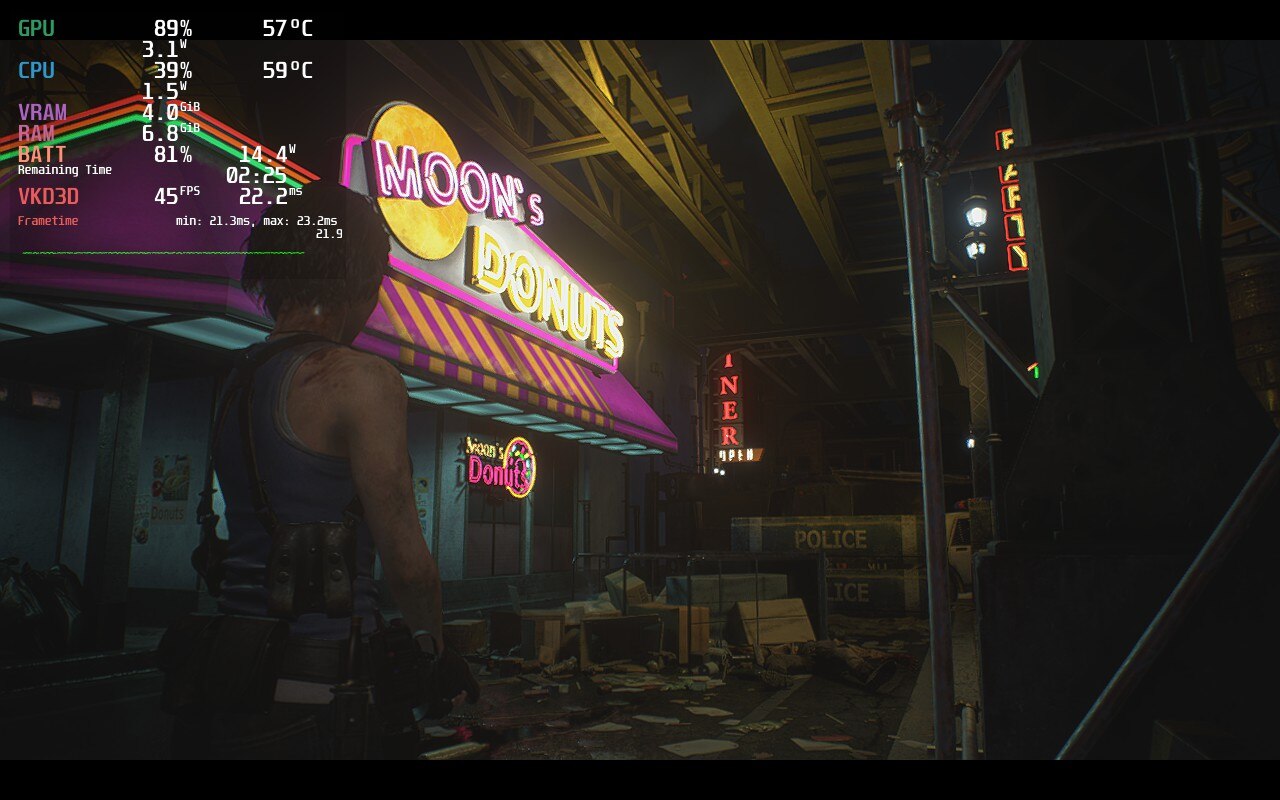
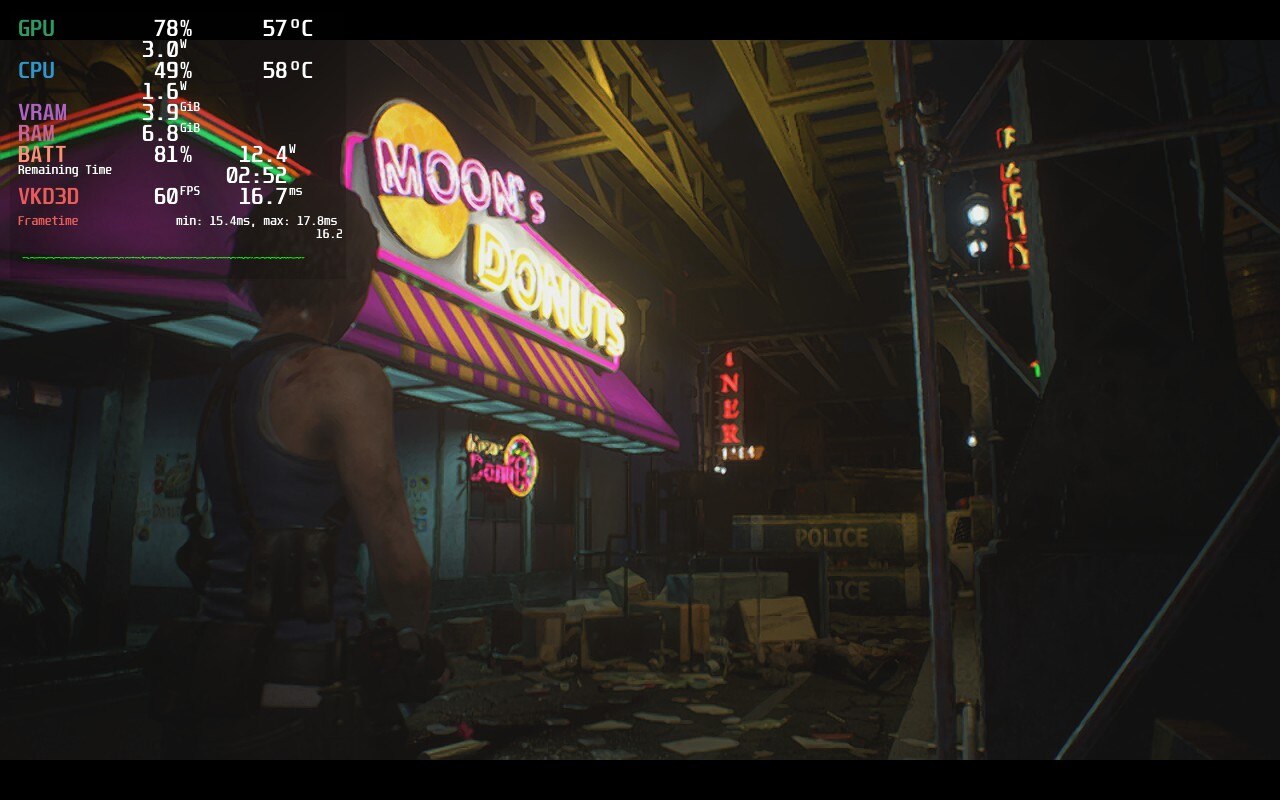
While there is a dip in battery usage, there is also a noticeable blurry downgrade in visuals.
Both of the Performance and Quality builds thankfully come with vast improvements on stability, battery, and temps. Both builds tend to stay around similar temperatures and decently stable frame rates between the two. There is about a 1W-2W difference in battery usage between each other. The RE3 remake has proven to be quite optimized and plays wonderfully on Deck. The biggest differences between the two are resolution (how crisp it is) vs frame rate.
While having a 60 FPS stable experience is always a treat, the tradeoff for having it with good temps and battery is some blurry visuals. Up close, it is still very clear, but the distance gets noticeably blurry. It isn’t too bad where it actually hinders gameplay, but it can be a little annoying after a bit of time. Compare this to the Quality build and you start to see what you are really missing out on. A stable 45 FPS doesn’t feel like anything is being compromised, and with the lowered frame rate, allows us to increase resolution and still keep stability. The meshes are more detailed, shadows look nicer, and lights just pop a bit more. The benefits here definitely outweigh the sacrifices.
The Battery build does save shave off some more temps and battery to keep things going longer and cooler, but these tradeoffs don’t justify it. The resolution is even more blurry and becomes heavily noticeable when playing. Again, it doesn’t deteriorate gameplay, but it does take away some enjoyment from it. All of this really adds on about an hour of gameplay and drops temps by about 5c, but since temps are already quite low in both the other builds, I would say it isn’t necessary at all.
The controls translated well to the Steam Deck and rebinding any keys was easy thanks to SteamOS. I decided to rebind due to personal preference, the default controls for RE3 work very well too. The biggest change I made was enabling gyro controls when holding the L Trigger down so I could more precisely kill zombies. Otherwise, the controls largely remained the same.
While many complained about this particular remake cutting corners when it came to content, the performance and fun factor on Steam Deck are still there. RE3 is so well optimized that it took very little adjusting to get the near-perfect cocktail for some zombie-killing! It’s action packed, atmospheric world entranced me and it has me extremely excited for the RE4 Remake. Fingers crossed that it will be optimized well as this one!
Our review is based on the PC version of this game.
If you enjoyed this review, be sure to check out the rest of the content on SteamDeckHQ! We have a wide variety game reviews and news that are sure to help your gaming experience. Whether you're looking for news, tips and tutorials, game settings and reviews, or just want to stay up-to-date on the latest trends, we've got your back!
Call of Duty: Black Ops 2 is the sequel of Black Ops and the predecessor of Black Ops 3 from the popular First Person Shooter franchise and is full of nostalgia for those of us raised on all the earlier COD titles. BO2 comes with a somewhat lengthy campaign that goes back and forth between modern and futuristic combat, a gratifying multiplayer experience filled with iconic maps, and the evolution of the well-received zombie gamemode introduced from World at War, Black Ops 2 gives players an incredible experience.
The 45 FPS build for me was the smoothest of them all, which is why it is my recommended build. I used native resolution since lower resolution with FSR was causing micro-stutters for me (1-2 fps drops consistently), but I had it tested with another person who didn’t get the micro-stutters so take it with a grain of salt.
The reasoning behind not capping the wattage is mainly due to the game not using a high wattage 90% of the time anyways, except for certain cinematics that require the wattage to not stutter throughout. For the setting used in this build the game would reach up to 68fps at times if not capped which does give the player wiggle room if you prefer better shadows or something of that nature.
Fair warning though, there will be select heavy parts of the game where you might get around 40 instead of 45 fps due to this. If shadows are necessary for you, I would lower the 8x MSAA to 4x MSAA. But for me, the 8 times was easily worth the shadow loss. I felt the scopes on turrets or snipers would look blocky, but in 8x that was not the case. With this build, the battery length is 4.5 hours depending on the mission at hand.
I didn’t encounter any big issues in Black Ops 2 except on some cinematics where the game will not have a stable fps, likely due to the game’s cinematics not optimized for Linux. If you are looking to play multiplayer and zombies, you are going to need Proton GE 7-22 or above installed. For zombies and multiplayer, all the settings will need to be on low all, while leaving the TDP Limit at 15W to try to help against the lag/stuttering. With that, it is currently possible to get a stable framerate if you change the refresh rate and cap to 40 FPS. Playing solo works well, but I experienced a lot of lag during any connection to a server in multiplayer and zombies, so I can't recommend playing them at this current state.
In the end, Black Ops 2's game’s campaign worked perfectly and it was great to re-experience it, but any multiplayer modes left something to be desired. While I could play Zombies alone without issues at 40 FPS, it was not enjoyable to play online, which I believe will deter a lot of players. If you are wanting to play through the Bo2 campaign, the deck would be a great way to do so. Otherwise, I would put more hope on the other CoD games for a better multiplayer and zombies experience. While I could play Zombies alone without any issues whatsoever at 40 FPS, it was not enjoyable to play online due to overwhelming connection issues.
Need some help understanding how we got to our score? Check out our Guide to Steam Deck HQ.
Our review is based on the PC version of this game.
If you enjoyed this review, be sure to check out the rest of the content on SteamDeckHQ! We have a wide variety game reviews and news that are sure to help your gaming experience. Whether you're looking for news, tips and tutorials, game settings and reviews, or just want to stay up-to-date on the latest trends, we've got your back!
Hitman 3 is the newest game in the rebooted hitman franchise. Taking the role of Agent 47, a man with a barcode slapped on the back of his bald head, you head to exotic places to assassinate elusive targets however you can. Feel like shooting them? Go ahead. Poison them? Be my guest. Throw a can of spaghetti? Oh you’ll be making Chef Boyardee proud. Using their new engine, each location is beaming with beautiful vistas and creative gameplay. And if you own Hitman 1 and 2, you can import the missions and campaigns into Hitman 3 for no extra charge! With all 3 games in 1 package, this is an incredibly fun game to screw around in.
Reviewing Hitman 3 was tough. This game actually runs really well on the deck out of the box, but there are a few caveats like high temps and battery usage. Through my testing, I found two efficient ways to play the game, a focus on temp/battery and one on quality. The main difference for these ways is the in-game FSR settings. Turning FSR on ultra quality blurs the resolution a little, but saves on battery a LOT while turning it off keeps everything sharp at the cost of battery.
The game can run 40 FPS pretty consistently at medium settings, 30 FPS lock actually kept temps and battery life down a chunk. This was most apparent when there are crowds of people. At 40, crowds could bring temps up to 80c and battery to 22W, while 30 would spike it to 70c and 17W generally. Medium in-game settings felt like a good balance of quality while still keeping temps and battery in check. I also found limiting TDP can mitigate some spikes, but it comes in most handy when shooting for higher framerates.
I didn’t experience any audio issues, but there were a few glitches I encountered. The mildest one would be some random black boxes appear when turning the camera too quickly, but they also disappear near immediately. When the in-game FSR is turned on, there is sometimes a visible halo around Agent 47 and there’s some ghost trails when walking.
I also have been noticing some framerate lag, but it isn’t picked up in the system so I believe it is the game’s engine and not the frames it brings out. I see this much more when FSR is turned off as well. I also noticed that, even though the game is verified, some steam deck button icons don’t show up in game.
There is a launcher for this game as well. You have to either use the touchscreen or set one of the trackpads to control the mouse. Though all of the settings from the launcher can be changed in-game, so I would just hit play and change settings after the game is launched.
Overall, the game runs surprisingly well. This is a new-ish release that still takes a lot to run, but the Steam Deck handles it like a champ. Being able to play Hitman 3 in a stable environment on the go, albeit with some compromises, still astounds me. This was a game I never imagined I could play on a portable device, yet here we are.
Need some help understanding how we got to our score? Check out our Guide to Steam Deck HQ.
Our review is based on the PC version of this game.
If you enjoyed this review, be sure to check out the rest of the content on SteamDeckHQ! We have a wide variety game reviews and news that are sure to help your gaming experience. Whether you're looking for news, tips and tutorials, game settings and reviews, or just want to stay up-to-date on the latest trends, we've got your back!



