


まだの方は、X(ツイッター)またはマストドンでフォローし、新しい記事の投稿をお知らせください。また、Redditに参加したり、YouTubeに登録して、私たちのコンテンツをチェックしたり、素晴らしいコミュニティと交流してください。応援ありがとうございます!
It's hard to deny how great of a port Ghost of Tsushima is when you are playing on the Steam Deck. It is an amazing game, and it runs almost flawlessly at higher framerates than I expected. Playing at 40 FPS is something else, and it can feel pretty surreal at times how well it runs, but it can actually be improved further and get to 60 FPS thanks to FSR 3 Frame Generation. And while it isn't enabled by default on the Steam Deck, there is a way we can bring the option back up, and it isn't complicated at all.
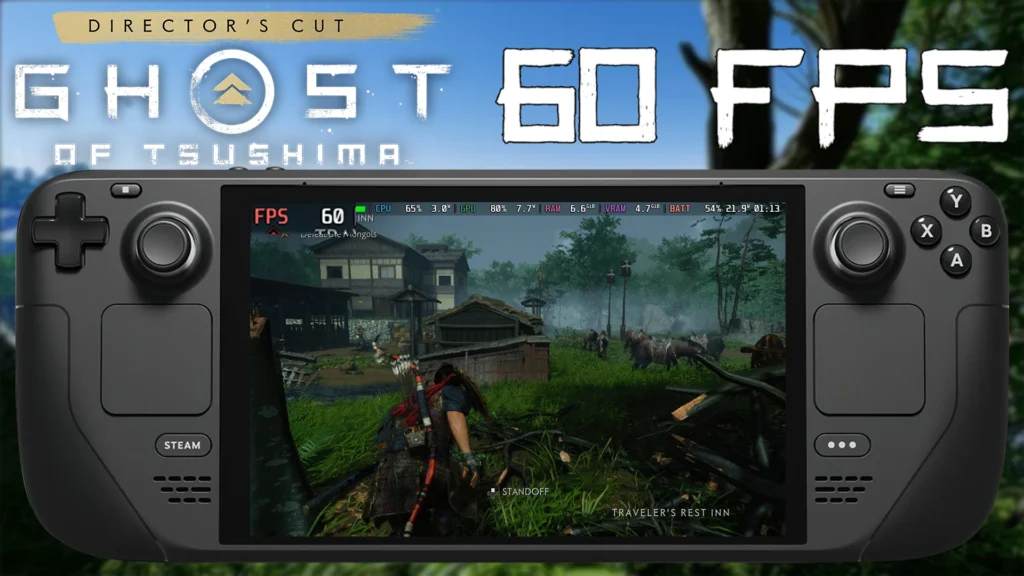
This method was discovered and disclosed to me by Deck Wizard, and I am surprised by how well it works. Frame Generation implemented by developers hasn't been the greatest on Deck recently, so seeing it start to work and have some positive effects is tremendous. For the most part, Ghost of Tsushima largely benefits from this and can make the game feel buttery smooth without needing to compromise too much on visuals.
Frame Generation is a technology made by AMD for FSR 3 upscaling that uses past framerate data to generate new frames, which can boost framerate.
So, let's not waste any more time and get to boosting the framerate.
How to Play Ghost of Tsushima at 60 FPS on Steam Deck Using Frame Generation
While I personally tested this on SteamOS 3.6, Deck Wizard tested this on the stable branch (SteamOS 3.5.19) and this should work there as well. This has not been tested throughout the entire game, so you may experience performance drops in some areas.
ステップ1:
Go to your Ghost of Tsushima preferences and to the General tab. From there, scroll down to the "Launch Option" and enter this code:
SteamDeck=0 %command%This will make the game think it's not being played on a Steam Deck and unlock the Frame Generation option.

Step 2 (OPTIONAL):
Before going into the game, Deck Wizard recommends setting the UMA Buffer to 4G. This is really only necessary for trying to play on High or Very High quality settings. I played on Medium with FSR 3 on Performance and didn't have any performance issues at the default 1G, so I wouldn't say this is a necessary change.
If you want to change this, you will need to turn off your Steam Deck completely. Then, power it on, but hold down the Volume Up button. This will bring you to the BIOS menu. Using the gamepad, go to "Setup Utility," "Advanced," and then scroll down to "UMA Frame Buffer Size" and change it to 4G. This forces the RAM to allocate a minimum of 4GB to VRAM, which can help make sure a game is getting the VRAM it requires.
ステップ3:
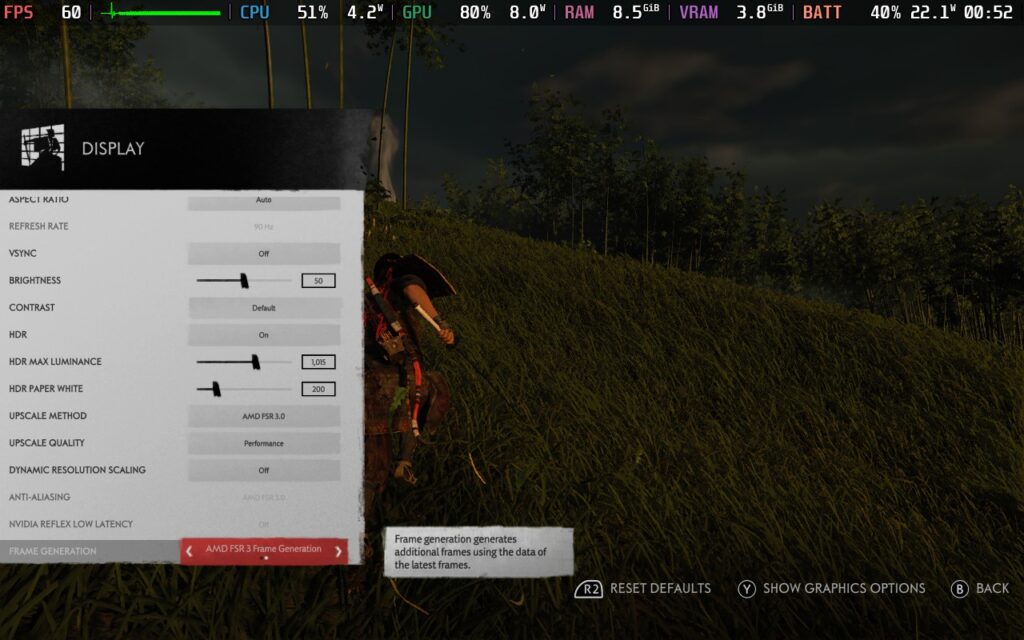
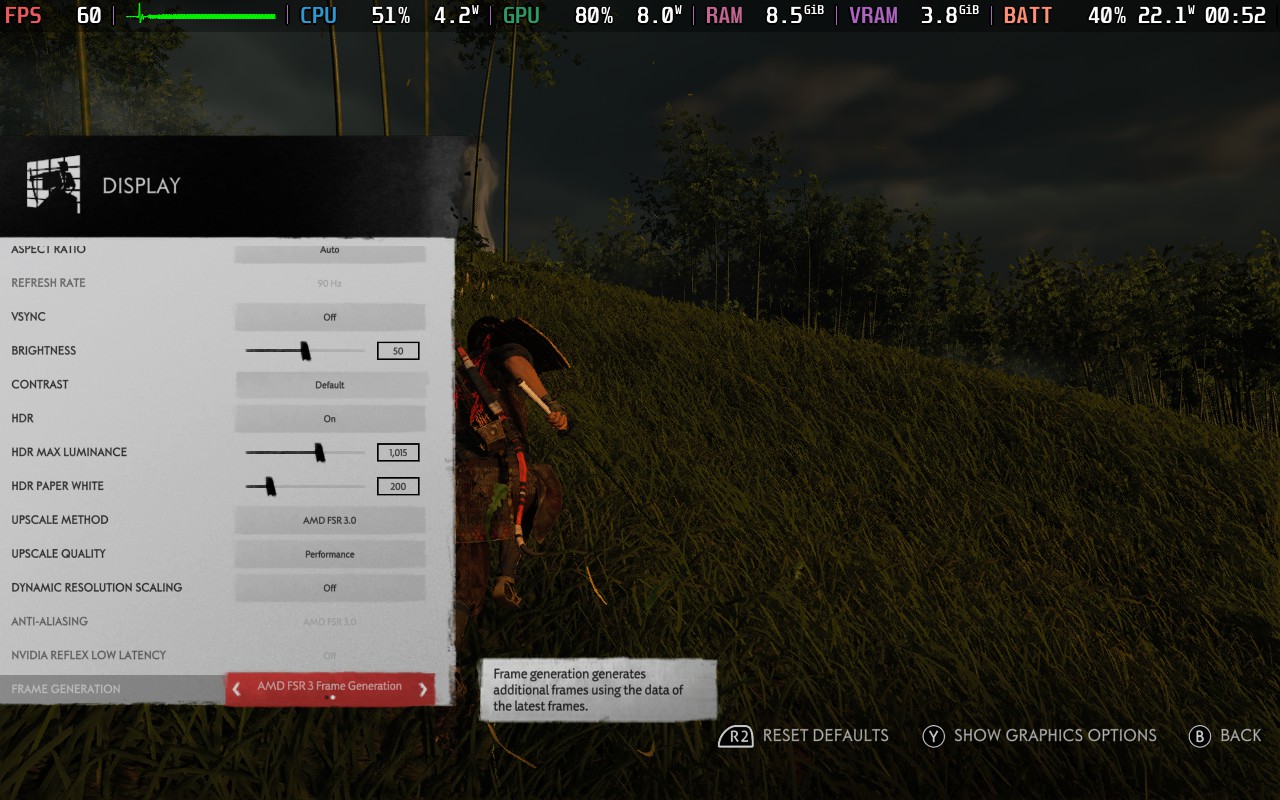
Now, go into the game. It should boot up normally, but you will have a new option unlocked! Go to options and to the "Display" settings. Scroll all the way down, and you will see the Frame Generation option, which you will turn on now.
ステップ4:
To ensure this works, there are a couple of other minor changes to make. Let's start with the Ghost of Tsushima in-game settings. Here, you will need to turn off Vsync and Dynamic Resolution Scaling. It is vital you turn off the latter, as it will slow your system down. You can then turn on FSR 3 or XeSS, though for me, I preferred FSR 3. I changed my upscaling to "Performance" to ensure stability, so I recommend doing the same.
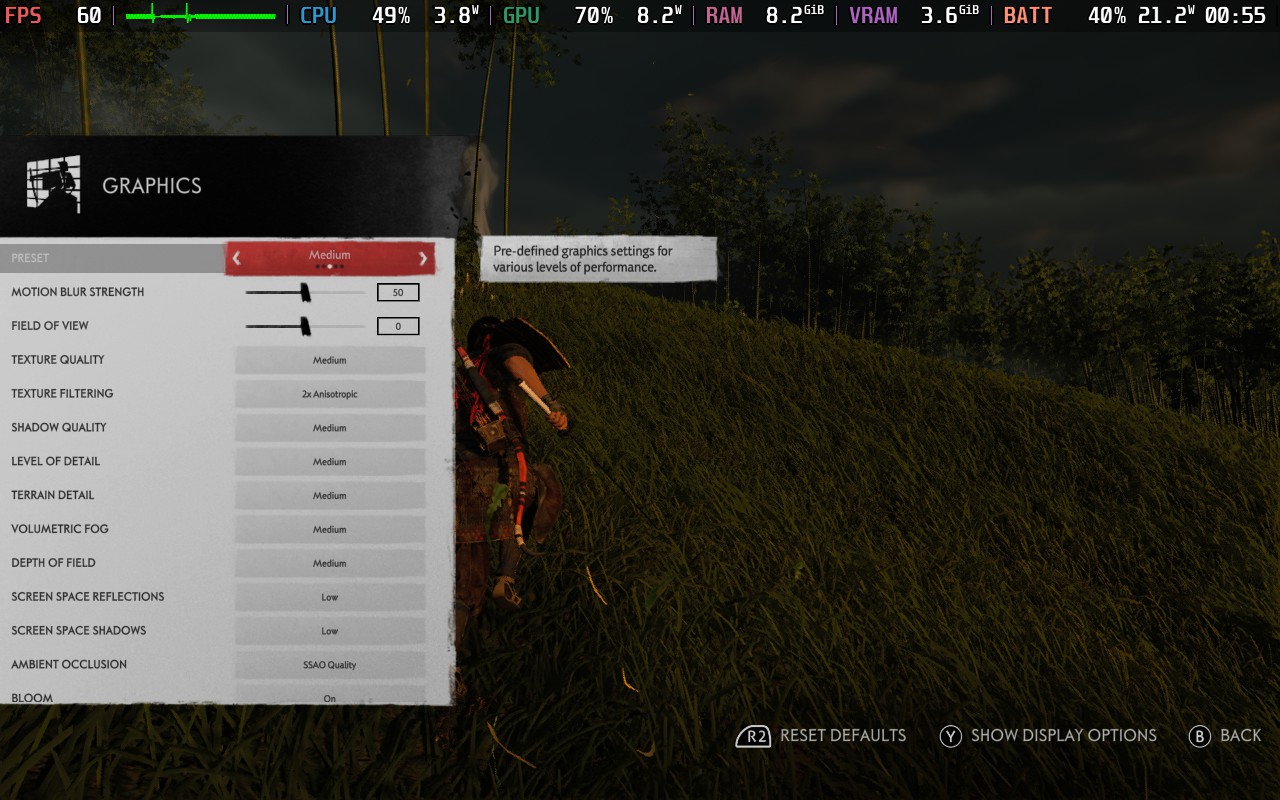
Then, head to your "Graphics" settings and change the preset to Medium or below. Going into High and Very High territory does cause issues, but you can play around with lower upscaling quality for that. I enjoyed playing at Medium quality here, so it kept the game looking decent, and I didn't experience any very noticeable slowdowns.
ステップ5:
Next, we have to change some of our Quick Access Menu settings. To reduce stuttering, it is recommended that we turn off the TDP limit and force the GPU Clock Speed to sit at 1600MHz. You can also disable the FPS limit, though I decided to lock it to 60 FPS/Hz to ensure a stable framerate of 60 without fluctuations.
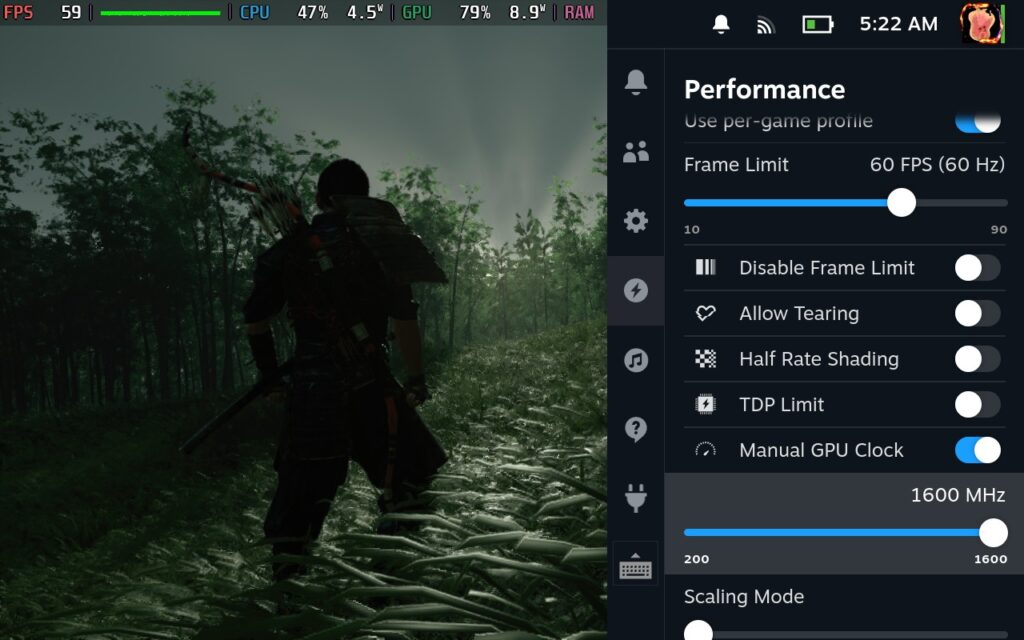
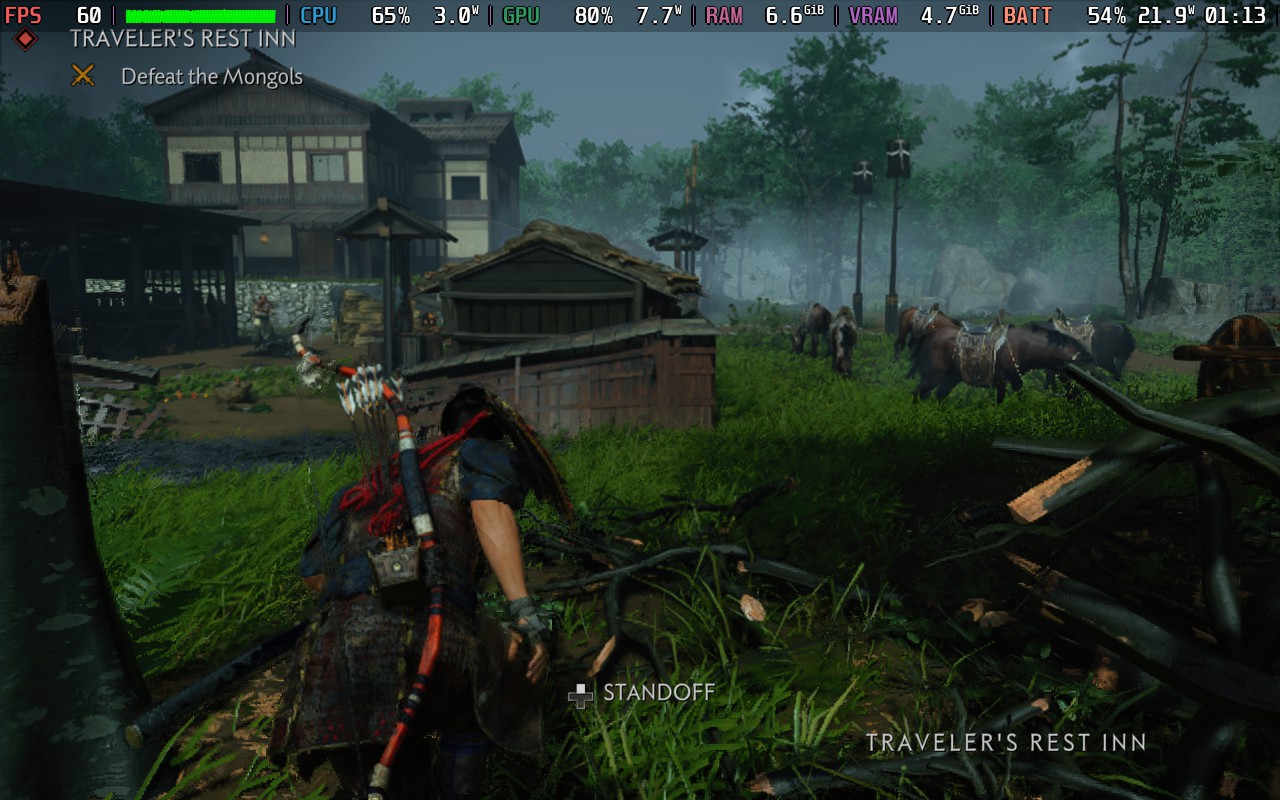
And that's it! Once you finish those, you should be all set up to play at 60 FPS on your Steam Deck. It does drain battery, which makes complete sense, but it is an awesome alternative and doesn't require a significant amount of changes. It's weird that something so simple could have such a profound effect, and it makes me wonder why this wasn't enabled in the game by default. Either way, it's awesome.


Ghost of Tsushima is available on Steam for $59.99, but you can get it on Fanatical right now for $49.79 using the coupon code "FANATICAL17" at checkout.
上記のFanaticalリンクはアフィリエイトリンクを使用しています。すべての収益はSDHQとその発展に還元されます。
このガイドを楽しんでいただけたなら、SteamDeckHQ の他のコンテンツもチェックしてみてください!あなたのゲーム体験に役立つゲームレビューやニュースを幅広く取り揃えています。ニュース、ヒントやチュートリアル、ゲーム設定やレビュー、最新のトレンド情報など、あらゆる情報をお届けします。 カバーしています!




Just gave this a try and wow. I was struggling to maintain 40fps on mostly the same settings w/o the frame generations option enabled. So far the game looks great and I’m getting a steady 55fps + in areas that were bogging down the deck before.
Using frame generation on steam deck will leav a LOT of ghosting and artifacts, particularly during cutscene transitions. It's not really worth it imo when 40fps with fsr on quality just looks so much better
That's completely valid! I can see pros and cons for both. The beauty of it is that it's easy to do and gives you options. If you want smoother gameplay, there you go. If you want better looking game and compromises on framerate, boom!