This game was tested with a Steam Deck LCD. OLED testing is coming soon.
After reviewing Yakuza 4 Remastered, I went right into Yakuza 5 Remastered. Initially released for the PS3 in 2012, this is an updated version of the game, released in 2021 for PCs. Even though visually it doesn't quite hold up to newer titles, it still passes by, and to be honest, the game not having all the visual features of a newer AAA game does benefit the Steam Deck's limited hardware.
Before getting into this, I highly recommend playing the earlier games in this series, starting with Yakuza 0. The games constantly reference past events, and all play into each other, so to get the most out of the game, I would go back and start from the beginning. It's a heavy time investment, but if you're looking for a franchise that can be both serious and humorous and provide you with an emotional rollercoaster, then this series is the one you want.
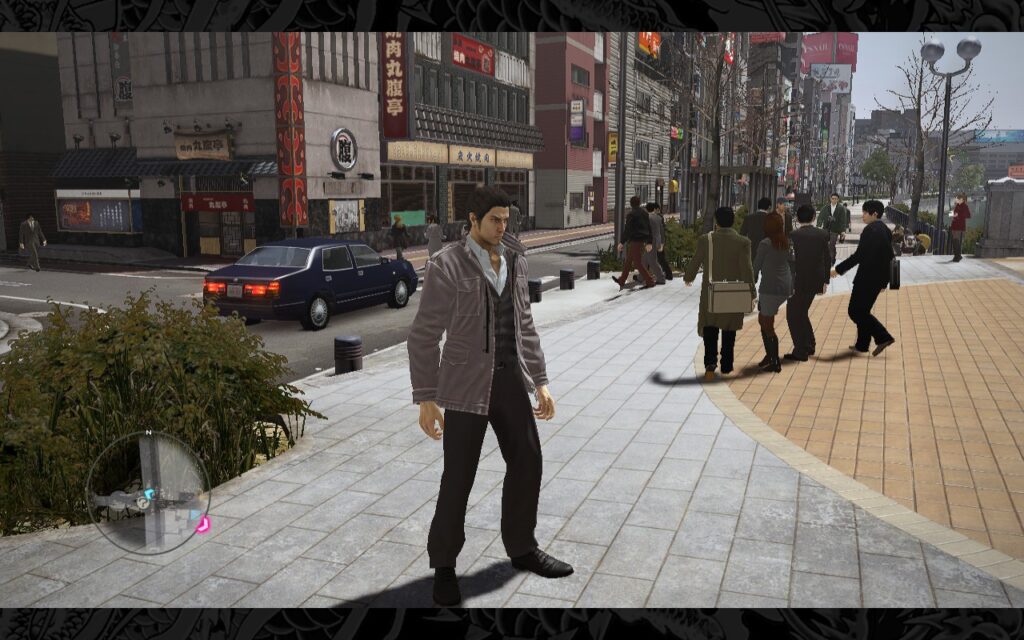
The story again begins with our lovable protagonist, Kazuma Kiryu, desperately trying to keep his nose clean since leaving the Yakuza behind. It seems that trouble follows him everywhere, and through a series of circumstances, he's soon back into the Japanese criminal underworld. I won't spoil the storyline, but you're in for some of the usual Yakuza drama here, much like previous entries in the series.
Dotted between the serious story missions, we have Yakuza's famous minigames and sub-stories that often find their way onto the internet in funny clips. One of my favorites in Yakuza 5 Remastered is the Taxi Driving minigame. In his bid to escape the criminal life, Kiryu is working as a Taxi Driver. You get a neat little minigame to play, essentially a Taxi Driving Simulator, and I love these mundane simulator-style games! It was quite a surprise to see such a game in Yakuza, but I quite enjoyed driving for a change.
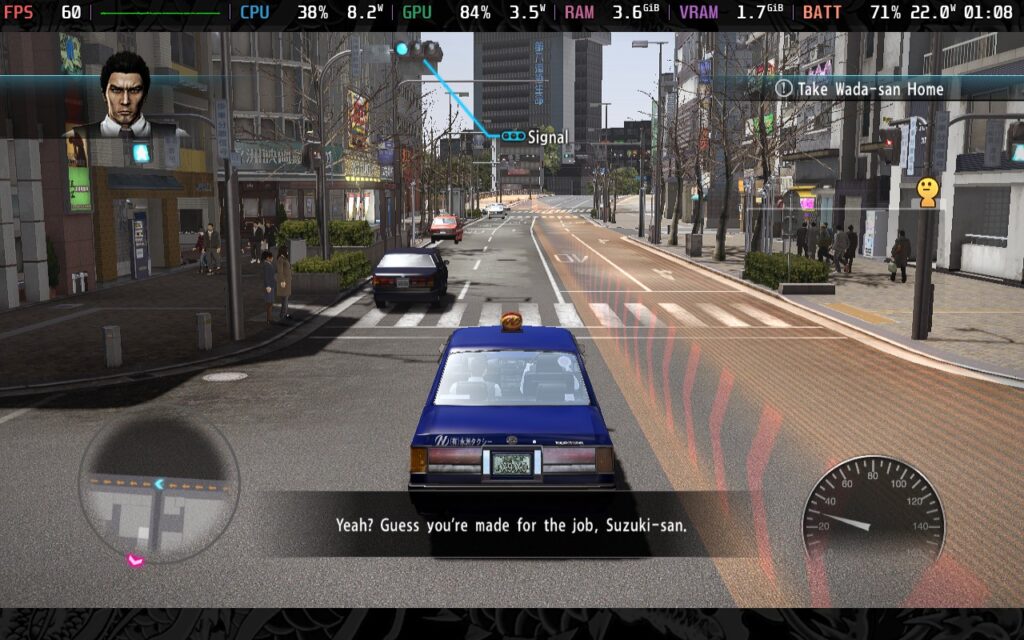
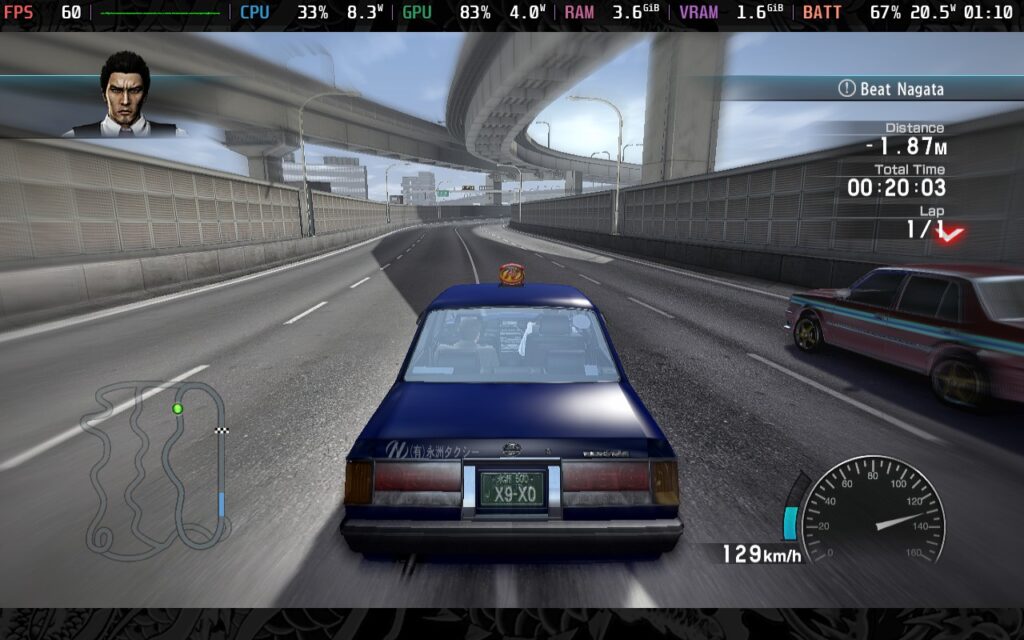
Like Yakuza 4, which featured four playable protagonists, Yakuza 5 features five playable protagonists. Wow, I wonder if there's a theme building here? Regardless, Yakuza 5 gets split into fairly evenly-paced parts, each representing a different protagonist in a different area of Japan. This helps keep the game from feeling stale and opens up new areas and opportunities as you play through the game's storyline.
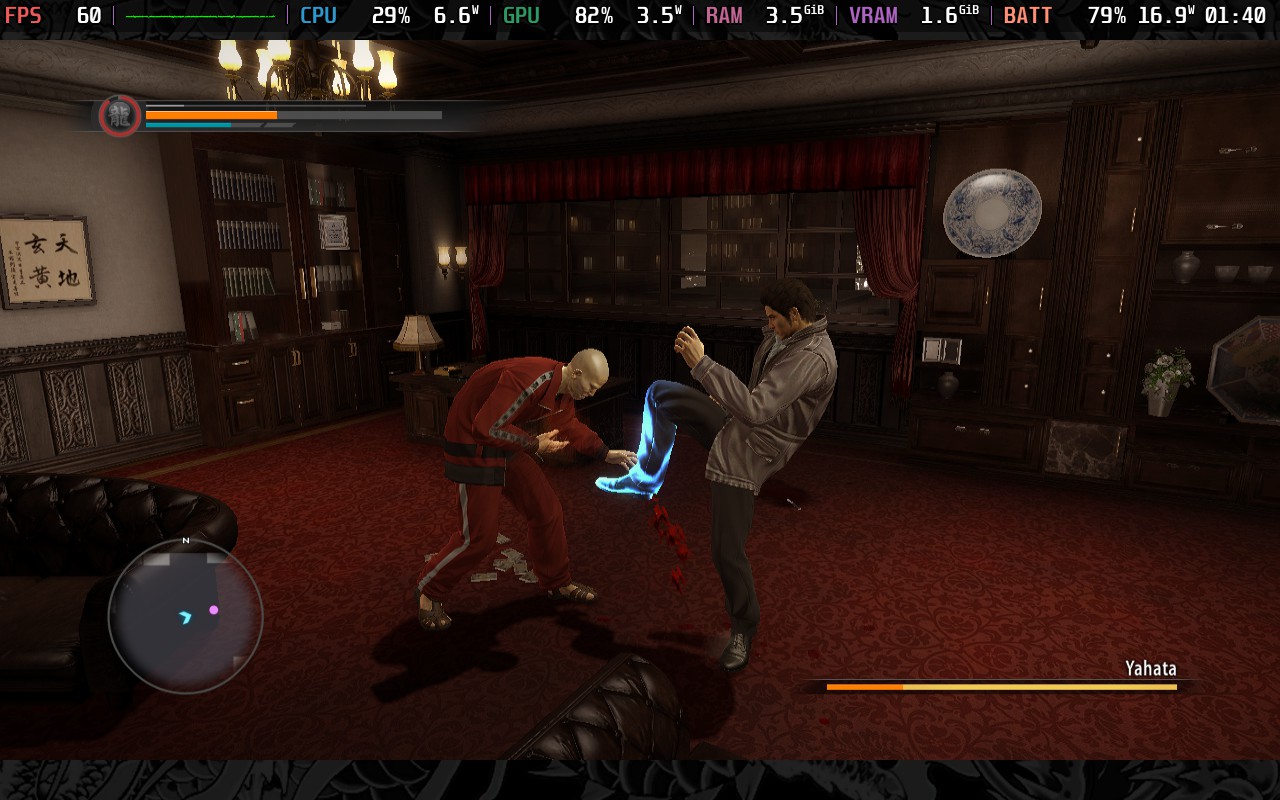
Combat is, as always, a staple of the Yakuza series. Yakuza 5 Remastered has identical combat to Yakuza 4 Remastered. It's fluid and satisfying, giving you that sense of power without feeling too powerful. Building up your heat gauge and unleashing a powerful, sometimes comical, attack on your foes is one of the most satisfying moments in a Yakuza game. The combat system hasn't quite reached the heights of what it had before Yakuza became a turn-based game (Like a Dragon), but it's still a solid system nonetheless.
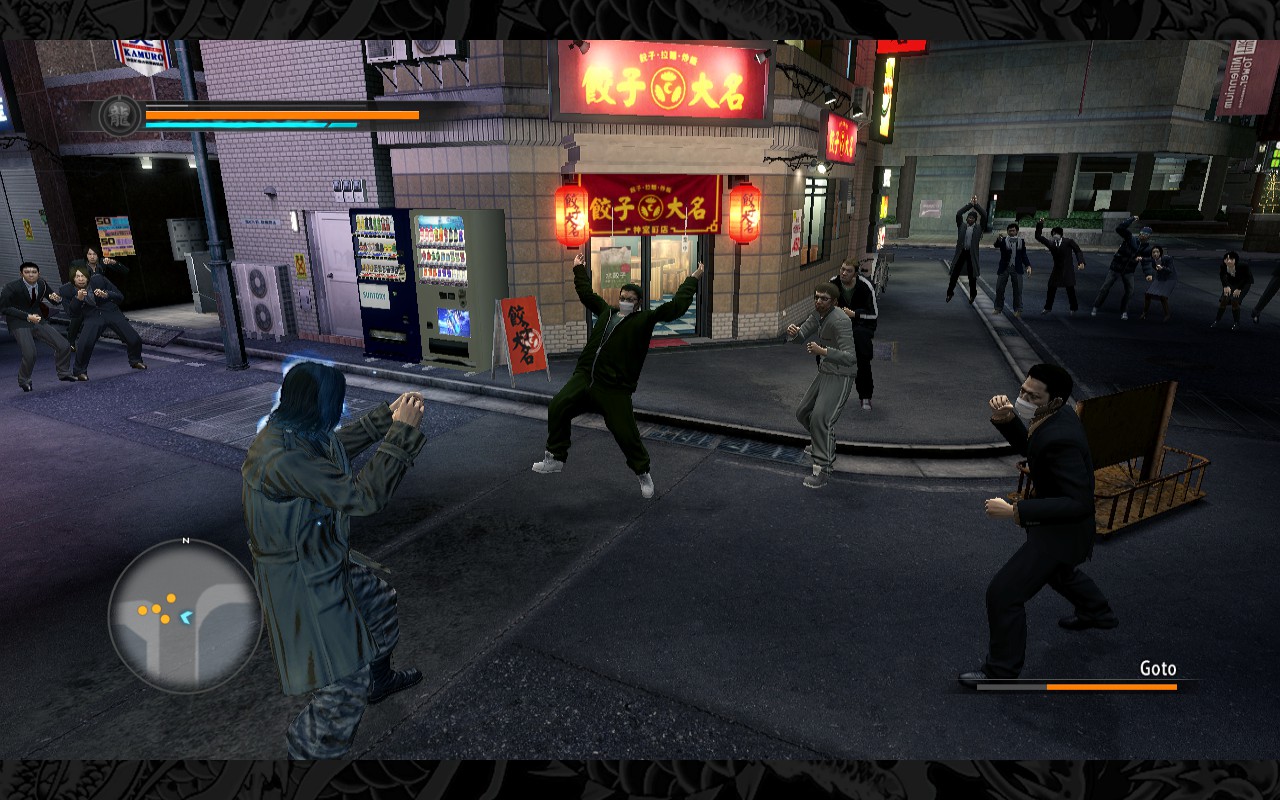
I love the series, so this game continues that trend and feels extremely satisfying. Now, if you've read the Yakuza 4 Remastered review, you'll know how it runs on the Steam Deck, but Yakuza 5 Remastered does differ in a couple of ways.
Please Note: While the game does run fine using the default Proton, cutscene audio and some cutscenes themselves won't play correctly. You should use Proton GE 8-24 or later to play this game. You can follow our guide to get Proton GE on your Steam Deck.
Like Yakuza 4 Remastered, when booting Yakuza 5 Remastered, you're greeted with 16:9 menus. And just like Yakuza 4, you can select 1280x800 as a resolution in the graphics menu. But unlike Yakuza 4, you do not get a 16:10 playing area when you're in gameplay. For whatever reason, Yakuza 5 is permanently 16:9 with border art, even though the previous game in the series did support 16:10 when in the game.
We do, however, have full controller support, with the game even recommending that "Real Yakuza Use Gamepads." I can't interview one to find out if that's true, though...
We have some graphical options to choose from, much like its predecessor. This allows us to create a quality and battery life preset for you today!
The same as Yakuza 4, there's a basic graphics menu, but I will only be changing things in the "Advanced" menu for the two builds I will discuss. Here is what the basic menu looks like:
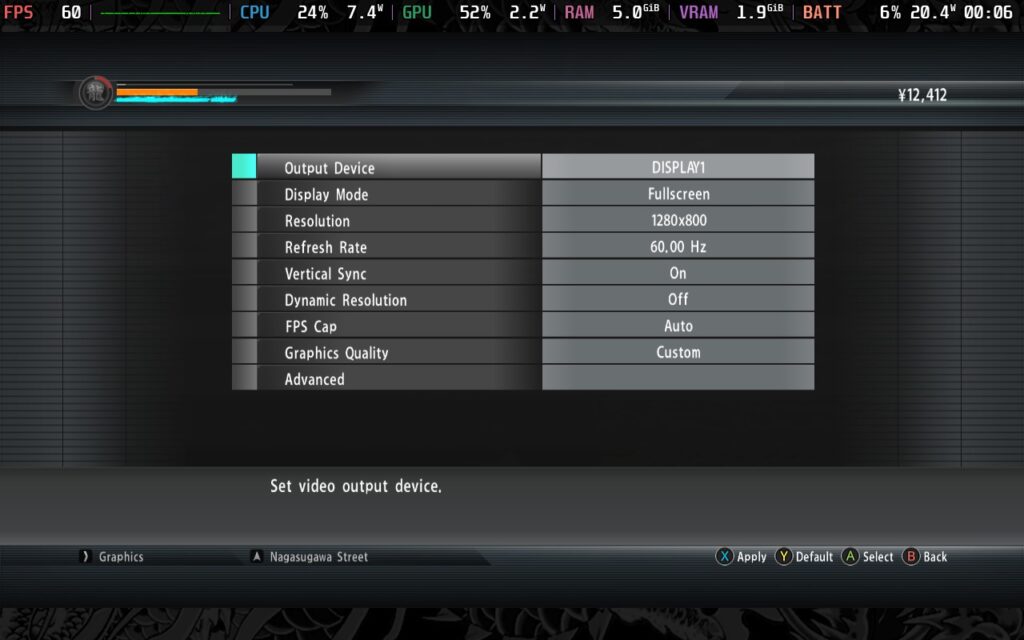
Much like Yakuza 4 Remastered, if you wish to lock your frame rate in SteamOS to 30 FPS, you must change the FPS Cap in-game to 30. If you keep it at 60 or Auto and lock it to 30 FPS, you'll play at 50% speed.
First, we'll set a 60 FPS/Hz lock in our SteamOS settings, we can set a 7W TDP Limit here and still maintain an almost constant 60 FPS. For the in-game graphics settings, choose the "Low" preset and apply it, then go into the "Advanced" menu and set the Texture Quality to "High," Texture Filtering to "16x", and the LOD Distance to "Mid."
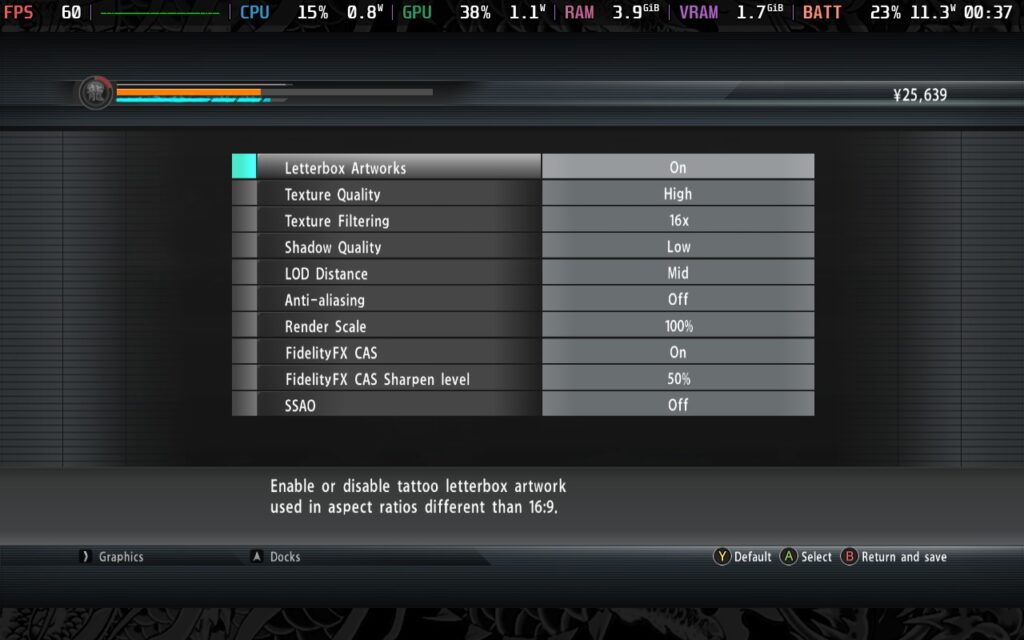
With this TDP limit, we get a power draw of around 12W - 14W, translating roughly into two and a half hours of battery from a full charge. You can expect an almost constant 60 FPS from these settings, other than occasional drops from scene transitions and camera cuts. Even in a huge battle, as shown in the 1st screenshot below, the game holds 60 FPS pretty well.
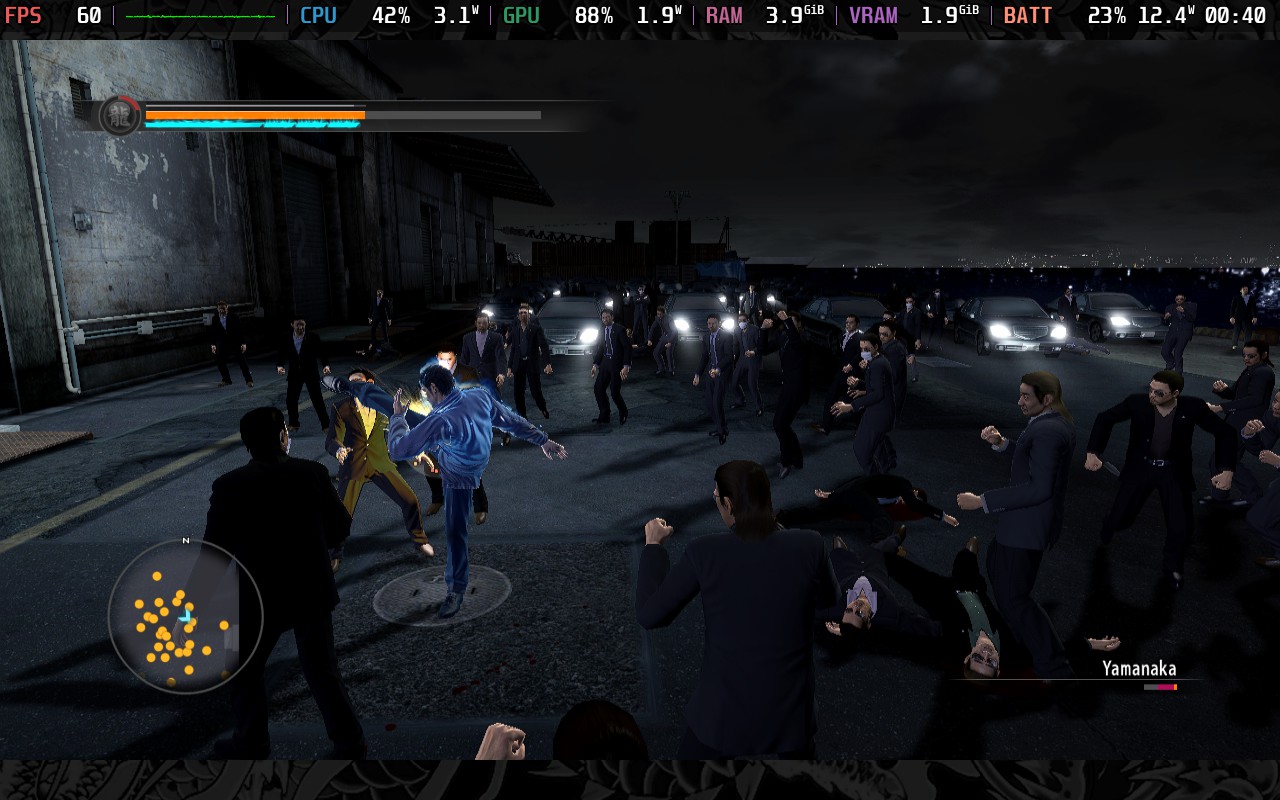
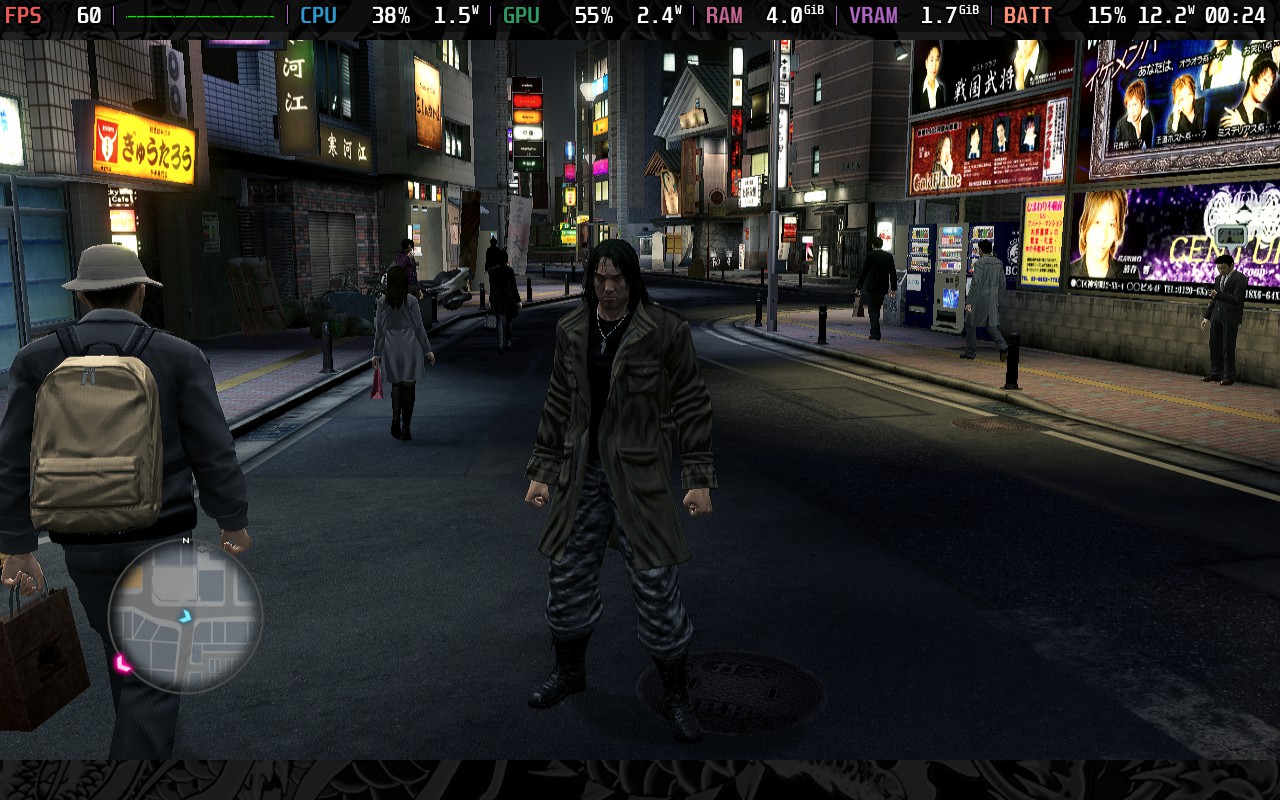
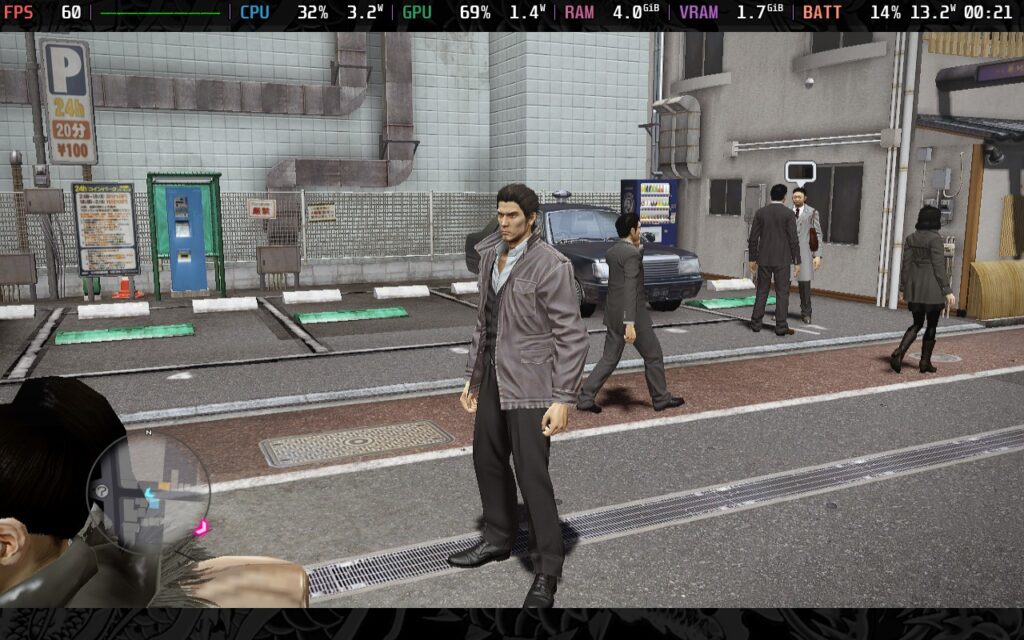
Much like Yakuza 4 Remastered, you can't just save whenever you want in Yakuza 5 Remastered, so having a decent battery life is essential. Getting caught in a cutscene or a story sequence is deadly, and if you can't get to a place to charge, say goodbye to any recent progress you've made. So, just a friendly reminder to keep your battery level topped up when playing Yakuza 5 Remastered.
For those of you wanting the best experience on the Steam Deck, these settings are for you.
In SteamOS, make sure your FPS Lock is set to 60 FPS/Hz and disable your TDP Limit; go to your in-game settings, select the "Ultra" preset and apply it, then go into the "Advanced" menu, lower Shadow Quality down to "High" and turn Anti-Aliasing to "Off."
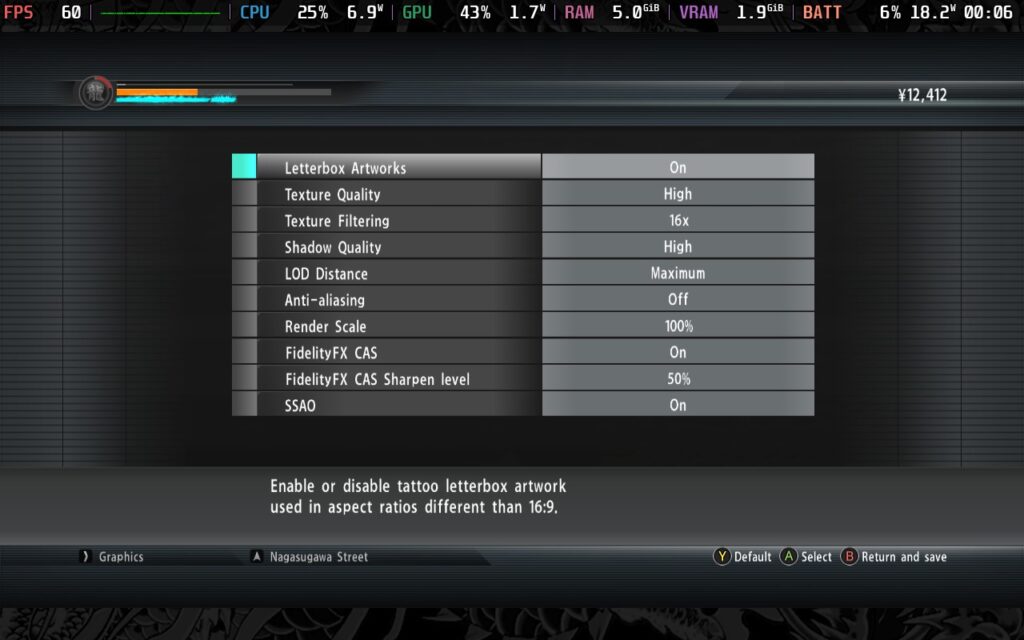
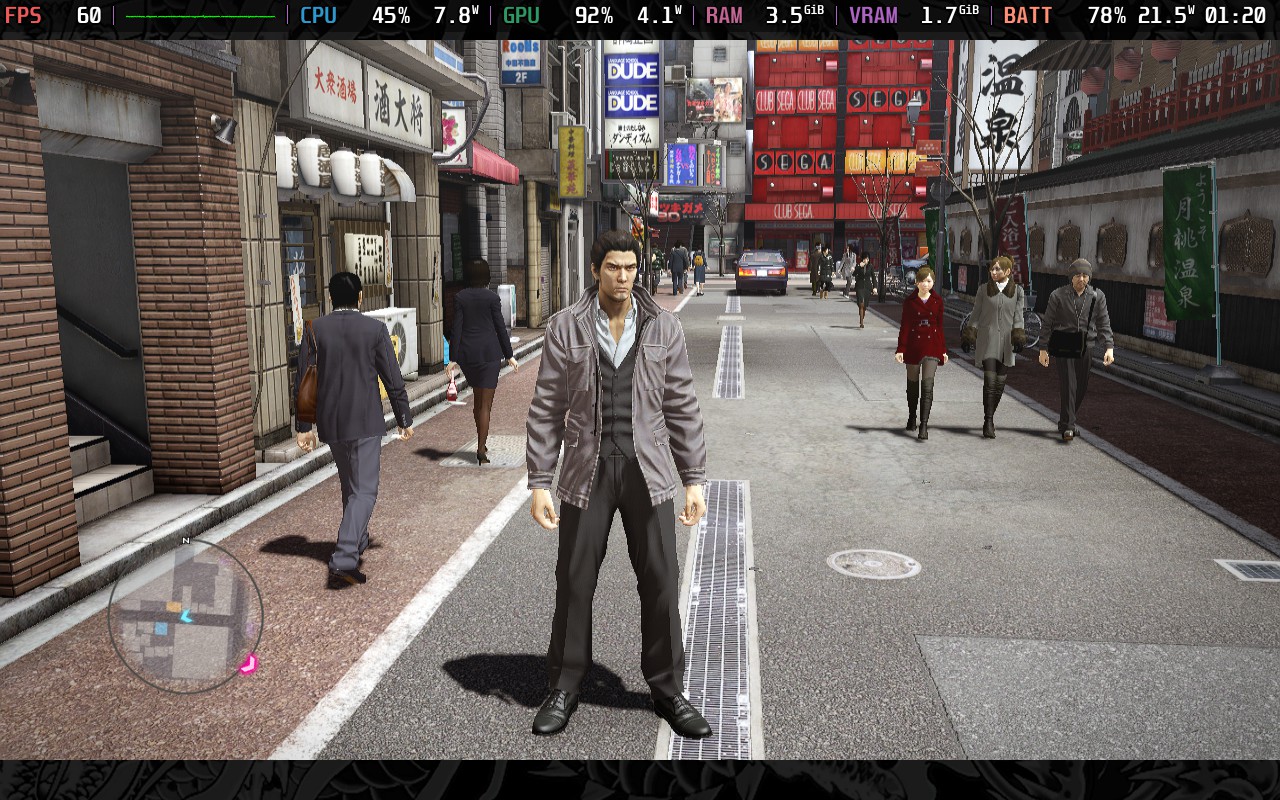
Running with these settings costs us a lot of battery life, sadly. We are now drawing around 21W - 24W from the battery, meaning you can't expect more than 90 minutes from a full charge. Much like Yakuza 4 Remastered, you could lose progress if you get into a story sequence where you can't save and your battery is running low. Your best bet, then, is to suspend your game and try to find a place to charge before resuming.
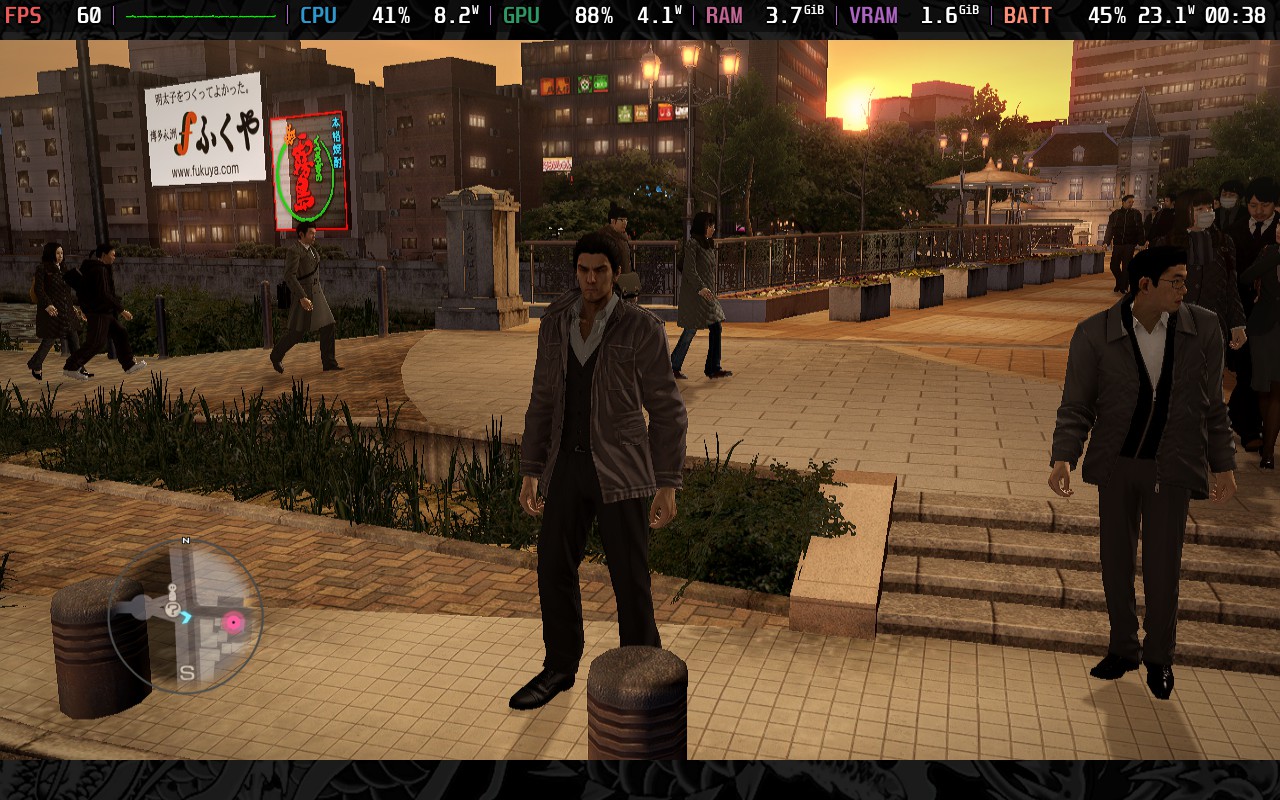
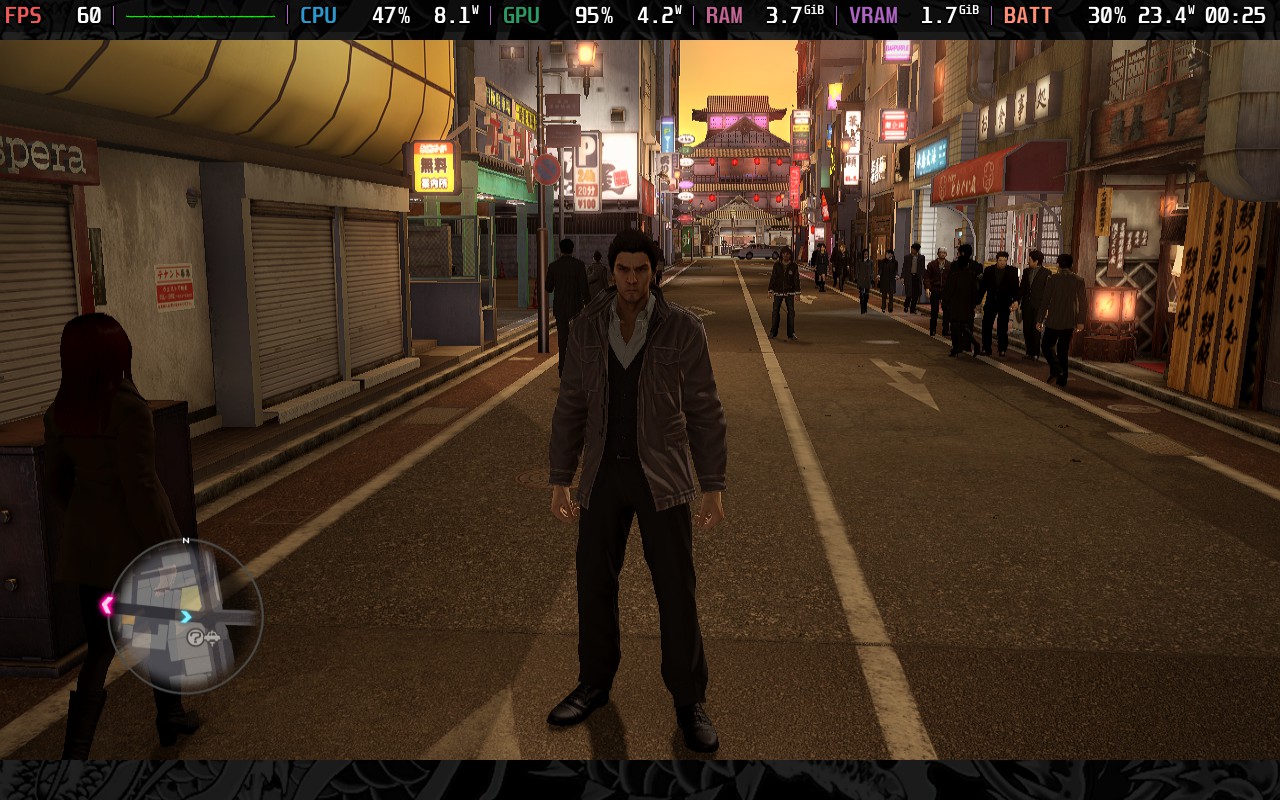
Accessibility isn't Yakuza 5 Remastered's strong point. Just like Yakuza 4 Remastered, your only real accessibility option is subtitles. The game again features QTEs, which are mandatory to succeed, and the combat system is the same, meaning you will need to pull off combo attacks to be effective in combat. However, lower-difficulty choices are available to make combat winnable mostly by button mashing.
Yakuza 5 Remastered continues the run of solid but not exceptional Yakuza games. It progresses the drama unfolding from the beginning, and it does it reasonably well. The graphics on the Steam Deck are still pleasant, and it controls beautifully. Aside from the disappointing lack of true 16:10 aspect ratio support, I couldn't ask for this game to run better on the Deck than it already does.
Performance-wise, regardless of which of the above presets you use, you should expect a fairly locked 60 FPS experience, with the quality settings allowing us almost to max out graphical settings and the battery settings sacrificing some visual quality to get a reasonable battery life.
Yakuza 5 Remastered holds a "Very Positive" rating on Steam and is currently graded as "Unsupported" on the Steam Deck compatibility rating, but, like Yakuza 4 Remastered, the game runs perfectly fine as long as you're using a new version of Proton GE.
このレビューはPC版に基づいています。
このレビューをお楽しみいただけたなら、SteamDeckHQ の他のコンテンツもぜひご覧ください!あなたのゲーム体験に役立つゲームレビューやニュースを幅広く取り揃えています。ニュース、ヒントやチュートリアル、ゲーム設定やレビューをお探しの方も、最新のトレンドを知りたい方も、ぜひご利用ください。
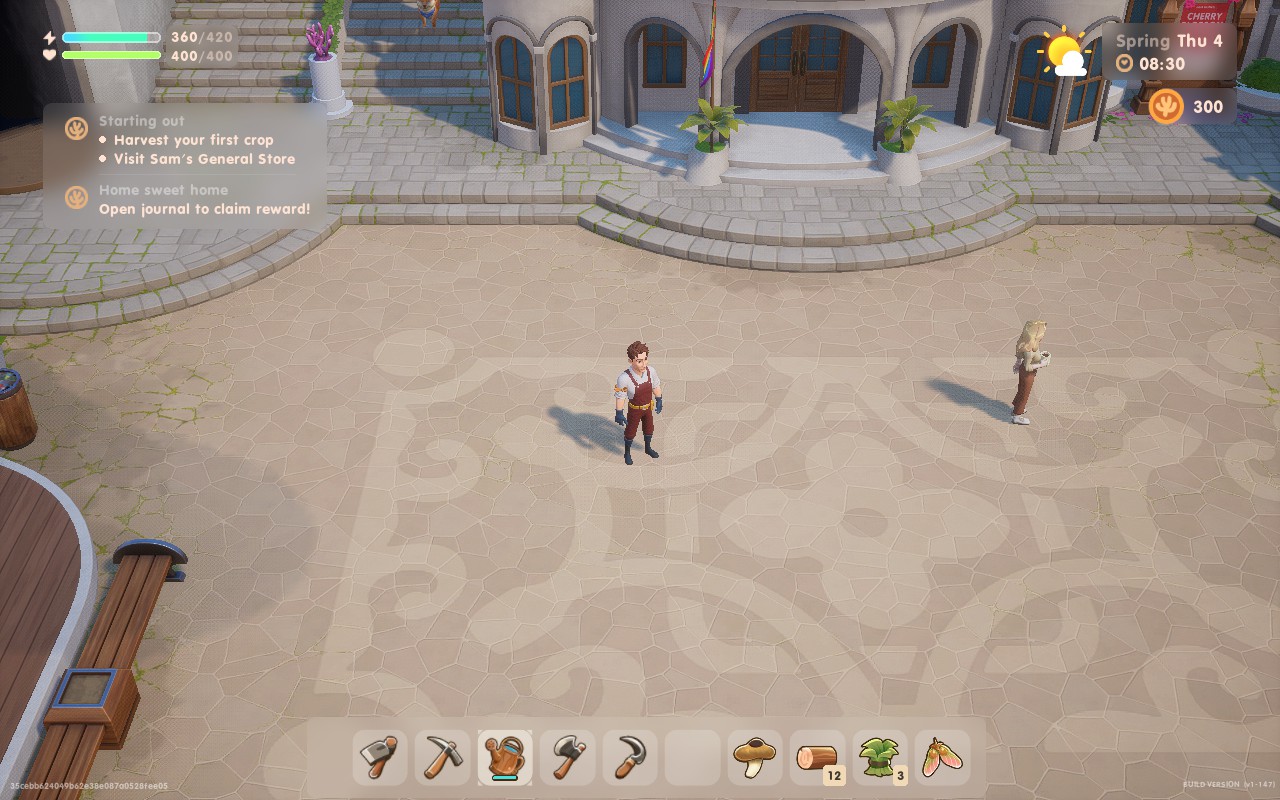
Ever since the success of Stardew Valley, we've had a plethora of farming 'simulators' launching what seems to be almost every month. You'd be hard-pushed to watch a gaming show or event and not see at least 1 of these types of games make an appearance. Coral Island is no different, and it follows the formula closely, perhaps to a fault.
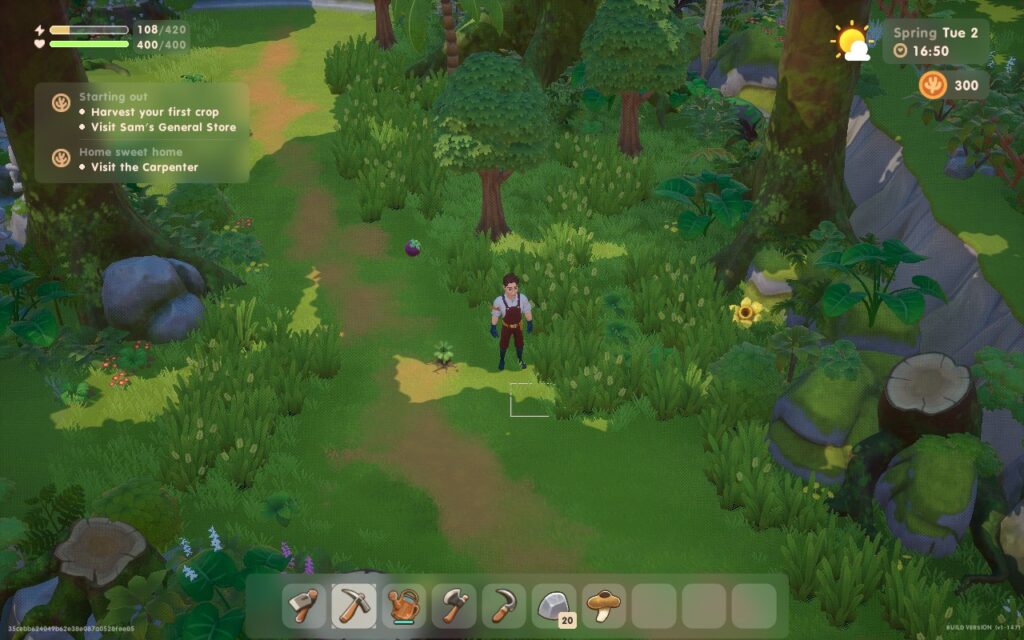
Coral Island starts off with a familiar storyline: you're someone from the 'big city' and looking to live a simpler life as a farmer in the countryside. There's also a big evil corporation in the game that's threatening the peaceful rural village life, a direct line from Stardew Valley. You start off with a basic house, a set of farming tools, and some seeds with a goal to gradually clear up your farm, sell crops, earn money, upgrade your house and tools, and expand into other areas of farming. You can also go fishing or catch bugs. Really then, the game seems to be a hybrid between your classic farming game and Animal Crossing.
One area where Coral Island does stand out from the crowd is the villagers themselves. Harvest Moon-style games tend to keep a fairly concise list of villagers, often no more than 20 whom you can interact with, but Coral Island boasts a much more lively village. You'll likely still be meeting new villagers for the first time after several in-game days, which helps make social interaction in the game feel a bit more interesting and helps break up the slight monotony of talking to the same people over and over. You can also choose from a larger variety of pets, instead of just cats and dogs, which I don't see in many other similar games.
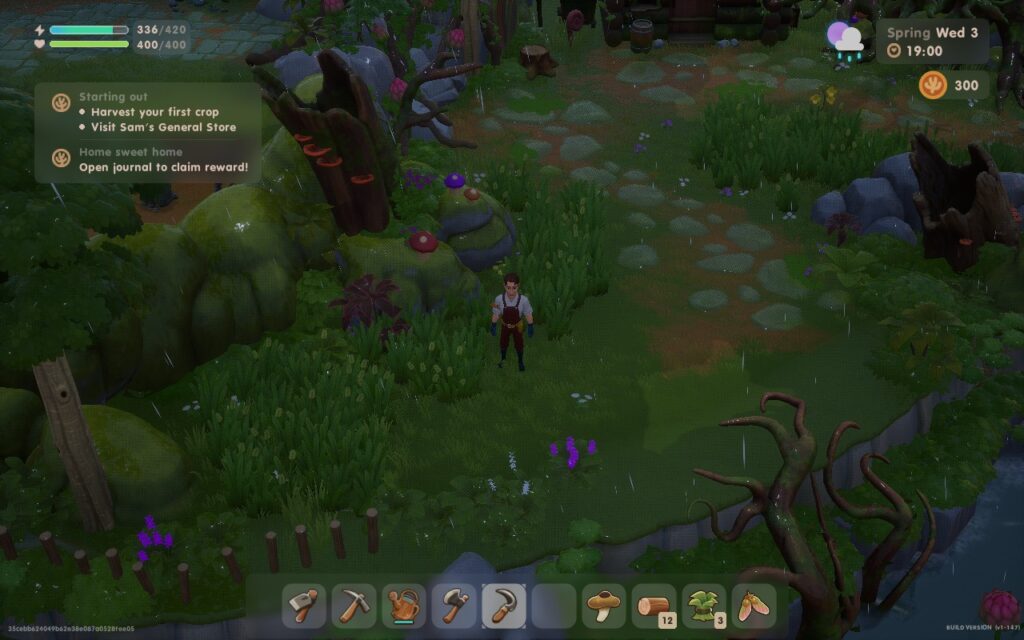
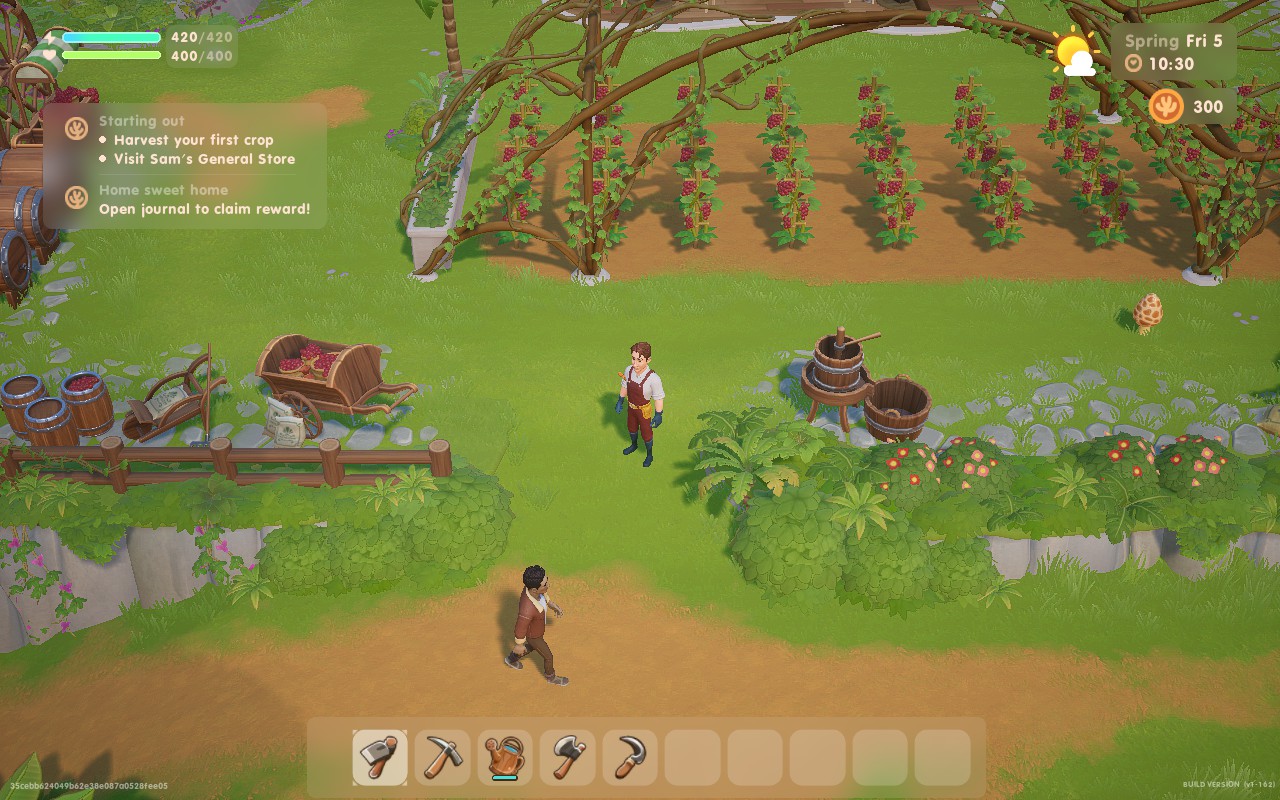
The general gameplay is, however, identical to its peers. You farm in the same way, using a grid system, you can chop down trees and cut rocks for resources, and there's a mine/cave that provides the combat portion of the game, similar to Stardew Valley. The combat system, however, feels a lot more fluid than Stardew Valley's, allowing you to move around more when attacking. The mines also have more varied and visually appealing environments.
One thing I did find odd about Coral Island is the sound design in some areas. While the music is pleasant, it's been treated like ambient sound. It fades in and out as you play the game and walk around your farm or through the village, and when it does completely fade away, it feels like something is missing. I would recommend lowering footstep volume from 5 to 2, as otherwise, you'll be hearing your footsteps above all else often.
That's not to say that all these similarities are a terrible thing, this is the formula for a reason. But, if you're expecting Coral Island to break any new ground, you'll be disappointed. The game sticks closely to tried and true mechanics, and it does a good enough job at it. There are plans for continued updates in the future, with developers assuring the community that co-op multiplayer is planned for 2024.
It may surprise you to know that Coral Island runs on Unreal Engine 4. While this might make some of you groan, it does provide a fair amount of scalability which does translate here. Because of this, we're able to offer 3 different presets to suit your needs.
The menus work well on the gamepad, with the D-Pad offering quick access to essential menus. We also have 16:10 resolution support, so we can run the game at the Steam Deck's native 1280x800 resolution and avoid those nasty black bars, which is thankfully becoming more common thanks to the growing handheld popularity. I do also recommend setting the UI Scaling to 110%, and Font Size to 2. To make in-game text and UI easier to read.
We're also turning the in-game "Frame Limit" off in the options menu. Although sometimes in-game frame limiters work better than the one we have in SteamOS, I noticed that the frame limiter in the game seems to cause inconsistent frame times which can make the experience feel stuttery. There is some traversal stutter in the game, as it seems to load the world in "chunks" as you move, and when a new chunk loads, there is a brief stutter. This happens regardless of any graphics settings or any TDP Limit, so it's sadly unavoidable.
While a 60 FPS experience is always ideal, in a top-down game like this, I found myself preferring nice quality visuals over the additional frames, so my recommended settings are going to aim for 30 FPS.
We're basically going to keep almost everything maxed in terms of quality, but we lower Shadow and Foliage quality down to "Ultra.". We also completely forgo Anti-Aliasing, as it's barely noticeable on the Deck's smaller display:
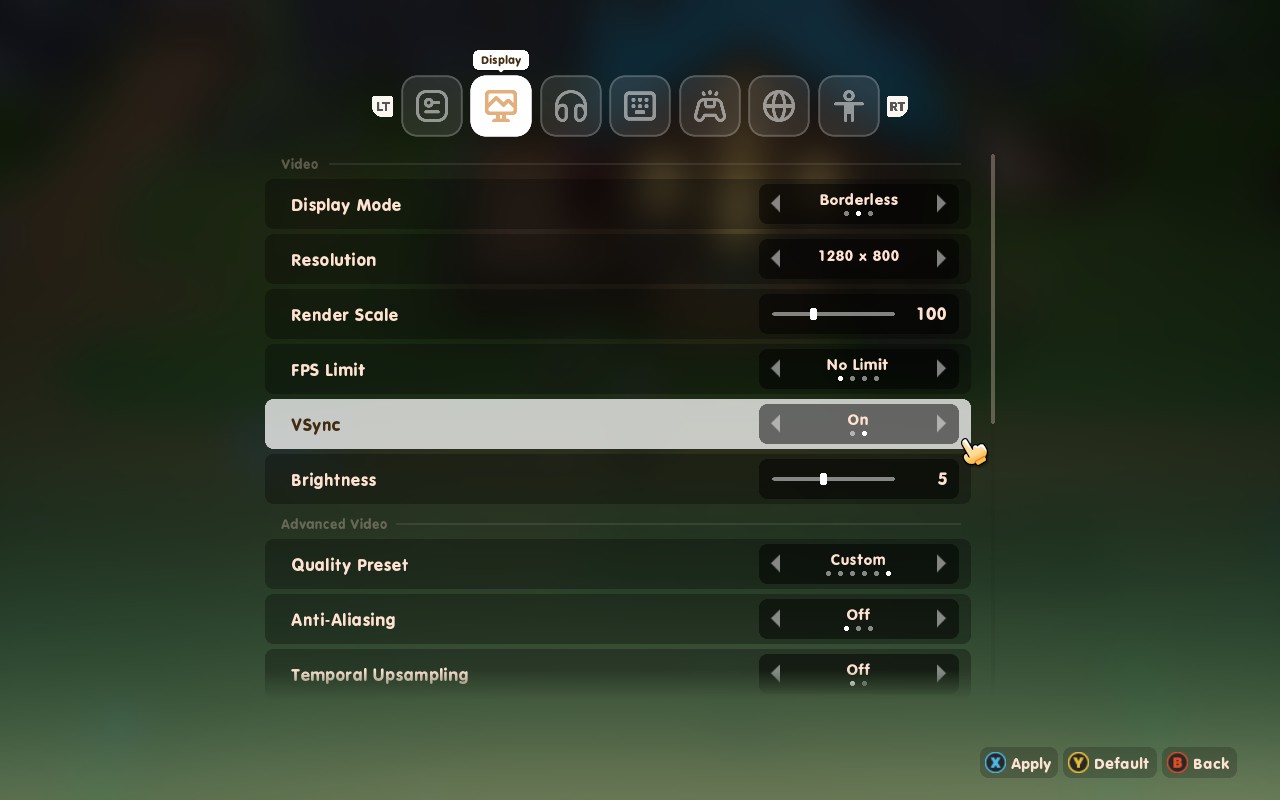
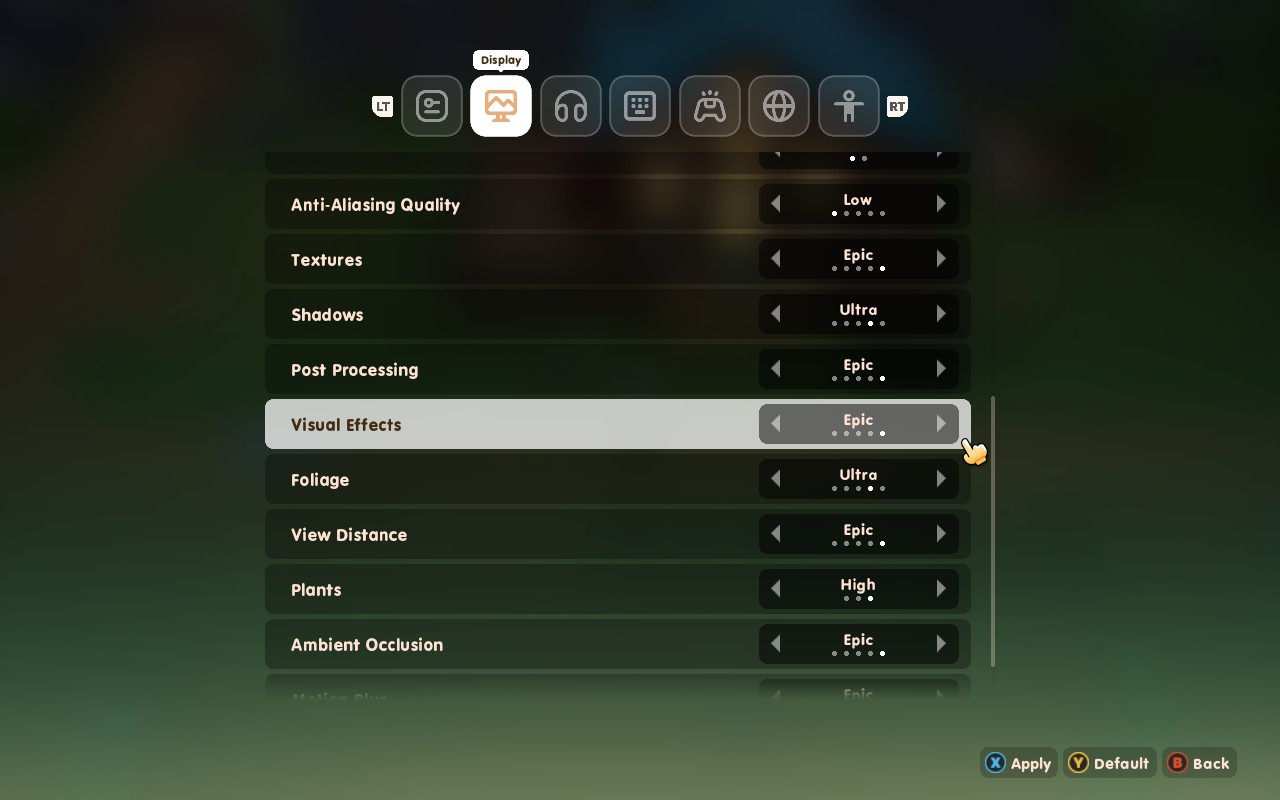
In SteamOS, set a refresh rate and Frame Lock of 30FPS/Hz. We can also lower our TDP Limit down to 10 to save on battery life.
Using these settings, we generally draw about 12W - 14W for between 2.5 and 3 hours of battery life. Long enough for a good play session with the bonus of beautiful-looking visuals. The Steam Deck also stays relatively cool, rarely exceeding 70C, so your Deck should stay comfortable in your hands.
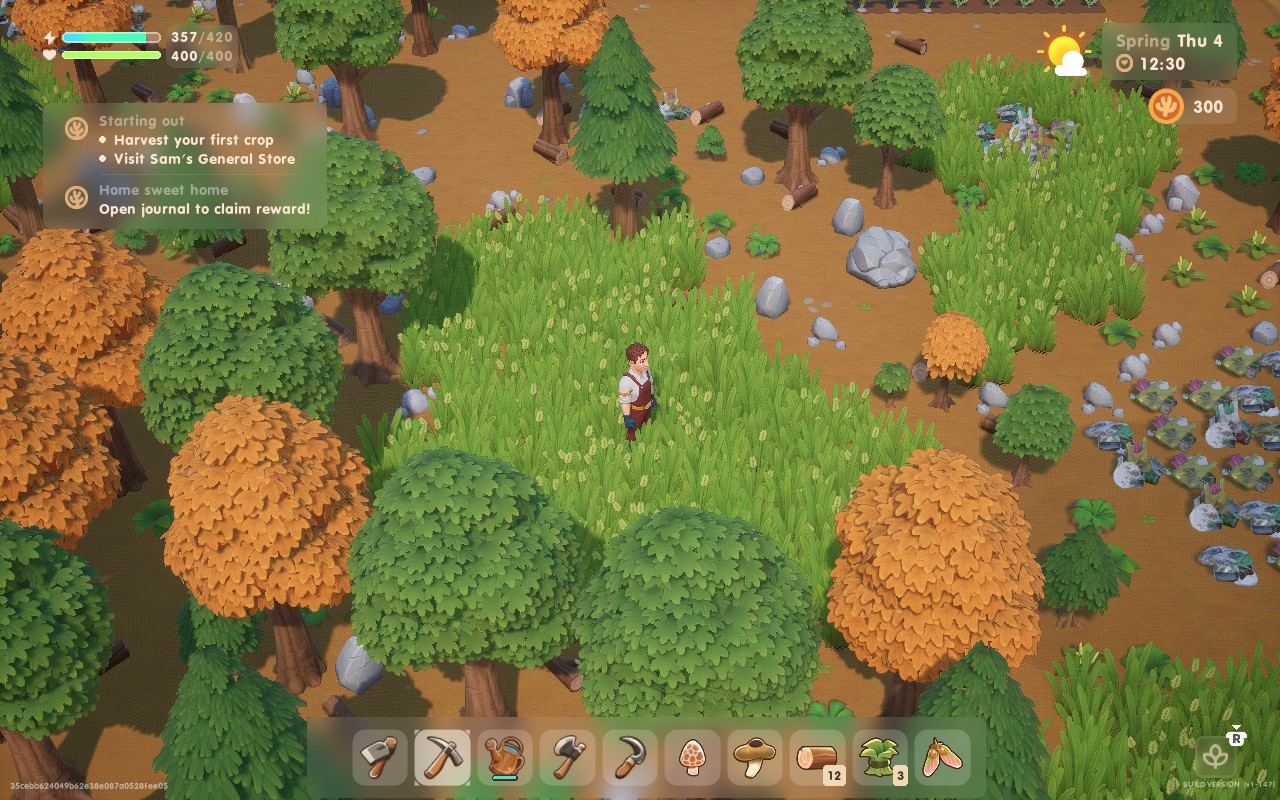
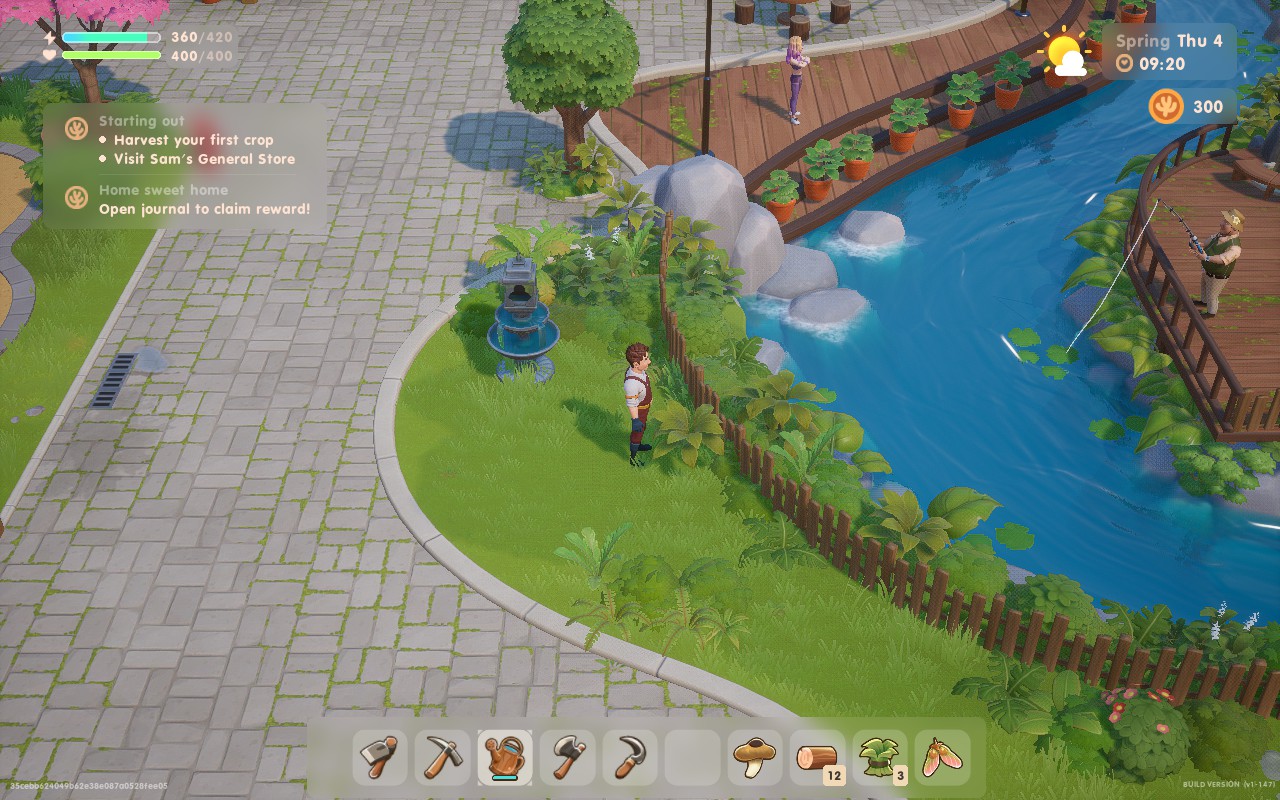
If having a 60 FPS experience is your focus, then these are the settings for you. We do have to make significant visual compromises to reach 60 FPS, and we're also going to be pushing the APU as well, so expect low battery life.
Most settings are staying on "Medium" here, except Textures set to "Epic," and Anti-Aliasing set to "Off":
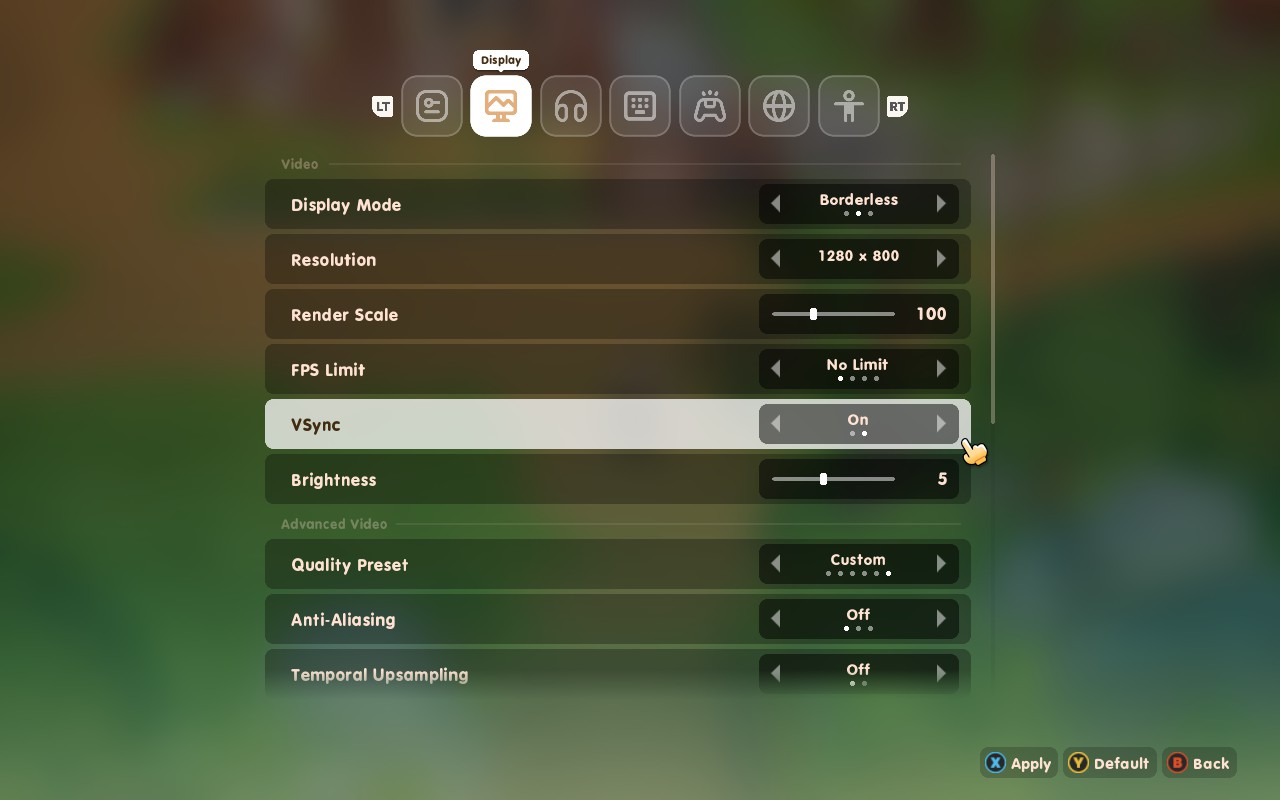
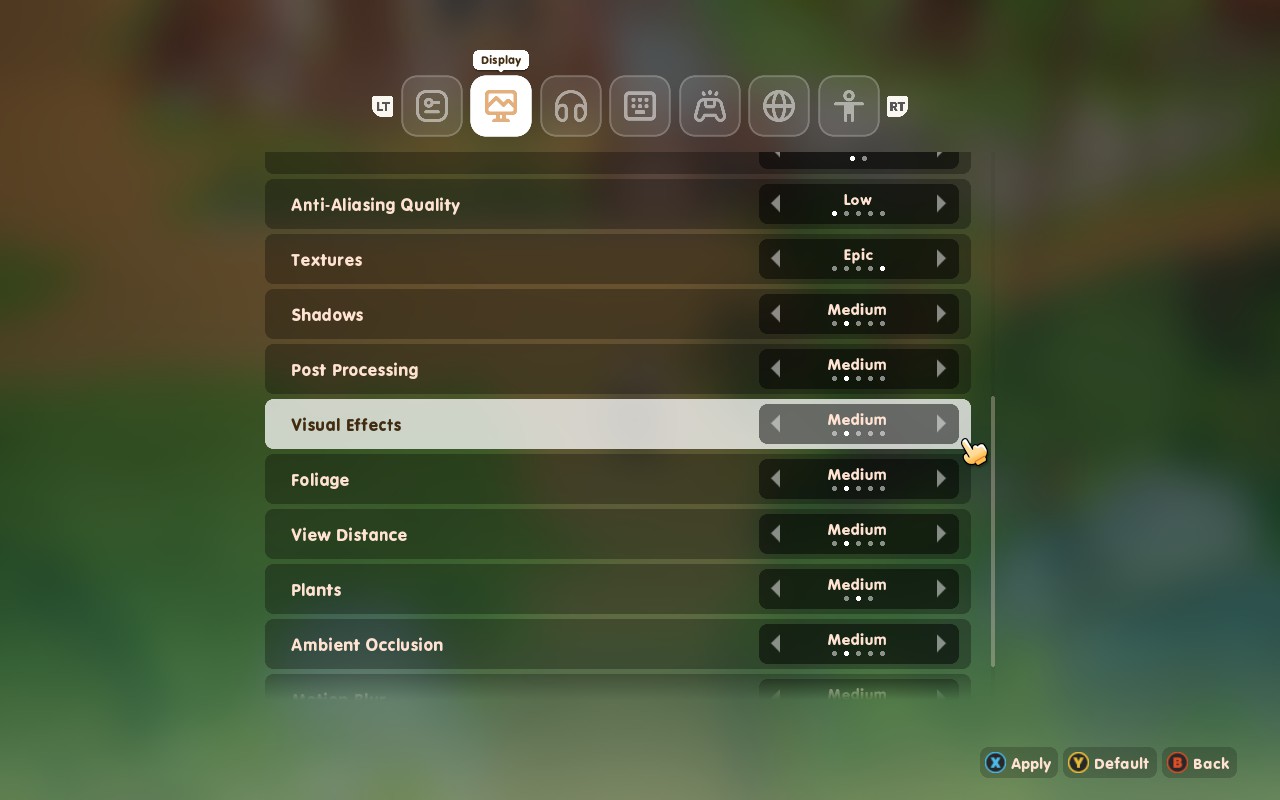
I found that lowering the settings to "Low" instead of "Medium" didn't help save battery life, so we might as well go for the extra graphical detail. At these settings, you can expect around 2 hours of battery life. The Deck might also run a bit on the warmer side, with temperatures hitting 80C. If you want 60 FPS, or are playing docked, this is how I would play.
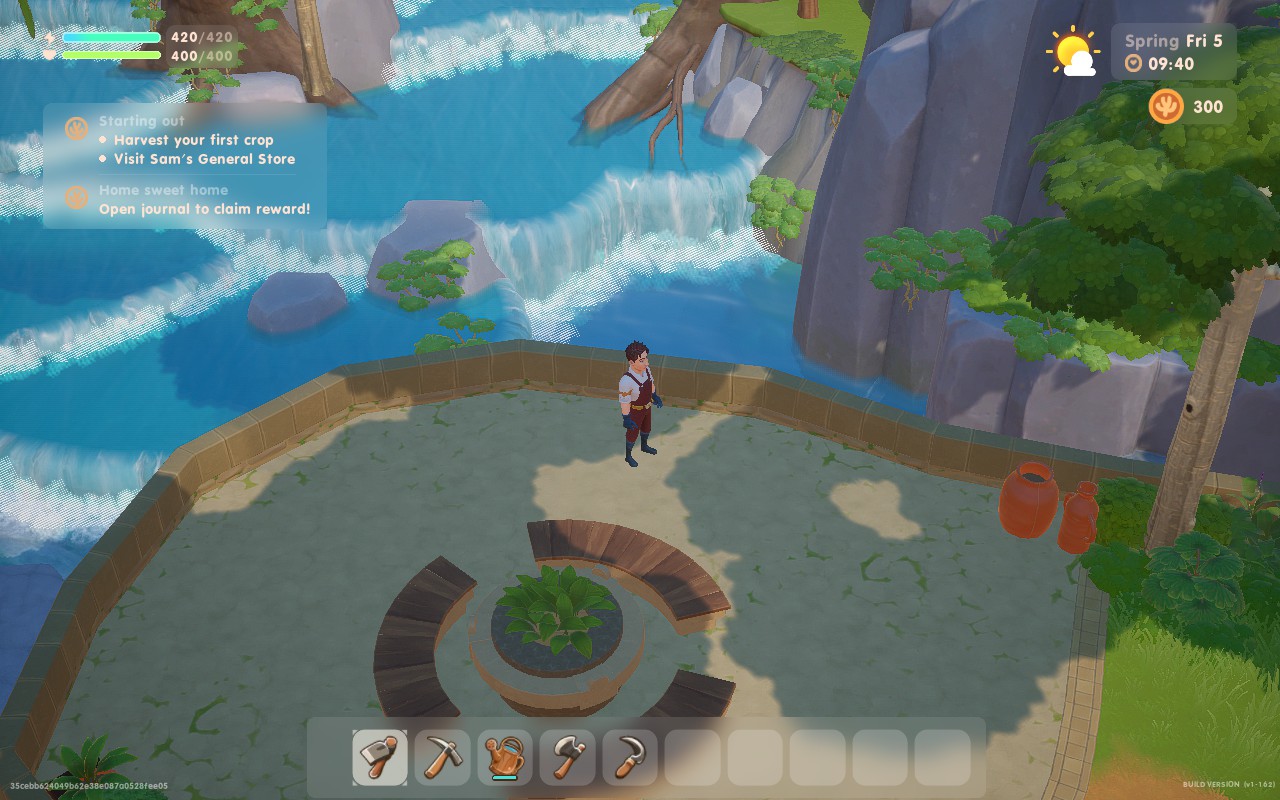
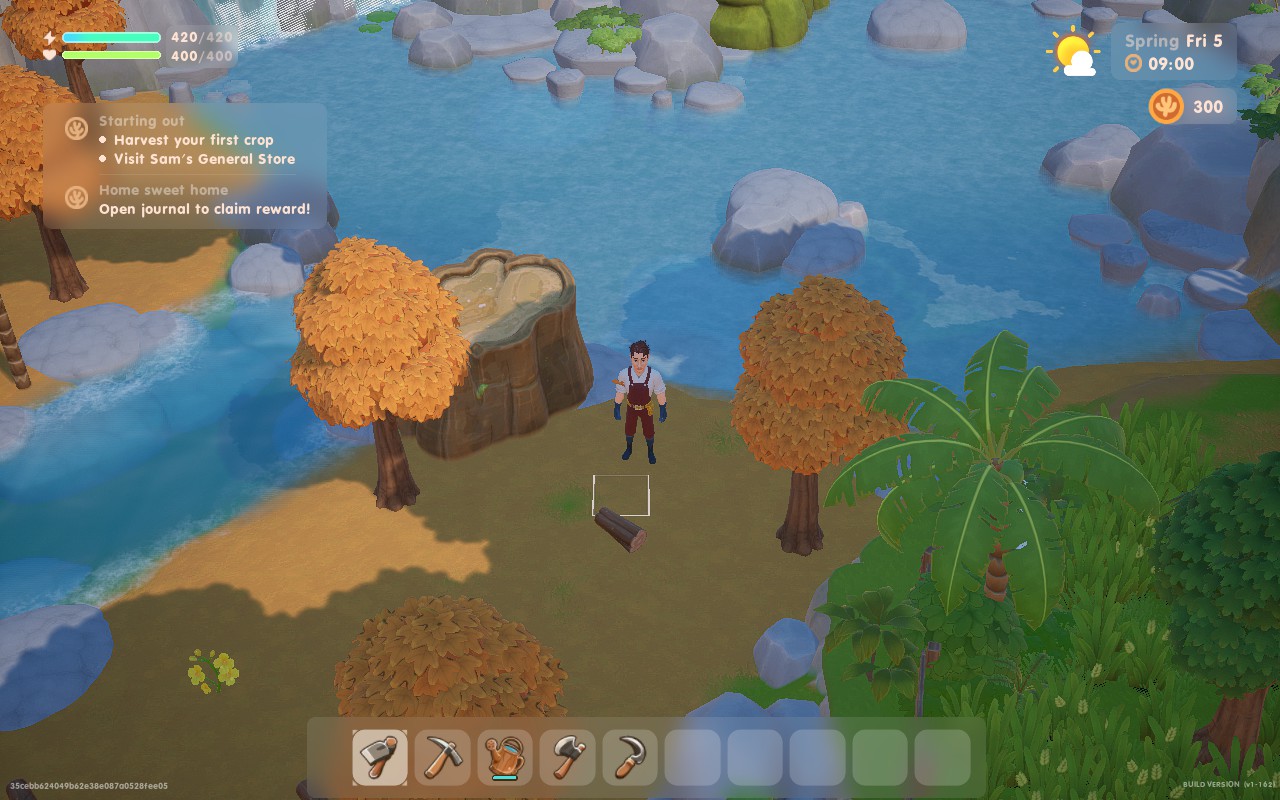
If you think battery life is king, or you're just away from power for a while and need your Deck to last to your next stop, these settings should tide you over. We're putting all the quality settings to "Low" here, except Texture quality which is kept on "Epic" and Anti-Aliasing set to "Off".
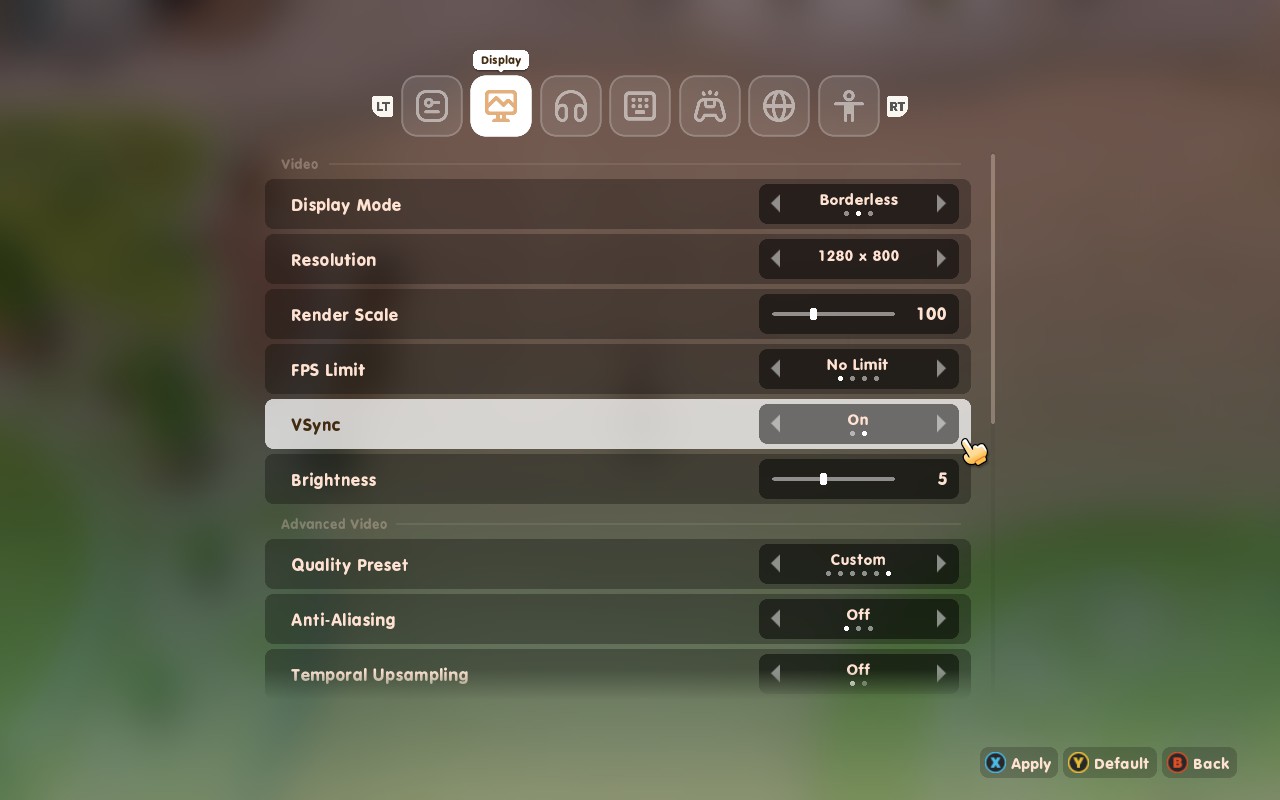
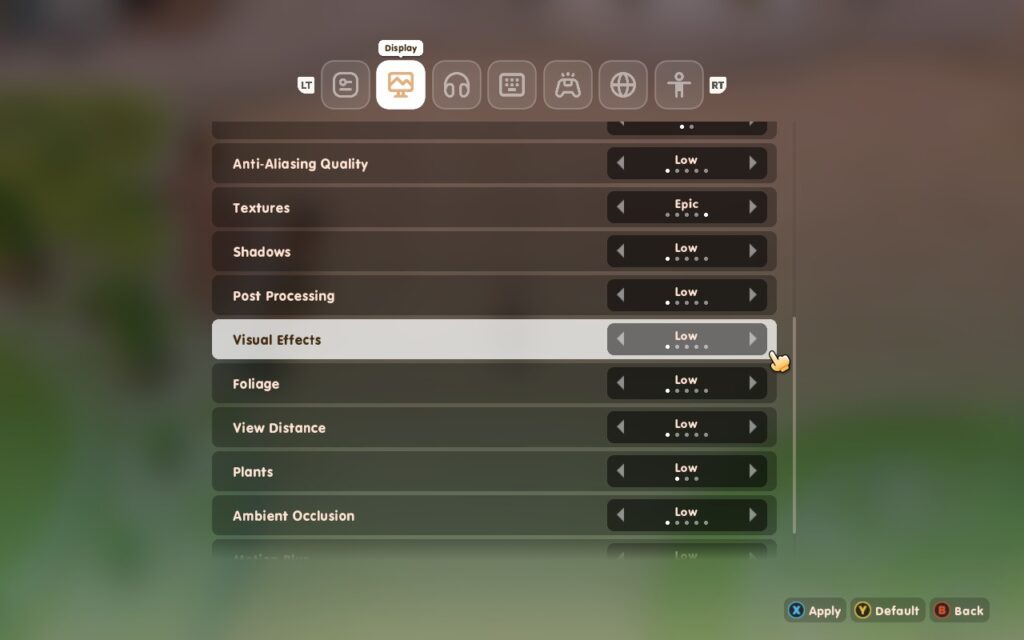
In SteamOS, we're able to lower our TDP limit all the way down to 6W here. And apply a 30 FPS Frame Limit.
While we're losing shadows and a fair amount of visual quality here, it's great to have the option to strip the game back this far. With these settings, we get a perfectly playable experience with an estimated battery life of just over 4 hours! The APU uses just 10W on average, plus the Steam Deck barely exceeds 60C, keeping it nice and cool in your hands.
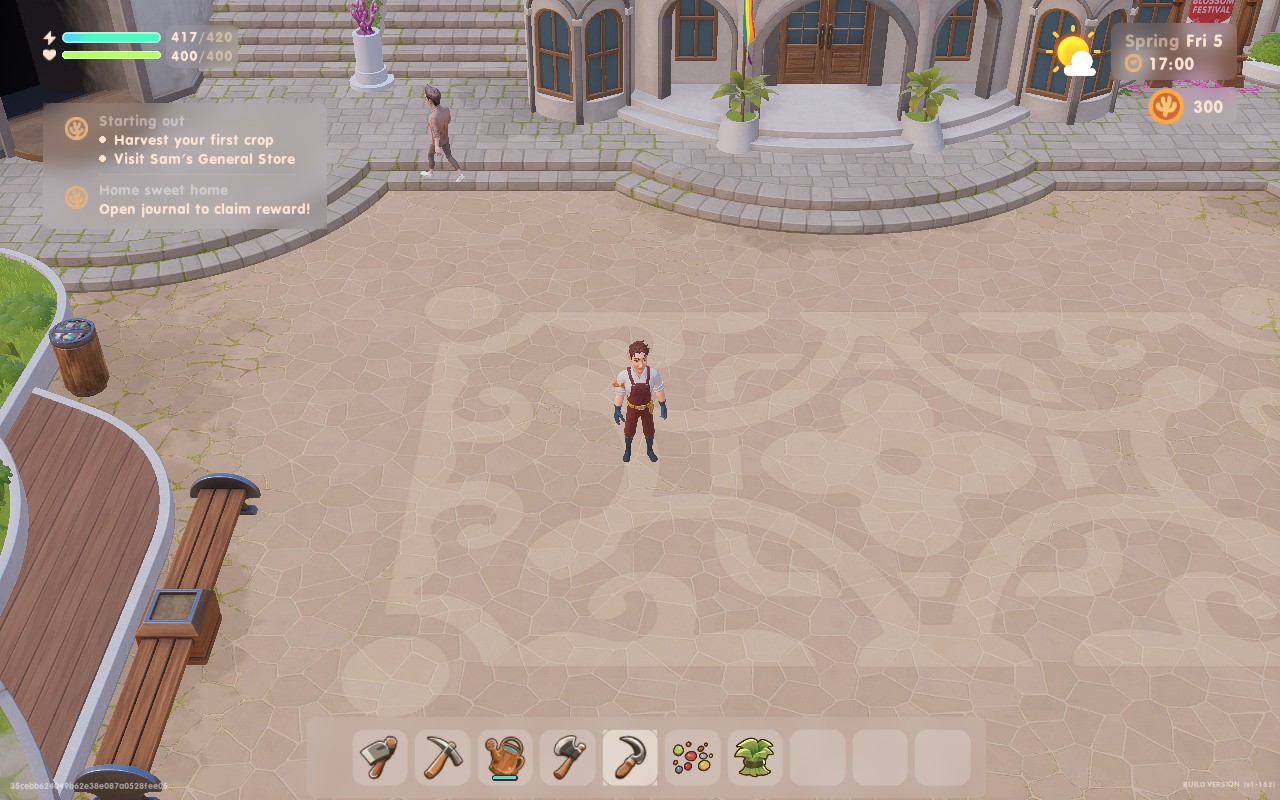
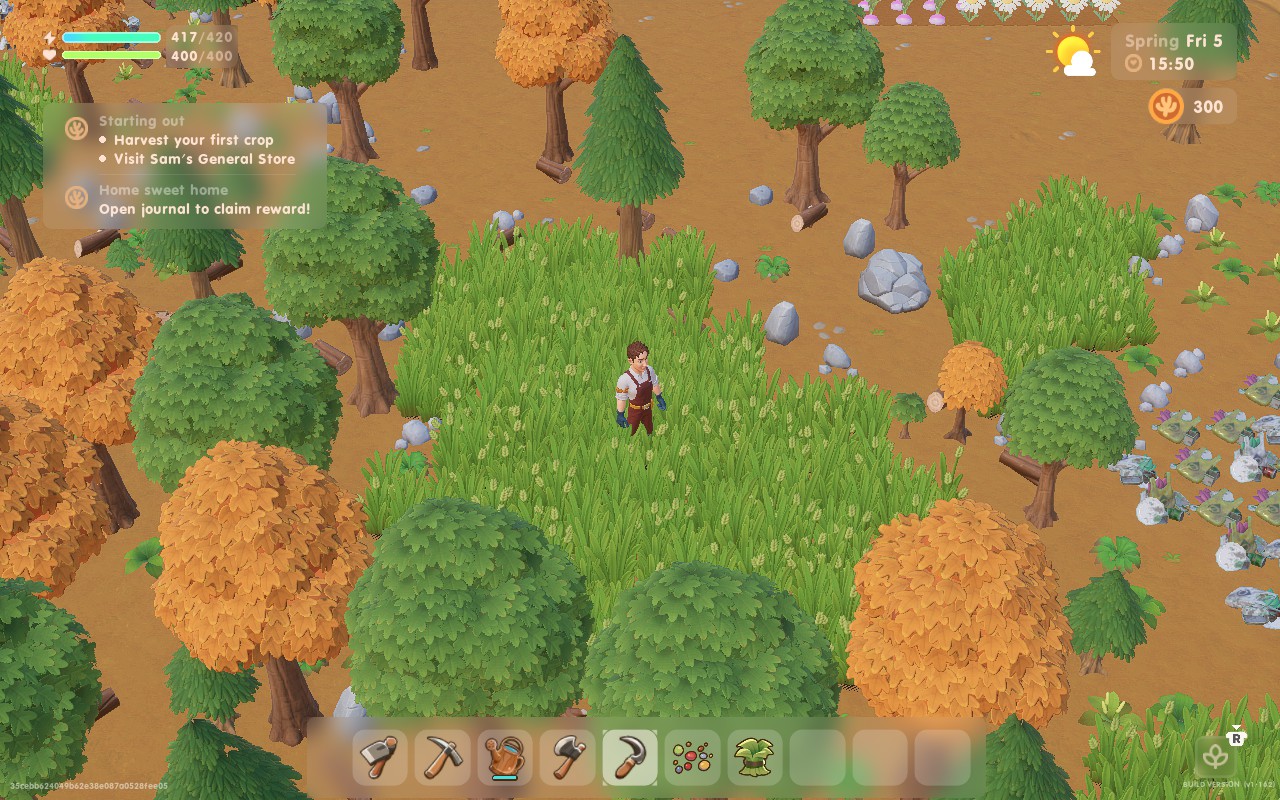
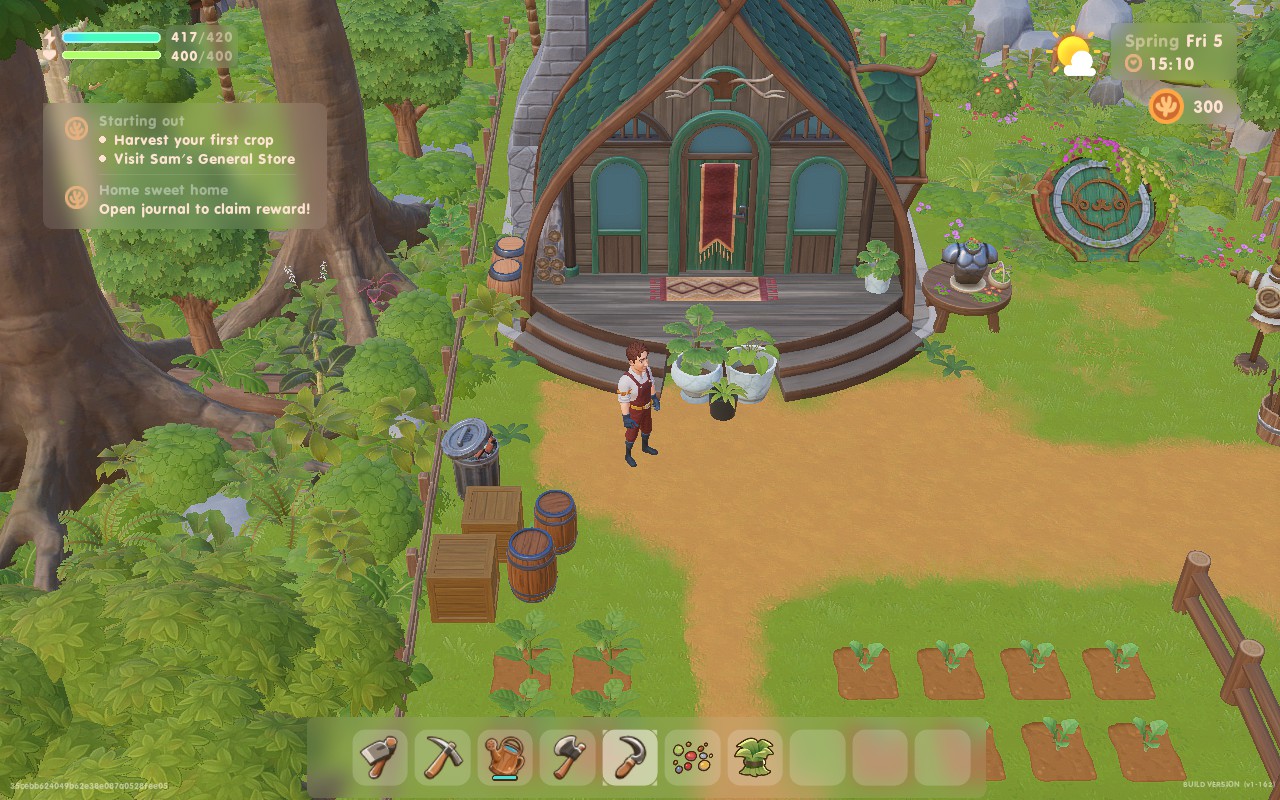
Coral Island has a few accessibility features. There are different colorblind filters for different types of colorblindness. You can adjust the UI scale, as well as the general font size, to make menus easier to read and see. There's also a Dyslexia setting, which adds a little bit of extra space between letters to help distinguish them.
While this is not technically under the accessibility menu, I think it's worth mentioning that the game does allow you to slow down the passage of time to 50%, so if you find your day is progressing too fast for you to handle, you can give yourself double the time in the day.
Coral Island is a solid little title. It doesn't tread any new ground, but the ground it does cover, it covers well. If you're a fan of Stardew Valley, Rune Factory, Story of Seasons, or Harvest Moon, Coral Island will be right up your street. The familiarity makes it feel like another entry in those series, just with a couple of extra nice-to-haves and a slightly wider variety of content. Whether you want to spend your days fishing, farming, searching for artifacts for the museum, or just getting to know your fellow villagers, Coral Island will let you sit back, relax, and enjoy the freedom it offers.
To top it all off, the game performs well on the Steam Deck. Whether you want the game to look beautiful, or last a long time while you're traveling, Coral Island will perform and feel great in your hands.
このレビューはPC版に基づいています。
このレビューをお楽しみいただけたなら、SteamDeckHQ の他のコンテンツもぜひご覧ください!あなたのゲーム体験に役立つゲームレビューやニュースを幅広く取り揃えています。ニュース、ヒントやチュートリアル、ゲーム設定やレビューをお探しの方も、最新のトレンドを知りたい方も、ぜひご利用ください。
ARK: Survival Ascended (ASA), a remastering of ARK: Survival Evolved (ASE) using Unreal Engine 5, has just launched onto Steam Early Access. Although it seems to have been a bit of a rough launch, which we're getting used to in the PC space, the game provides a huge amount of scalability, which is great for handheld users.
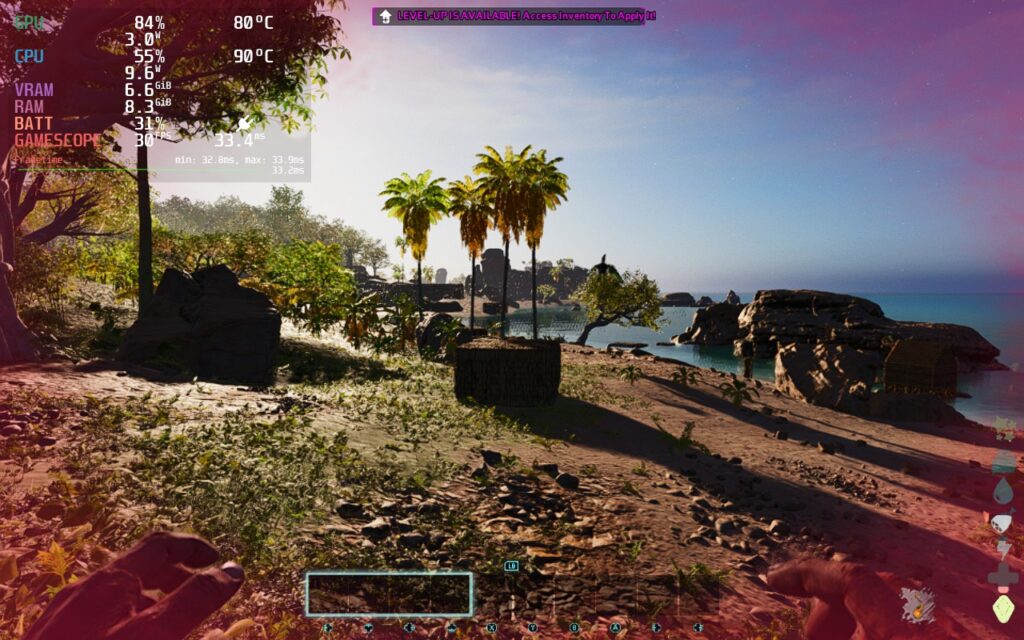
ASA isn't just a simple graphical upgrade however, although the map is largely similar, it has been updated and redesigned in some areas. There are improvements to the UI, making it much more simplified and easier to control with a controller. We're also treated to other improvements such as dynamic foliage/water that reacts to dinosaurs and players moving through them, as well as baby dinosaurs in the wild.
The core gameplay experience of ASA remains unchanged from ASE. You will still be crafting your tools, building bases, taming dinosaurs, and progressing through the game's extensive technology tree. This is a plus in my book, as I enjoyed these aspects of the original, and I'm glad they've transferred into the remaster. ASA also makes a huge improvement over ASE in the visuals department. When you can set the graphics settings high, it takes advantage of Unreal Engine 5 features such as Lumen and Nanite to create a truly beautiful world.
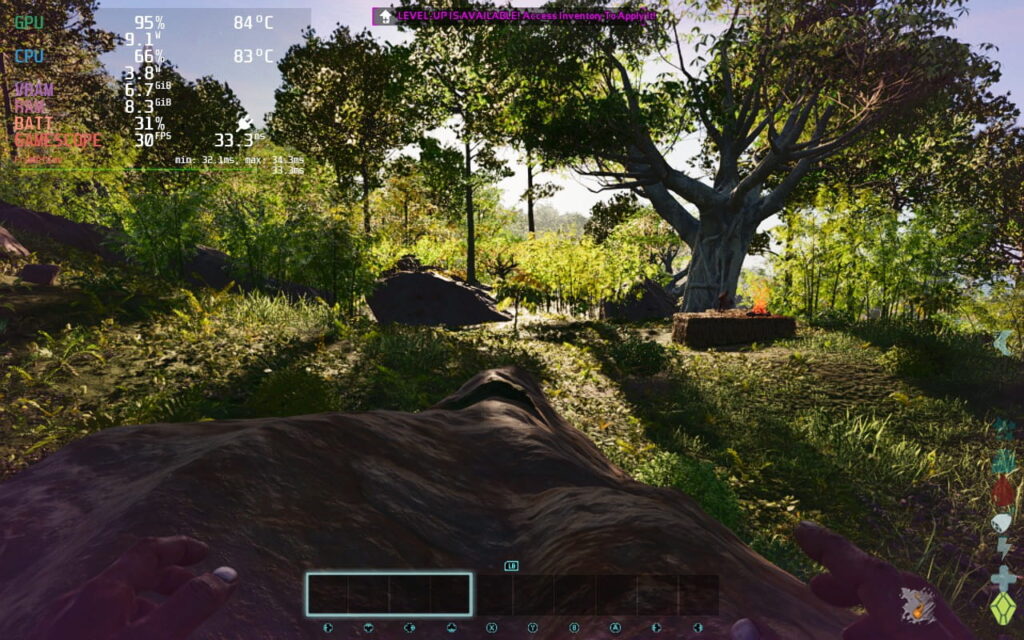
The game supports up to 8 players on private multiplayer servers and up to 70 players on dedicated servers. It also supports up to 4 players in split-screen, a first in the series for a PC version. And since a recent patch fixed BattlEye support on the Steam Deck, we can fully take advantage of it! Now, let's take a look at performance.
While the game itself appears to be fully playable from our testing, making a character might be out of the question. So you can't name yourself or choose how you look as it stands, which is a shame, especially for online play. But, outside of that, it is quite playable.
Right out of the gate, ASA is a much nicer experience than ASE to control with a gamepad. The menu has a simple layout, the buttons are bigger, and there are fewer of them, which makes the whole experience surprisingly pleasant to navigate.
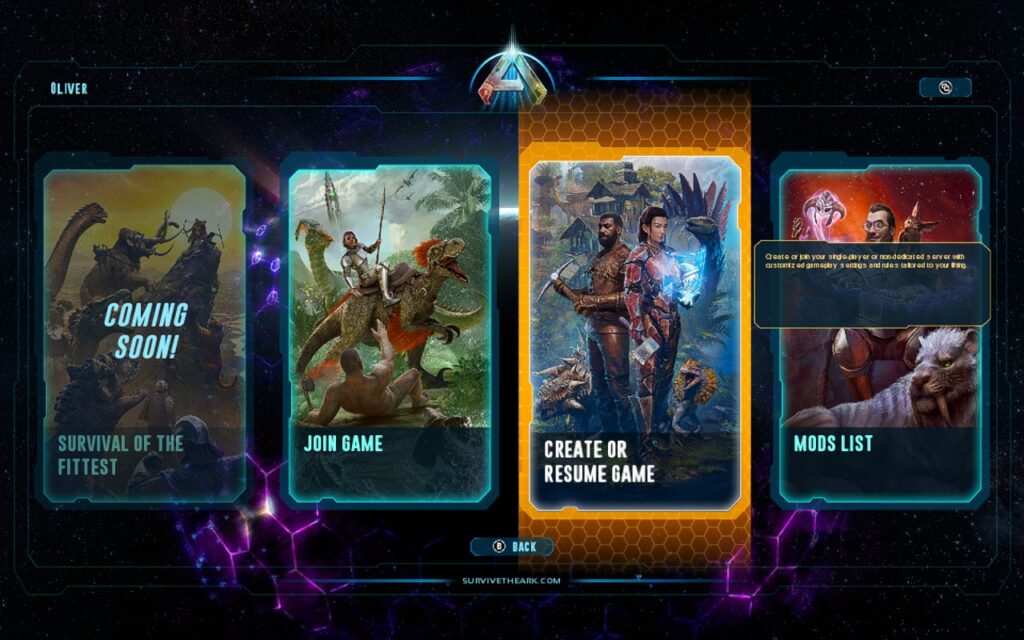
16:10 resolutions are supported, so Steam Deck users don't have to suffer with black bars here. There's a large array of graphics settings at our fingertips, and we also have some UI scaling, although I found the default UI scale to be adequate for the Steam Deck.
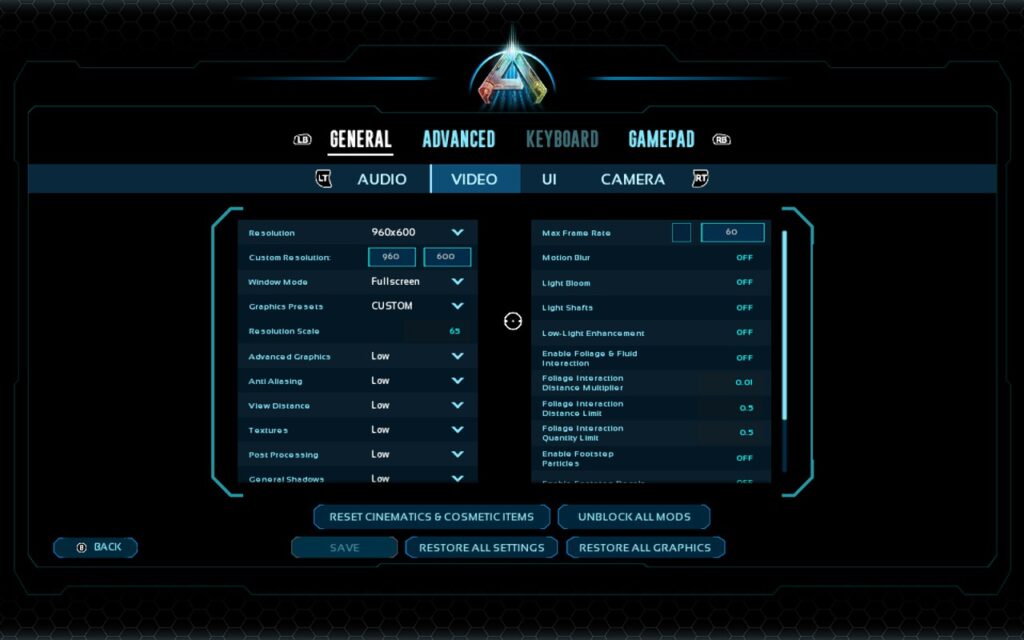
Right off the bat, we're going to want to select the "Low Preset" to get some settings in place. Studio Wildcard has also said that choosing Presets changes background settings that aren't visible to the end-user right now, so choosing a preset can impact more than we can easily change. After a preset has been chosen, set all other settings to "Low" and disable the optional extras at the side, like Light Bloom and Light Shafts. For resolution, we're running at 960x600 with a resolution scale of 65 and in fullscreen mode. We can lower the resolution further, but the text becomes very difficult to read, so unless you know the UI by heart, keep it here.
On your SteamOS, you'll want to select a frame rate lock of 30FPS and make sure there's no TDP limit, the GPU really needs all the power we can give it. We're also applying the FSR filter to improve the visual quality of the game a bit.
Once you're in the game with your unnamed character, open your Steam on-screen keyboard with STEAM+X, and hit the Tilde key. Once the console opens, type 'r.volumetricclouds 0' and hit enter. This will disable the game's volumetric clouds, it boosts the FPS by quite a bit. I personally prefer the game without the clouds, as they degrade in quality a lot at lower frame rates.
When using these settings and running around a multiplayer server with about 30-40 players online, I found that the Steam Deck mostly held 30FPS. At certain times of day, the frame rate does drop, mainly during early morning and late evening when there are a lot of shadows on the screen. I would describe the experience as Playable but not ideal.
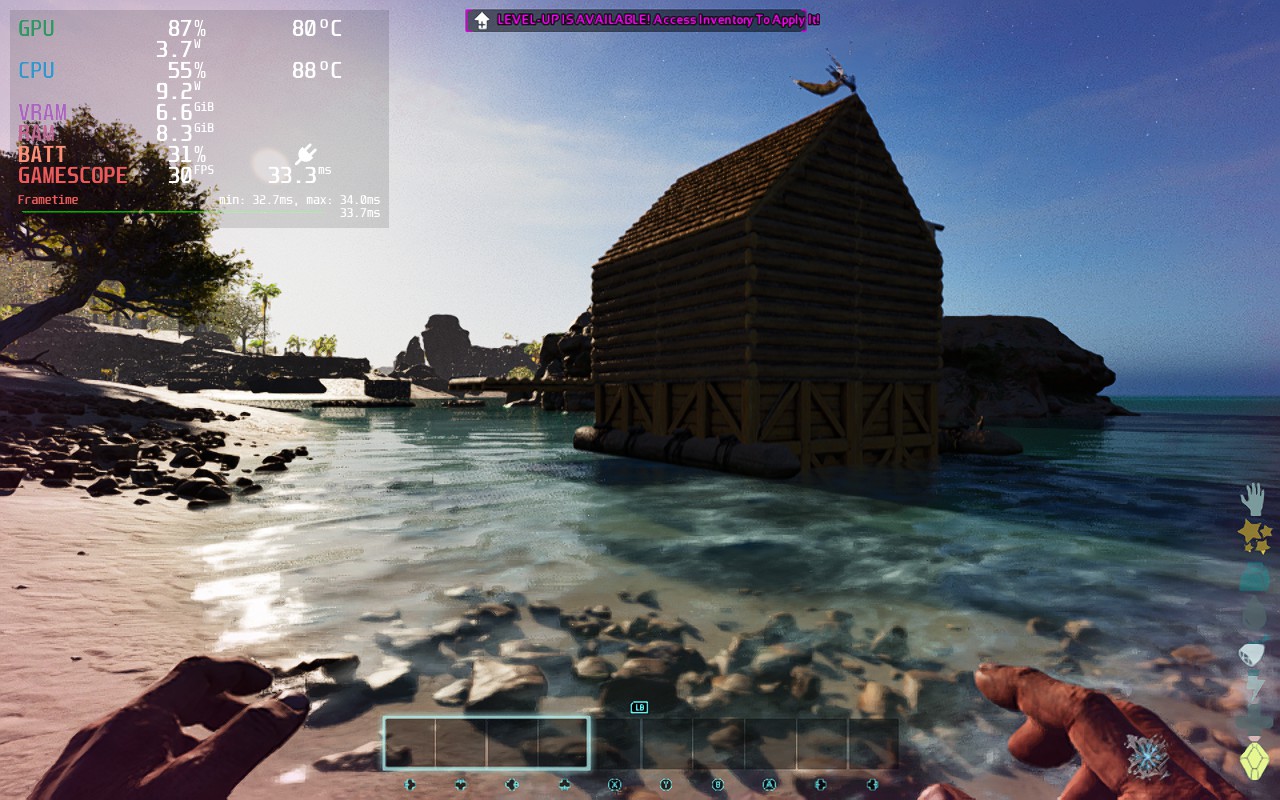
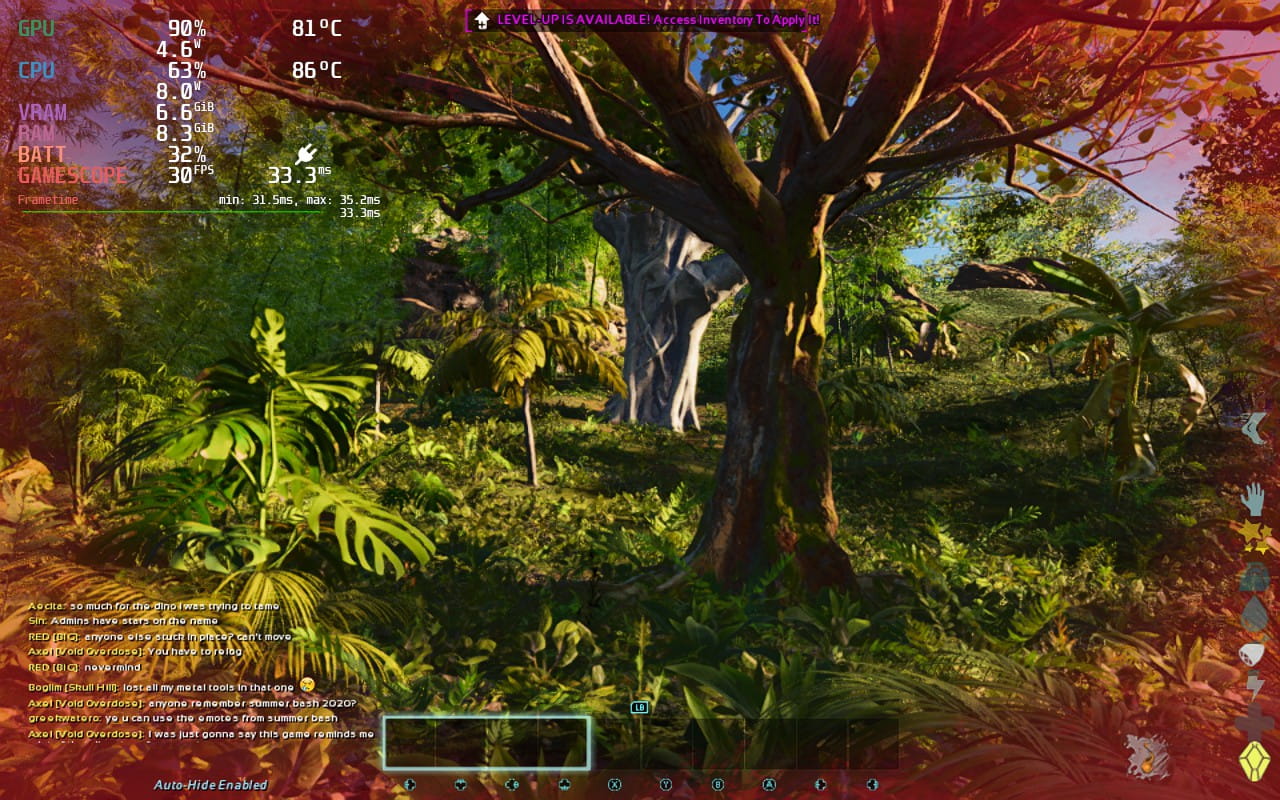
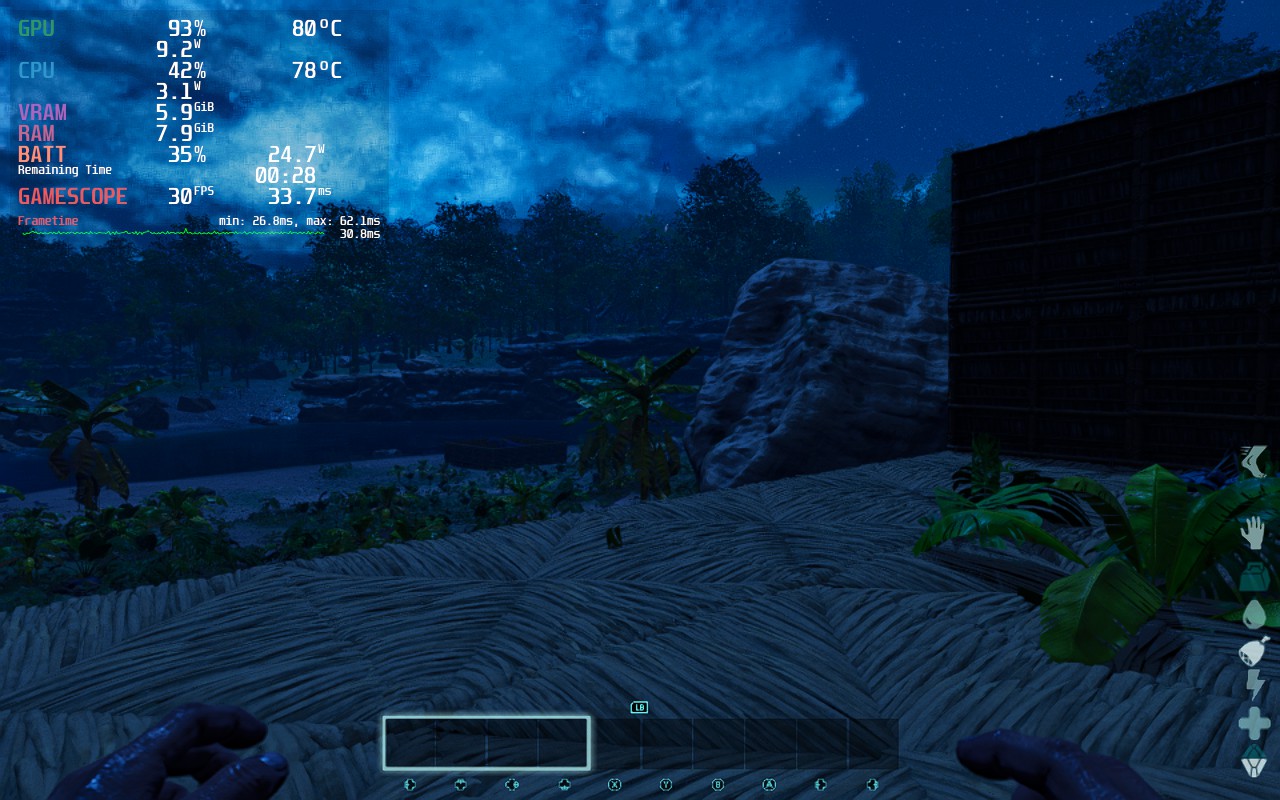
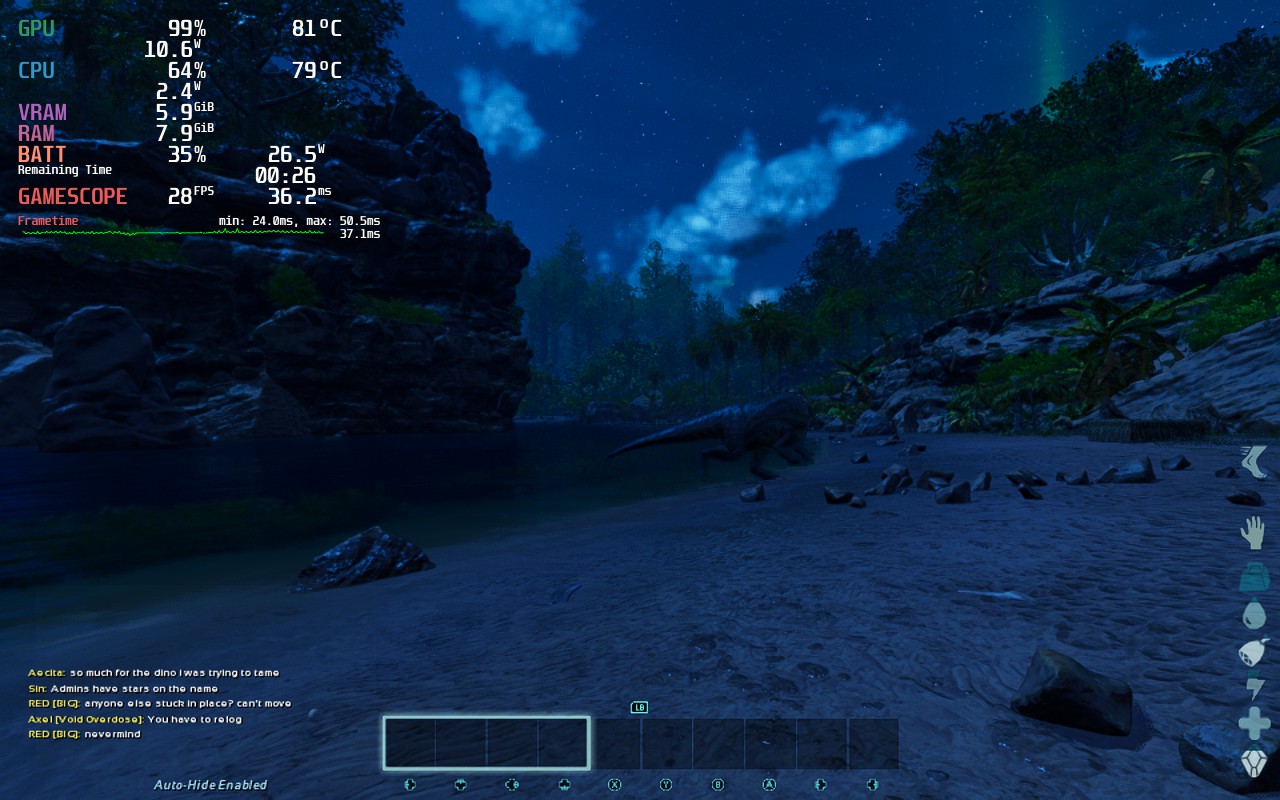
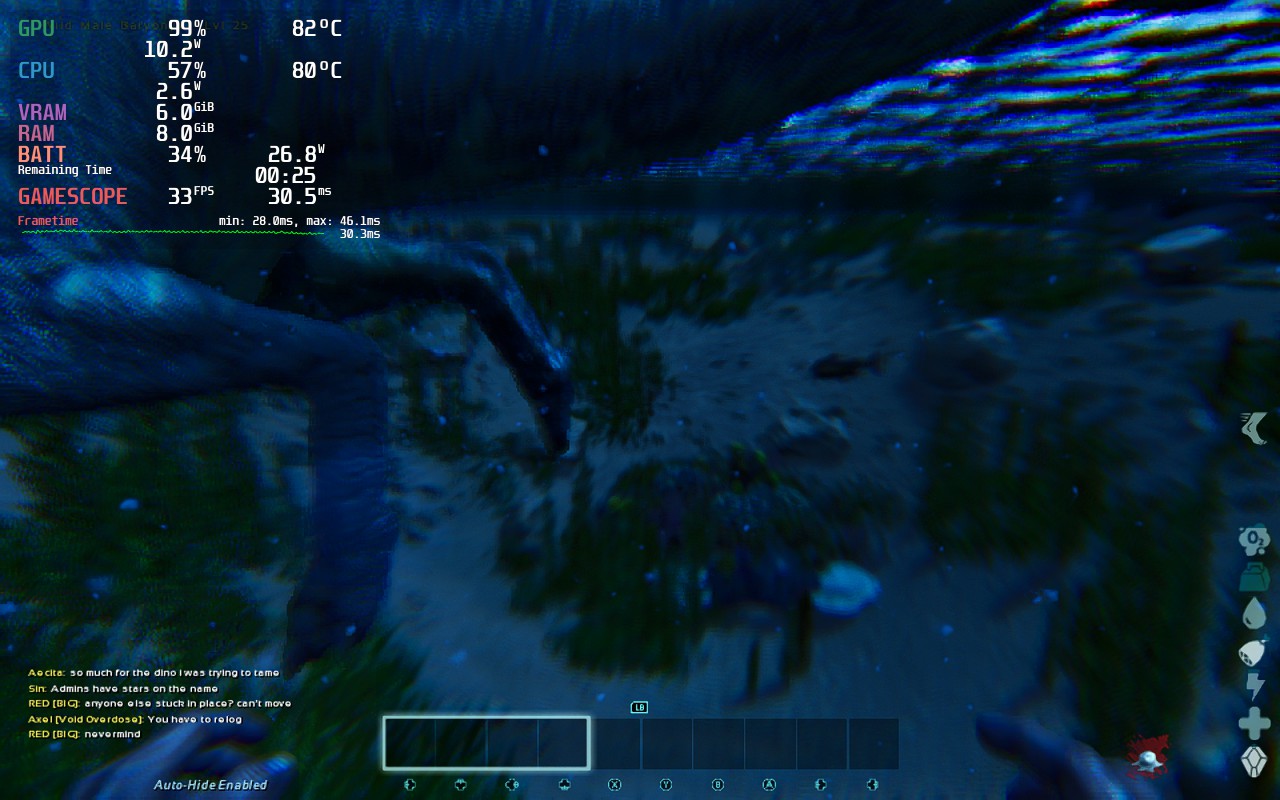
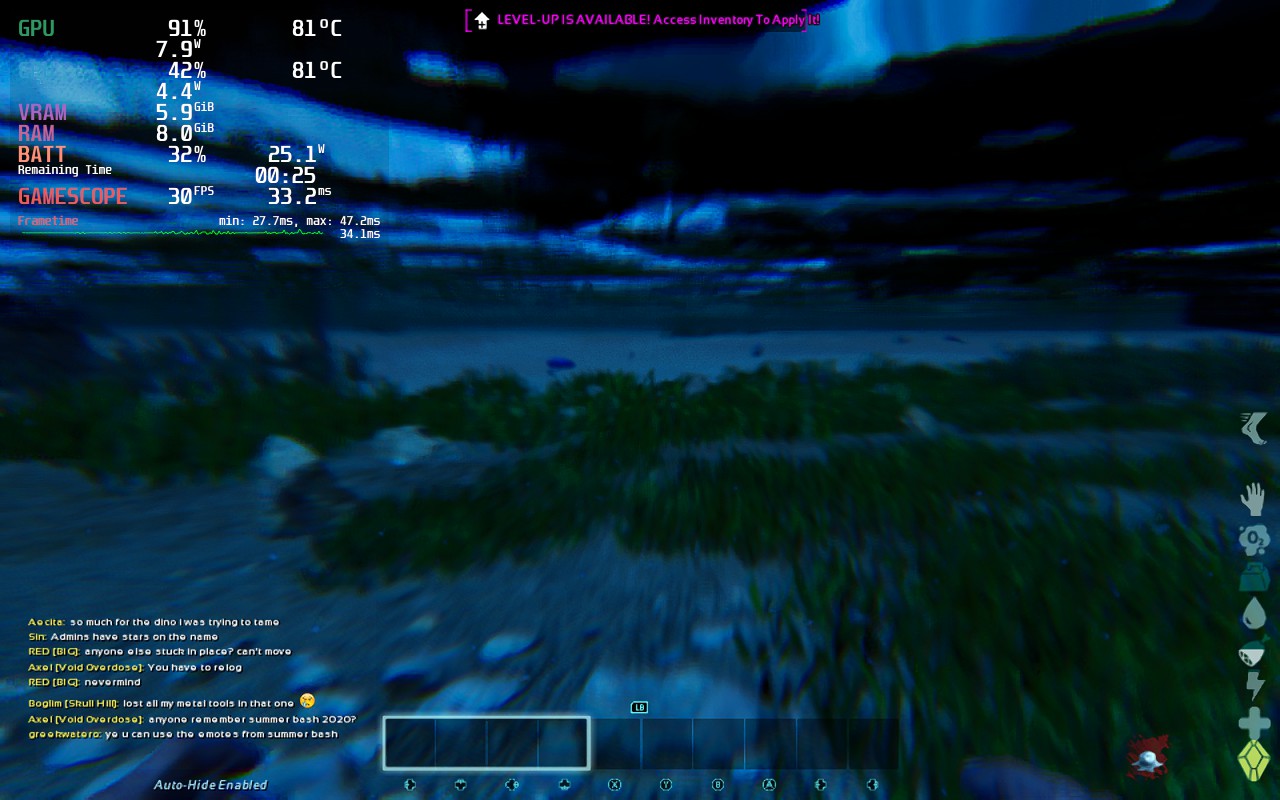
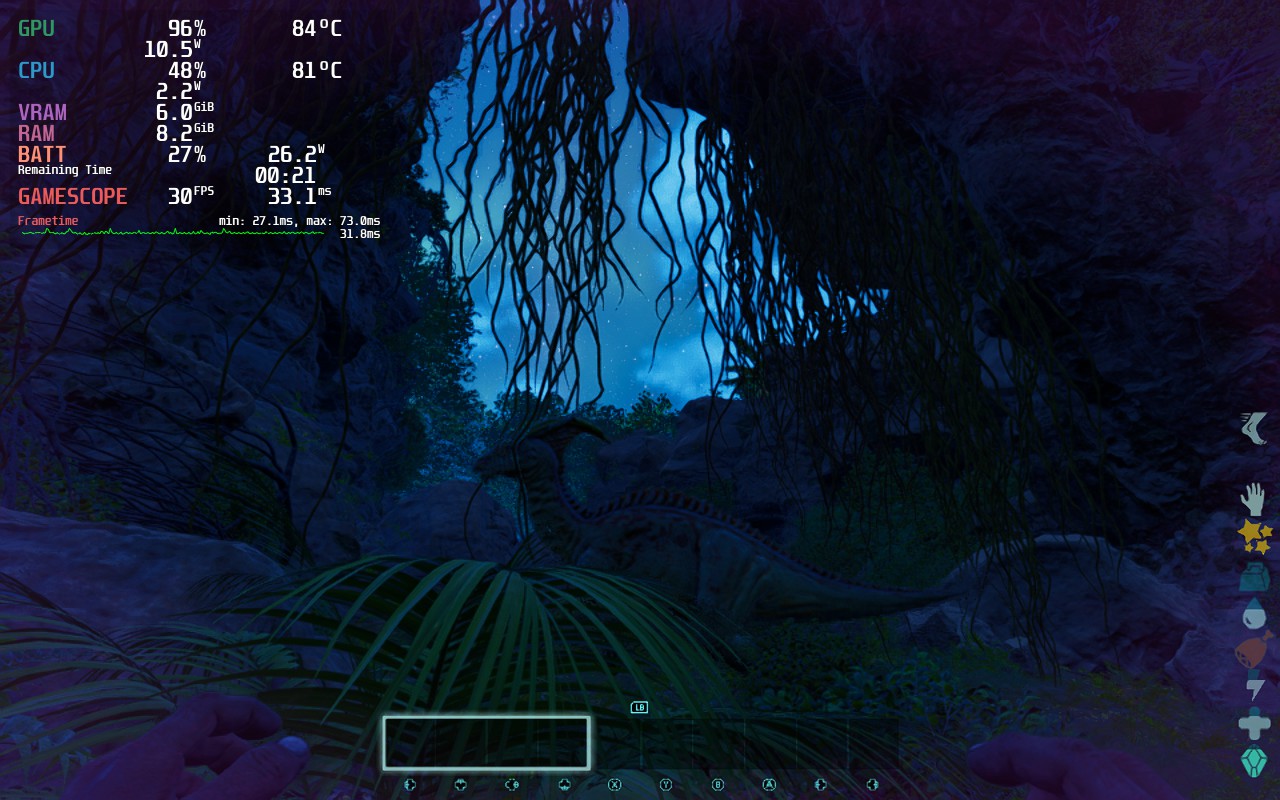
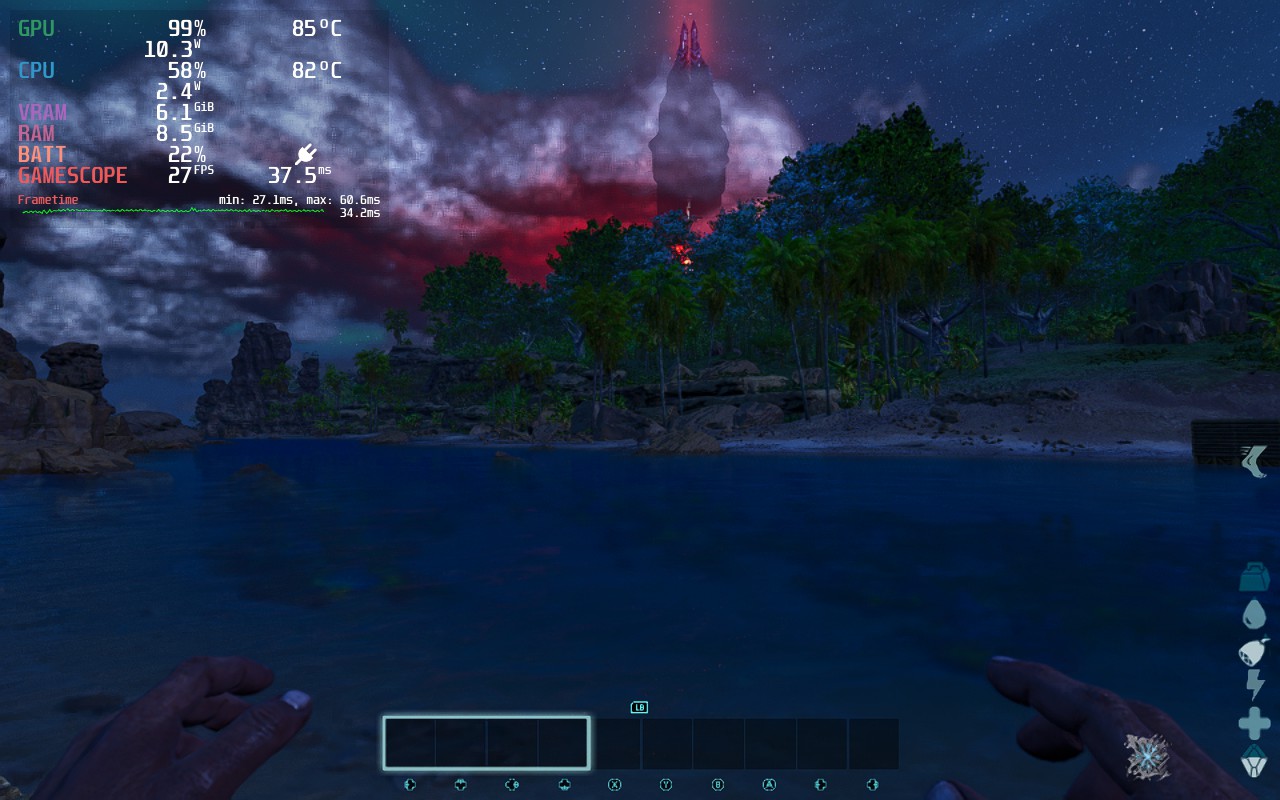
It's worth noting that having large amounts of tamed dinosaurs or large structures will affect the performance. Given the type of game that ARK is, players can do some crazy things, especially online, so if you run into an army or encounter a tribe stronghold, your experience may vary. For single-player or a small server with a few friends, though, the Steam Deck should hold up for you.
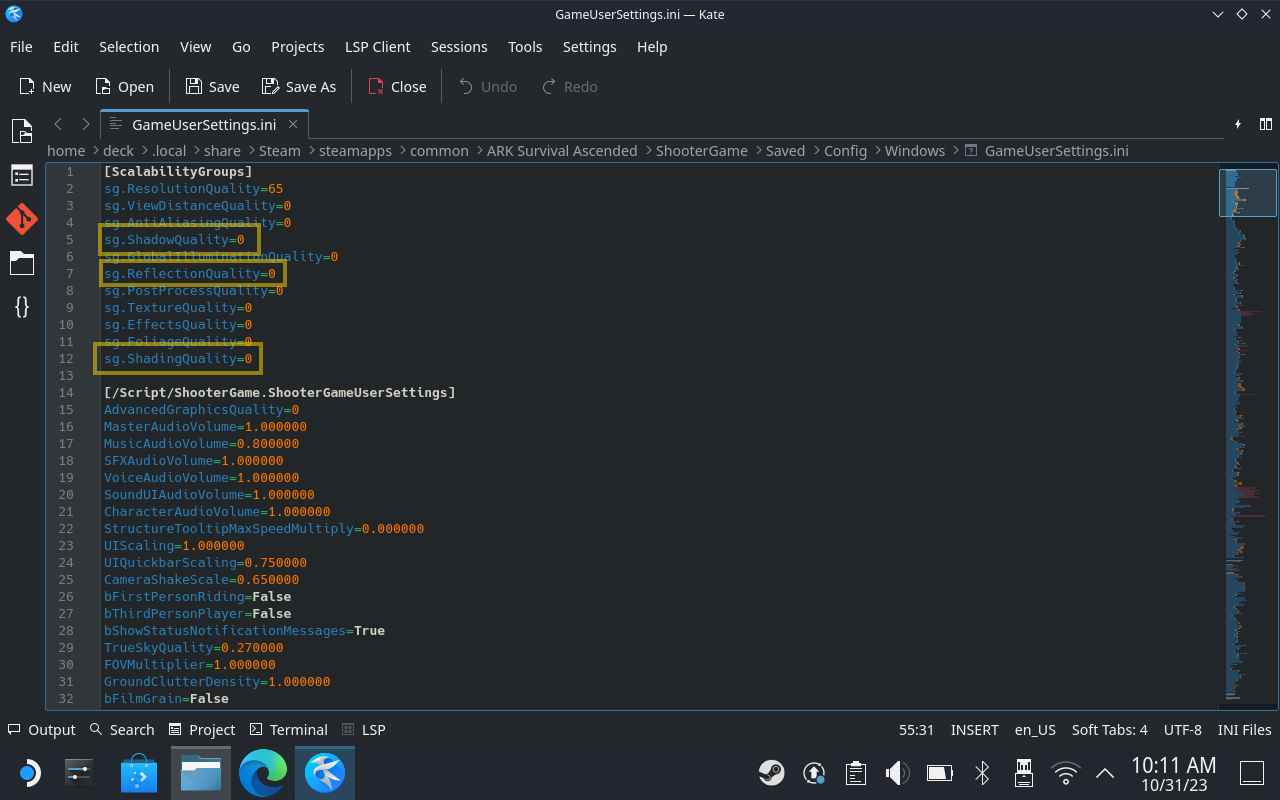
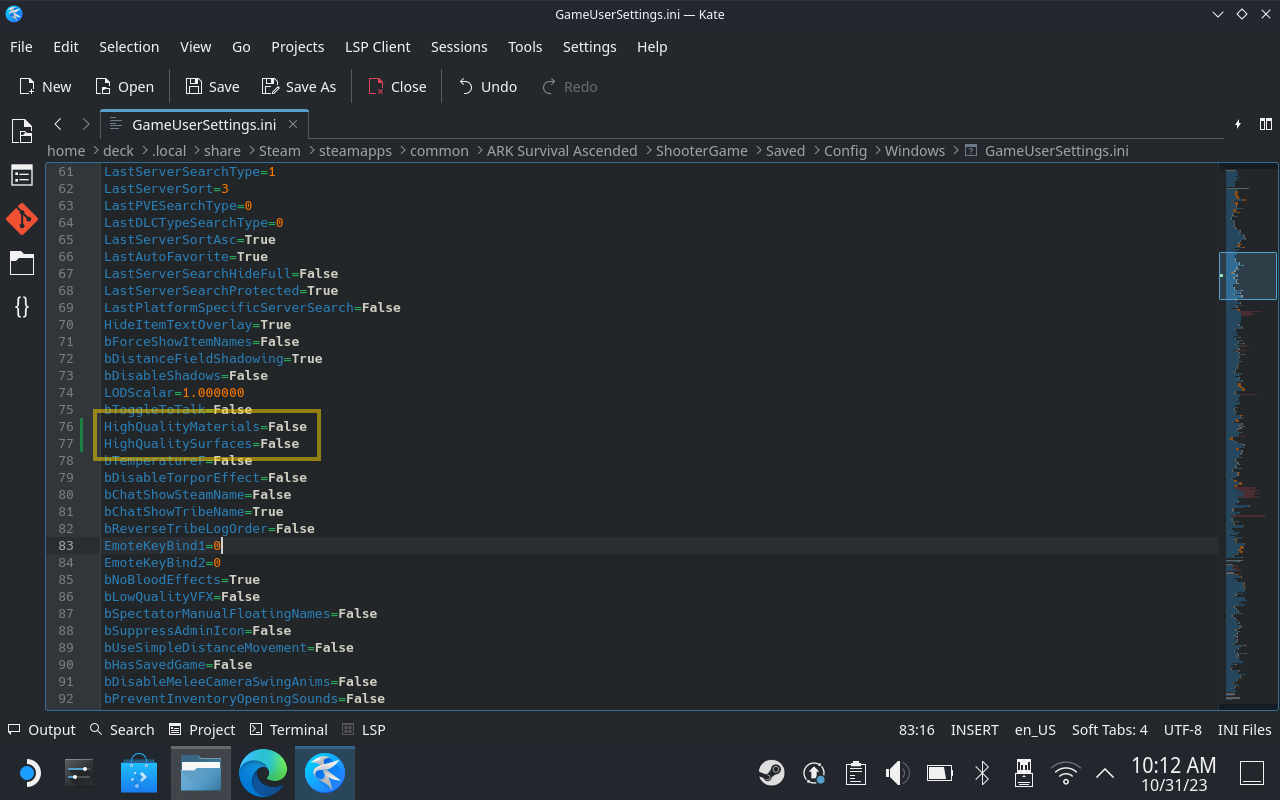
If you want to maximize performance, there are also some edits to an INI file you can make. As always with INI files, you edit at your own risk, it could cause glitches/errors in the game, and game updates in the future might stop them from working. These INI edits made it so I was almost always hitting 30FPS, and the visual quality was still pretty decent.
In Desktop Mode, navigate to /home/deck/.steam/steam/steamapps/common/ARK Survival Ascended/ShooterGame/Saved/Config/Windows/
Now open the GameUserSettings.ini. Once in the INI file, edit the following lines:
sg.ShadowQuality=0
sg.ReflectionQuality=0
sg.ShadingQuality=0
Those lines were likely on "3", as ARK currently offers no way to change these from in the game. Shadows should be able to be changed in-game, but for whatever reason, mine was still set to 3.
Further down edit the following lines:
HighQualityMaterials=False
HighQualitySurfaces=False
There are some accessibility features in ARK: Survival Ascended, like subtitles for the few voiced lines in the game, increasing the scale of some of the UI elements, the ability to disable view bobbing, and you can adjust the camera's FoV.
Controller support is pretty good, from what I can tell, and I don't think the experience is much different from using a keyboard and mouse. There is also a chat filter to filter out profanities in online play, but it is worth noting that the game carries a PEGI 18+ rating, and the chat filter didn't seem very effective anyway.
If you own the original game, you may not want to dive straight into Ark: Survival Ascended. Much of the content is the same, and right now, the DLC hasn't been added yet. But the graphical upgrades and QoL improvements are a great addition, and in time, ASA will become the clear choice. Performance on the Steam Deck is acceptable and should only improve as the developers make optimizations. We hope that the crash in the character editor is resolved soon. We will keep an eye on this game and update this review accordingly if improvements are made for Deck users throughout early access!
このレビューはPC版に基づいています。
If you enjoyed this review, check out the rest of the content on SteamDeckHQ! We have a wide variety of game reviews and news that are sure to help your gaming experience. Whether you're looking for news, tips and tutorials, game settings and reviews, or just want to stay up-to-date on the latest trends, we've got your back!
Armored Core 6 was provided by Bandai Namco for review. Thank you!
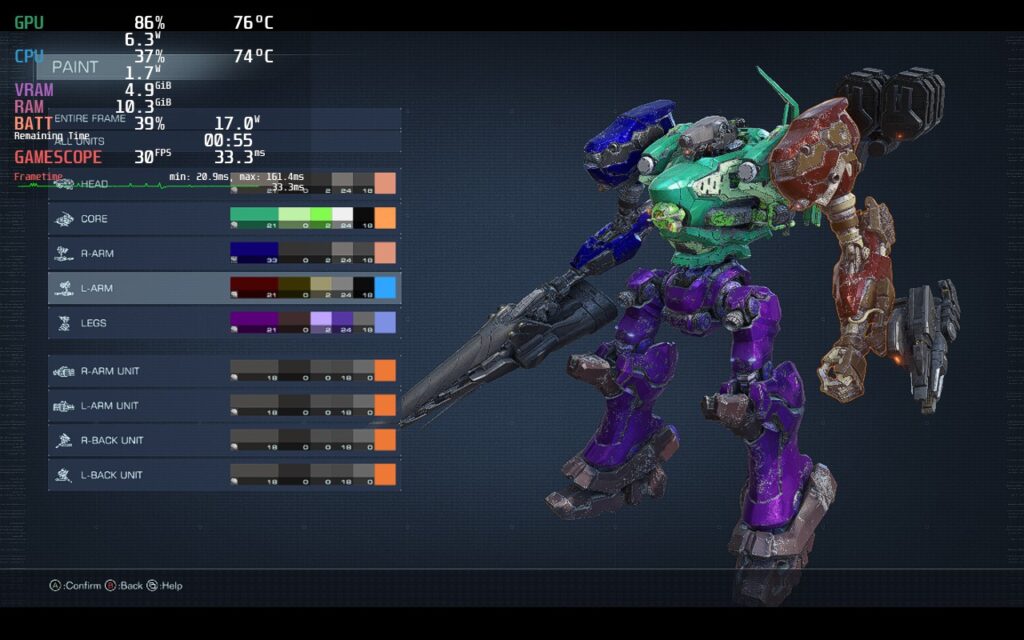
It has been ten long years since we last saw Armored Core, and I can't explain how good to play the third-person mech shooter again! Armored Core 6: Fires of Rubicon is a fantastic return to a franchise that has been dormant for too long. FromSoftware is known for creating the souls-like genre and, with the lessons they’ve learned creating Dark Souls and Elden Ring, they have mixed the customizability and multi-directional combat in and created something magical.
The highlight of the game is easily the combat and how you can change it through the way you outfit your mech suit. On the field, you will be able to fluidly move in all directions while automatically locking on to enemies and shooting with one of 4 weapons you equip. These can range from plasma rifles and swords to machine guns and bazookas. You can control all four weapons at the same time and you can buy new weapons and gear from the parts shop using money you get from missions. The combat is addicting and feels fantastic. And with explosions and attacks that are flashy, you create these cool-looking moments that keep you in the zone.
As for the story, it is primarily told through missions that are given in chapters. As you complete more missions, you unlock new ones and you can replay the older ones. Each mission either takes place in a different zone or has different objectives, but each feels really enjoyable to play with a story I felt engaged with as it progressed. You play as an unnamed merc who is fighting on the planet Rubicon, where different corporations and rebel groups are trying to secure the energy source called Coral.
Speaking of the missions, you can replay every single older mission and try to aim for a higher score or ranking. You can keep getting money from these replayed missions too, so if you gotta grind to get a specific weapon you want, you totally can. I found myself replaying missions to get money and buy specific weapons just to test out on bosses and see which builds work best on them.
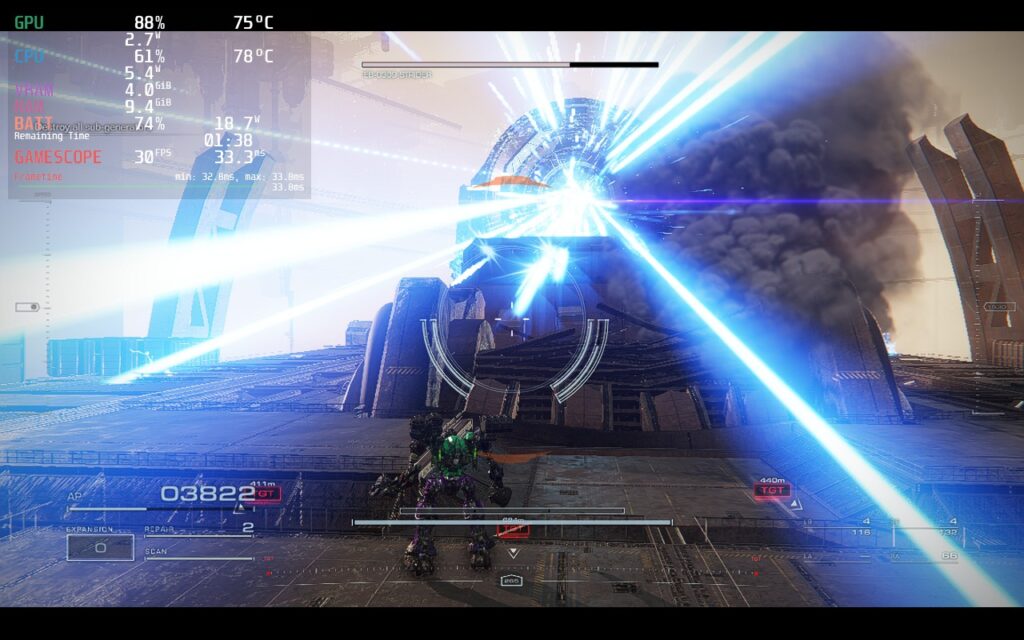
Armored Core 6 is at its best when you are flying through the air, shooting at enemies all around you, and playing around with different builds to see what weapons and armor combos work best for you. Thankfully, this is the bulk of the game. The game is streamlined to get you in missions fast with little-to-no bloat and it works wonderfully. And with the right settings, playing on the Steam Deck is a fantastic way to enjoy the fast-paced mech shooter.
Armored Core 6 on the Steam Deck is a bit of a wildcard at times, but it can be stabilized with some compromises. In some missions, and in closed areas, the game can run extremely well, hitting an almost solid 50 FPS. This is really awesome, but it doesn't hold throughout. In larger missions with open areas, the game will consistently drop down to the mid-30s, even on low settings. I went even further down and set the resolution at 800x450 with low settings and the large areas couldn't consistently break 40 FPS.
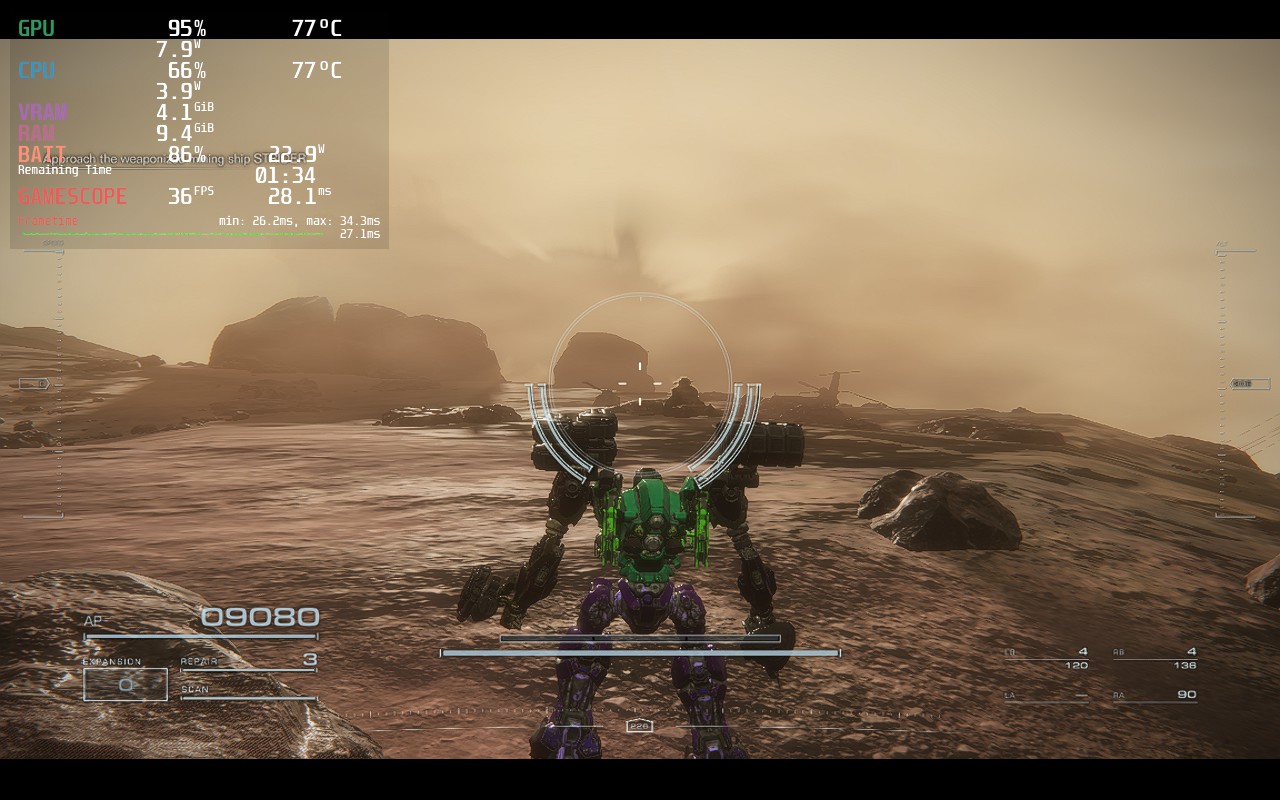
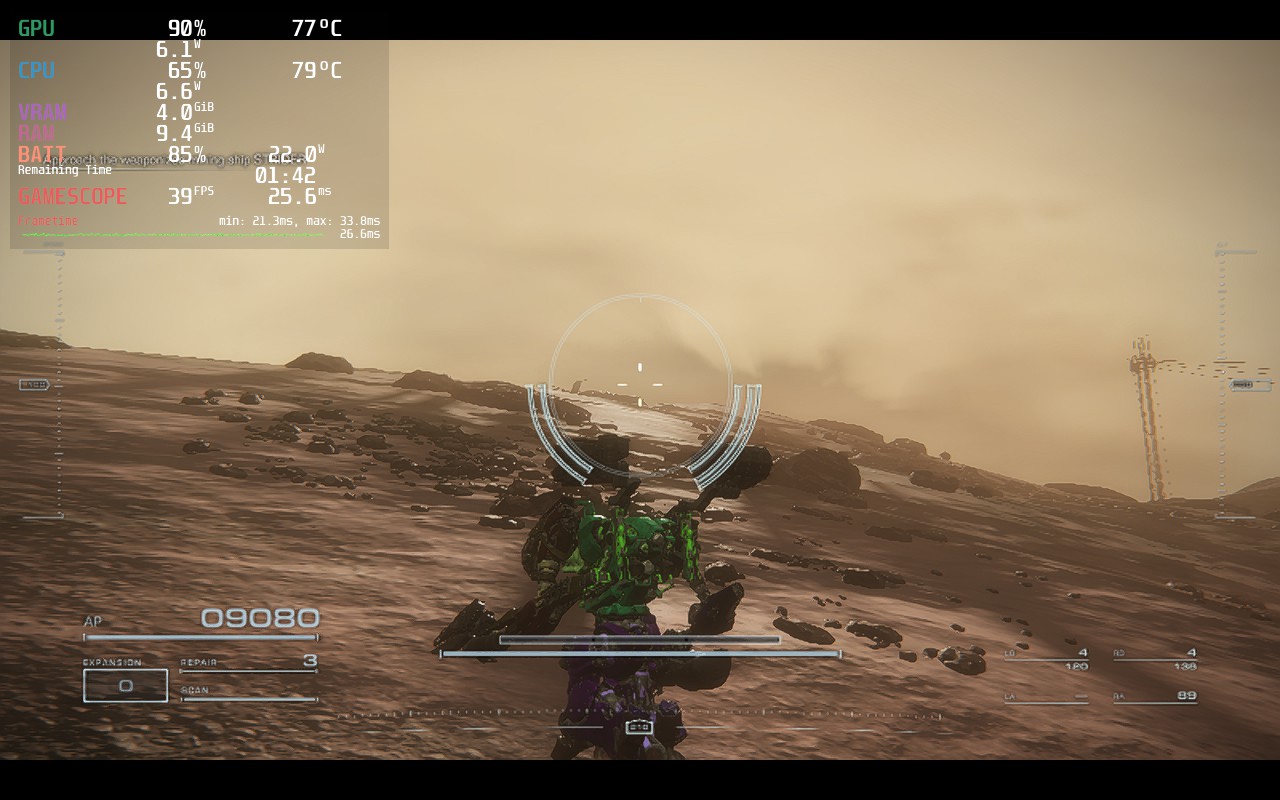
Due to this and the consistency of these missions, I elected to stick to a 30 FPS lock. For some missions, you will be able to set it at 45 or 50 FPS and be able to hit it, but for a solid experience throughout the game, 30 FPS is going to be your way to go.
With a mix of medium and low settings, 1152x648 resolution, and SteamOS FSR, we can get a near-solid experience that looks fantastic and plays well. There are a couple of drops here and there when there's too much going on near you, but these are far and few. I found that we can also set a TDP limit of 11 to make sure the battery drain doesn't drain too much.
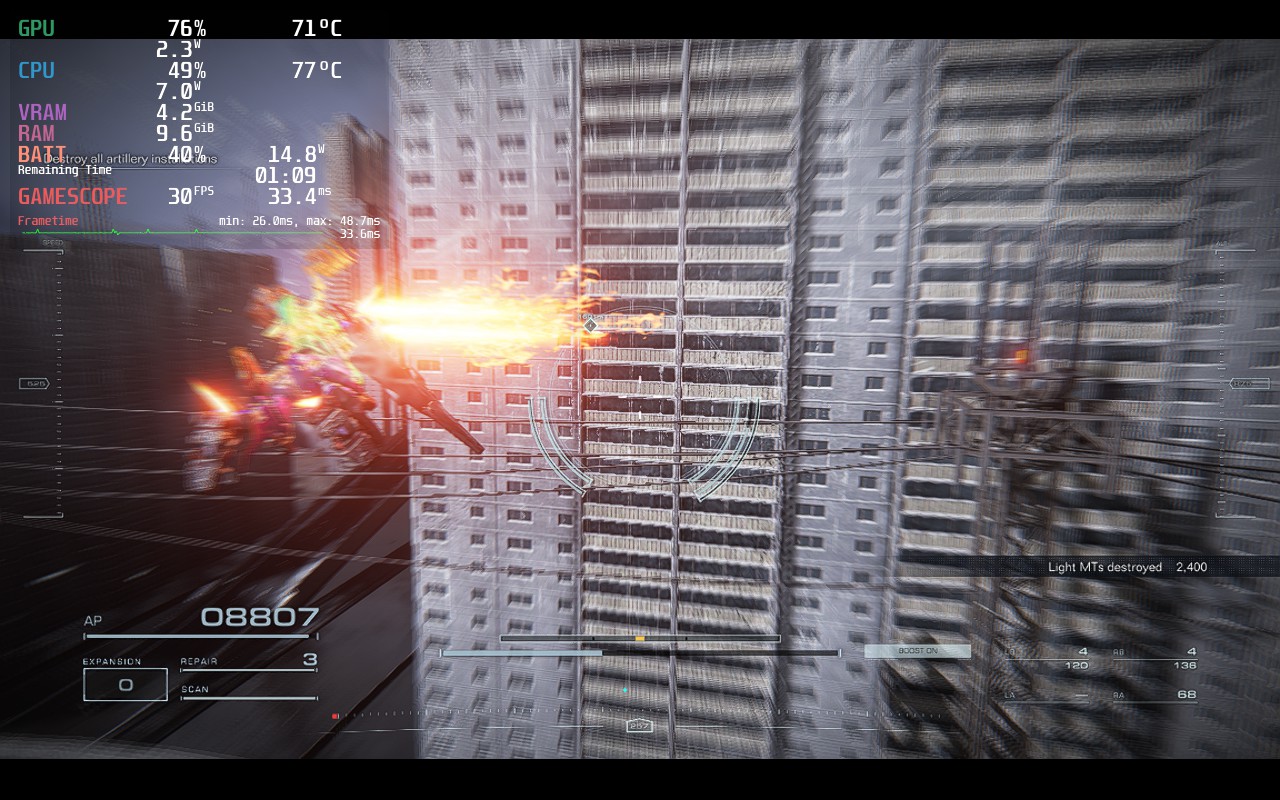
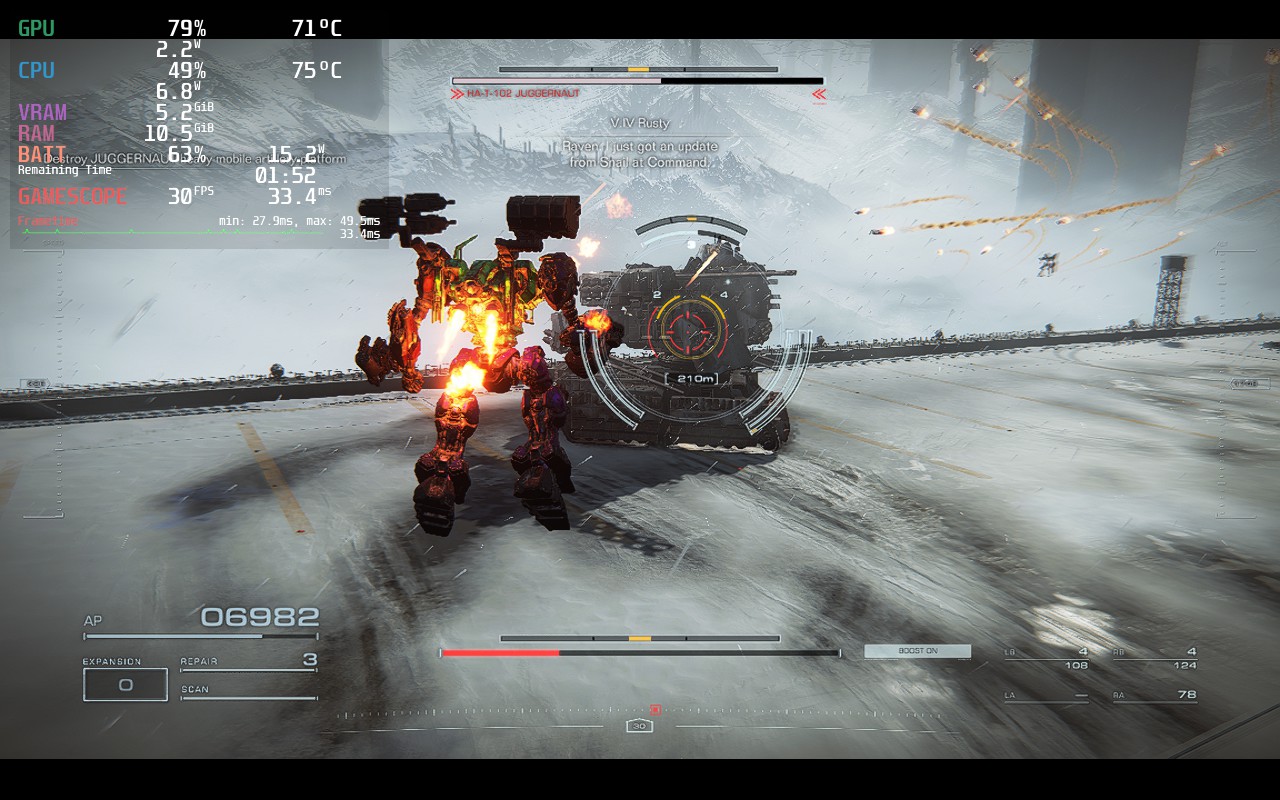
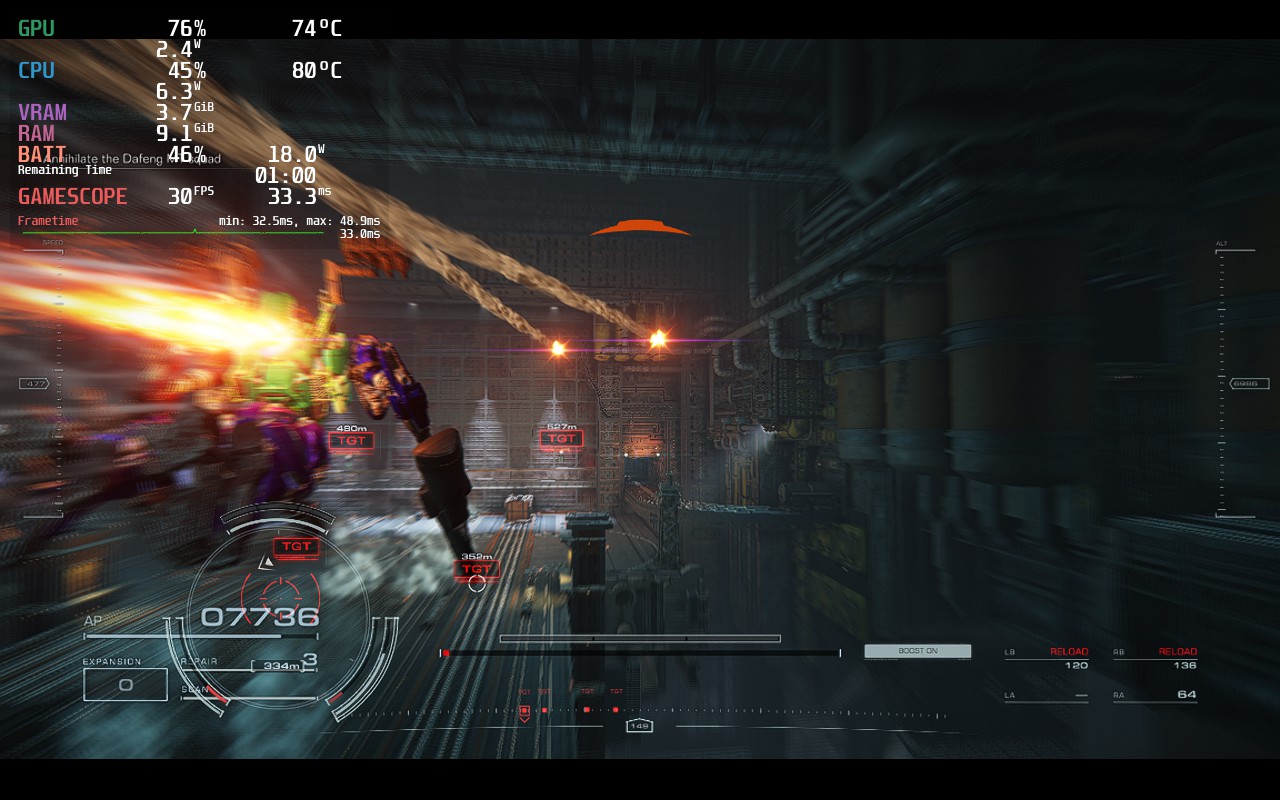
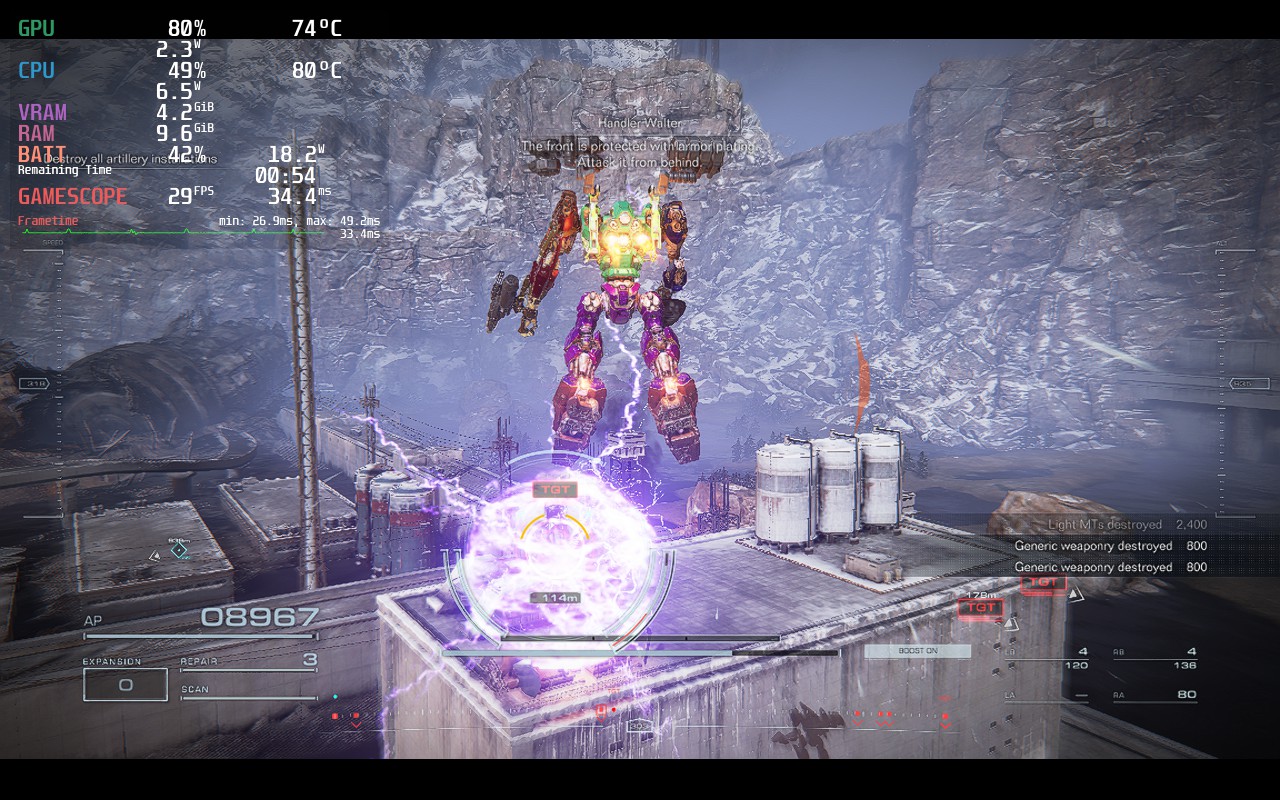
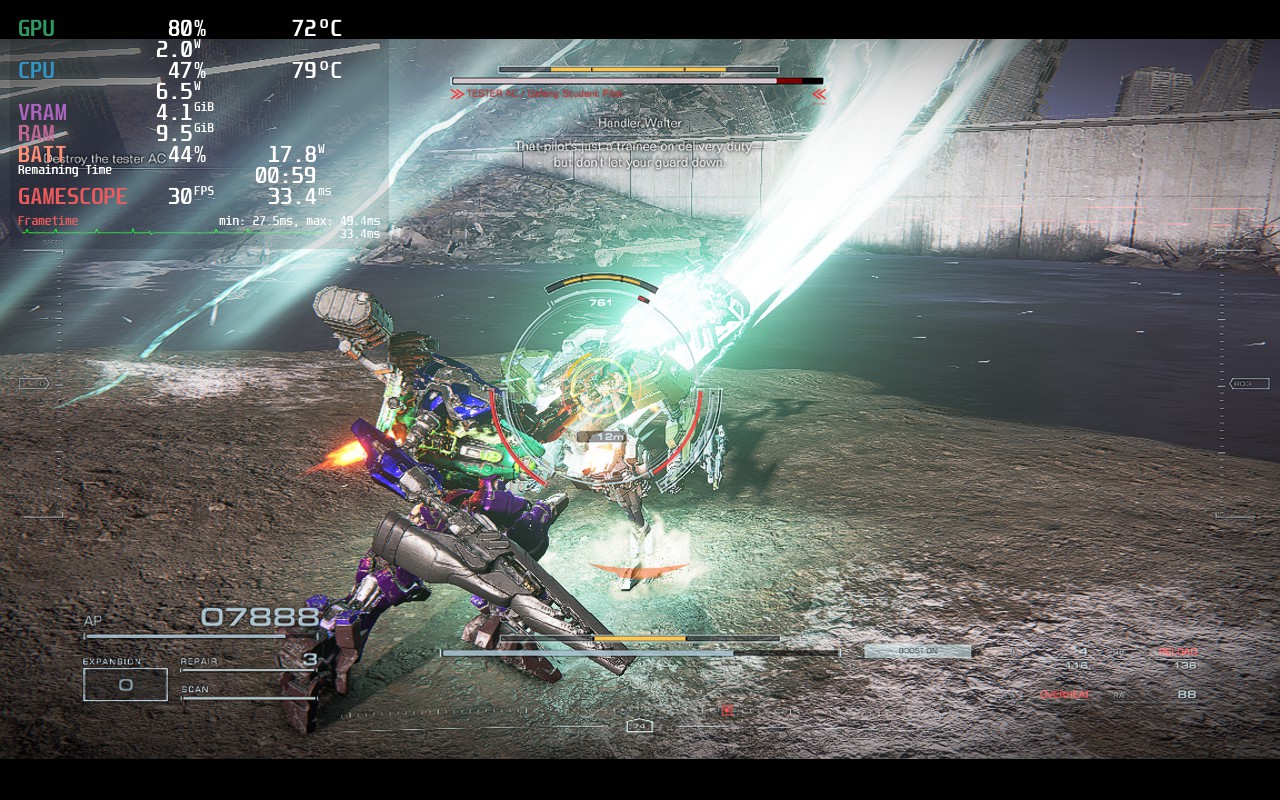
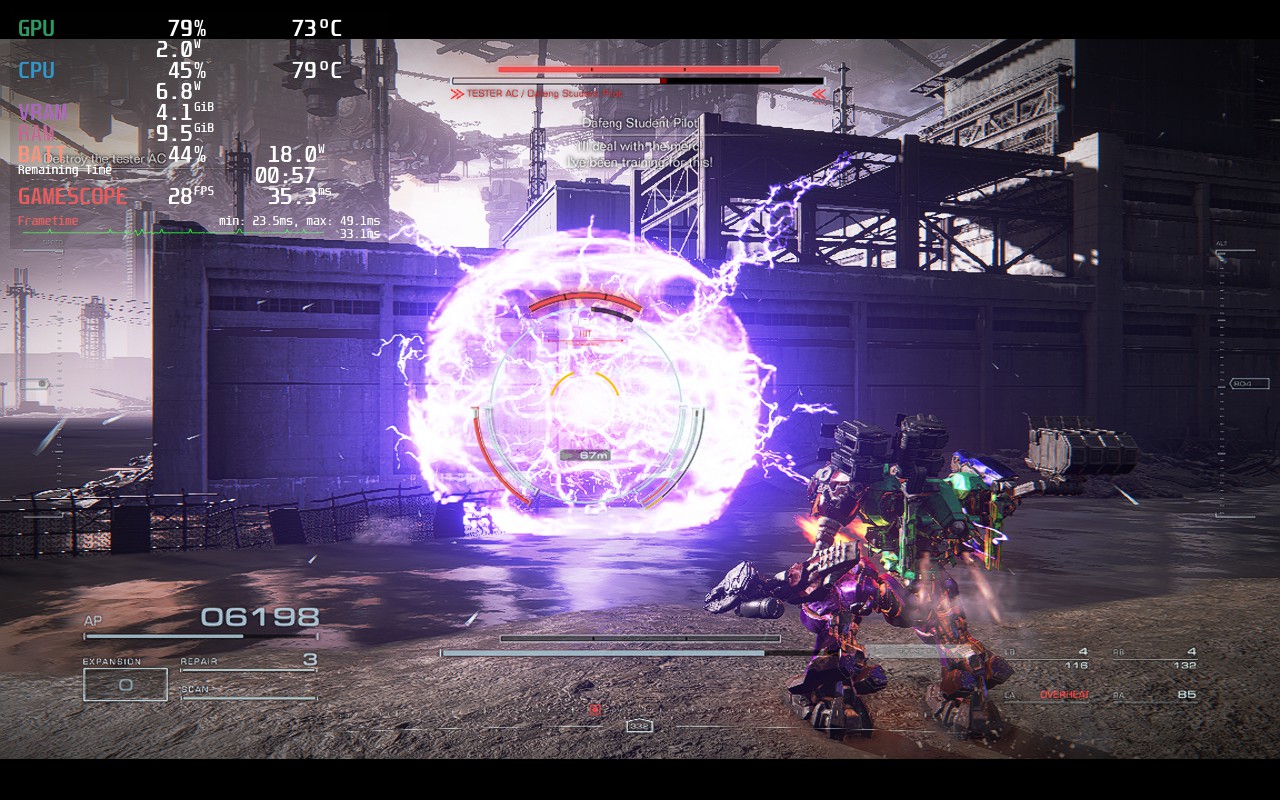
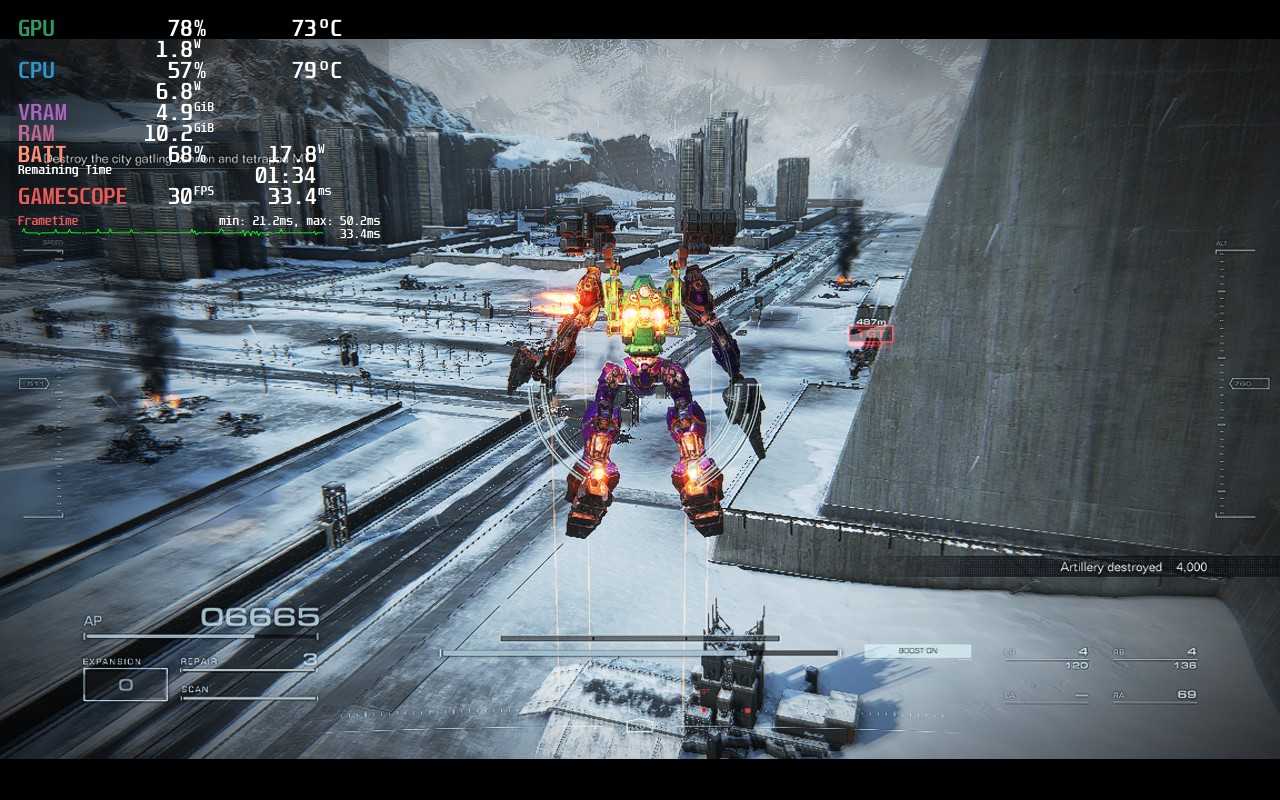
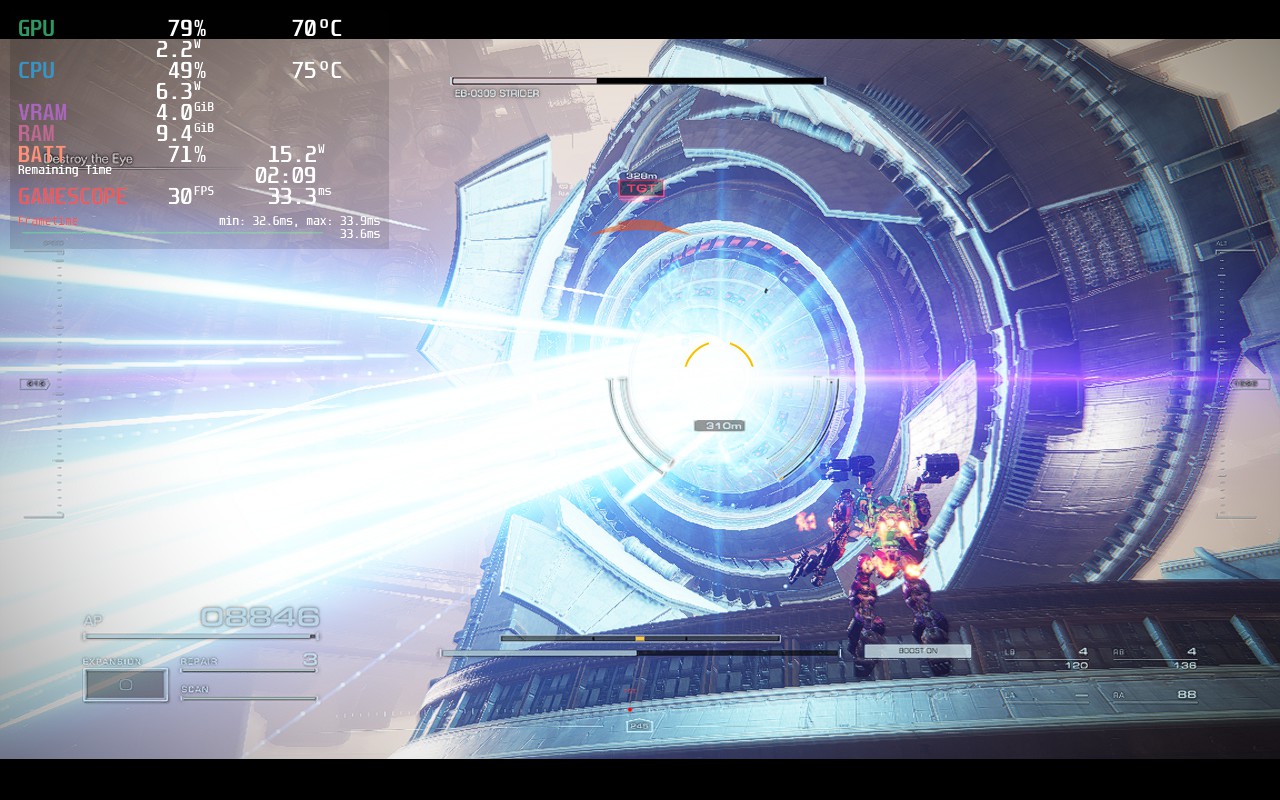
Since anything above 40 FPS isn't going to be stable throughout the game, I can't recommend a build that would include it. If you want to play at a higher framerate, I would just use this same build and remove the TDP limit. You will get a solid 40-50 in some missions, but others will drain it. I feel this build is a great balance between quality, solid framerate, and battery drain when taking into account how big of a game this is.
Armored Core 6 doesn't support 16:10 resolutions, but it does have full controller and cloud save support.
Armored Core 6: Fires of Rubicon is an incredible game that feels best when you have perfected your build and can see it in action through the combat. It’s epic to be able to fly around the battlefield in all directions while shooting and slashing the enemies. Pair it with the streamlined style to just get you in to the battles, as well as an awesome customization system, and you have a recipe for an addicting game well worth your time.
On the Steam Deck, there are some compromises that need to be made, as well as a 30 FPS lock, but even with these, the game feels and looks incredible. I was in the zone, destroying mechs, getting destroyed by bigger mechs, and customizing my suit without feeling much compromise. Overall, this is an amazing game to play on the Steam Deck and definitely worth your time.
If you enjoyed this review, check out the rest of the content on SteamDeckHQ! We have a wide variety of game reviews and news that are sure to help your gaming experience. Whether you're looking for news, tips and tutorials, game settings and reviews, or just want to stay up-to-date on the latest trends, we've got your back!
Atlas Fallen was provided by Focus Entertainment for review. Thank you!
Earlier this year, I had the incredible opportunity to go to PAX East and it was there that I played Atlas Fallen for the first time. I left feeling quite excited for the game, the action, world, and story intrigued me. There was a lot to look forward to and after talking to Deck13 and Focus Entertainment reps there, I left feeling confident that not only would this game be one to really enjoy, but also one that will be at least decently playable on the Steam Deck. Now that the game is almost here, and I had the chance to play through and review it, I have a bit more to say on the game.
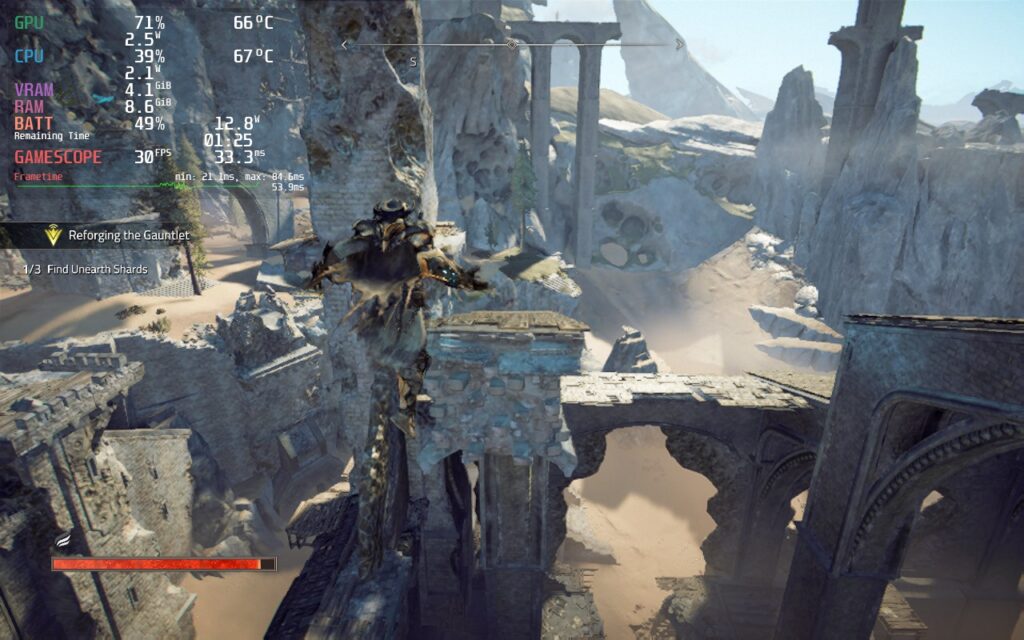
Atlas Fallen is a large-scale Action RPG where you will surf across the sands to face ancient dangers, hunt monsters, and become the ultimate champion. After playing through the game and being able to experience what it has to offer, I feel it did a great job creating an addicting and enjoyable adventure, even with a couple of hiccups.
The story of Atlas Fallen is passable. You are a random person that is able to wield a powerful gauntlet, infused with enough power to rival Thelos, the god-like antagonist of the game. The narrative is told through cutscenes, dialogue, and journal entries you find throughout traveling. While I didn't find the story to be anything ground-breaking, I did enjoy the journey. Traversing around the world is pretty fun as well and sand surfing is the real highlight of this. Finding slopes to surf down and accelerate to go as fast as possible is a ton of fun. Though at times, the world itself did seem a little bland and bare at times. Luckily, there are side quests and random chests to find, but it didn't do much to change the overall feeling of the world.
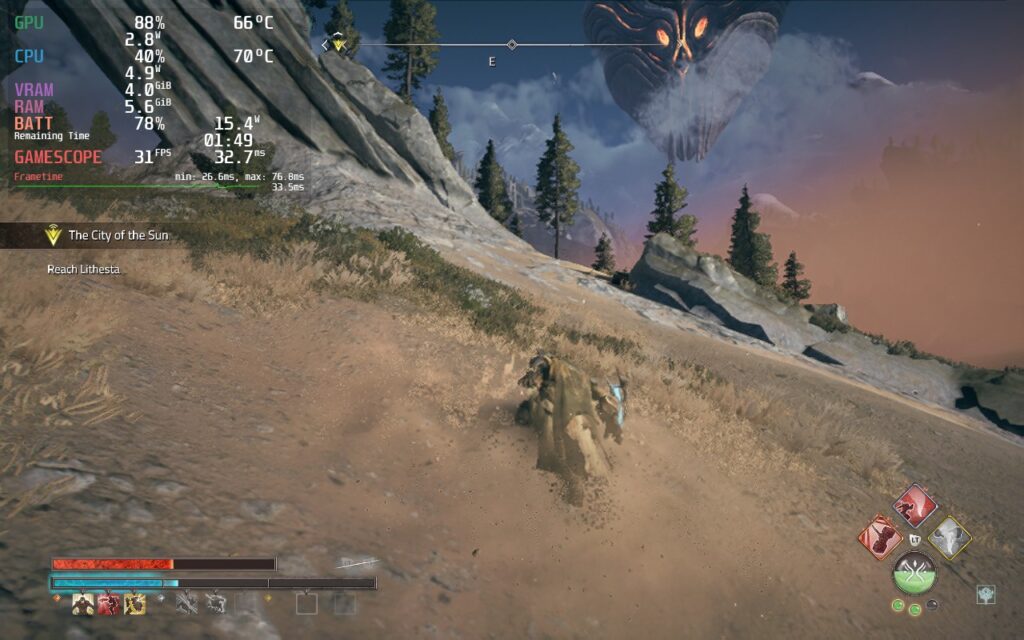
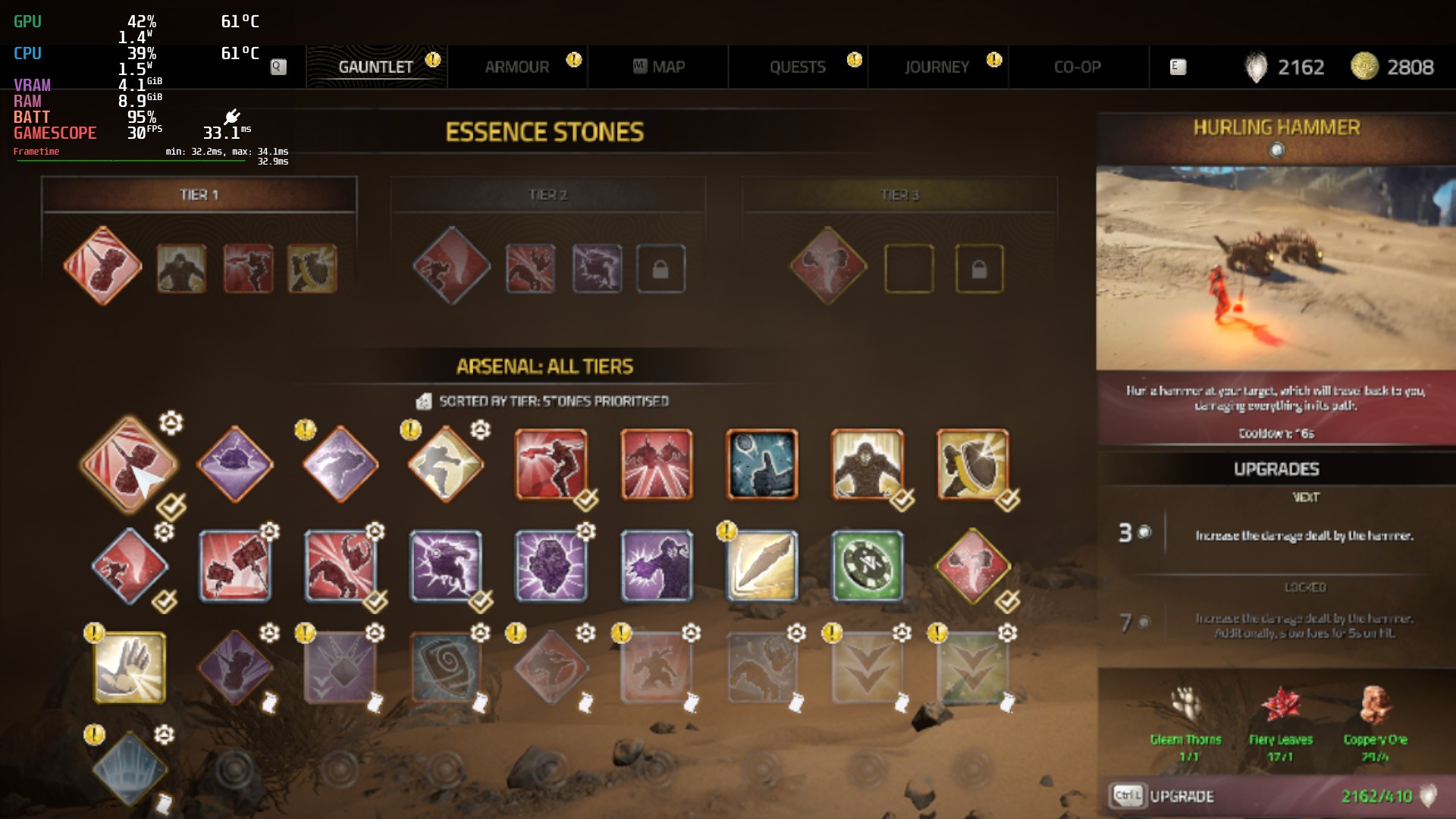
The combat is where things got really fun for me. While the fighting can feel a bit slow at times, wielding gigantic, shape-shifting weapons is a blast. I loved being able to swap between two different styles at once, with each having their own strengths and weaknesses, and watch them grow the more you fight with the Momentum Gauge, which fills up as you attack and land hits. As it fills up, you will be able to execute different special attacks and get passive bonuses, which you equip using Essence Stones. You can also execute a Shattering Strike, which drains the Momentum Gauge for an ultimate attack.
Deck13 found a nice balance of simple mechanics and deep customization here. The Essence Stones are great for fine-tuning your build, while a lot of the stats like attack power, defense, and your shatter power, are tied to your armor. Your armor can be upgraded, which gives you perk points to further passively make your character more powerful. I also really like the blocking mechanic included here. You can dodge enemy attacks, but if you block at just the right time, you can crystalize enemies and bosses, making them vulnerable to attacks for a little. Blocking doesn't interrupt the flow of your attacking either, so you can attack, block, and attack without the flow ever ceasing.
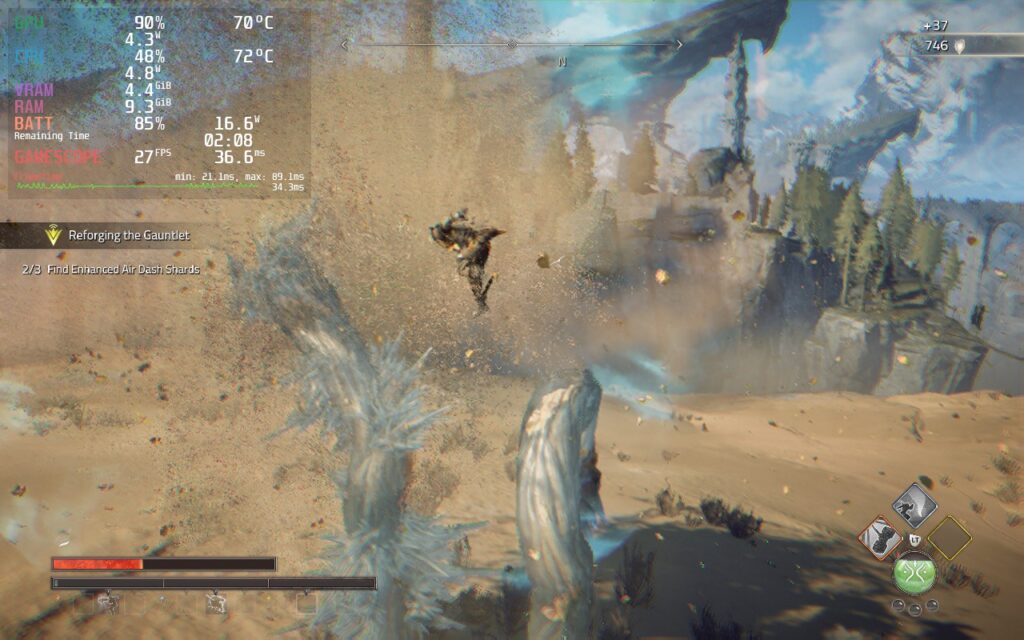
Even with the little nuisances here and there, and an ok story, I really enjoyed Atlas Fallen. It didn't break any molds or try to get too crazy, but it added some nice mechanics that gave it a nice balance between too simple and too complex. There's something addicting about gaining momentum and turning your axe into a gigantic axe that can just demolish multiple weakpoints of a big boss in one swing. I had a lot of fun playing, and while I didn't get to try it, I can only imagine playing the whole campaign in co-op will be even more fun! Though, if you're going to play on the Steam Deck, there will be some compromises that need to be made.
There are a couple things I found a bit odd when it comes to Atlas Fallen performing on the Steam Deck. First, the game settings have a couple of unique settings. For instance, there are separate window and resolution size options, as well as different intensity level sliders for post processing effects. The resolution size changes the game's rendering resolution, while the window resolution changes some of the text size (but not all). While the intensity sliders did change some of the visual effects you see, though for my enjoyment, I elected to keep them lower as it did help performance enough to justify.
Atlas Fallen also has FSR 2 that only works if both resolution and window size are 1280x800, but it doesn't help performance as much as just changing resolution size down while keeping window size at 800p. I also found that while changing resolution down helps performance significantly, it didn't change visuals as much and kept things looking relatively okay. The biggest change from this settings is text legibility for essence stones, armor details and quest text.
In the beginning, Atlas Fallen runs pretty okay. Keeping it at a solid 30 FPS, and even getting to 40, was very possible. But as I played the game more, and the world started to open up, it became harder to run. With this being a gigantic world that you can traverse quickly, there are some slowdowns when going around to new areas too fast. If you are running or surfing around in the immediate area, the game will keep a consistent rate, but other than that, it will slow down a bit as it loads in new areas.
I have also seen some framerate drops when in some combat scenarios. Fighting a gigantic enemy is usually okay 1v1, but when other enemies show up, and they all start using moves that kick up sand, it can start slowing down a bit.
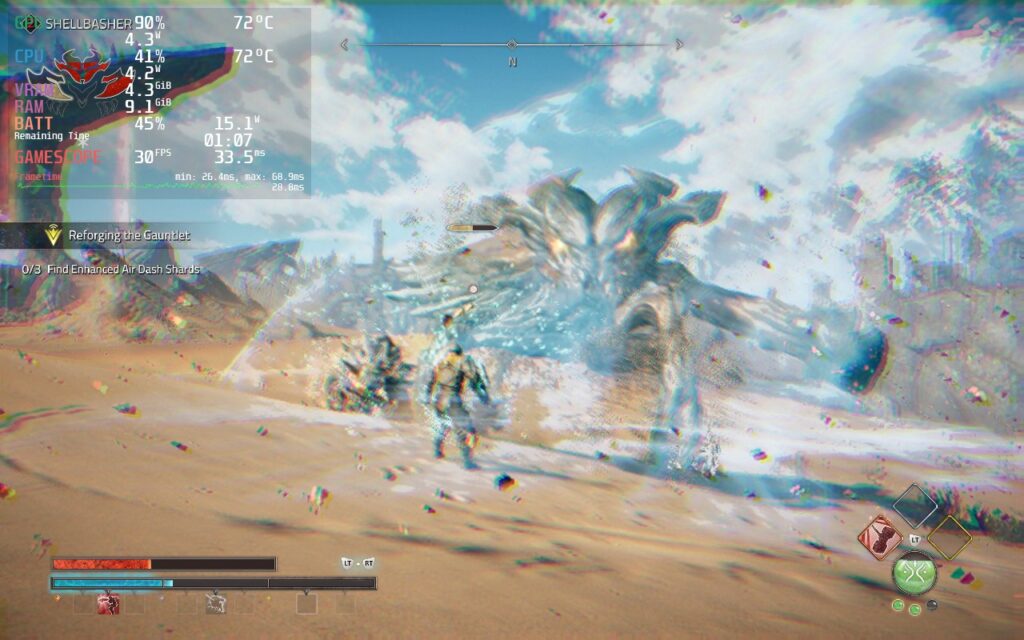
In my opinion, these drops seem to be engine or game-related and not the Steam Deck's fault. I noticed that, whenever there were drops, the battery drain of the Deck didn't spike and CPU, GPU, and RAM usage was under 99%. This leads me to believe something isn't optimized within the game, causing these issues (and I did see similar ones on the ROG Ally). I believe we could see a lot of this patched up and the shader cache could help iron out some stutters when loading in new areas, but only time will tell.
Without any caps, and everything on low, Atlas Fallen still has some trouble sticking to 30 FPS completely stable in the open areas, but when in corridors, caves, or confined areas, the game can hit higher framerates running around and in combat. So, due to this, I actually only have 1 build for the game. Hitting above 30 FPS isn't viable, so my build is a mix between battery and performance. I have the resolution set to 960x600 with the window at 1280x800, lower intensity post processing effects, and low quality settings. I do have textures set to medium as they don't affect performance as much, but do help the game's visuals a bunch.
These settings, with a TDP limit of 10, allow the game to stick around 30 FPS most of the time with a battery drain between 11W - 18W depending on the area. I also found Proton GE helped a little bit in some harder scenes to keep the framerate stable. With these settings, some text will still be small, but I found the performance improvements to be too great.
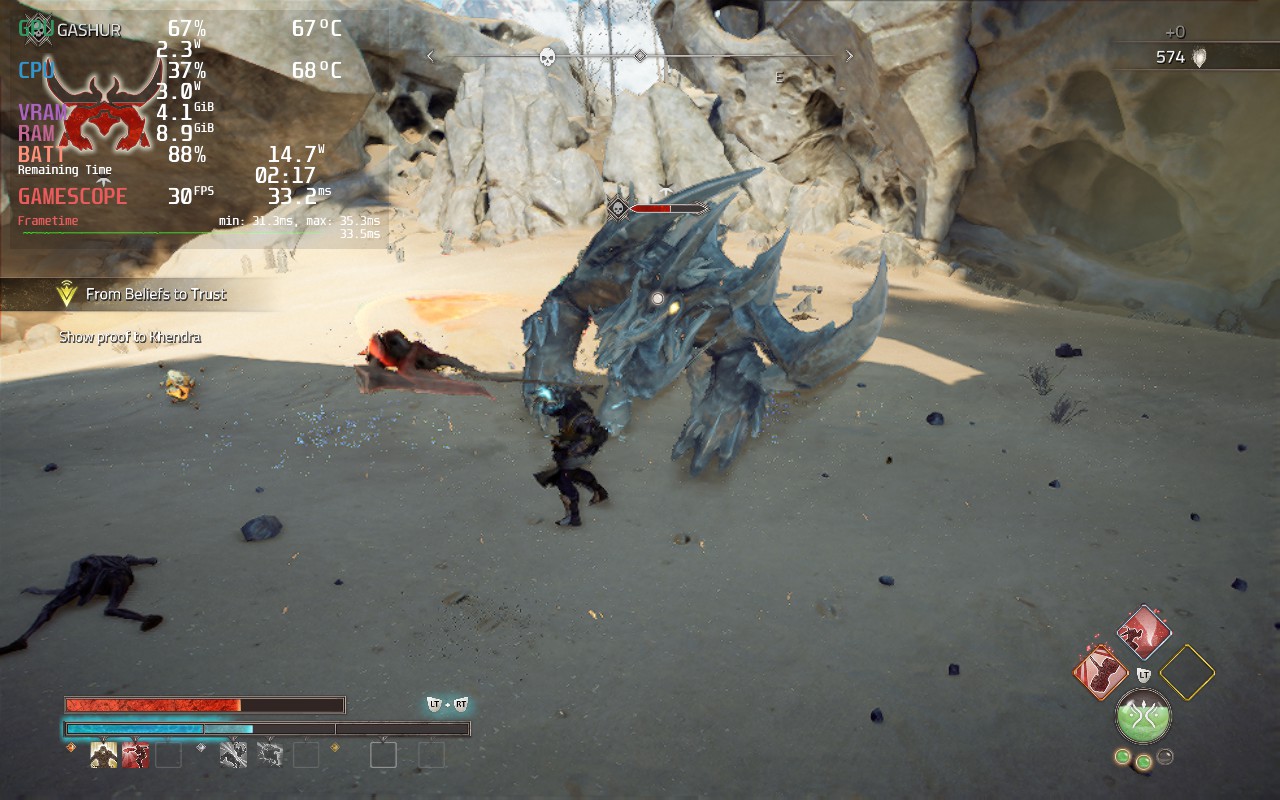
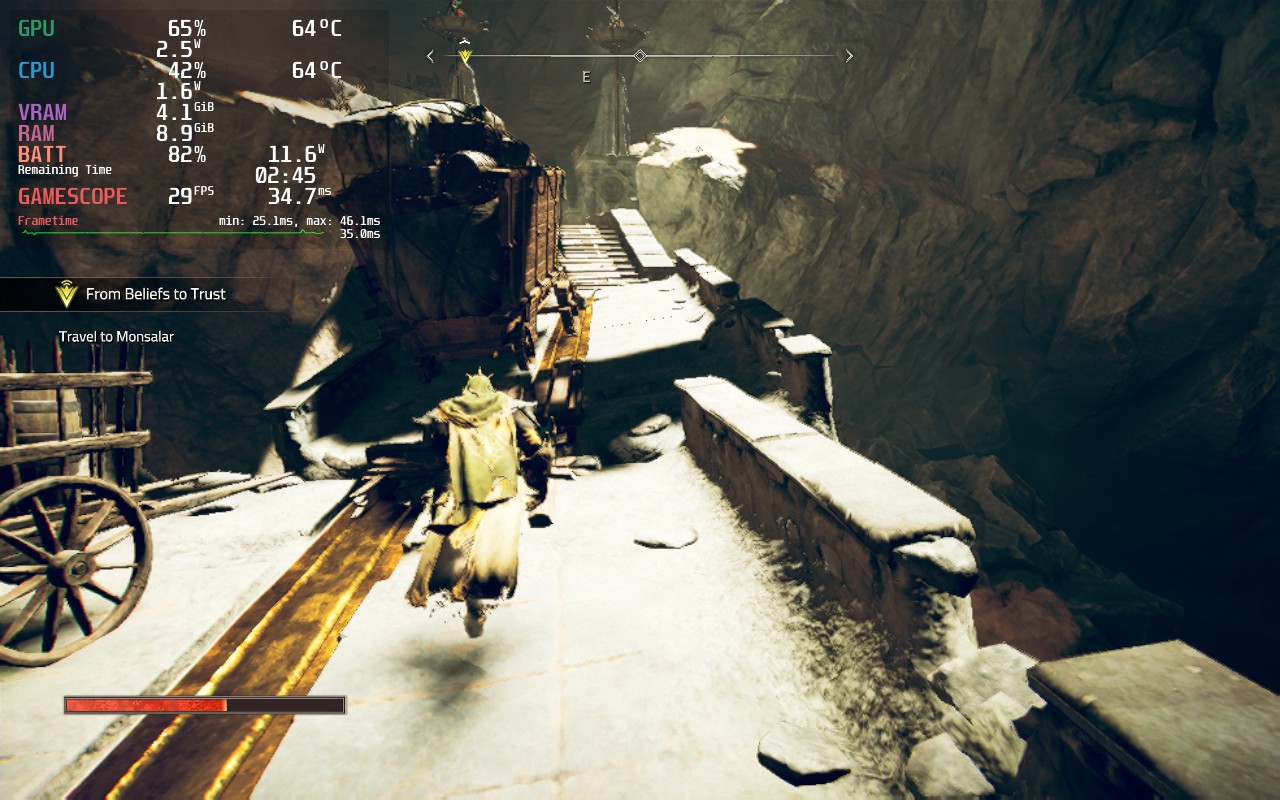
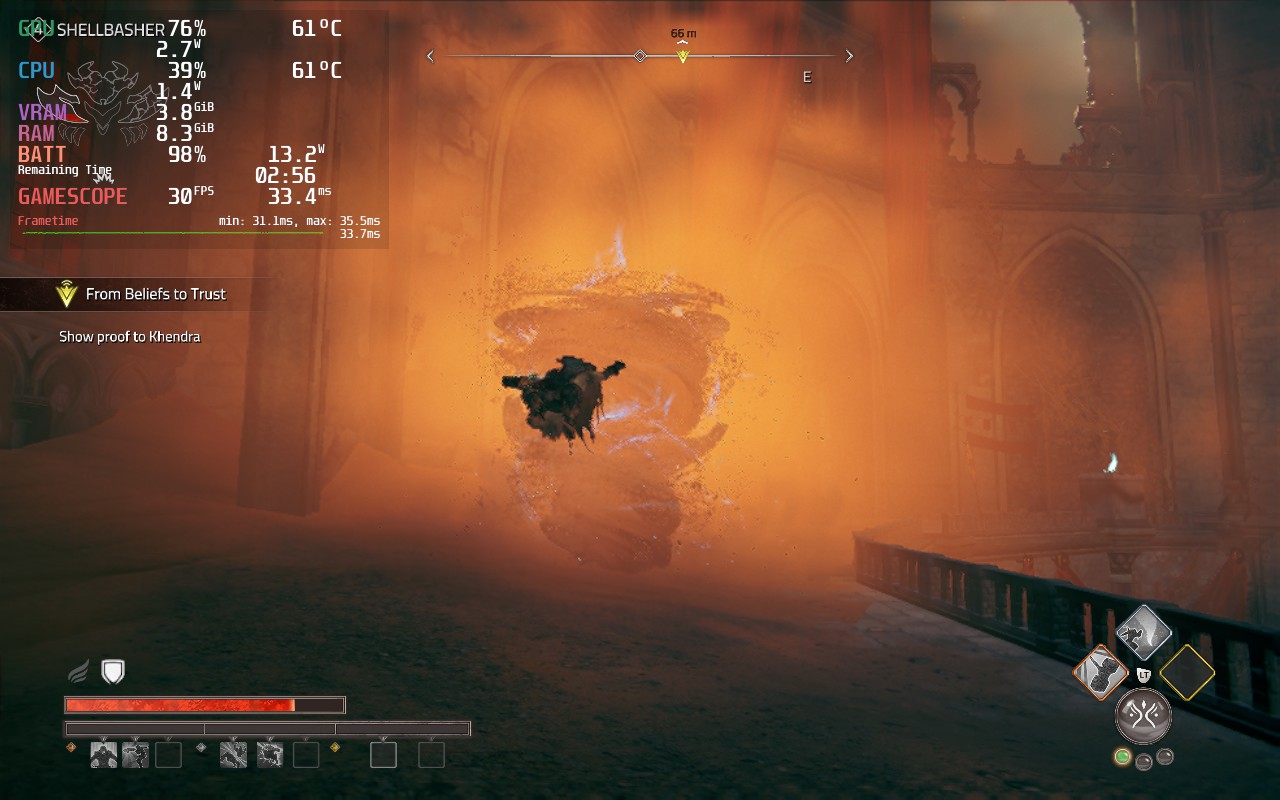
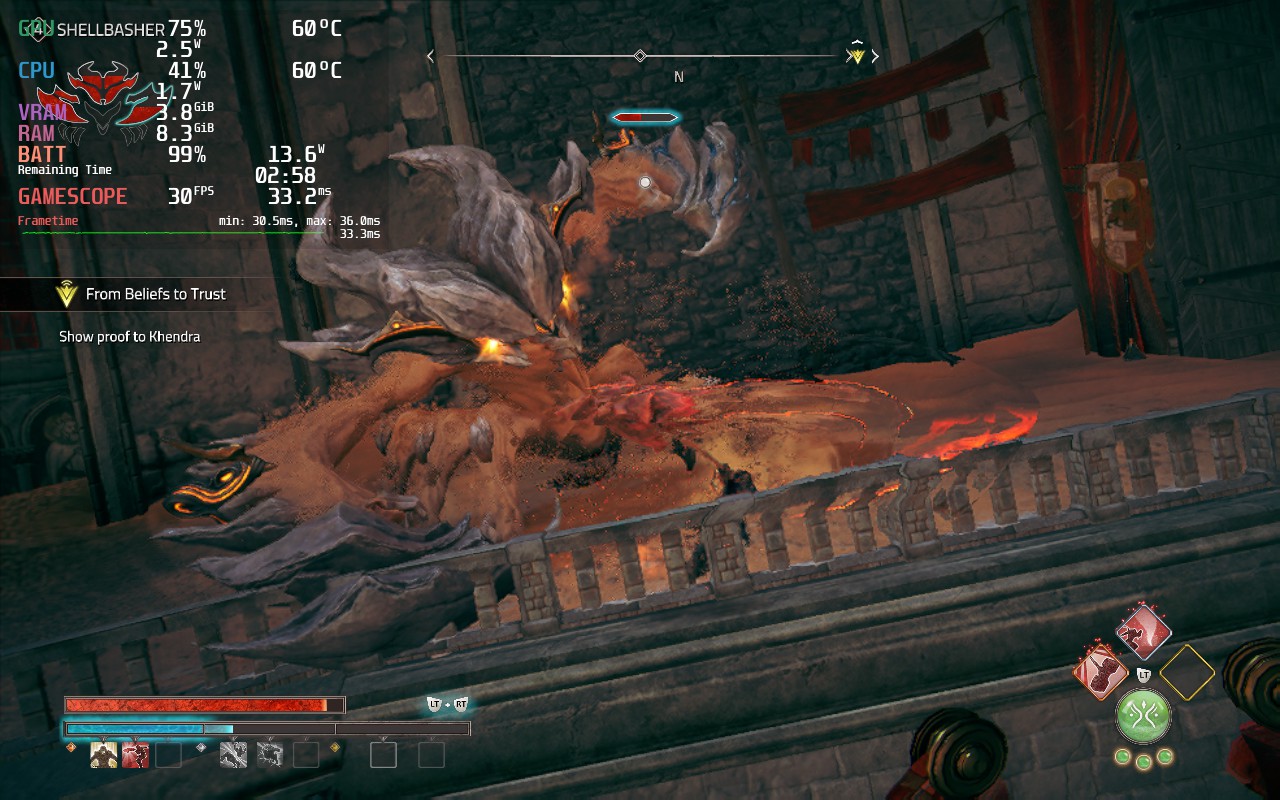
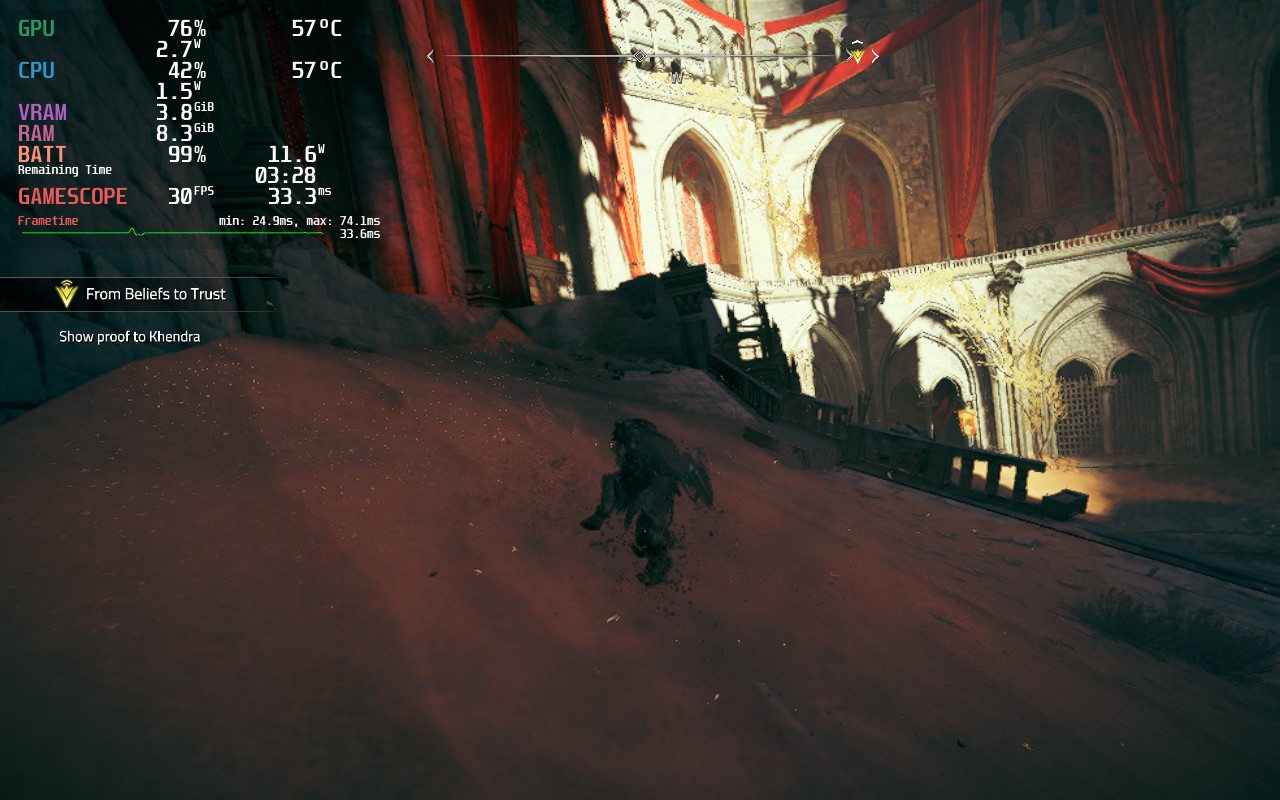
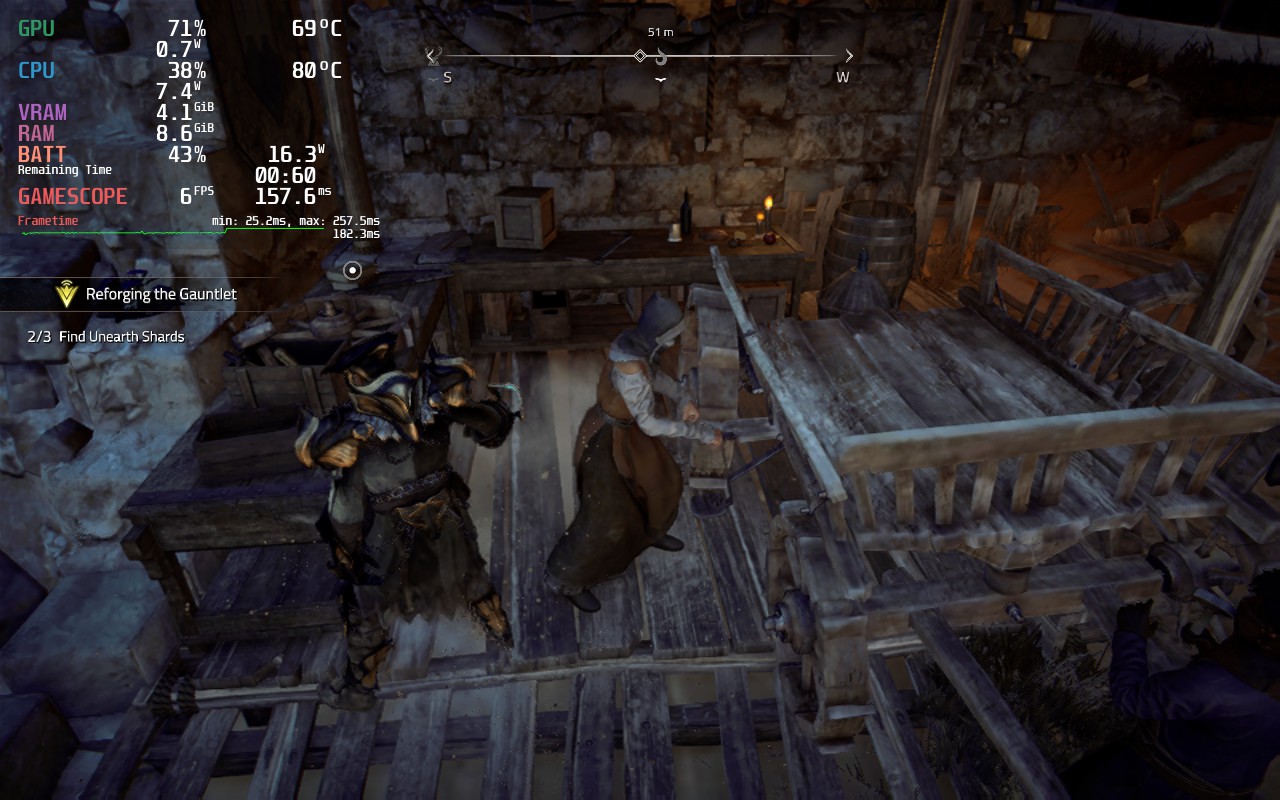
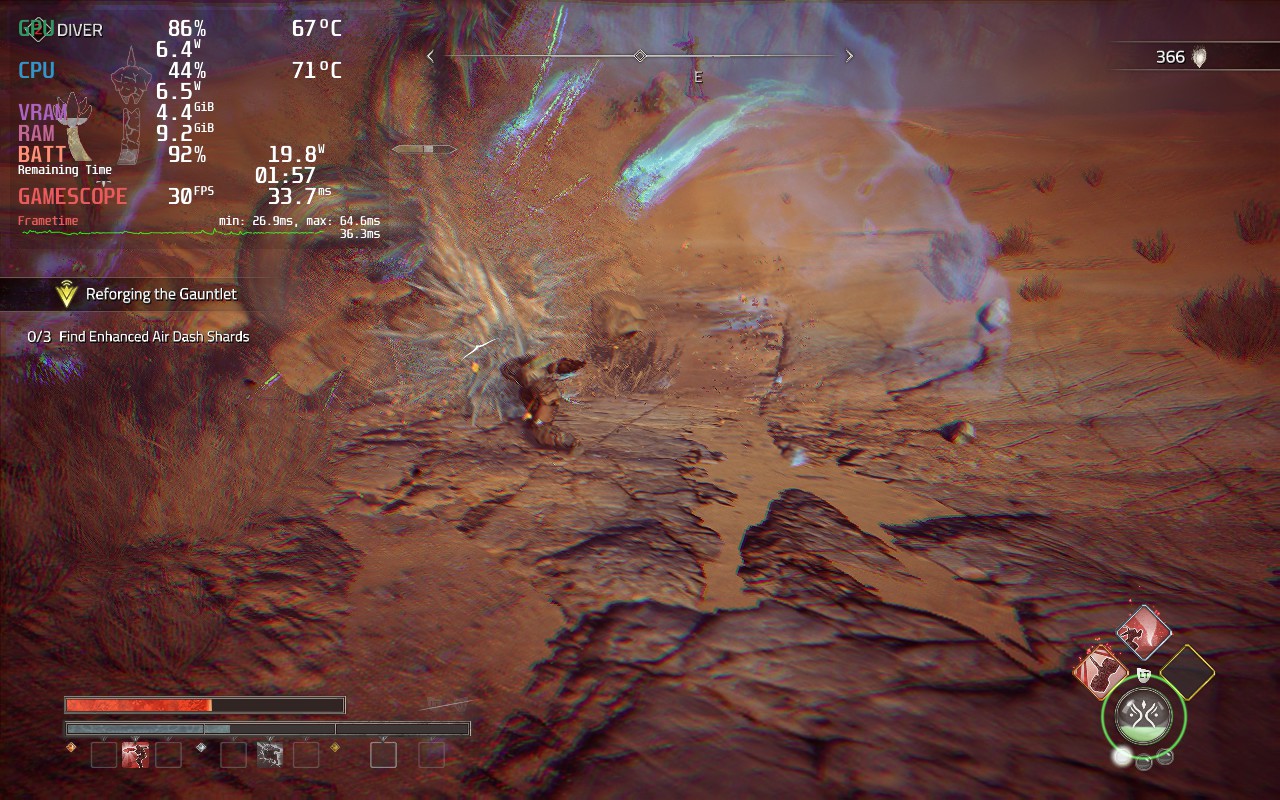
The game does have 16:10 resolution support, so there are no black bars, and has full controller and cloud save support. I did test the game with CryoUtilities and the UMA Buffer set to 4GB, but I didn't see any discernable difference with either of these changes. I did also test the DirectX 12 version of the game, but it wouldn't launch no matter which Proton version I chose.
Atlas Fallen is a solid action RPG that gave me a bit of a mixed bag at times, but I loved the mechanics. The story is alright and does have an interesting tale woven in the desert world, though it pales in comparison to other deeper stories. At times, the world can feel a bit barren and dull, but surfing and going down slopes at an accelerated speed can be really cool. Combat itself can feel a bit slow at times too, but there is something extremely satisfying when fighting bigger enemies, or many smaller ones, when your momentum gauge is filled and your weapon grows in size, hitting multiple weakpoints or enemies at a time.
I love the simple nature of the armor system, perks, and the momentum bar. Atlas Fallen does well balancing out its simple systems and makes each different set of equipment, weapon, and essence stone feel special and impactful. As a game, I really enjoyed Atlas Fallen, even with its faults.
On the Steam Deck, it was a bit hard to play due to some of the performance issues it has, but with the tweaks, it becomes a lot more playable. It isn't perfect and still has compromises, especially with some readable text, but it is playable. It is very possible some future patches and the shared shader cache can help with some stuttering going into new areas, so I will evaluate again in a couple days when the cache is built, but if you are buying or pre-ordered the game, this will be the experience you get out of the box.
このレビューはPC版に基づいています。
このレビューをお楽しみいただけたなら、SteamDeckHQ の他のコンテンツもぜひご覧ください!私たちはあなたのゲーム体験に役立つこと間違いなしの様々なゲームレビューやニュースを取り揃えています。ニュース、ヒントやチュートリアル、ゲーム設定やレビューをお探しの方も、最新のトレンドを知りたい方も、ぜひご利用ください!
Get ready to partake in the ultimate Lego Star Wars adventure! The Skywalker Saga spans all 9 of the mainline Star Wars films, allowing you to play through the entire series with over 300 characters, 100 vehicles, and 23 entire planets! The game takes a giant leap forward in Lego games in general with open-world gameplay, a new camera angle, side missions, upgradable abilities, and much more! If you're a fan of Lego games and Star Wars, this is the game for you!
Lego Star Wars: The Video Game was the first Lego game I played and it still sticks with me today. I fell in love with the gameplay and, being a fan of Star Wars already, it was awesome to experience the world in this way. Now, The Skywalker Saga takes that gameplay to a gigantic new level and MAN is it great. I absolutely adore the changes they have made with this entry and hope this is something they stick with for future releases. I can go on and on about this, but I believe a first look on the Steam Deck is in order!
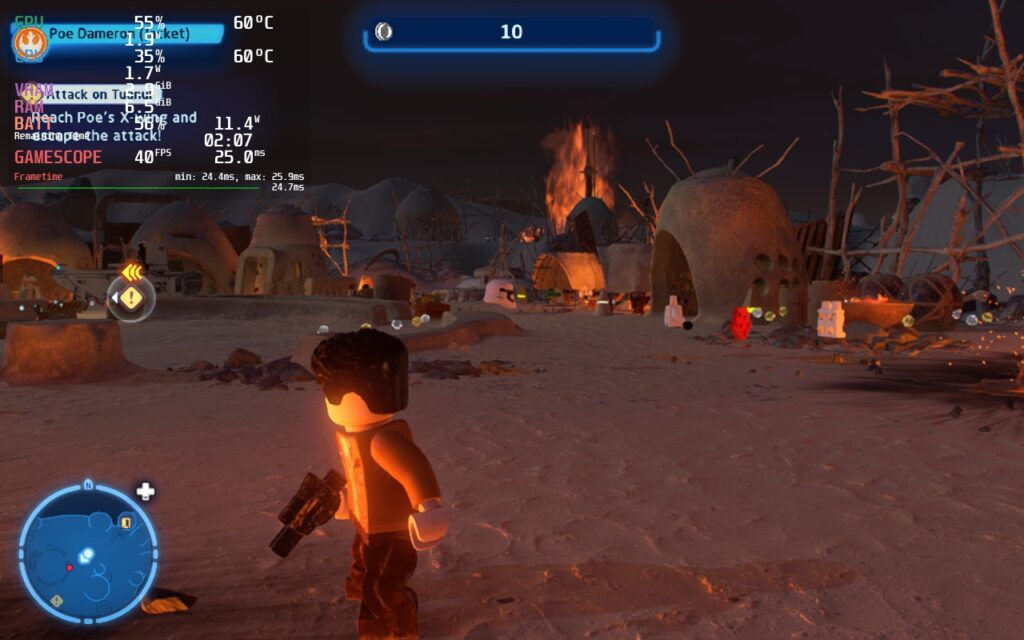
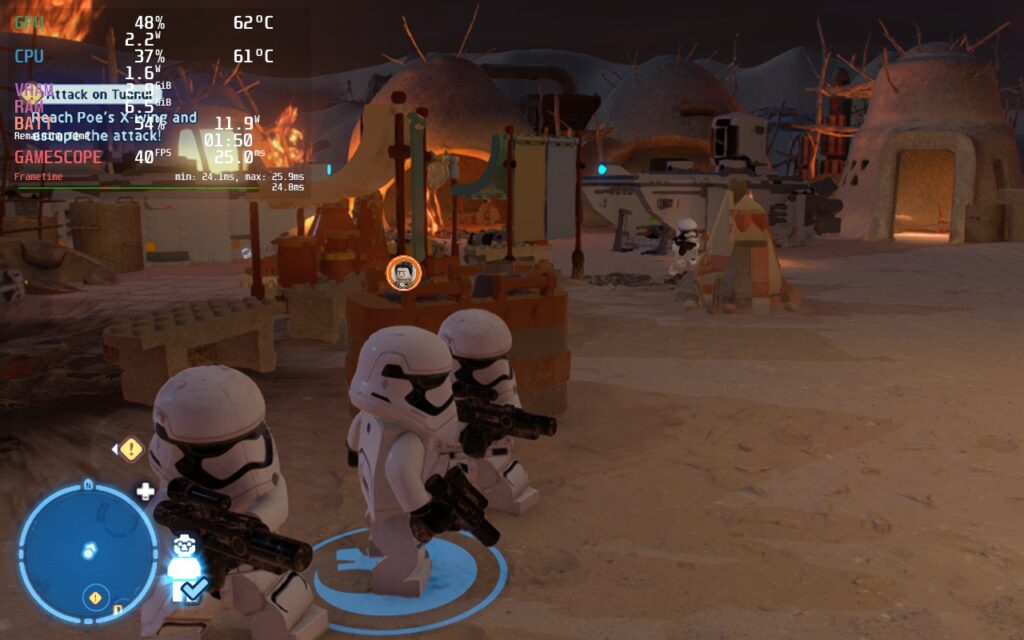
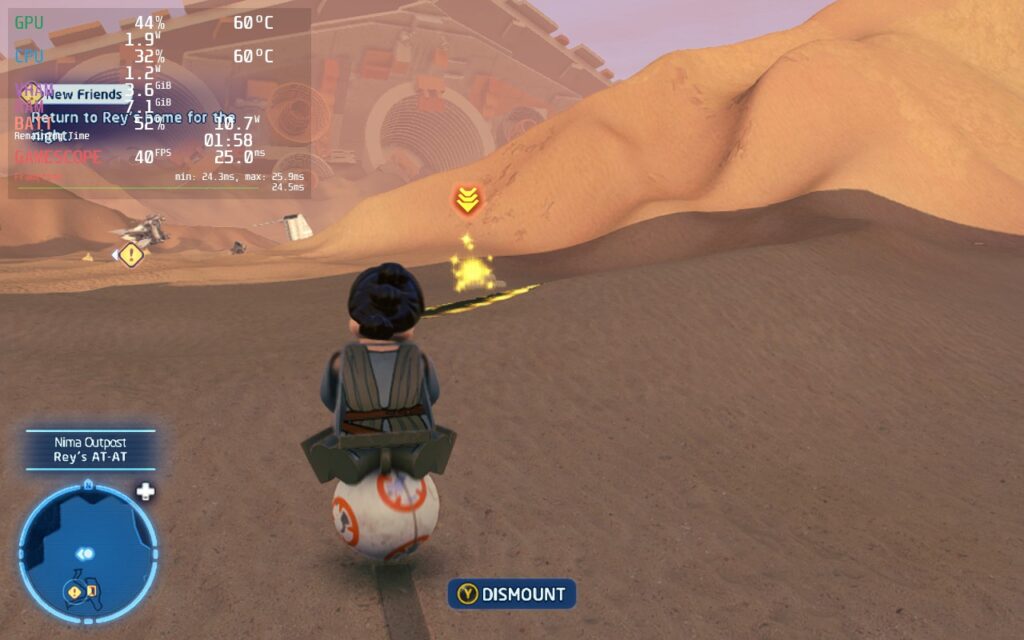
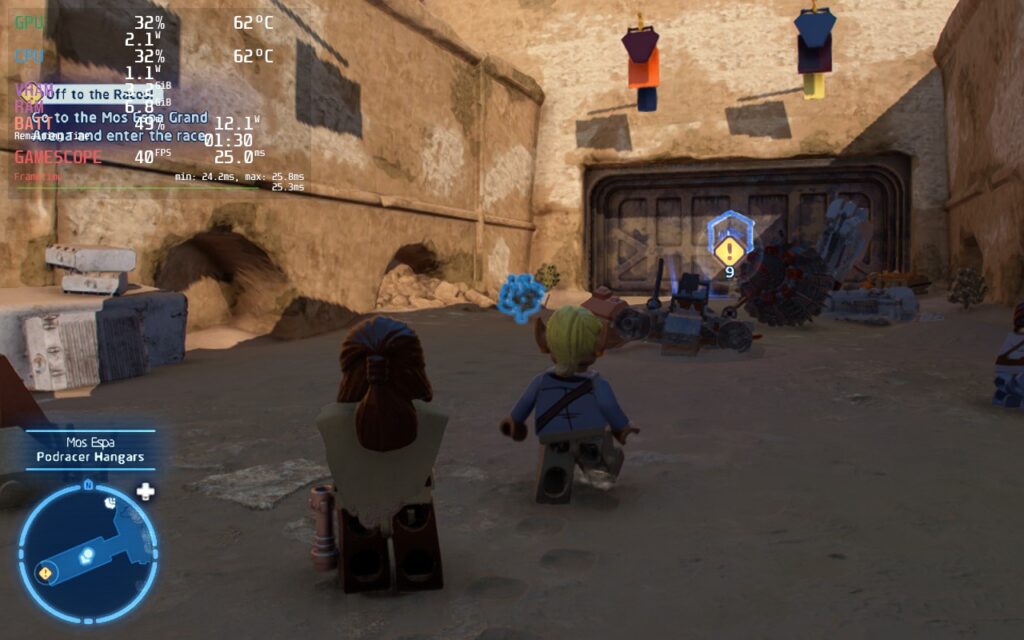
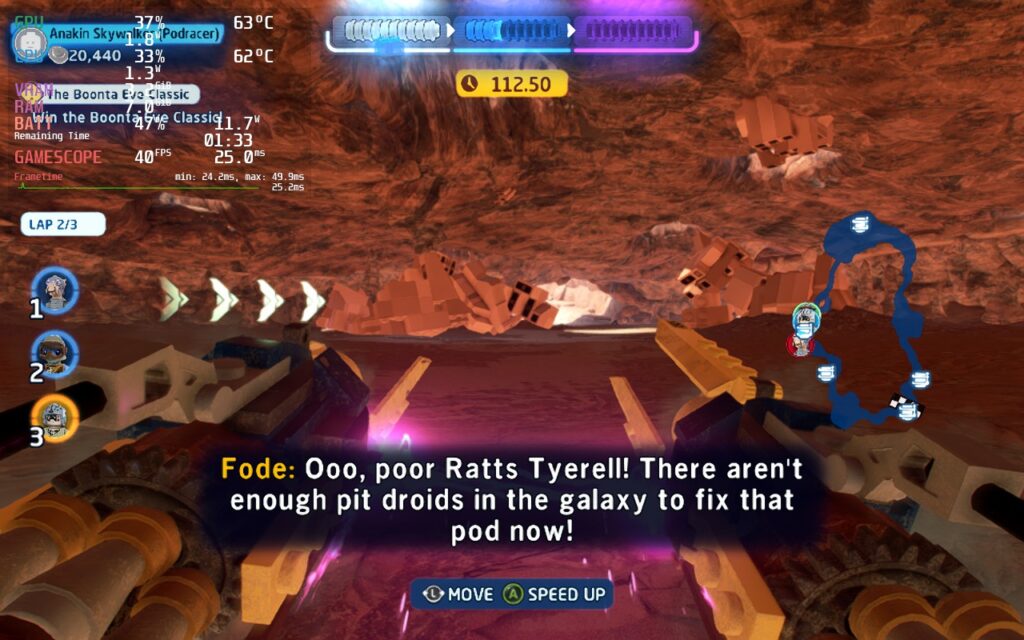
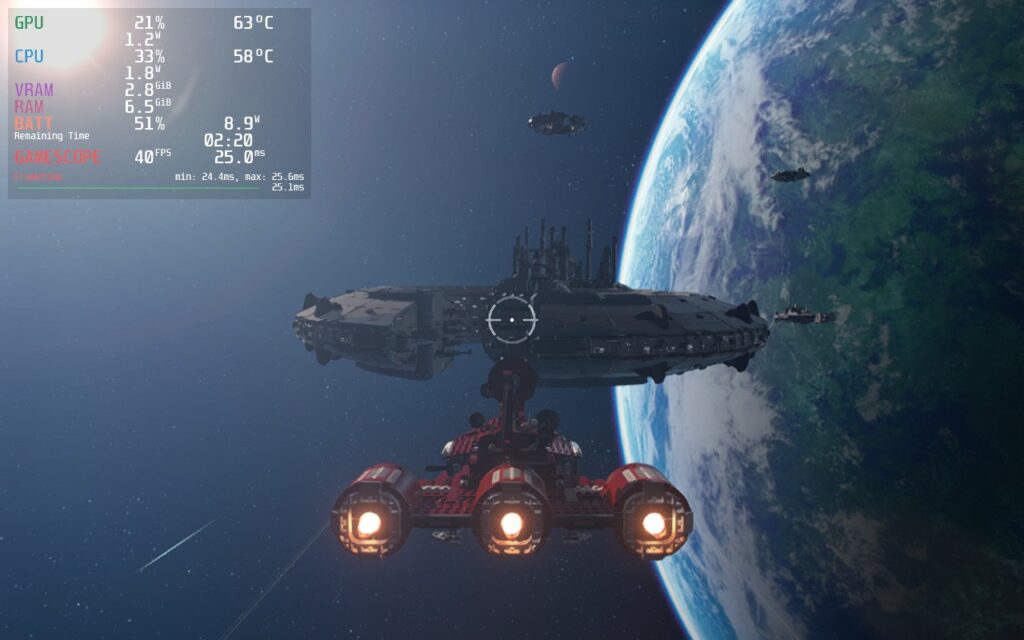
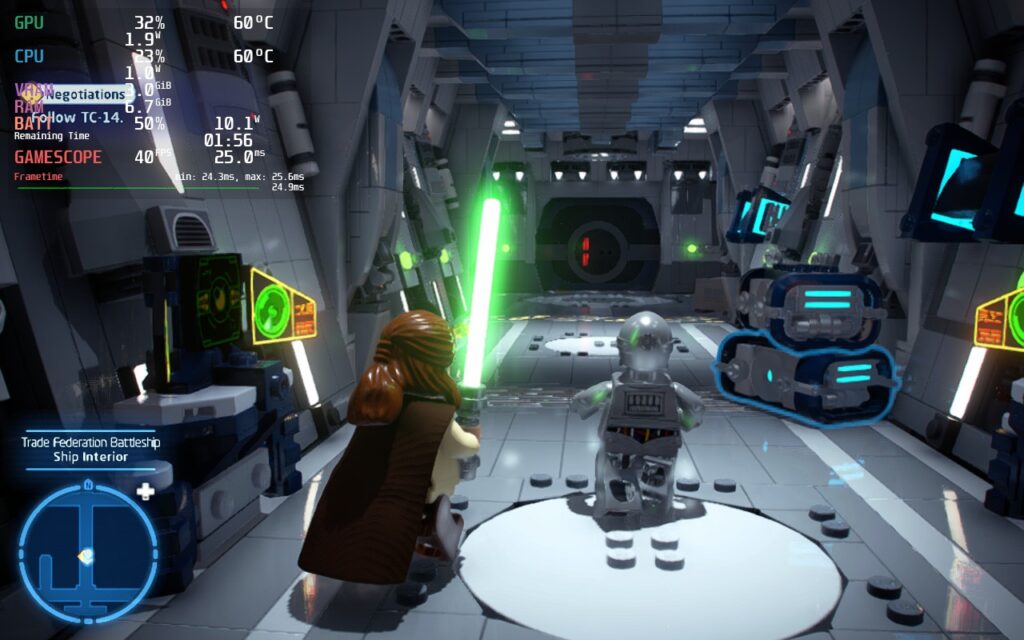
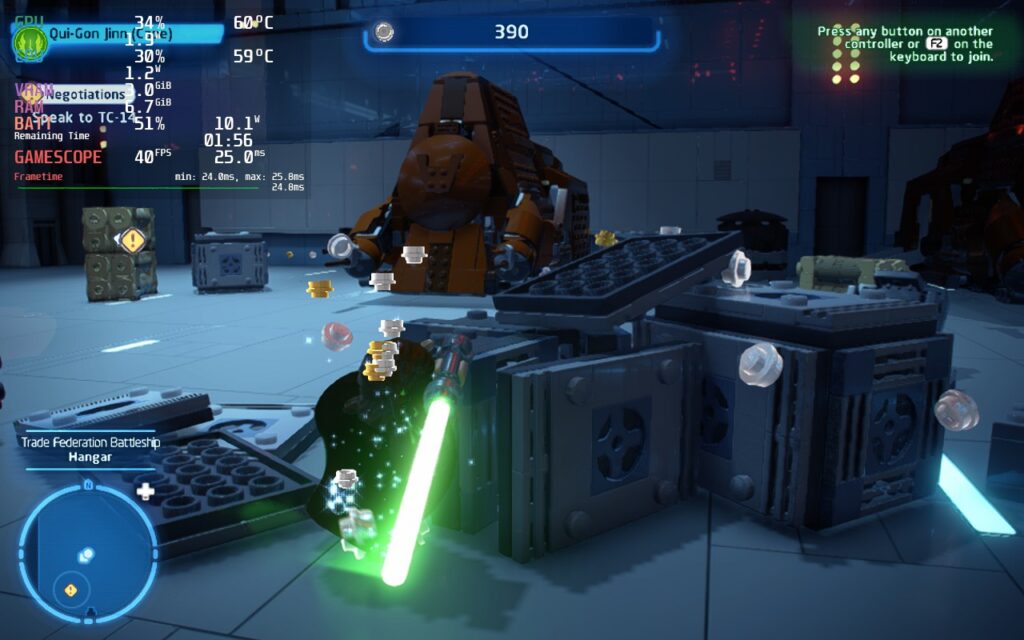
In my initial tests, I found that resolution is the biggest contributor to performance, but also has minimal amount of visual impact (compared to other games). The stutters or performance issues came into play during extensive scenes or when fighting/breaking tons of objects. Going from 1280x800 to 960x600 with FSR Sharpness 0 seemed to have minimal impact on how everything looked overall, but significantly helped with stability of the framerate on a TDP limit of 9. The other graphics options have little to no effect on the performance, so keeping them at high and medium was okay.
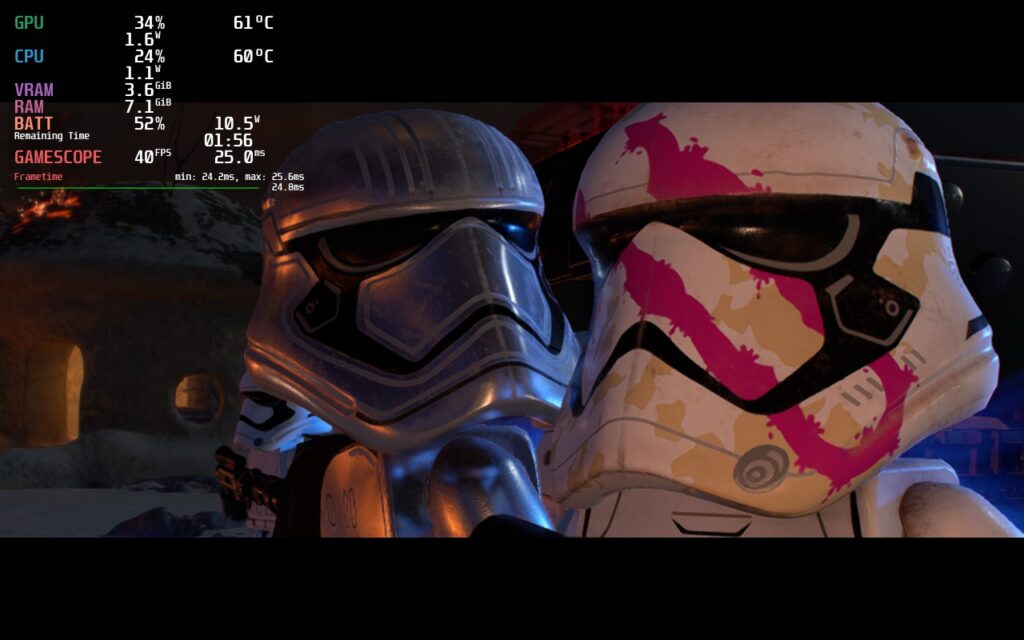
There are still some minor stutters when breaking objects or fighting, but having a GPU Clock Frequency of 1200 helped most of them. Other than that, the game looks and feels phenomenal in most areas I have played so far. 40 FPS feels fantastic and with the battery averaging around 11W - 13W, I am extremely happy with the drain! Waking up the Deck with the game on did change controller prompts to KB+M, but pressing a button changed them right back. No controller issues I have encountered so far!
Overall, I would consider this a gem to play on the Steam Deck. The game itself is a ton of fun and with a couple tweaks, it runs fantastically too. Other than the small dips from time to time, Lego Star Wars: The Skywalker Saga shined at 40 FPS with good looking visuals and a great battery life for an open-world game. We will play more and try to create a higher framerate and quality build, but so far, 40 FPS is definitely going to be the way I play.

If you enjoyed this first look, be sure to check out the rest of the content on SteamDeckHQ! We have a wide variety game reviews and news that are sure to help your gaming experience. Whether you're looking for news, tips and tutorials, game settings and reviews, or just want to stay up-to-date on the latest trends, we've got your back
Get ready to immerse yourself in the wizarding RPG of your dreams! Hogwarts Legacy is an open-world RPG set in the land of Harry Potter. As your own created character, you will explore Hogwarts in the 1800s, discover magical beasts, master spells, craft potions, and become the wizard you want to be. Who will you befriend? What spells will you master? What legacy will you leave behind? Only time will tell!
Before I dive into the game, I wanted to take a moment to address the elephant in the room. SDHQ unequivocally denounces the horrendous comments made by Harry Potter's creator, JK Rowling. There is no place in this world for harassment or persecution in this manner and we will never accept it. Knowing this, we have still decided to review Hogwarts Legacy on our outlet. We are a gaming outlet first and we will never endorse or partake in any actions that go against our morals.
The developers at Avalanche Software have put in a lot of work and time to develop a gorgeous RPG that fulfills the dreams that many have had regarding the cultural phenomena. We have no reason to believe the developers share these views, and as a gaming outlet first and foremost, that is something we feel is important to cover the game. That being said, let's dive into the game on the Steam Deck!
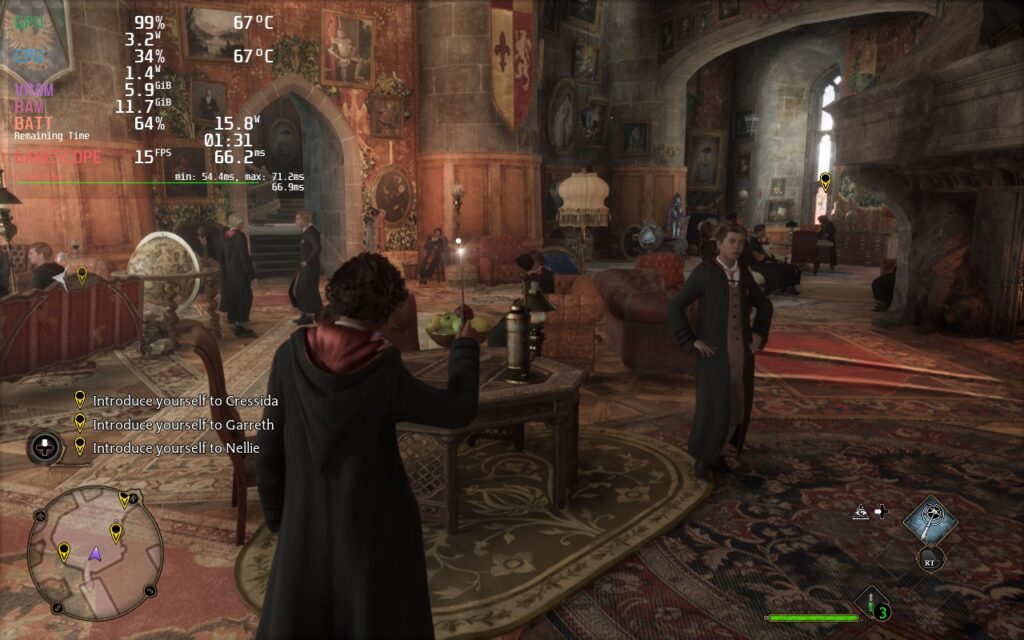
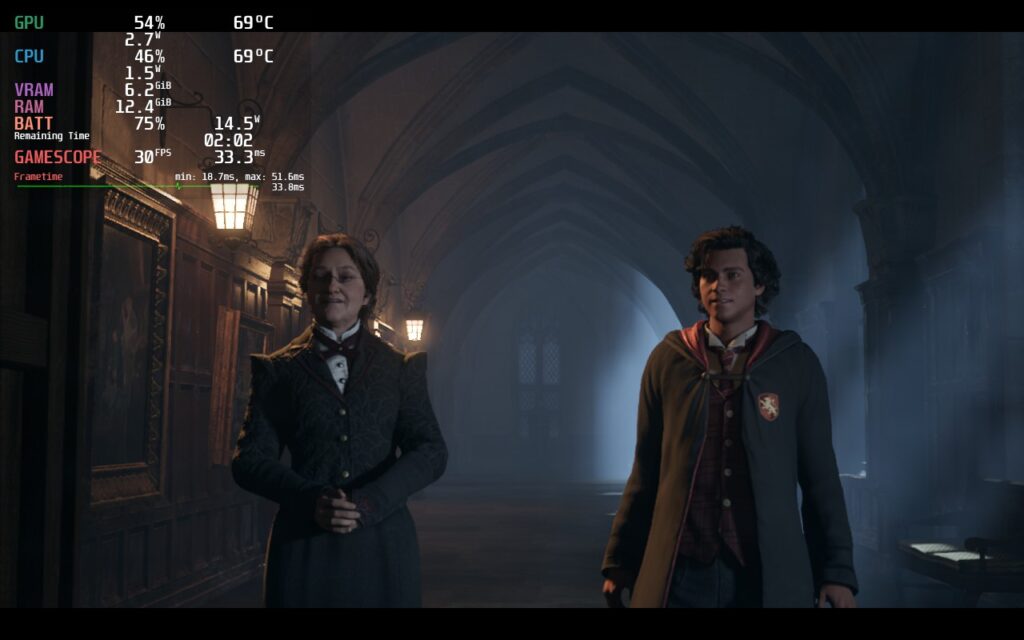
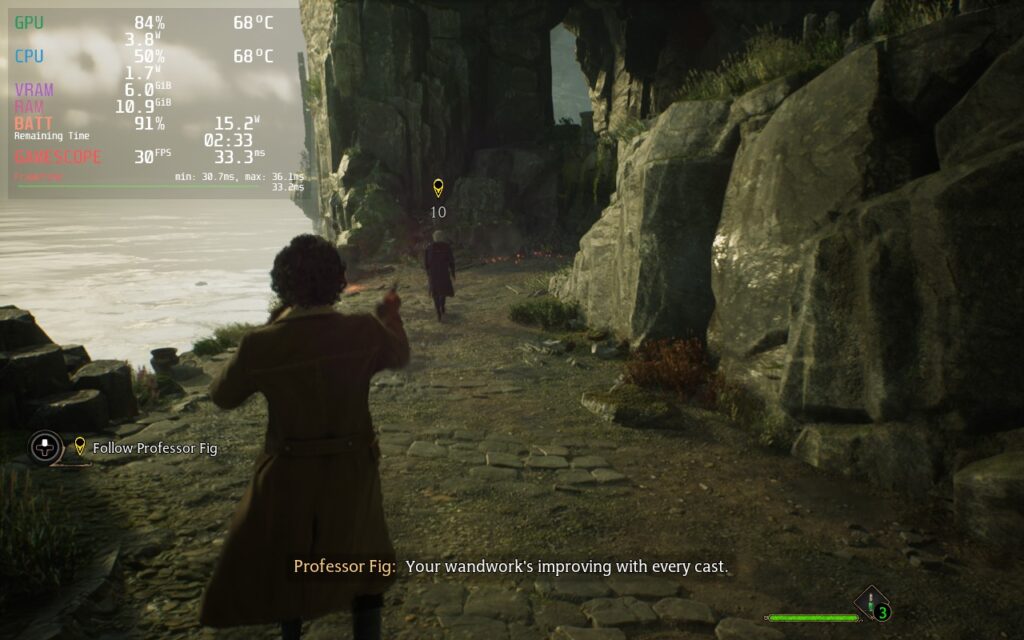
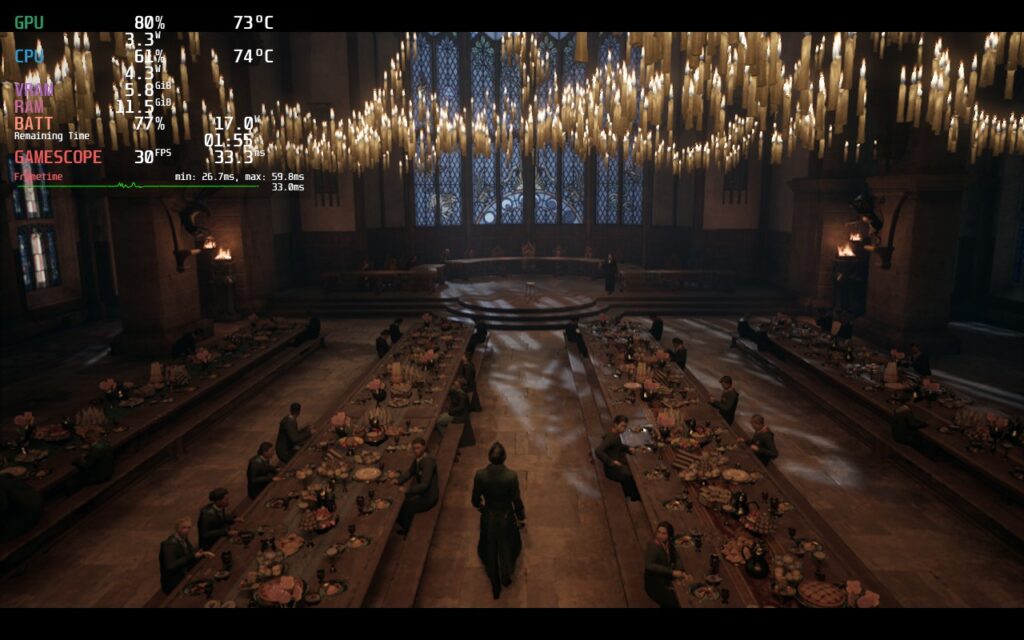
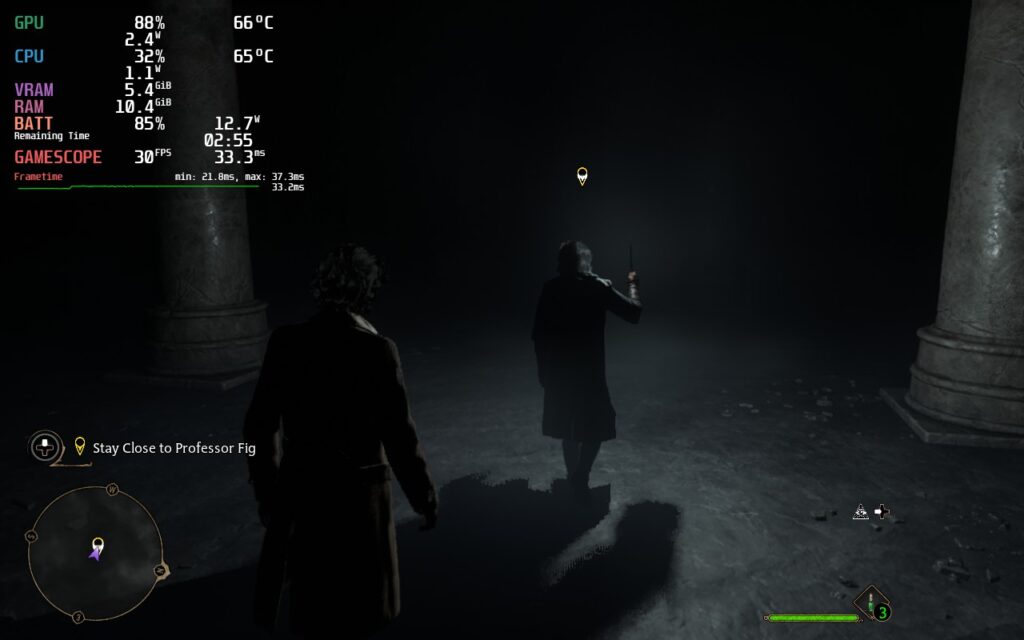
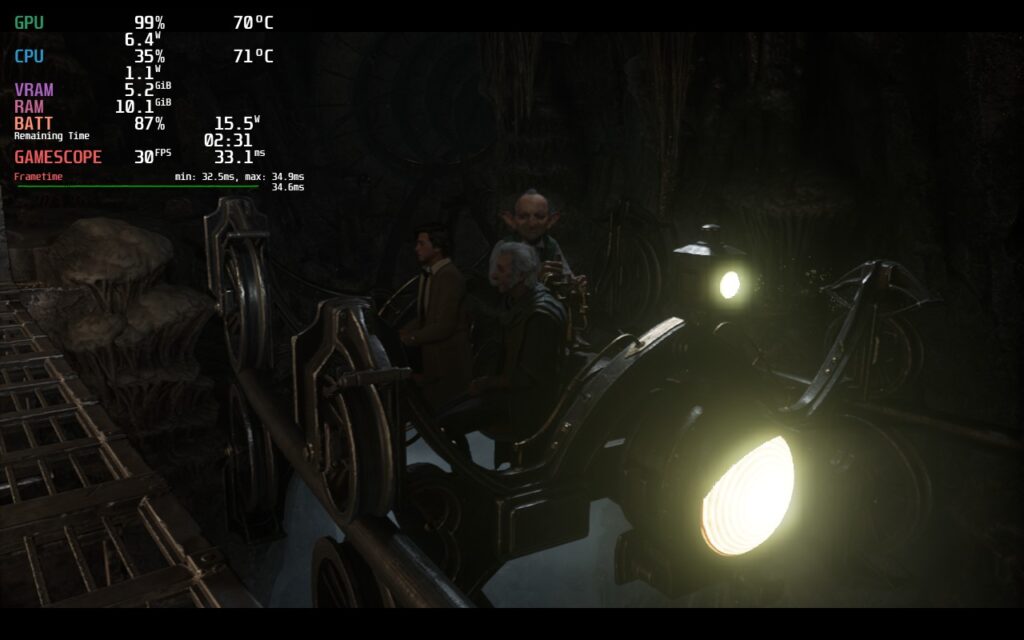
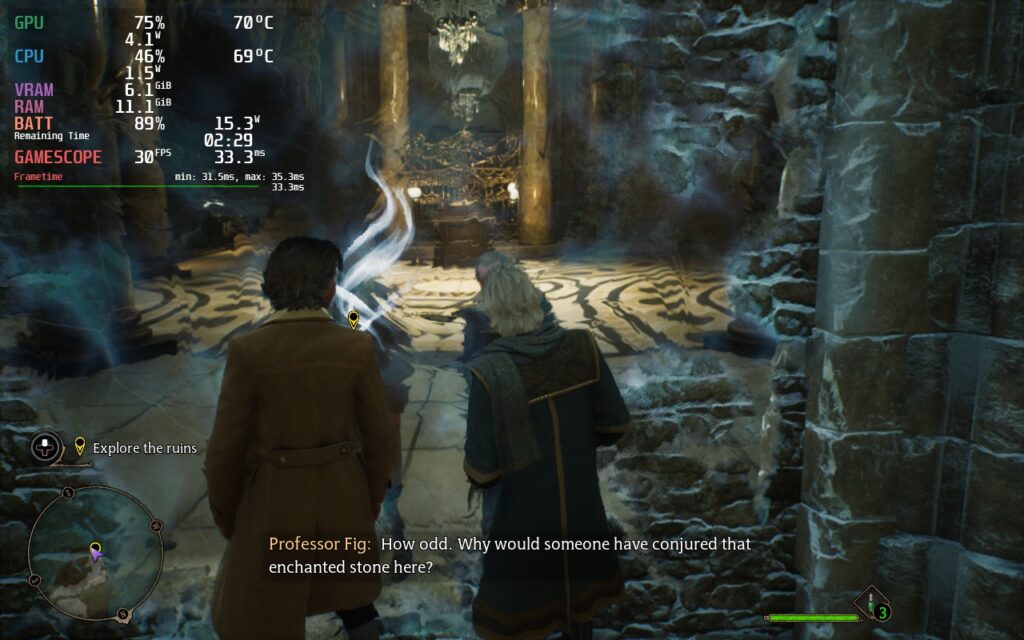
Hogwarts Legacy starts out on a good foot, running pretty well at the 30 FPS mark on the recommended low settings. The first thing I noticed though is the game being set to FSR 1.0 instead of 2.0. Using 1.0 not only resulted in a worse image, but also created a lot of ghosting when moving around. Changing this to 2.0 quality seemed to fix this and have much better visual quality, with around 1-2W extra drain. For me, this was significant enough to keep and the game was able to handle a solid 30 FPS like this...for the most part. I also didn't really notice much difference enough between FSR 2.0 versions to justify bringing it down to performance.
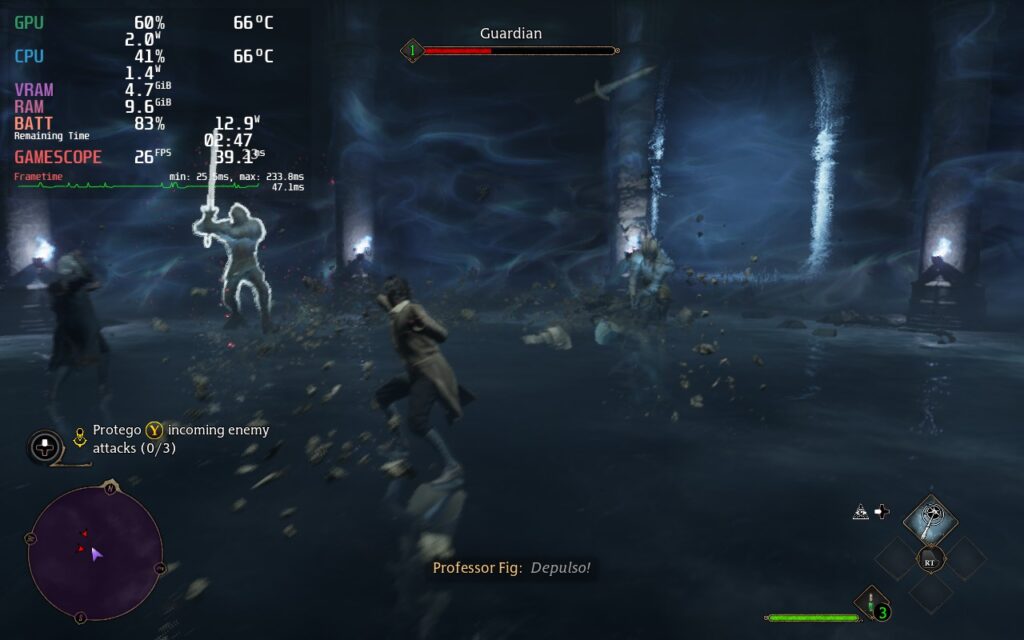
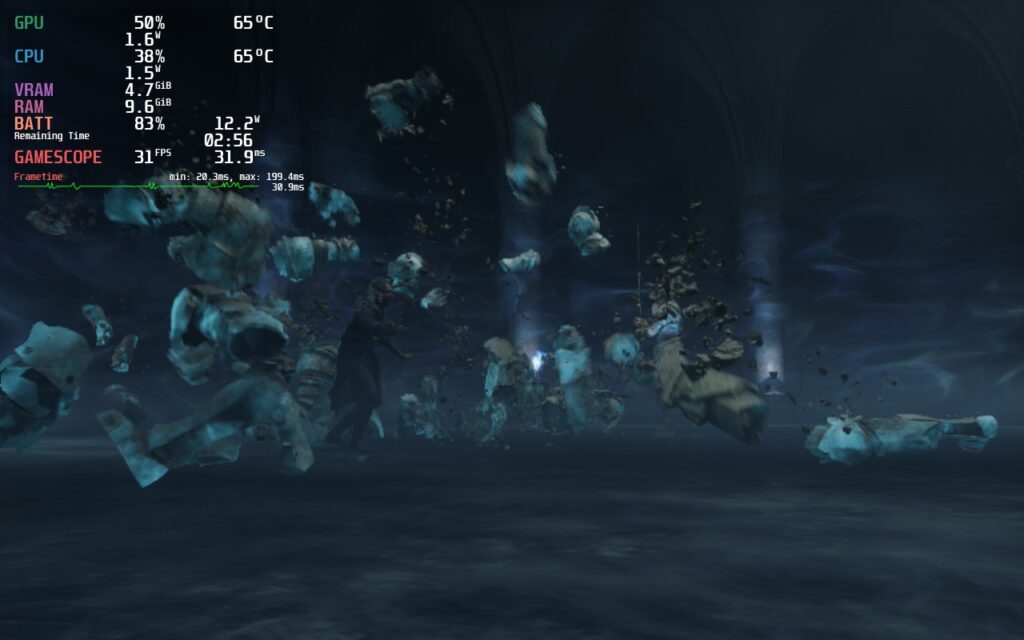
Due to this being a new game, the shader cache hasn't been built yet. This means the game is more prone to stuttering, which Hogwarts Legacy has in spades. Walking around still stutters a bit, but the biggest ones come from casting spells in fights. There were 1-2 fights where it didn't, but most of the others created big stutters whenever I casted the spell. The game also had moments where framerate would become erratic or tank, which happened when selecting my house and the scene right after.

While the framerate counter says 30, the green bar below is very erratic.
While the game can handle medium graphics preset, I settled on keeping low as some areas tended to drain much more and keeping at the recommended still looked great while keeping stability. This also allowed a TDP limit of 10 to keep drain below 18W. I noticed a couple of odd things though, including almost no visual changes from low to medium. I also noticed that on Ultra, it could run at 30 in a lot of areas with high battery drain, but using Lumos cut framerate in half. Turning Lumos off went back to the normal framerate, which was a bit weird.
Overall, I’m actually quite impressed. Hogwarts Legacy is a new open-world game and, for the most part, holds its own while utilizing FSR 2.0 quite well. There still needs to be more testing, and hopefully the shader cache will smoothen the stuttering out in a couple days, but overall, this is going to be a solid experience on the Steam Deck! I will be going back in a couple of days once a patch and shader cache are out to go through it again, so stay tuned for an update!
If you enjoyed this first look, be sure to check out the rest of the content on SteamDeckHQ! We have a wide variety game reviews and news that are sure to help your gaming experience. Whether you're looking for news, tips and tutorials, game settings and reviews, or just want to stay up-to-date on the latest trends, we've got your back
Thank you to Square Enix for providing us with a copy of Forspoken to review!
A young New Yorker is hitting rock bottom right before she is transported to the beautiful, broken land of Athia. Now, with her newfound magical abilities, she must traverse the desolate land and find her way home. Forspoken will have you traveling all across the open-world with magic-enhanced parkour and taking down monsters in real-time combat with a range of flashy battle and support spells. You will also level up from your encounters and grow stronger while unlocking even more abilities to enhance the way you decide to play. Will you be able to survive the twisted monsters that await and make your way home?
From my time with Forspoken so far, I have actually been enjoying it gameplay wise. The game is flashy in the right ways and I like the real-time combat. It can feel a little repetitive at first, but after more magic was unlocked, I started to feel the variety and liked mixing and matching. The world felt a little bland in its color scheme, which the vibrant plugin helped fix, but it wasn't horrible. As a game, Forspoken is one I am enjoying much more than I thought I would, due to the reviews coming out for it, but let's take a look at how it runs on the Steam Deck so far.
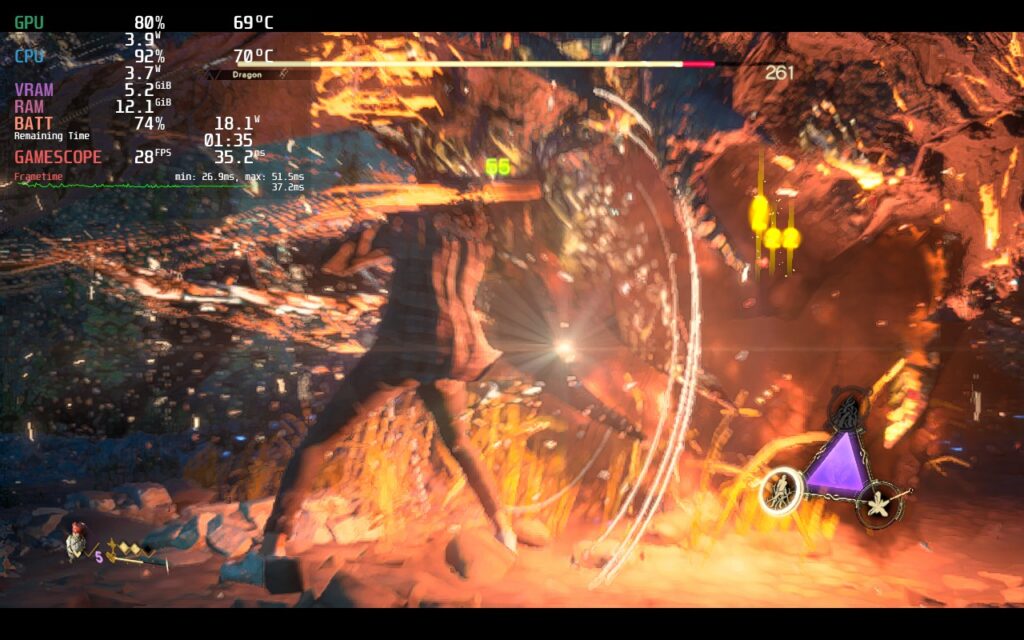
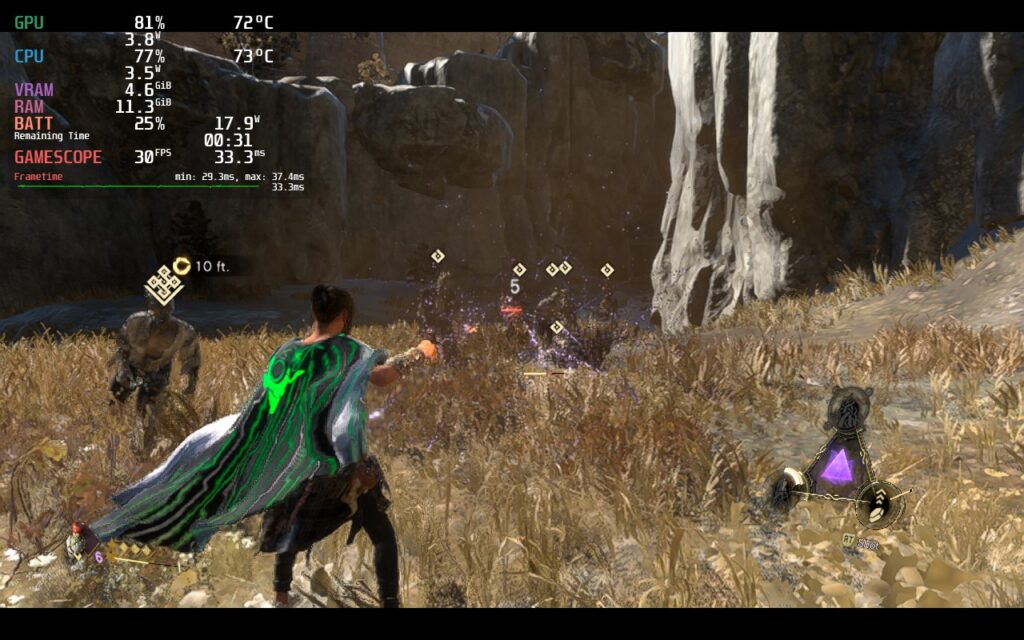
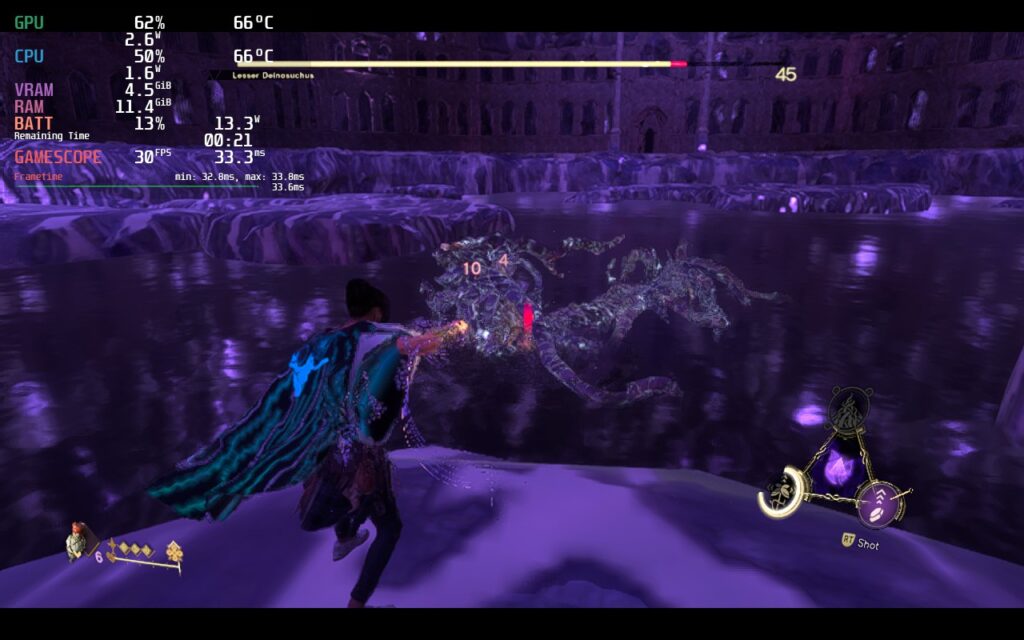
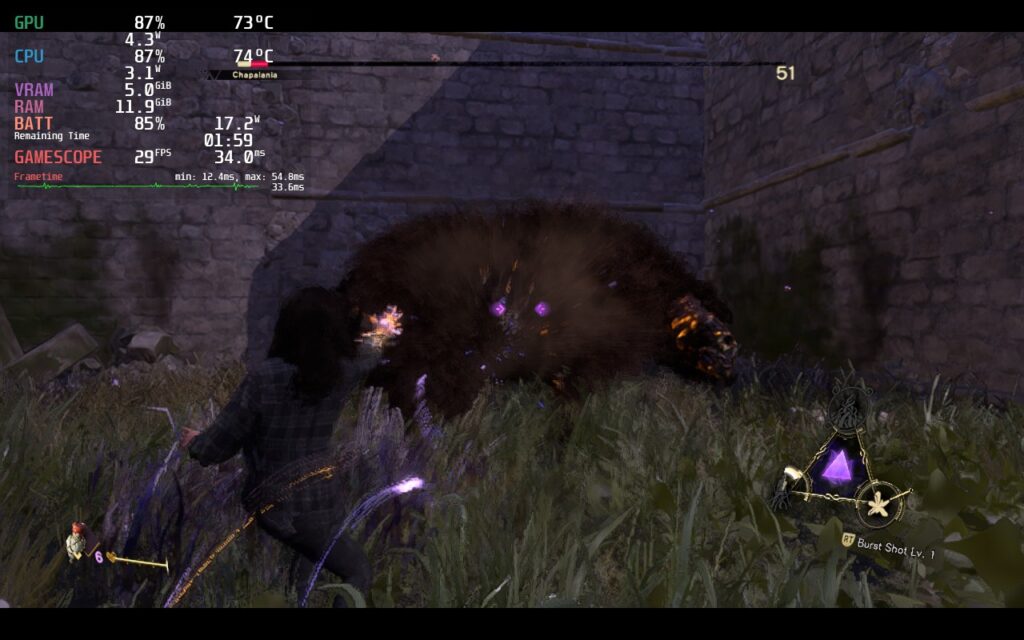
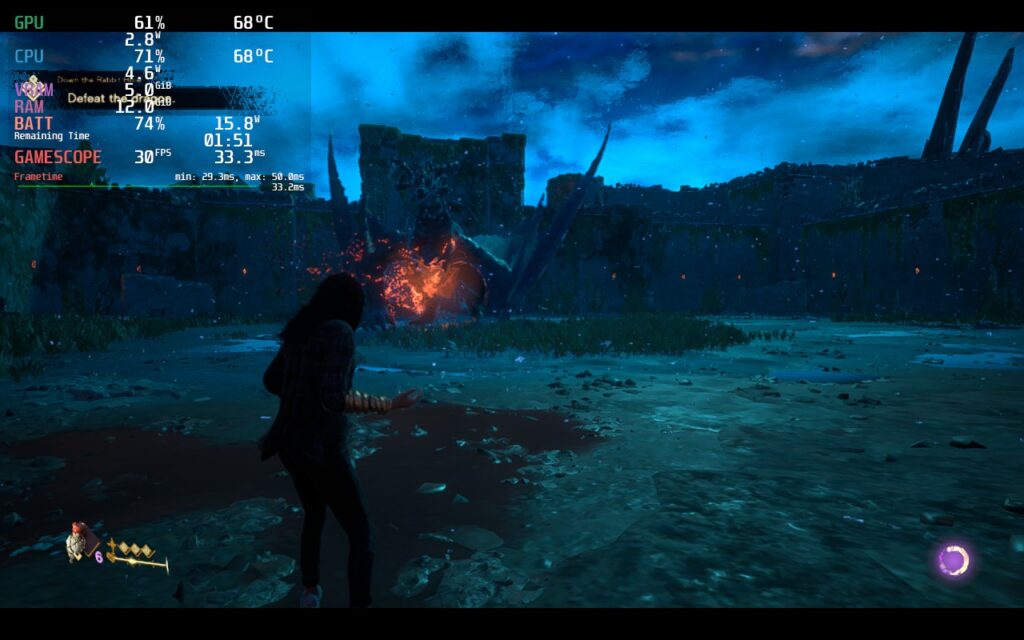
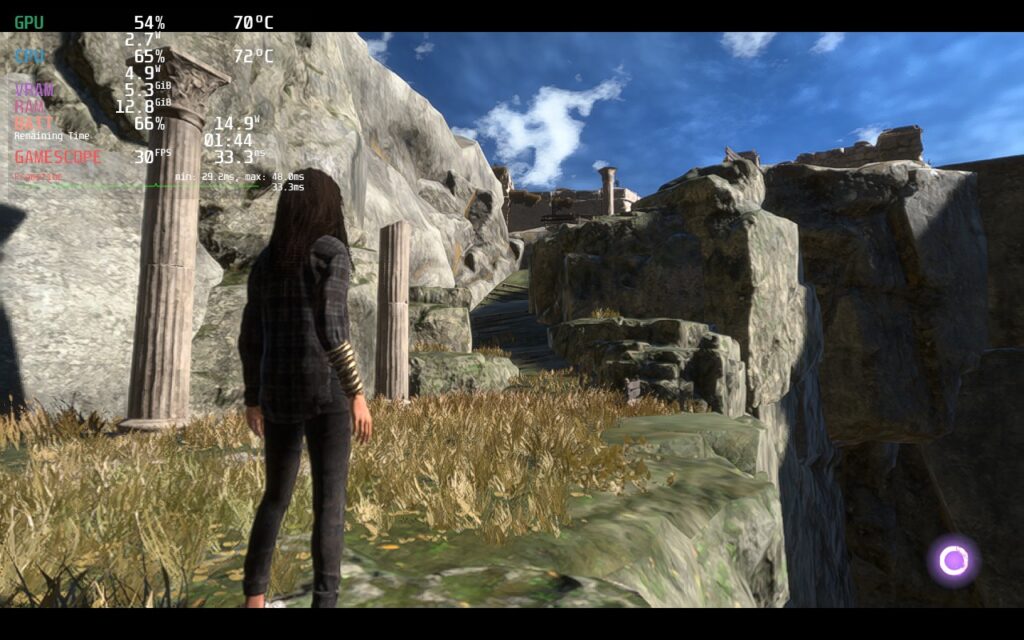
For a game that recommends a RTX 3070 and 24gb of RAM, I am genuinely impressed how the game runs. There are a lot of compromises to make, which makes sense seeing as how new and intensive the game is, but it is ultimately playable! The game starts you out on the lowest settings, which makes sense given how much power this game asks for, but I elected to change FSR 2 to Balanced instead of performance. The game looked significantly better and didn't add to the overall power draw. Quality was also a step up, but not enough to justify the draw.
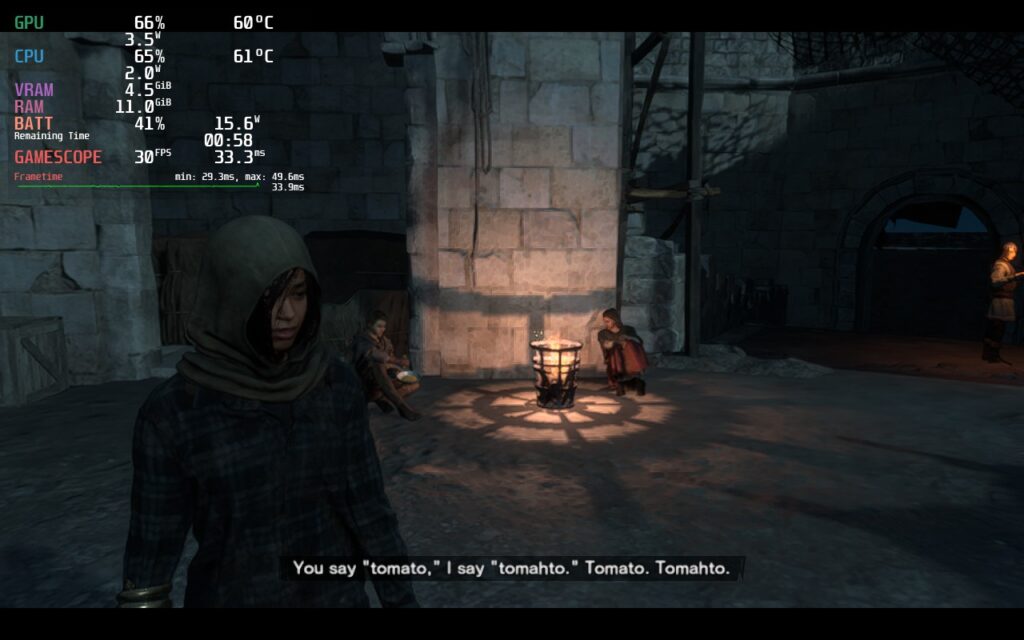
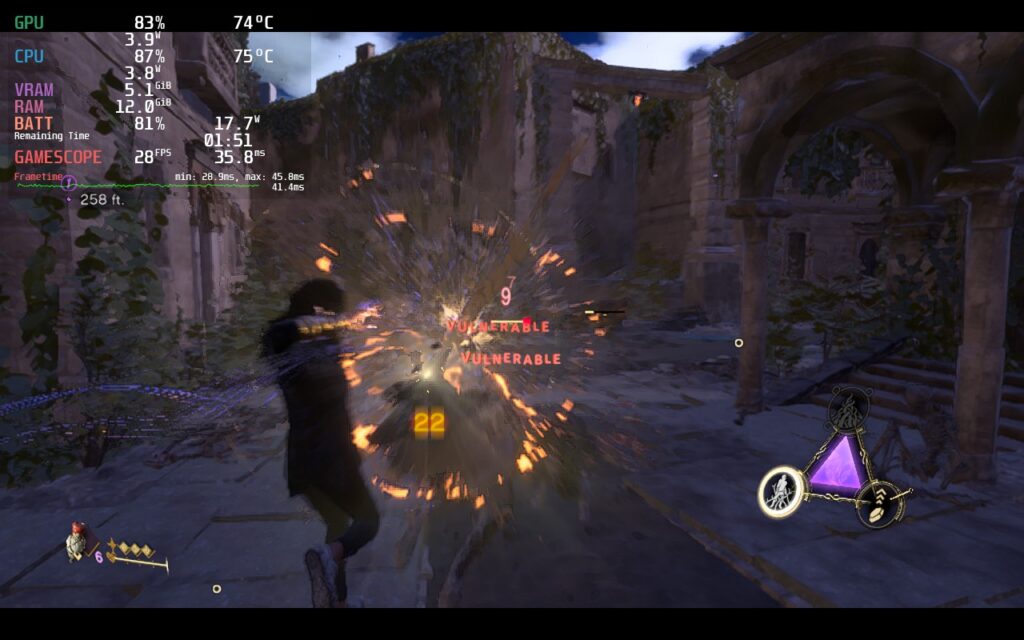
The game was still dropping more than I would have liked it to, so I forced the resolution down to 1024x640 and upscaled through SteamOS FSR. It didn't take much away from the visuals and did help keep stability down. This also allowed the game to stick below 18W, which is pretty amazing seeing as how most other builds I am seeing have a high 23W-27W drain. There will still be some drops, and you can raise the TDP limit to account for those if preferred, but the drops to 27-28 FPS weren't noticeable due to the 30 FPS cap.
I did experience one crash when I was playing, but this was most likely due to using too much RAM as I was playing with the settings (both the texture and model streaming was set to standard). I did also experience more slowdowns and battery drain during cutscenes, but most actual gameplay held up pretty well.
One big noticeable issue is loading. The game can take a long time to load into some cutscenes and the menus. It takes about 5 seconds to fully load everything in when going into the menu and sometimes coming out of it, which can be a bit annoying, but it isn't game-breaking.
Overall, I would consider this a success for Square Enix. Forspoken does have some optimization issues across the board, which patches could definitely help, and the shared shader cache is still being put together and should help a bit too in the next few days. The game itself is more fun than I expected and it is playable on the Steam Deck. It won't look as beautiful as it would on more powerful devices, and sometimes takes a bit to load, but to be able to play this on-the-go, I felt this is a good trade-off.
このレビューはPC版に基づいています。
If you enjoyed this first look, be sure to check out the rest of the content on SteamDeckHQ! We have a wide variety game reviews and news that are sure to help your gaming experience. Whether you're looking for news, tips and tutorials, game settings and reviews, or just want to stay up-to-date on the latest trends, we've got your back
Thank you to Jimmy Champane from Deck Ready for helping me test late-game scenes for this first look and TheFirstJosh for providing a save game I could test with.
Will you be able to bring this shattered world back together? In Death Stranding, you are Sam Porter Bridges, a delivery man who travels across a post-apocalyptic America to reconnect cities and society. The game features elements of stealth, as well as open-world exploration and a variety of missions to complete as you deliver packages and fend off enemies in this third-person experience.
Death Stranding is directed by Hideo Kojima, and with some of his signature storytelling and world building. The story can feel a bit convoluted at times, but is overall a fantastic experience, which the Director's Cut expands on. With new items, expanded combat, more customization, new missions, new structures, and more, the Director's Cut is the best way to experience this world, but on the Steam Deck, some compromises are needed to enjoy all it has to offer.
With Death Stranding Director's Cut, I had a mix of feelings. First, it started off with excitement as the 30 FPS with XeSS seemed to be holding up under a 17W drain, but as it got a bit more intense, the cracks started to form. They formed so hard that my game crashed about 3-4 times, all with different setting configurations I was testing and in different spots. Turning off all caps was a little bit better, but also drained a significant amount more that I didn't feel justified the slight increase in stability, and that's just regarding the opening areas.
Death Stranding: Director's Cut is a weird egg. The power draw is stagnant and doesn't change much with any graphics setting changes. On top of that, setting everything on the lowest possible settings with FSR 1.0 at performance mode only saved around 1W of drain and when caps were turned off, it still drained really high. I also tried forcing resolution with Steam and while it technically worked, it only decreased the size of the game's window and didn't change any battery drain or temps.
Jimmy from Deck Ready helped test this on his end. In one of the late-game factory scenes, he confirmed that regardless of the settings, there were drops no matter what. From multiple reports, you will start to see this more and more towards the late-game, making it near impossible to play at times with crashes and framerate drops. This kind of performance degradation started becoming a bit more noticeable after the patch that added in XeSS, so I decided to try the game in a pre-updated state to see how much the performance changed.
Before I go into the findings, I was able to go backwards in version by using the Steam console and downloading the corresponding manifest for the game and replacing the game files. I found this using SteamDB and going to the correct game depot. I will post a small guide on how to do this yourself soon because, as I thought, performance can be improved by downgrading Death Stranding: Director's Cut to the previous version. Due to borrowing a save from TheFirstJosh, I also had to hex edit the game's .exe file to bypass any corrupted save checks.
Just for transparency, this is the console command I used in Steam to download the old version of the game, which I then used to replace the files stored in the local area:
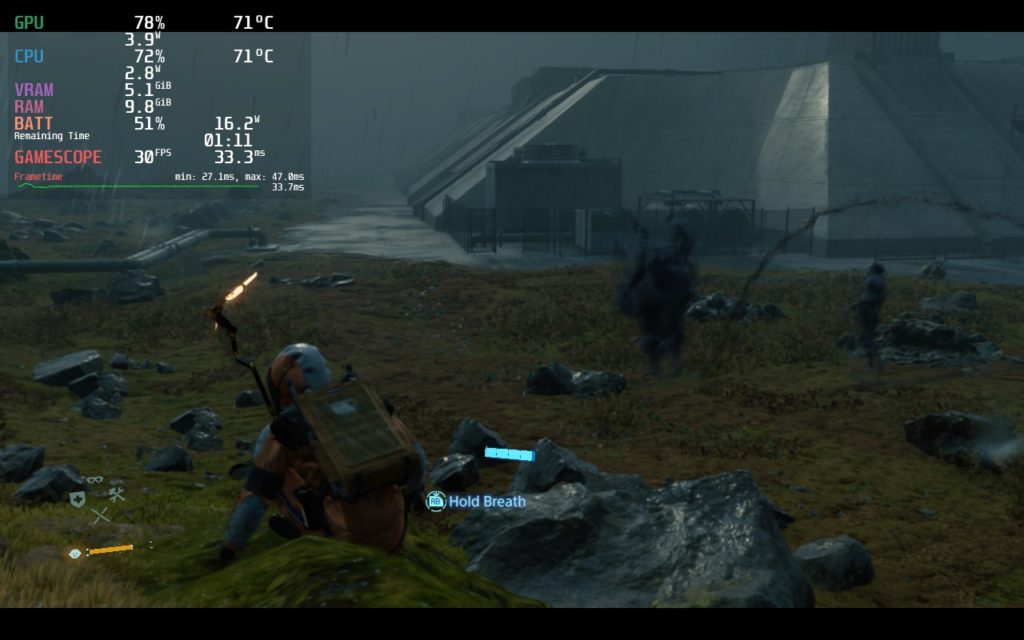
download_depot 1850570 1850571 7865482309805580274While more testing needs to be done, I was finding the game to hold framerate much better in the older version, especially at 30 FPS, and at lower battery drain. When riding around on vehicles, I noticed a significant reduction in drops at a similar graphics setting with Ultra Quality on FSR. I did encounter bigger drops when it started raining and the BTs showed up, but switching "Available Video Memory" to Low and changing FSR quality to "Quality" did help bring this back up to 30 (TDP Limit of 9). Overall, more testing needs to be done, but I believe downgrading the version will be the way to go.
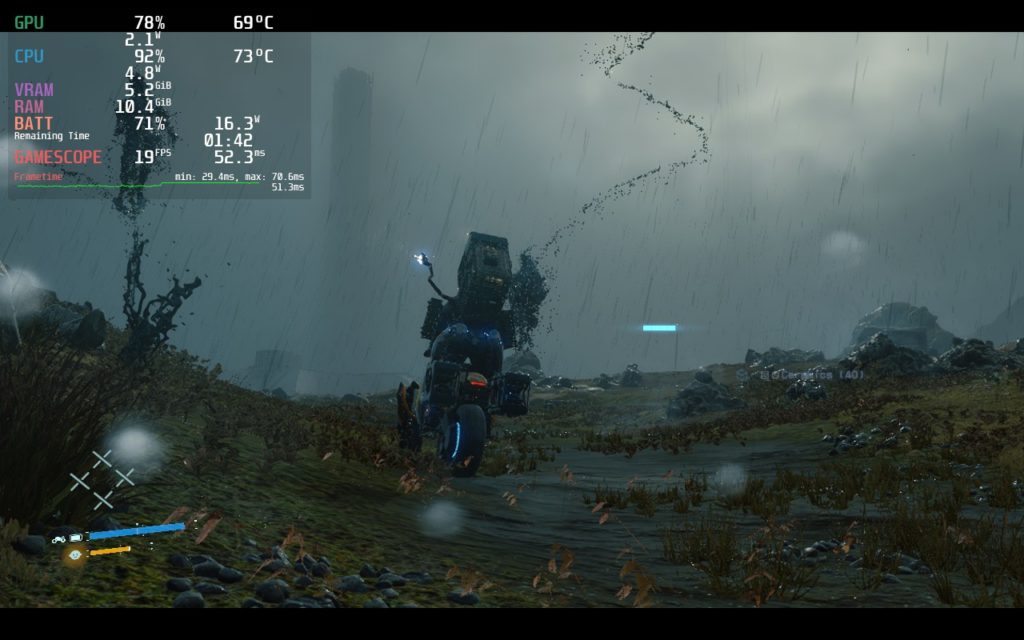
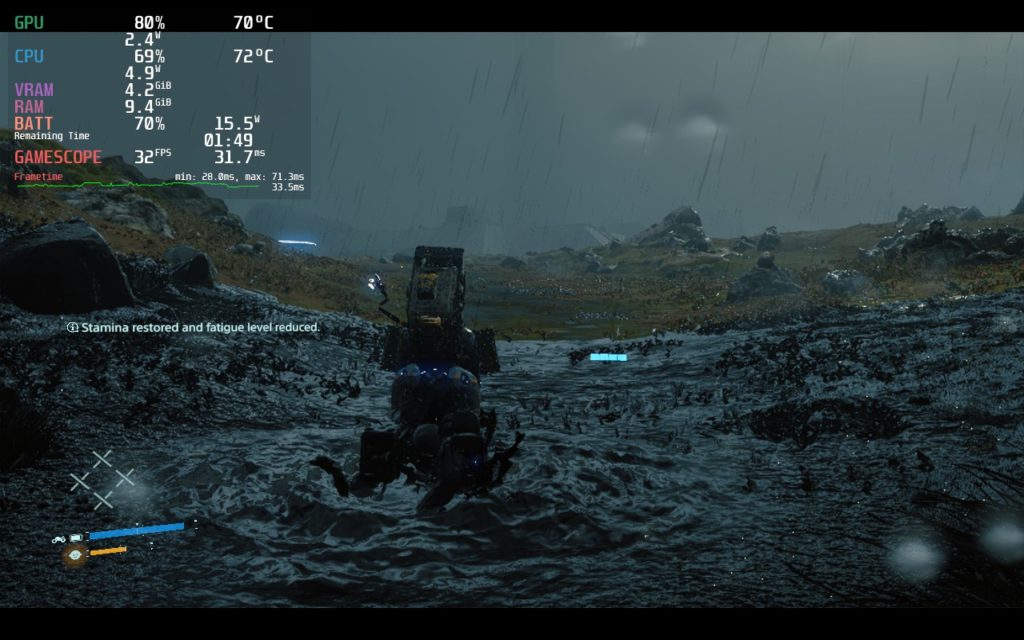
For comparison, I also tried a bit of the original game, which seems to run better than the DC version completely. This makes sense since it is using older graphical tech that isn't as demanding, but since it isn't on sale anymore, it doesn't matter too much.
There is still a lot to test and go over with Death Stranding, but I believe the best way to play this currently is pre-XeSS update. With lower settings, it was able to handle the rain and BTs much better than before and still looked pretty decent with FSR on quality. If you want to just play without the downgrade, be prepared for late-game areas or spots where it is raining and BTs show up as it will slow the game down, possibly leading to crashes. Death Stranding is an awesome game and I highly recommend buying it just because of the content, but enjoying it on the Steam Deck in late game areas will require a bit of finessing.
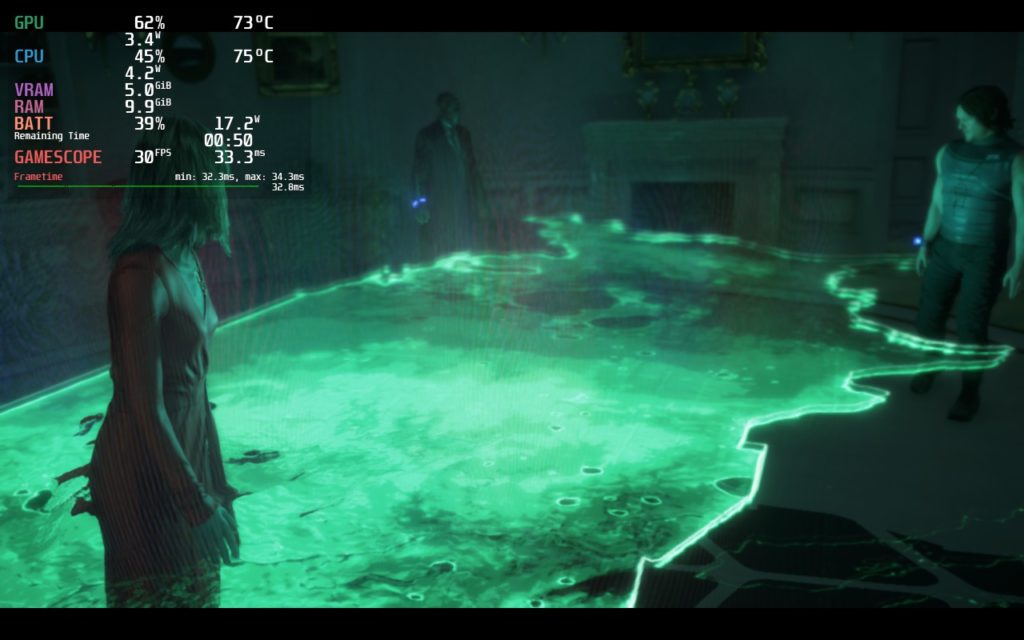
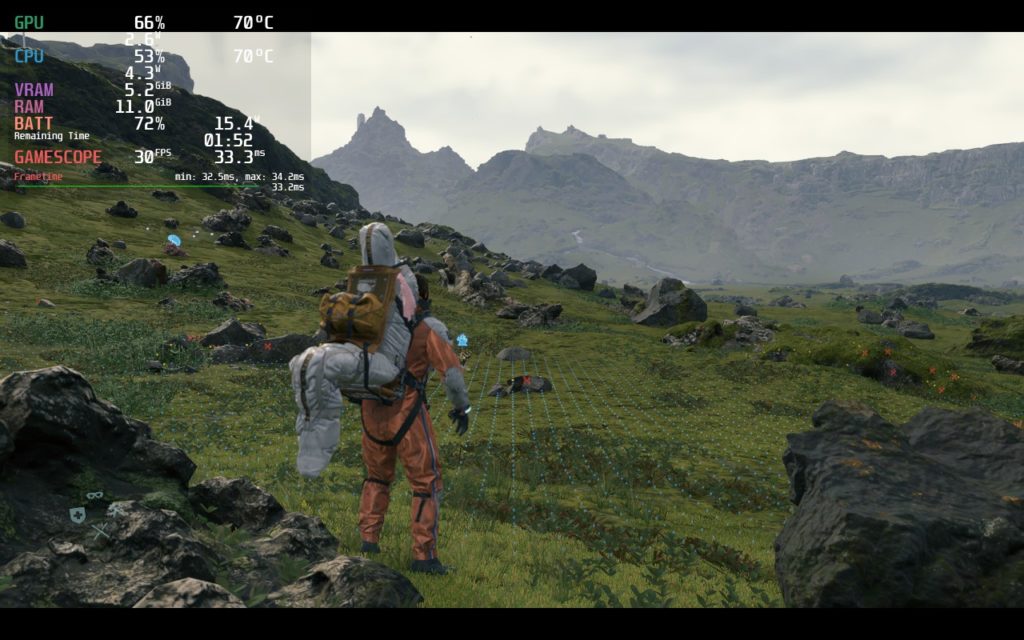
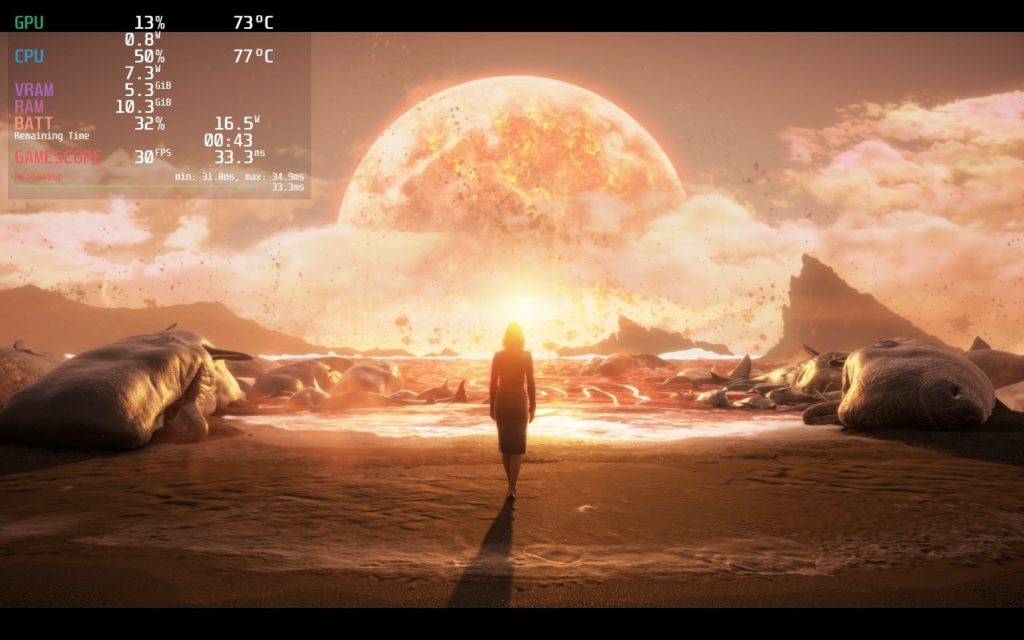
Just some cool shots I got while I was testing:
このレビューはPC版に基づいています。
If you enjoyed this first look, be sure to check out the rest of the content on SteamDeckHQ! We have a wide variety game reviews and news that are sure to help your gaming experience. Whether you're looking for news, tips and tutorials, game settings and reviews, or just want to stay up-to-date on the latest trends, we've got your back
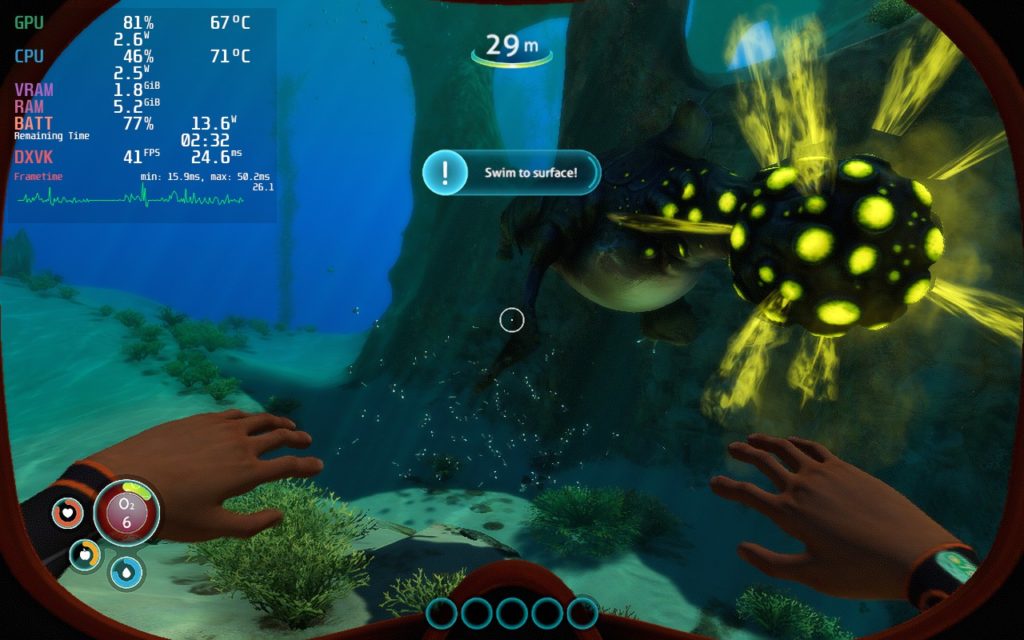
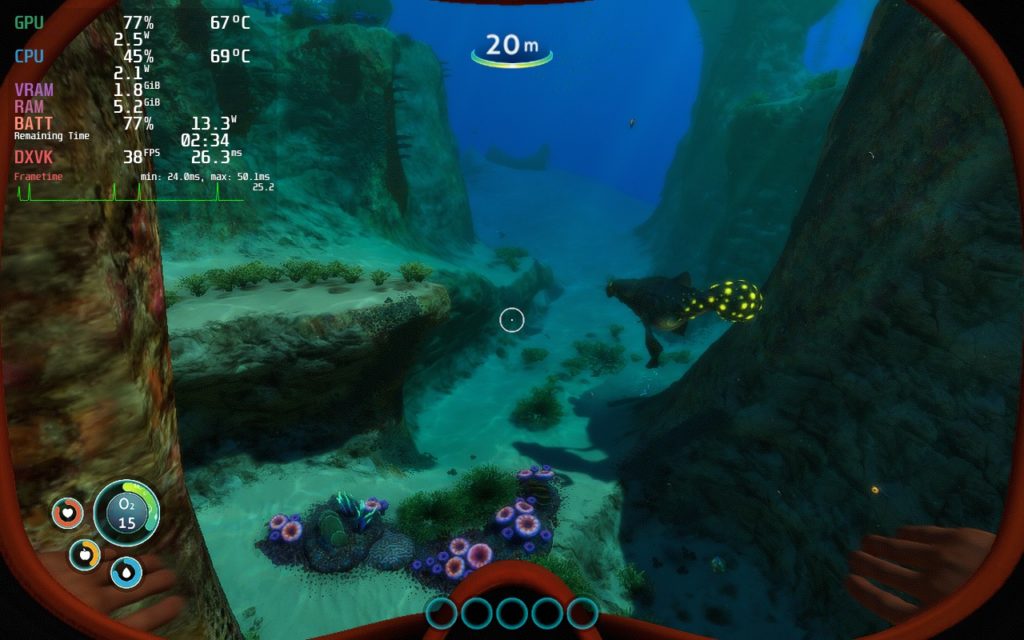
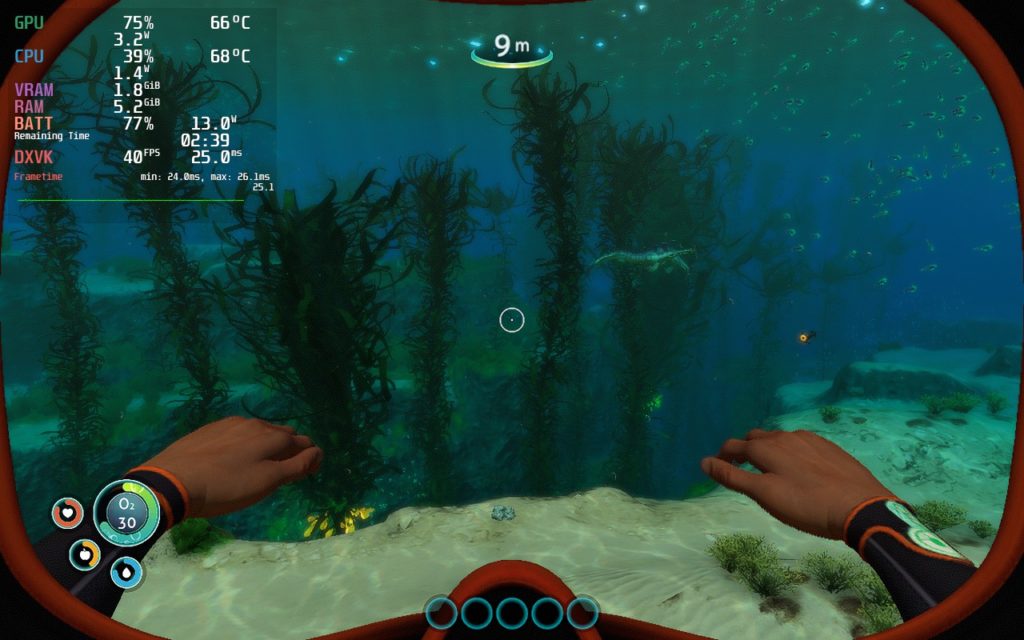
Do you love to explore and see new and unique locations with vibrant alien wildlife? Do you enjoy water? Do those both give you a similar amount of excitement when thinking about each? Well then enter into the depths of Subnautica! You have crash landed on an alien world and the only thing you can see is a vast ocean. Grab your scuba gear and head downwards as you explore underwater rivers, kelp forests, reefs, and more. Scavenge what you can and keep track of your food, water, and oxygen as you survive and build a new home, while discovering the mystery behind this new world.
Subnautica is a ridiculously cool game, but it does have some issues with playing on Steam Deck. The biggest glaring one is the controls. The default control scheme doesn't work at all, so you will need to set up a different configuration. I used the "Steam Deck Configuration" community controller configuration made by LarryWF.
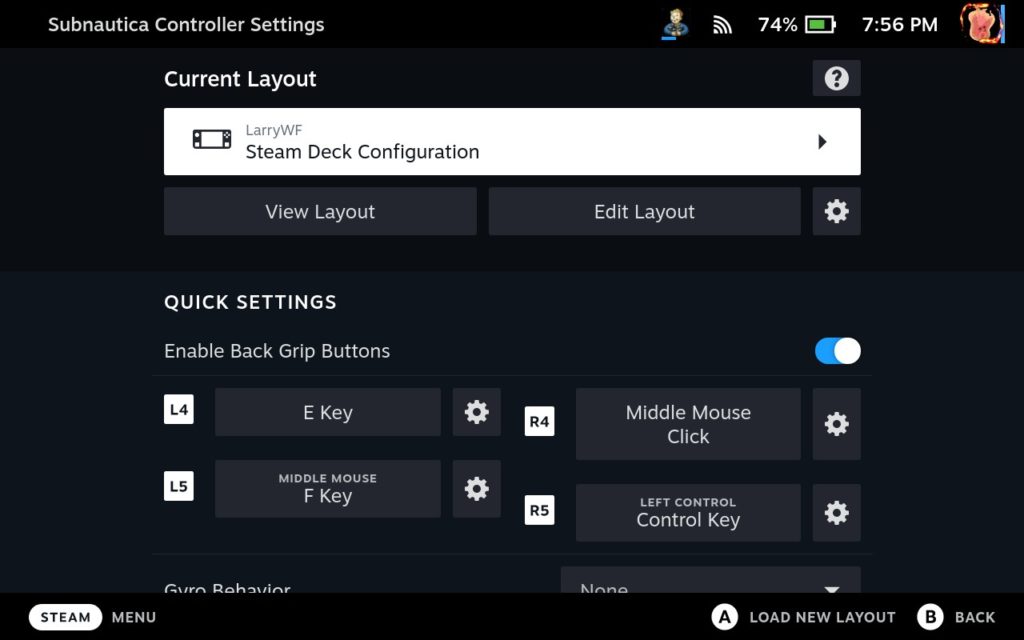
There are also framerate stability issues I noticed right off the bat. I decided to play this at 40 FPS due to it being an older game and I preferred the fluidity, and while it can be done, there are some stability issues. Loading in new objects does slow the game down and it can obviously pop in. This can cause an issue when moving to new areas or exploring. I don't think it is as noticeable with the overlay off though.
Even with all of this, I do enjoy playing Subnautica this way. With a mix of settings, a TDP limit of 8, and FSR, the game can get you around 2.5 - 3 hours of battery life with sub 70c temps. I would call this a success in general! I am looking forward to exploring more of the game soon.
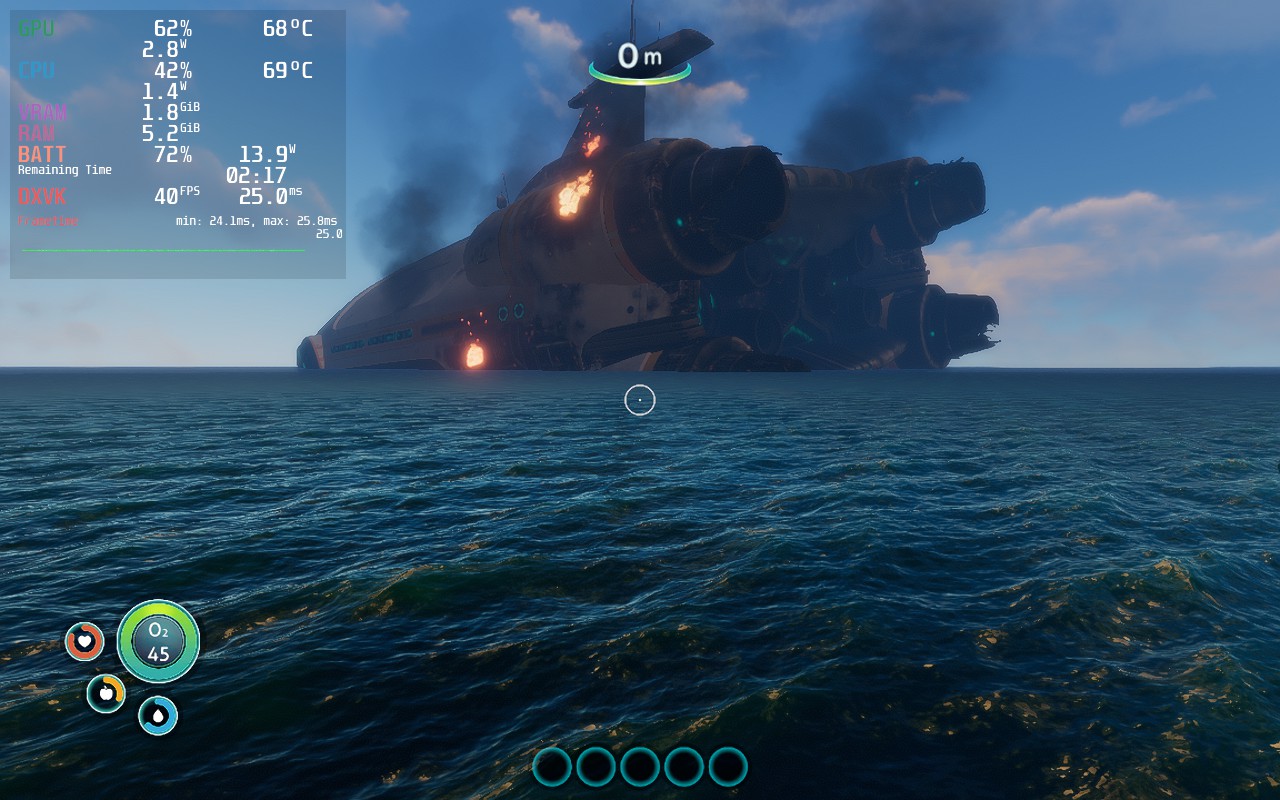
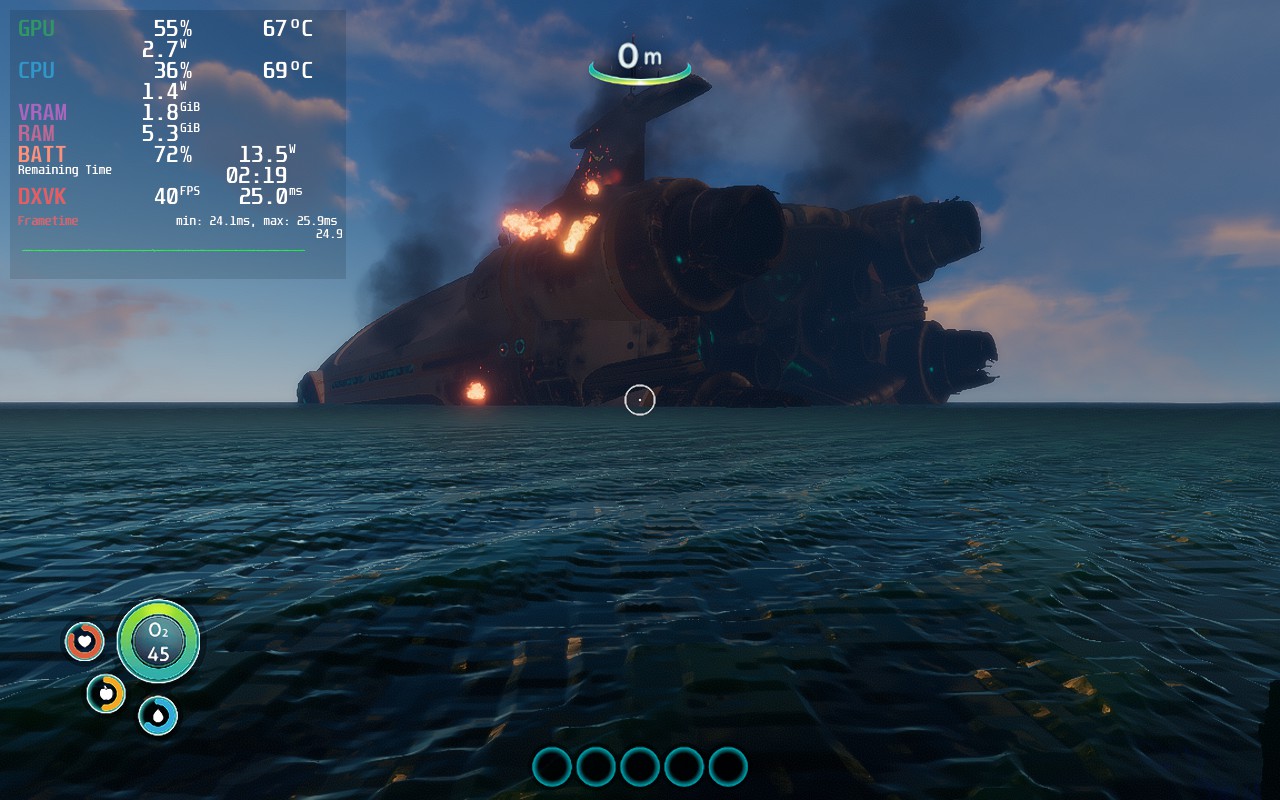
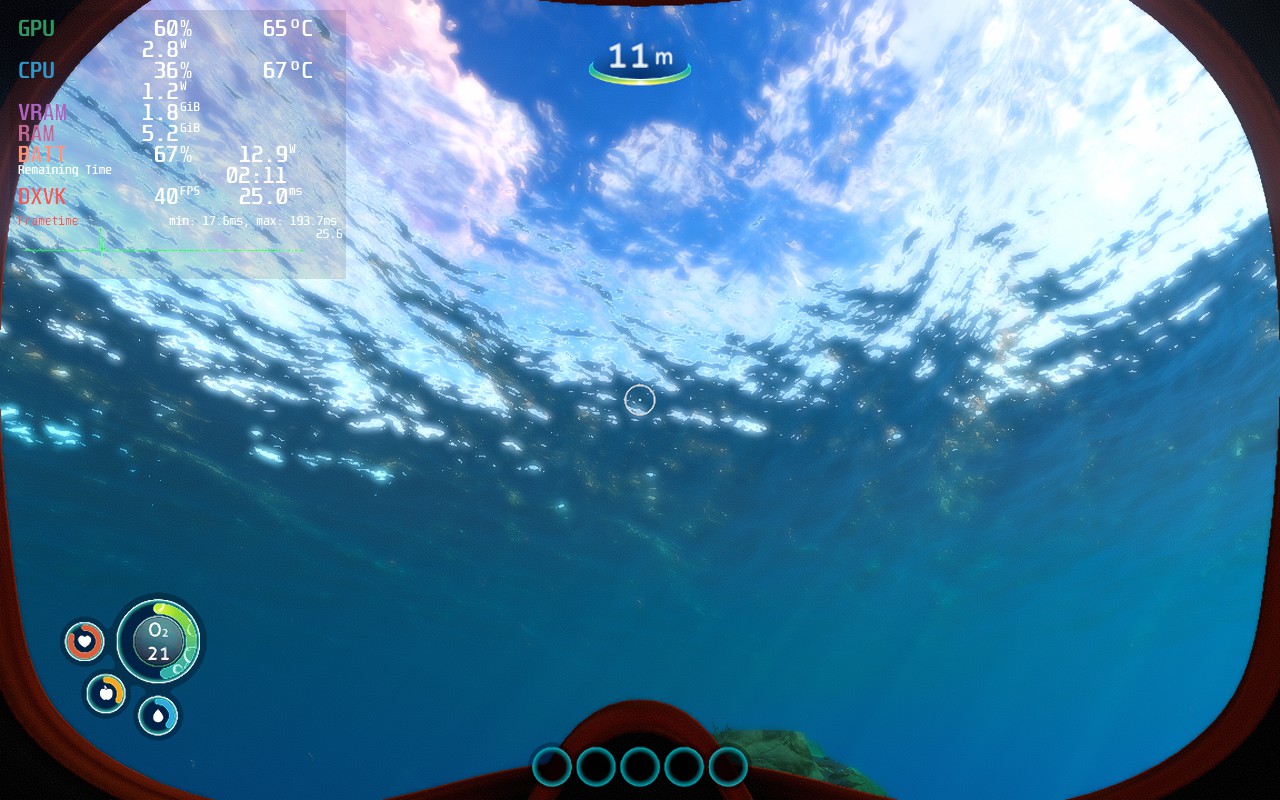
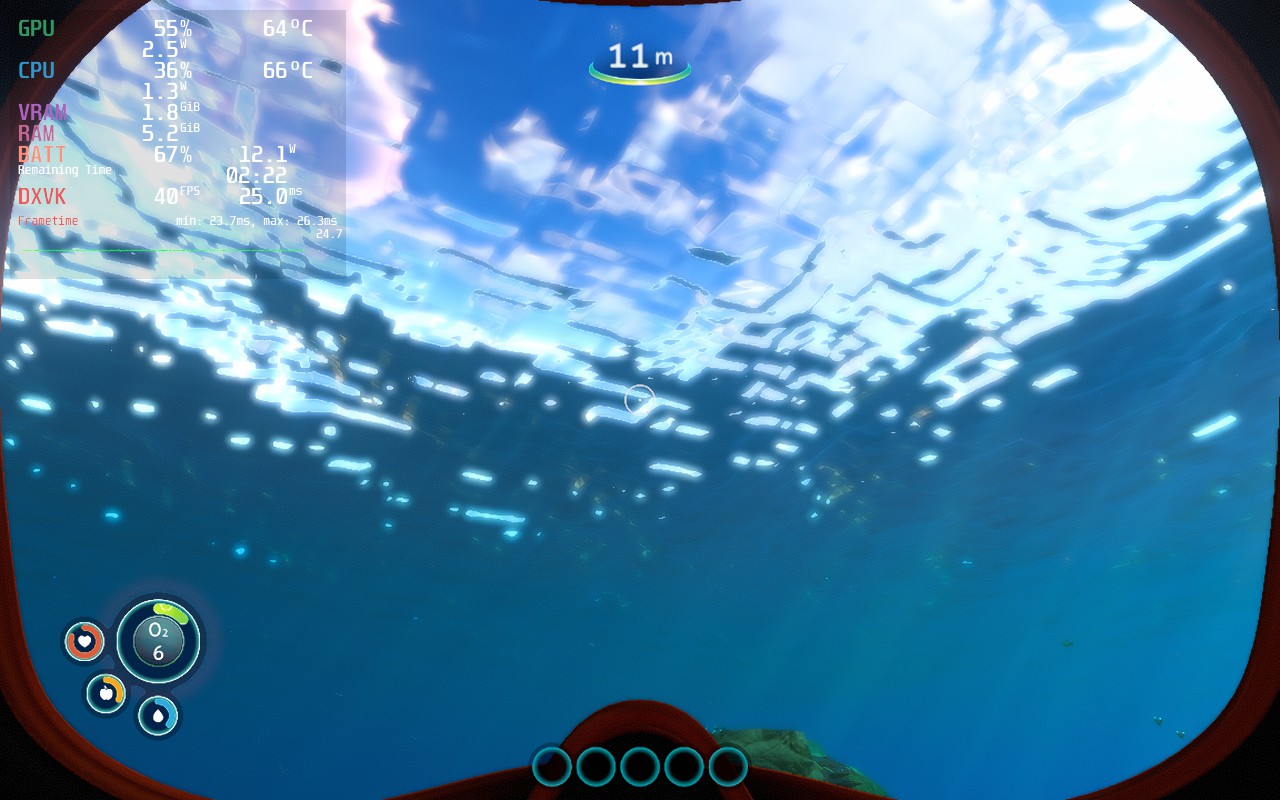
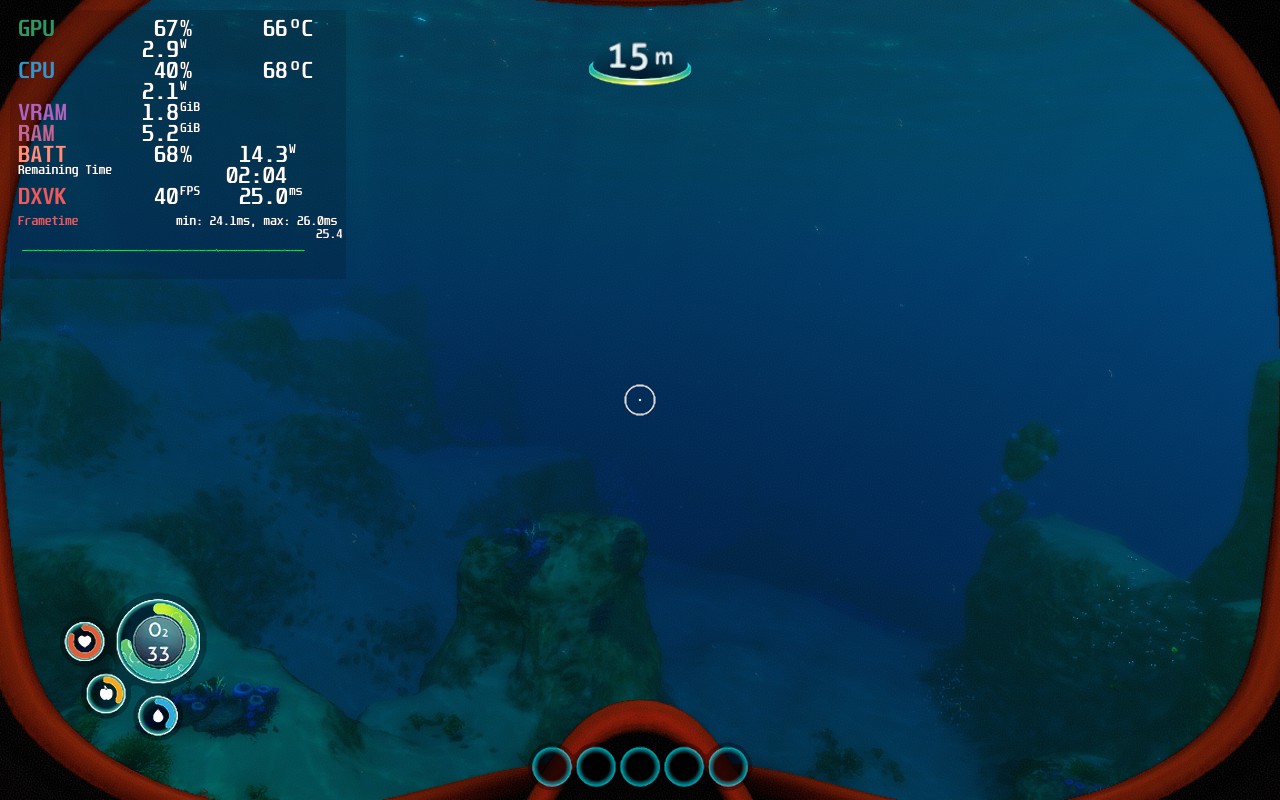
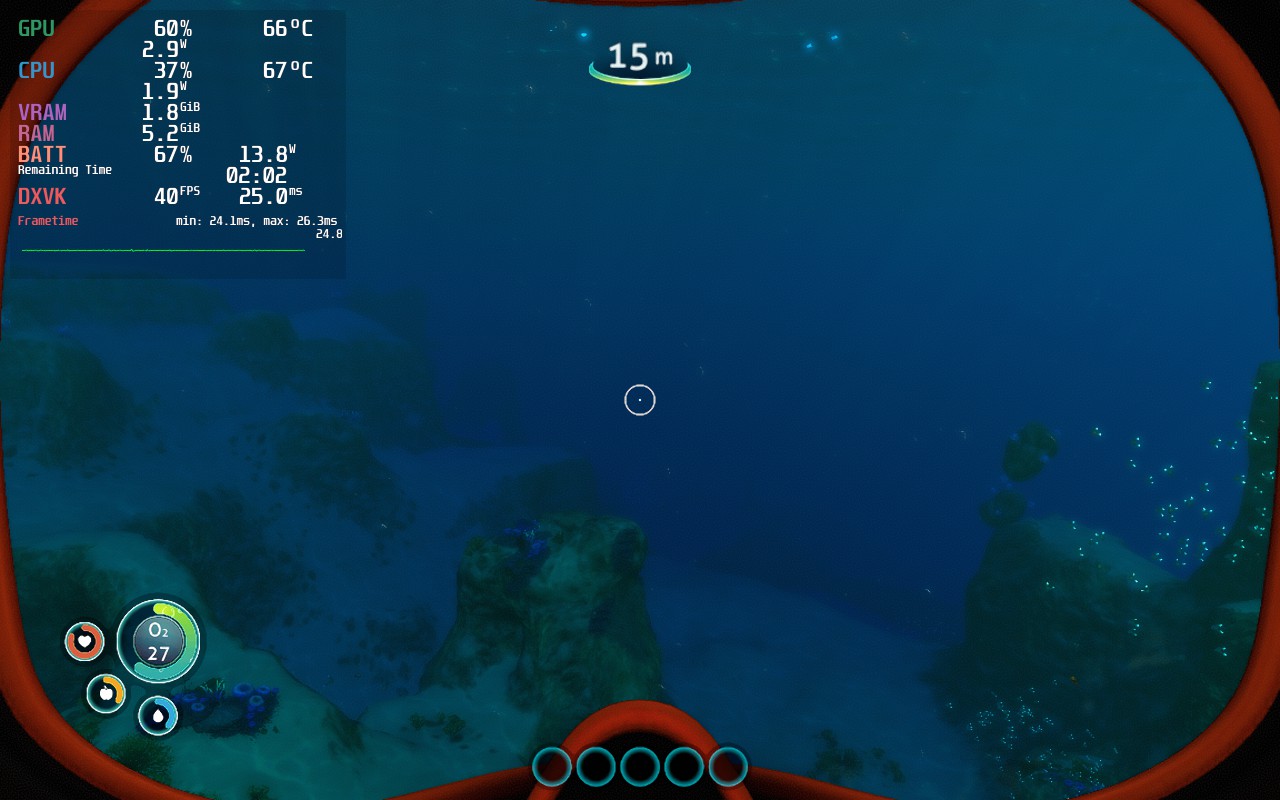
As you can see, the surface on the water is greatly affected by this settings. It doesn't change much when underwater, but seeing as how the surface is visible in most of the game, I felt the increased power draw was worth it for this huge graphical change.
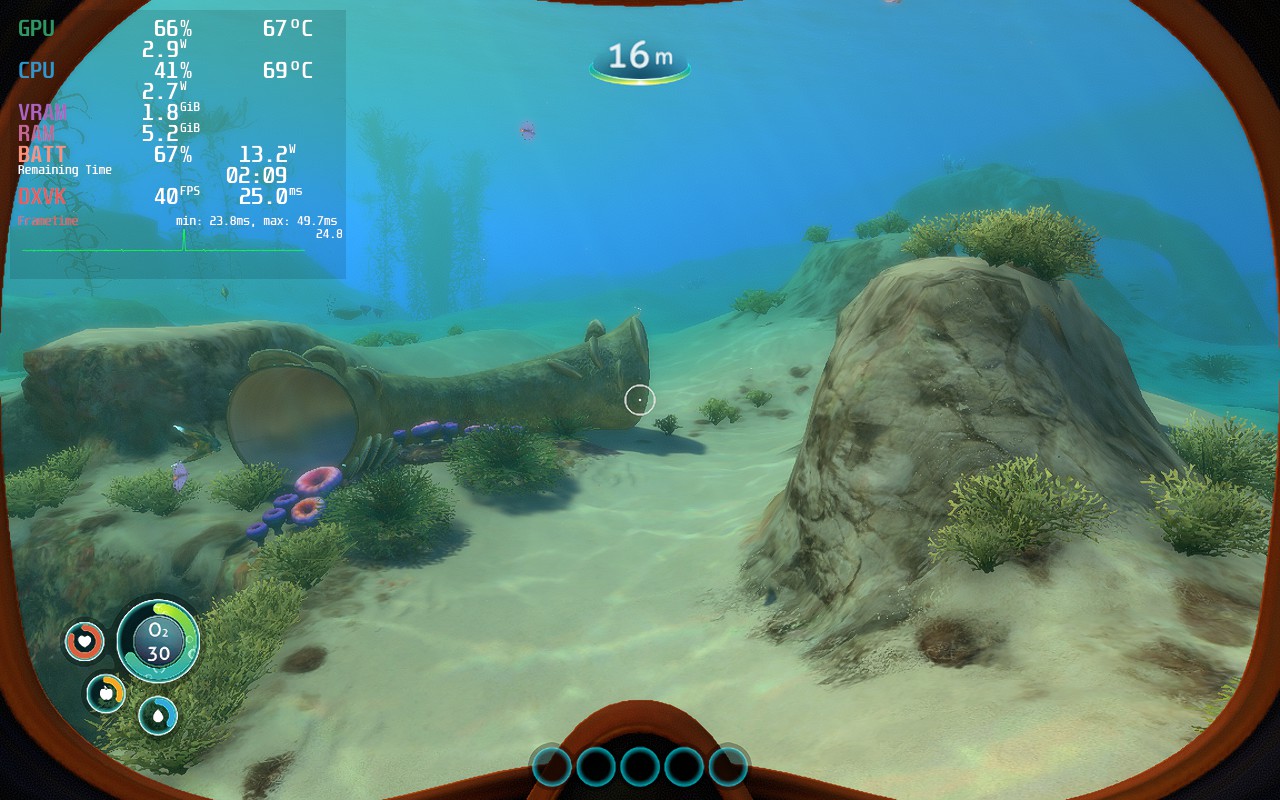
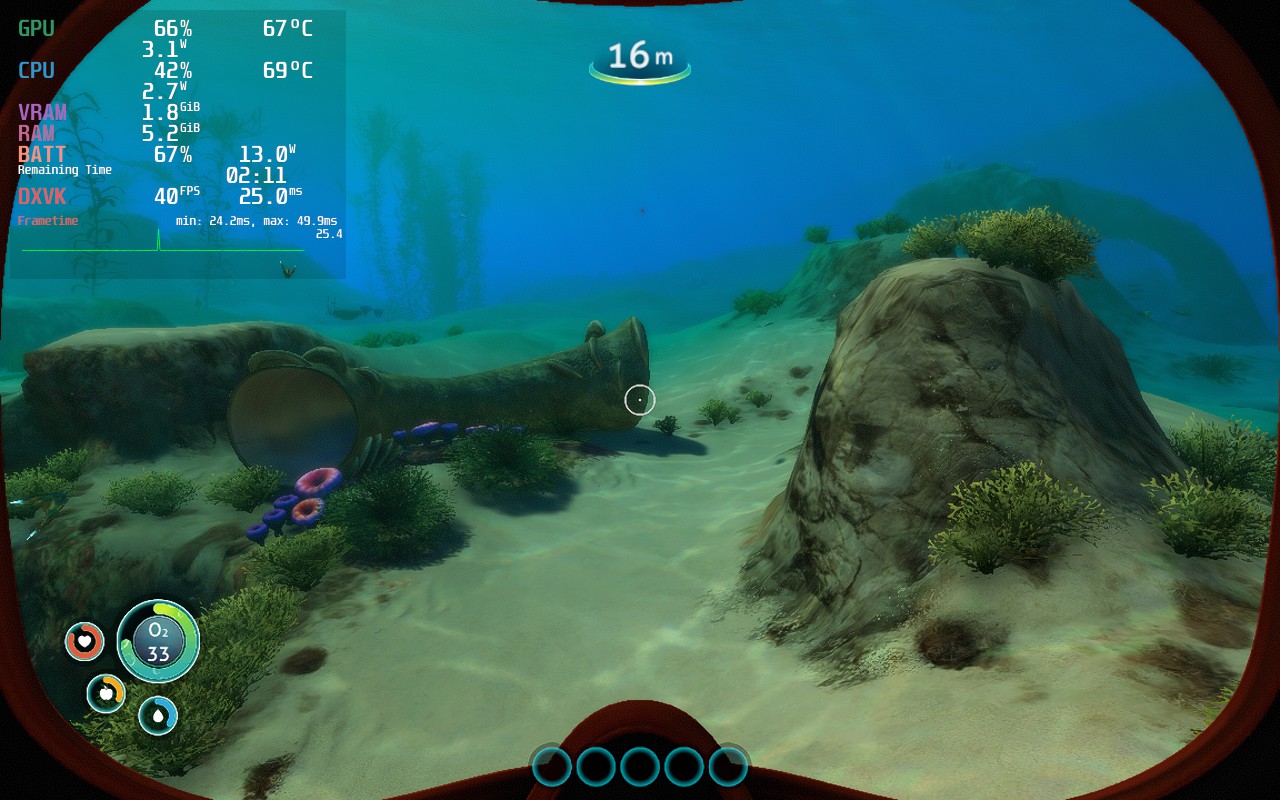
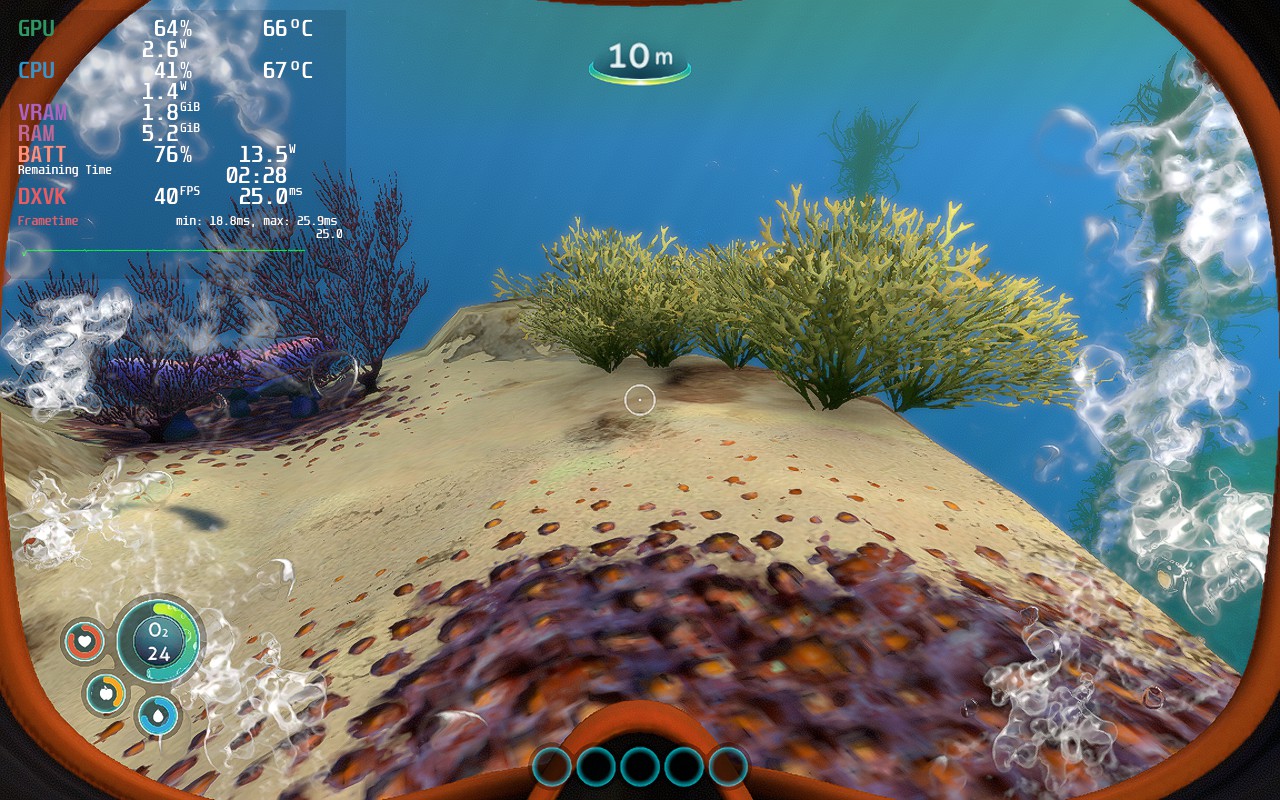
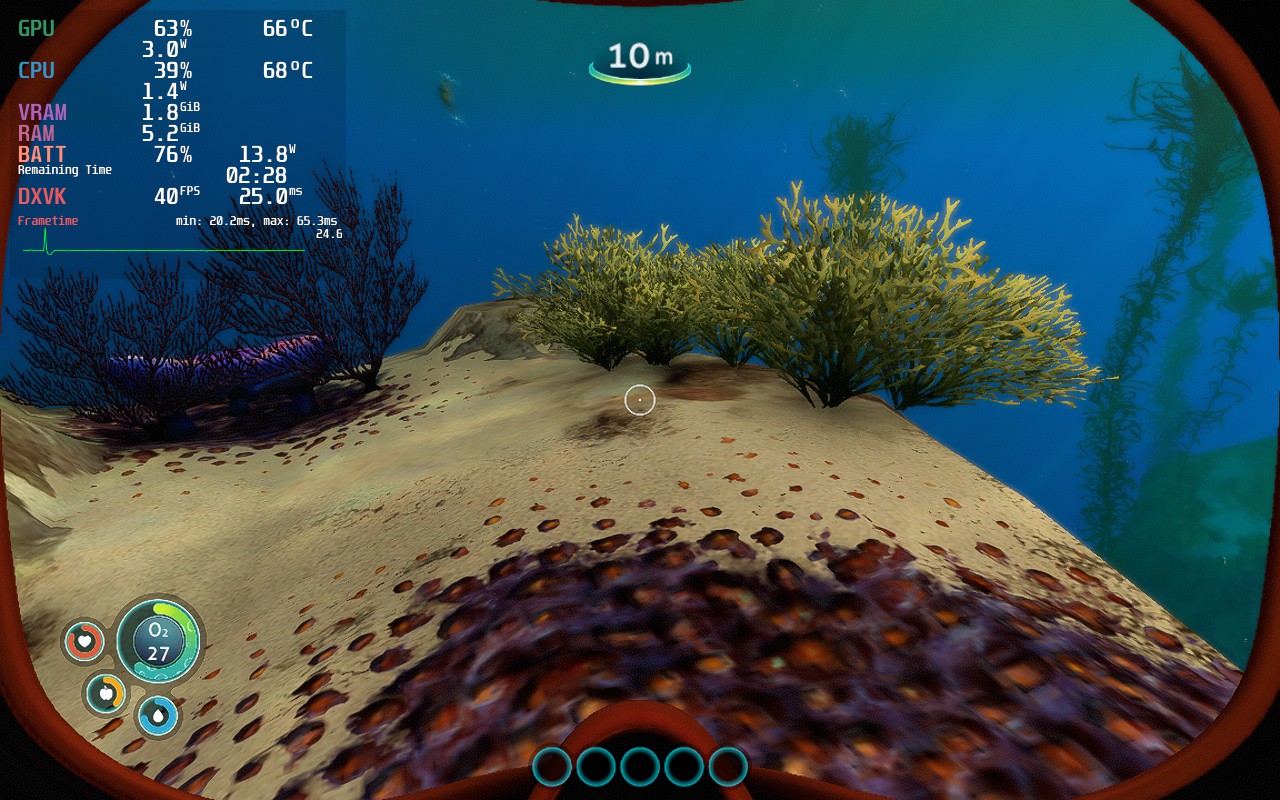
Color grading was another tough one. I like the style of Filmic more overall, but turning it off really helped in certain areas. I believe it is more worthwhile to keep FIlmic on, but I think this can be up to you in general.
このレビューはPC版に基づいています。
このレビューをお楽しみいただけたなら、SteamDeckHQ の他のコンテンツもぜひご覧ください!私たちはあなたのゲーム体験に役立つこと間違いなしの様々なゲームレビューやニュースを取り揃えています。ニュース、ヒントやチュートリアル、ゲーム設定やレビューをお探しの方も、最新のトレンドを知りたい方も、ぜひご利用ください!



