Get ready to partake in the ultimate Lego Star Wars adventure! The Skywalker Saga spans all 9 of the mainline Star Wars films, allowing you to play through the entire series with over 300 characters, 100 vehicles, and 23 entire planets! The game takes a giant leap forward in Lego games in general with open-world gameplay, a new camera angle, side missions, upgradable abilities, and much more! If you're a fan of Lego games and Star Wars, this is the game for you!
Lego Star Wars: The Video Game was the first Lego game I played and it still sticks with me today. I fell in love with the gameplay and, being a fan of Star Wars already, it was awesome to experience the world in this way. Now, The Skywalker Saga takes that gameplay to a gigantic new level and MAN is it great. I absolutely adore the changes they have made with this entry and hope this is something they stick with for future releases. I can go on and on about this, but I believe a first look on the Steam Deck is in order!
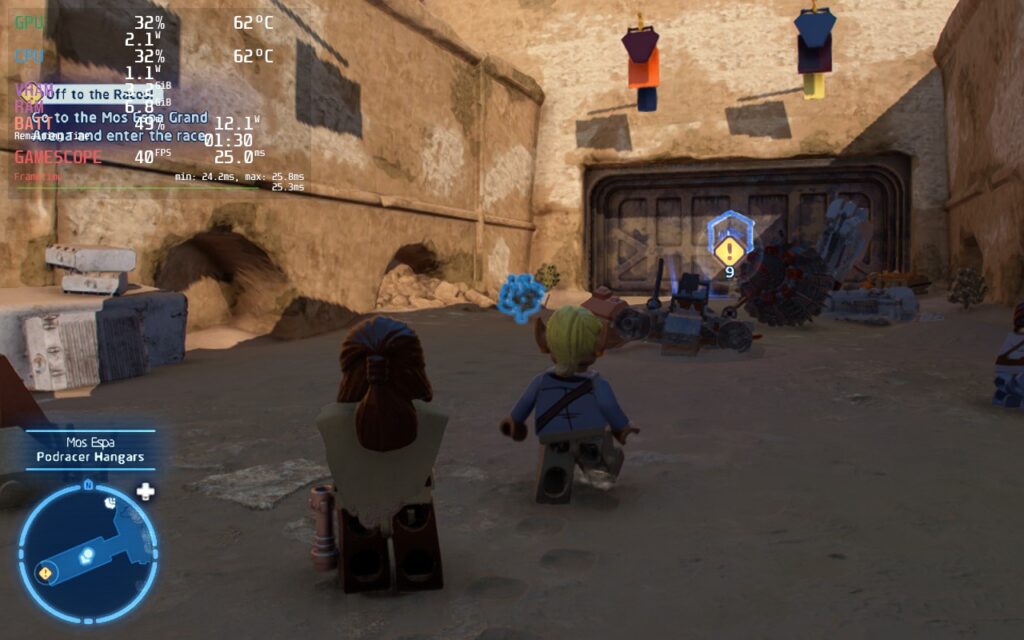
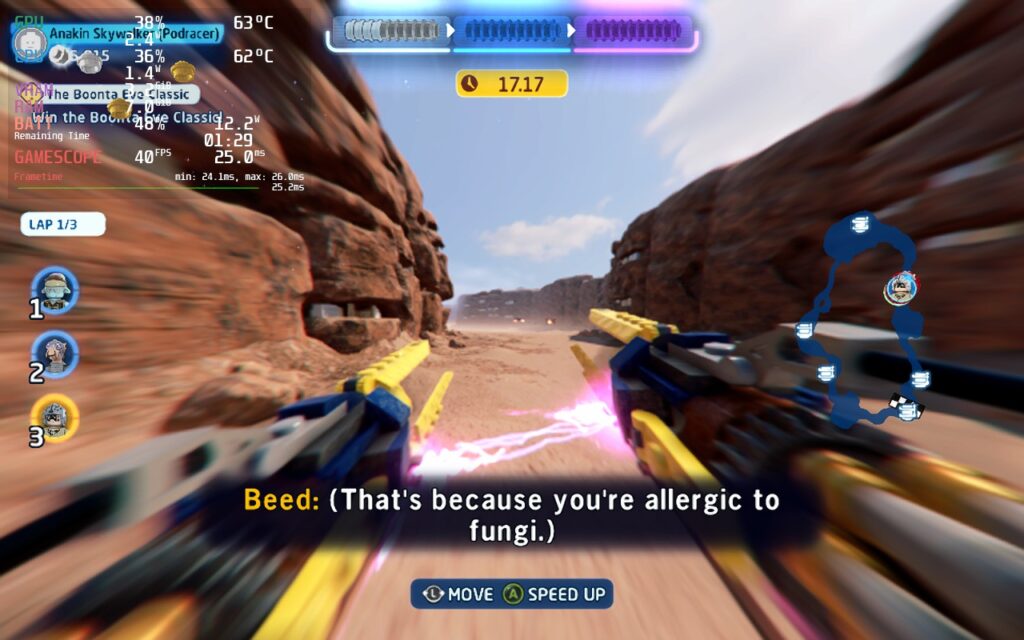
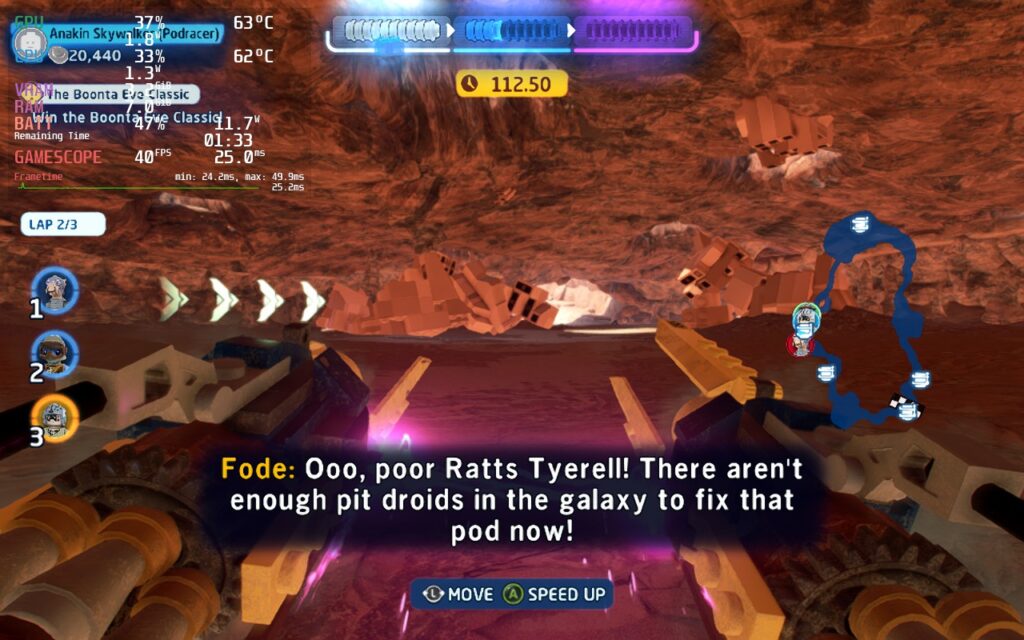
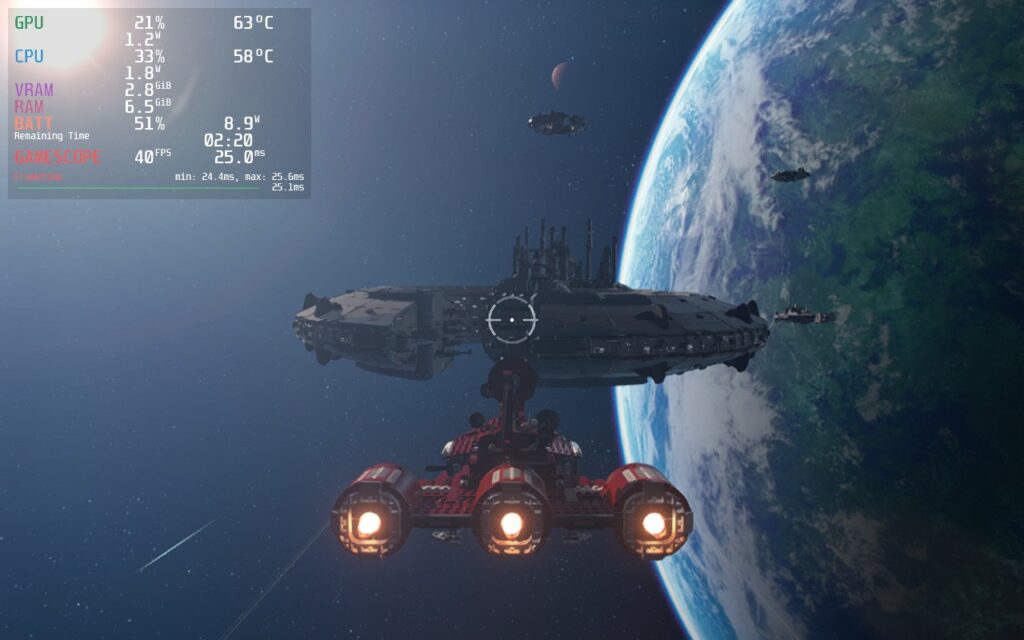
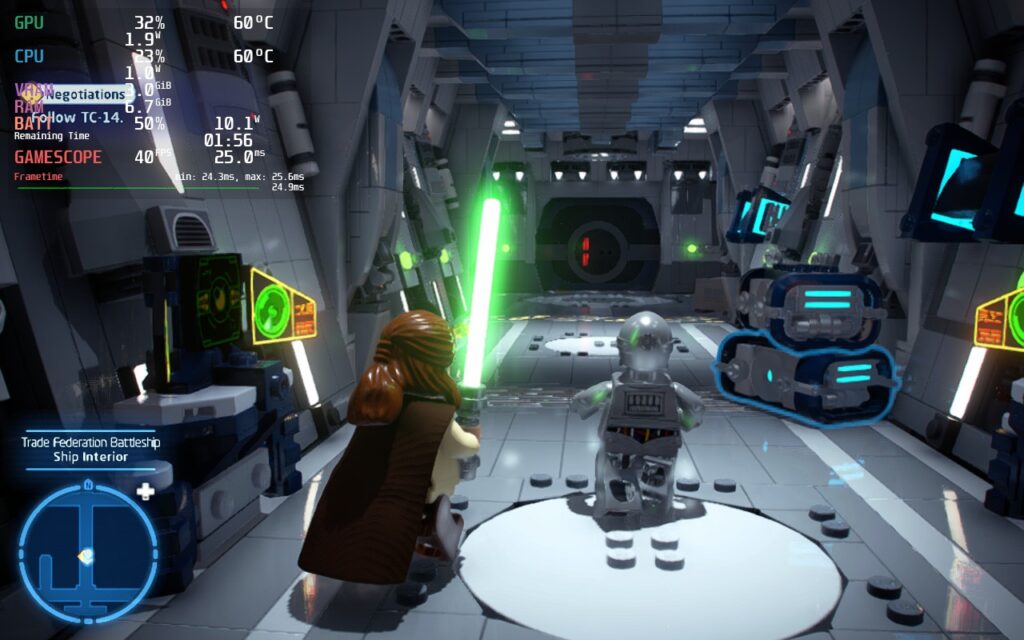
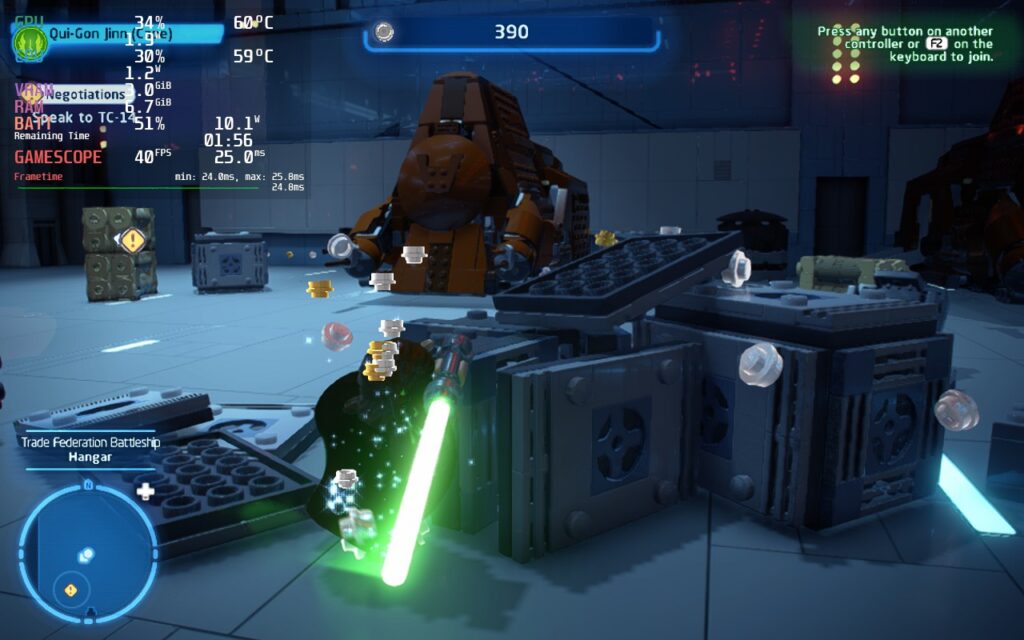
In my initial tests, I found that resolution is the biggest contributor to performance, but also has minimal amount of visual impact (compared to other games). The stutters or performance issues came into play during extensive scenes or when fighting/breaking tons of objects. Going from 1280x800 to 960x600 with FSR Sharpness 0 seemed to have minimal impact on how everything looked overall, but significantly helped with stability of the framerate on a TDP limit of 9. The other graphics options have little to no effect on the performance, so keeping them at high and medium was okay.
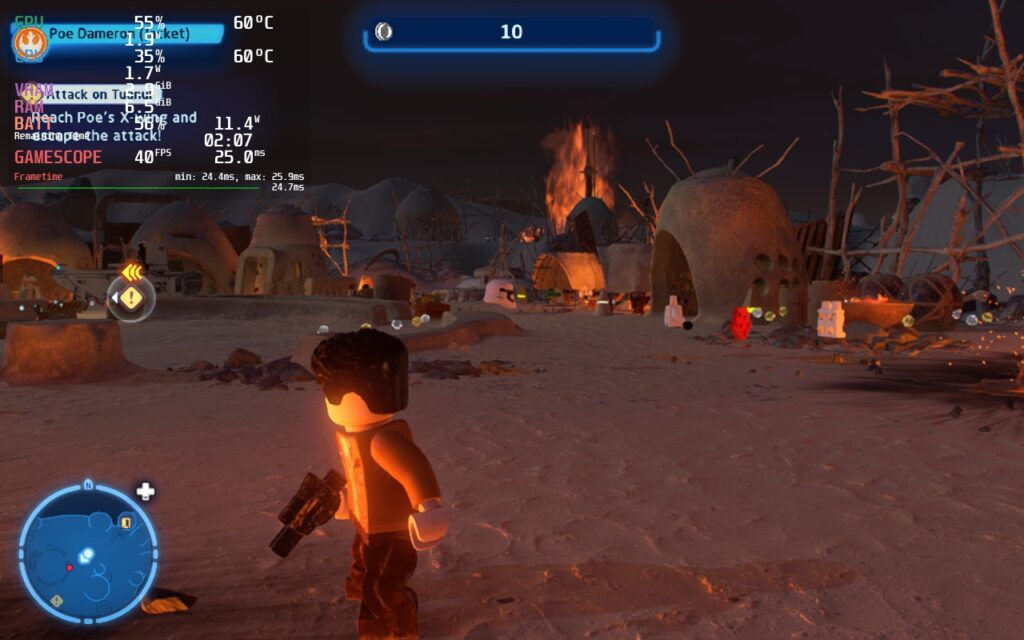
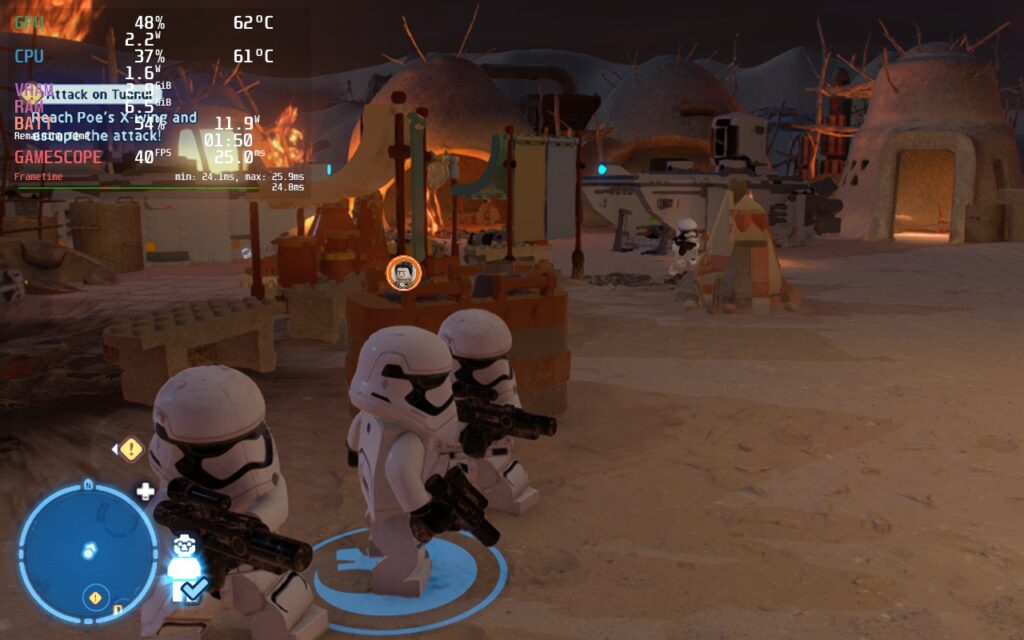
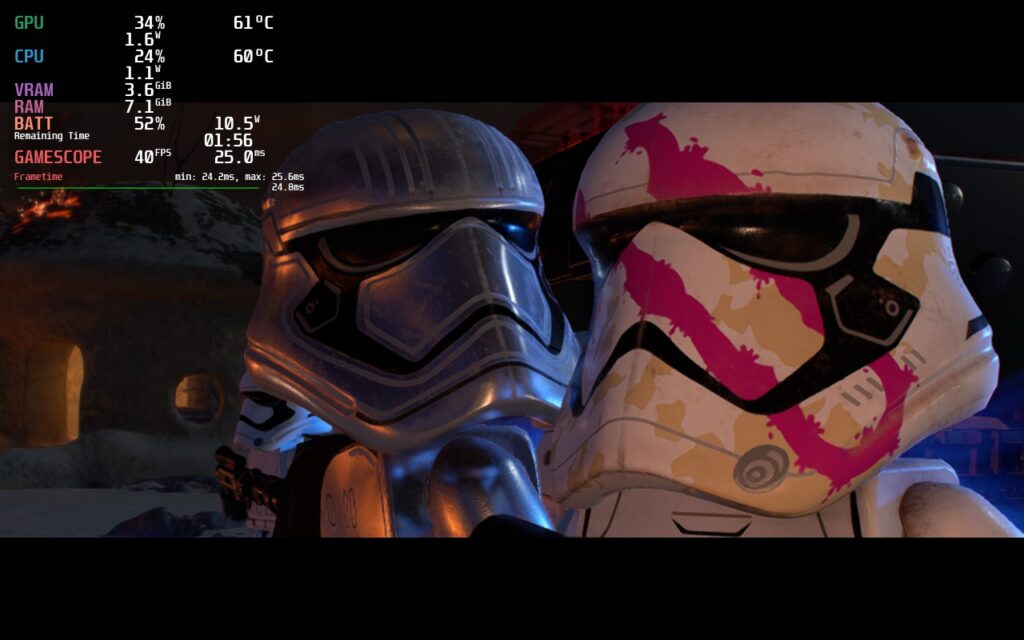
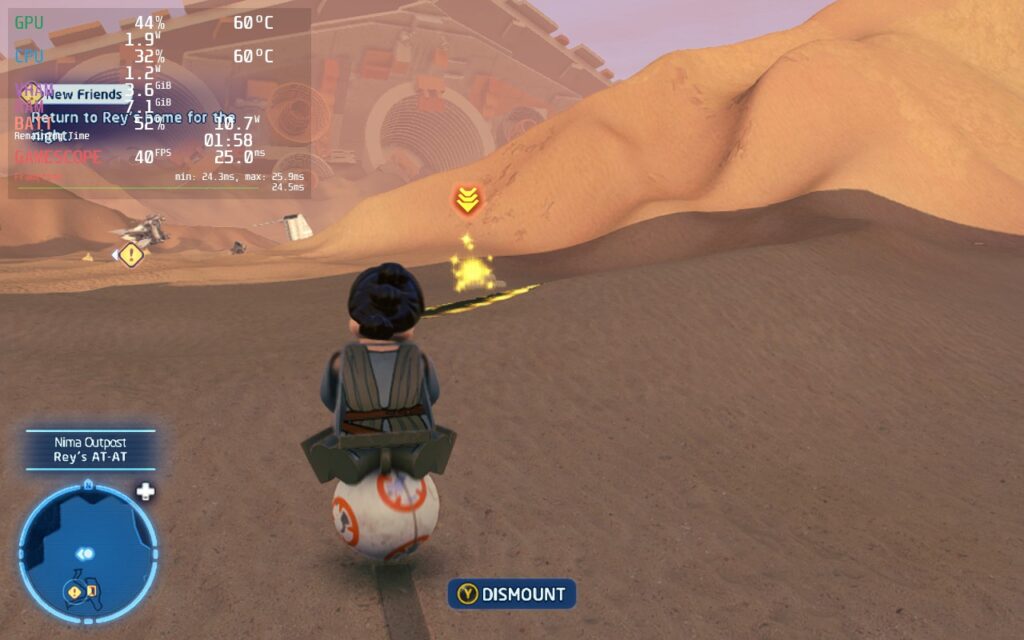
There are still some minor stutters when breaking objects or fighting, but having a GPU Clock Frequency of 1200 helped most of them. Other than that, the game looks and feels phenomenal in most areas I have played so far. 40 FPS feels fantastic and with the battery averaging around 11W - 13W, I am extremely happy with the drain! Waking up the Deck with the game on did change controller prompts to KB+M, but pressing a button changed them right back. No controller issues I have encountered so far!
Overall, I would consider this a gem to play on the Steam Deck. The game itself is a ton of fun and with a couple tweaks, it runs fantastically too. Other than the small dips from time to time, Lego Star Wars: The Skywalker Saga shined at 40 FPS with good looking visuals and a great battery life for an open-world game. We will play more and try to create a higher framerate and quality build, but so far, 40 FPS is definitely going to be the way I play.
If you enjoyed this first look, be sure to check out the rest of the content on SteamDeckHQ! We have a wide variety game reviews and news that are sure to help your gaming experience. Whether you're looking for news, tips and tutorials, game settings and reviews, or just want to stay up-to-date on the latest trends, we've got your back
It is time to help out some ghosts in this adventure RPG! In The Outbound Ghost, you are tasked with helping some ghosts ascend to the afterlife after their untimely deaths. Battle other ghosts and gain new abilities while uncovering the mysteries surrounding the town of Outbound to help the dead residents find peace. With a visual style heavily inspired by Paper Mario, turn-based combat encounters, puzzles, an interesting cast of characters, and a unique badge system, The Outbound Ghost has a little something for all RPG fans. But the real question here is...how does it run on the Steam Deck?
The game when maxed out can run, but it drains WAY too much battery. When left alone, the drain goes up to 23W and for a game like this, there is no reason to be going that high, but per usual, we can improve this significantly with some changes.
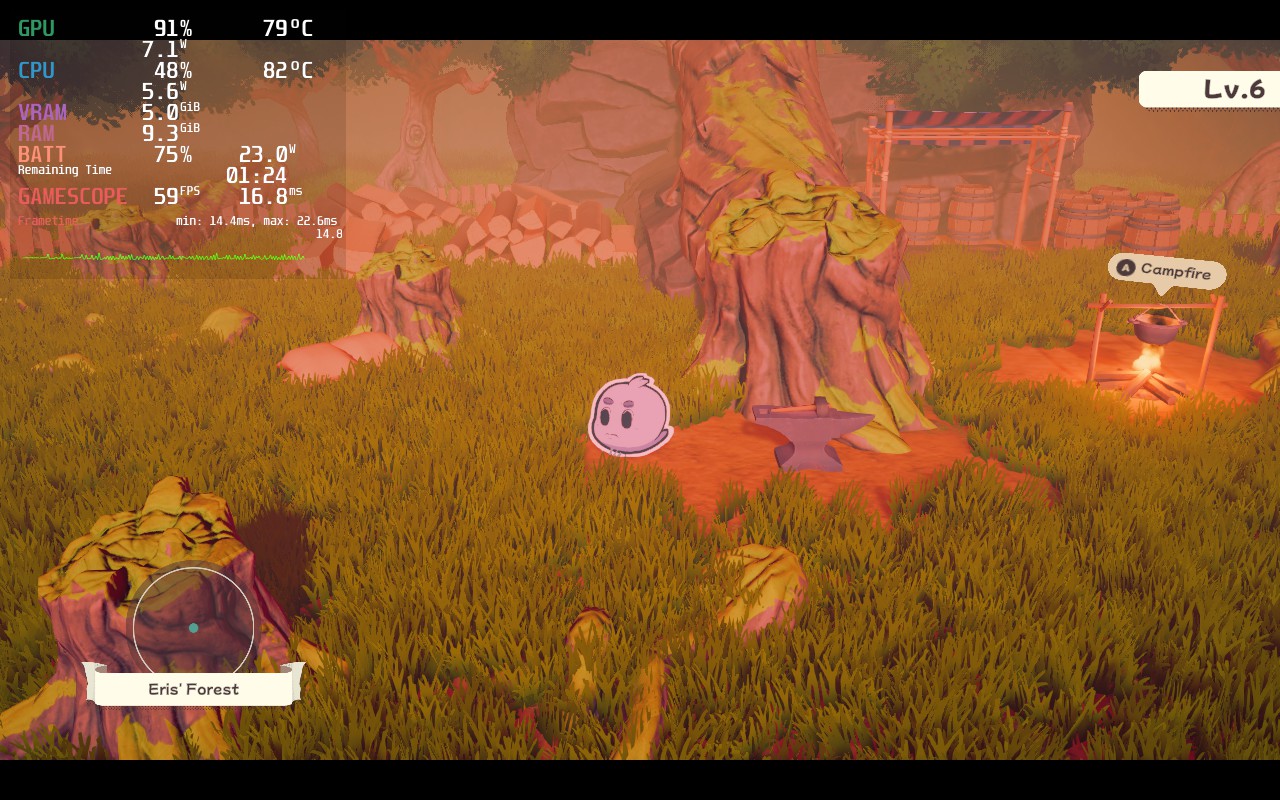
Just standing still causes a large battery drain with an unstable 60 FPS at max settings, but it could be a lot better!
Unfortunately, there are some issues with The Outbound Ghost on Steam Deck that persist regardless of the settings that were changed. When done tweaking, I ended up with 45 refresh rate/FPS, TDP limit of 8, and a mix of high and medium settings in-game settings. This allowed for around 3 - 3.5 hours of battery life with a more stable framerate. There are still some spikes here and there, which did slow the game down every now and then, but it didn't persist through combat, which is more important as it does require some precision button pressing to do more damage.
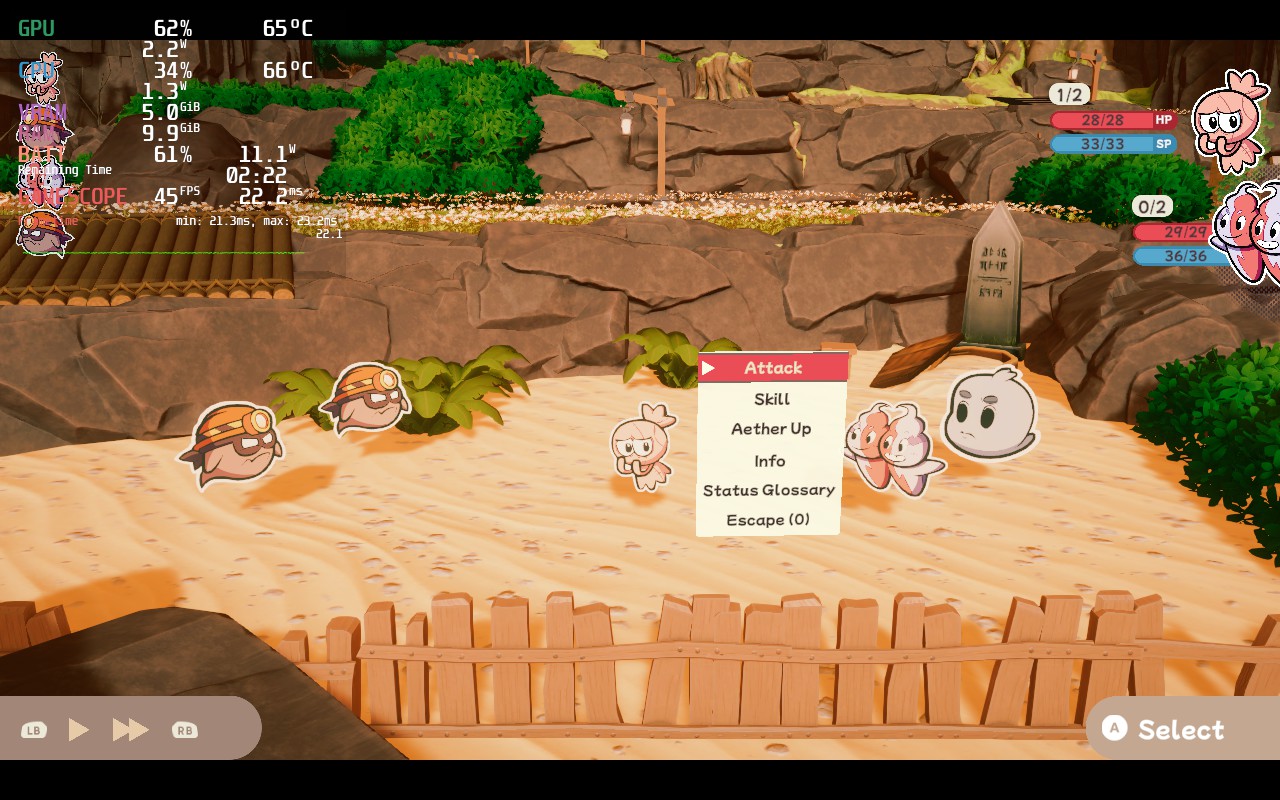
I also felt it was important to have a 60 FPS option, though it is definitely less stable and drains more battery. To combat this, I did have to lower the Model and Light quality settings to Medium, but it did end up helping a bit. In the end, it was still a little unstable, but the battery was able to last around 2 - 2.5 hours.
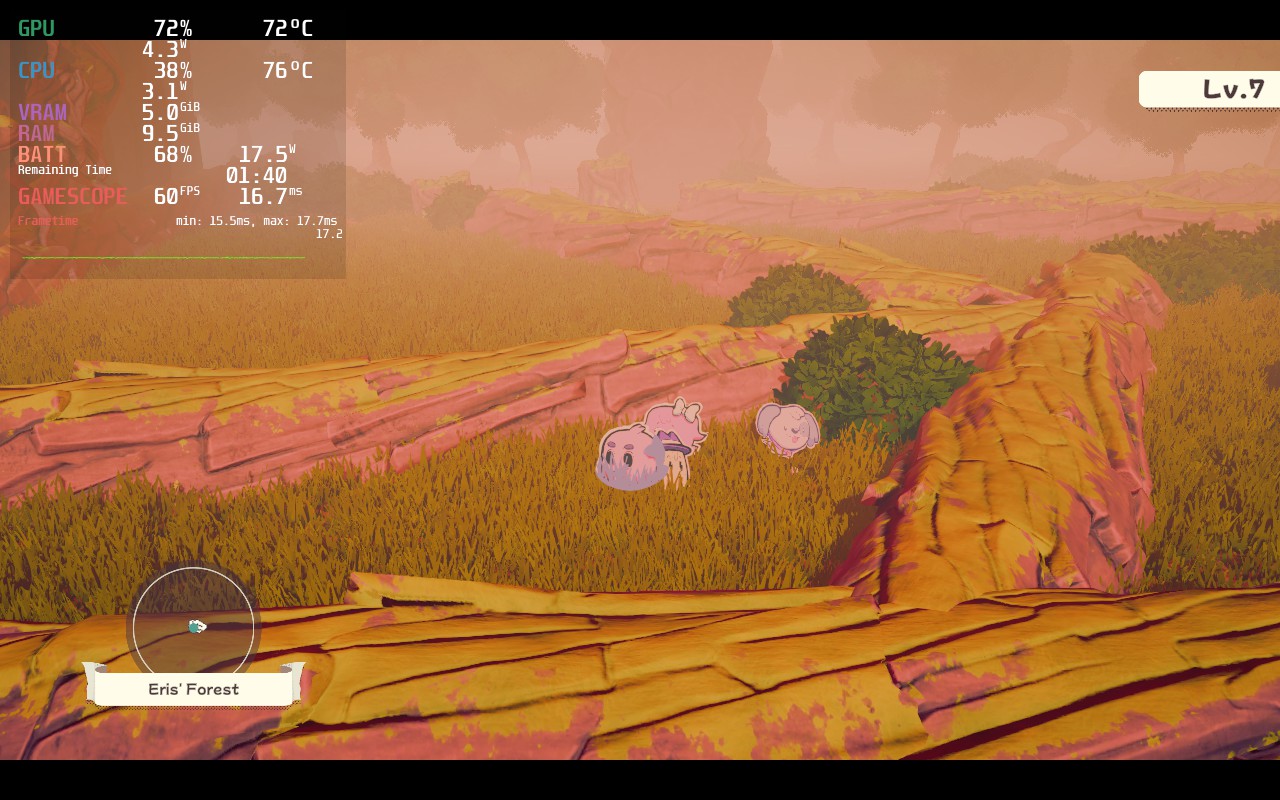
I didn't really notice much of a different graphically between the 2 options, and since 45 FPS still felt really smooth and framerate spikes will persist no matter what, I preferred to save the battery.
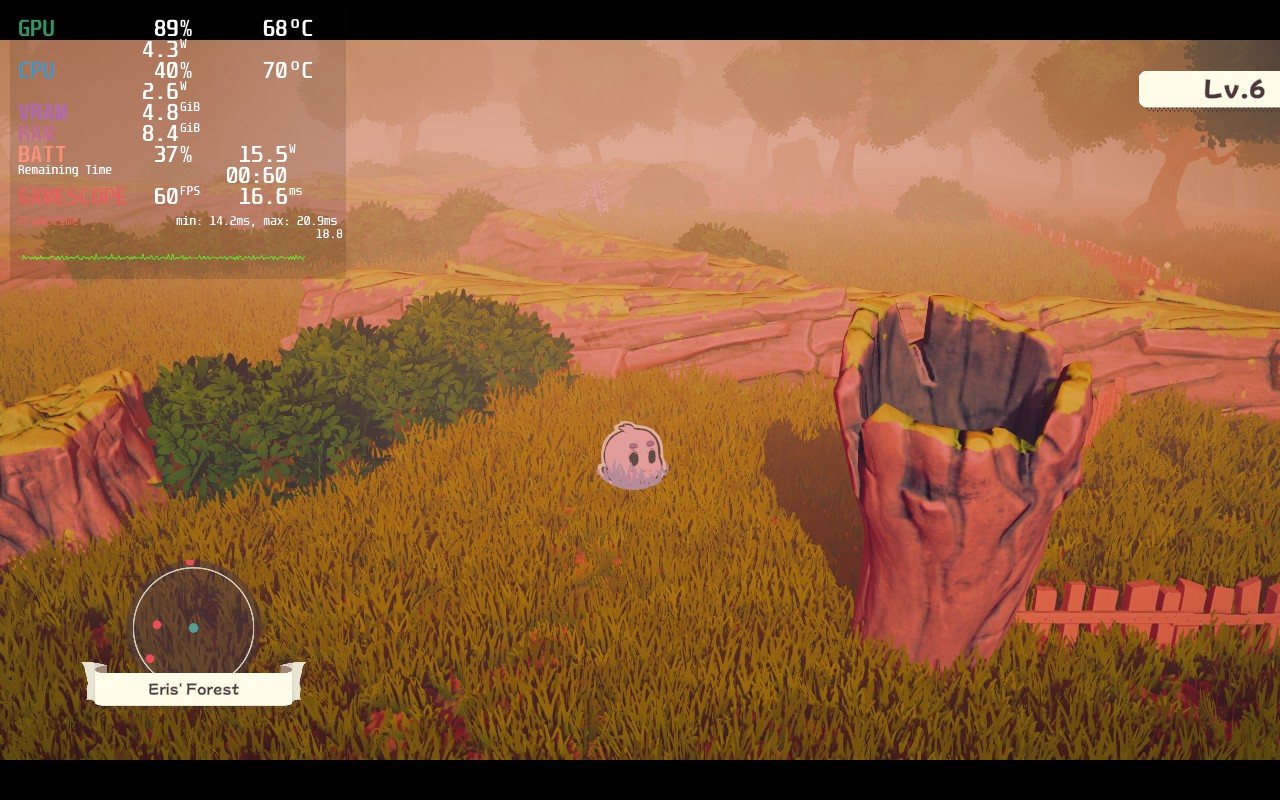
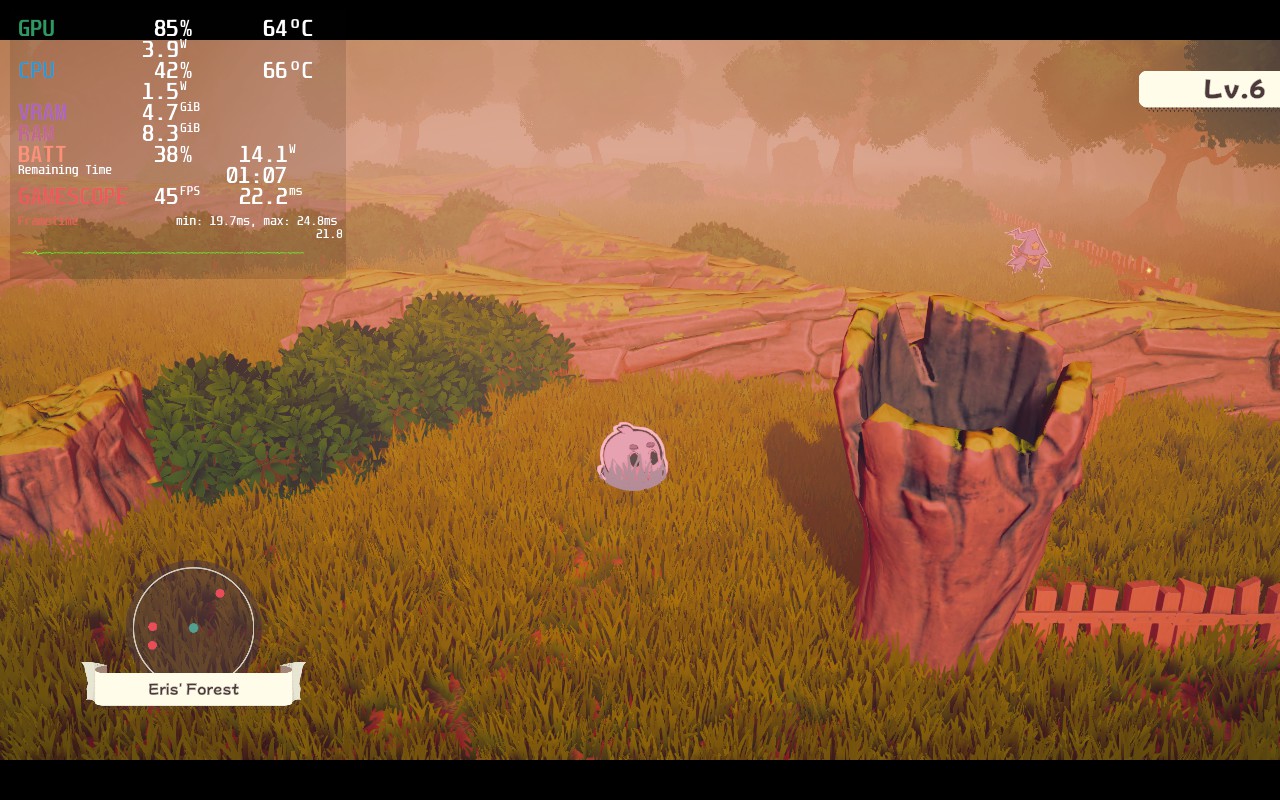
There are very small differences between the graphical changes from Medium (60 FPS) to high (45 FPS).
The other bad part of The Outbound Ghost are some of the weird bugs or hitches that can inhibit gameplay. I already brought up the stuttering, but there is a couple of other issues I want to go over.
The first one I noticed is actually changing the resolution. The game defaults to 1280x720, which is fine to play, but it does have an option for the native 1280x800. When this is selected though, the UI of the game gets a bit screwed up. On top of that, the game stays at 1280x720 anyways, so keeping this on its default worked fine.
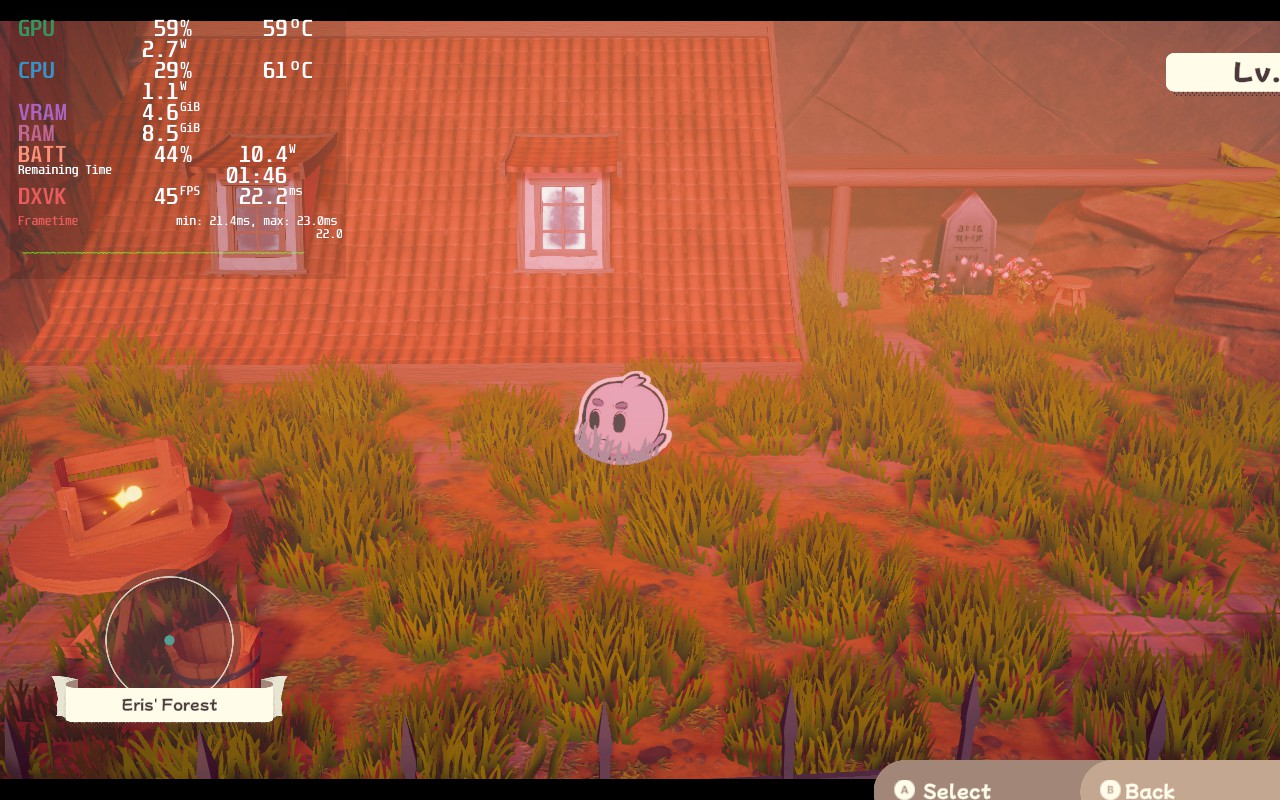
You can easily notice the UI issues when looking at the bottom right and top left. The level is cut off while the select and back prompts are still visible, even when not on a menu.
The biggest issue I found most annoying was actually the amount of time it took to get into each combat encounter. Whenever you start a combat encounter, it takes a real 7 seconds to get into a fight. While this doesn't sound like a lot, it adds up and just feels off when just playing the game. It isn't game breaking at all, just more of a gigantic nuisance I found obnoxious.
The Outbound Ghost is a really wonderful game in itself. The characters are memorable, the combat is serviceable, and the environments and designs are fantastic and fit. The game scratches a Paper Mario itch I didn't know I had, and if I was talking about getting this game in general, I would say take the leap. But this is about the Steam Deck and I hoped for better. In the end, it is playable, but expect some sacrifices and nuisances along the way.
このレビューはPC版に基づいています。
このレビューをお楽しみいただけたなら、SteamDeckHQ の他のコンテンツもぜひご覧ください!私たちはあなたのゲーム体験に役立つこと間違いなしの様々なゲームレビューやニュースを取り揃えています。ニュース、ヒントやチュートリアル、ゲーム設定やレビューをお探しの方も、最新のトレンドを知りたい方も、ぜひご利用ください!
It is time to dive into the magical world of disney in this life-sim adventure game where you must save the idyllic land of Dreamlight Valley. Once a paradise of Disney and Pixar characters, this place was corrupted by the Forgetting, which threatened to sever all the grand memories associated with the territory. But thanks to you, you can save them all and bring the light and magic back!
Discover secrets and forge friendships with your favorite Disney and Pixar characters like Wall-E, while also decorating your home and putting together some awesome outfits. And hey, settle where you want to as well, whether it be on a beach with Moana or even Wall-E (I like Wall-E). In the end, you choose the way you play and the life you build is completely up to you.
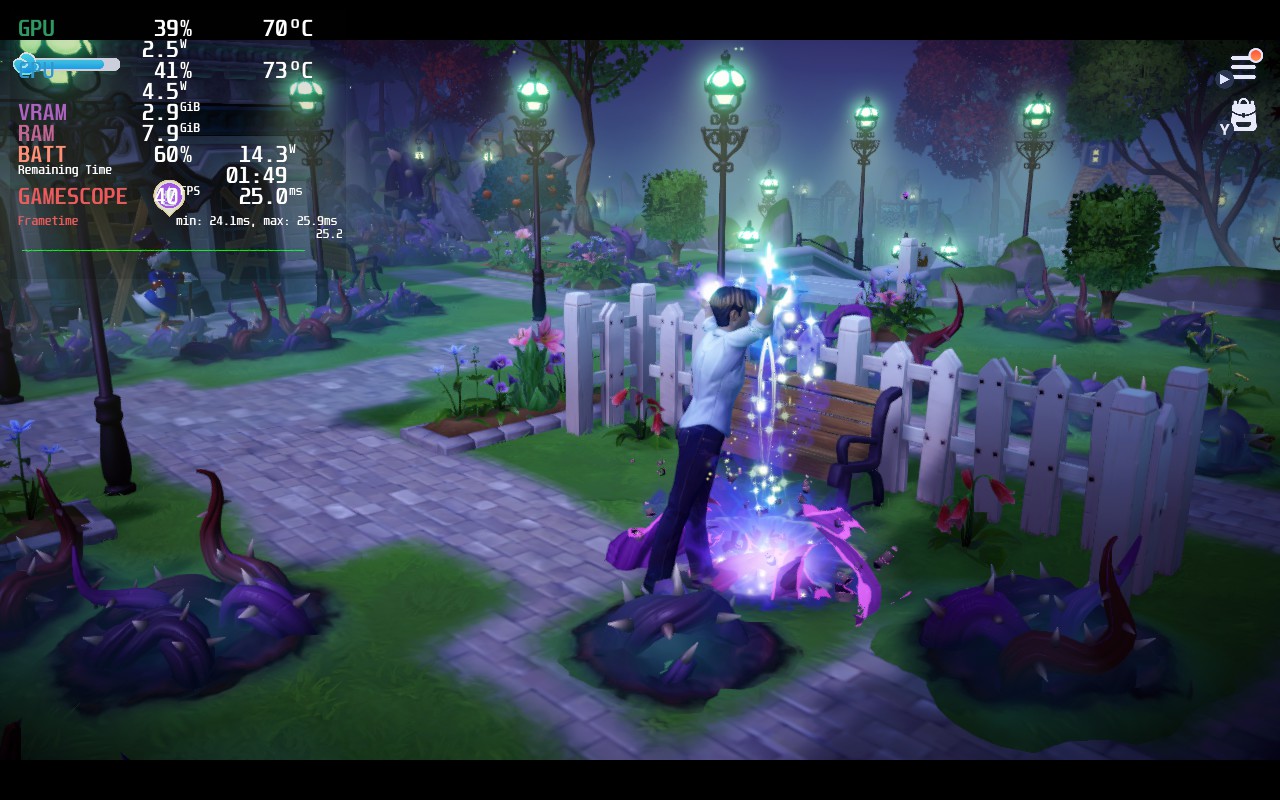
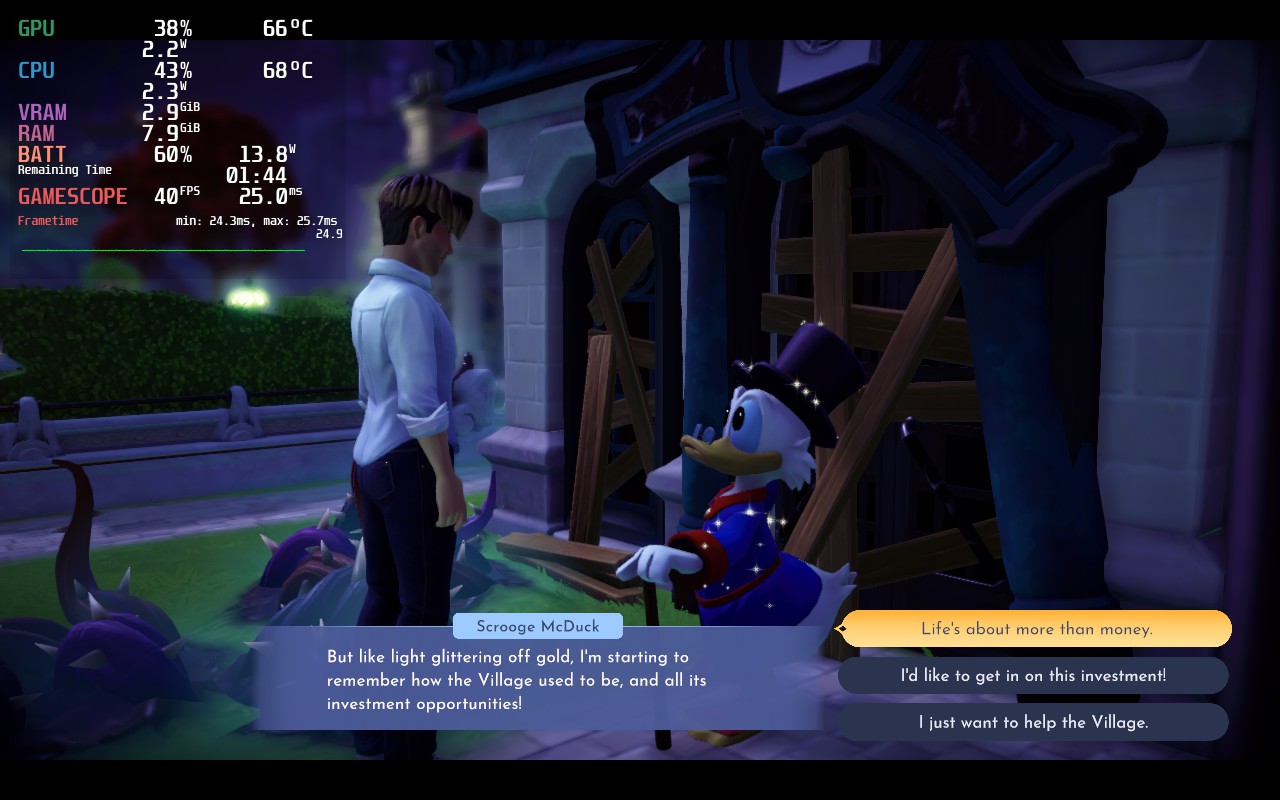
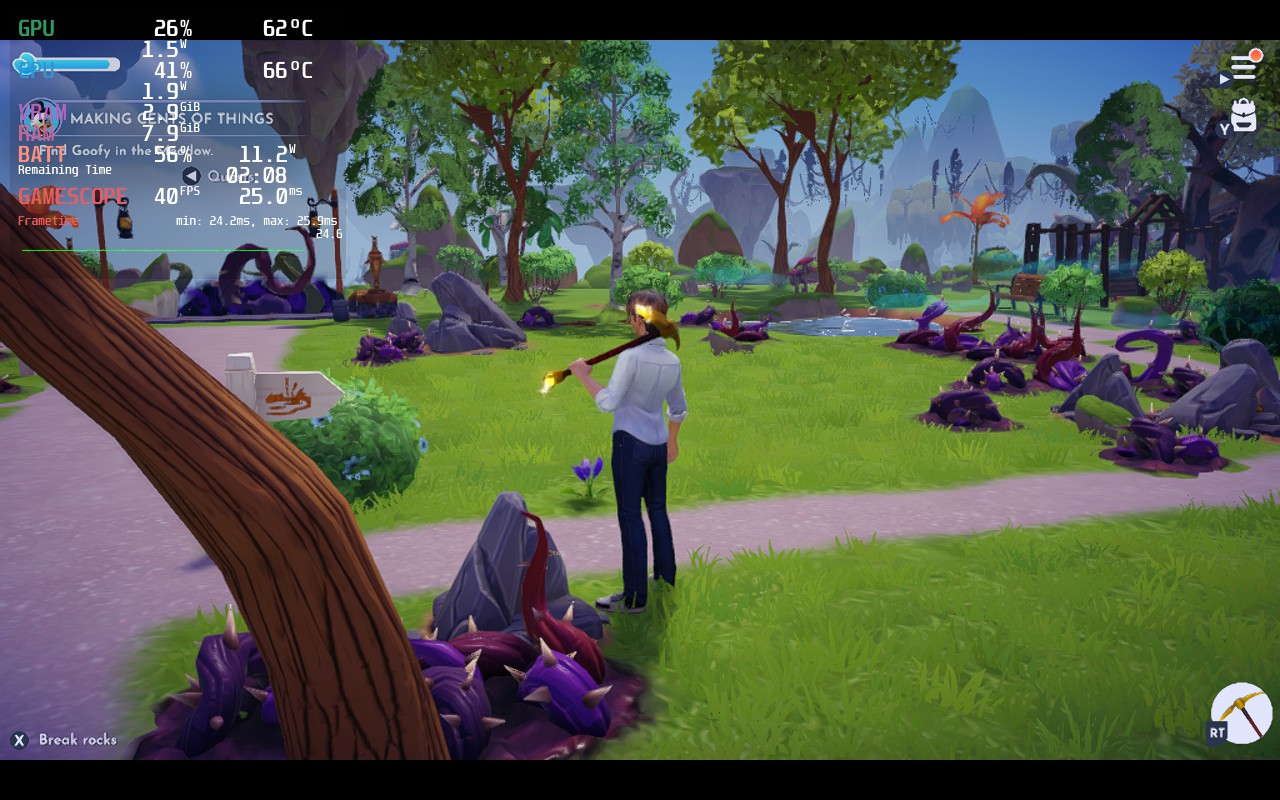
This is an early access game, so a lot is subject to change over time until it releases, but so far, it has been okay. On max settings, the game tends to hit 23W draining while temps go to 80+ and framerate stutters around 30-35 FPS, but with the right changes, we were able to get a solid 40 FPS build with around 3 hours of battery life.
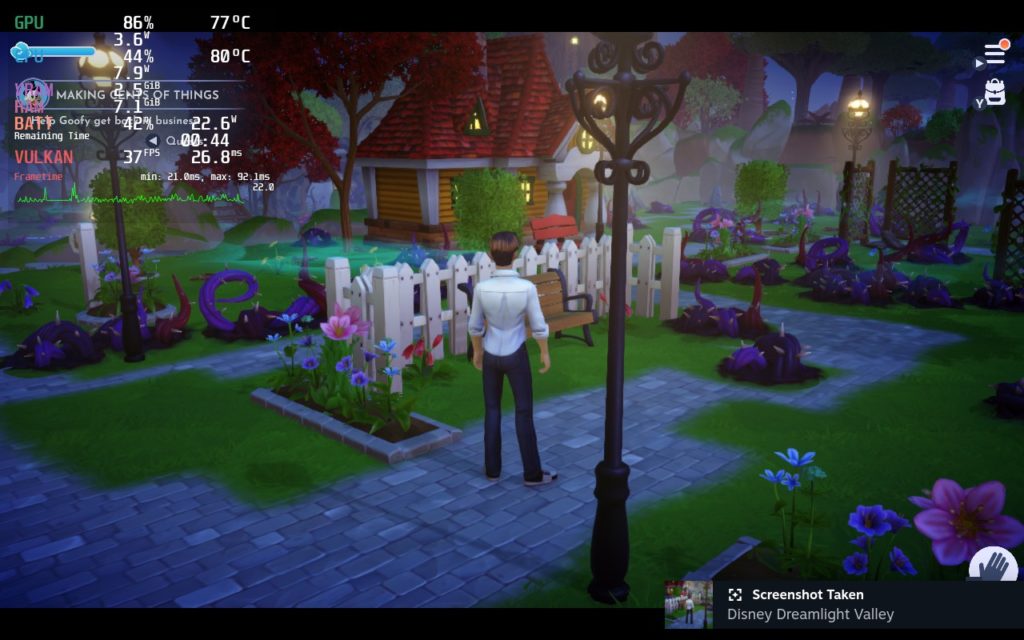
While the game looks nice at max, it is highly unstable and drains way too much. And this goes even higher when actively running around!
We also noticed that Dreamlight Valley tends to use more power based on what you see, so when in menus and not looking at much rendering in, you will have better stability and drain less battery. Unfortunately, this means running around and assets loading in can be a decent strain, so I felt setting the Distance Quality to "PC Low" solved this, keeping stability with pop-in not being nearly as bad as I would have thought. You can change this to "PC Medium" which does get rid of most of the pop-in, but there's definitely instability at the 40 FPS mark (could switch to 30, but will still see minor dips).
I also want to mention that this game DOES have cloud saves, though you need to sign into a 3rd party account to do it at this current stage, but it does go across multiple platforms. You should also use Proton GE, since the game crashed multiple times for me using regular Proton.
Overall, the game is in a pretty decent state for early access. I do wish it ran a bit better and had more fleshed out graphical options, but I am willing to give it the benefit of the doubt! So far, so good though!
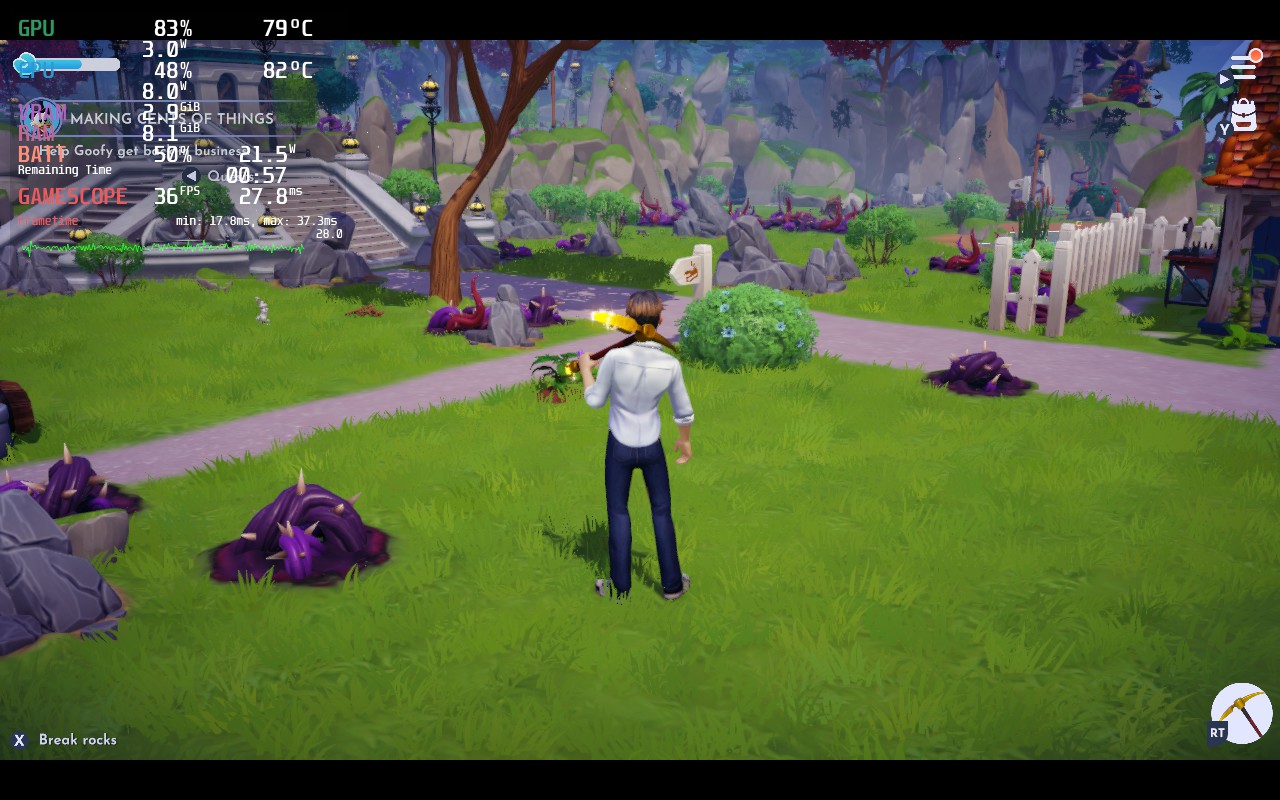
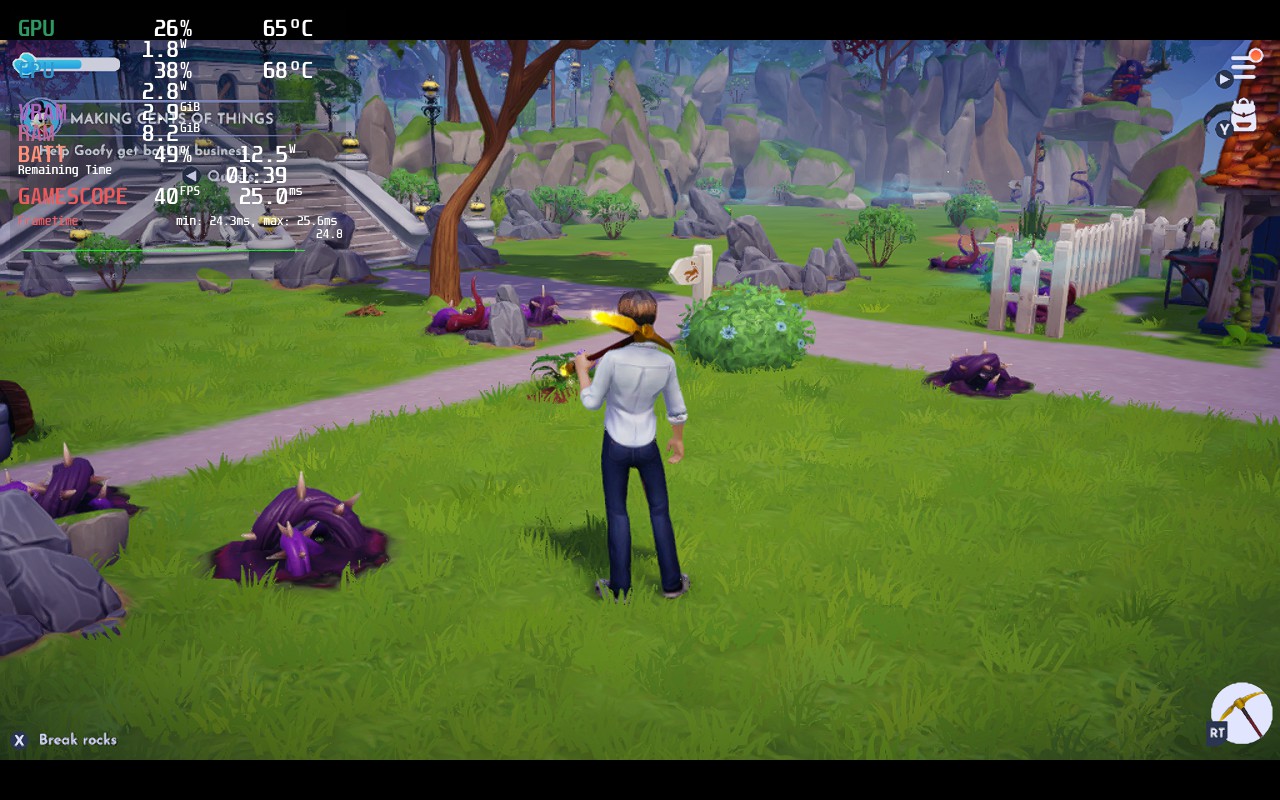
Max Settings vs Recommended. There is a decent drop in visual quality, but not enough to justify a 1.5 hour battery drain with an unstable framerate!
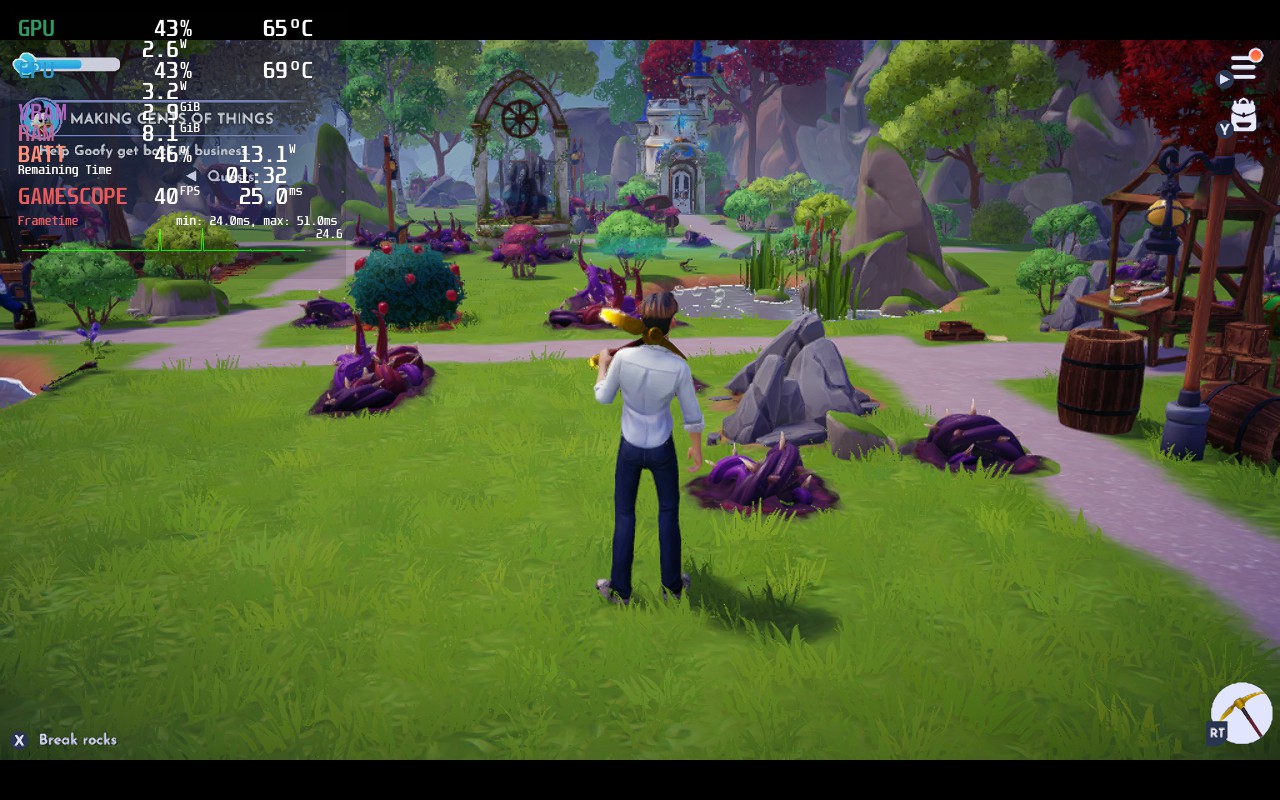
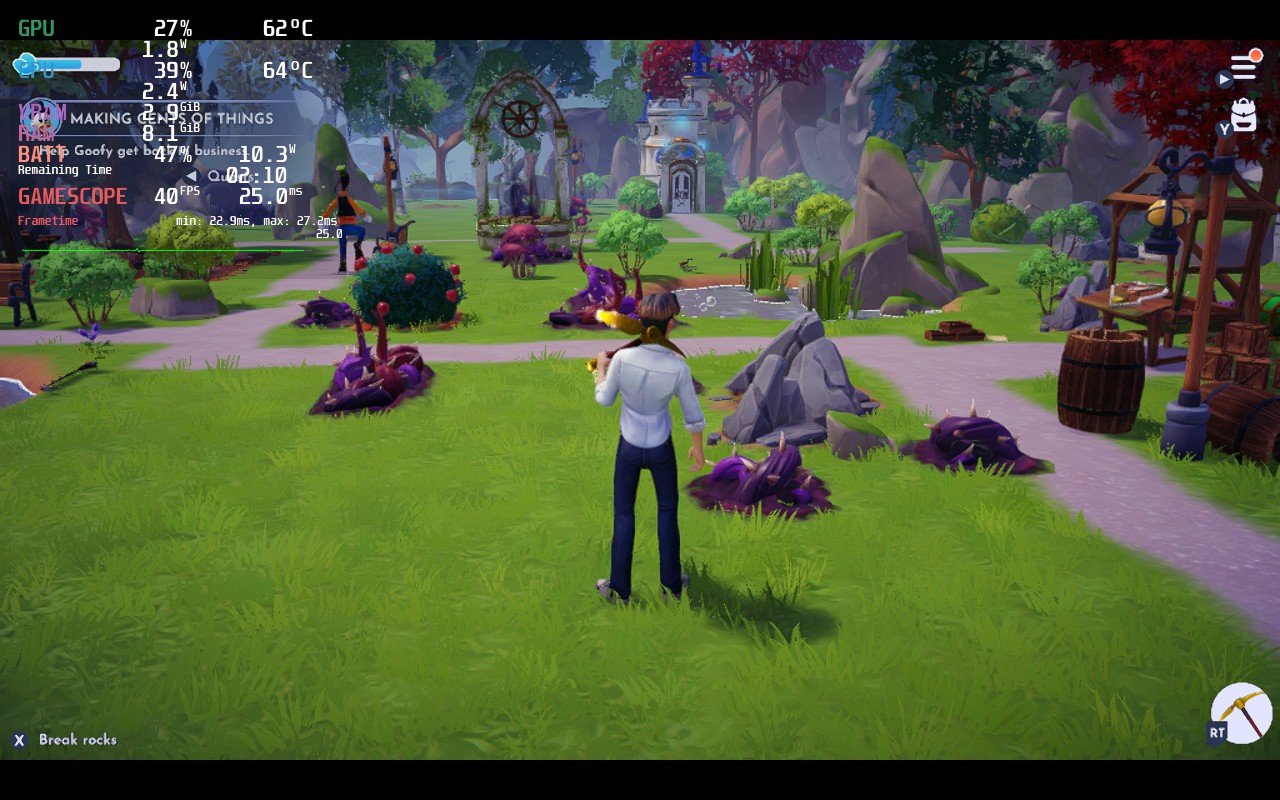
Draw/View distance here. Medium definitely looks better, but way more unstable. Just by standing there, you can see 2 little spikes on the framerate graph. Moving around makes it significantly worse.
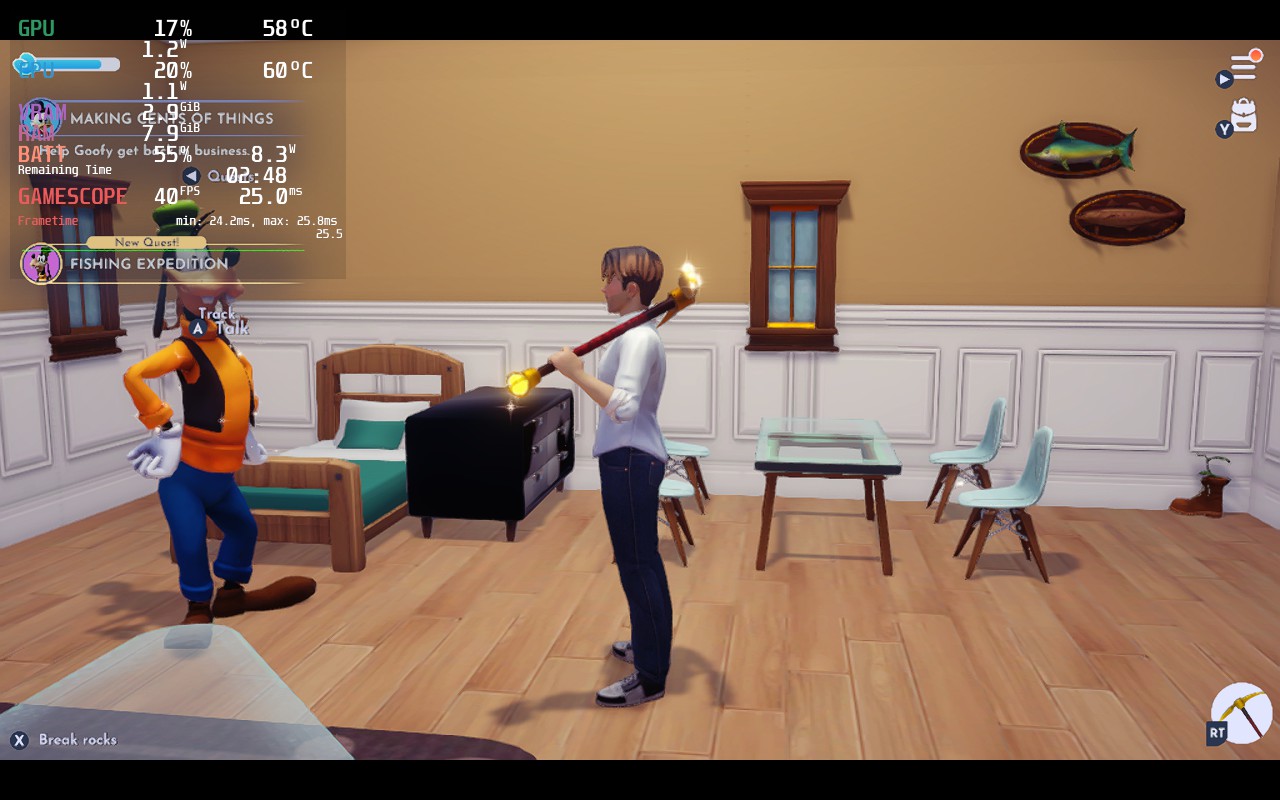
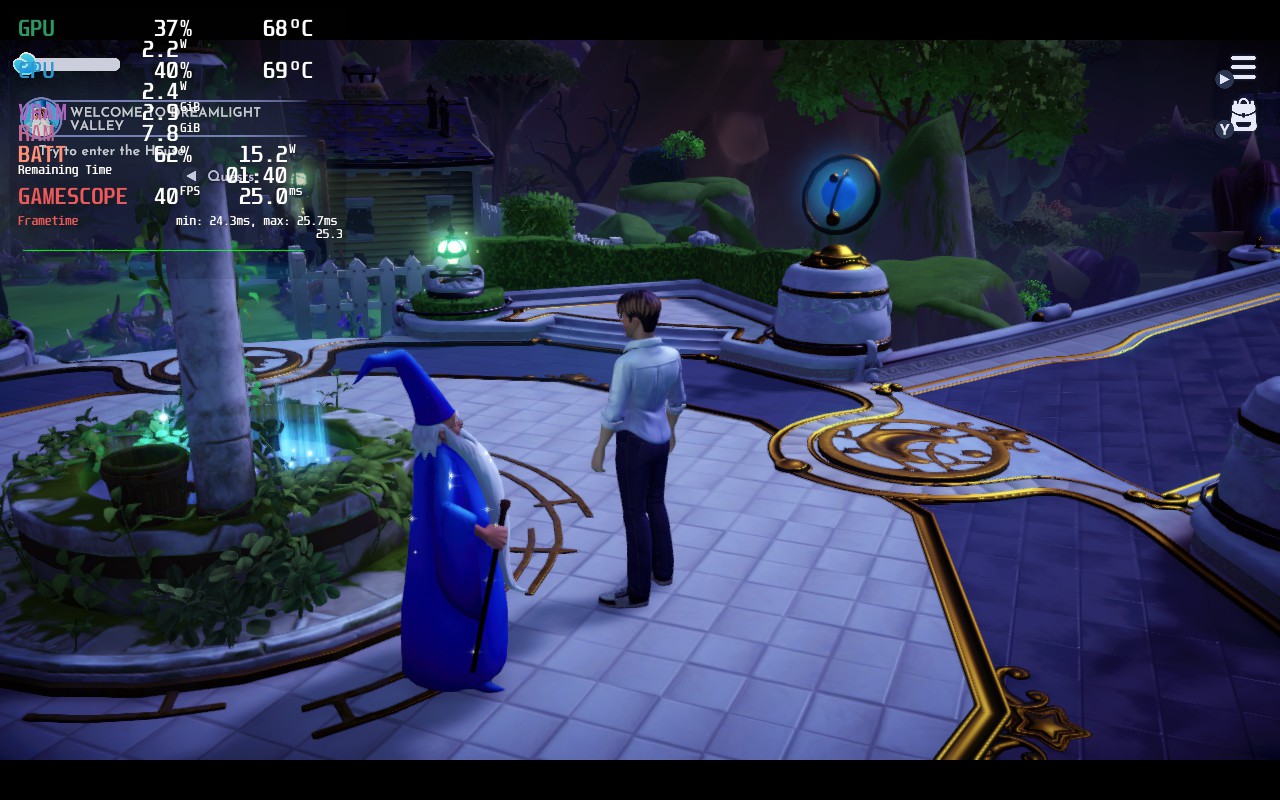
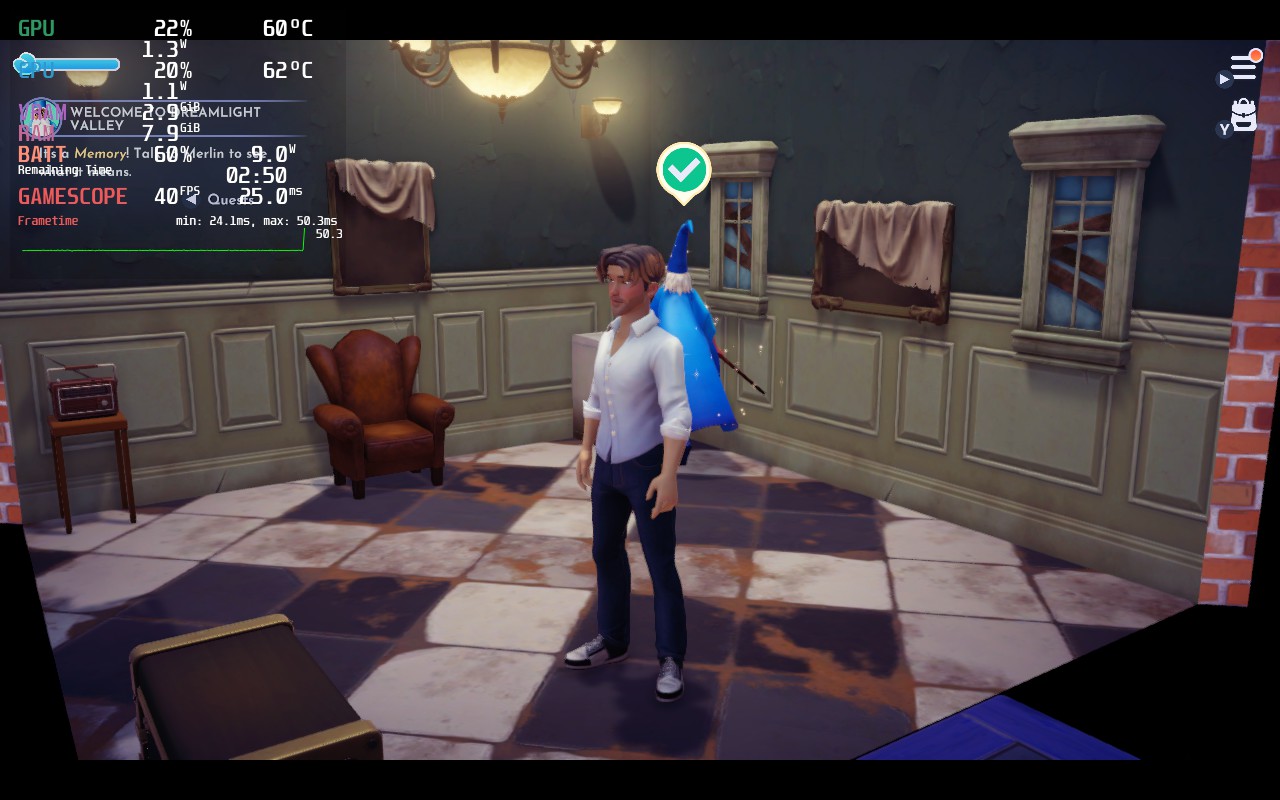
このレビューはPC版に基づいています。
このレビューをお楽しみいただけたなら、SteamDeckHQ の他のコンテンツもぜひご覧ください!私たちはあなたのゲーム体験に役立つこと間違いなしの様々なゲームレビューやニュースを取り揃えています。ニュース、ヒントやチュートリアル、ゲーム設定やレビューをお探しの方も、最新のトレンドを知りたい方も、ぜひご利用ください!
Stray is a platformer where you play as the greatest protagonist ever thought of, a stray cat. Solve puzzles and hop your way through a dystopian cyberpunk city that’s been abandoned and left to become ruins. Uncover memories and learn the truth about why this "paradise" has been forsaken by its former inhabitants. Stray has a more linear style to it, like you can’t jump on surfaces unless there’s a prompt, it is still enjoyable running around, knocking over paint cans, putting scratch marks on walls, and exploring this odd city.
Seeing Stray for myself before it came out, I imagined it wouldn't be a tough game to run on Deck. Though unfortunately, I was greeted by the main menu with an insane 25W battery drain and almost 80c temps. I was running a 60 FPS cap with no TDP limit, but even so, there should be no reason why the main menu of a game needs to get that hot.
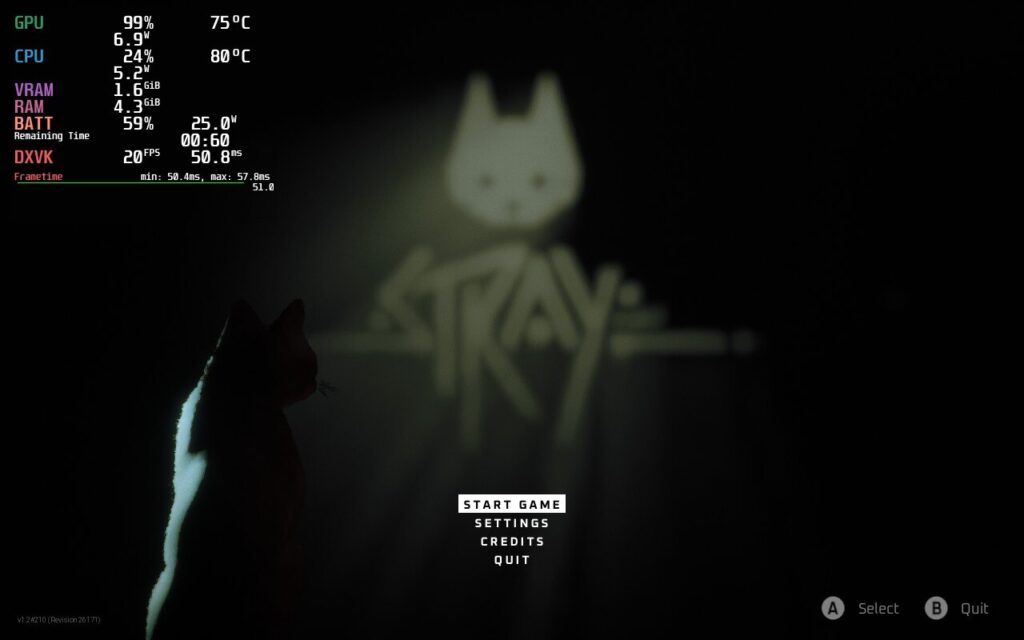
Main menu at default/max settings with no TDP limit and a 60 FPS cap.
This continued into the starting area of the game, where it was running 20W and 75c averages. While it did get a little easier to run after the starting area, it still suffered from high battery usage (around 23W) and similar temps.
The framerate would almost never be a stable 60 FPS, so I decided to change that first. It does hit 60 in smaller corridor areas, but the larger open areas had trouble keeping a consistent 40 FPS, so I decided to stick to a 30 FPS cap. This did cut down on battery usage and temps significantly, and although there were some drops here and there, it stayed relatively stable. This dropped battery and temps so much that I was actually able to keep the highest quality settings and still be very playable. I did bump down the resolution scale to 70% as well. It didn't feel like there was a massive change to the visual quality, but kept things more stable overall. This felt like the most solid way to play the game, and while it could be pushed further, it would increase everything else pretty heavily.
It is also possible to play Stray with a higher framerate without it being too overwhelming on the system. By pushing to 40 FPS and changing all settings to medium, the game can run decently well at around 14W - 16W with spikes going up to 19W and temps going up to 80c. This is a huge change from the recommended build and there are many more VERY noticeable framerate dips. This really impacted gameplay, especially in the wider open areas, and made traversing the buildings less enjoyable. Visual quality seemed to remain relatively the same, which is great, but there was too many fluctuations with framerate to keep me loving the 40 FPS build.
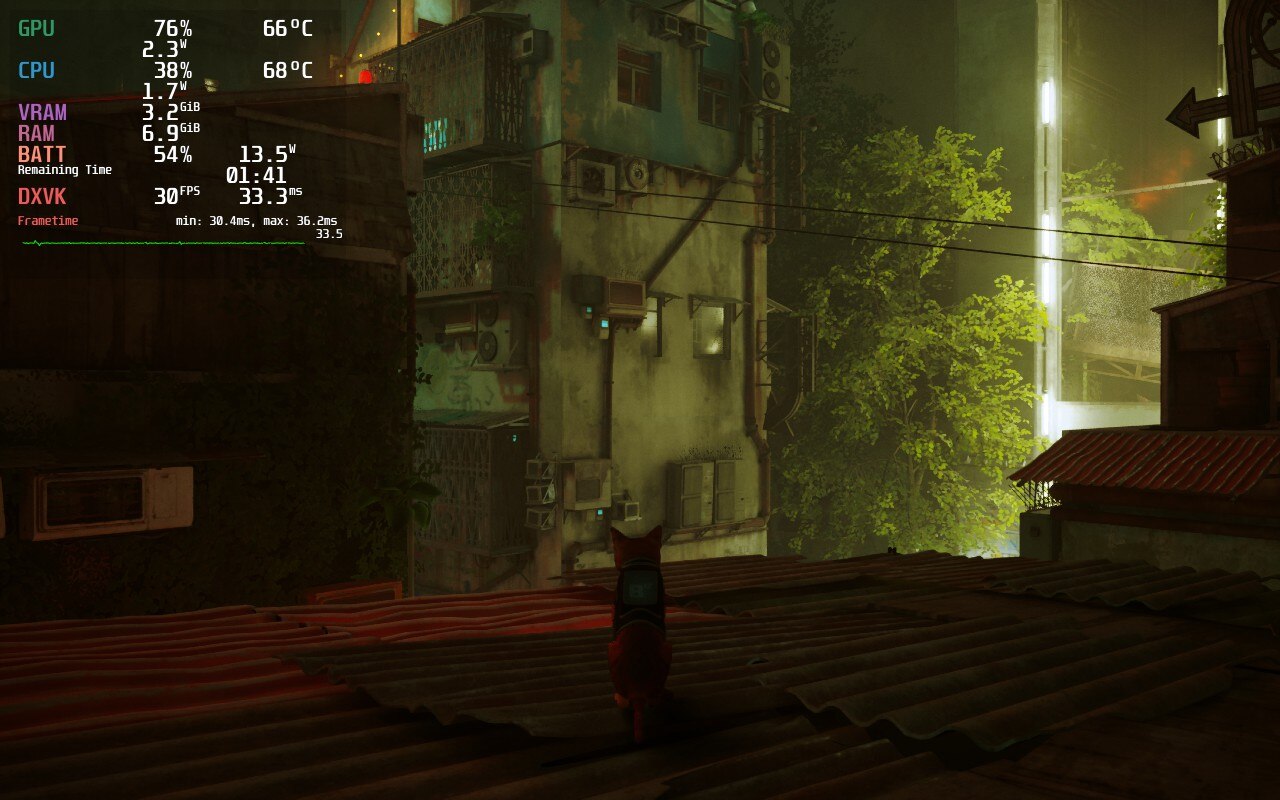
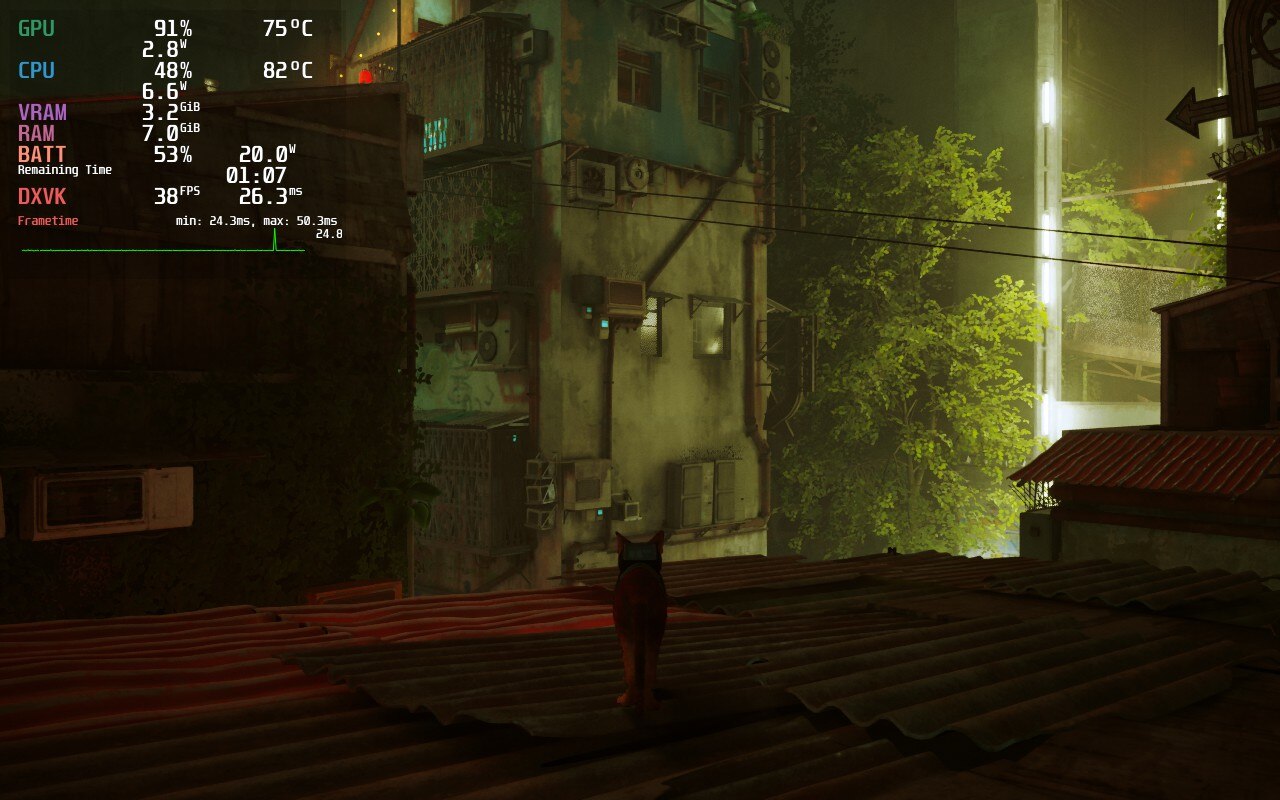
Recommended (30 FPS) build vs 40 FPS build. Almost no change to quality, but the temp and battery usage is massively increased.
There are a few noticeable bugs/glitches that occur, and while none of them affect gameplay, they were as clear as day. The biggest one is the graphics on the fur of the cat and the ghosting trails. This isn't as noticeable in the 40 FPS build, but it is very obvious when in any sort of lit up area. You can see black pixels hopping around along your stray and then as soon as you move, quickly goes into ghost mode. Since a chunk of the game takes place in the darkness, this isn't as bad, but it is definitely there. Otherwise, there were some physics issues with objects that would just stay floating in the air, but none of this prohibited my movement forward in the game.
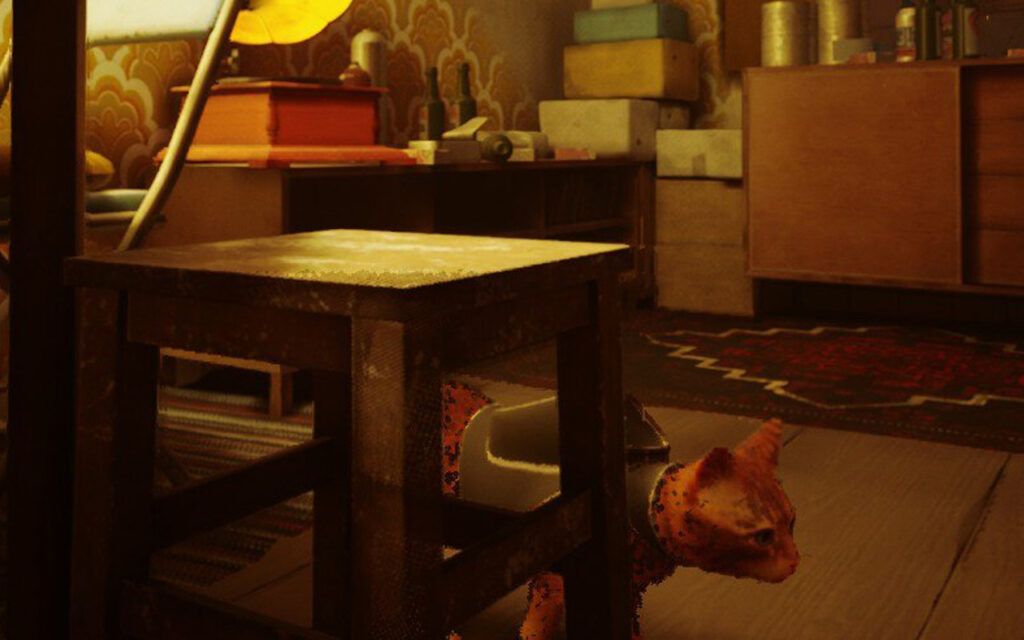
Example of the graphical issues with the fur. Zoomed in, you can see the black spots all over the cat, which is not supposed to be there.
Honestly, I expected better from this game. It is a UE4 game, which means the stuttering makes some sense, but regardless, I expected more. This isn't a game that has many different complex systems or state of the art visuals. It is a beautiful game, but definitely have seen better. It is playable, and can be pushed to 40 FPS for smoother framerates, but the fluctuations and graphical issues stop me from really enjoying Stray on Deck.
なぜこのようなスコアになったのか、理解するのに助けが必要ですか?スチームデッキHQのガイドをご覧ください。
このレビューはPC版に基づいています。
このレビューをお楽しみいただけたなら、SteamDeckHQ の他のコンテンツもぜひご覧ください!私たちはあなたのゲーム体験に役立つこと間違いなしの様々なゲームレビューやニュースを取り揃えています。ニュース、ヒントやチュートリアル、ゲーム設定やレビューをお探しの方も、最新のトレンドを知りたい方も、ぜひご利用ください!
Update 9/8/22: Due to the newest update adding in native FSR 2.0, we will be reassessing the builds and updating the review! Consider this one outdated for the time being.
Red Dead Redemption 2 (RDR2) is a third-person open-world game with a heavy emphasis on freedom. You take the reins of Arthur Morgan as he travels with his infamous gang to evade federal agents and bounty hunters during the American wild west of 1899. You can choose to follow the story and see how the deepening internal divisions affect the game in this well-written story, or go on your own and rob, steal, tie people up, or just watch the game’s enjoyable physics do their work. Rockstar, the developers of RDR2, are known for their fine-tuned gameplay and beautiful worlds, and this is definitely one of them.
Before I get into the performance, there have been reports of crashing when playing RDR2 for a period of time, usually around 30 minutes. In my playthrough, I experienced no crashes whatsoever. I installed the game with Proton GE 7-24 and my playthrough of the game had Triple Buffering and Vsync turned off. From reports I have read, this seems to be the main cause of any crashes as well. If you experience crashes, don’t hesitate to send a message on our Discord server so we can troubleshoot and figure out how to remedy it.
Knowing the kind of game this is, I had a good feeling going in that it would need a good amount of tweaking, and I was most definitely correct. This is a game you shouldn’t expect to get 3+ hours of gameplay with lower temps, this is a full open-world AAA game that tends to be at the forefront of game development. At max settings, with a 60 FPS cap and no TDP limit, I was getting over 80c temps with 25W of battery usage…just standing still in a camp. And even with a 30 FPS cap, battery drain was still much higher than it should have been for just standing still.
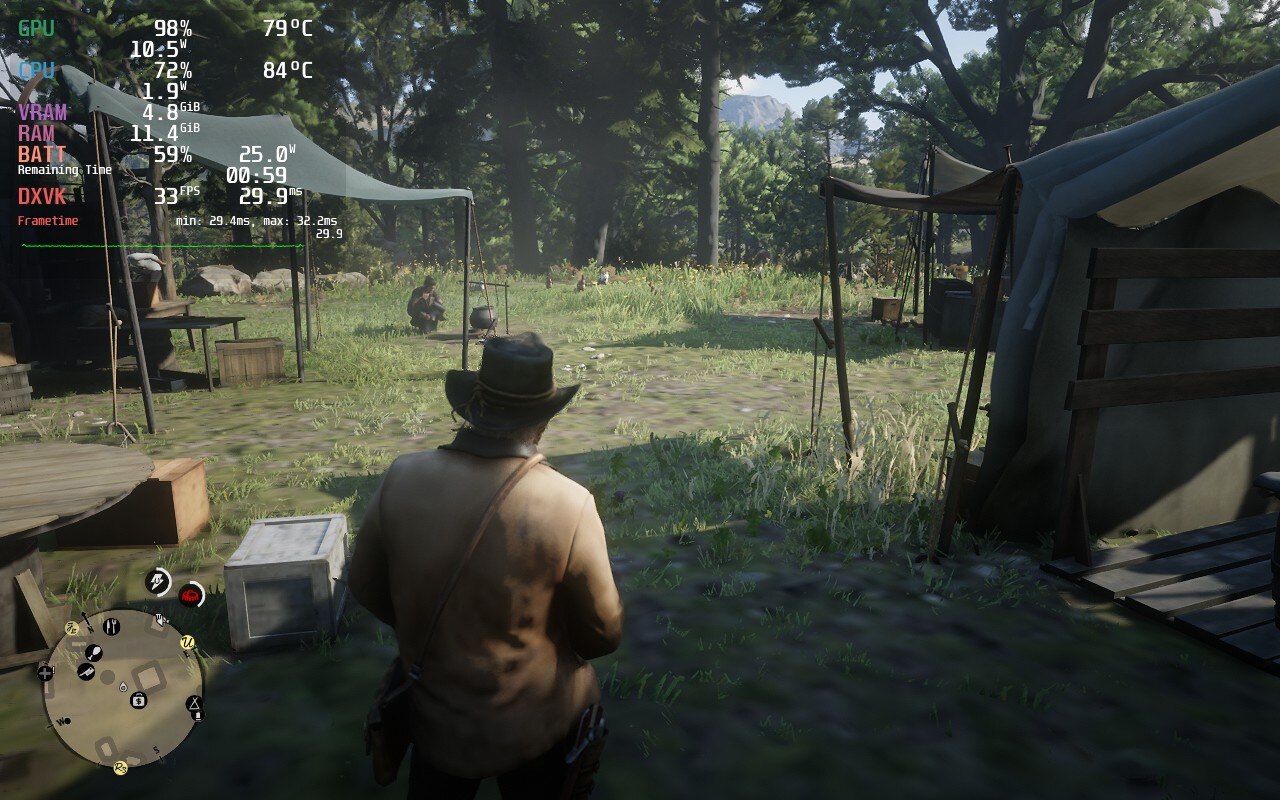
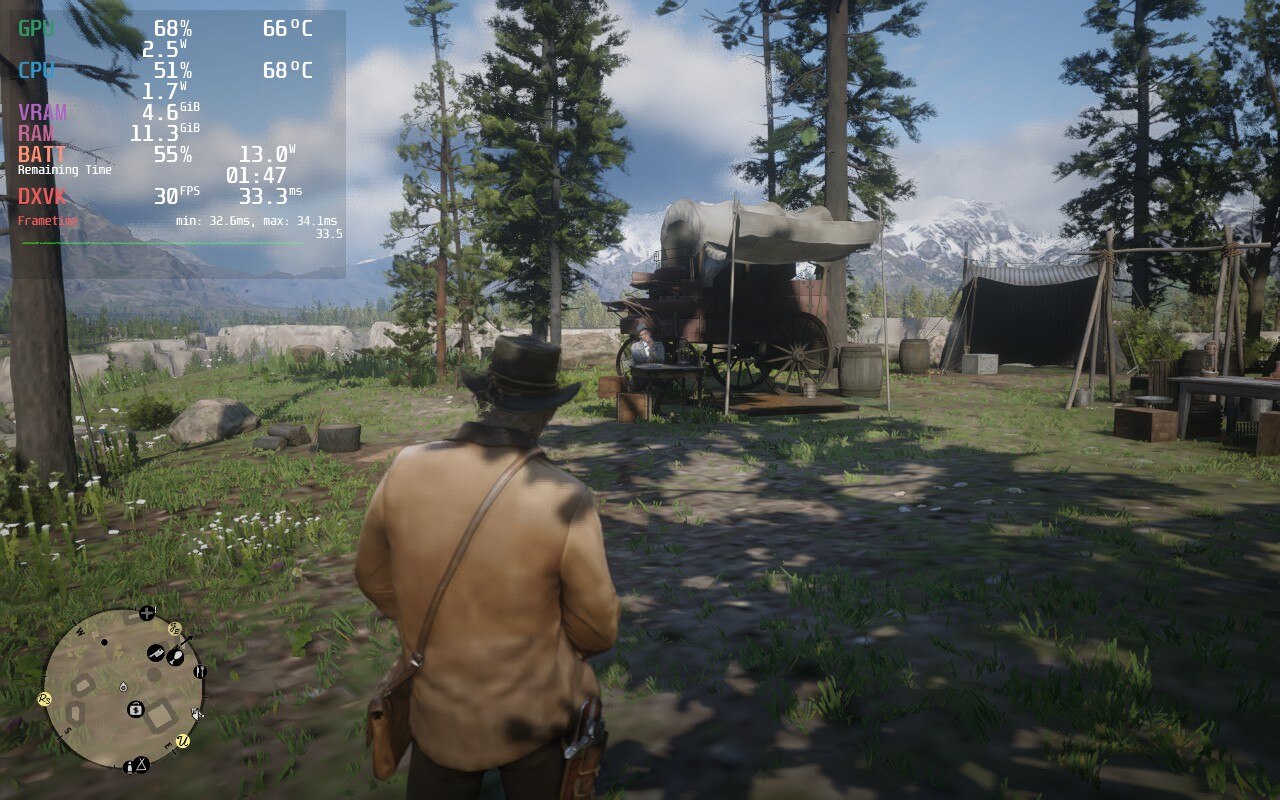
The temps and battery for standing still in max settings is insane, while the recommended battery build in the same area is much cooler overall.
The prologue of the game, up to chapter 2, does experience some instability, but that disappears once you can freely roam the open world. While I knew 40 FPS would be possible, I wanted to focus on a solid 30 FPS build that will strike a good balance of quality without an insane battery drain of over 20W. After playing around with the presets, I did arrive at my goal and was able to get a good quality build with temps that largely stayed under 80c with native resolution and under 20W battery drain. The framerate was stable 99% of the time, but did experience some spikes every now and then. These were far and few though, and without the overlay showing my framerate graph, I wouldn’t have noticed. These spikes are also common across all builds, not just this one. While the visuals look great, the temps and battery drain left more to be desired.
Then comes the battery build. This build for RDR2 is way more competent than I expected. It doesn’t destroy the visuals too much and keeps temps and battery more closely under wraps. By setting everything to low, and using FSR 2.0 in balanced mode, the game keeps a stable 30 FPS while keeping temps under 75c and battery around or below 17W. This is, in-part, thanks to the TDP limit of 8 to keep it lower. It is a great alternative for people that want to preserve battery as much as possible, but keep decent visuals. It was a very close call between this and the quality build, but ultimately, I feel the battery is better suited overall for the Deck.
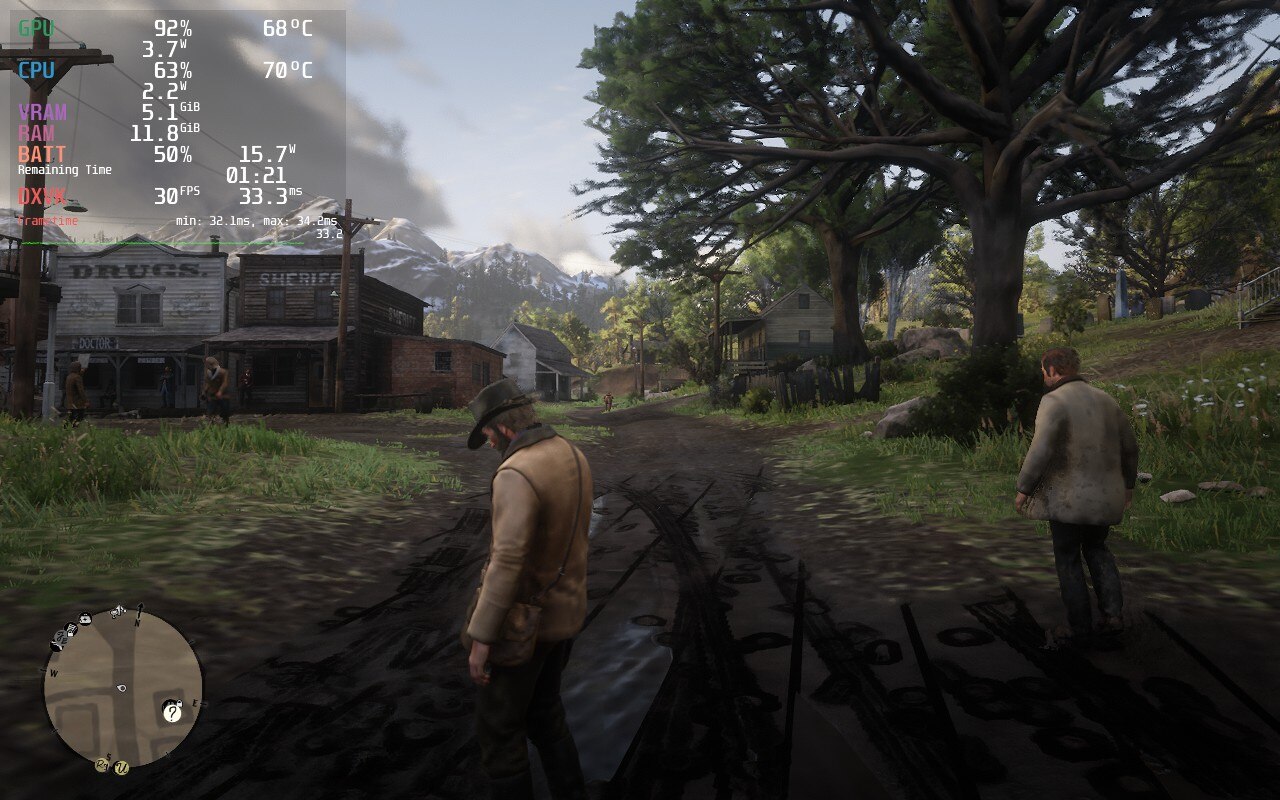
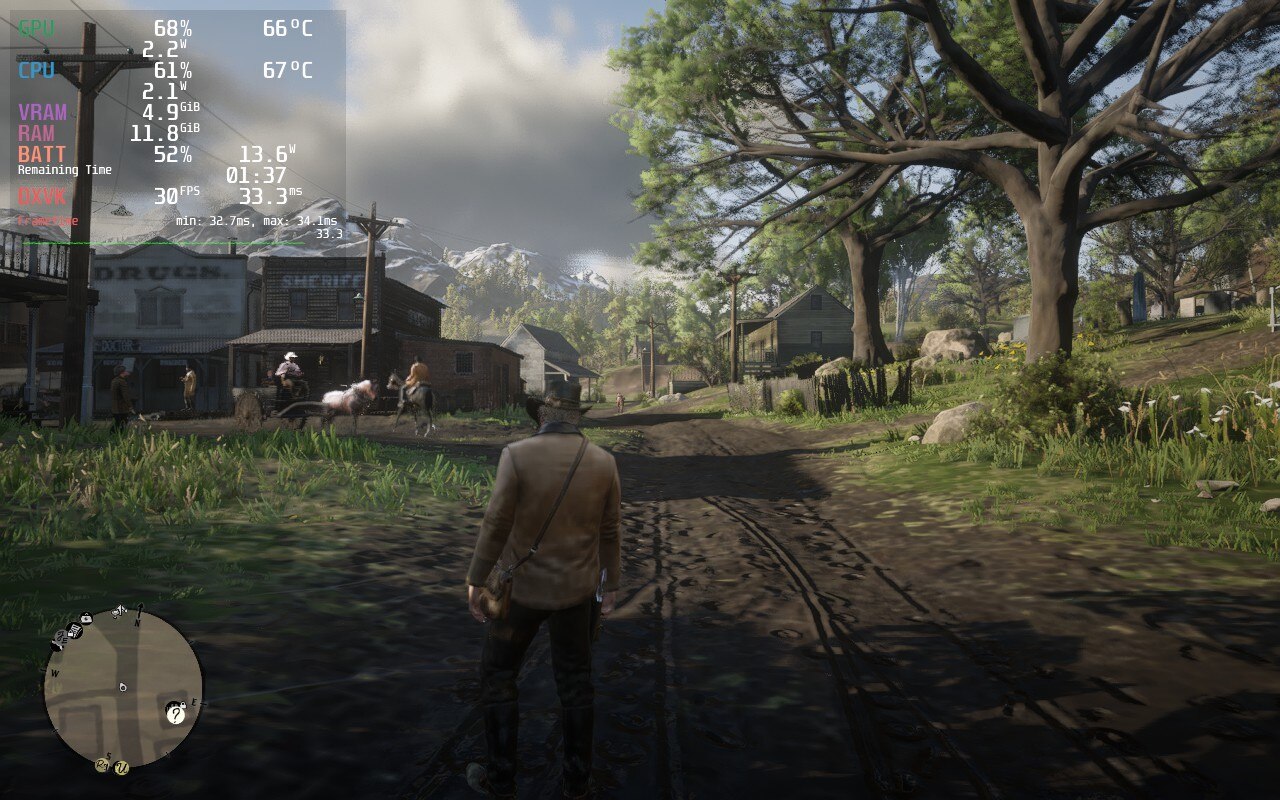
The 40 FPS build however is for those who only want to play a little while having a better framerate that feels significantly more smooth. While the reduction in quality is very noticeable, it isn’t a deterrent from playing the game. Even with all the quality settings on low and a high TDP limit of 12, the game can run at 40 FPS about 80% of the time. There will still be spikes and dips in framerate that are quite noticeable even without the graph there. With the 80c average temps, I wouldn’t personally use this build, but it is possible and can be done.
The only mod I ended up using was the FSR 2.0 mod, which I feel helps to really stabilize the battery and 40 FPS builds more. You can check out how to get it and follow our quick guide down below. I also, very luckily, did not experience any bugs or glitches that inhibited gameplay. Though, when changing FSR 2.0 settings, it can cause the whole screen to go white. This is remedied by moving around or moving the camera, the world will populate back in. I did find this happen once or twice when going into a town, but I just kept moving around slightly and it would all come back.
Red Dead Redemption 2 is a fantastic game and it is even more amazing that it can be played on Deck regardless of the compromises. This game was not one I expected going in to be playable for 4+ hours with fantastic quality, but what came out of it is what I would consider a marvelous achievement. Plus, you are playing RDR2 in the palm of your hand, I feel something needs to be said about that!
このレビューはPC版に基づいています。
このレビューをお楽しみいただけたなら、SteamDeckHQ の他のコンテンツもぜひご覧ください!私たちはあなたのゲーム体験に役立つこと間違いなしの様々なゲームレビューやニュースを取り揃えています。ニュース、ヒントやチュートリアル、ゲーム設定やレビューをお探しの方も、最新のトレンドを知りたい方も、ぜひご利用ください!
Firewatch is a single-player story game that tells a engrossing tale about a man dealing with overwhelming grief. Without spoiling too much, he takes up a job to watch over a forest to spot fires and, with the help of his sarcastic and unprofessional boss, uncovers a disturbing turn of events that changes everything. The game hits you in the heart real quick and turns into a powerful narrative about pain, guilt, and sorrow. For such a small game, it was a wonderful experience and playing on Steam Deck was a fantastic way to see the story unfold.
Overall, performance on deck was mostly fluid. I went through the entire game using the optimized/recommended settings and didn’t feel much holding me back. At 40 FPS, and using Proton GE 7-19, I was able to play the entire game without any huge slowdowns. I would get framerate drops and some battery usage spikes when running quickly in the forest, but it would quickly bounce back. Firewatch has full controller support and does show Steam Deck icons in-game.
This also means that the official gamepad layout works extremely well for the game and I felt no awkwardness using the controls. The only gripe I have is trying to change the resolution in-game. Doing this with just the deck controller is aggravating and near impossible. The right trackpad is mouse cursor control by default, but there’s no keybind for a left mouse click, which is essential. I just binded the left click to pressing the right trackpad down and it made changing resolutions and navigating some menus easier.
I encountered a couple bugs in my playthrough, but they were more slight nuisances and nothing game-breaking. The biggest bug I found was one time starting up the game and it went to a black screen and stayed there. This was easily fixed just by putting the deck into sleep mode and waking it up right after.
Another little bug includes some minor framerate dips and audio crackling when coming out of sleep mode (which fixed themselves shortly after), but that was all I experienced in my playthrough. In my testing, I was also not able to ideally hit 60 FPS without battery being drained incredibly quick and quality being on the lowest setting. I also noticed, when I was testing the maximum battery build, that it didn’t seem like FSR or Half Rate Shading did anything to affect quality of the game. A little disappointing, but not the end of the world.
Overall, my experience with Firewatch was a positive one. Framerate drops were not very noticeable and any bugs were generally fixed after a couple seconds. Adding the binding for left mouse click to the right trackpad solved my biggest gripe of going through the settings menu for the game. With a verified rating from Valve, which I agree with, this is definitely a great game to add to your deck library.
Need some help understanding how we got to our score? Check out our Guide to Steam Deck HQ.
このレビューはPC版に基づいています。
このレビューをお楽しみいただけたなら、SteamDeckHQ の他のコンテンツもぜひご覧ください!私たちはあなたのゲーム体験に役立つこと間違いなしの様々なゲームレビューやニュースを取り揃えています。ニュース、ヒントやチュートリアル、ゲーム設定やレビューをお探しの方も、最新のトレンドを知りたい方も、ぜひご利用ください!