NInja or Die was provided by Marvelous Europe for review. Thank you!
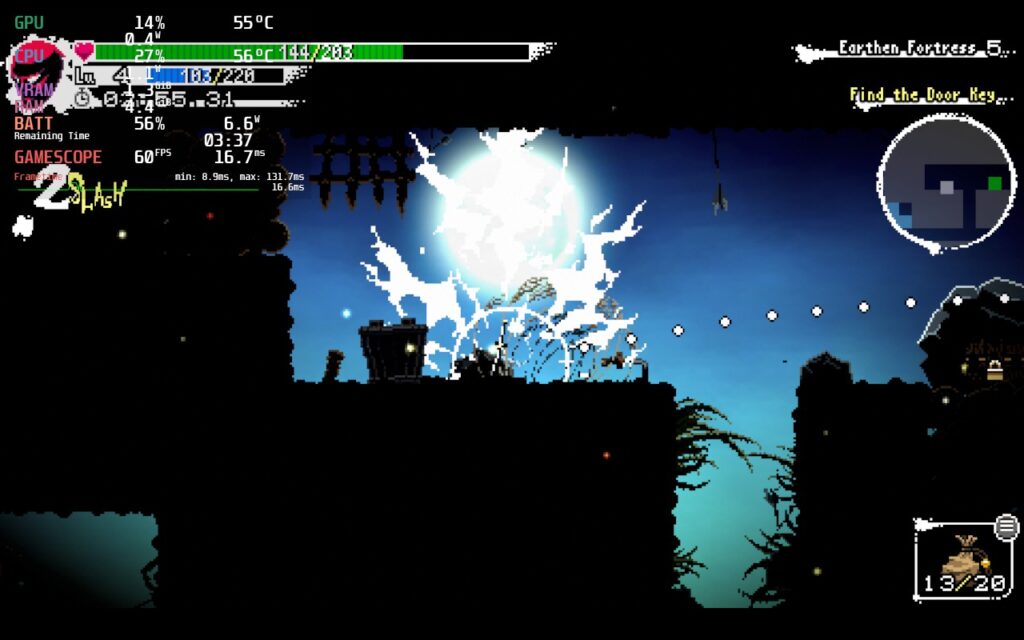
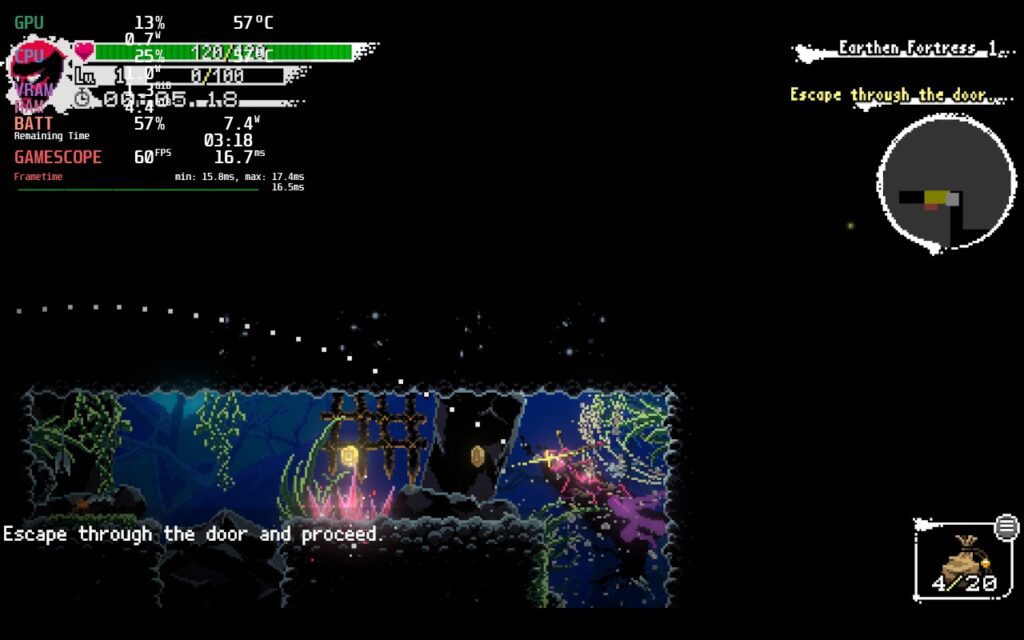
Ninja or Die: Shadow of the Sun is a fast-paced action roguelite inspired by Japanese folklore. Set in the afternath of a cataclysmic event, you are a common pickpocket that was transformed into a ninja with lightning-fast reflexes and mobility. Now you are stuck within a loop of chaos where you must leap from wall to wall, killing enemies, all while getting new gear, and leveling up to make it through.
For me, Ninja or Die is a fantastic blend of arcade-style action, RPG progression, and roguelike passive improvements to make an addicting, enjoyable experience. I found it so enjoyable and rewarding to chain together jumps and make it through the various different levels while destroying all the enemies there. And with the loot I would find, I would need to manage which items to keep, which souls to equip, and which items to throw away so I could find a balance of healing items, upgrades, and scrolls.
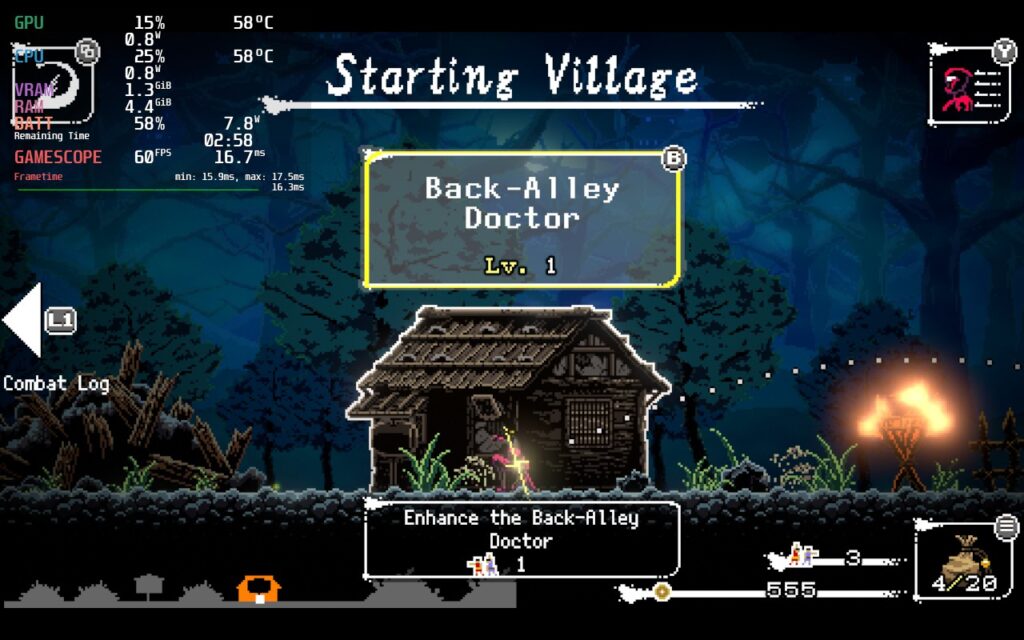
The game is also wonderfully replayable. Not only are there multiple characters and levels, but you will also be able to build up your village and upgrade your character further. Then, you can take on procedurally generated levels, the Infinite Watchtower or Corridor, or replay the game with challenges like the stage randomizer. There is so much you can do, so much content to enjoy, it is hard to stop.
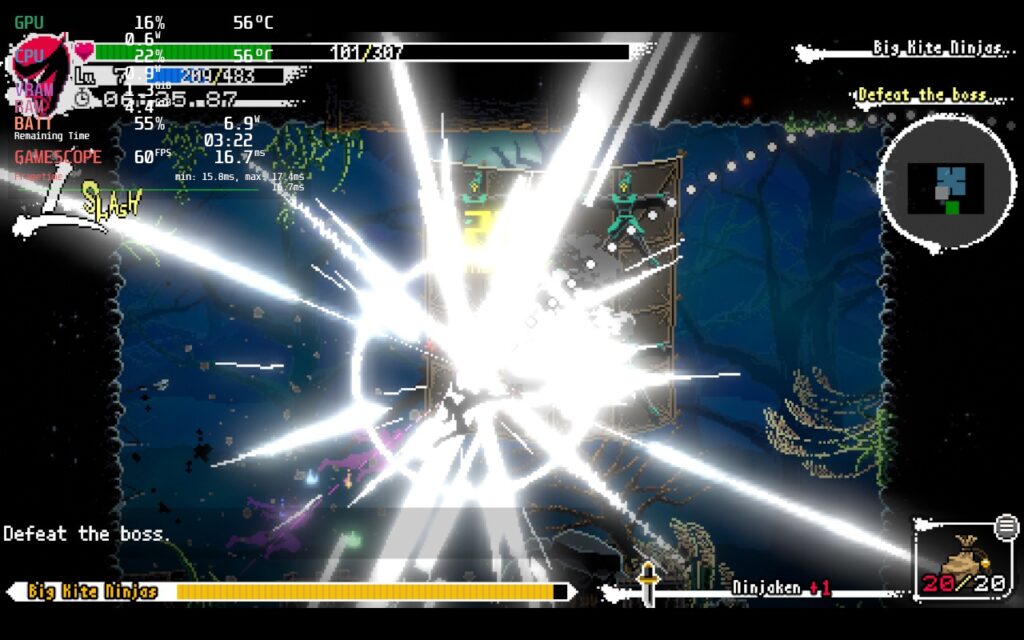
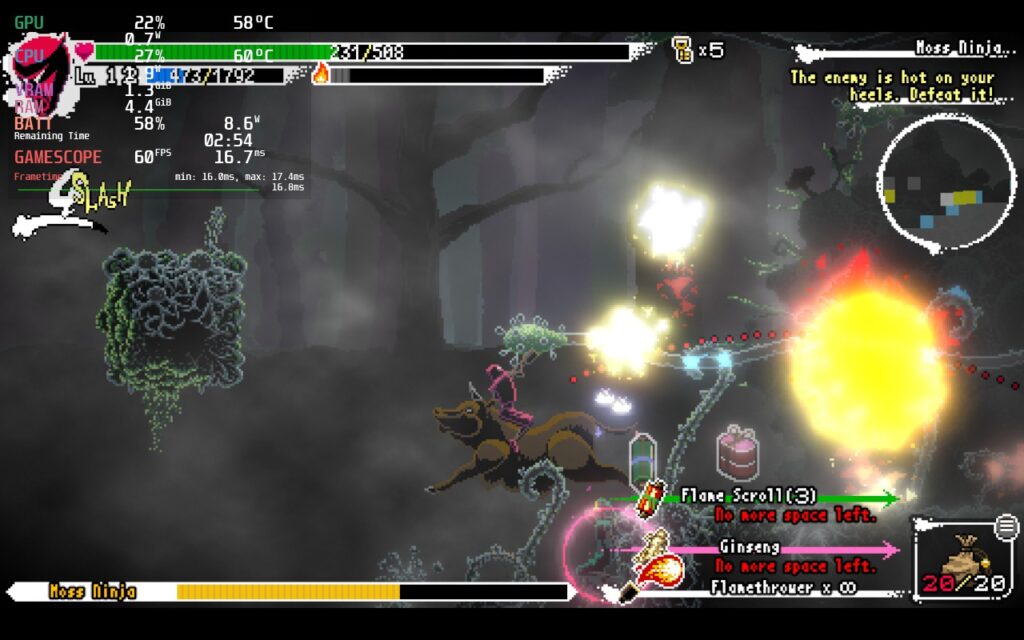
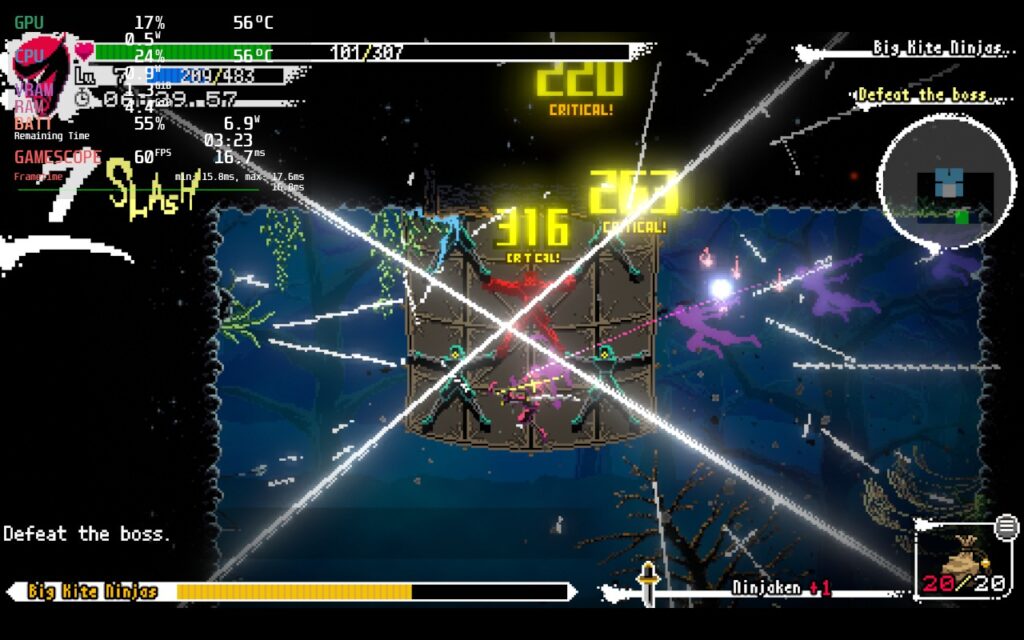
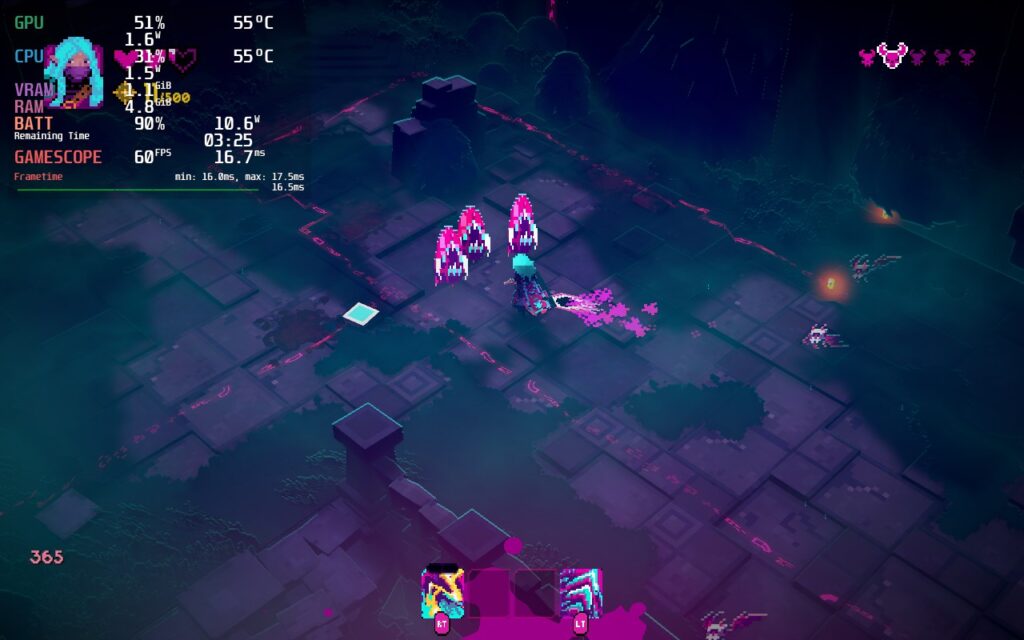
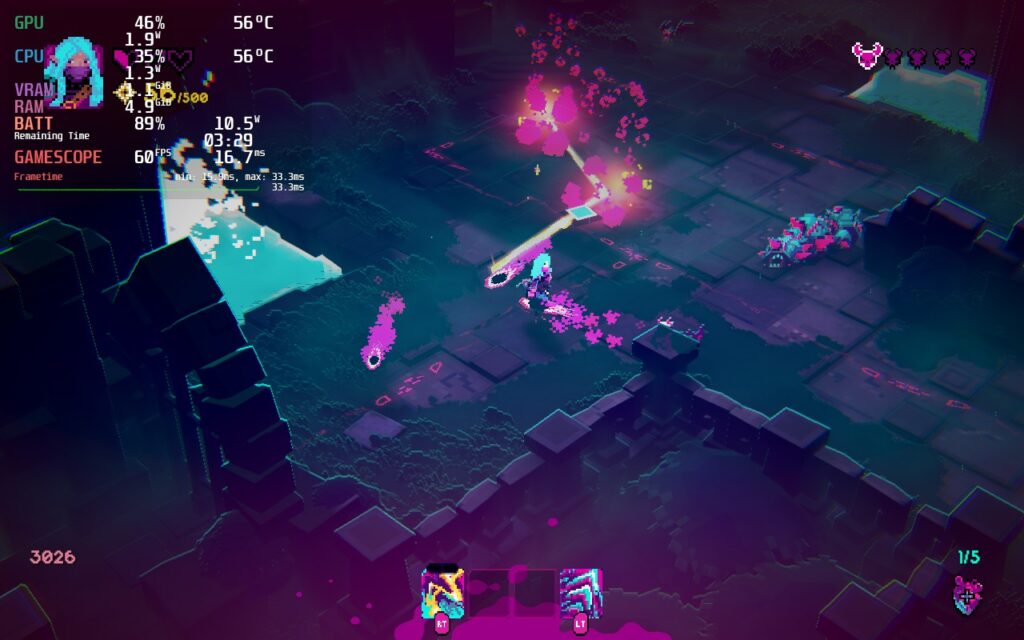
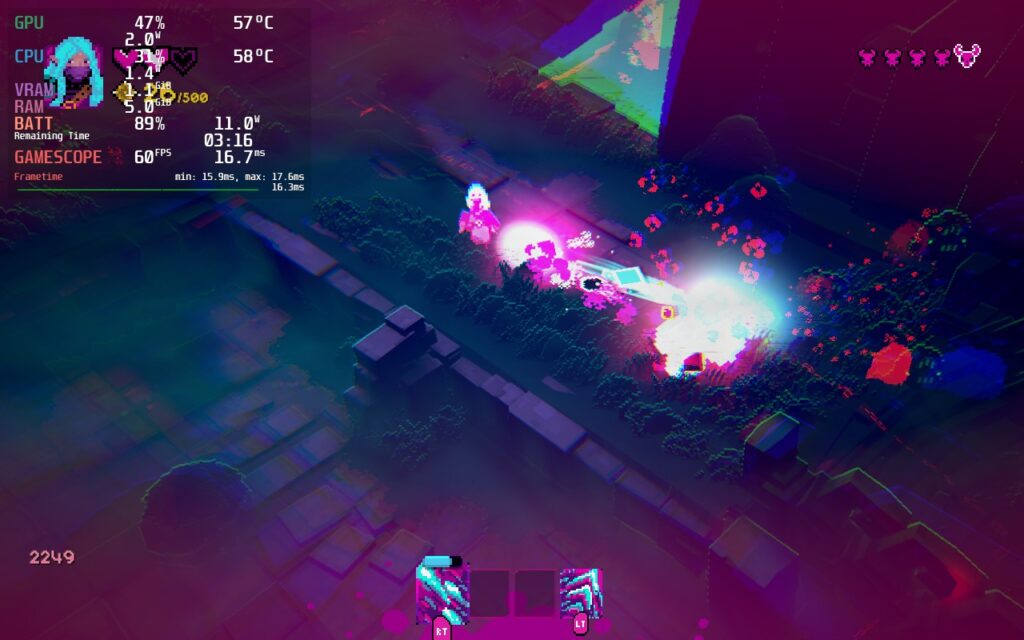
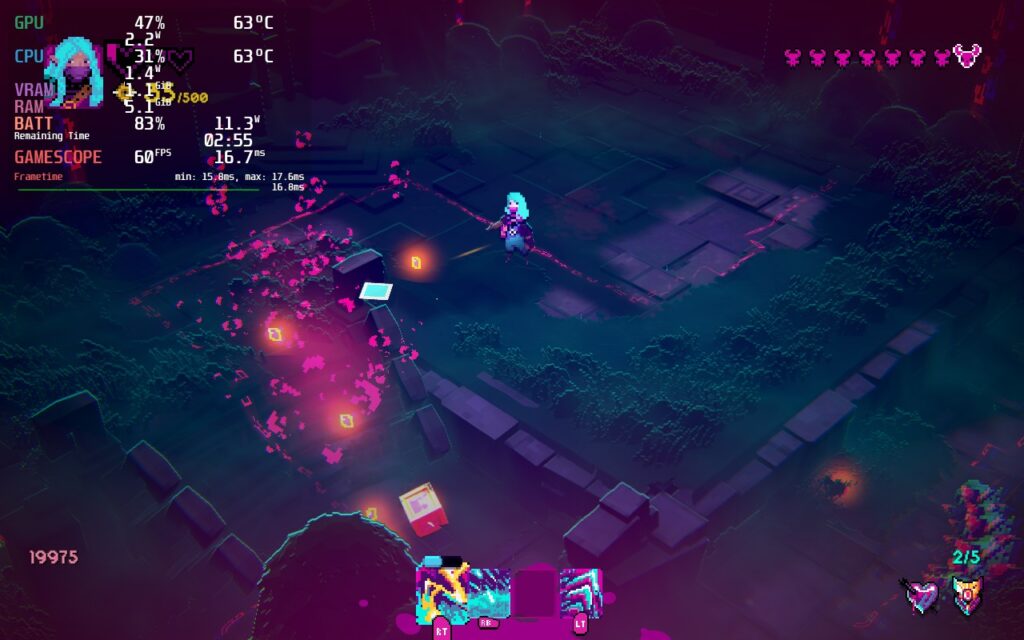
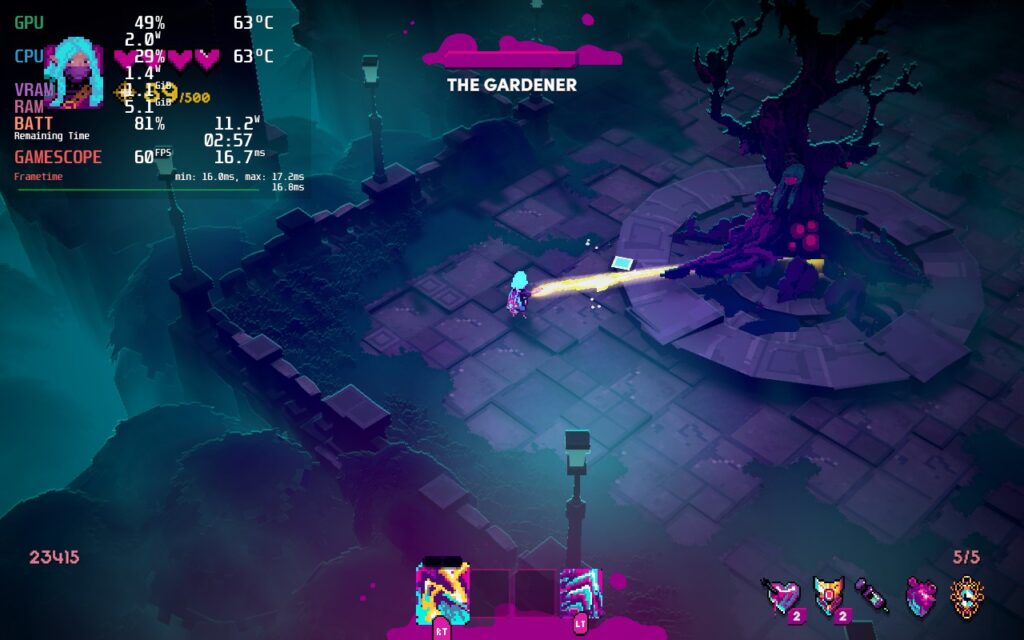
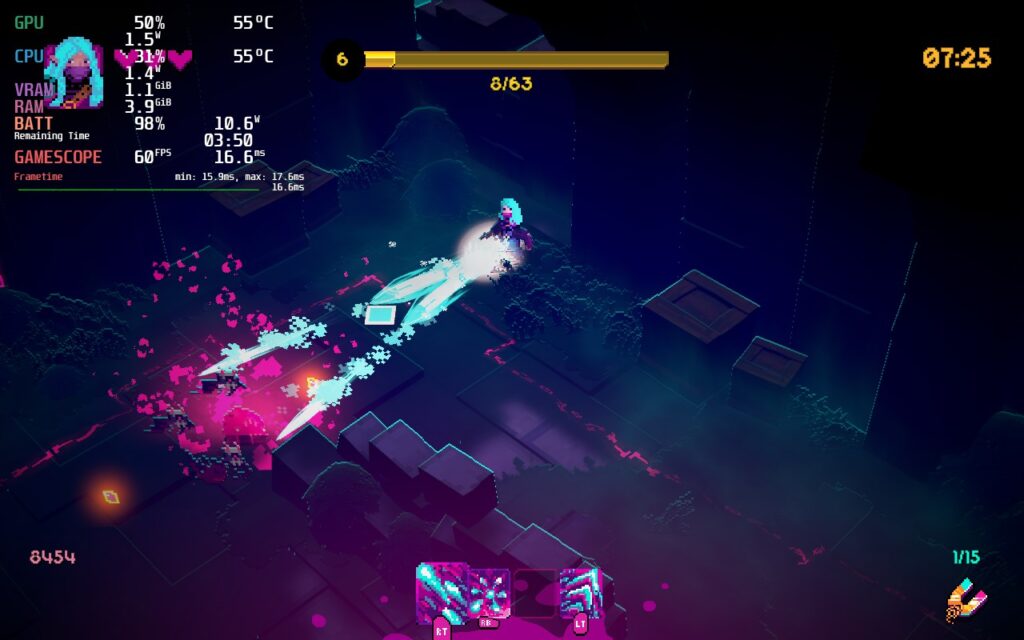
I also love the visual style of the game. Not only is it unique with its Japanese inspirations, but it is also flashy and vibrant. From how the world is colored to the flashes of numbers when you damage a foe to the way your entire screen changes when charging up a jump, the beautiful blending of color and style captivate and make it hard for me to take my eyes off. I love the game and I love being able to play it so easily on-the-go with the Steam Deck.
Ninja or Die - Steam Deck Performance
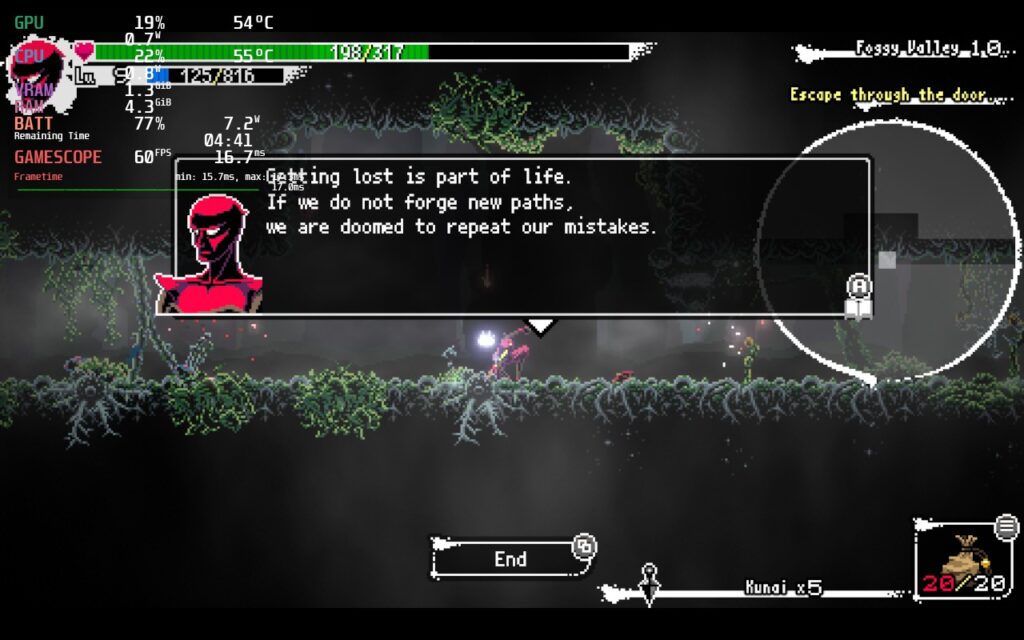
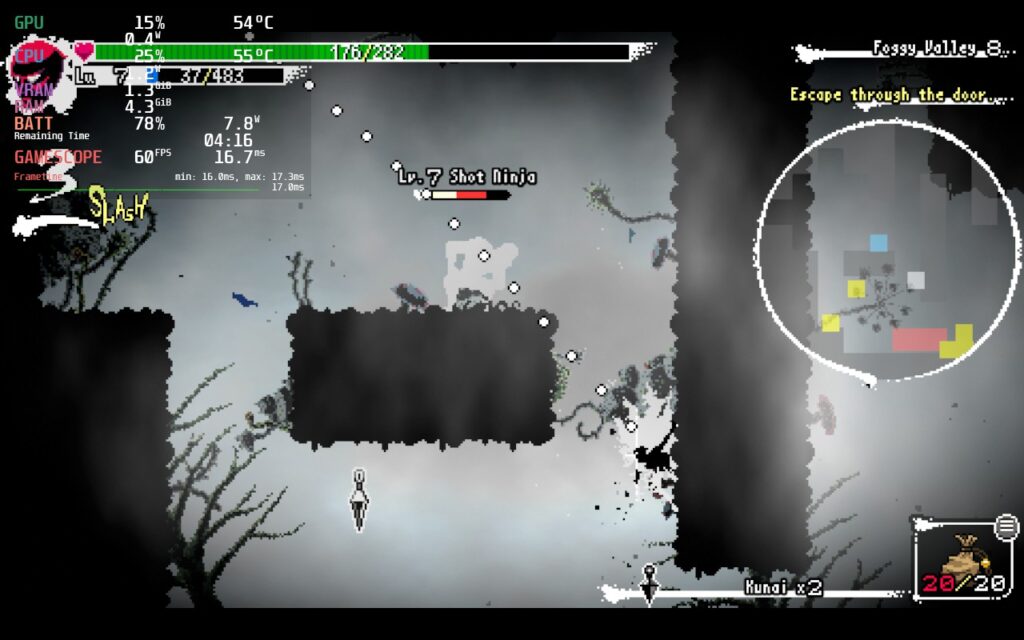
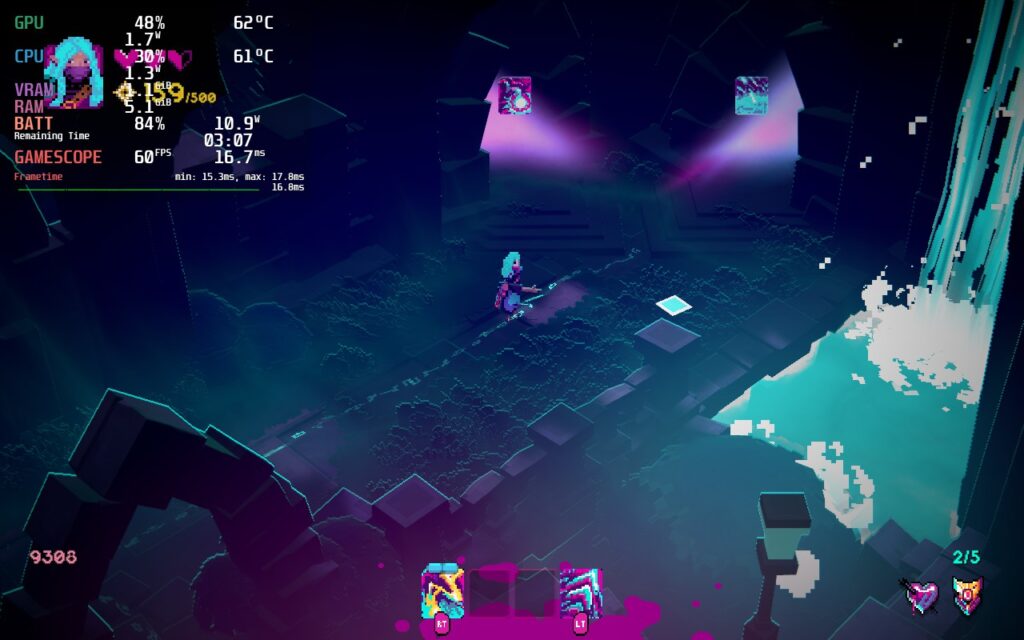
Due to the way the game is styled, I didn't expect it to need many changes to run optimally and I am happy to say I was correct. Without any changes, Ninja or Die: Shadow of the Sun is able to hit 60 FPS with a low battery drain of 6W - 8W. I didn't expect this to be any different due to how the game looks and how little power the game demands, but it does have two flaws.
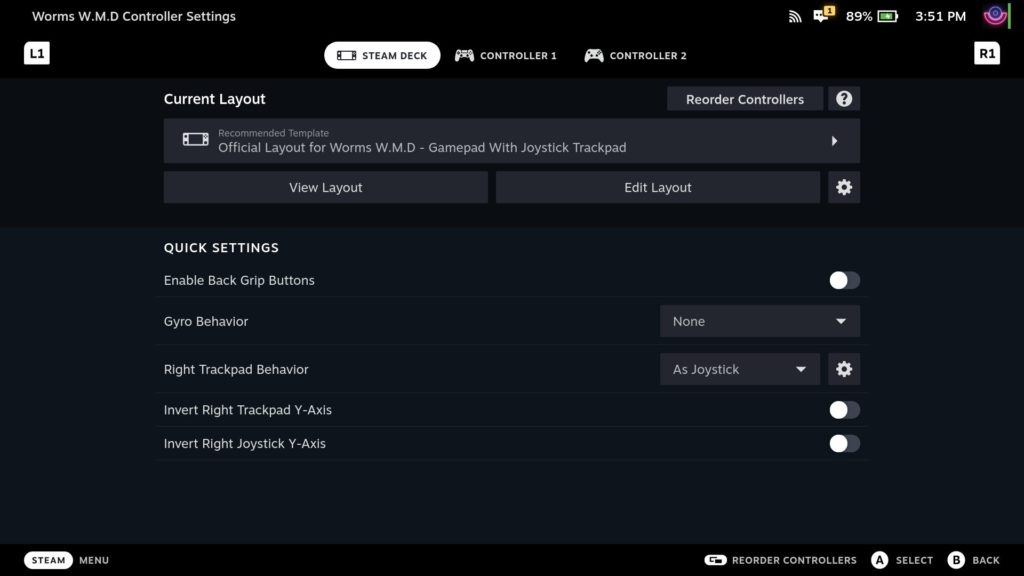
The first is that the game has full controller support, but Steam Input defaults to Keyboard + Mouse controls. This can be easily fixed by going to your controller preset and switching/applying the Gamepad with Joystick Trackpad scheme.
Second, it appears the game has a bottleneck where, in some very heavy scenes, the game's framerate will dip to 45 - 50. Without the overlay, this wasn't noticeable, but during these moments, there would be a slight slowdown and a battery drain spike to 10W - 11W. This only happened a couple times to me, but it was enough to take notice.
While the game doesn't support 16:10 resolutions, it does have full controller support (just need to swap over the control scheme) and cloud saves!
結論
Ninja or Die: Shadow of the Sun is a game I did not expect to take up as much of my time as it did. It is a fast-paced roguelite with RPG elements that keeps you moving and constantly thinking about the best way to jump and navigate while taking down enemies in flashy brilliance. The game is so pleasing to just look at that I had to stop a few times just to take in the colors. On top of that, the game runs really well on the Steam Deck, even with a couple of areas that are bottlenecked. As long as you have the overlay off, you won't really notice this at all and fully enjoy the game on-the-go.
Lone Ruin was provided to us by Super Rare Originals for review. Thank you!
Lone Ruin is an action-roguelike game set in an old magical ruin. The game features two different modes to test your mettle: Ruin Run and Survival. Ruin Run is a more traditional experience like Hades, clearing rooms and getting upgrades and gold to buy more upgrades from the shop until you get to the end of the levels (all while faces some bosses in between). Survival is closer to games like Vampire Survivors where you face waves of enemies and you get experience, getting an upgrade of your choice once you level up. With a normal and hard mode, gorgeous visuals, and a plethora of abilities, will you be able to master the ruins and defeat these twisted monstrosities?
Lone Ruin is a game I personally have mixed feelings about, but I overall feel positive about my experience with it! The game itself is a bit lacking in content and once you beat it, it feels like there isn't much to replay. But what it lacks in replayability, it makes up for with its unique graphics and fun gameplay. Some of the combos of spells and weapons can be overpowered, but I generally had a lot of fun playing through Ruin Run and Survival, though I personally enjoyed Survival mode more. Normal is a bit on the easy side too, but Hard feels just right!
On top of all of that, the developer has stated he will be adding more content to increase replayability! For $15, I feel this is a fair price for what you are getting. $10 might be a little more accurate for what is there now, but if more replayability is added, I would easily recommend this at the $15 price point! But no matter the price, this is a game you will be able to enjoy on the Steam Deck.
Lone Ruin - Best on Deck
Due to it being a game that isn't super intensive, Lone Ruin can run flawlessly without needing to change any settings! Without any changes and no limits set, you can expect to get around 10W - 12W average with 60 FPS! There are some instances I have noticed where framerate can drop for a split second, but this didn't affect the gameplay at all.
I had no issues with controlling the game using the gamepad and no visual issues. Lone Ruin also supports 1280x800 resolution with the battery lasting around 4 hours!
結論
Lone Ruin has a lot of potential to be a necessity in your libraries if you enjoy roguelike games. The visuals are enchanting and the gameplay is tight and fantastic, but a lack of replayability can be seen as a big shortcoming. I feel it is worth $15, especially if/when the new content is added, but I don't regret the time spent with this one at all! And it is guaranteed to be a great time on the Steam Deck thanks to no changes needed to enjoy! I am happy to give this game our Best on Deck rating!
Dust & Neon was provided to us by Rogue Games and Keymailer for review. Thank you!
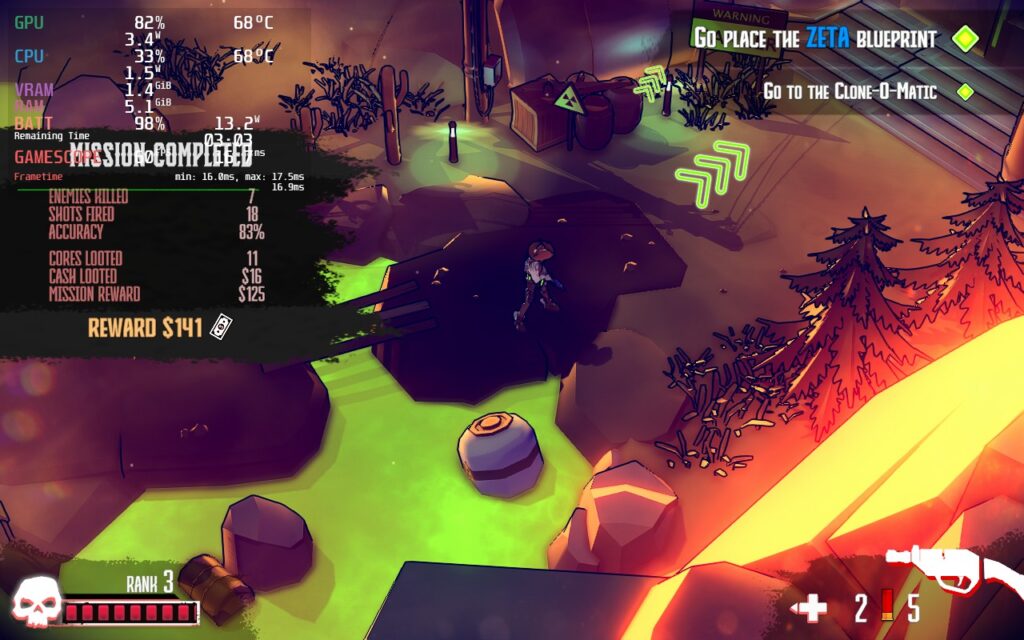
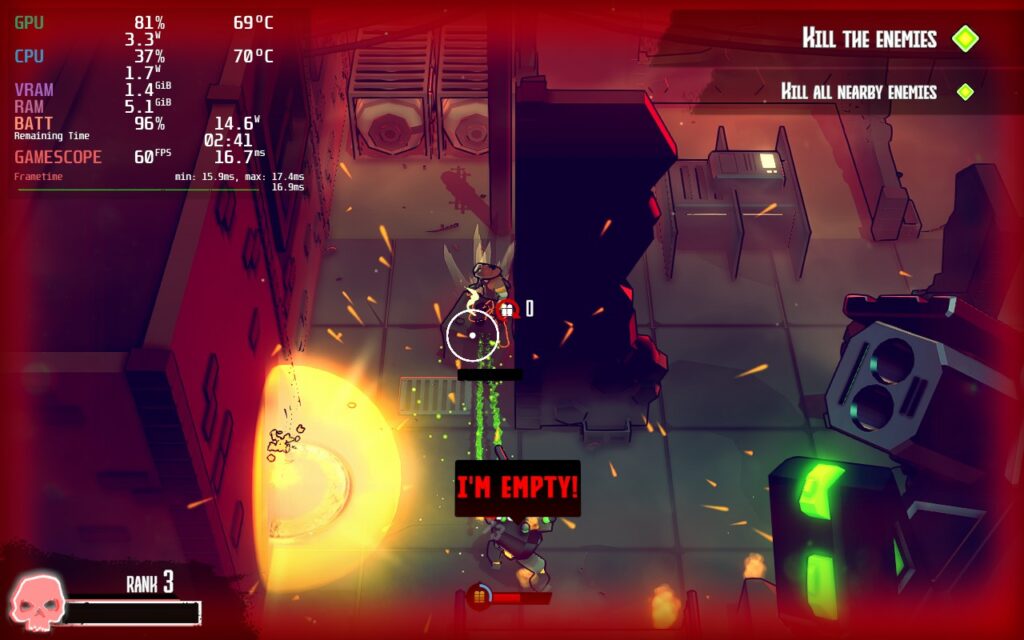
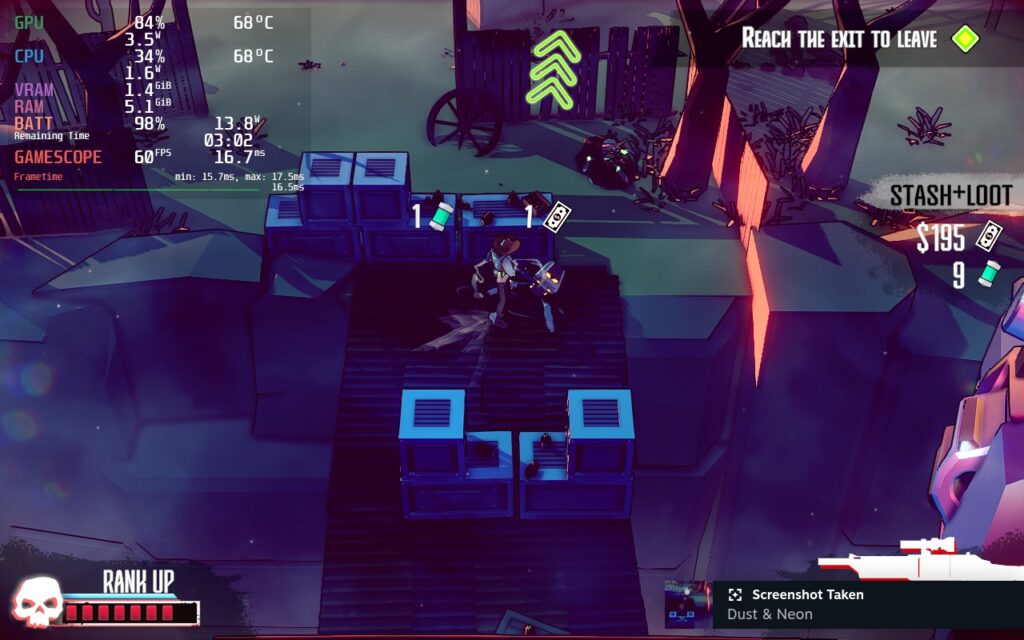
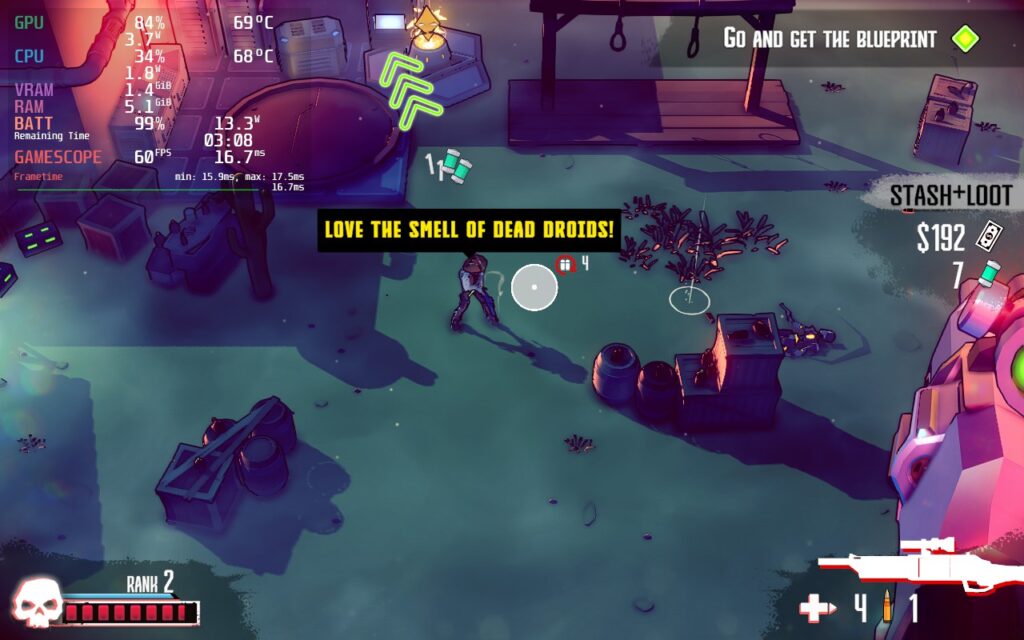
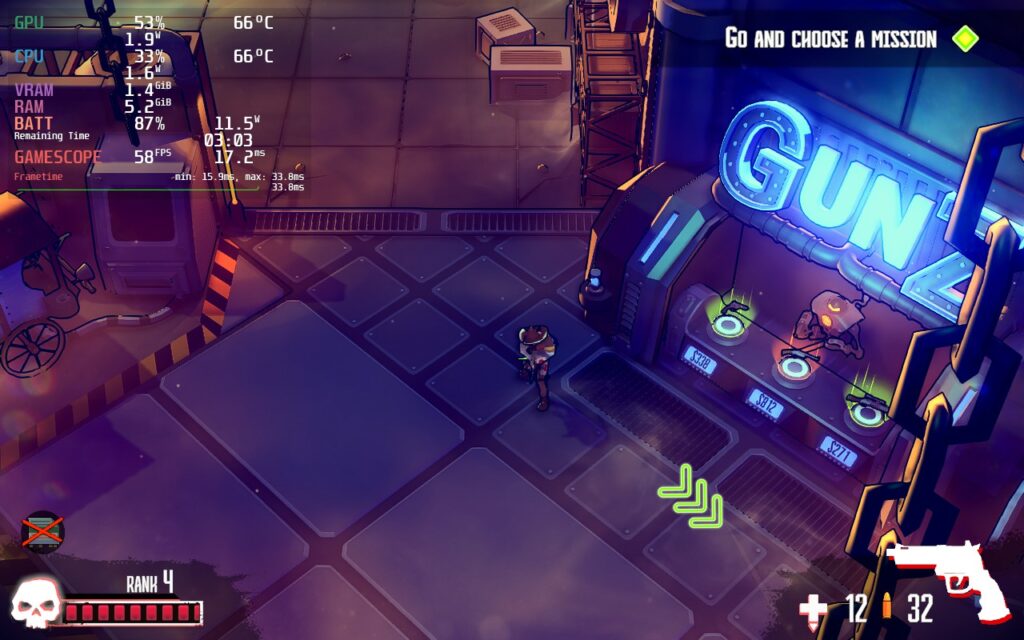
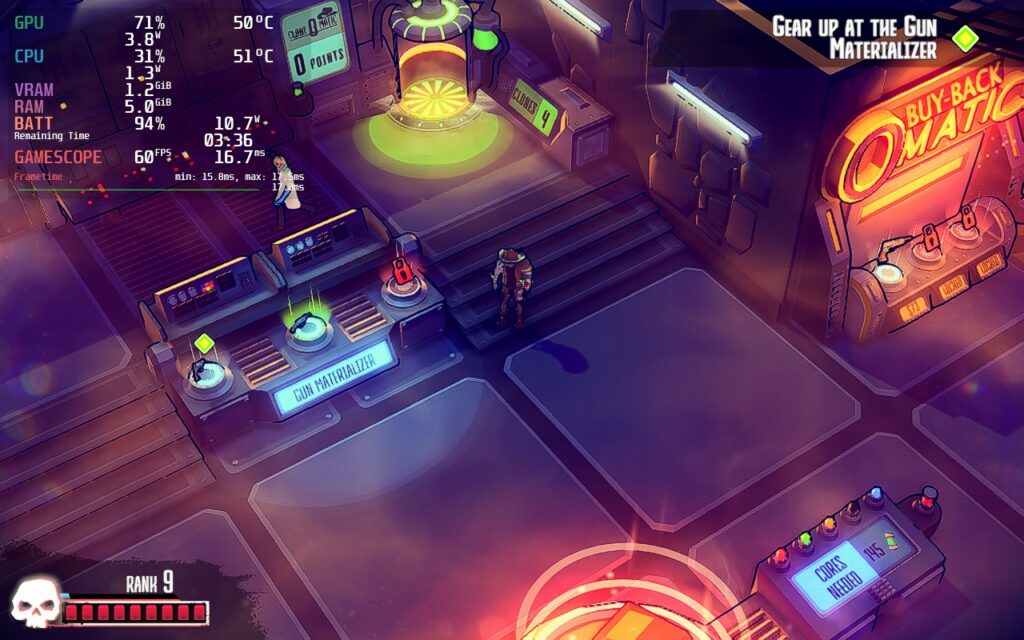
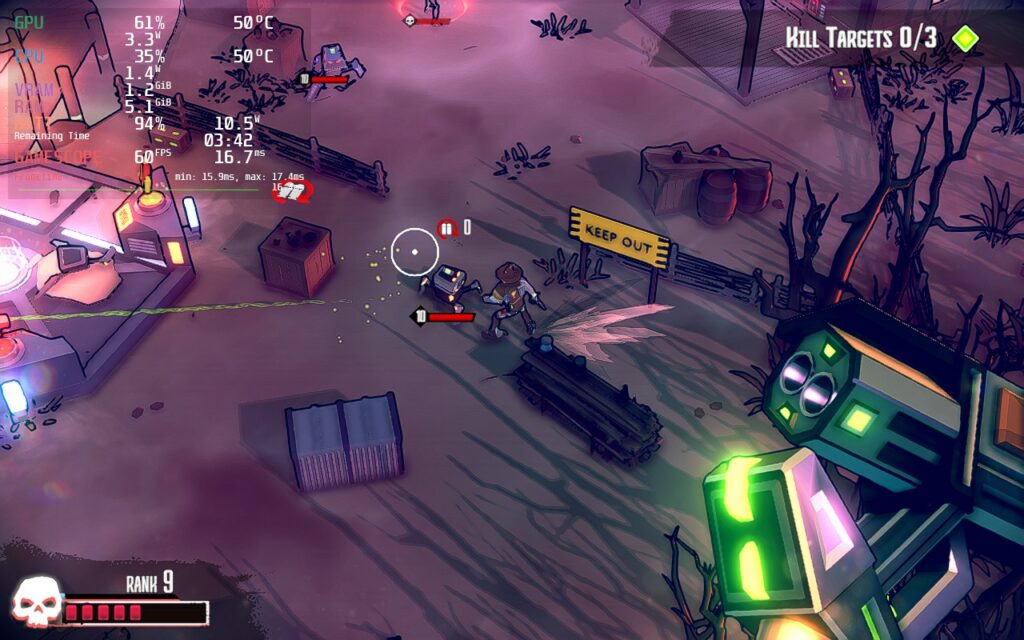
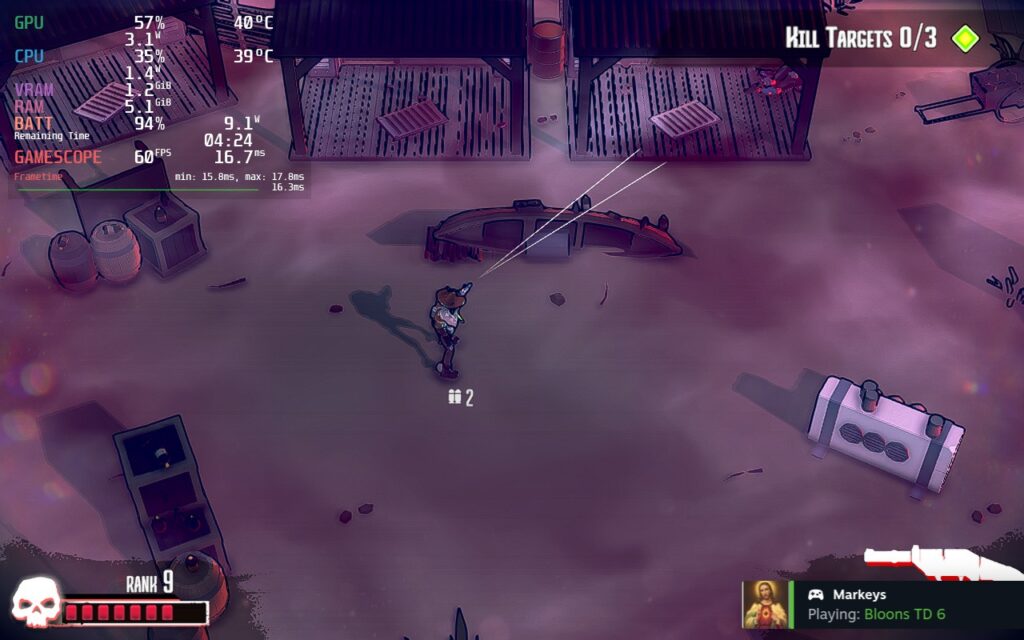
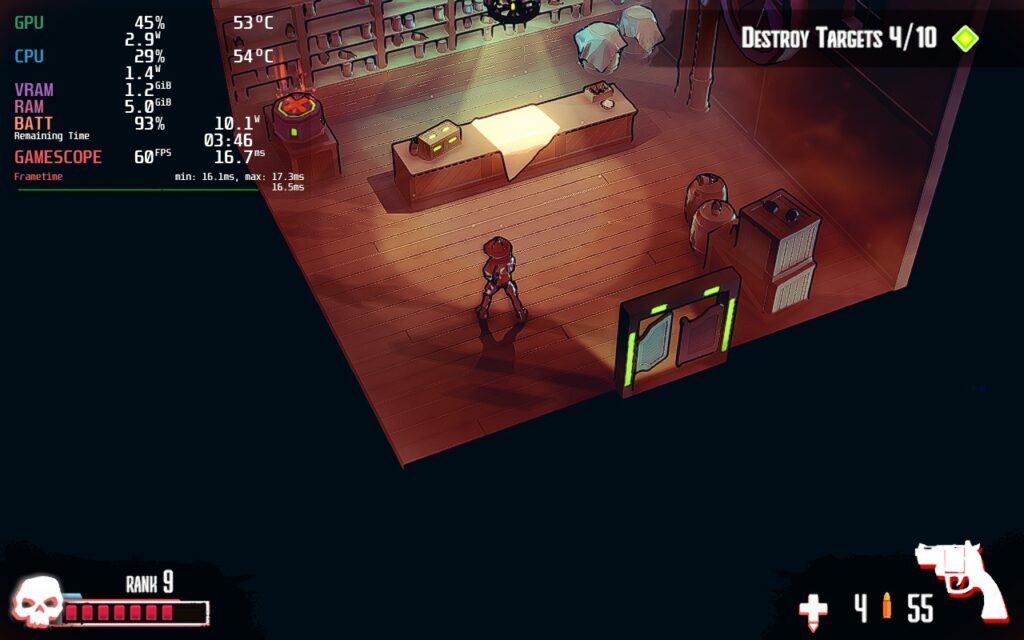
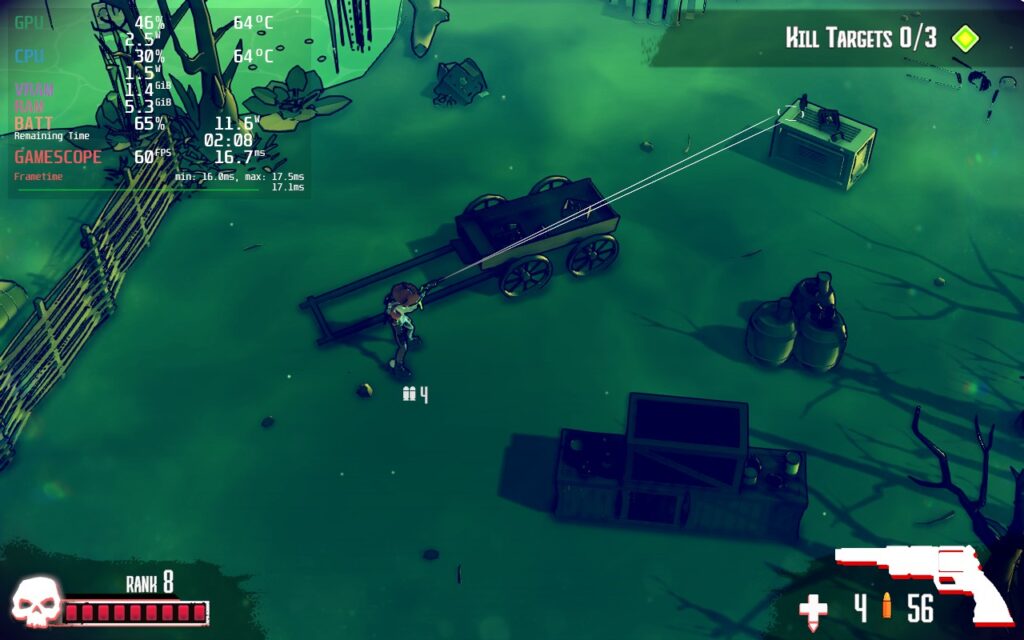
Dust & Neon is a roguelike twin-stick shooter set in a futuristic wild west filled with robots! As a robot yourself, you will go on an epic quest to fight armies and partake in insane boss fights, all while unlocking abilities and finding the right weapons amongst thousands of different ones. Dying and coming back stronger with passive ability upgrades to beat the missions in front of you will be imperative as well. Now pick up your guns and get ready for a challenging top-down shooter that will keep you on your toes.
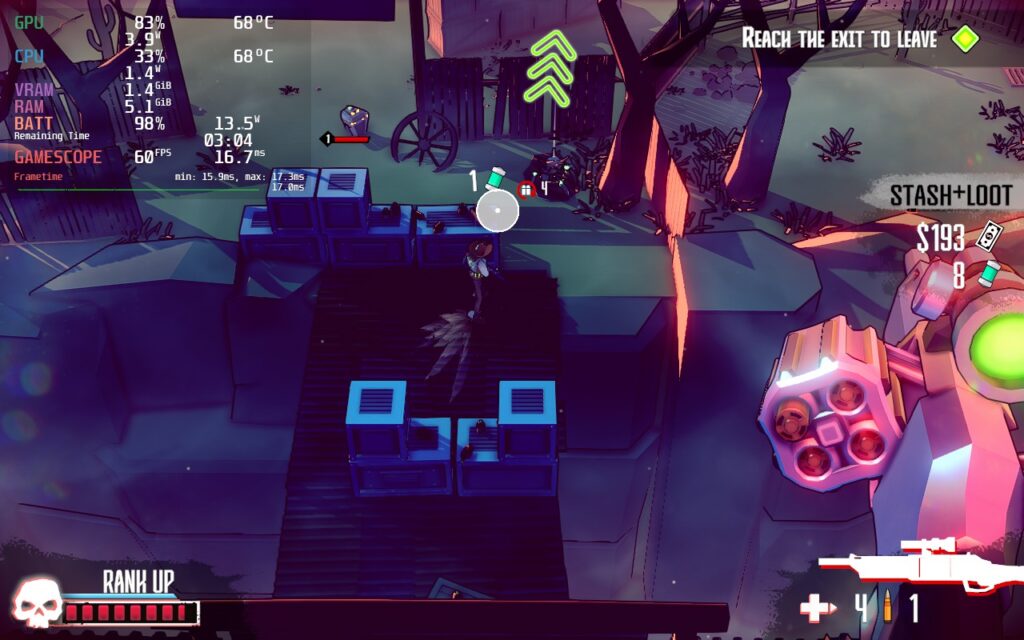
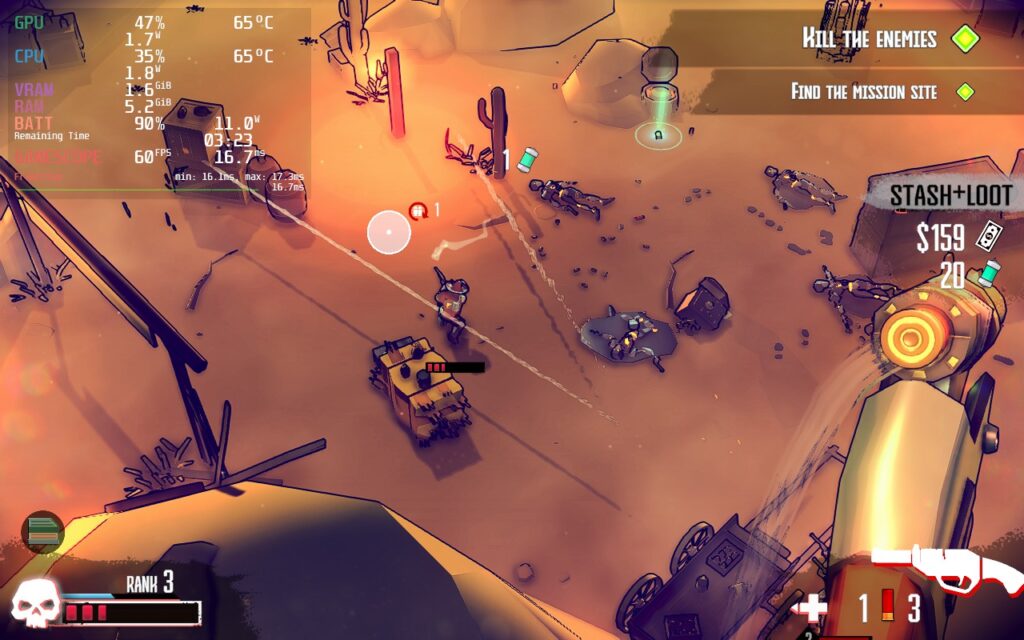
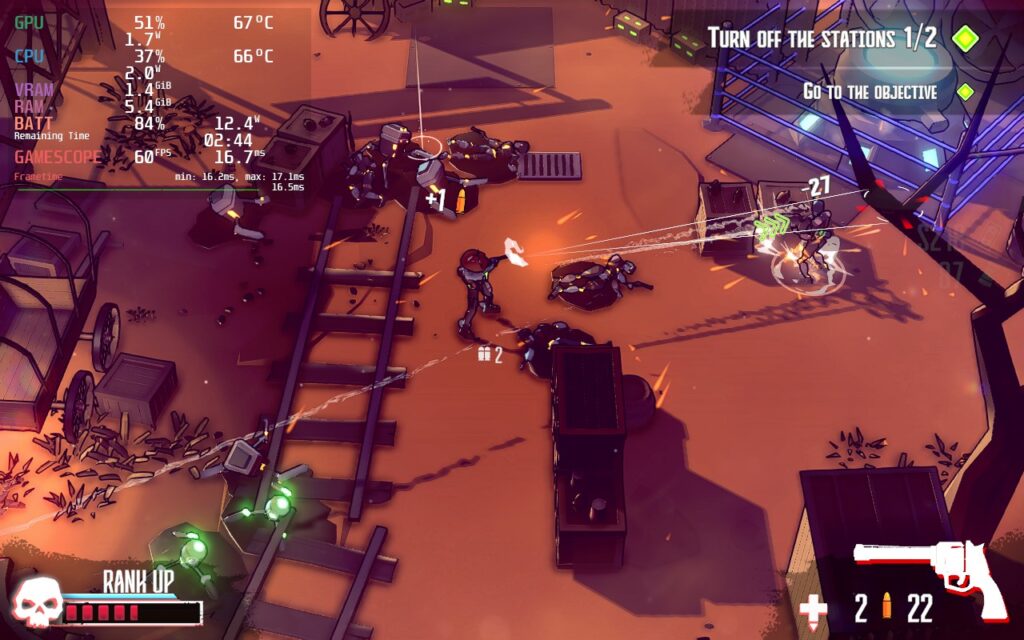
I first played Dust & Neon during the Steam Next Fest last week and it quickly became one of my favorite demos. The visual aesthetic of the game is right up my alley, vibrant and simple, while the gameplay loop is engaging and addicting. I do love randomized items/weapons and roguelike systems in games and I feel this one does it really well too. The randomized weapons keeps me trying to crawl up the power while managing if I will need a certain capacity or accuracy, while the passive upgrades I get after dying influence some of my choices in terms of spending money to get certain weapons initially.
You do have to reload your gun manually by pressing the X button, which some might not like, but I feel it adds to the challenge and charm of the game (also the gun showing on the right side when reloading is awesome). Combine the aiming, shooting, rolling, sliding to cover, and swapping between equipped weapons, Dust & Neon is such a fun game to play. And what makes it even better is how well it runs on the Steam Deck!
Dust & Neon - Max Performance
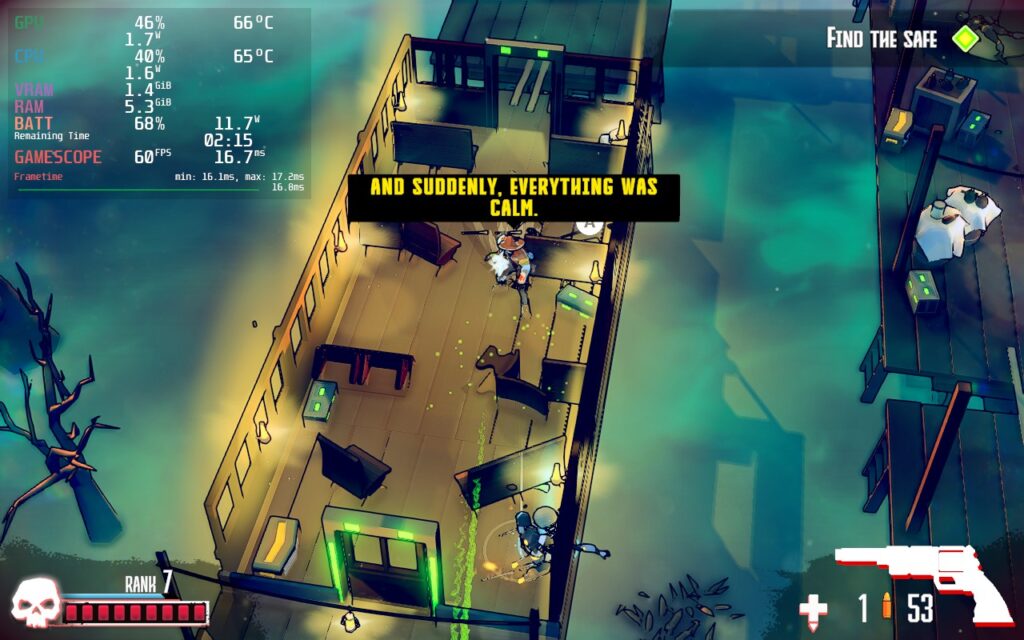
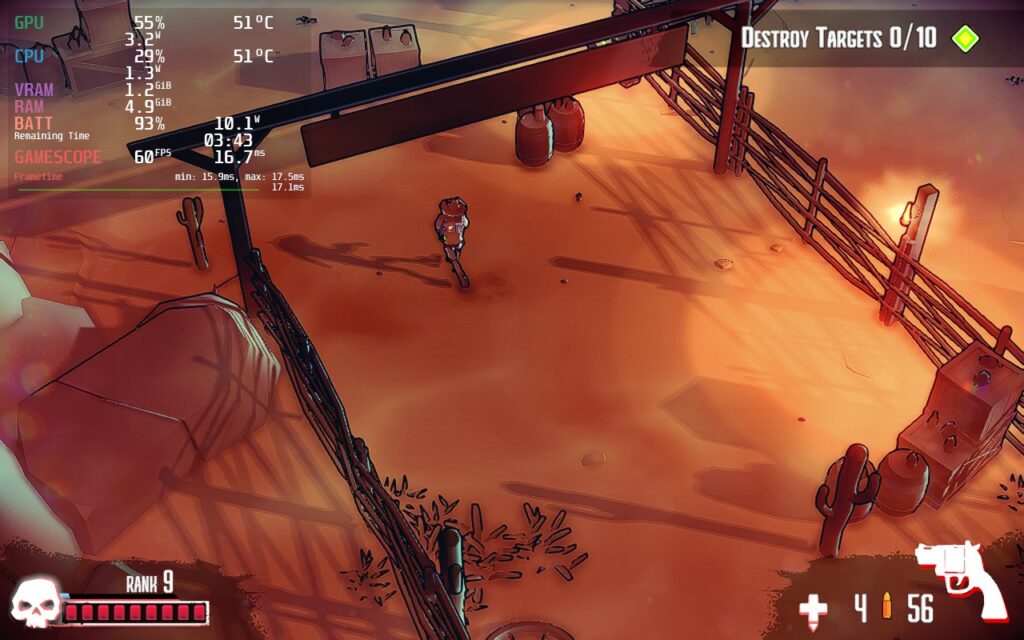
Booting up Dust & Neon, I noticed it was automatically set to the highest graphical quality. Luckily, the game runs fairly well at max! 60 FPS with the max settings brings in around 13W - 17W battery drain depending on the location and amount of enemies on the screen. While this is fantastic, there is a change or 2 that we can make to really get the maximum battery life out with the game still looking wonderful.
Dusting Off some Optimizations
In this case, I wanted to retain the pleasing visuals and their crispness while bringing battery drain down. Luckily, I was able to do this just by turning the graphics down to medium. This primarily got rid of some detailed shadows, but overall kept battery drain around 11W - 12W. I did see once or twice where drain went a little above 13W, but this was far and few and overall added an extra hour or so of battery life. This is easily the recommended build I would say others should use.
比較する
推奨設定
Max Settings
\
Max Settings
推奨設定
For a battery build, I elected to keep the graphics settings the same to keep the better shadows, but use Steam to force a 1024x600 resolution. This keeps the game looking quite nice still, with a slight bit of bluriness, but ends up saving around 2W drain with a stable 60 FPS. It looks a little worse, but if you're saving as much battery as possible without compromising visuals, this will be the way to do it!
Other than that, I had no controller issues or visual bugs. The game also displays at a full 1280x800 resolution and has cloud saves!
結論
Dust & Neon is an incredible top-down shooter that shines with its gorgeous visuals and addicting gameplay. The game can get really intense in fights and feels quite rewarding when getting a new weapon that starts killing enemies in 3 hits instead of 4 or an overpowered shotgun that one-taps some enemies. Switching from actively shooting robots to rolling for cover to reload, then rushing around the corner and emptying the revolver's ammo into a group of bots feels fantastic. And while our recommended settings change the graphics quality, the game can be fully enjoyed and played without changing anything, making this our newest Best on Deck game! As one of my favorite Next Fest games, this is one I highly recommend adding to your Steam Deck library.
Prodeus was provided to us by Humble Games to review. Thank you!
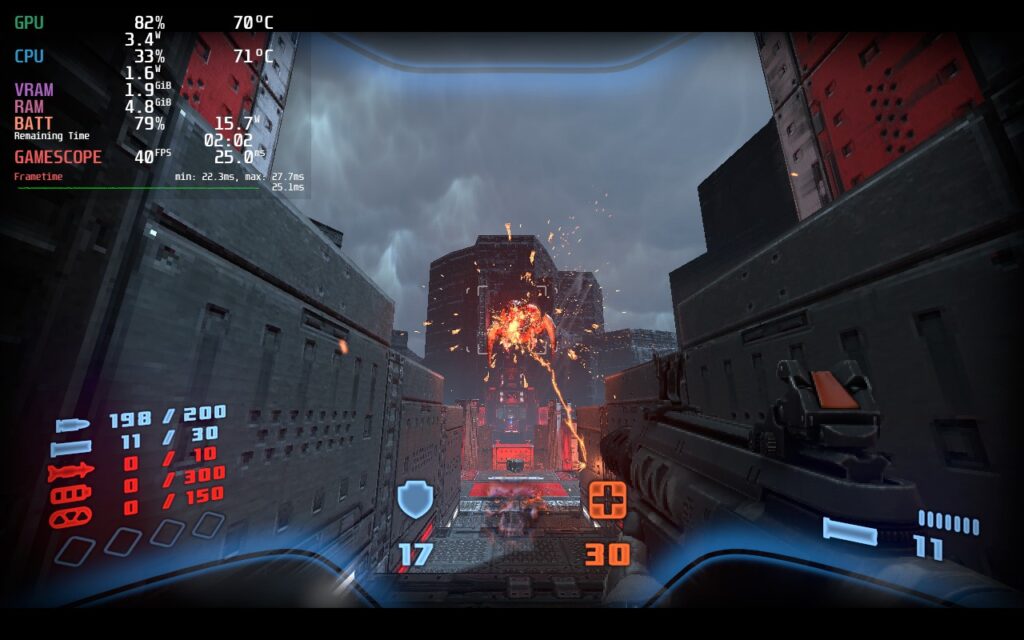
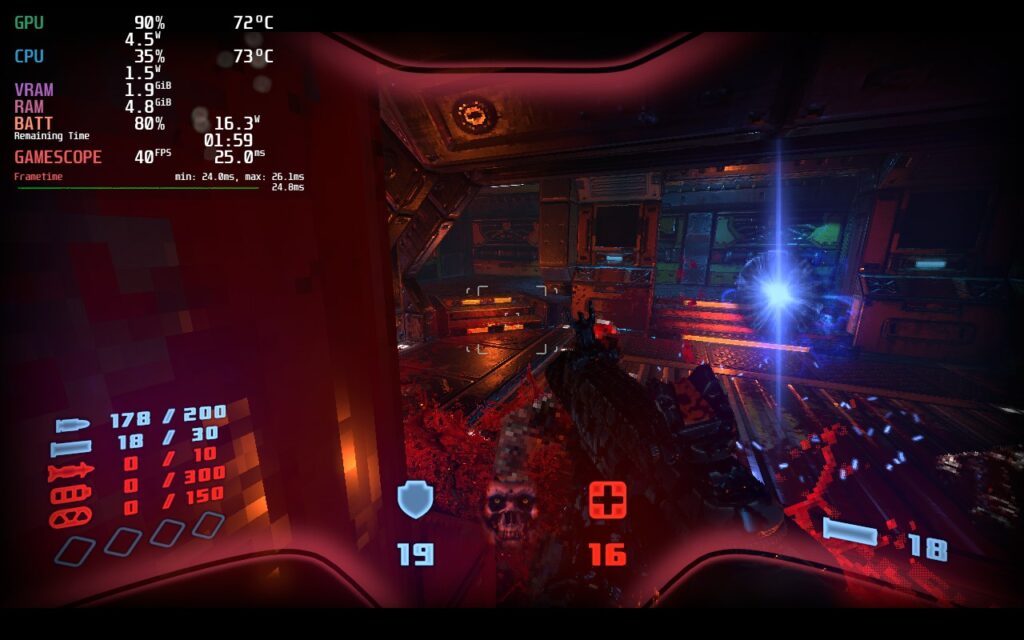
Are you a fan of Boomer Shooters like DUSK and Doom Eternal? Then this is the game for you. Prodeus is a modernized first-person shooter with a gorgeous retro feel to it. Plow through a campaign hand-crafted by industry veterans alone or in co-op, or compete against your friends in deathmatch modes. You can also partake in campaigns and maps made by the community using the fully integrated level editor in-game. Now, make it through the chaos and take down the Prodeans and all the forces of chaos against you.
As someone who adores boomer shooters on the Steam Deck, I was super excited to check out Prodeus. After my time with it, I can easily say it's one of my favorites. The visual style is fantastic, the gunplay feels tight, the guns themselves are varied and I can feel the weight to them, and the inclusion of the level editor and community map browser brings endless content to the game. I also love the inclusion of co-op campaigns and maps, as well as the dismemberment system that highlights the gory bloodbath you create. And on the Steam Deck, some tweaking is involved to really enjoy it, but it is definitely playable.
Prodeus: The Testing Grounds
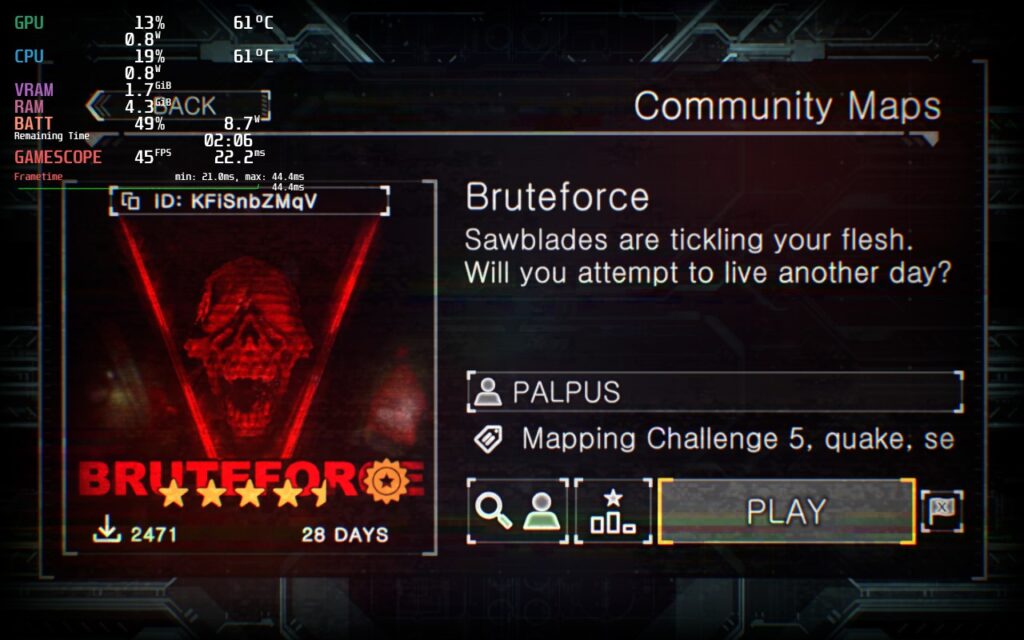
Before I go into Prodeus's performance, I want to explain my testing here. While I did play the campaign, I decided to test and optimize settings using a community map and test the settings from there on the campaign. This map is heavier than a lot of the areas featured in-game, so optimizing for the more intensive map would mean all less and more heavy would be covered, including other community maps (theoretically). The map I used to optimize initially is called "Bruteforce" by PALPUS.
Optimization Fit for a Killer
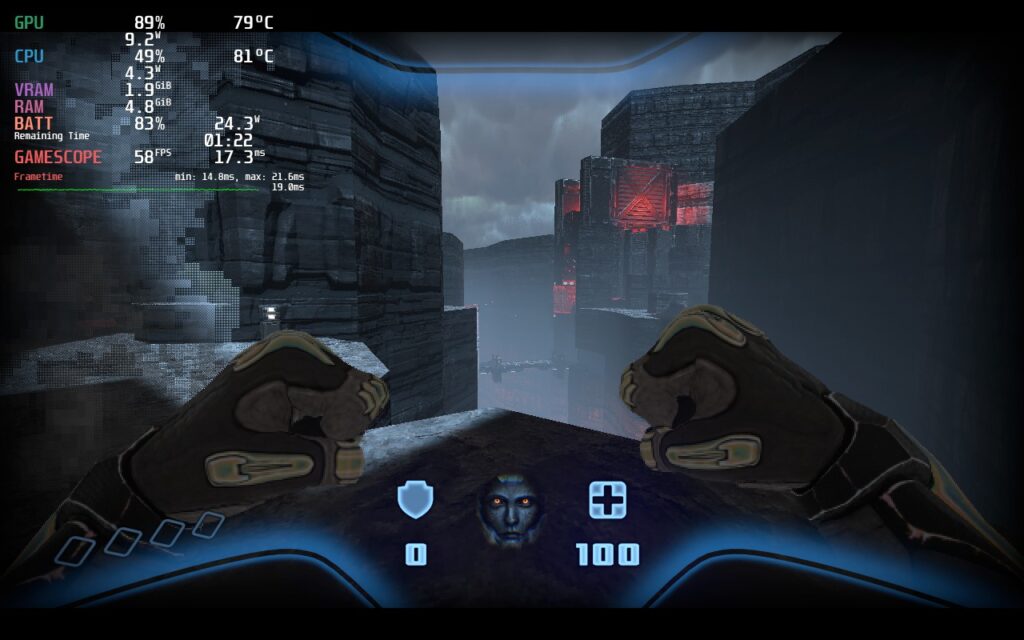
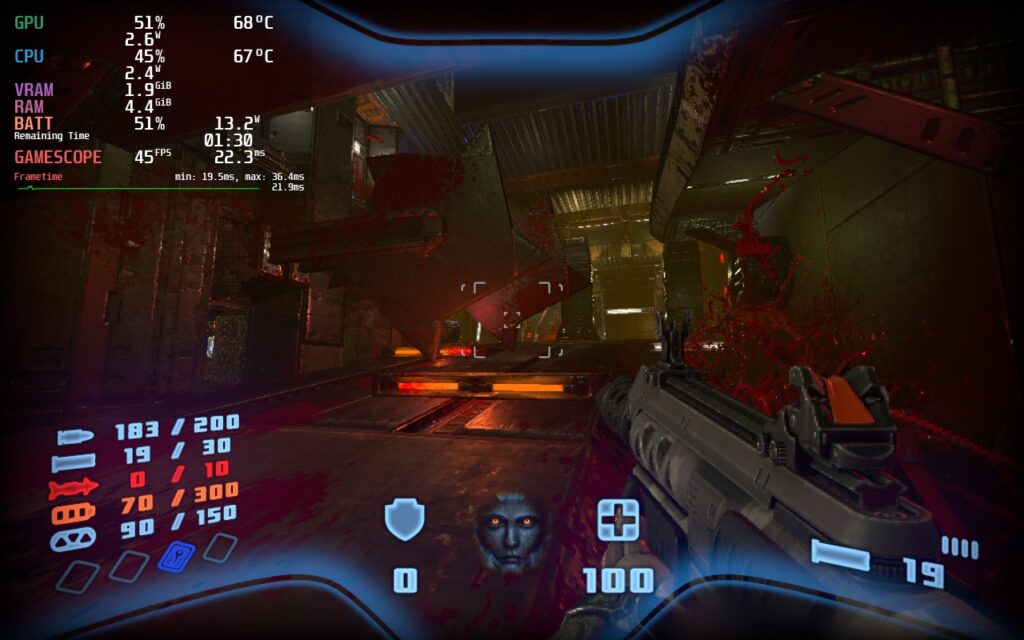
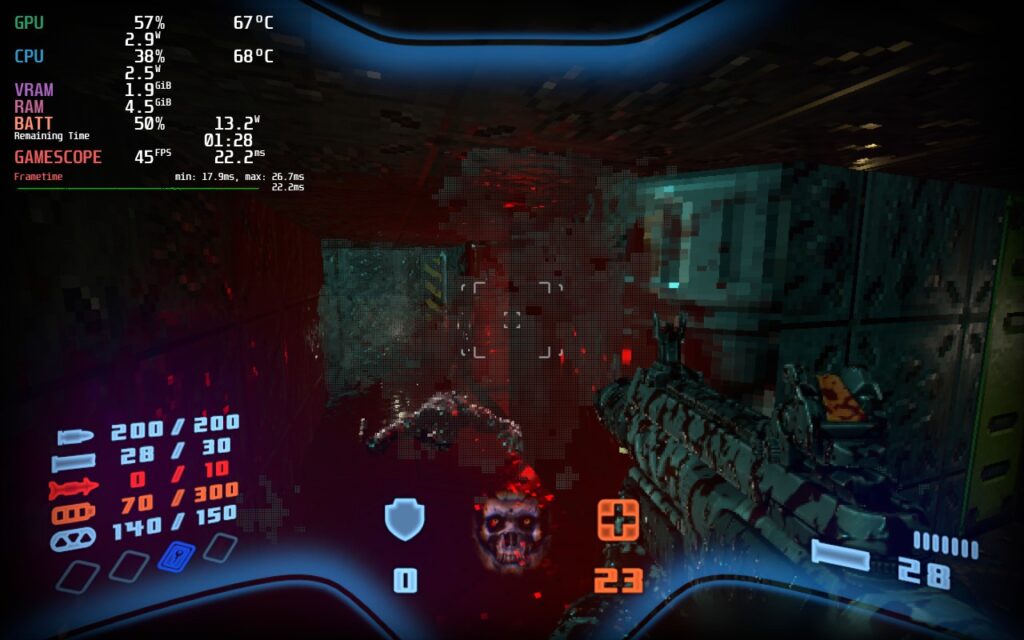
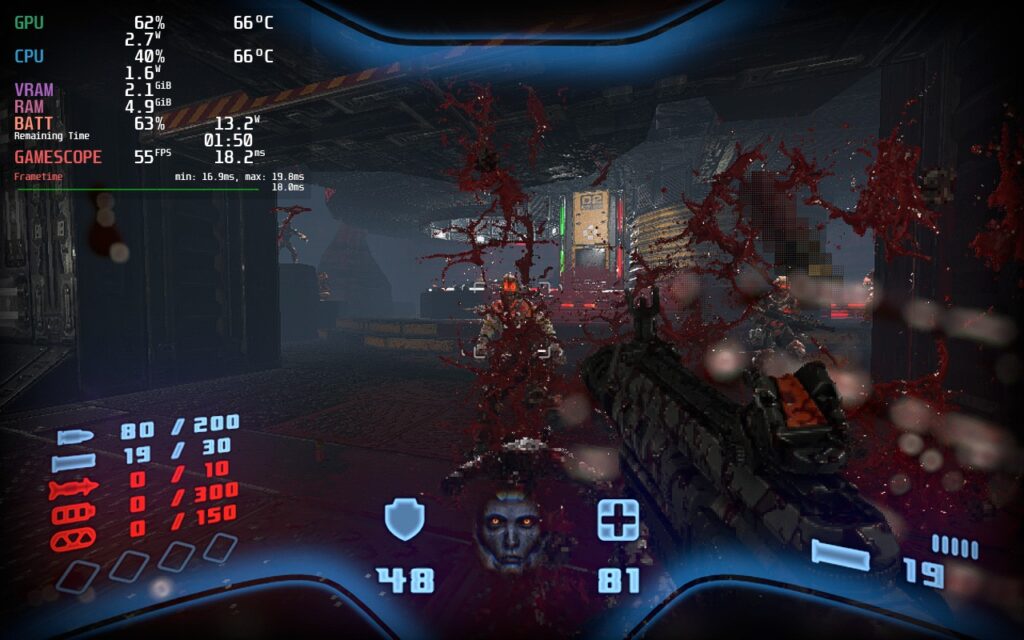
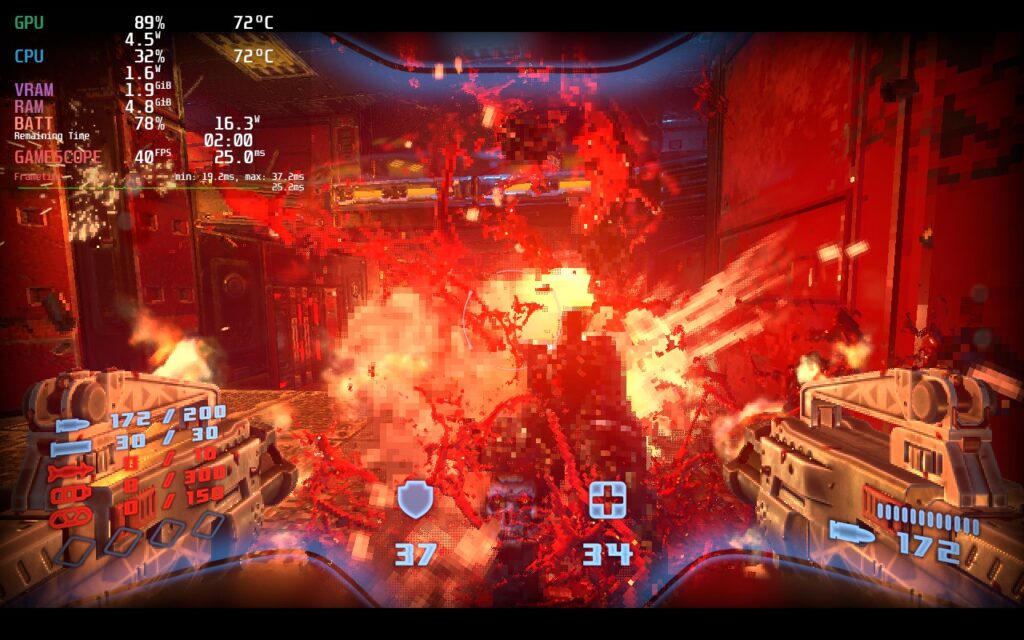
Prodeus is a weird game to run and had some oddities when it came to optimizing. Before I get into that though, I did test the game at max settings. In some smaller campaign areas, the game was able to run at 60 FPS with a high battery drain of 20W+, but other areas and the community map would churn out sub 37 FPS at a 24W battery drain. I knew this wouldn't be feasible to play like this, so I got started in my optimization process.
The first thing I looked at was shadows, which were definitely the biggest cause of framerate drops. But oddly enough, most areas didn't show any visual difference. The shadow quality focuses more on non-static shadows as it doesn't effect ones that are created by the environment. The one part that I found a big difference was in the community map where the visual quality did change, but it was so minuscule on the overall effect on the quality.
比較する
Shadows On
Shadows Off
\
Shadows Off
Shadows On
Other than the shadows, I noticed SSAO and SSR did make a difference, but didn't impact the game visually much. This meant keeping those turned off kept the quality of the game looking similar while saving on battery and performance. I also noticed turning resolution down helped with stabilizing framerate, but didn't really impact visual quality either.
比較する
1280x800
960x600
\
960x600
1280x800
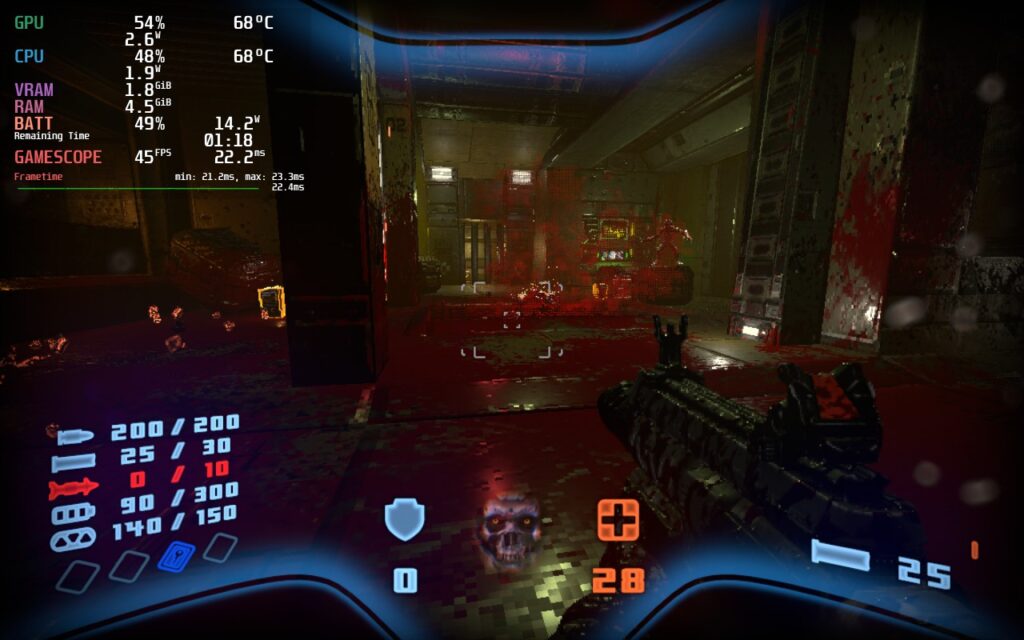
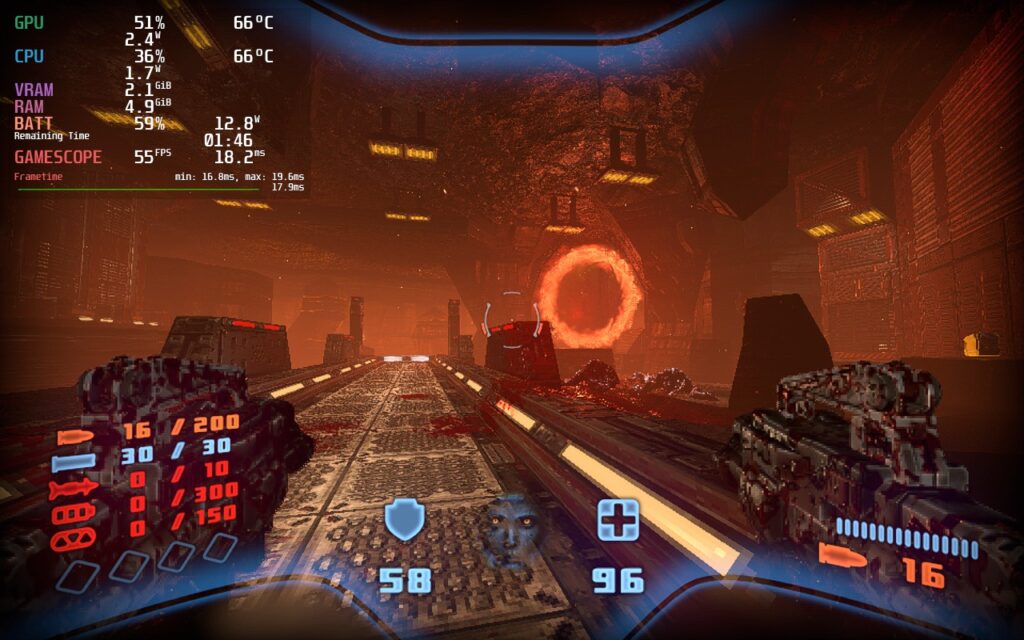
After testing all the settings, I came up with 3 builds that I felt all worked quite well. I prioritized framerate with each one, so each will feel as smooth as possible. My recommended build focuses on battery life, but pushes framerate to a good compromise of 45 FPS while still looking great! It gets around 3 hours of battery and feels a nice step up from 40,
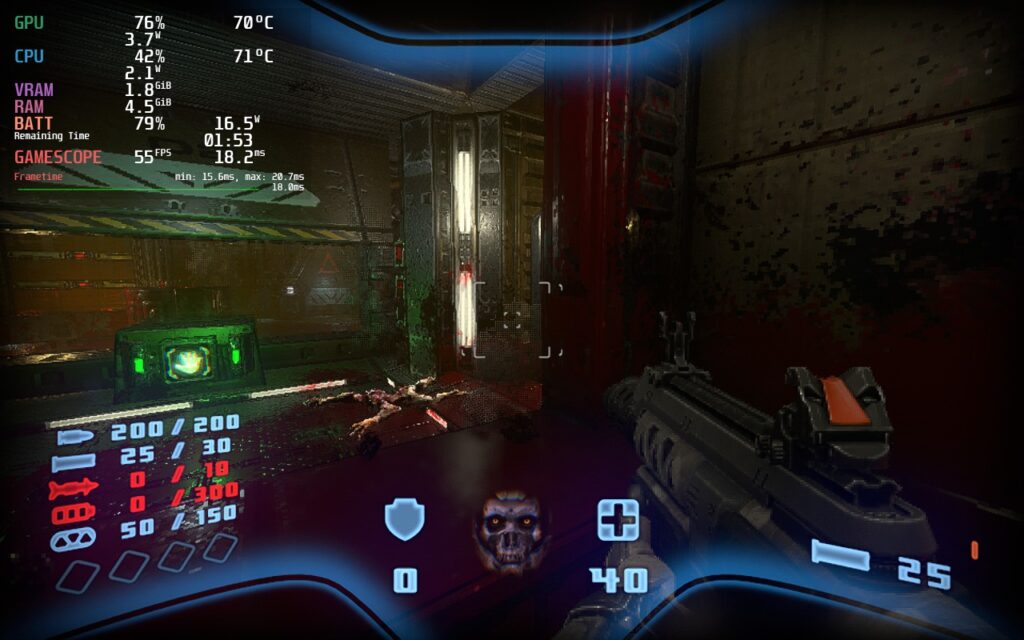
From there, I decided to push framerate as much as possible while keeping things stable. Since there was still some drops when moving through levels at 60, I decided to stick to 55 FPS to keep things smooth and make any possible drops feel non-existent. The battery life tends to stick around 2.5 hours for this one.
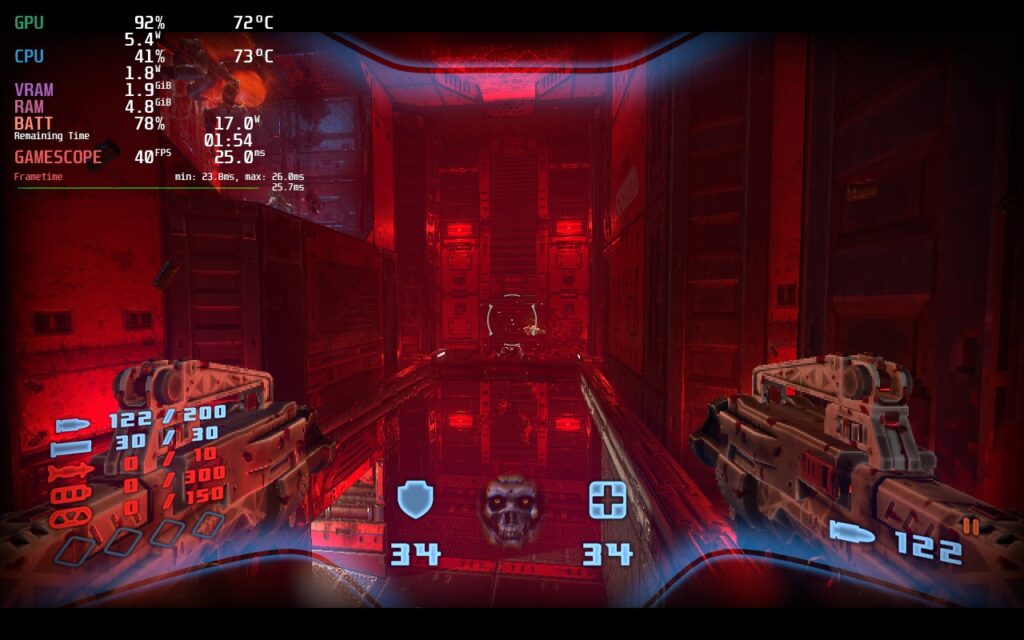
Then, I wanted to find the best way to play the game at max quality, including shadows turned on. I noticed that with most framerates, there would still be some drops and spikes in battery. The lowest I could get without drops or crazy spikes in battery is 40 FPS, which still feels fantastic.
Each of these ways to play work extremely well, can't go wrong with any, but 45 with a battery focus felt like a good compromise between good quality and a smoother framerate.
It's Time to Gyro...Kind Of
With boomer-shooters like Prodeus, gyro aiming can be a godsend. This helps with some finite adjustments to make sure you can hit those headshots. Unfortunately, Prodeus doesn't have mixed input support. Gyro can be enabled to emulate a joystick, but it doesn't feel as fast/responsive as it could. So while it is possible to have gyro, it doesn't feel like it should.
結論
Even with the oddities and the lack of mixed input support, Prodeus is an incredible shooter that shines on the Steam Deck. The graphical style is gorgeous, the gameplay is fast-paced and tight, and the community maps/campaigns keep the content coming! And all of this can be thoroughly enjoyed on the Deck.
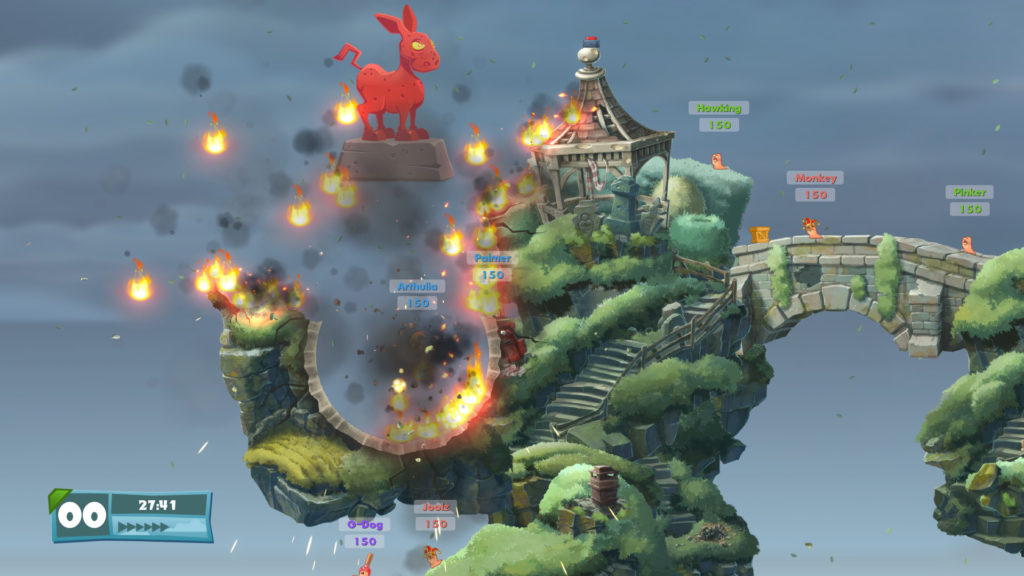
The Worms franchise is a blast from the past, reminding me of gaming on the PS1. It had a resurgence during my college days, where it could make or break friendships, and again has made its way into the games I currently play. These quirky worms, armed to the teeth, debut with some tongue in cheek humor, randomly generated maps, and both online and local multiplayer. Worms W.M.D. is listed as Unsupported on Steam, but worked perfectly fine out of the box, with no additional configuration needed.
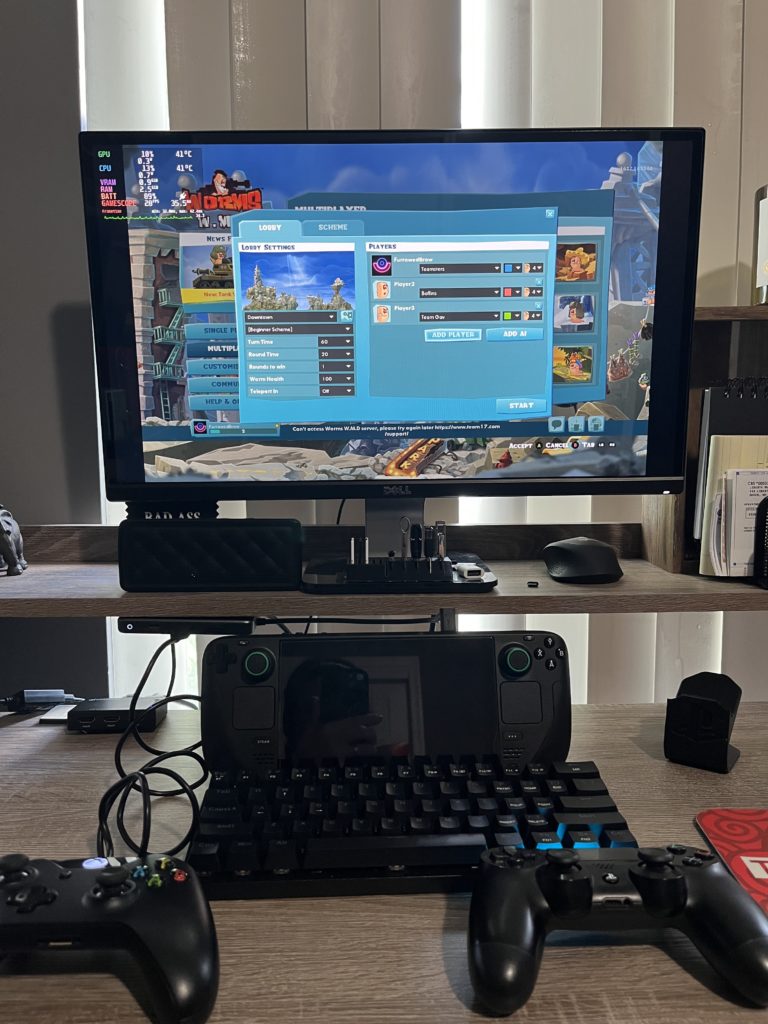
Online multiplayer works flawlessly and supports Steam invitations, so it's simple to gather up to three other friends in a lobby. Local multiplayer is also supported, which I tested with both Bluetooth and wired controllers. Local multiplayer using Steam Link opens up some unique possibilities, like playing against friends or family from an entirely different room.
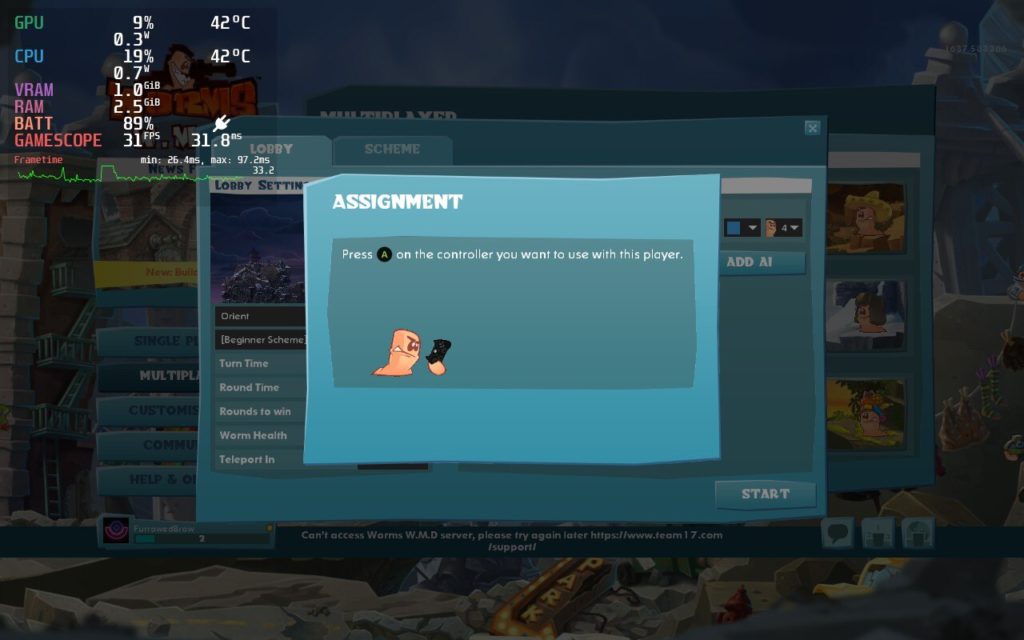
A local multiplayer lobby using the Steam Deck, a PS4 controller, and a wired Xbox One controller
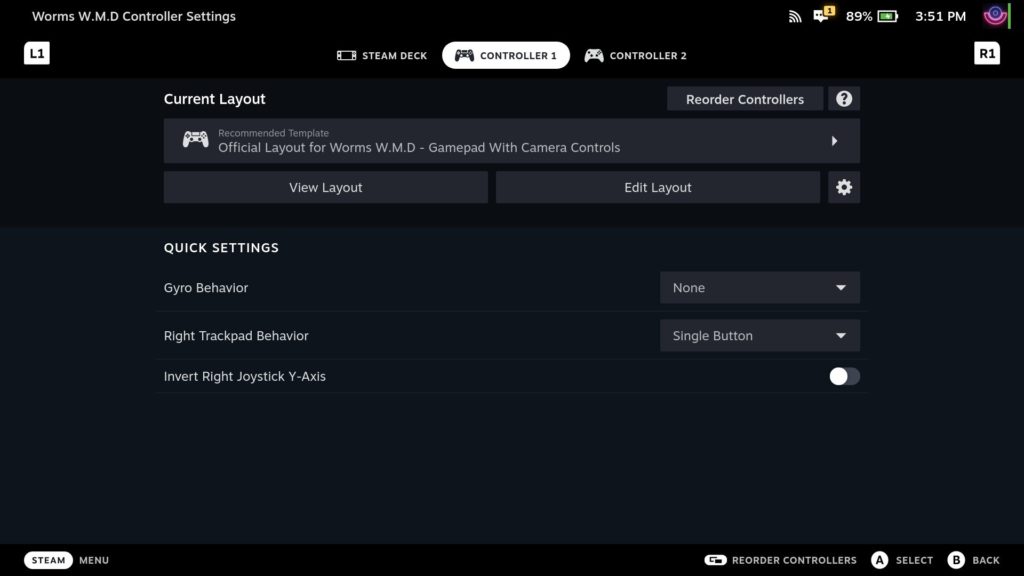
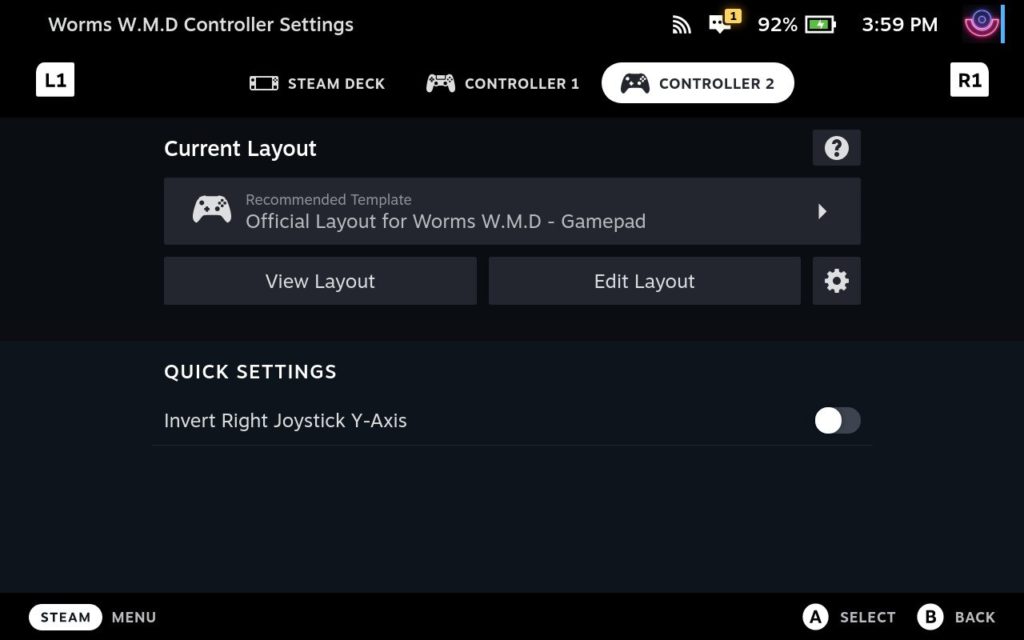
Better yet, Worms W.M.D. supports a “pass the controller” style of multiplayer. When each player is added to a match, they are instructed to Press A on the controller they will be using. That way, everyone can have their own controller, you can use the Deck while friends share a controller, or you can pass the Deck around the room. If playing local multiplayer, make sure each controller appears in the Deck’s controller settings prior to opening the game.
The simple, yet vibrant graphics are not demanding of the Steam Deck’s hardware, supporting 60fps in native 1280x800 resolution. With default settings, I was able to get about 4 hours of gaming out of the Deck, with peak temperatures never reaching 65 degrees. By limiting the TDP to 4 watts and setting the GPU clock speed to 600, FPS dipped to the 35-40 range, which is perfectly playable for this type of turn based game, but extended the battery life to a whopping 6 hours with peak temperatures around 50 degrees.
Since framerate was stable around 35FPS, I dropped the refresh rate and FPS down to 40 and gained another 30 minutes of battery life. I noticed that if I dropped the GPU clock below 600, framerate became unstable, dipping into the low to mid 20fps range.
Worms W.M.D. can be fun for hours on end, creating some funny moments and rivalries along the way. While Valve lists it as unsupported, we know, in many cases, that just means it hasn’t been tested. I was happy to take the plunge and pleased at how well it runs natively.
Update 9/13/22: After speaking with the developer behind the Hephaistos mod, and after reading, they have clarified and rewrote the instructions on how to get the mod working. We included a small guide on how to get it working so you can utilize a full 1280x800 resolution.
Hades is...well for lack of any other term...an incredible game. As the son of Hades himself, you have decided to defy your destiny and escape hell. Using an assortment of powers and weapons, you will hack and slash your way across gorgeous landscapes while upgrading your skills and powers. As this is a roguelike game, each death makes you more powerful with new weapons to unlock and permanent upgrades that carry with you throughout your deaths. Paired with an immersive fully voice-acted story, this roguelike game is an essential to everyone's library. And it just so happens that Hades is also an essential game for your Steam Deck.
Hades Performance
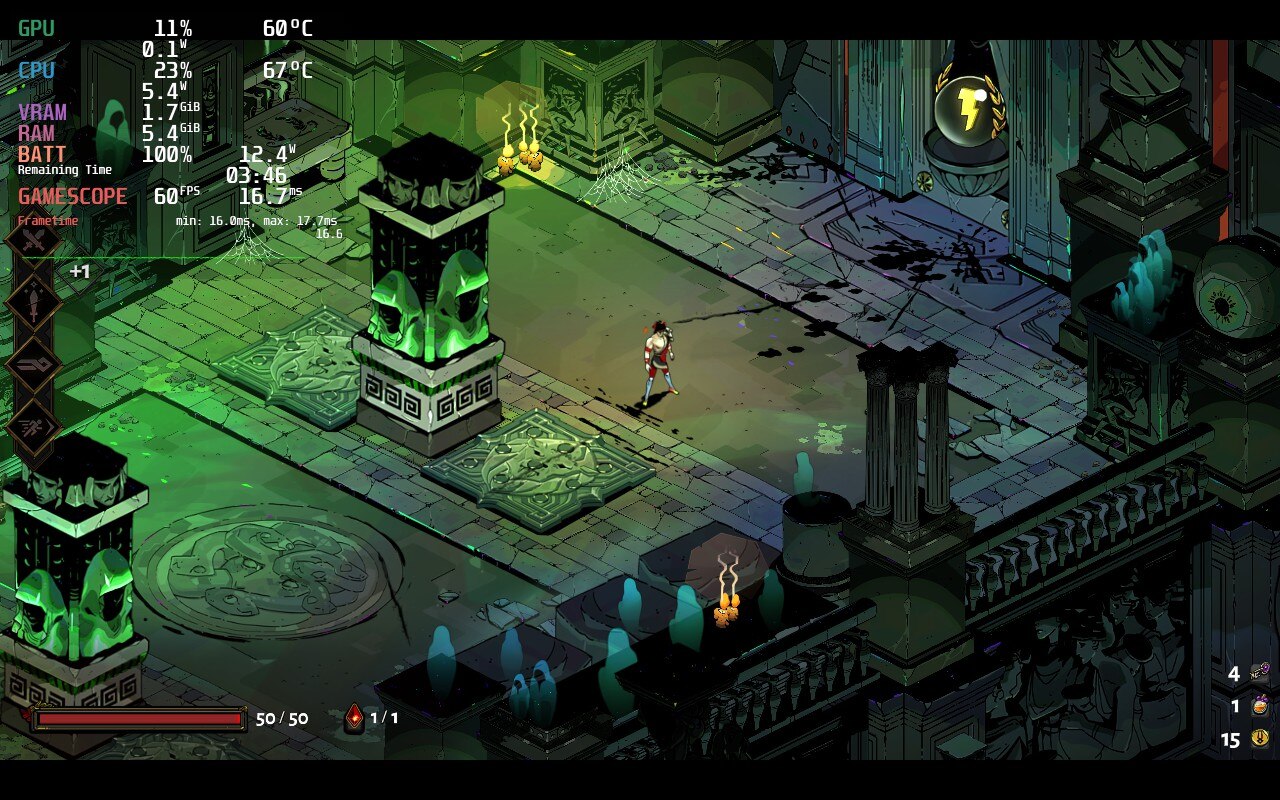
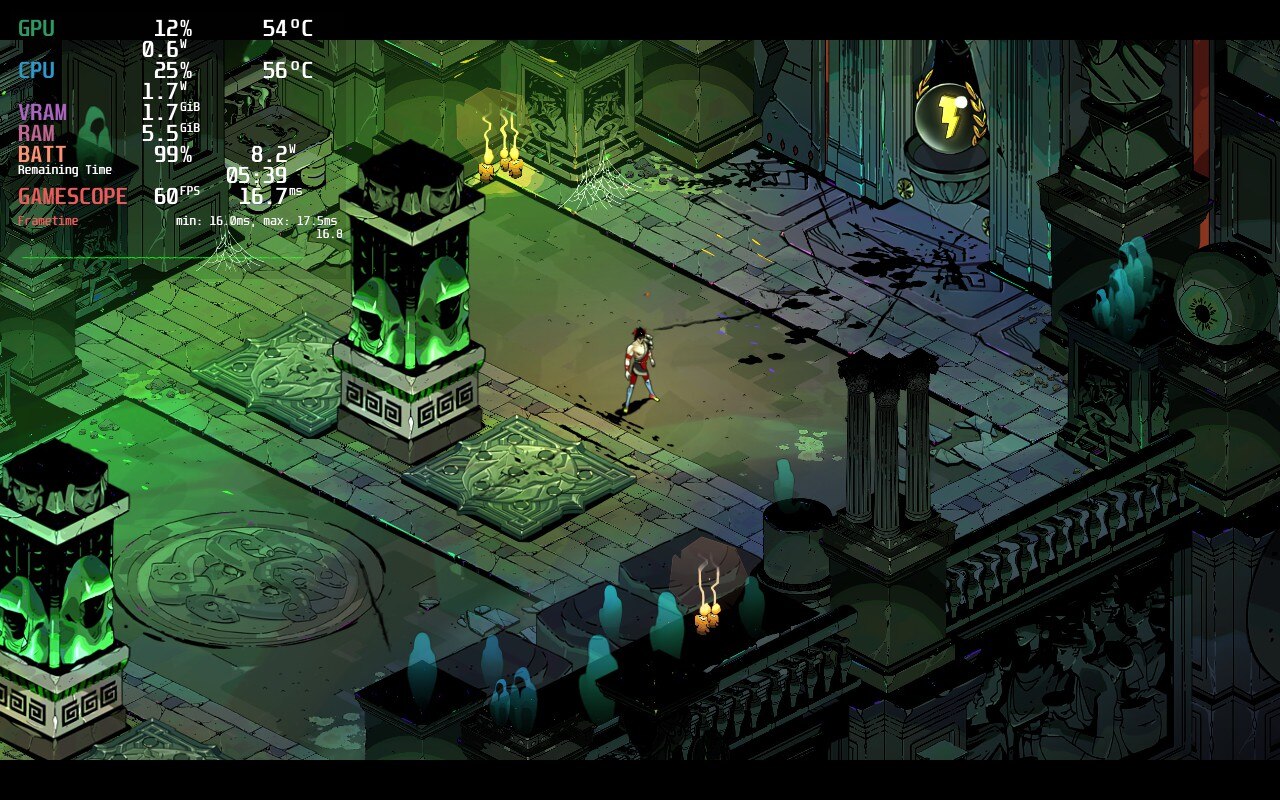
Due to the art style, Hades is nowhere near intensive in the slightest. When opening the game for the first time, it will boot up at a solid 60 FPS with only 12W battery drain and sub 70c temps. If you ask me, this is pretty fantastic, though we can make it better! The game tends to drain a bit extra power than it really needs, so by just setting a TDP limit to 4 and GPU Clock Speed Frequency to 1100, we can dramatically lower the drain to 8.5W - 9W with sub 60c temps.
With no visual or stability difference, you can clearly see the temps and battery drain go down significantly with slight TDP changes.
This tends to bring the battery life up to 5.5 - 6 hours from 3.5 - 4 hours with no sacrifices to performance at all. This is especially helpful if you are going to be traveling, but even just playing at home, this can help significantly. Keeping temps down will increase the longevity of your Deck's hardware as it won't be getting so hot. And honestly, with a small tweak like that and no reduction in quality or performance, there really is no reason NOT to.
Resolution Oddity
Now if I had to point out one thing, it is the resolution options. In-game, it says it supports 1280x800, but it actually only displays 1280x720 as you can see from the black bars at the top and bottom in the screenshots. While there is a way to patch this using the Hephaistos patch, it doesn't really feel necessary. The game runs and looks beautiful and I felt no reason to change the resolution. I did try to use the mod itself, but the file wouldn't execute so I couldn't patch the game. I will continue trying though and update this review if necessary.
After speaking with the developers behind the Hephaistos mod, we got it up and running. To do this, you will have to download the hephaistos-linux.zip from the release page. Then, extract the file and put it in the directory of where Hades is installed (you can access it by going to properties > local files > "Browse Local Files". Once the file is placed in the directory, right click it and select "Run in Konsole". Then, press "1" 3 times, which will patch the game to the 1280x800 native resolution on the Deck! We noticed no performance difference with the native res.
結論
There really isn't much more I can say about Hades other than it is one of the best games I have ever played. The artwork, gameplay loop, the fine-tuning, they all work together in such harmony that it is hard to look back and not love it. Supergiant Games outdid themselves and it makes me incredibly happy to know how amazing this game works on Deck. If you haven't yet, buy this game.
Thank you for reading! If this settings review helped you, please consider supporting SDHQ by donating on Patreon. Your support will help us continue to grow and provide the latest and best Steam Deck content!
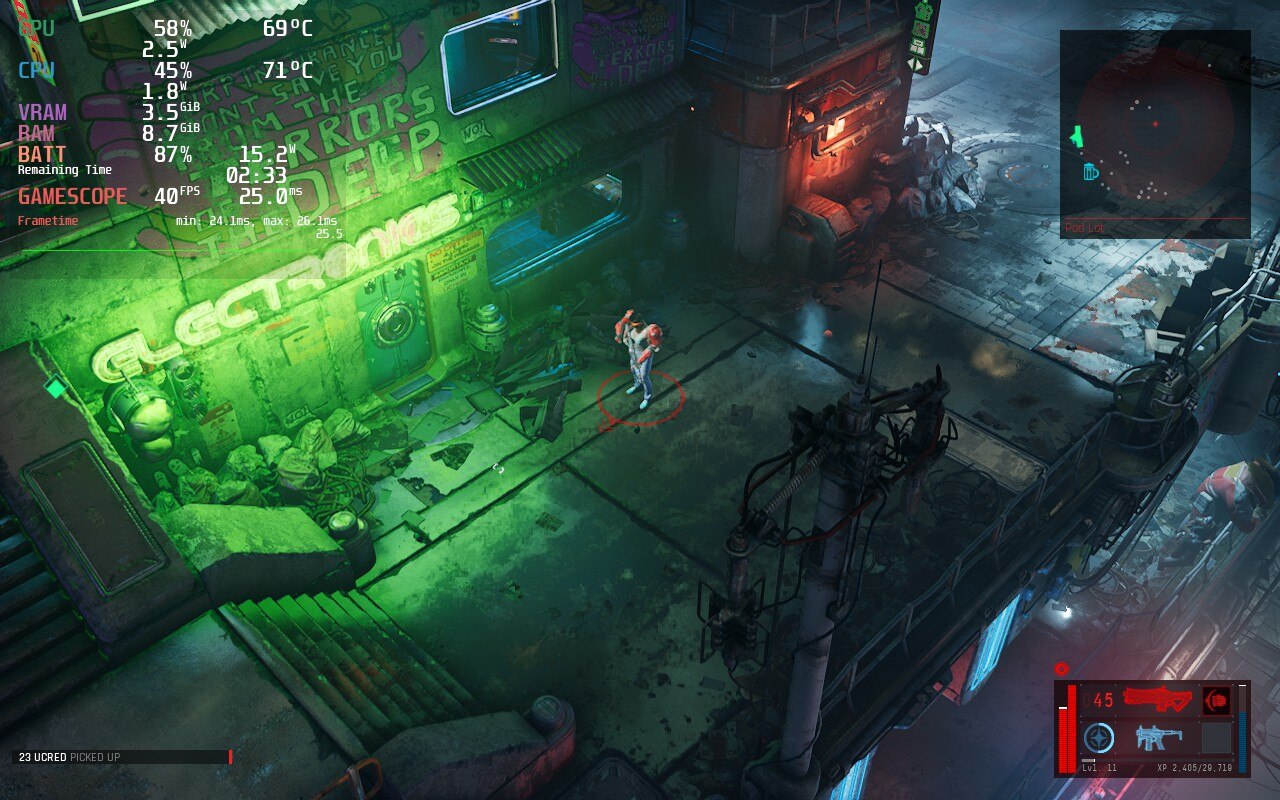
I have always been a big fan of Cyberpunk settings. I love the futuristic, technology heavy setting that encompasses a gritty future we could one day have. Now put that setting into a co-op friendly Action RPG that runs well on the Steam Deck and I am a happy camper, and let me tell you, I am pretty damn happy. With the ability to customize your character with cyberware, skillpoints, and even clothing, this explosive shooter is way too much fun to play.
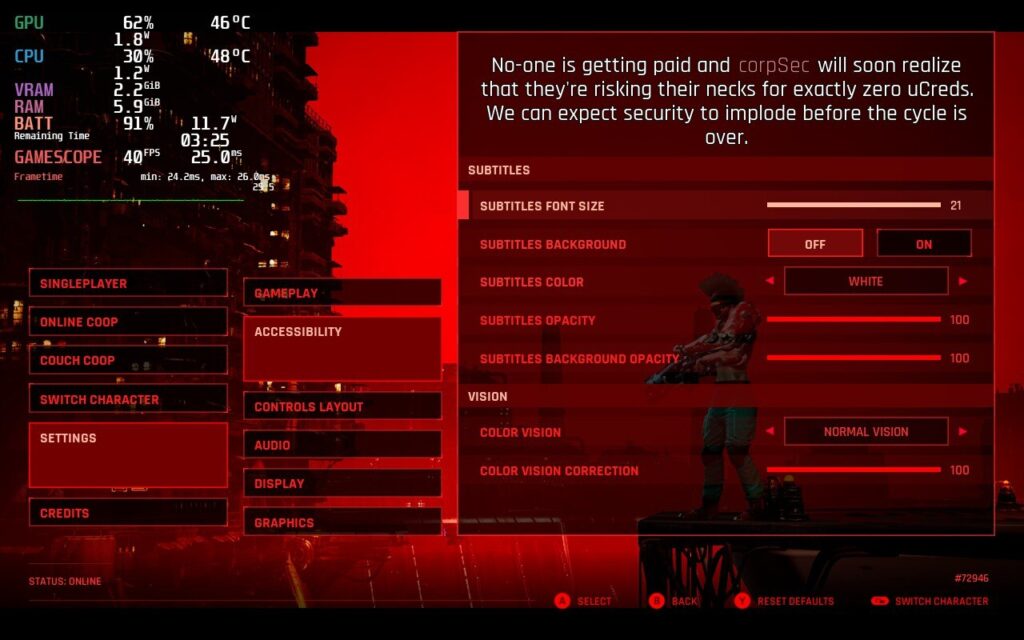
There are some good and bad points when playing on the Deck, but I would say overall, it was more positive than negative. The good is the game has Cloud Save support (thank god) AND Accessibility options that include text resizing! This is especially important on the Steam Deck due to its smaller screen.
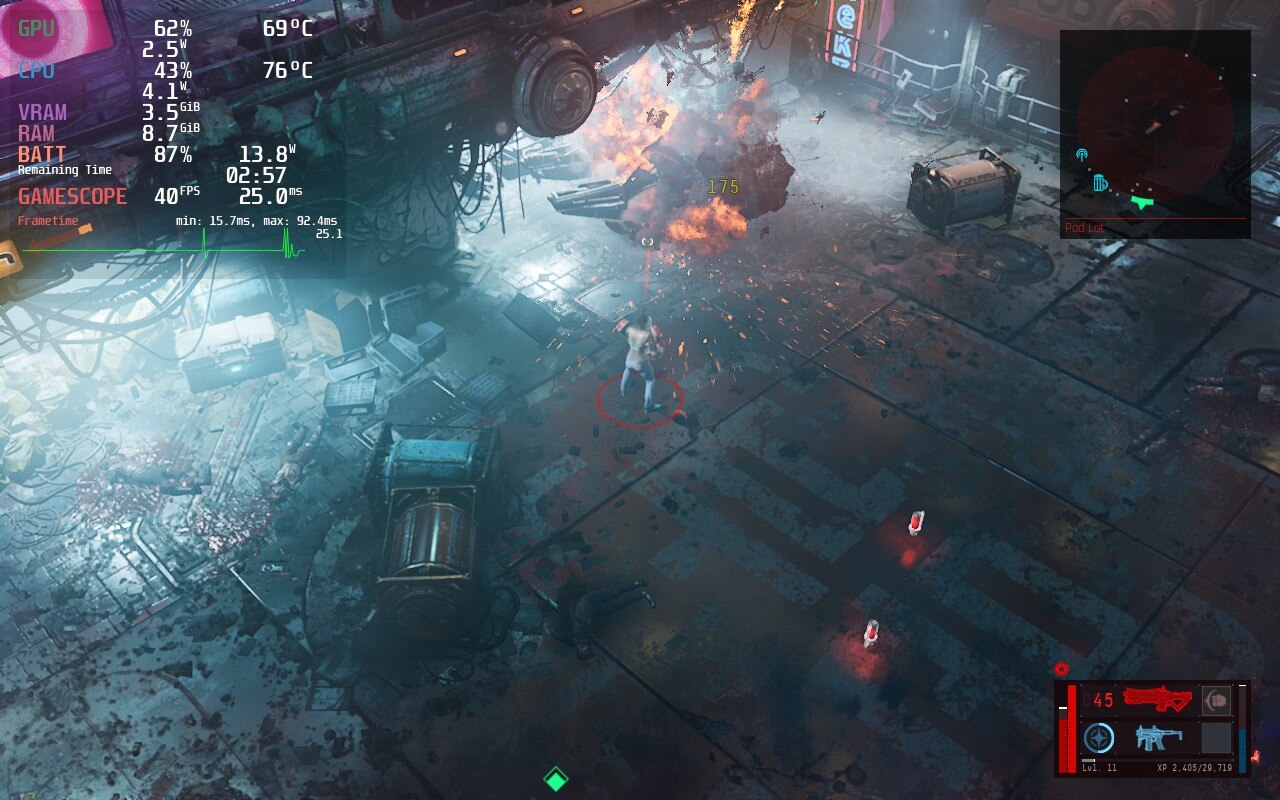
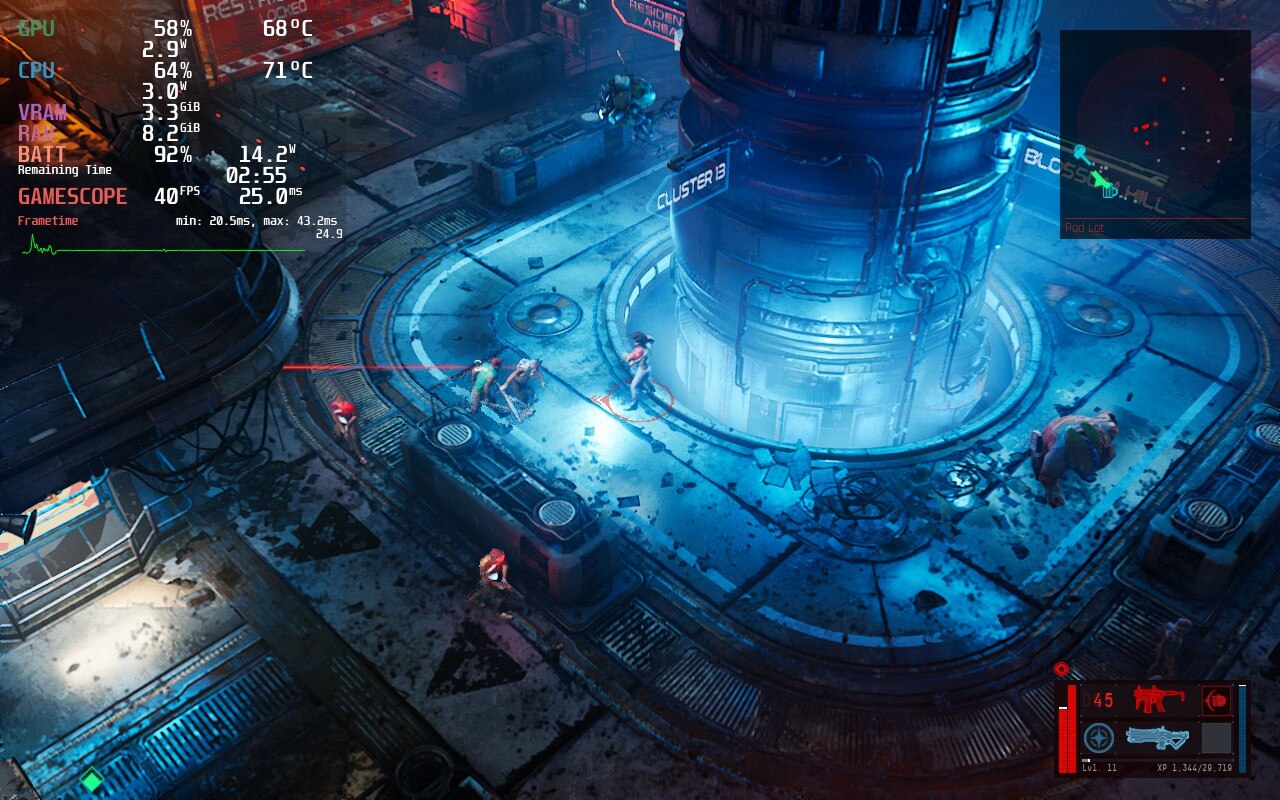
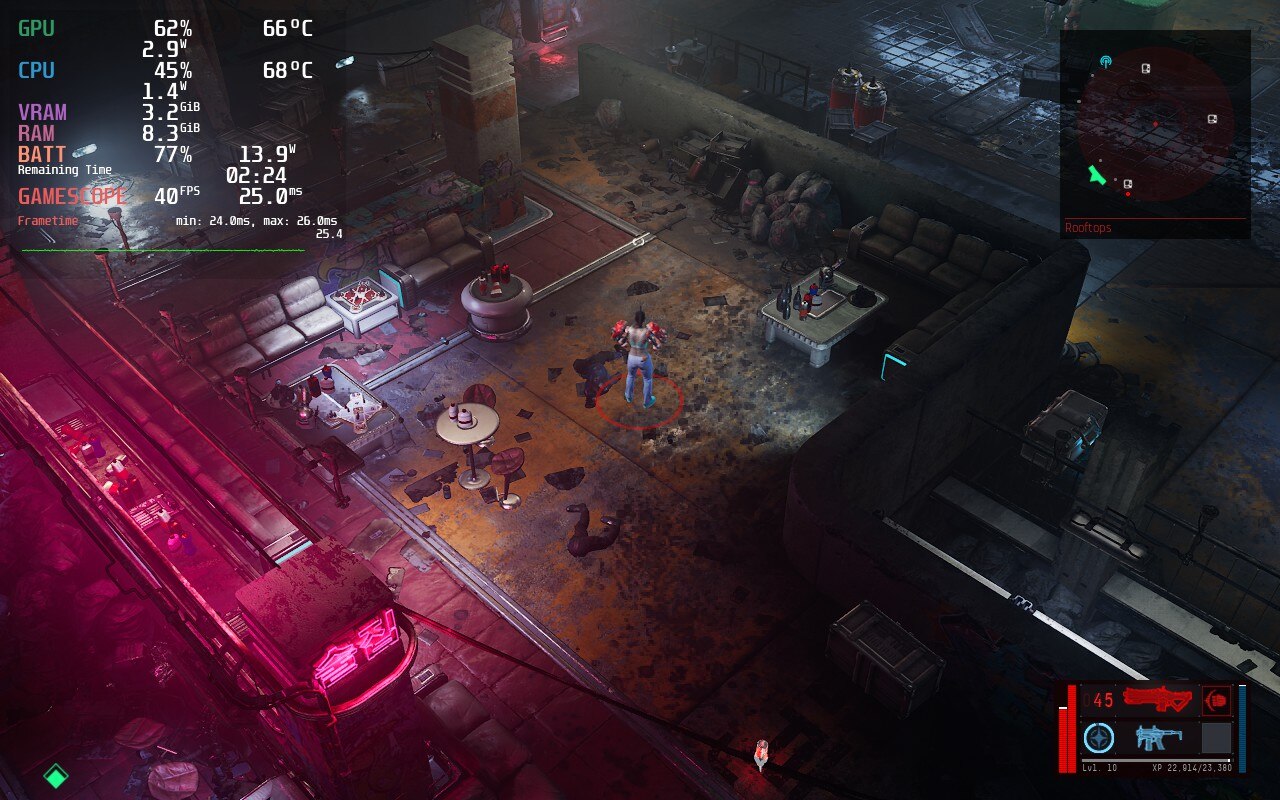
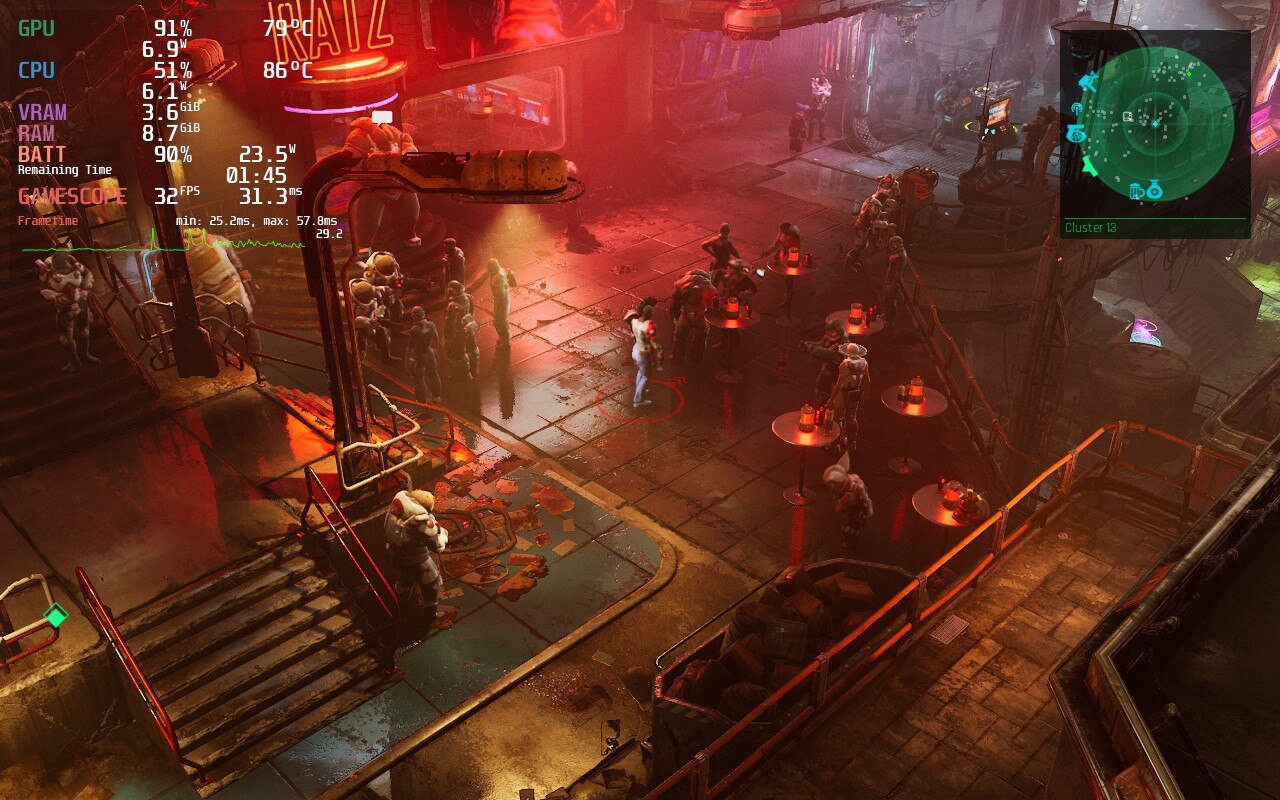
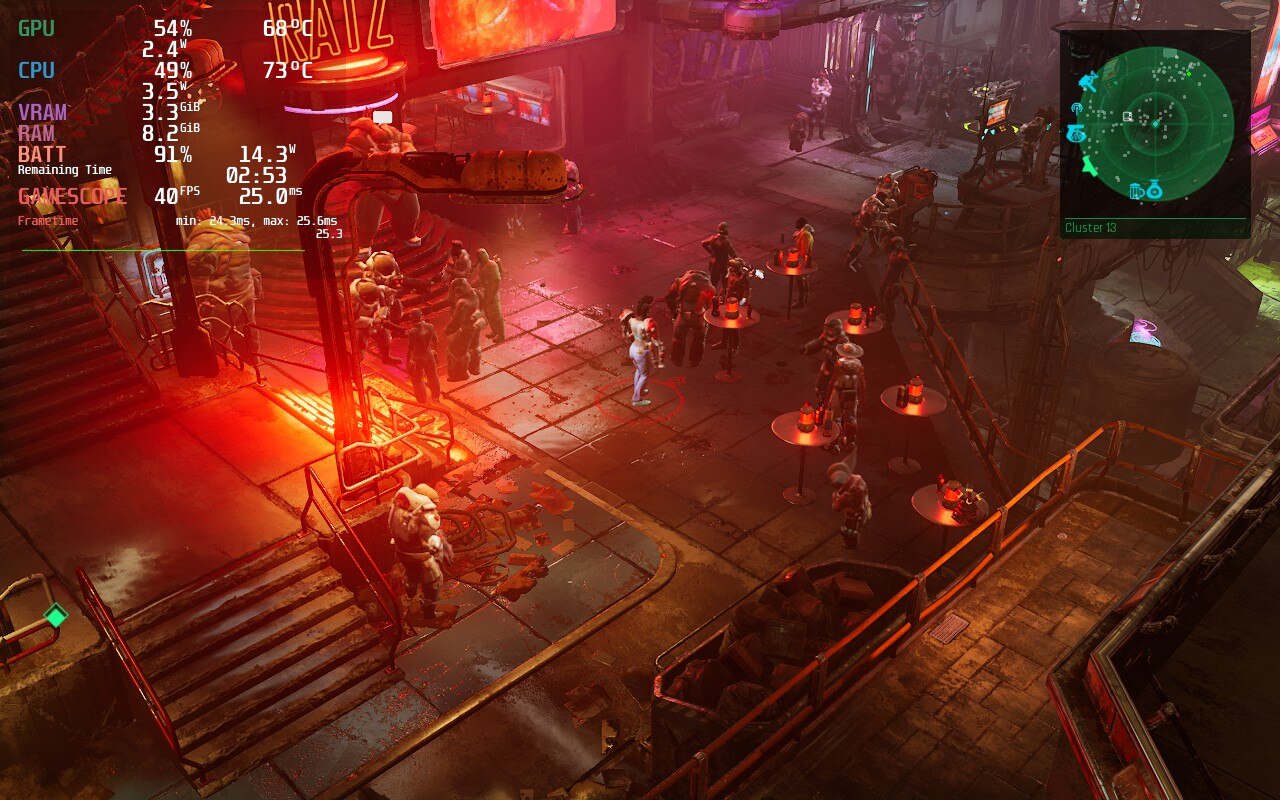
The Ascent itself also runs well in the first 2 hours I played, though there were a couple spots I noticed major dips. Luckily, this only happened once or twice and in all combat scenarios, it held a solid 40 FPS (some explosions caused minor dips that recovered immediately). The game is made with UE4, which does mean you will see dips when loading into new places, though this recovered immediately as well. I did also notice some minor ghosting, though because the camera is so far away most of the time, I didn't feel it impacted gameplay much. I will also make note that I did not crash once when playing the game. I am aware of others who report it, so if your game is crashing, please leave a comment so we can investigate!
The Ascent is also the first game that I felt Half-Rate Shading made a big difference in framerate stability, but didn't change visuals as much. Overall, from this first look, I would say The Ascent will be good to play on Deck!
A big thank you to Deckverse for working with us on the Marvel's Spider-Man Remastered review. You can check out his YouTube Deep Dive video below. Anything not under a "SDHQ" header is written by Deckverse.
There’s a reason why Marvel’s Spider-Man from Insomniac Games is considered as one of the best superhero games of all time. It’s an amazing combination of perhaps the most fun way to move around in a game world, a great story, and the brilliant and captivating soundtrack by John Paesano. Of course, you can criticize its Ubisoft-style watchtowers, unnecessary mini-games, quicktime events as well as repetitive side quests... yet in the end Marvel's Spider-Man is a great overall package.
My name is Timo and this is a Deckverse Deep Dive into Marvel's Spiderman Remastered! It has finally been released on PC and although it does indeed look great on a beefy GPU and big screens, it begs the question: how good does it run on the Steam Deck?
Marvel's Spider-Man: Default Settings
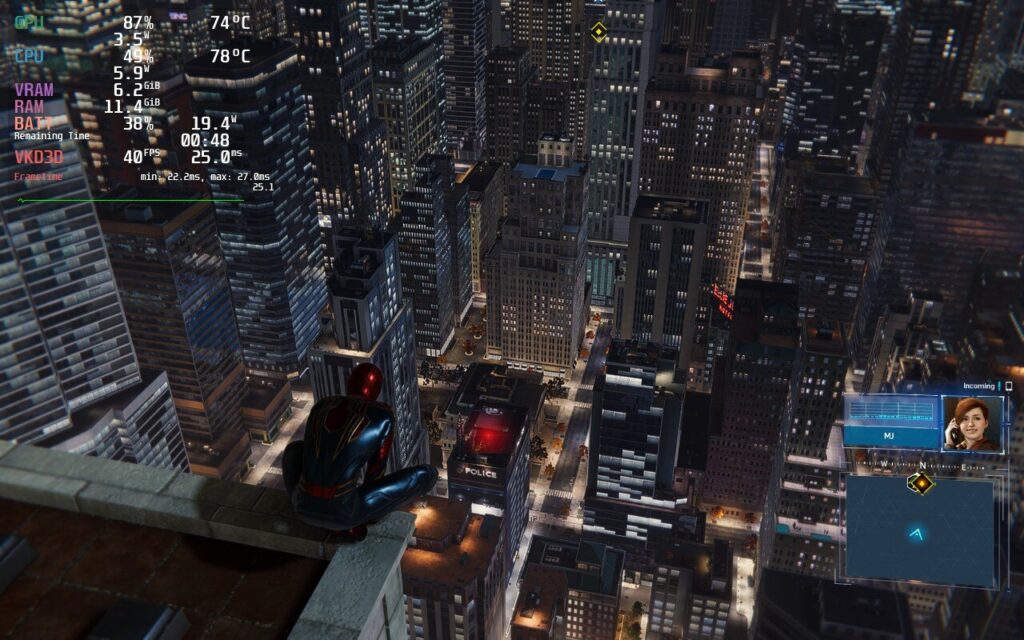
Upon first launch on the Steam Deck, the game resorts to medium settings by default: full screen, upscaling through AMD FSR 2.0 and a dynamic resolution with a frame rate target of 30 FPS. Everything else uses the Medium preset, except Depth of Field, which is on high and Shadow Quality, which is on low. With everything uncapped, this can lead to gigantic drain of 25W with temps going...much higher than they should.
While it can reach 60 FPS, it won't stay there for long and completely overheats the Deck while pushing battery drain to the maximum possible.
Spiderman: Near Perfect 30 FPS
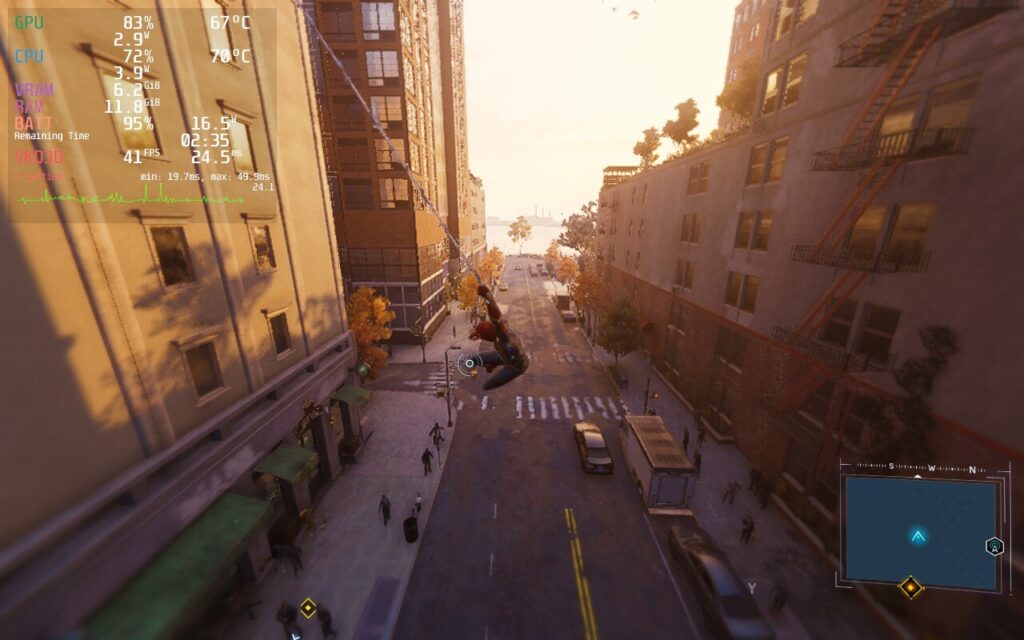
Nixxes Software, who are responsible for the port to the PC, seem to aim for a frame rate target of 30 FPS here, which can successfully be maintained by the Steam Deck in most cases. Only very rarely does the performance drop to around 25FPS for a few seconds, but due to the lack of an in-engine framerate cap there is a constant fluctuation upwards, which results in a very inconsistent gaming experience.
You could indeed use Waylands (SteamOS) framerate limiter you can find in the Deck’s quick access menu, but this will inevitably introduce a massive amount of input lag due to its forced triple buffering. Another valid option would be leveraging half refresh rate V-Sync. In theory while using a refresh rate of 60Hz, this would slice the same amount in half and therefor cap the FPS at 30. Sadly this too won’t work because of a driver-issue with Proton.
During my testings though, I came up with an idea that revolves around something Simon Hallsten, more widely known as Flightlessmango, created called MangoHUD, which is the statistics overlay pre-installed on every Steam Deck. While it does provide various stats like battery drain, temperature, and individual CPU core speeds, it is capable of much more, including capping framerate without triple buffering!
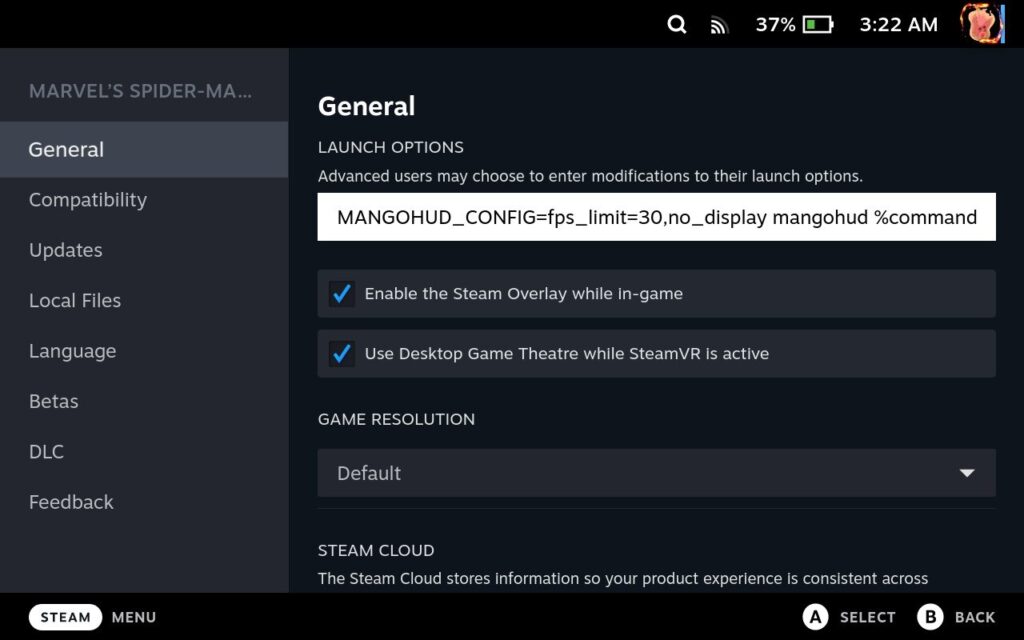
To do this, you will have to go into your game preferences and set the launch option to: MANGOHUD_CONFIG=fps_limit=30,no_display mangohud %command%
Make sure to uncap the framerate in the quick access menu and keep the screen's refresh rate to 60 FPS. The MangoHUD solution does come with some frametime fluctuations, but personally, I rarely noticed that in my playthrough.
The Golden 40
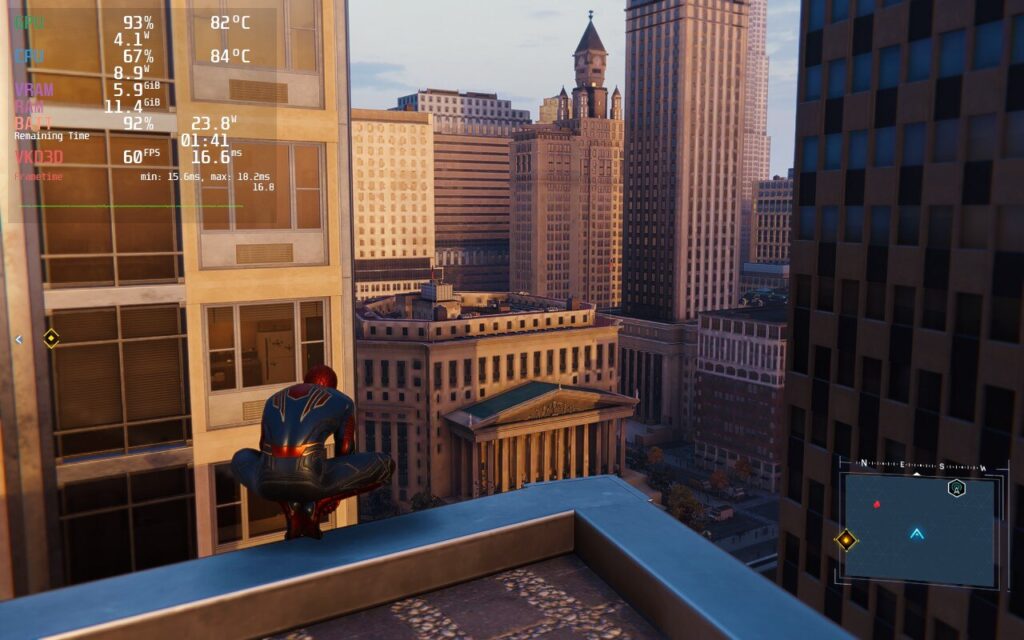
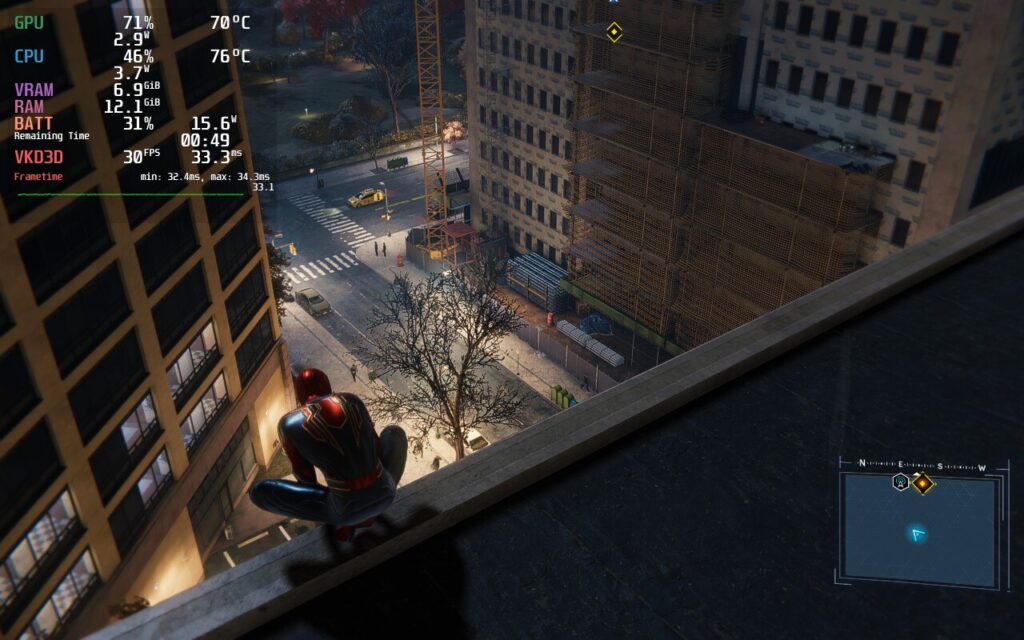
Please keep in mind, that this preset will push your Deck’s hardware to its limit. Expect the device to get pretty hot and the game gnawing through your battery in no time - you can expect a battery life of one and a half hour - in rare cases up to two hours. But with my preset, you will be able to hit that beautifully smooth 40 FPS.
Swinging in the game pushes the builds a bit more and will have inconsistent framerates, but this generally evens out and never gets too bad to be jarring.
First off, I came across some interesting things that I would like to share with you. For example, I was initially very excited about FSR 2.0 in Spider-Man. Especially for the Steam Deck a true blessing, but the way it seems to work in Insomniacs proprietary engine result in both strange short frametime spikes and fuzzy visuals.
So I decided against those and opted for Dynamic Resolution scale on 45 instead, though I would love to see Nixxes add a specific 40 option. I’ve also noticed that the game’s Occlusion Culling isn’t always fast enough to catch up with a fast swinging hero from the neighborhood when using either FSR or ITGI, Insomniacs own upscaling technique.
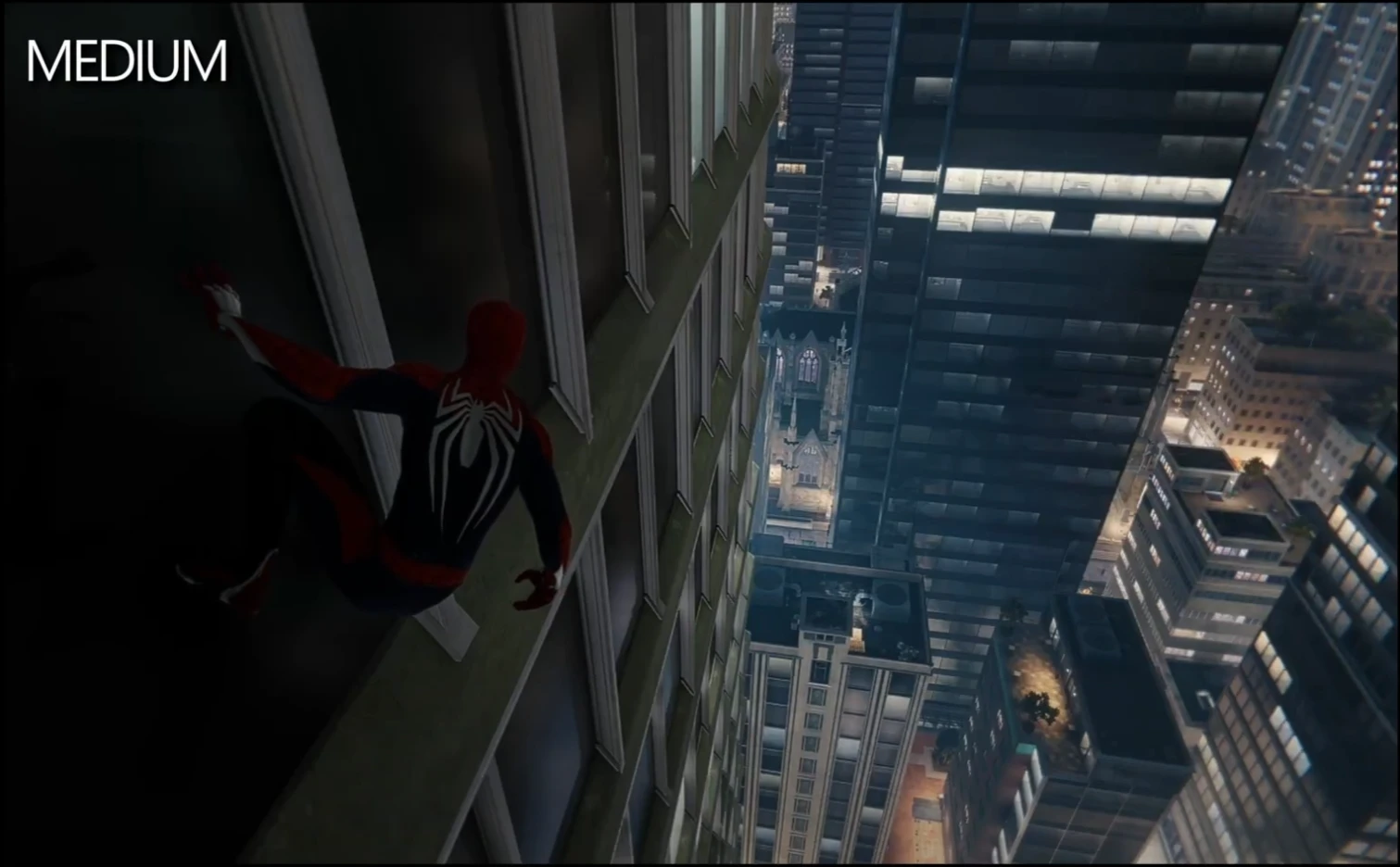
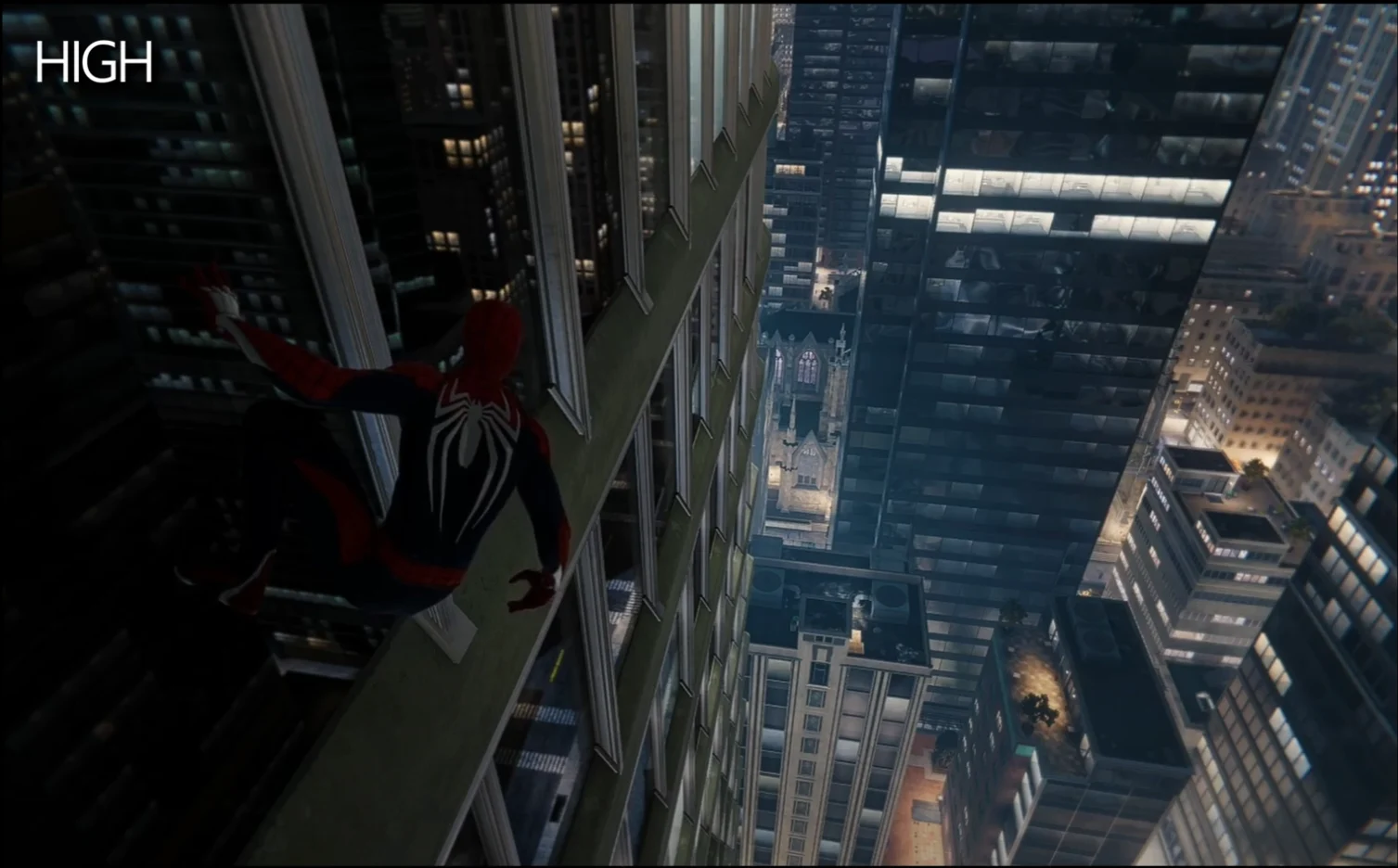
During tweaking I furthermore noticed, that some textures on glassy buildings lack of reflections when set to low or medium. Even with screen space reflections activated, which fundamentally complement stuff like puddles, windows on buildings look rather dull.
Once we set Texture Quality to high, we get fancy cube maps, which mimic their surroundings. I also preferred to leave some of the medium preset unchanged to keep visual quality up, like texture filtering, ambient occlusion, and level of detail. Both Traffic and Crowd Density should be set to low though, as they will massively bloat up the data streaming and result in more framerate dips while traversing through the city.
Texture Quality Medium vs High. Just as an example of the windows reflections showing the big difference between the two settings.
Hair quality seems like a big strain in cutscenes and weather particle quality has also an unexpectedly huge impact to Spider-Man’s open world performance, so we set them both to low as well. Same goes with Depth of field, just make sure to not set it to very low as this ends up quite messy in some cutscenes.
Everything after that relates to personal preference, though I would definitely recommend on leaving Chromatic Aberration activated. Unlike how CA works in other games, here you will instead get a very slight but pleasant blurring towards the screen’s edge. This helps to visually fight aliasing which is often more noticeable in that area due to objects usually being closer to the camera. I personally prefer zero film and lowering motion blur strength to 5, because it still adds to the sense of speed.
We still have to accept some FPS dips while swinging through New York and in intense combat situations. This may be fixed in the long run since it’s related to the data streaming of Insomniacs engine due to the Deck’s limited power budget.
SDHQ SIDENOTE:
Through our testing of the build, we also note it is possible to cap TDP a little bit to curb the intense battery drain of the build. Setting the TDP to 12 stopped it from going over 22W drain and kept temps below 85c, with minimal interruption to stability. If you are okay with some drops when swinging though, you could lower it further. We tested TDP at 8 and it held up pretty well too, but it did compromise stability more.
SDHQ's 30 FPS Battery Build
Utilizing the golden 40 for Spiderman is an incredible way to play and works best for when you aren't leaving the house or only have little bits of time to be able to play. But what if you are going on a longer trip and want to maximize the battery you have? Well that's what SDHQ is here for!
Taking Timo's golden 40 settings, I started off bringing down the framerate using the launch command provided. While it did indeed have some instability, it really wasn't noticeable without the graph being in front of my face. I did end up playing around with some settings to see if I could improve the graphics while keeping battery down, but not much was able to move. Even turning down resolution and upscaling using FSR really looked horrible. This is a AAA game and while I wanted to bring it down further, changing just those allowed me to set a TDP limit of 9 to cap battery drain around 16W - 17W and keep temps below 75c.
With the TDP limit for the 30 FPS Battery build, the game still looks phenomenal and gives around 3 hours of battery life.
SDHQ Bugs and Crashes
In my playthrough, I did encounter some random crashes when changing settings, especially when changing texture quality while in-game. Anytime I tried changing the texture quality from medium to high, or vice versa, while I was in-game (not on the main menu), it would crash. This was, however, my only instance of crashes and otherwise didn't encounter any game-breaking bugs.
SDHQ Conclusion
Marvel's Spider-Man being on PC is something else altogether. Never did I imagine a day where we would be playing it...on our computers. And then adding on top that I would be able to swing through New York on a portable device? I would have called you crazy, yet here we are. Of course, there are definite compromises that need to be taken here, but in the end, you are getting an almost smooth 30 FPS or 40 FPS that would have never been possible before. It is hard to optimize and expect a AAA game to run like a dream come true on a portable device, but for this game, I would say it is one.
Deckverse is a Solo-project providing extensive high quality videos with accurate benchmarks, optimized Game setting presets and in-depth tech content all things Steam Deck. You can check me out on YouTube and can support Deckverse through Patreon!
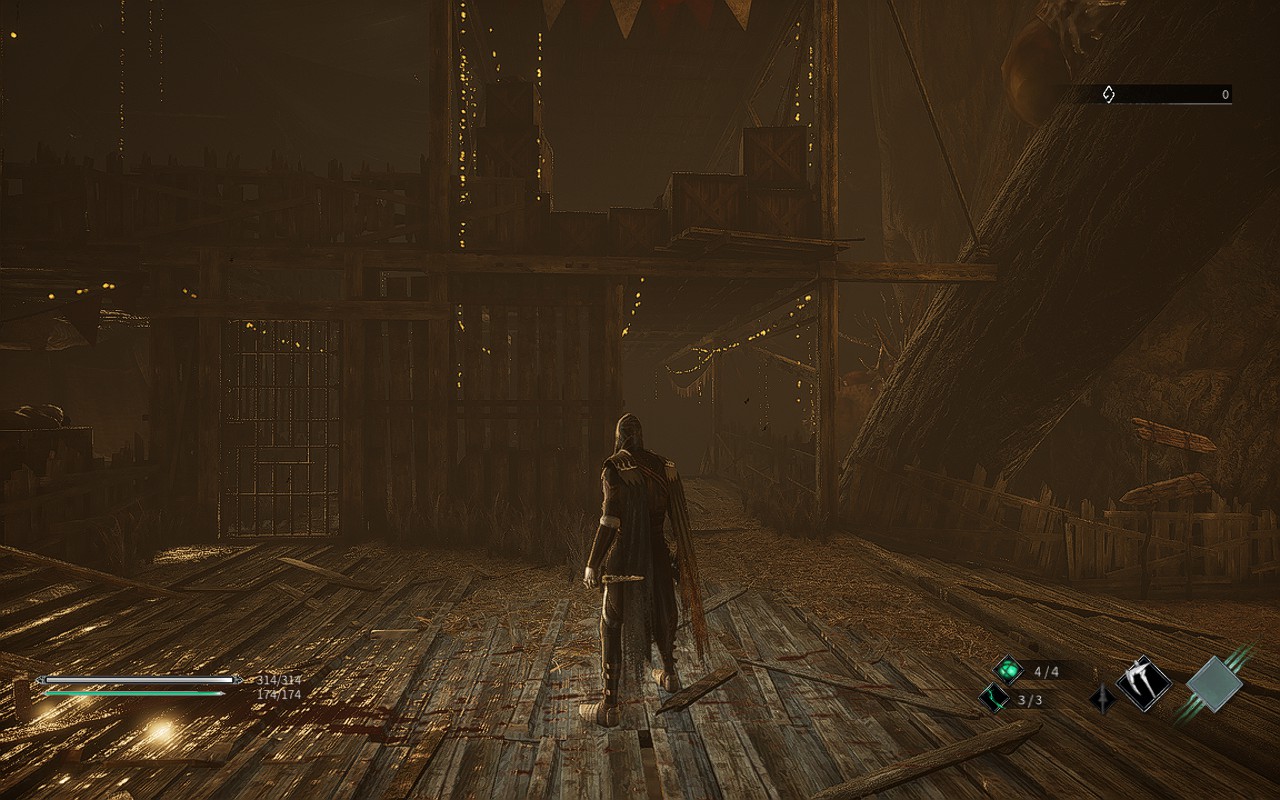
With a gritty take on a genre dominated by FromSoftware, Thymesia embraces the souls influence and decides to go on a slightly different path. As a man codenamed "Corvus", you must recover your memories to save the kingdom and decide the fate of Hermes. Harnessing the plague as your weapon, you will encounter unforgiving enemies and horrifying bosses which you must defeat to find out how to save this world. You will be able to level up your plague weapons throughout the game, as well as upgrade potions and even your own basic movements, giving you more freedom to play the way you want to. Thymesia sounds like a gem for the Steam Deck, but of course, we have to really find out for sure just how well it can run.
Thymesia: Max Settings
Thymesia is a gorgeous looking game, it really is, and at max settings that is still true. Unfortunately, max settings is definitely not the way to play. Not only will you have an unstable framerate, but you will also be met with a 25W drain and 80c-85c temps. Now, if you are fine with that, the framerate will generally stay above 30 FPS so you could cap it there, but with a drain like that, I wouldn't. You would get maybe 1 hour of battery, 1.5 if you stay in smaller areas. Luckily, there's a couple ways that we can fix this while retaining a significant amount of the quality of the game!
Thymesia at max settings can hit higher framerates...sometimes...but it generally dips below 32 and drains battery way too much!
The Optimization Cure
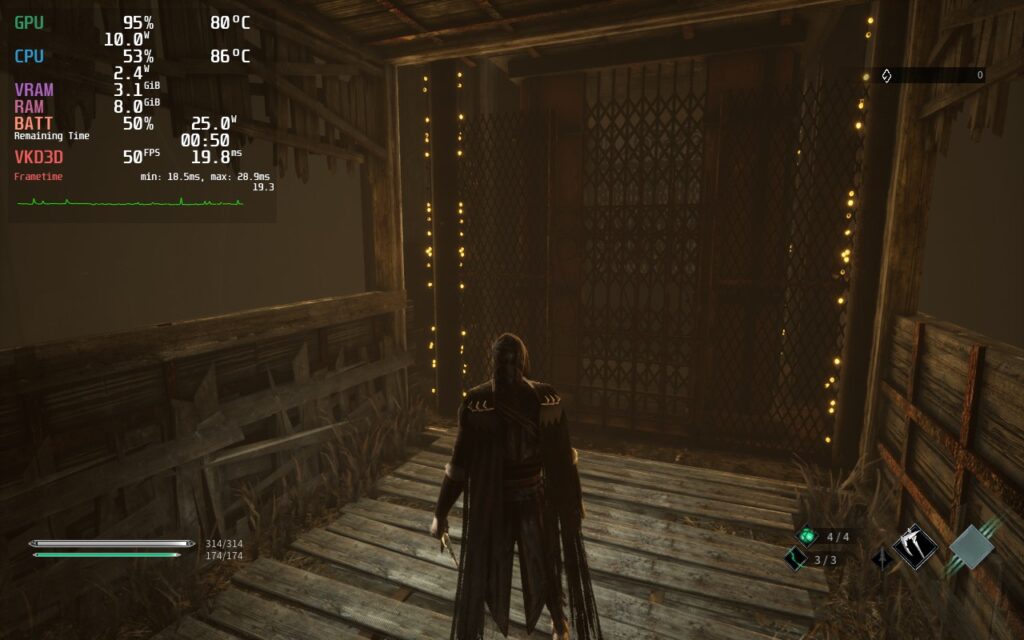
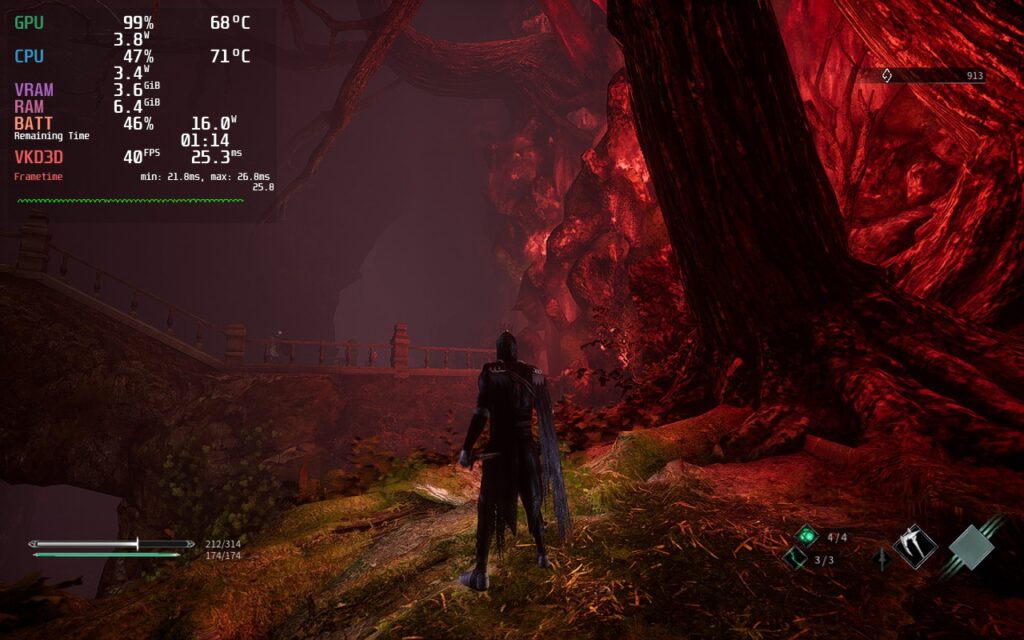
When opening Thymesia, I had a feeling I was going to want more smooth gameplay over visuals. This is a souls-like game and that means more intense action and precise movements. My goal was to keep visuals looking sharp while holding a stable 40 framerate. Through my testing though, I found a decent build that keeps a stable 40 around 95% of the time. Now I know it isn't stable, but let me tell you, 40 vs 30 makes a big difference. Though, I did notice some settings interact oddly with each other. I noticed this primarily with anti-aliasing quality and the in-game FSR. The FSR felt like it did nothing, but as soon as I turned anti-aliasing down to medium, it became significantly more pixelated with no changes to battery drain or temps.
Changing Anti-Aliasing from High to Medium shows a significant change in quality, way more than it should. And yes, this was the only setting I changed here.
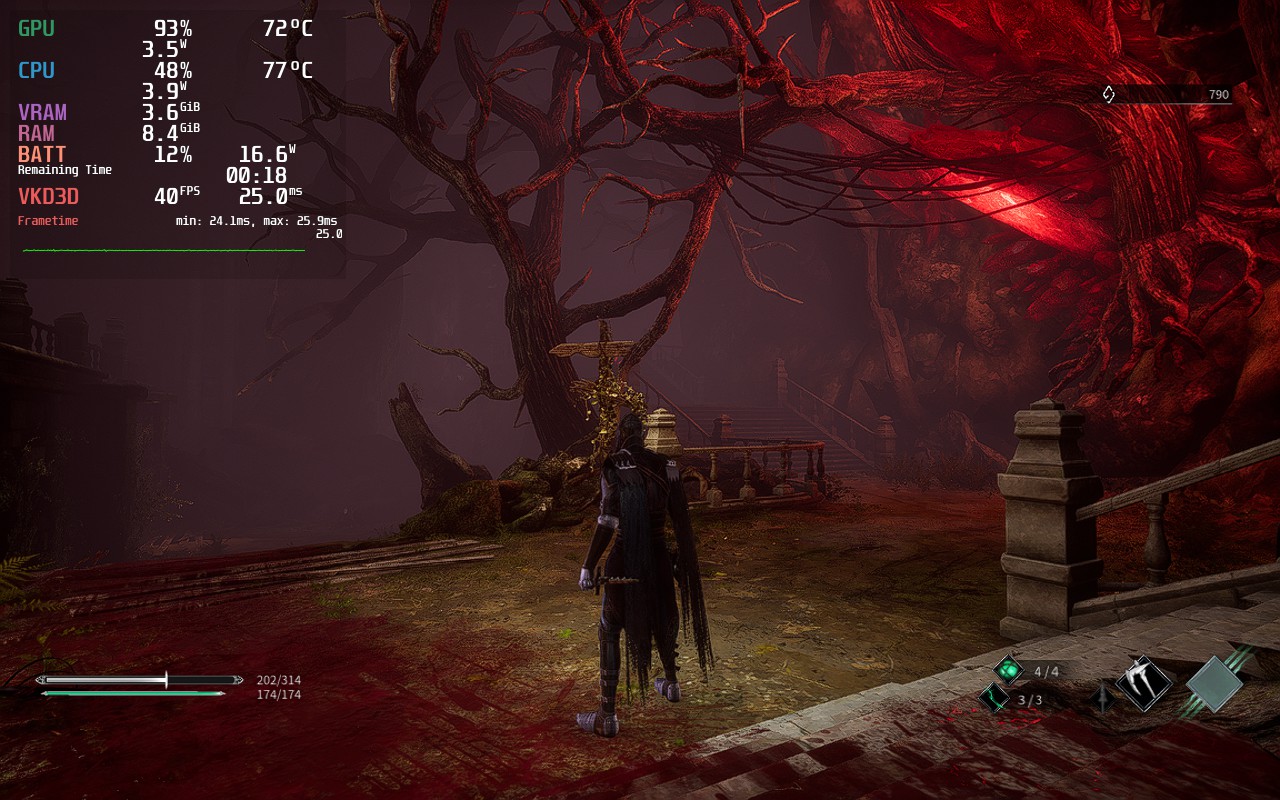
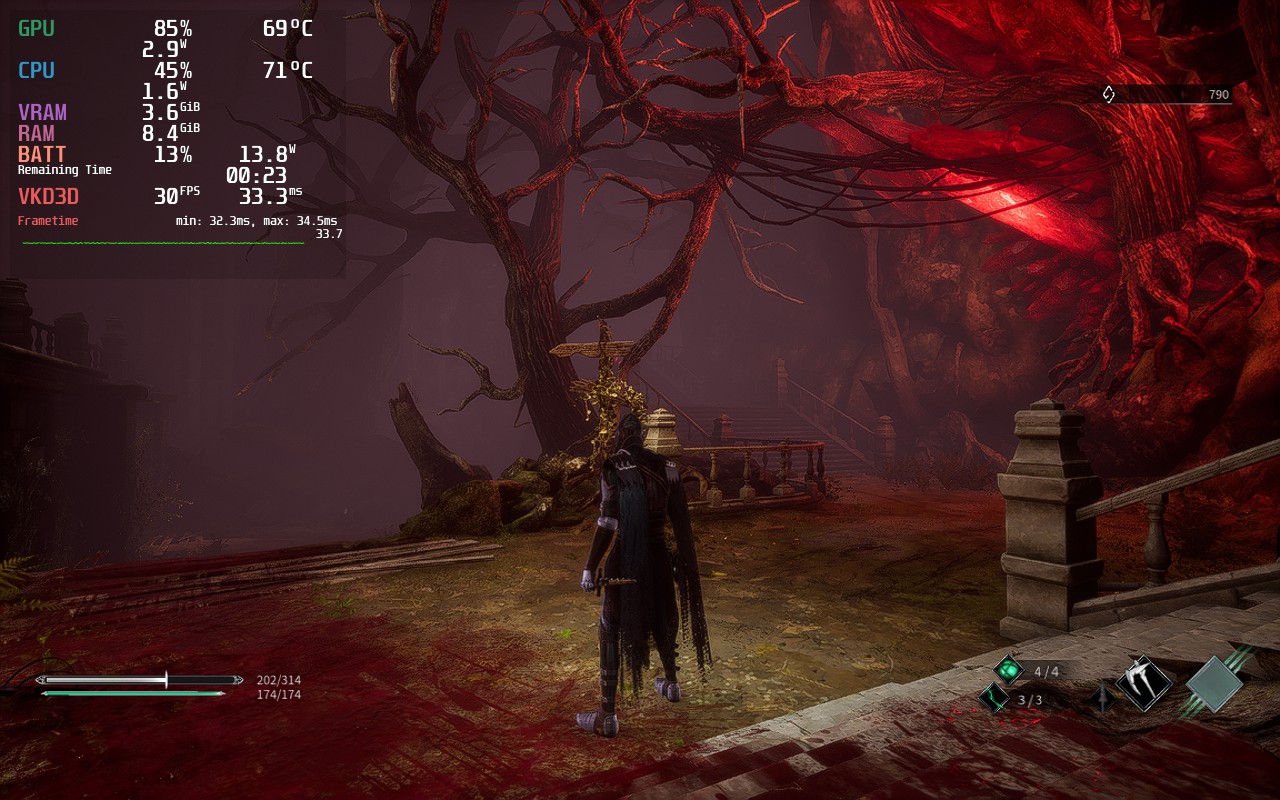
Though, with textures and FSR being low, Shadows and Filter being on medium, anti-aliasing on high, and using 1152x720 with SteamOS FSR on with sharpness of 0, you get a very clear picture with almost no visual difference on the surface. Turning TDP limit to 10 and GPU Clock Speed Frequency to 1100 helps with keeping battery below a 18W drain with most microstuttering solved. Battery will generally stay around 13W - 16W with spikes to 18W. The hub world will experience a significant slowdown (down to 30 FPS), and while it can be fixed by increasing the TDP limit, I felt it wasn't worth it as you don't spend enough time in the hub world at all. We also changed FPS limit to unlimited while the screen refresh rate is set to 40hz. This is to ensure the least amount of input lag possible, as Thymesia definitely needs more precise timing.
Recommended Build screngrab. Thymesia looks absolutely gorgeous, and thanks to TDP limits, stays well underneath the 20W drain mark!
Now even with the more instability, I felt this was the best way to play. The smoothness of running around and fighting was just so fluid and wonderful. I did, however, want an option to increase quality even further and provide a more stable framerate with lower battery drain. By capping to 30 FPS, I was able to set all the settings to High while lowering TDP limit to 8. This brought the overall drain to around 14W-15W while keeping temps cool below 72c. The framerate at this is stable, but comparing 30 to 40 in a game like this is...well hard.
Recommended build vs Battery build. The battery build does have better quality too, and it does show a difference, but it is very minor.
Bugs and Issues
The game itself runs really well for the most part, controls felt nice and easy to utilize, though some in-game settings are not implemented well. Like I mentioned above, the in-game FSR doesn't work correctly. While it does have some impact, it is not as much as it should. Hopefully future patches can fix this behavior so we can utilize it much more effectively in Thymesia.
For the first time, I am recommending an unstable build. This is in part due to the kind of game it is and input. You will experience slowdowns in the main hub of the game, like stated before, but since you don't stay in the hub that much, it feels like a mute point. I did experience some other spikes here and there, but it was much less noticeable with the framerate graph off. Some executions did cause slowdowns too, but then bounced right back when you could control Corvus again.
I would recommend, if you decide to tinker with the settings further, keeping "Shadows" and "Filters" Medium or above. Anything lower dramatically affects how the game looks and it loses a lot of the gloomy charm it has.
結論
I personally really like Thymesia. It feels like a faster-paced souls game that utilizes some unique mechanics, while still retaining some of the aggravating staples that makes other games in the same genre flourish. The performance could be better, and FSR could work correctly, but it wasn't terrible. While it is playable and runs well at 40 FPS, I felt keeping it unstable and saving more battery was more worthwhile than pushing it further. This could change in the future and I will update this review if it does! Overall, I would recommend the game and I genuinely had a good time with Thymesia, even if it just reaffirmed how terrible I am at souls-like games.
In an era of otherwise relatively mindless military shooters, BioShock stood apart as a thought provoking, politically charged RPG-hybrid that took direct swipes at the rugged individualism of libertarian politics. The game pulled no punches in its stance on “utopia” under a stateless society that lacked authority. You'll spend a dozen hours exploring the underwater “paradise” of Rapture, the once-breathtaking dream of one man fed up with taxation and regulation, long abandoned by all but the most fervent devotees and burnt out Splicers (addicts to genetic modification that lose all sense of self). As Jack, you find Rapture crumbling at the seams when you descend into its belly after a plane crash leaves you stranded at sea.
BioShock Remastered is a fresh coat of paint on the otherwise unchanged masterpiece. 2K updated the textures and shifted the art design in some key areas, giving the then nine year old game a much needed overhaul that brought the timeless classic into the modern day. Does the extra polish stand up to another 6 years of aging? Let's load it up on the Steam Deck to find out!
The Deck Experience
BioShock Remastered is currently listed as Unknown in the Deck Verified program. Thankfully, Bioshock Remastered works on Deck without any extra setup!. The official controls work flawlessly out of the box with Xbox One glyphs indicating controls and the game runs smoothly, taking up the full 1280x800 screen during gameplay with menus at 1280x720. There are no middleware incompatibilities either. The only hiccup preventing this game from verified status, if 2K chooses to submit it, is if you exit the game without using the Quit to Desktop option in the pause menu or at the title screen, a mouse/touchscreen-only dialog box to launch in safe mode appears.
As an added perk the game supports Cloud Saves which is personally a must for me, as I switch between the Steam Deck and my PC regularly. Gyro controls function flawlessly, although you may find the game’s aggressive auto-aim fighting you from time to time.
BioShock Remastered’s Max Settings
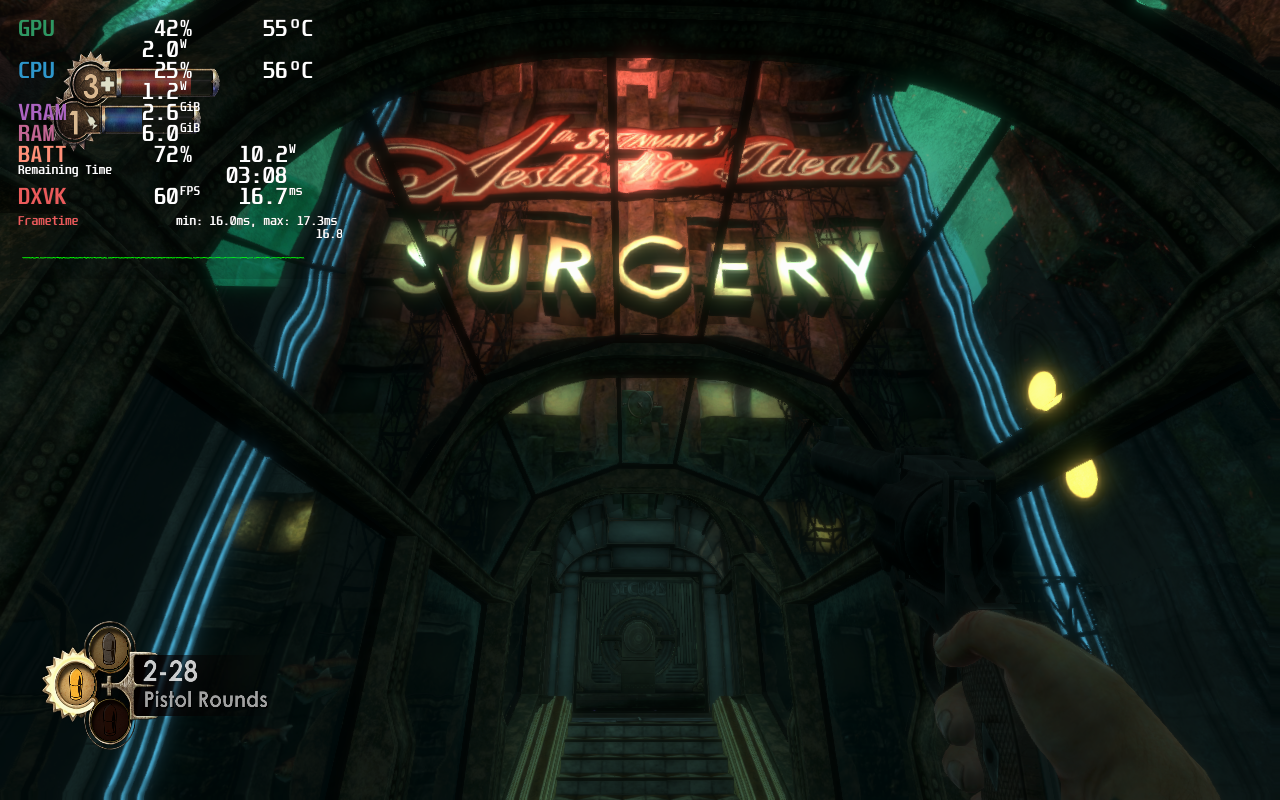
BioShock has always had a well optimized, albeit buggy, PC port. A 2007 game with only mild changes for the Remaster, the Steam Deck does not struggle to run it at all at maximum settings. Because of this, there really wasn’t a need to change anything whatsoever to get this running fantastically. With cool temps of around 55c and 8W - 12W drain (around 4 hours of battery), it is already an excellent way to play. Valve’s Proton (7.0-3) works swimmingly as well, so no need to download another compatibility layer like Proton GE. All that said, it’s possible to command another hour out of the game with near-silent operation if you’re willing to make a few changes.
The Deep Plunge to Optimization
While BioShock isn’t an intensive game and commands a respectable three and a half to four hours of battery life at 60 FPS with maximum settings, it is possible to squeeze a little extra juice out of the battery with some tweaking.
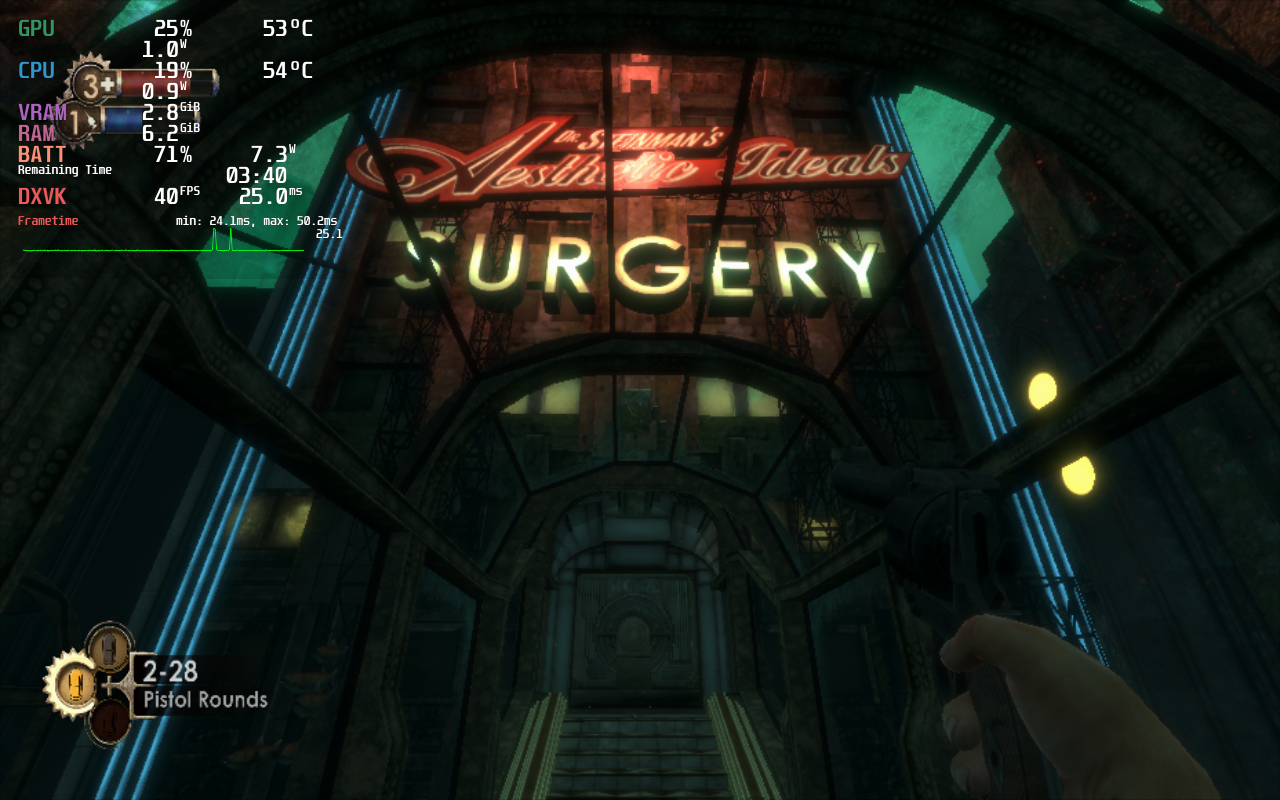
Lowering the game’s settings to their minimum, except anisotropic filtering as this helps immensely with the detailed texture work in the game, and capping the framerate at 40 fps, squeezes out an additional watt or so of power, bringing battery life to approximately 4:30. Those savings are negligible considering that screen brightness makes up the majority of the game’s power draw in all but the least demanding areas. Quirkily, enabling antialiasing and distortion at the same time actually lowers GPU usage, possibly due to no AA being applied to distorted parts of the screen.
All testing was performed with the screen brightness and volume at 50%, as the difference between minimum and maximum screen brightness can have an impact of ~2w of power draw.
For true battery hounds, the game’s resolution can be lowered to 928x580 with FSR set to a Sharpness of 2 at 40hz to muster 5 total hours of battery life. This odd resolution is the next lowest from native that does not stretch the aspect ratio of the screen in strange ways. Ultimately I can’t recommend this option except under extreme circumstances because of the massive impact of the gleaming, intricate, and flawed city of Rapture.
Bugs/Control Issues
Through testing, I noticed that attempting to manually adjust TDP or GPU clocks impacted frametime stability in an unacceptable way, even when the settings should have been far above what was needed to run the game smoothly. Something about BioShock Remastered’s engine does not play well with Valve’s performance tools.
If you enjoy tinkering with the performance overlay, you may also run into a bug where it remains on screen even after being toggled off. Setting the overlay to its maximum setting, then lowering it to Off, setting it to 1, then lowering it to Off again consistently cleared this issue up for me.
The controls were designed at a time where controllers were built less precisely and layouts weren’t standardized. The jump button is mapped to Y by default, which feels unintuitive in the modern landscape. Additionally, the game’s auto aim is so aggressive that it often overrides the more precise aiming afforded by the Steam Deck’s incredible joysticks and gyro aiming. Thankfully, autoaim can be turned off in the settings, but the archaic bindings cannot be fixed unless you’re willing to rebind controls using Steam Input. Doing so would make the in game prompts not match what you need to press. A more modern layout might look like jump on A, interact on X, reload on B and first aid on Y, with gyro mapped to R4.
BioShock Classic
As a quick aside the original BioShock is playable on the Steam Deck as well, but it isn’t a pleasant experience to launch. It requires extensive interaction with touch screen setup menus before the first launch, and the menus require mouse interaction that doesn’t work properly with the touchscreen. To access any menu options, you have to manually map the right trackpad to the mouse, go into settings, and then enable “Xbox 360 Controller” mode before you can navigate the menus with a controller. Upon booting in, I attempted to open the performance overlay, but pressing the “...” button froze the Steam Deck’s UI - while the game kept running I couldn’t even put the device into sleep. The only way to escape was to hard restart. In addition, the game only displayed in 4:3 in the middle of the Deck’s screen. Despite the “Playable” rating on the Steam store, I cannot recommend the classic release of BioShock on the Steam Deck.
結論
BioShock was one of my fondest gaming memories growing up and the ending sincerely made me cry. It was a work of art then and remains a hallmark of its genre now. Bold, beautiful, unapologetically political and uncompromising in its vision, it is a treat to play on the Steam Deck. I envy anyone who is experiencing it for the first time and feel camaraderie with anyone playing it for the second, third, or in my case fifth time. Having it available on the go is far beyond what I ever thought possible playing it 15 years ago, and every minute I spent testing for this article brought a smile to my face.