Time to continue the adventures of Beatrix LeBeau in the follow up to the smash-hit prequel. Slime Rancher 2 takes you to Rainbow Island where you will be confronted with new lands, new slimes, ancient technology, and much more. Capture Slimes, put them in your conservatory, and feed them to get Plorts to sell and upgrade your tools, build new gadgets, and expand your conservatory. And paired with the beauty of the island, it is just a fun time to walk around and see the sights.
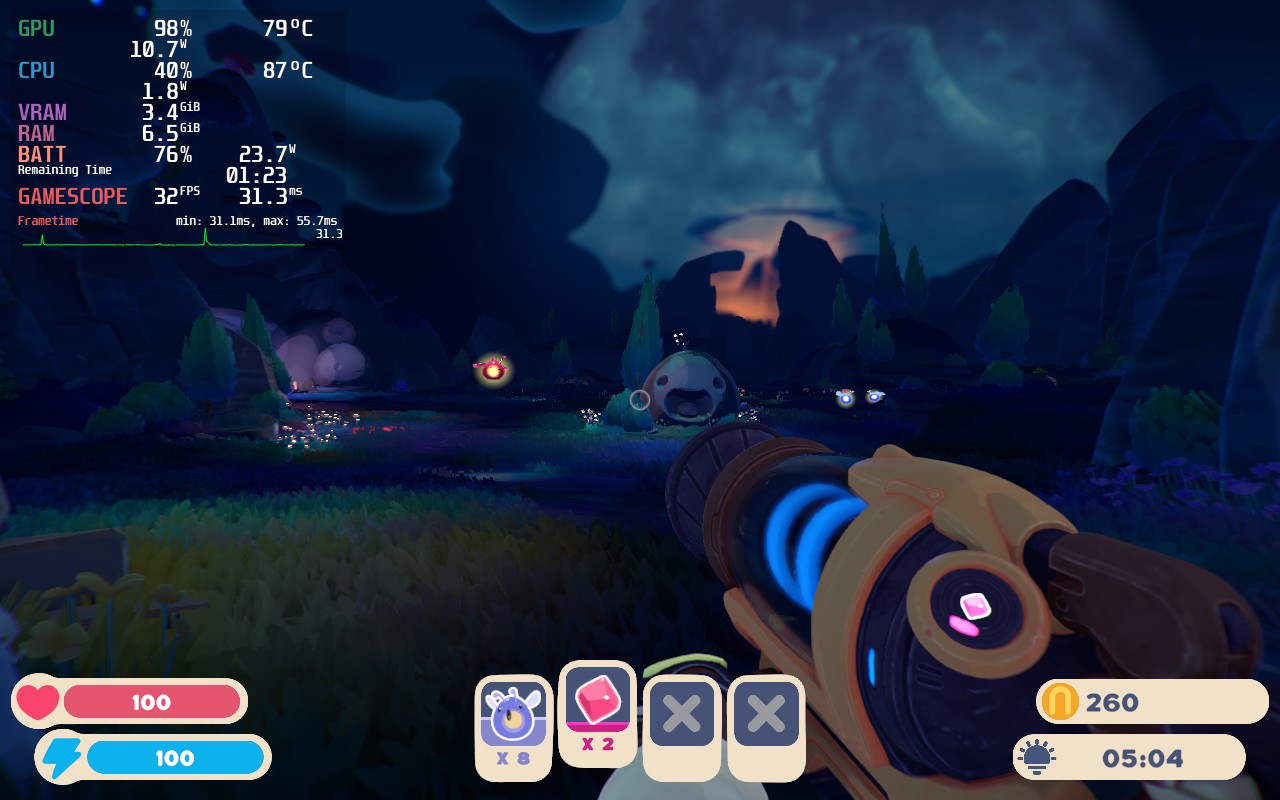
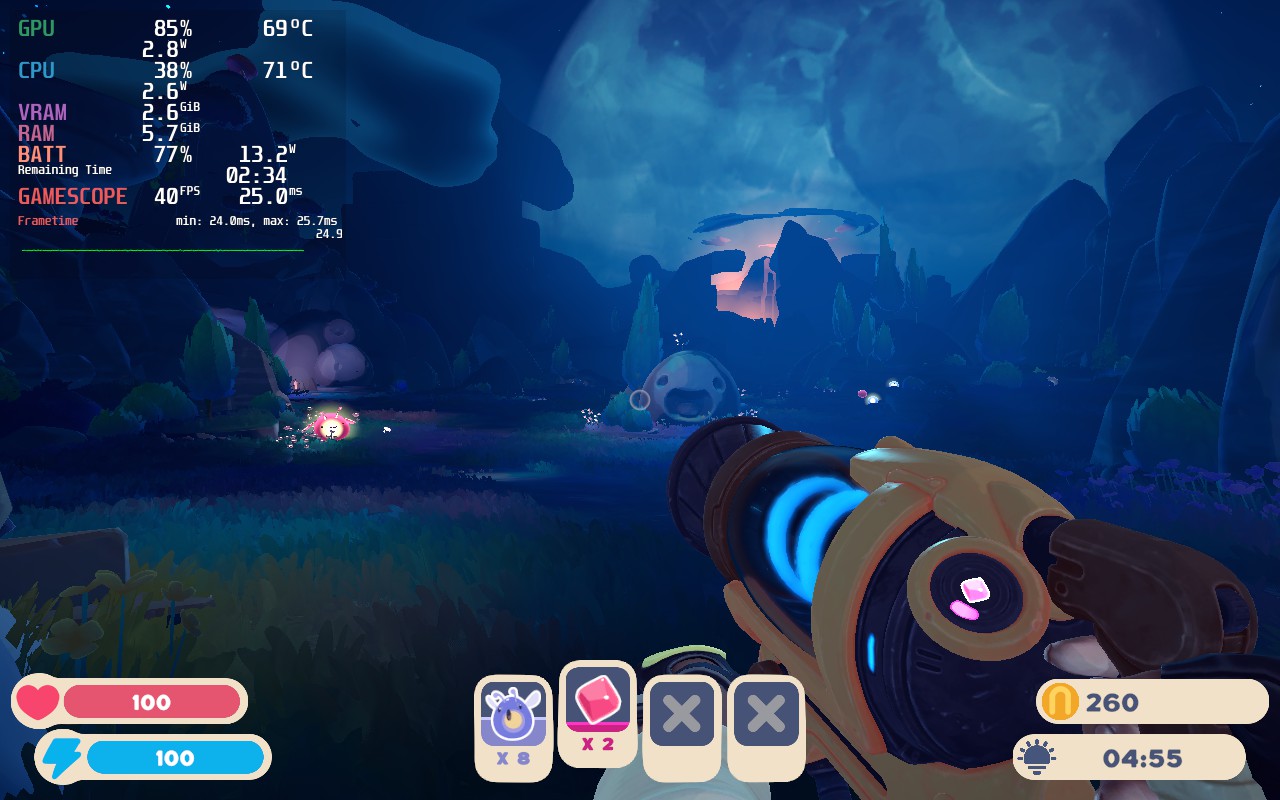
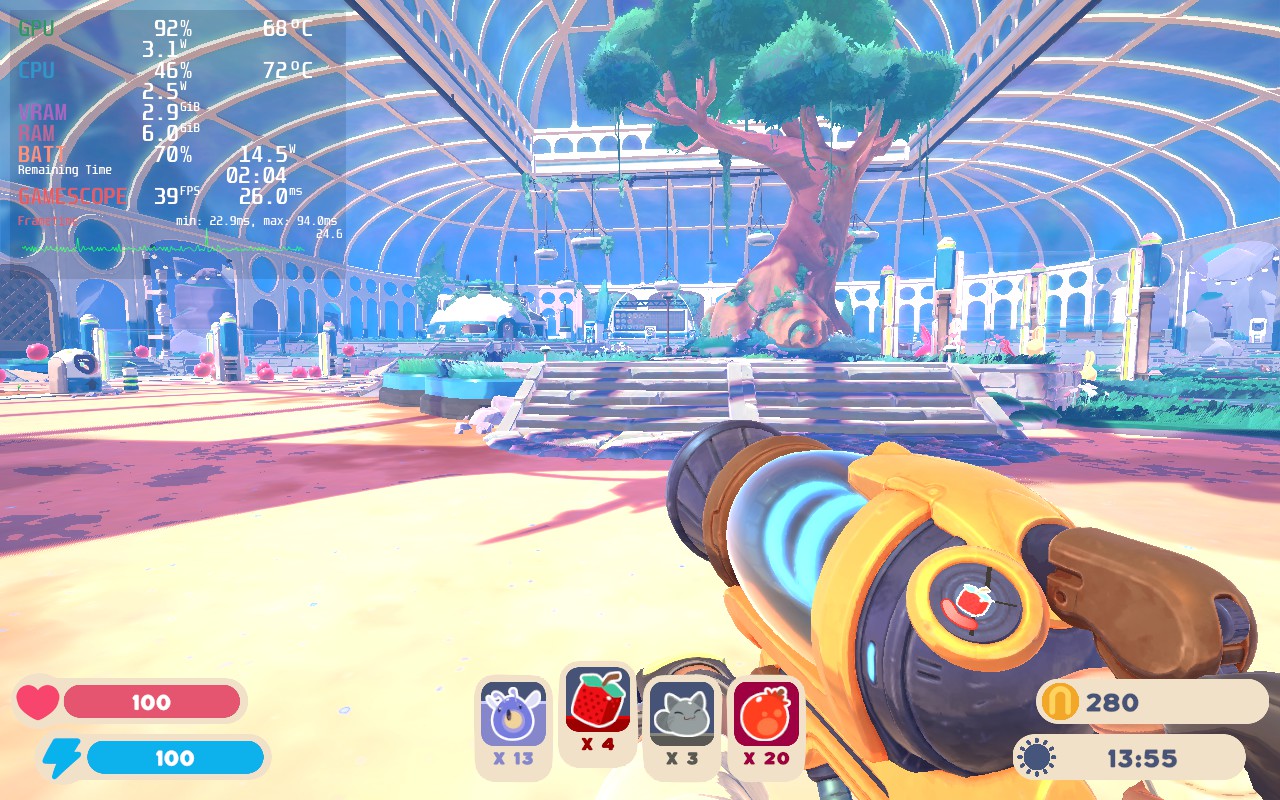
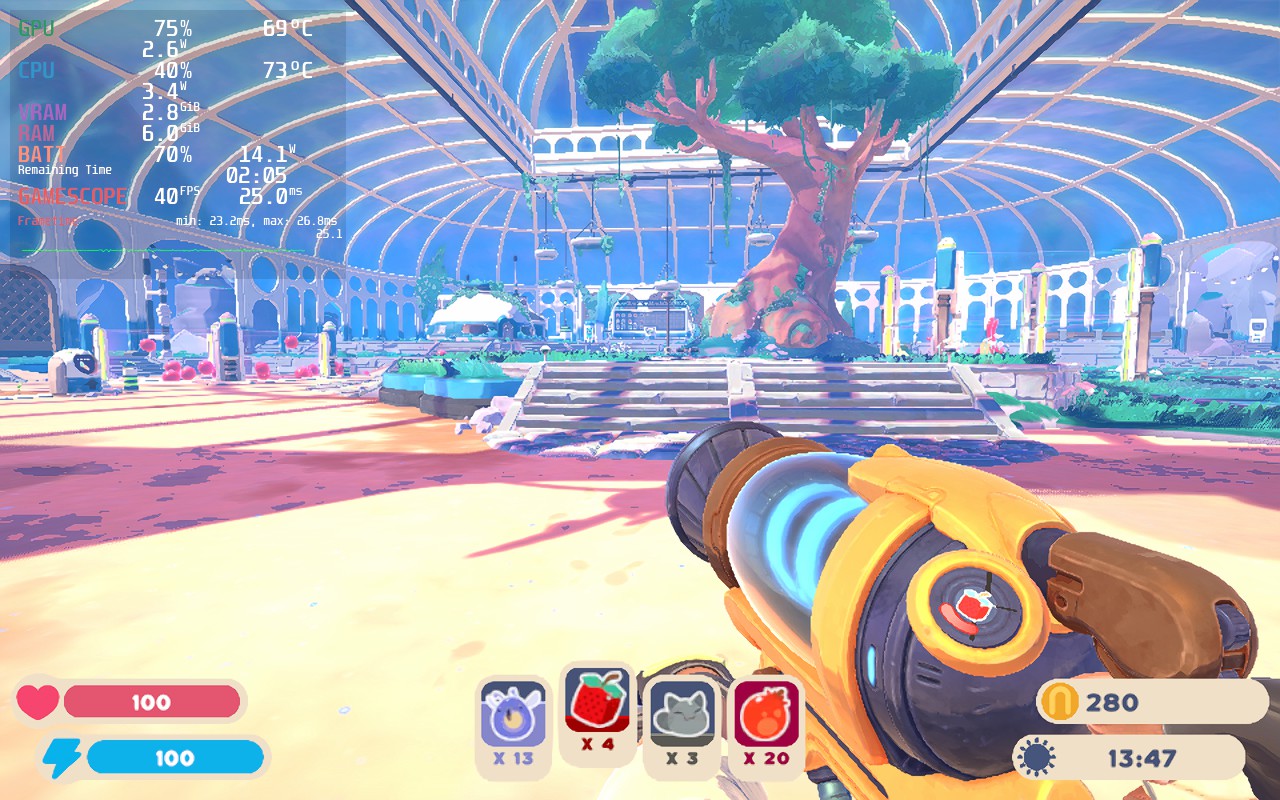
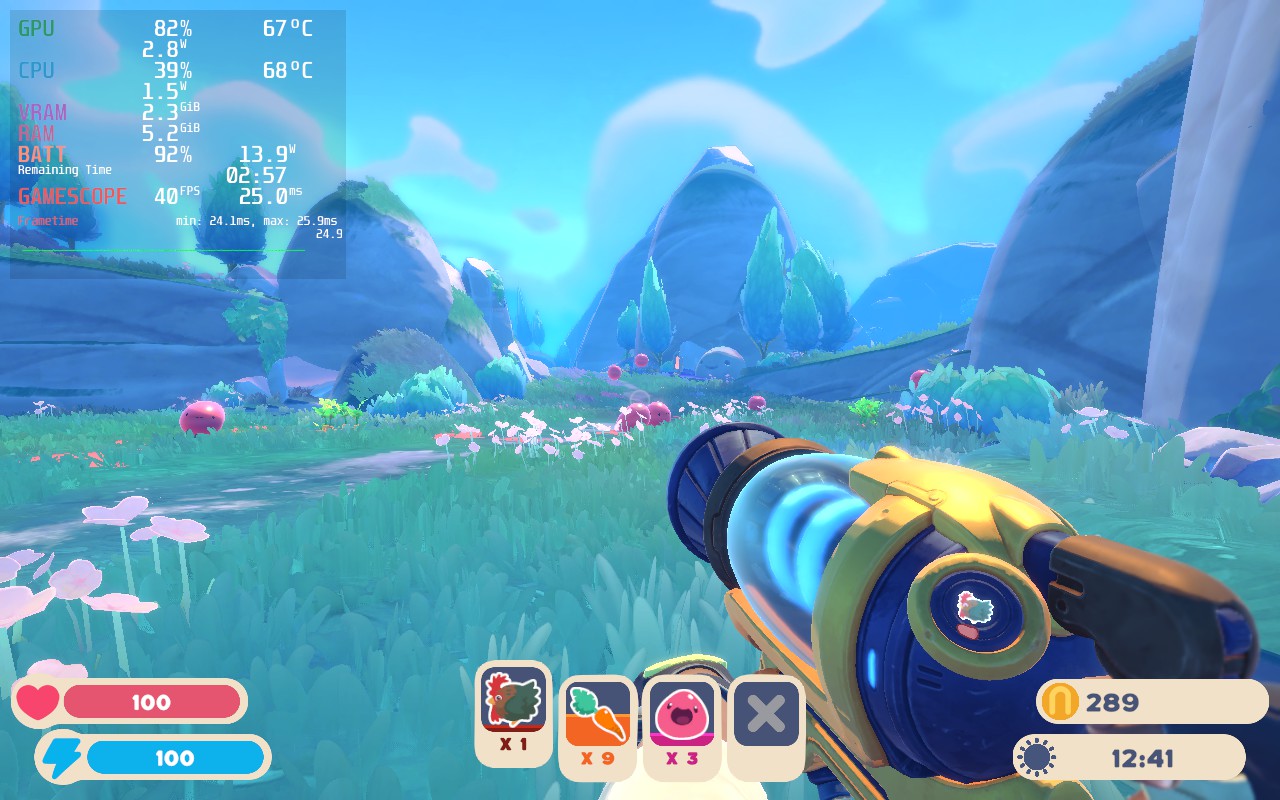
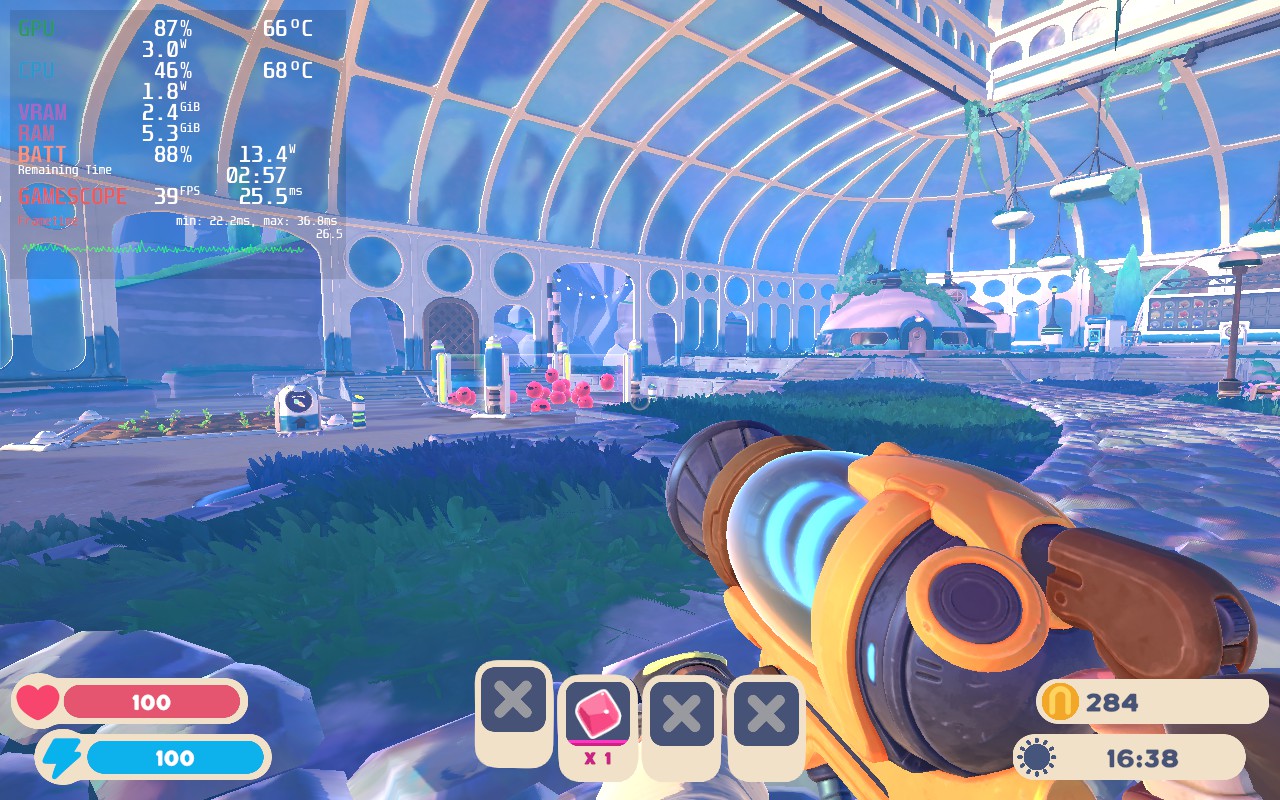
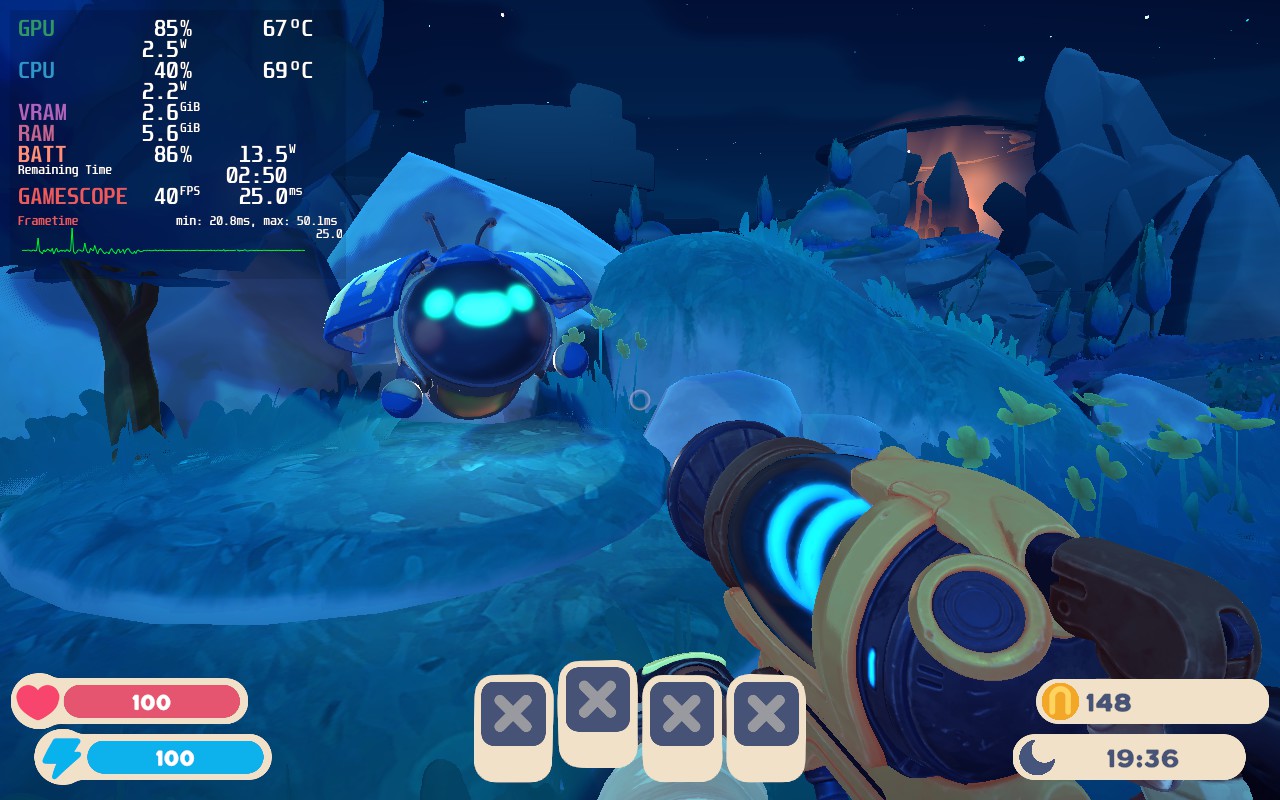
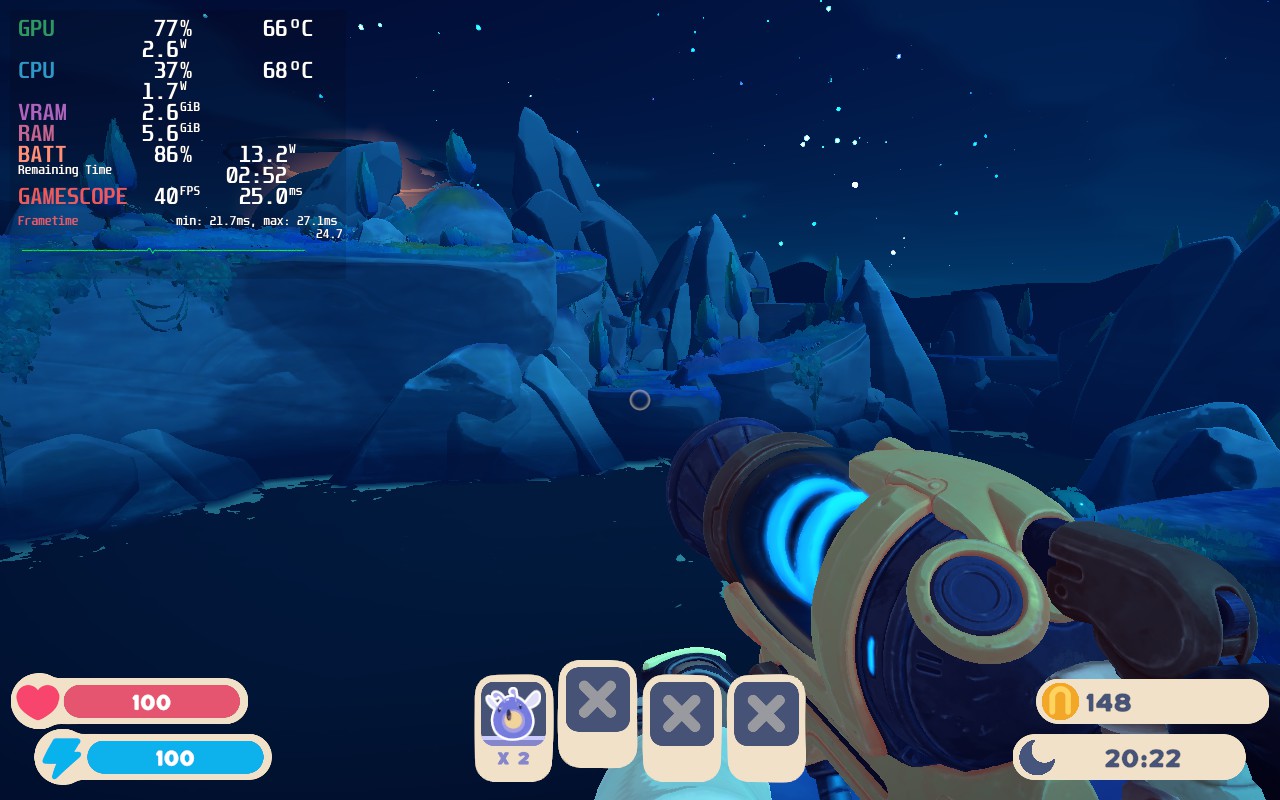
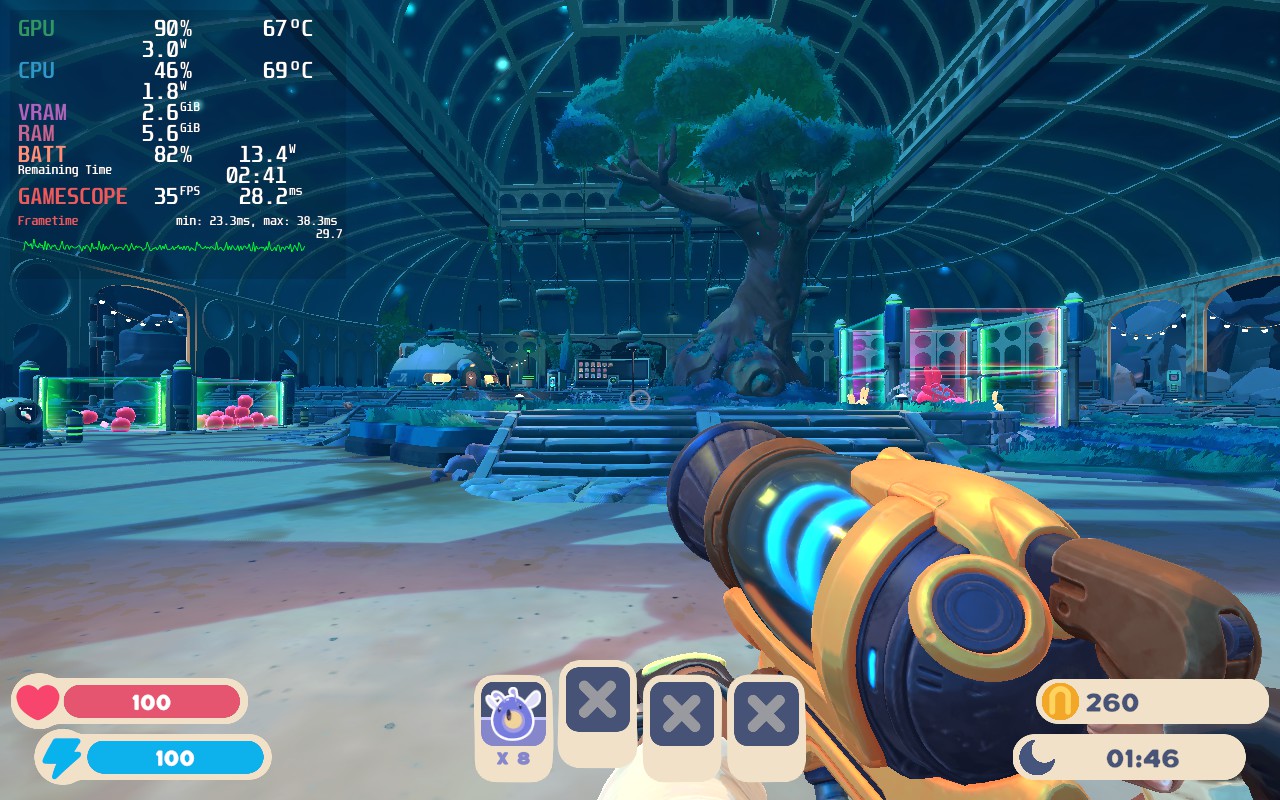
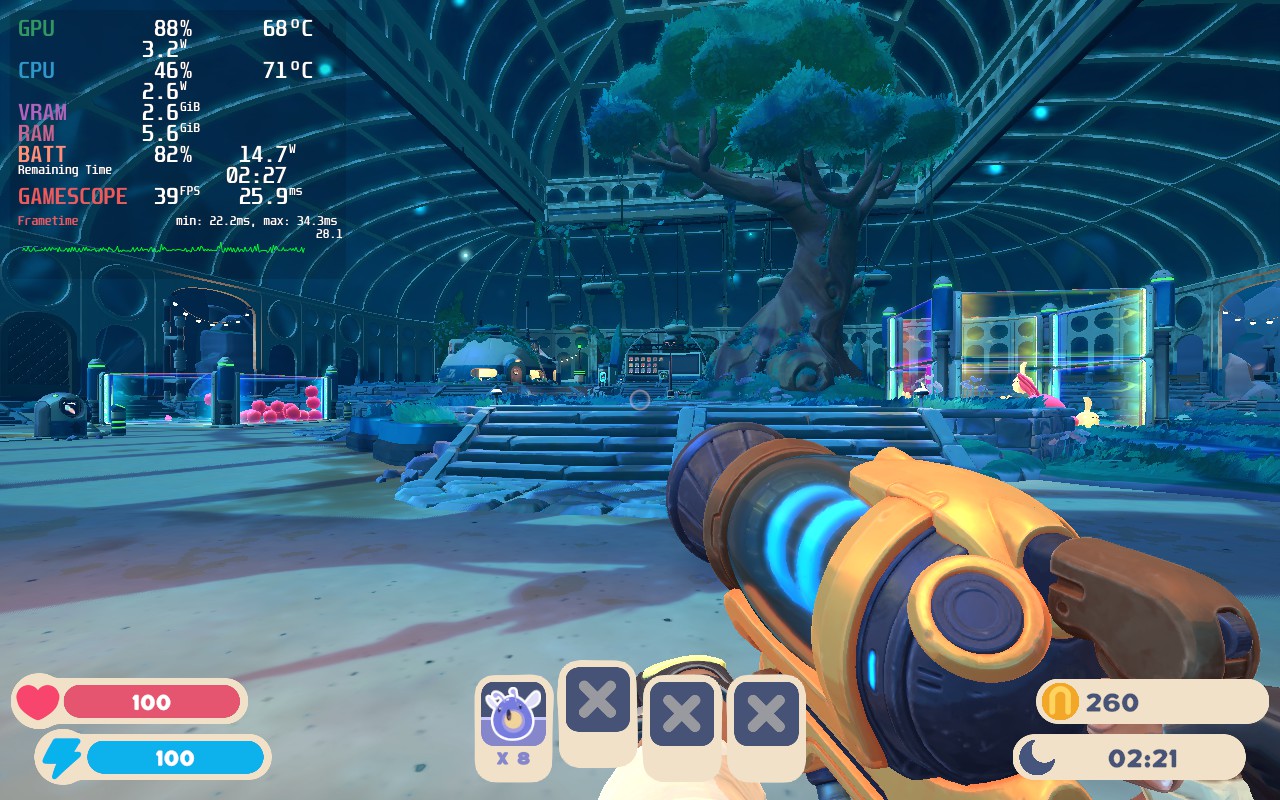
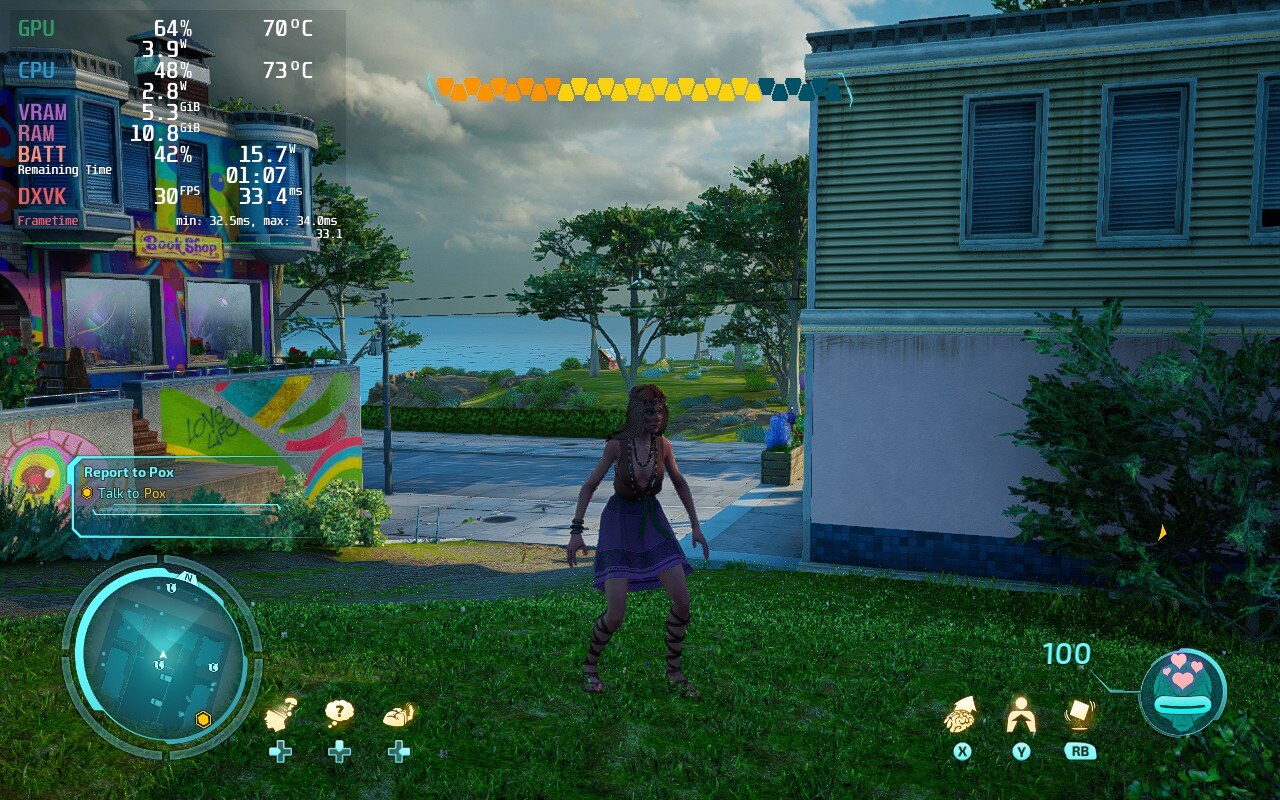
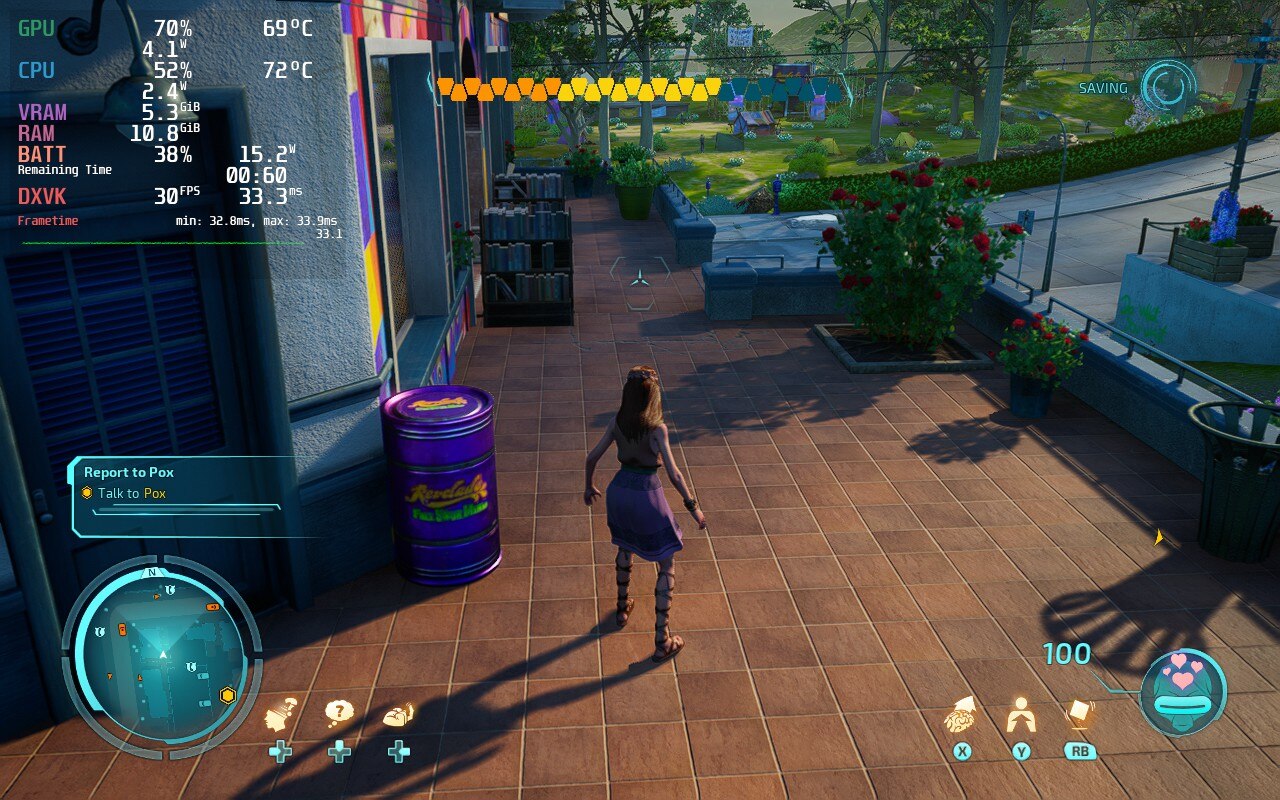
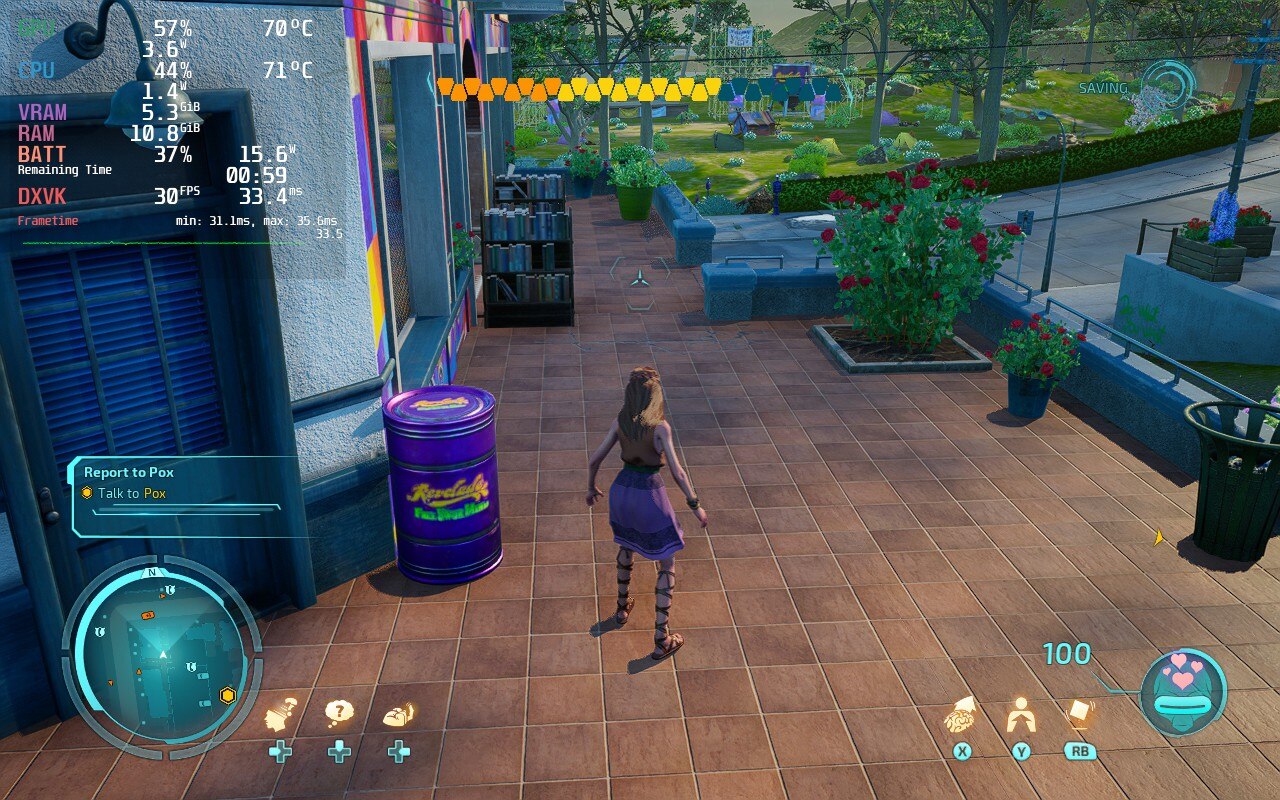
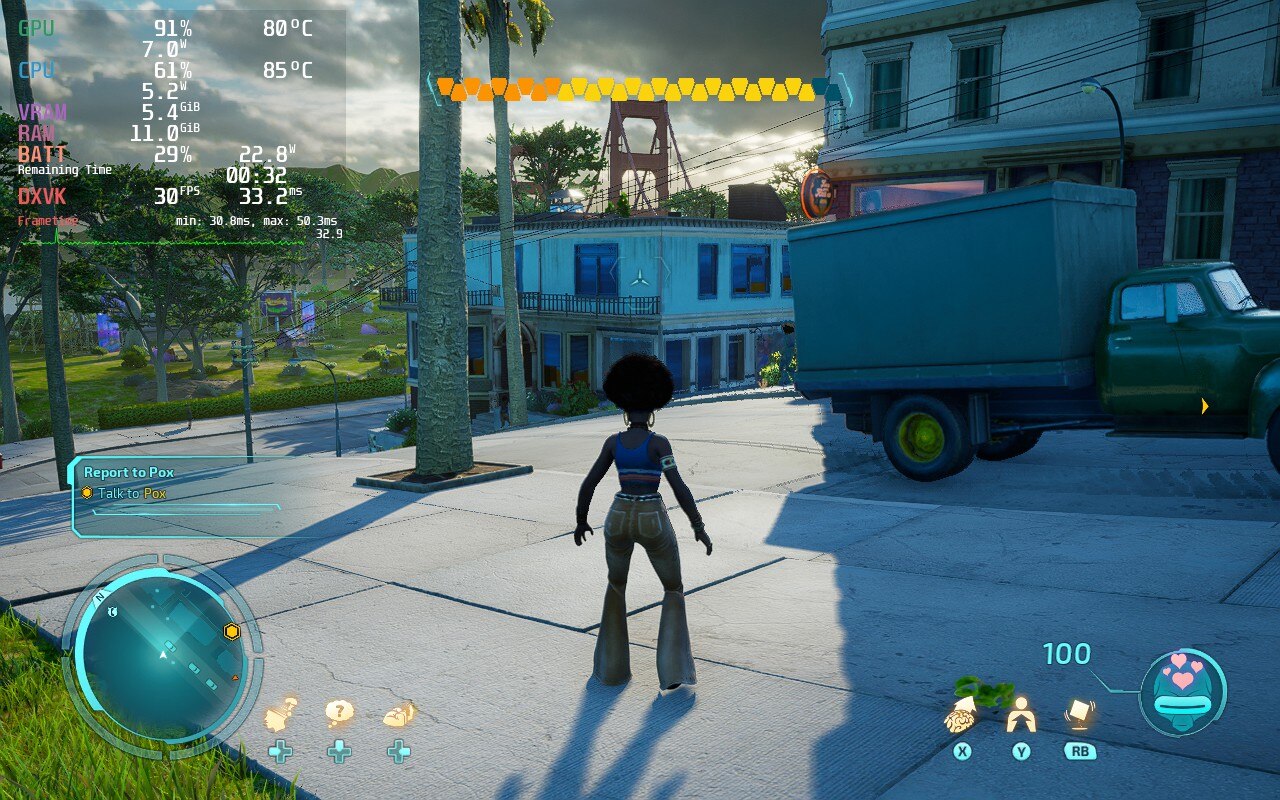
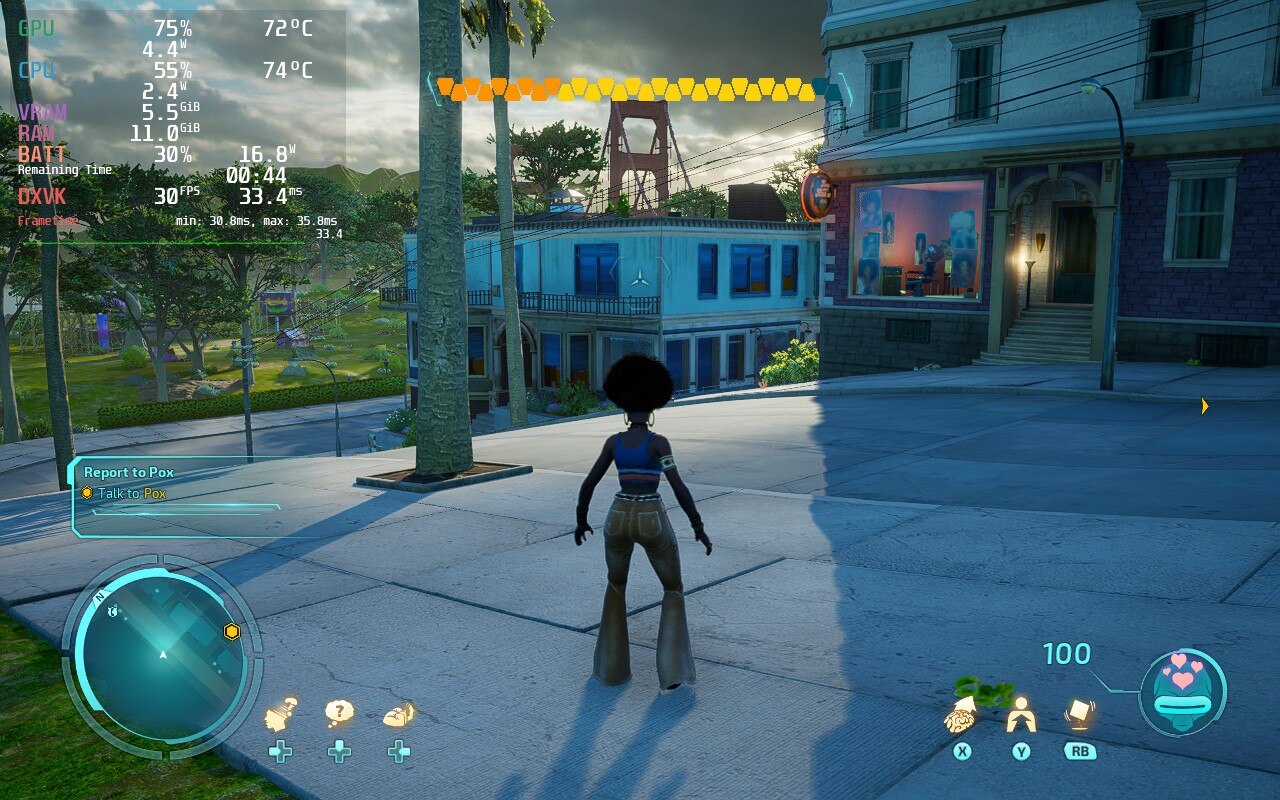
Thankfully, with some tweaking, Slime Rancher 2 can run decently well. It isn't perfect yet, but for an early access game, I am very optimistic. The game at max settings will dive bomb to 24W battery drain with 80c - 87c temps, which is definitely not viable. With the settings I changed, I was able to get a solid 40 FPS that ranged between 12W - 15W for a batter life of around 3.5 hours and staying at native resolution! Proton GE also seemed to help a little with stability, so I used Proton GE 7-35.
There are some drops when there are a ton of slimes on screen, especially in your conservatory, and turning TDP up will help with that, but I felt the drops didn't justify the change. Later in the game, going up by increments of 1 will solve that, but for a good chunk of it, sticking at around 9 should be fine.
I also did notice that the UI would be a bit weird with lower resolutions and using FSR to upscale, so I felt native resolution was much better. It also made the game a bit too sharp in the front and blurrier in the back. The intro to the game is also a little bit weird. The framerate drops significantly, but goes right back up when it is done. I was getting weird screen tearing on the intro when trying it on my PC too. Didn't affect anything after the intro, but still notable.
Overall, Slime Rancher 2 is a fantastic game to play on the Steam Deck so far! As this is early access, everything is subject to change and more optimizations, so we will hopefully see a bunch more and maybe a Linux build further down the line like they made for the prequel. This is definitely a safe game to get on Deck though!
Our review is based on the PC version of this game.
If you enjoyed this review, be sure to check out the rest of the content on SteamDeckHQ! We have a wide variety game reviews and news that are sure to help your gaming experience. Whether you're looking for news, tips and tutorials, game settings and reviews, or just want to stay up-to-date on the latest trends, we've got your back!
In 2019, FromSoftware was on a roll. With Dark Souls and Bloodborne, these guys were on top of the world. With Sekiro: Shadows Die Twice, they somehow elevated themselves to a higher plane. If the gameplay of Dark Souls was faster and plastered over with a gorgeous Japanese setting and this is the baby you get. Sekiro is a masterpiece of a game that features addicting gameplay, unique mechanics, and an interesting story. But now, we should dive right into the performance on the Steam Deck.
Sekiro at max settings is not playable, but it is impressive. With everything maxed out, the game can run around 35-46 FPS with temps around 80c. For a game like this, I would say that's pretty good, but battery is around 24W just standing around, and we can't have that!
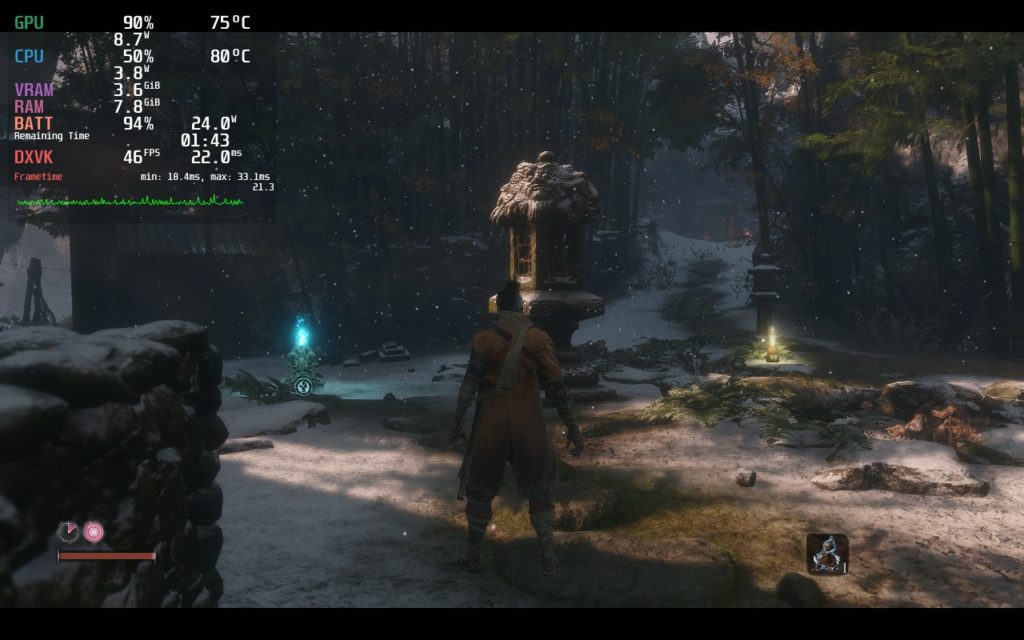
Through my time playing, I noticed that loading in areas is what causes the most fluctuations in framerate. This is noticeable at every setting I chose, except for when the framerate was set to 30 FPS. While I did test 30, and for battery saving and stability it is a lot better, the smoothness of 40 FPS was a night and day difference and I personally preferred the little spikes when running and grappling into new areas.
I tested out lower resolutions with FSR, but because of the sharpening, I felt it was better in the end to just stick at native resolution without upscaling. It does help a little with performance, but the visuals became a bit too sharpened and I personally wasn't a fan. The game also states it supports 1280x800 resolution, but it is stuck to 1280x720 when actually playing.
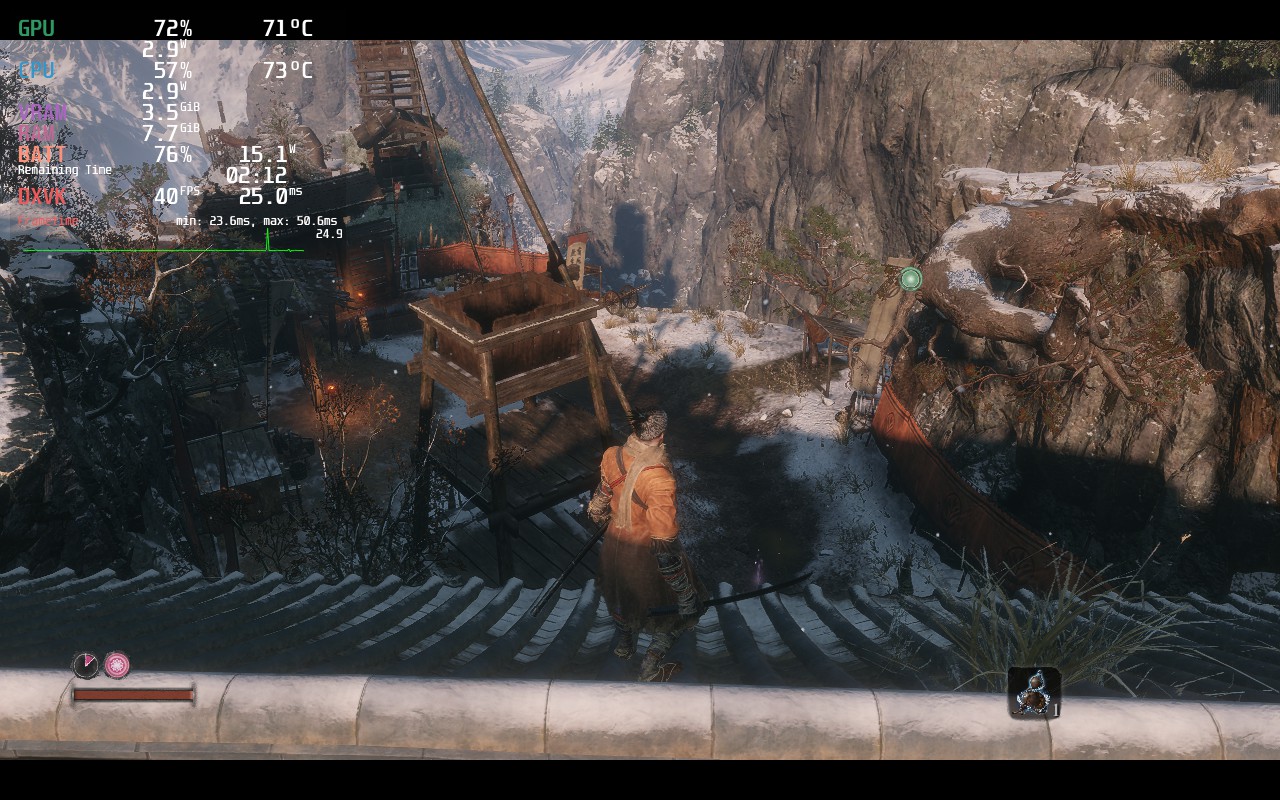
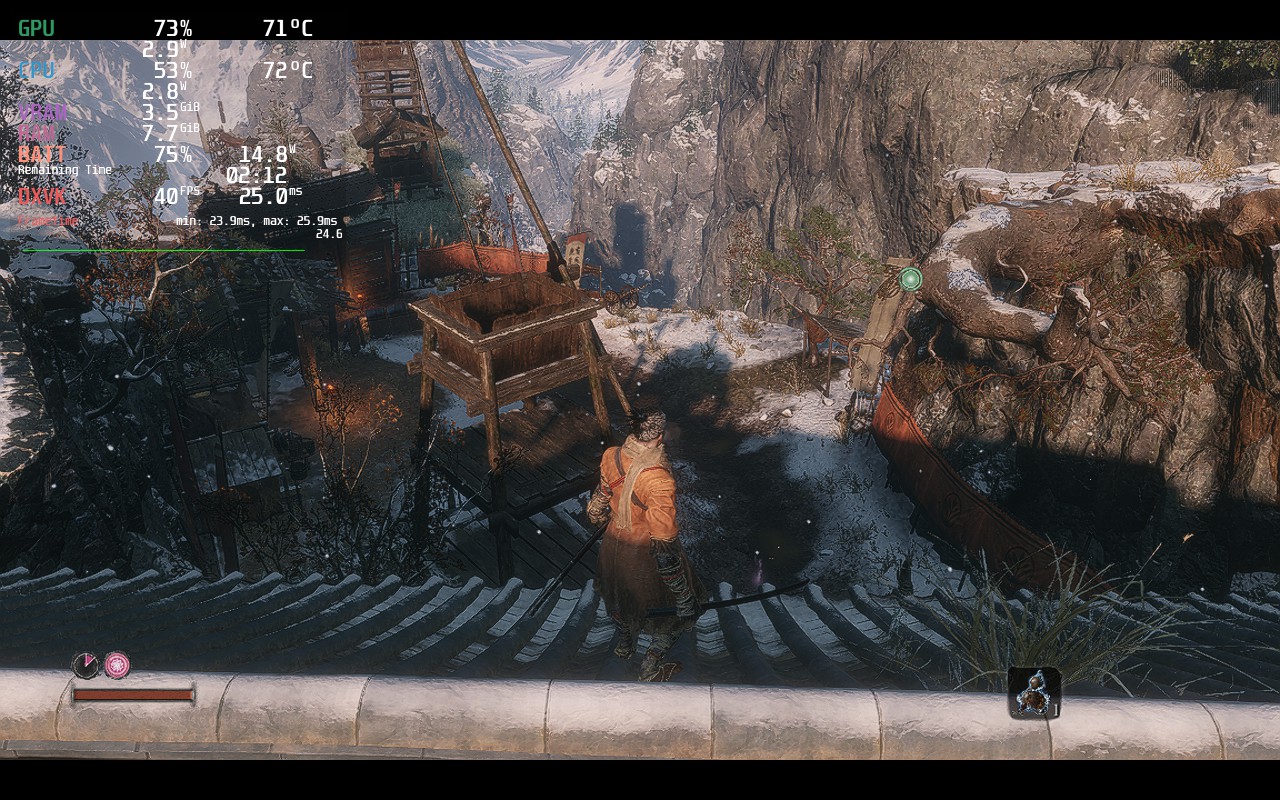
It is a little harder to tell, but there is more sharpness when using FSR that doesn't fit in as well with this game. It is playable and can save some battery, but the visuals at native is better looking.
With a mix of settings, we were able to get a decently stable 40 FPS (when not loading into new places) with around 3 hours of battery. The game still looks wonderful and feels fantastic to play on. We did also notice there was no Vsync option in the graphics, but that is because it is automatically enabled.
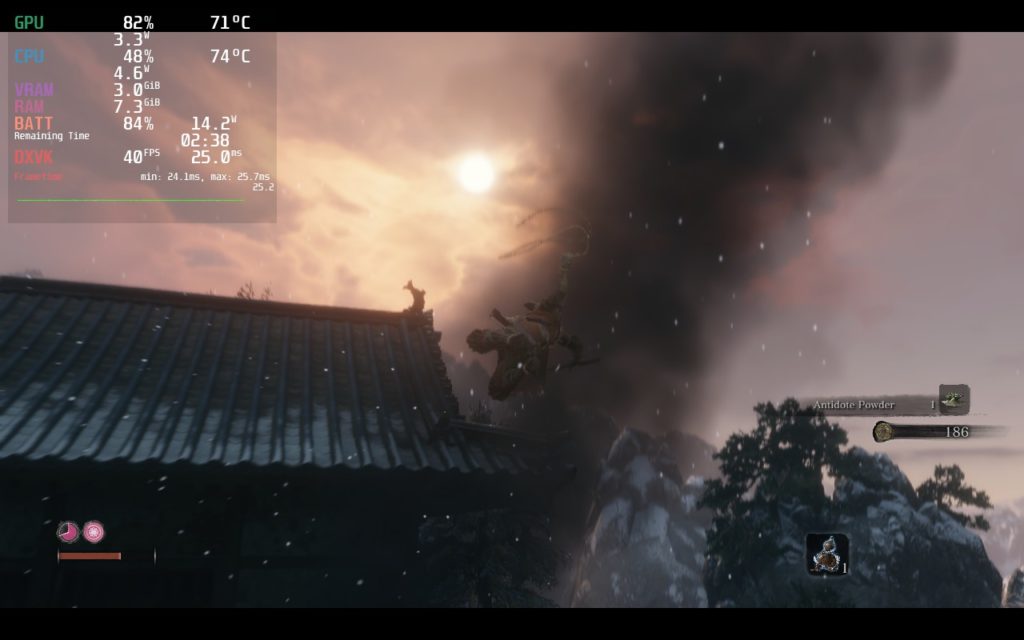
Zooming into action!
Now if you want to curb all those possible stutters, as well as save some battery, the 30 FPS build is the way to go. The game does auto enable Vsync, so to do this without any input lag, you need to put this command in the launch options of the game:
MANGOHUD_CONFIG=fps_limit=30,no_display mangohud %command%On top of that, the game is very playable and stable with high quality settings and around 11W - 14W battery drain for around 3.5 - 4 hours of gameplay! For what it is, it is pretty amazing.
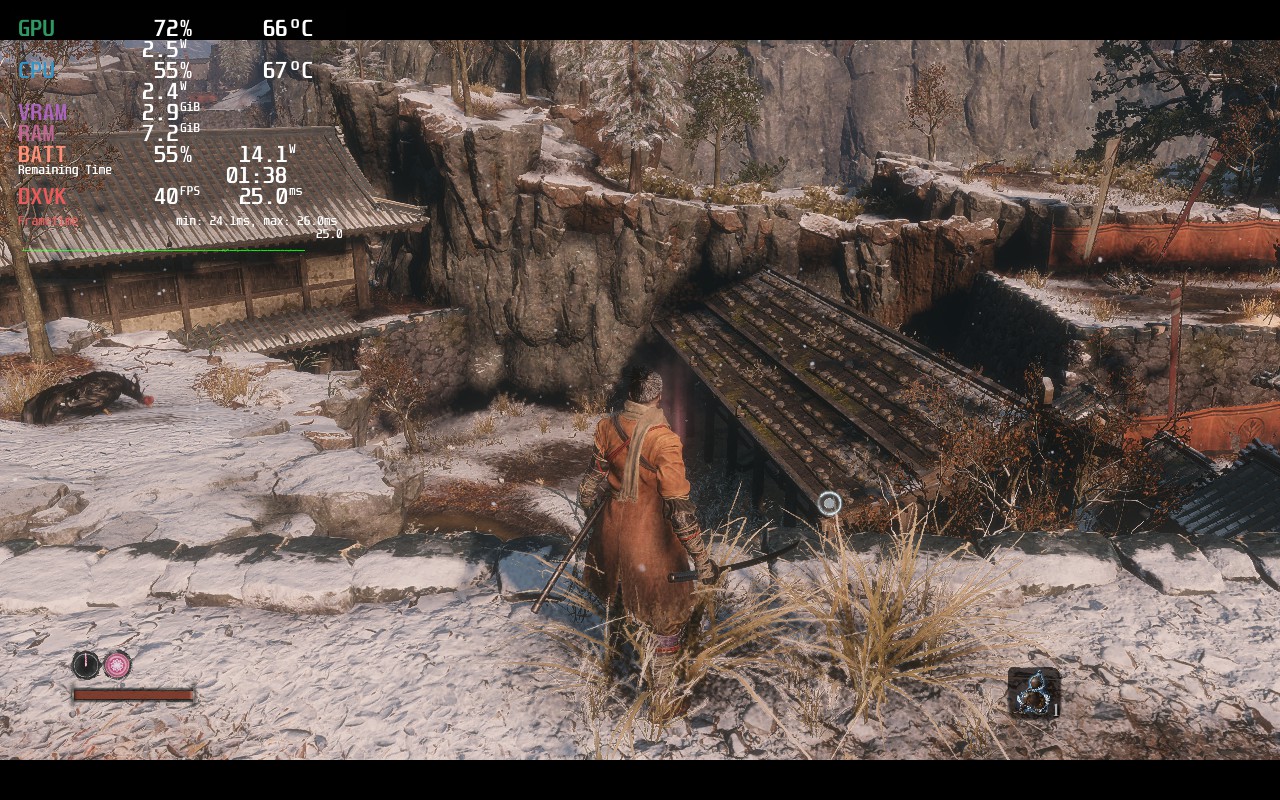
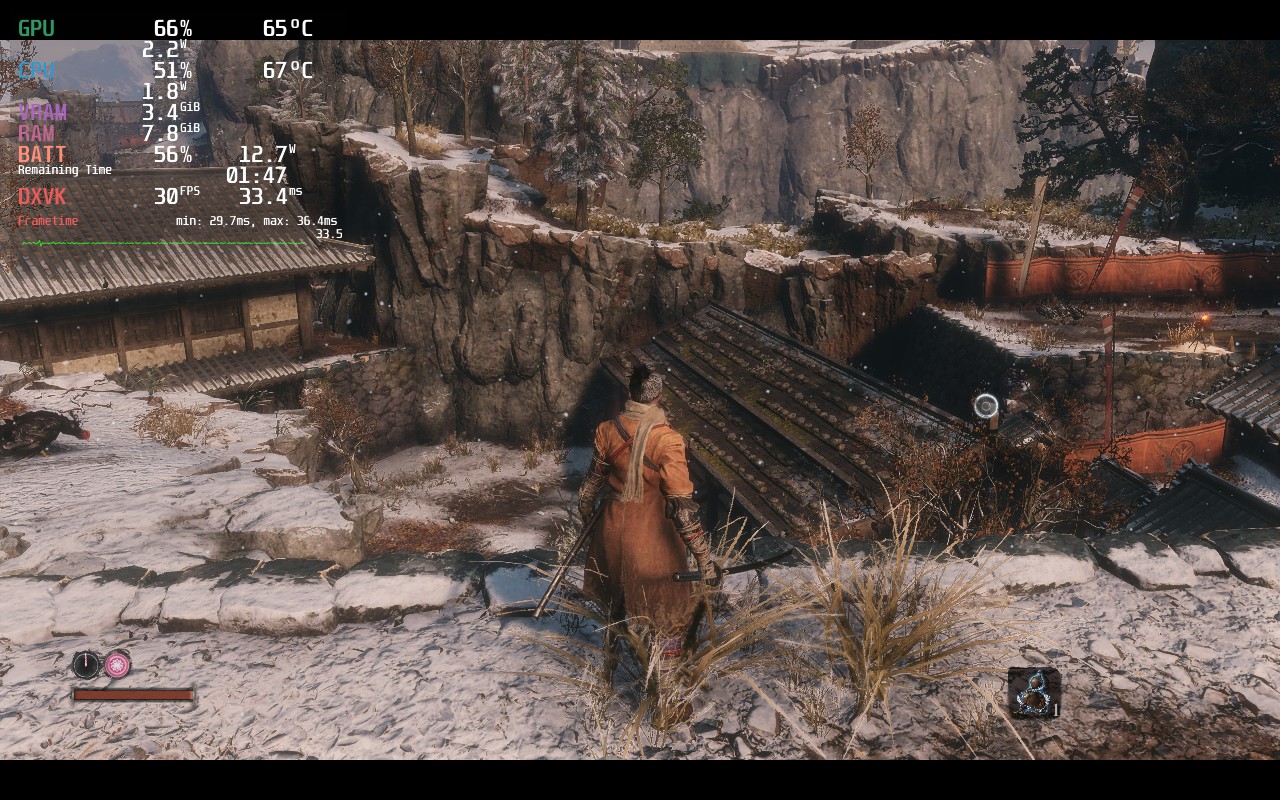
I tried to get these as close as possible, but it was hard due to needing to leave the game and change launch configuration. But there is definitely better shadowing in the distance in the 30 FPS build with better battery life.
There weren't many issues I found while playing Sekiro, though I did see 1 or 2 oddities. The first being the resolution issue where it says 1280x800 but it is only playing at 1280x720. The other is that the default control scheme for the game has gyro controls mapped in. I am not exactly sure why though. This can easily be fixed by turning Gyro Behavior in the controller settings to "None". This really isn't a game that needs gyro controls.
Sekiro: Shadows Die Twice is an incredible game and playing it on Steam Deck feels near perfect. The game runs so well when it is configured and feels natural on the gamepad. And thanks to the automatic vsync, we can make sure the input lag is non-existent for both the builds we provide!
Our review is based on the PC version of this game.
If you enjoyed this review, be sure to check out the rest of the content on SteamDeckHQ! We have a wide variety game reviews and news that are sure to help your gaming experience. Whether you're looking for news, tips and tutorials, game settings and reviews, or just want to stay up-to-date on the latest trends, we've got your back!
The balance of the holy kingdom is compromised and now it is up to you to save it. In Soulstice, You play as Briar, someone granted superhuman strength and resilience with the help of Chimera. Explore a dark world brimming with mysteries and master a combat system filled with fast-paced action and grand boss fights that reeks of the inspiration from Devil May Cry and Bayonetta. With a unique arsenal of upgradable weapons that can be switched on the fly or insane combos, it is time to unleash and plow your way through this dark story to find out the truth behind it all.
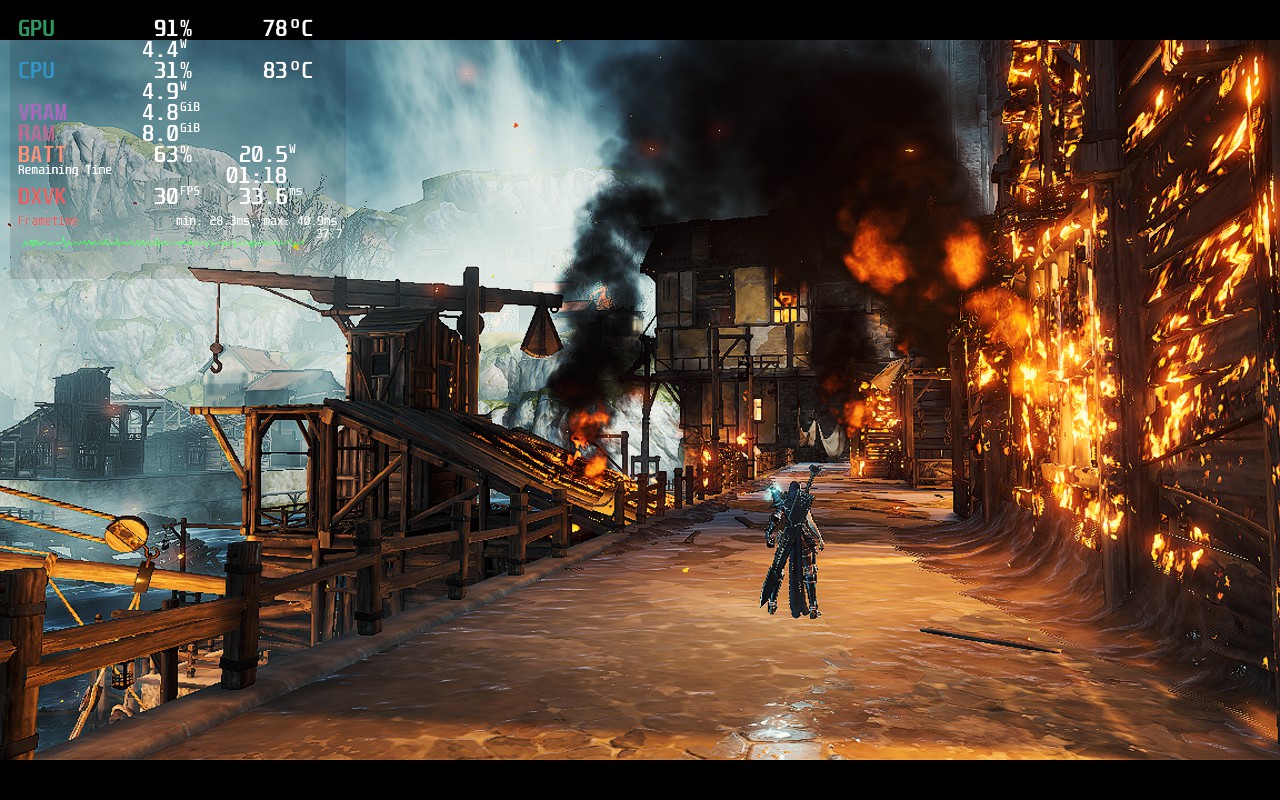
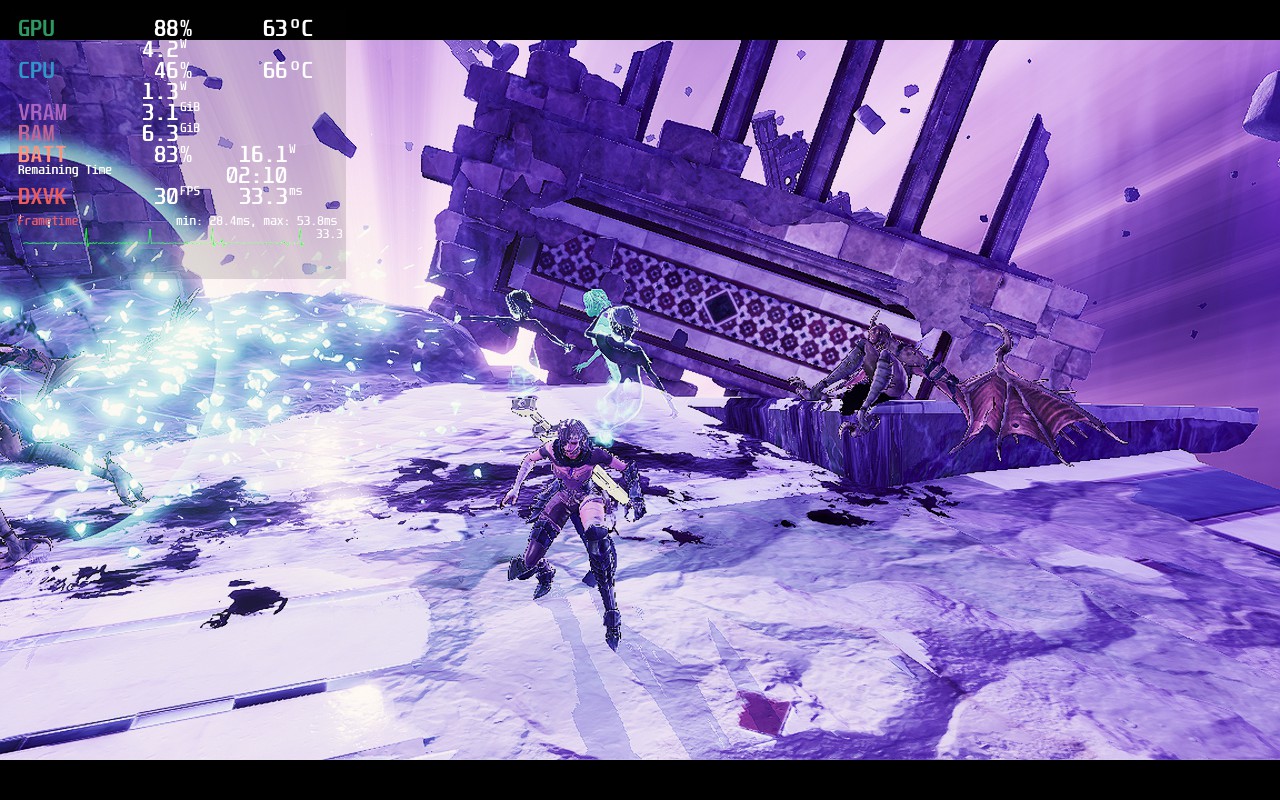
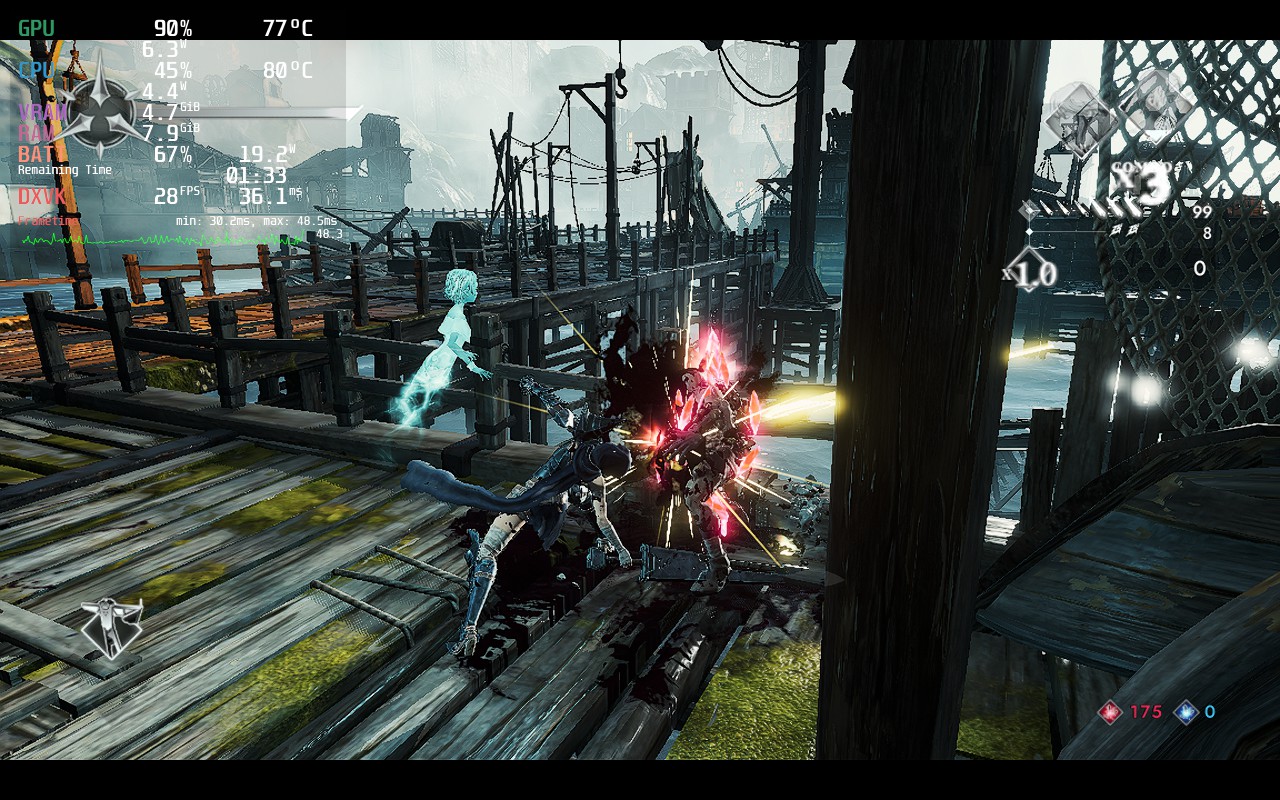
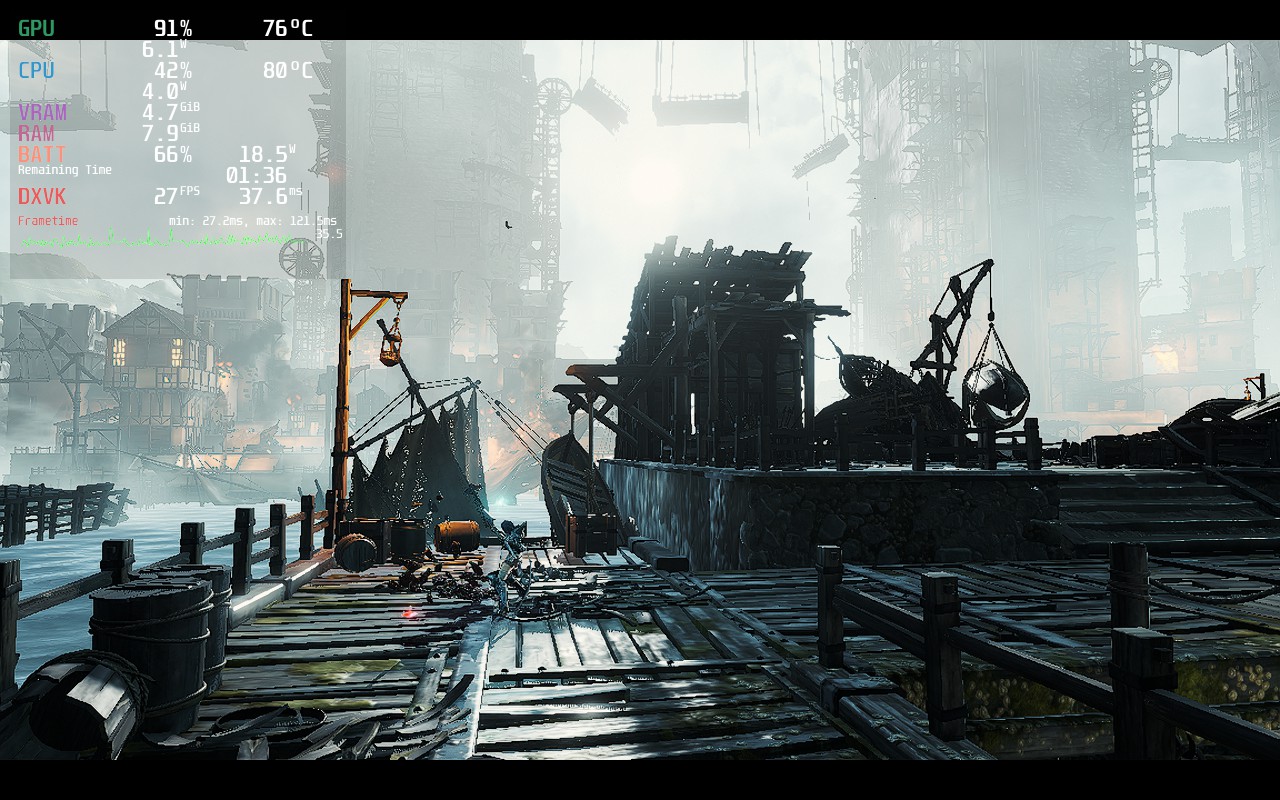
Soulstice is an incredible looking game and I did enjoy the gameplay, but...it is not ready for Steam Deck. For the record, one of the developers, David Bruno, did warn me that it is not optimized for the Steam Deck at this moment, but it is playable with some massive compromises that we can't justify yet.
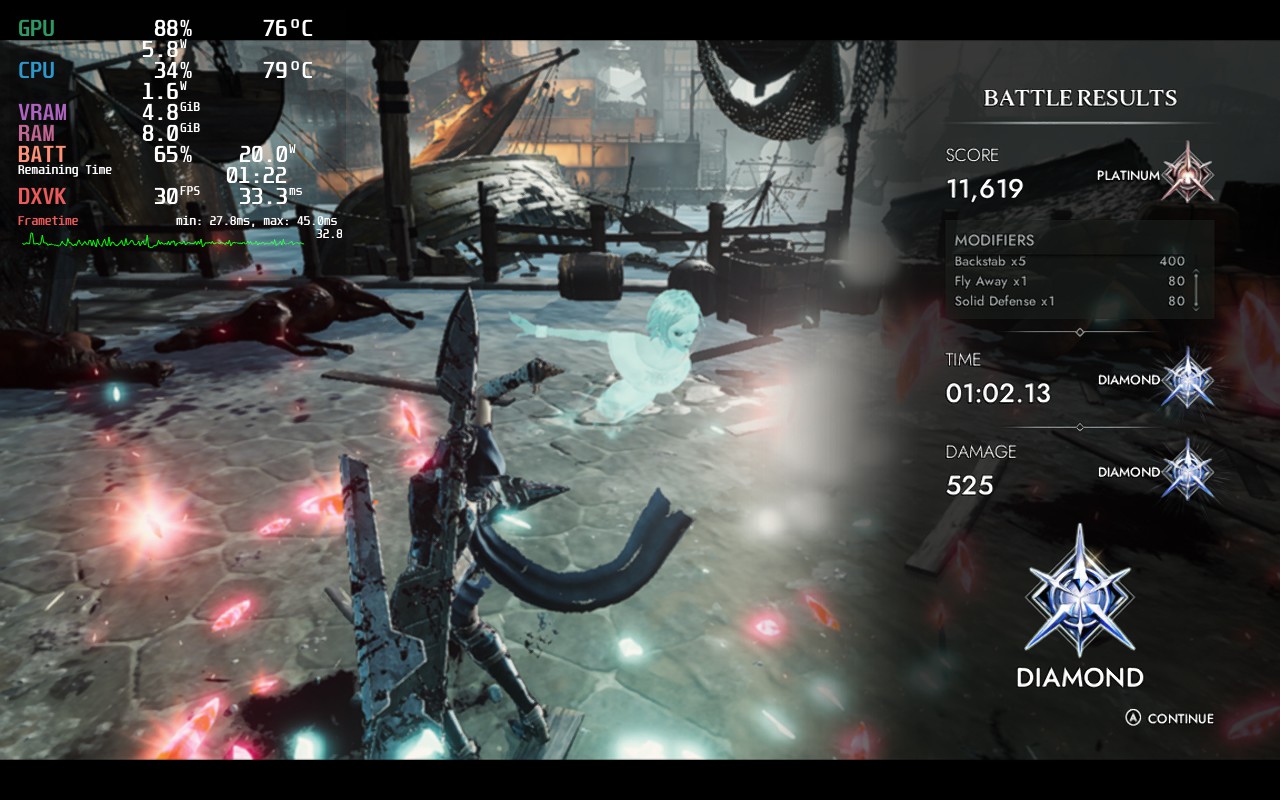
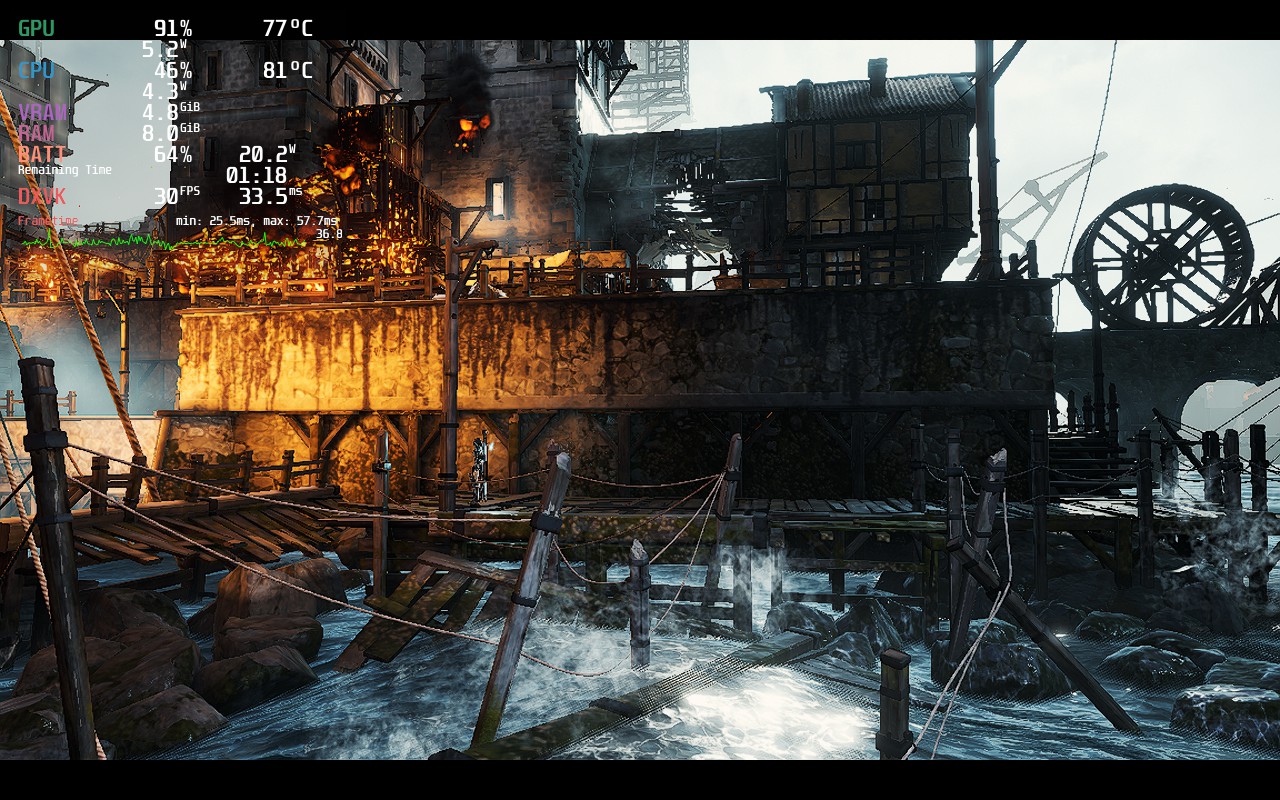
Soulstice will not be able to keep anything above a 30 FPS limit. It is very dependent on what is on the screen at any given moment, so there are some areas where it is actually possible to hit 60, but they are so far and few. Even when the game is at 30, there are still some stutters, especially in combat. This doesn't really affect gameplay as much and we didn't notice the drops since they only went down to 24 for a couple seconds. And to keep it at as stable of 30 as possible, we did have to set a high TDP limit of 12, which brought battery drain to around 20W (2 hours) with temps up to 82c, which is a bit too high for our liking.
We did also notice a weird thing with the settings where it wouldn't change unless we exited and restarted the game. There were no popups to signal we needed to do this, it was just what we figured out.
Overall, I really wanted to enjoy Soulstice on the Steam Deck. It feels like my type of game and I love the aesthetic. Unfortunately, it isn't ready just yet, but I wouldn't lose hope. DLSS is implemented, which means FSR 2.0 could be in the cards. I was also lucky enough to submit some questions for the dev team regarding Steam Deck support, which I will update the article here when I hear back. I am optimistic though, but until there are some more answers about the Deck support, I would wait to play this on Deck.
Our review is based on the PC version of this game.
If you enjoyed this review, be sure to check out the rest of the content on SteamDeckHQ! We have a wide variety game reviews and news that are sure to help your gaming experience. Whether you're looking for news, tips and tutorials, game settings and reviews, or just want to stay up-to-date on the latest trends, we've got your back!
Metal Hellsinger is a rhythm FPS game set to the badass beats of the metal soundtrack. As a part human, part demon, you become The Unknown and have to fight through the domains of hell, mowing down demons to get an epic showdown with The Red Judge. Narrated by Troy Baker, you will gather an incredible arsenal to fight like HELL through this Doom-like game. The real winner here is this incredible soundtrack though. The songs are insane and keep you going, getting louder and more intricate the higher combos you have.
This was a really hard review. In general, I like the game a lot. It has its issues, but the gameplay is solid and the music is incredible, though unfortunately, Steam Deck performance isn't as insane as the music is.
For starters, max settings is a definite no-go. Completely uncapped from everything, the game drains at 24.5W, temps up to 80c and higher, and framerate drops to 31 FPS, though it gets significantly worse in fights. For a game like this, framerate stability is huge, so any fluctuations very impactful on the smoothness of Metal Hellsinger. While we can make it better, it is still a bit far from optimal.
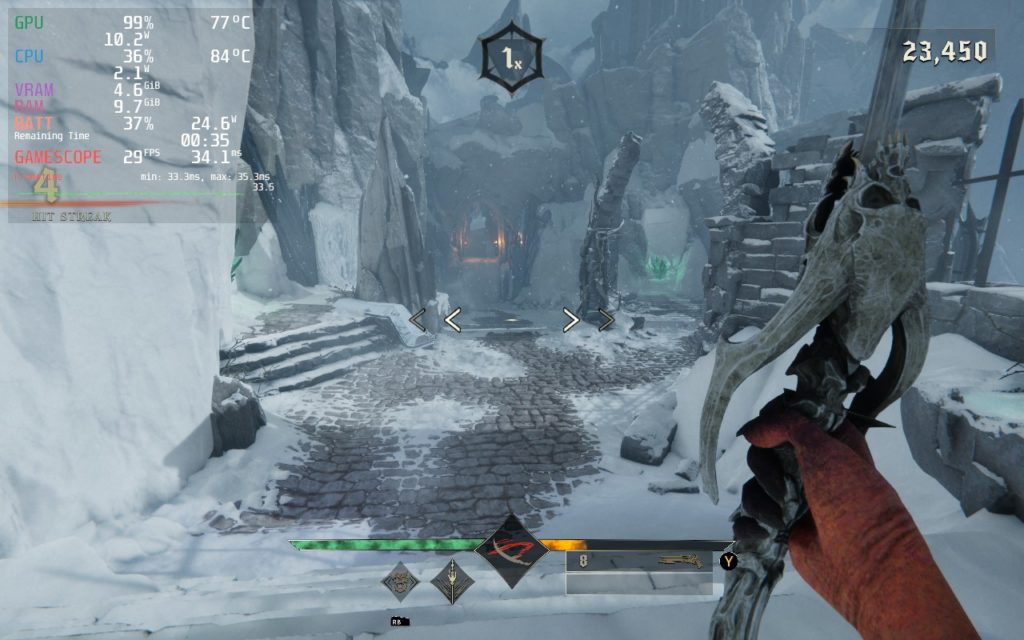
I started out aiming for 60 FPS. For a fast-paced shooter, the smoothness helps significantly. While there are parts that can hit the 60 mark, a majority go far below it, with bigger fights ranging from 38-40, even on the lowest quality settings. I would say it is closer to a 60/40 split, though it is still way too jarring for myself.
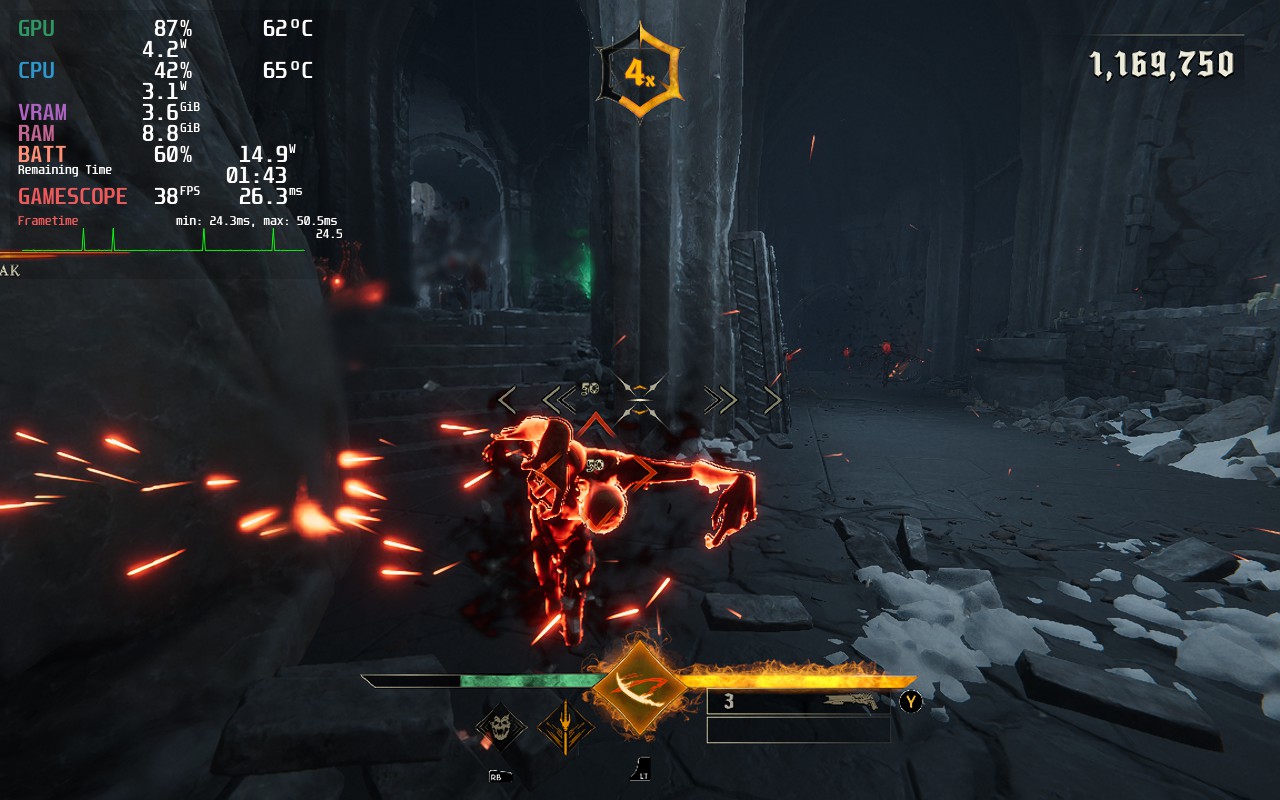
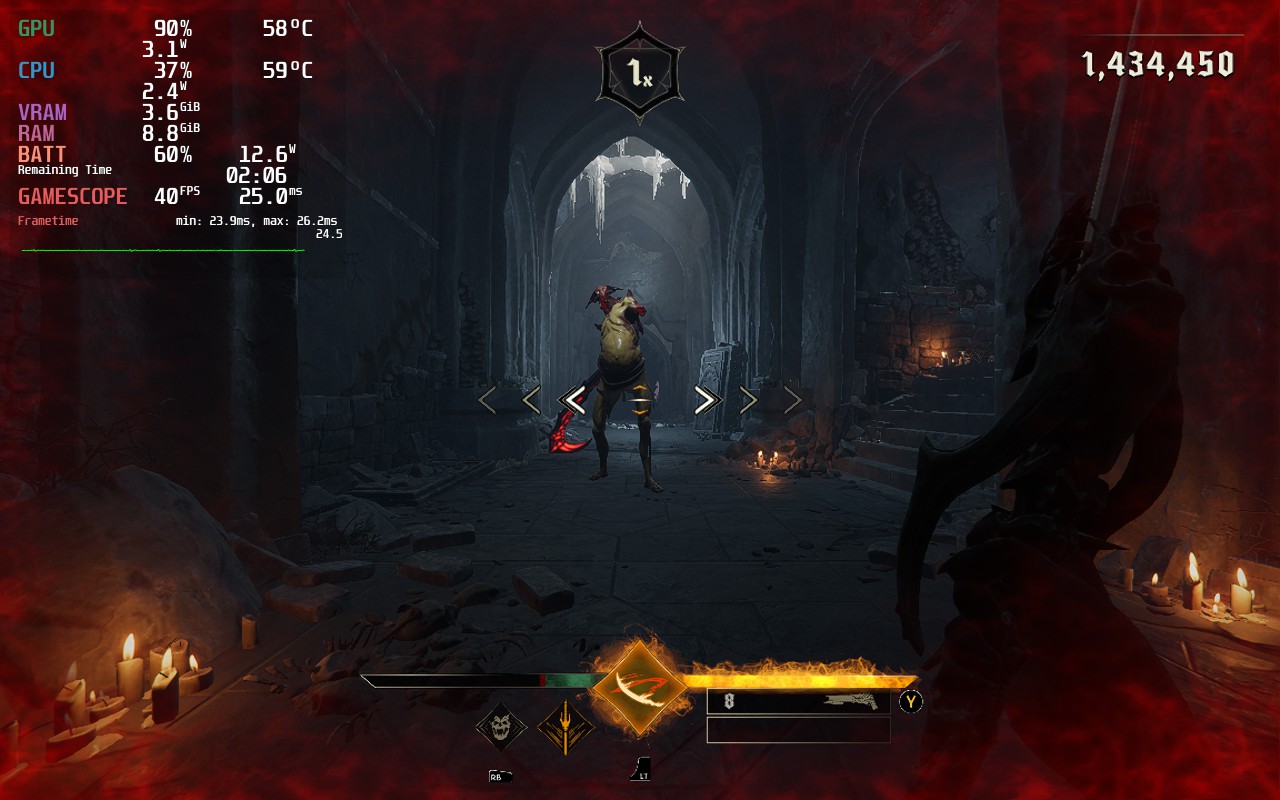
Those drops are very common, especially in fights. This one didn't have nearly as many people as the bigger ones though.
To mitigate this, I opted for a stable 40 FPS, which isn't 100% stable, but it does the job. The game did start to feel sluggish at the framerate though and it still had its drops during some heavier sequences. And yes, this is still all on the lowest settings with resolution being upscaled at 960x600. The visuals still look great though, so that is always a plus. I did also have to change the camera sensitivity as it was too low and found 60 was best.
In the time spent playing, I was mostly troubleshooting bugs and issues. First, when running on Proton, there are some cutscenes that have the rainbow bars. Once you get past this, by just pressing a button immediately, the regular Proton does work. I did try Proton GE 7-33, which did fix the cutscene issue, but also crashed the game when loading into the actual game. After a couple tries, it seems this is specifically when trying to load certain levels, like the tutorial.
I also found that, whenever I exited the game, my Steam Deck client crashed and the client had to restart. This happened every time I closed the game and was a pretty big nuisance.
There were also a couple gameplay issues I found, though I am not sure if they were Steam Deck related. The combat felt a little bit spotty, with some hits not registering when it felt like they should. There is also a mechanic where you can zoom into people and do a special kill for health, but some of the time, the game stopped me from doing this and it wasn't obvious why not, especially since it gave me the prompt to do it.
Metal Hellsinger has a lot of good going for it. It is gorgeous, fast-paced FPS madness with an incredible soundtrack that can't be beat. The music is so good, that it is what keeps me playing the game. Unfortunately, the performance on Steam Deck can't match up to the game's intensity and, due to the performance issues and a lot of crashing, I would probably stick to desktop over Deck for this one.
Our review is based on the PC version of this game.
If you enjoyed this review, be sure to check out the rest of the content on SteamDeckHQ! We have a wide variety game reviews and news that are sure to help your gaming experience. Whether you're looking for news, tips and tutorials, game settings and reviews, or just want to stay up-to-date on the latest trends, we've got your back!
Detective Takayuki Yagami is back in the gripping sequel to Judgment. Lost Judgment drops you into another gripping tale from the developers behind Yakuza. After a police officer mentions the murder of a student teacher who bullied his son to suicide, Yagami must go undercover as a high school club advisor to uncover the truth behind the vicious cycle of bullying and the worrying increase in victims.
Master 3 different fighting styles to overcome any situation with the signature fighting the Yakuza series is known for, but that isn't all. Feel like taking a break? Join the Dance Club and dance with your students or try to challenge your ingenuity by joining the Robotics Club or even join a Biker Gang. But can you do all of this on the Steam Deck? Well, just like the last game, you absolutely can!
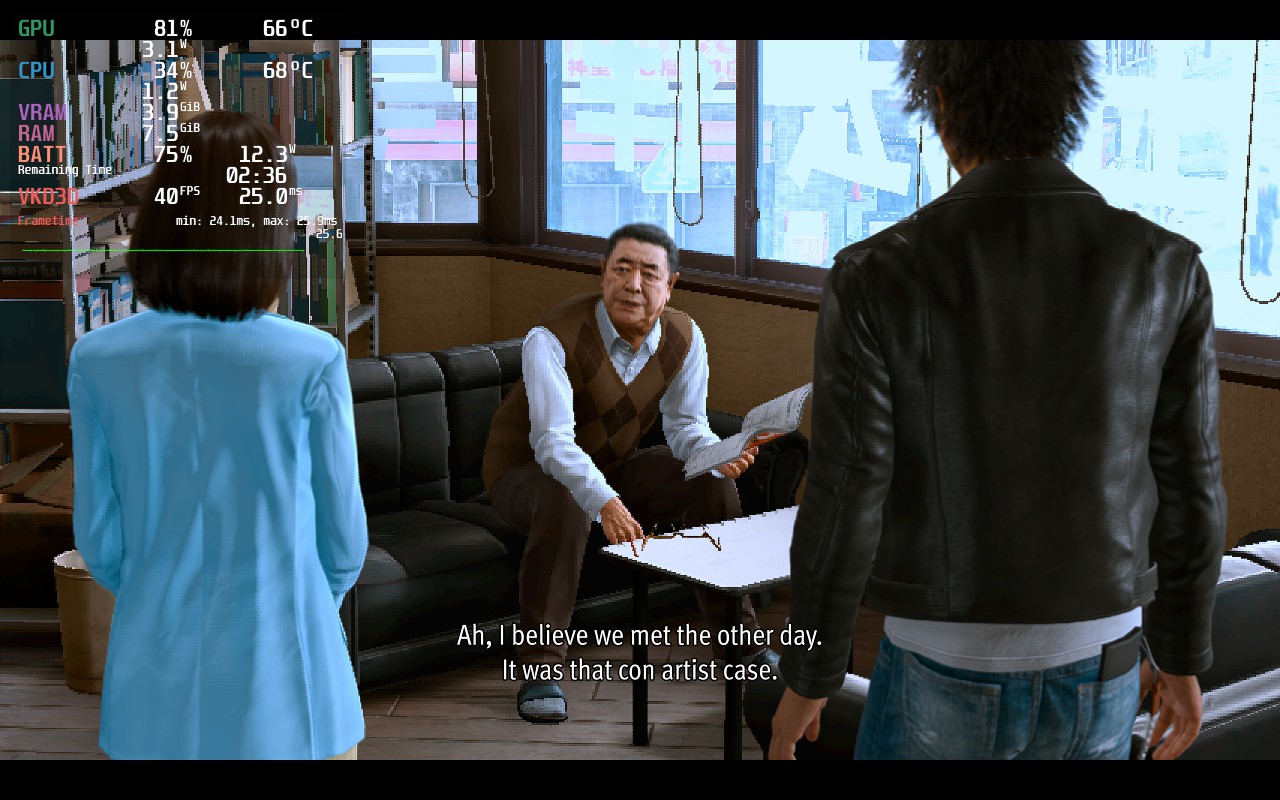
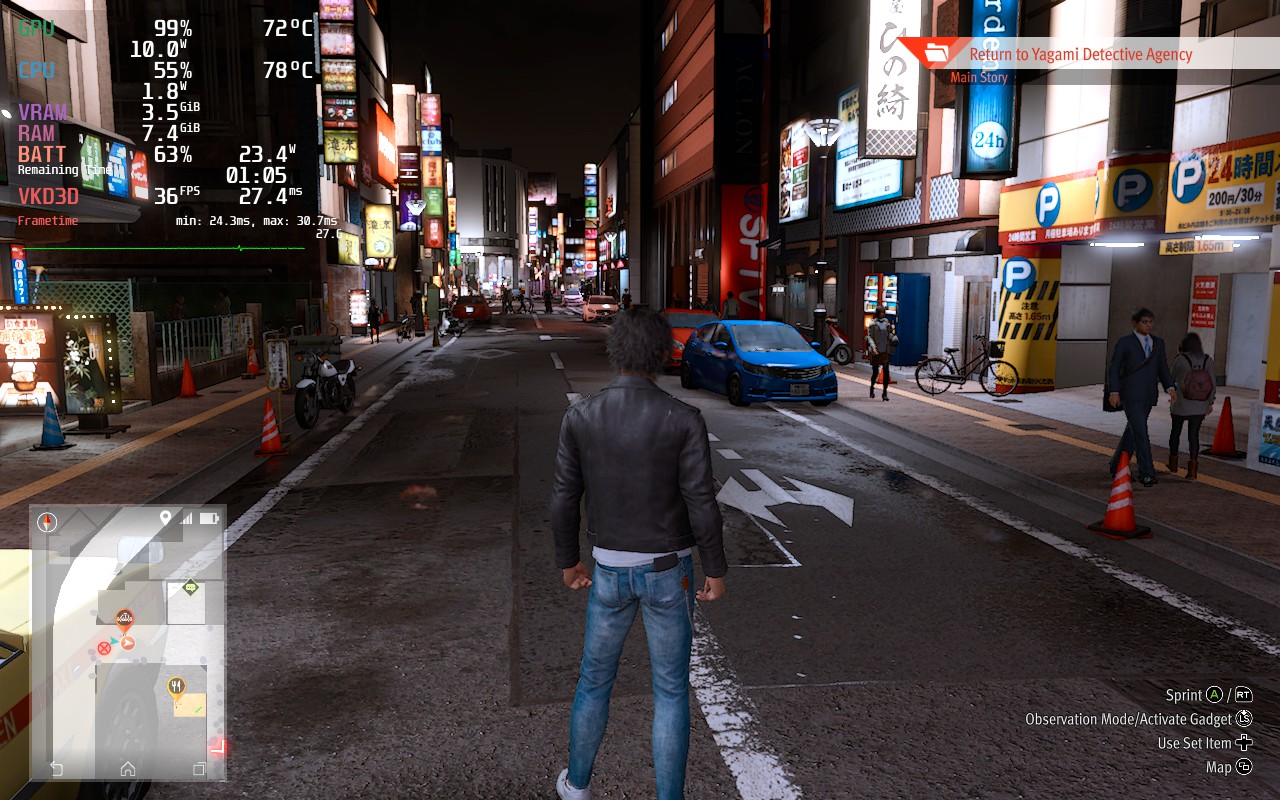
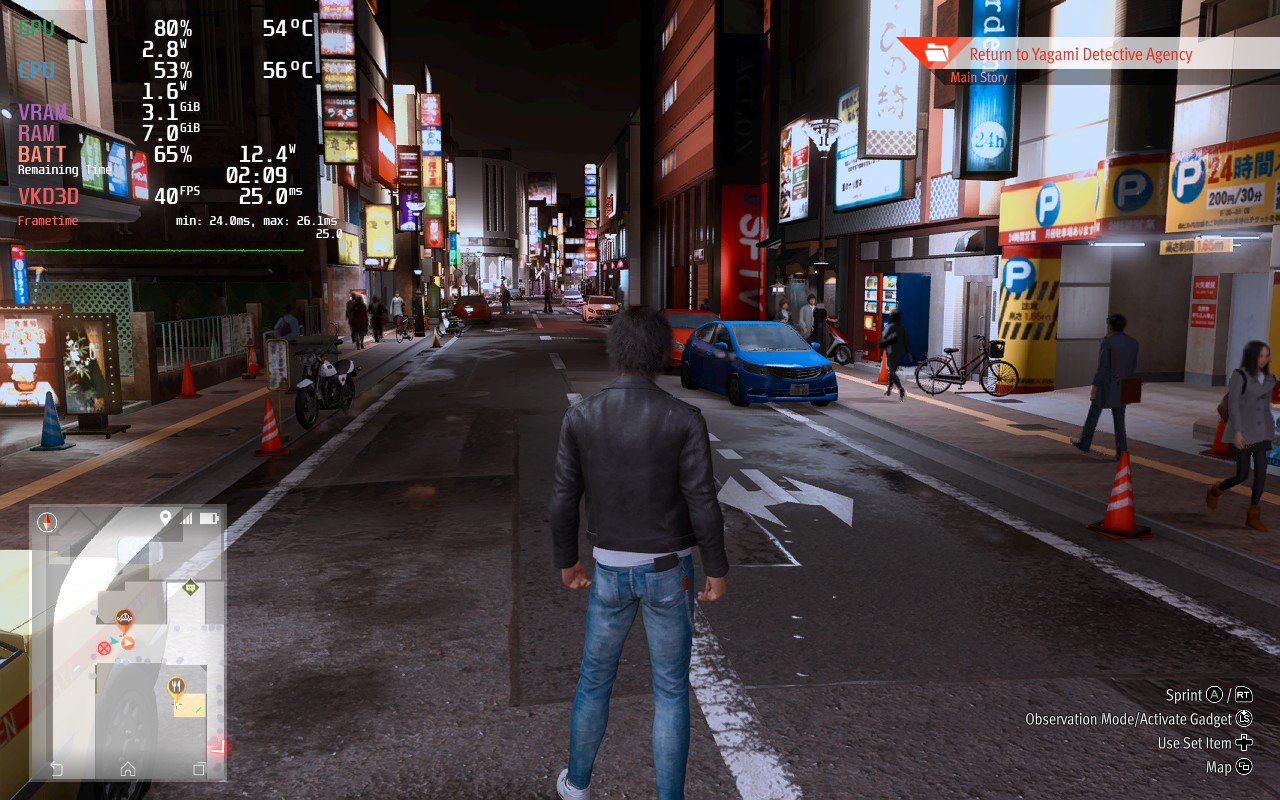
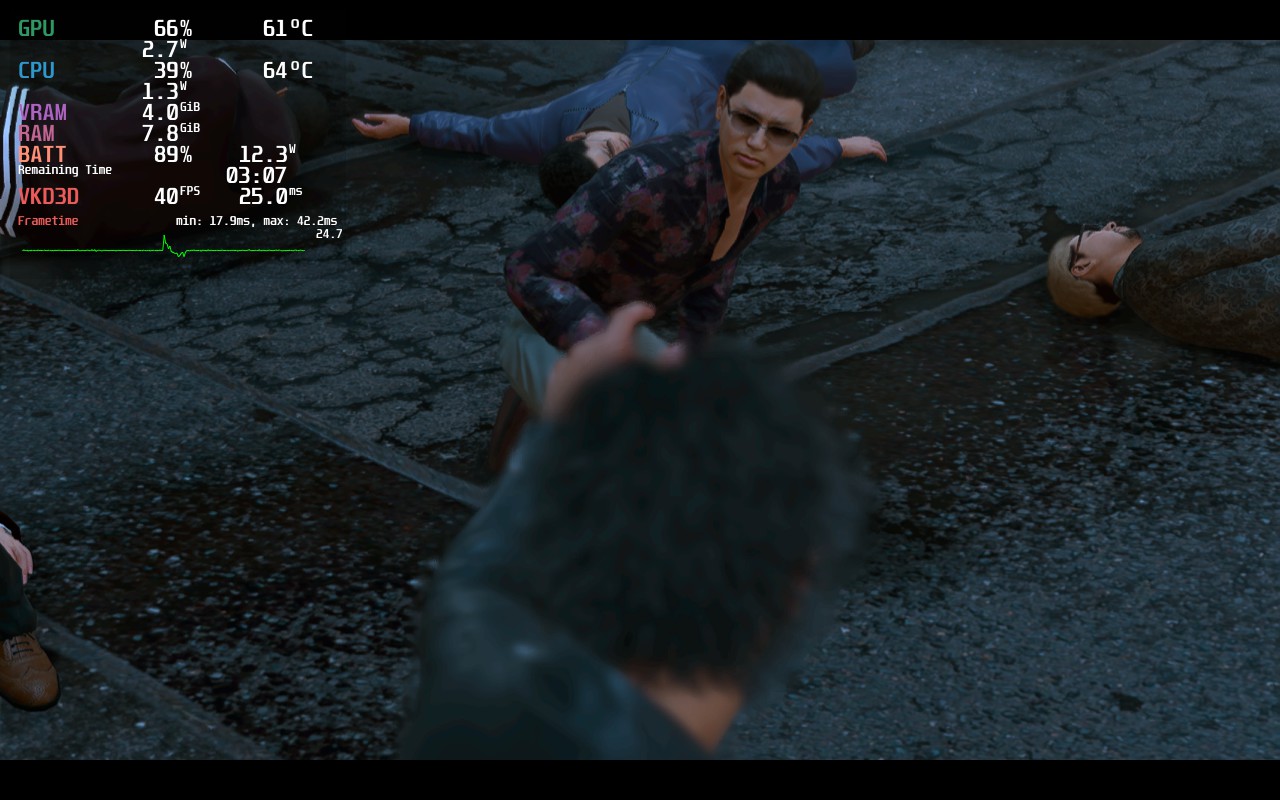
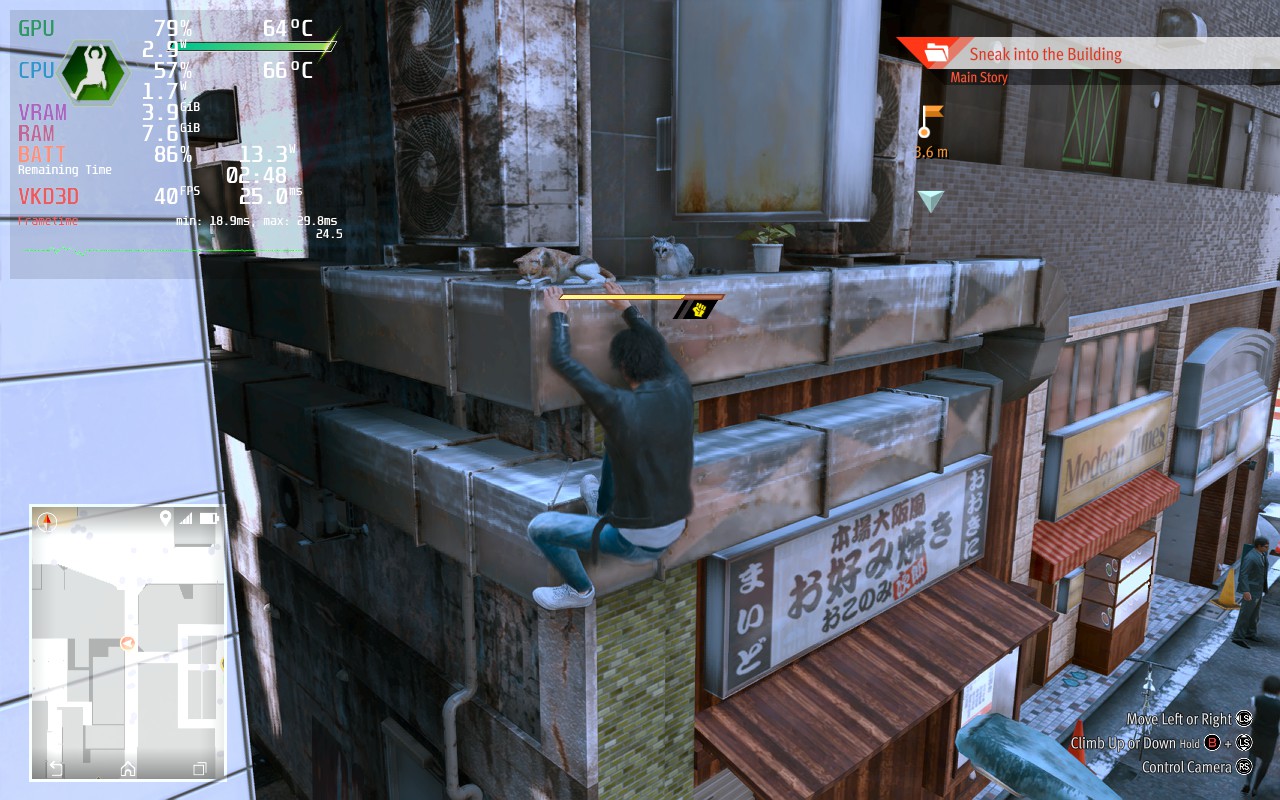
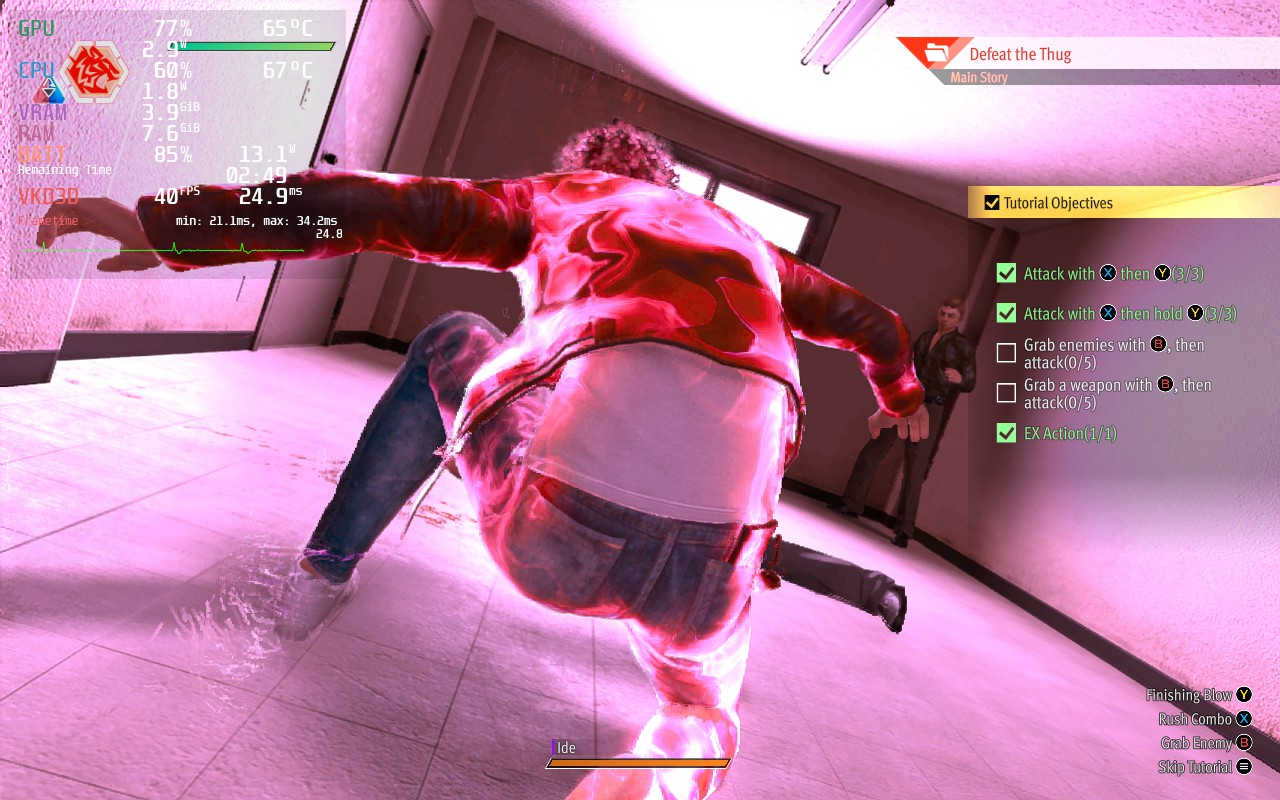
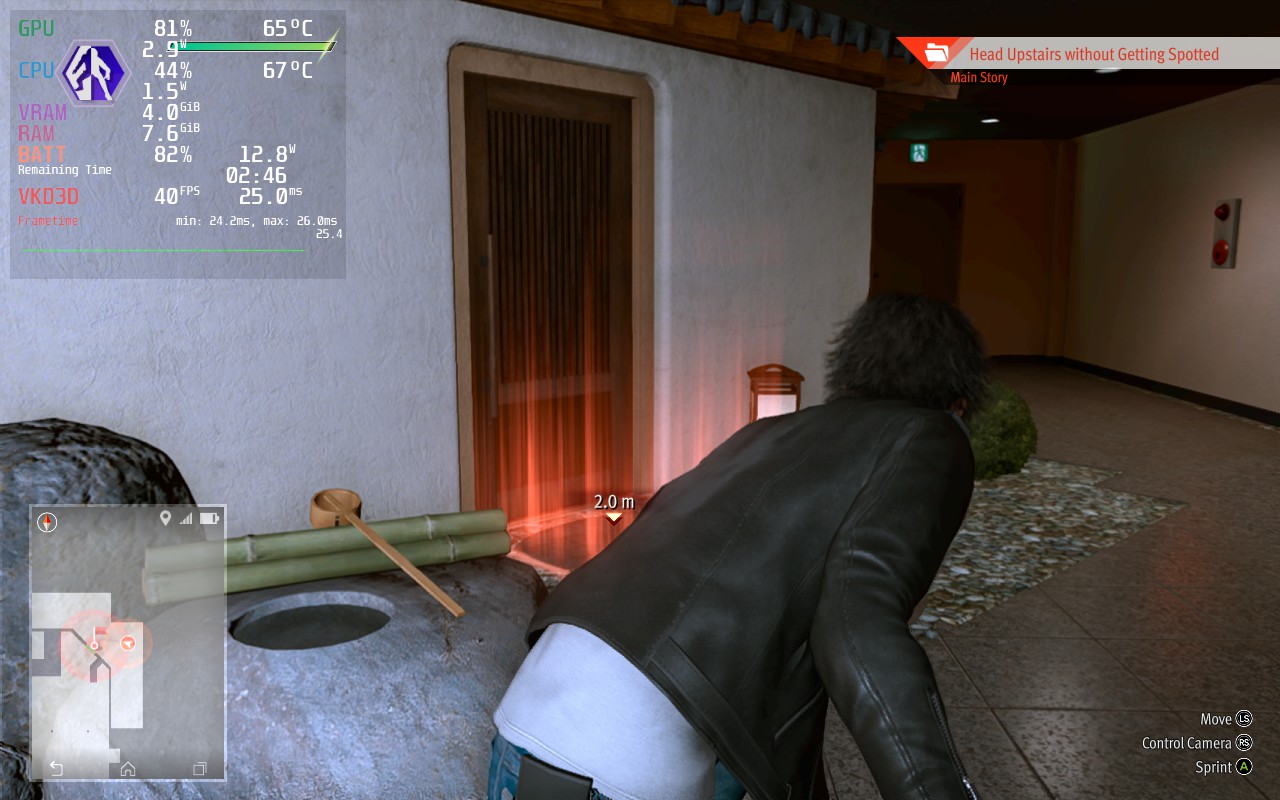
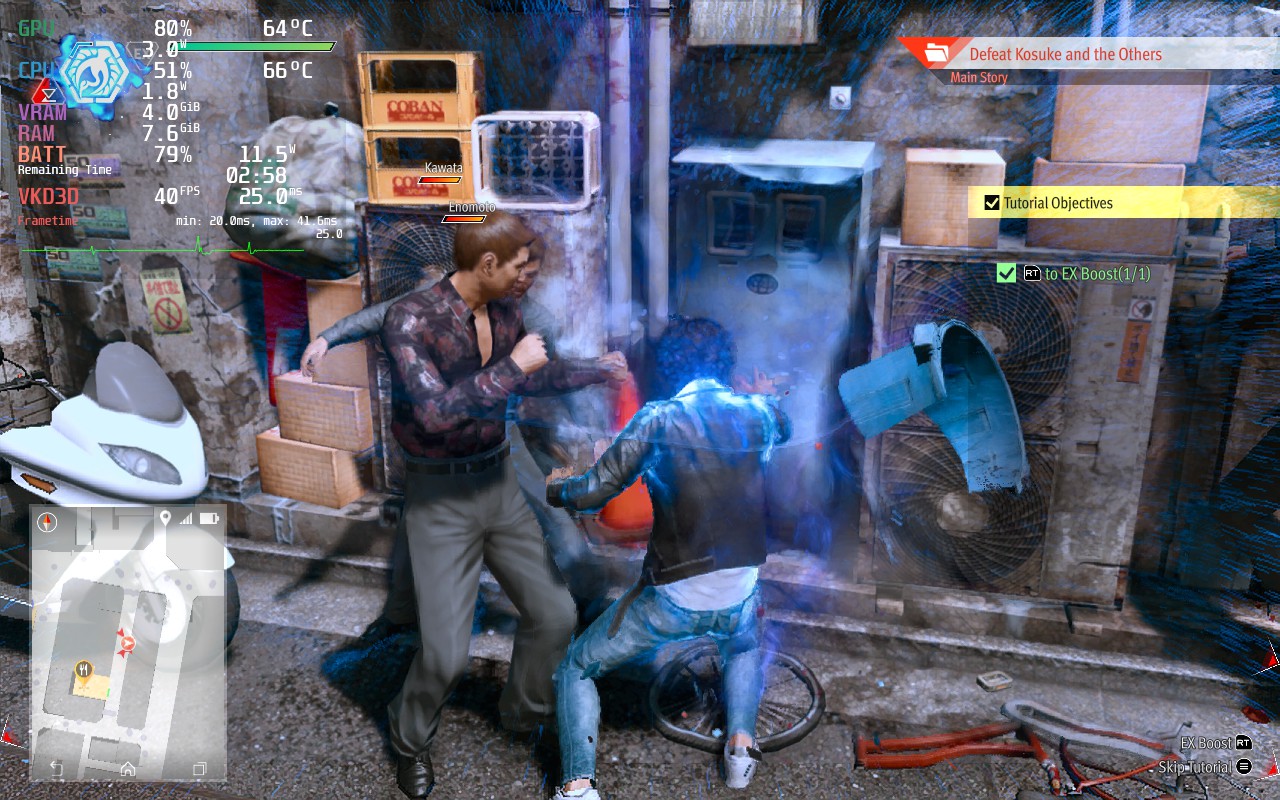
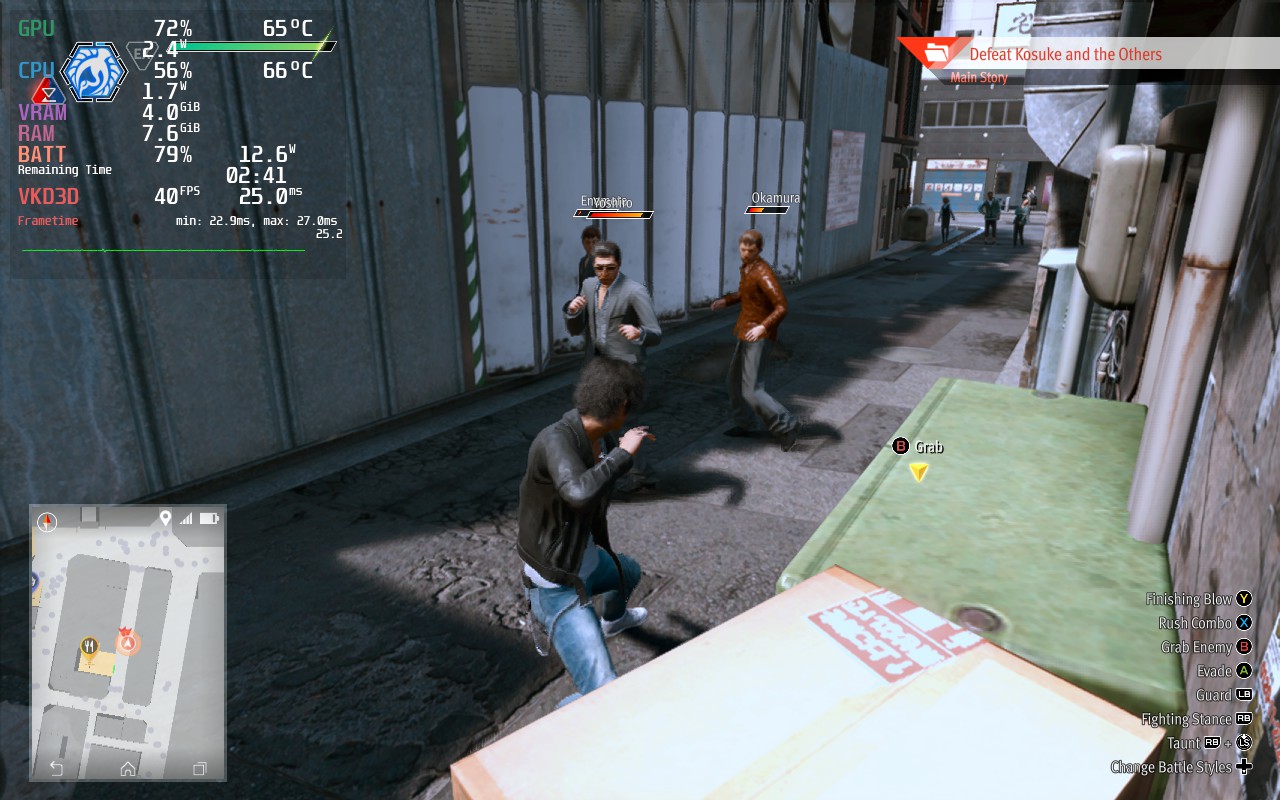
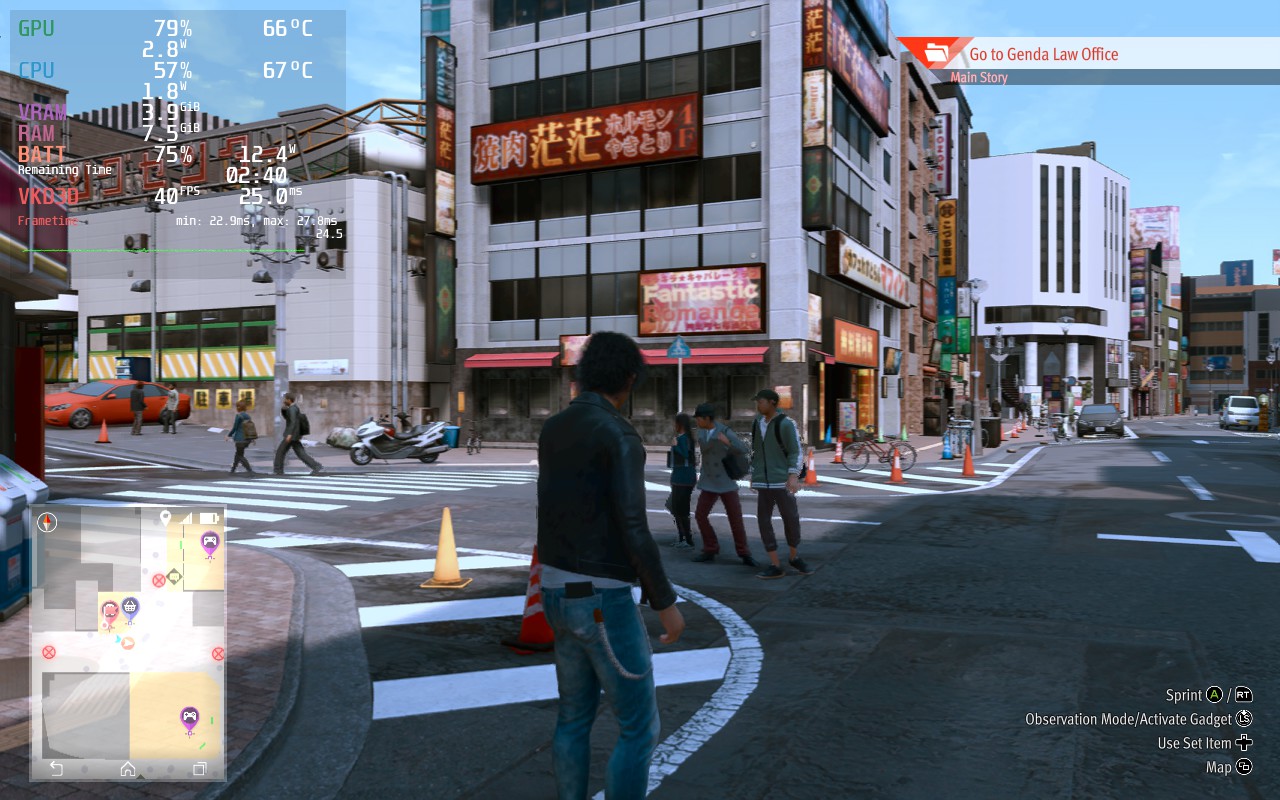
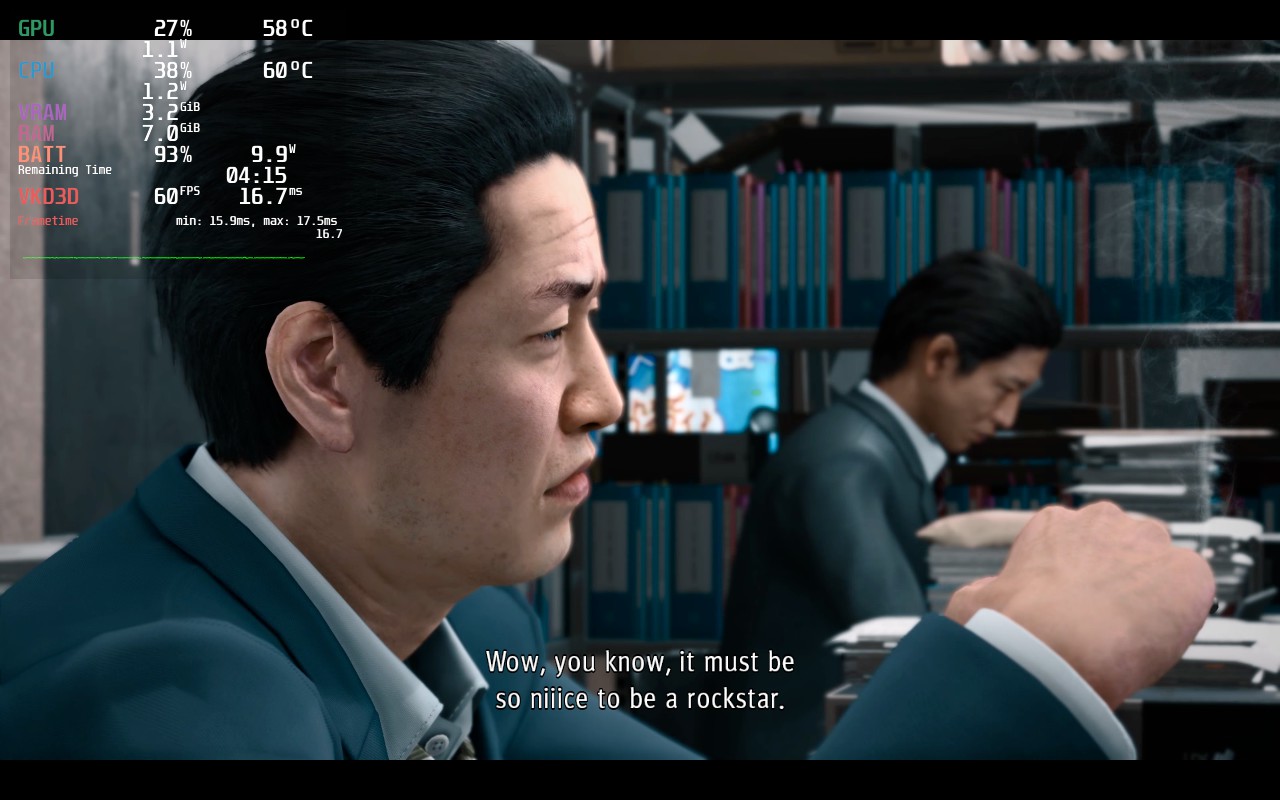
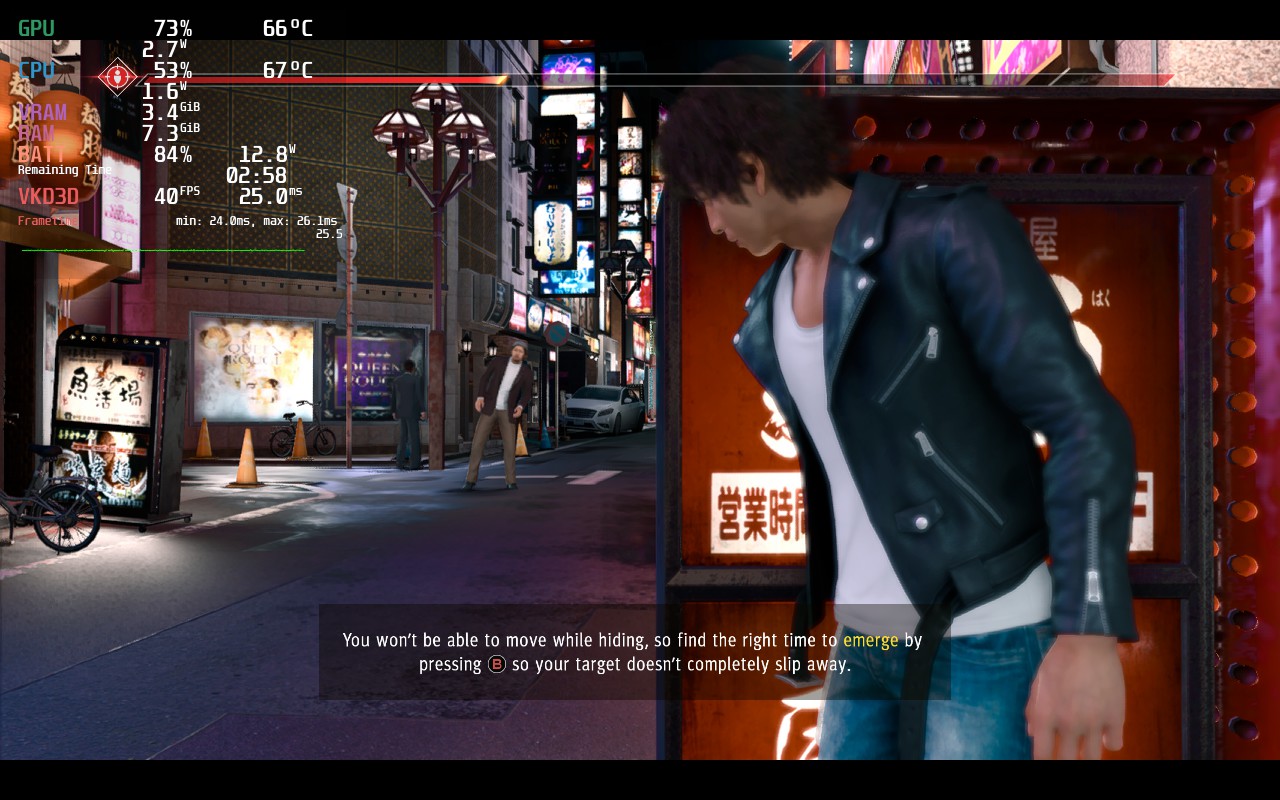
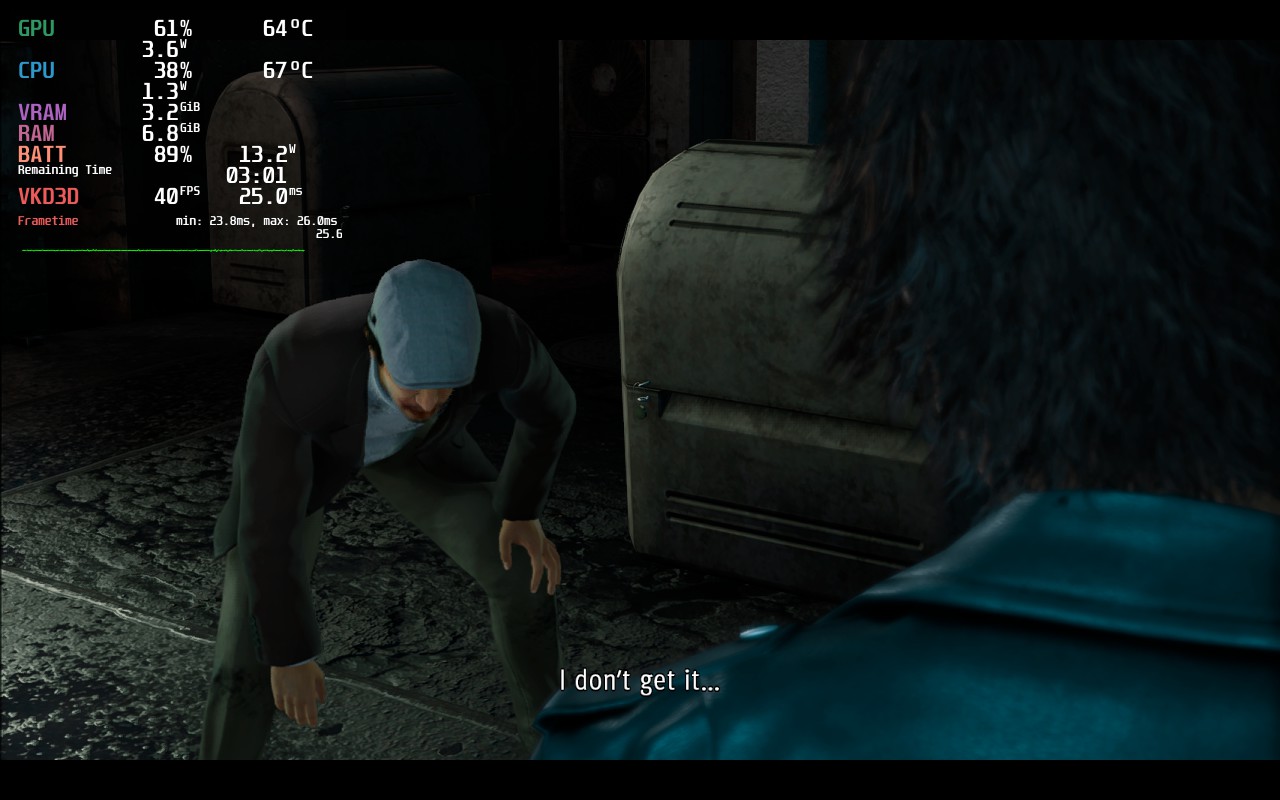
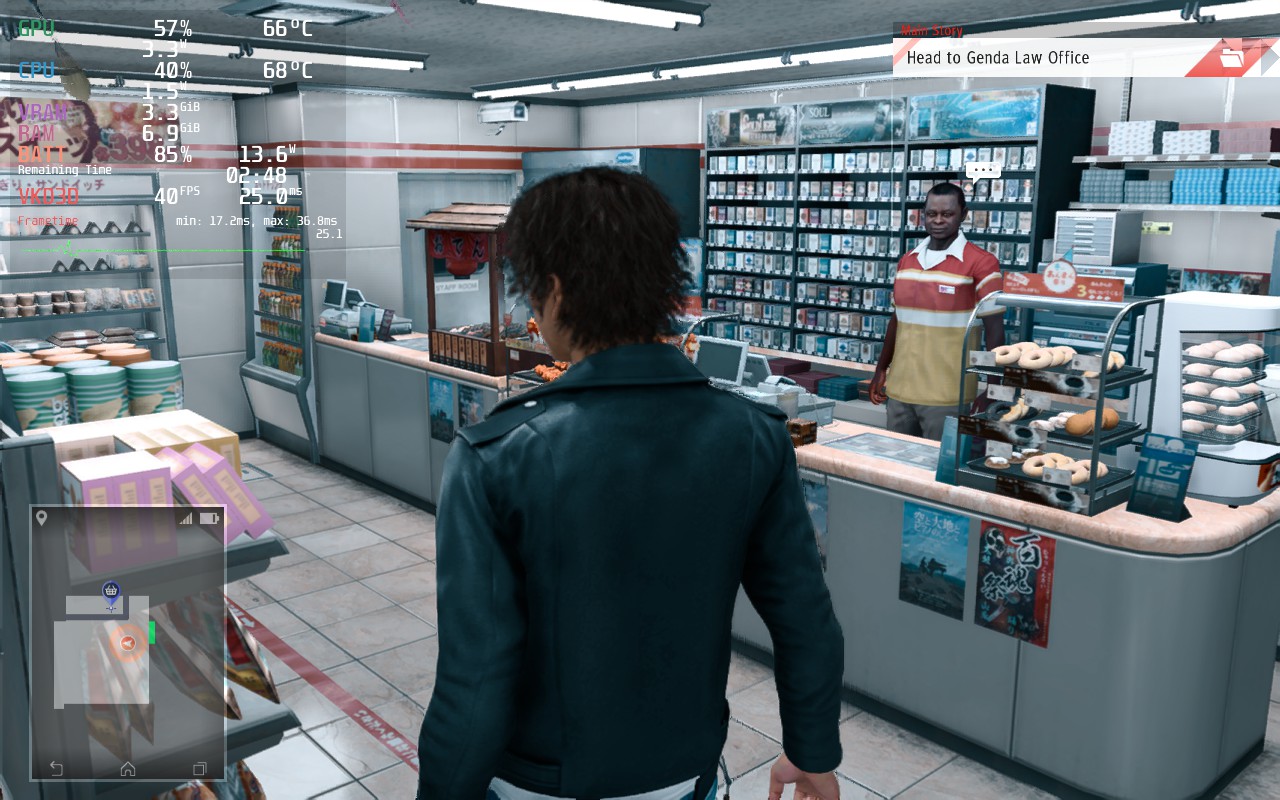
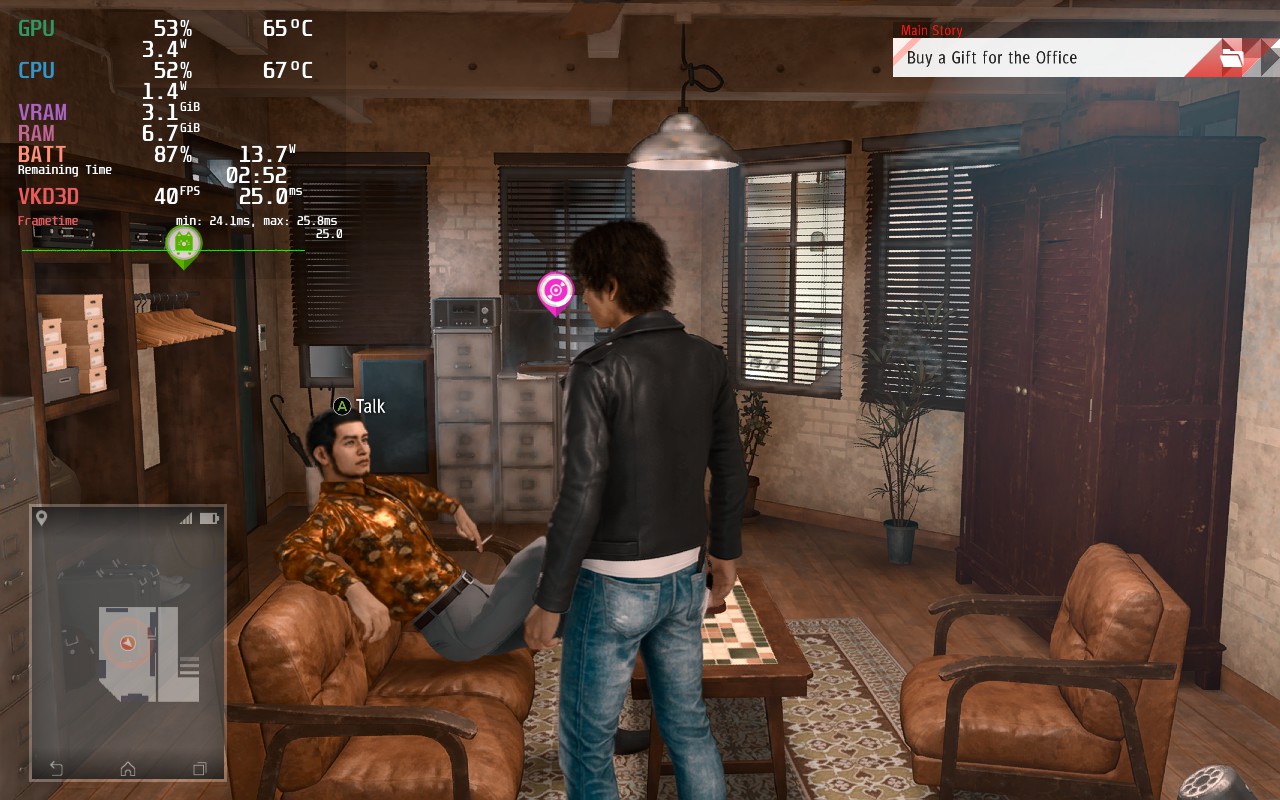
Luckily, Lost Judgment plays out similarly to its predecessor and can run just as well! With the same settings from Judgment, you can get a more stable 40 FPS with around 3 - 3.5 hours of gameplay. Compared with the max quality the game could be, which drains the battery immensely, it is a welcome change overall!
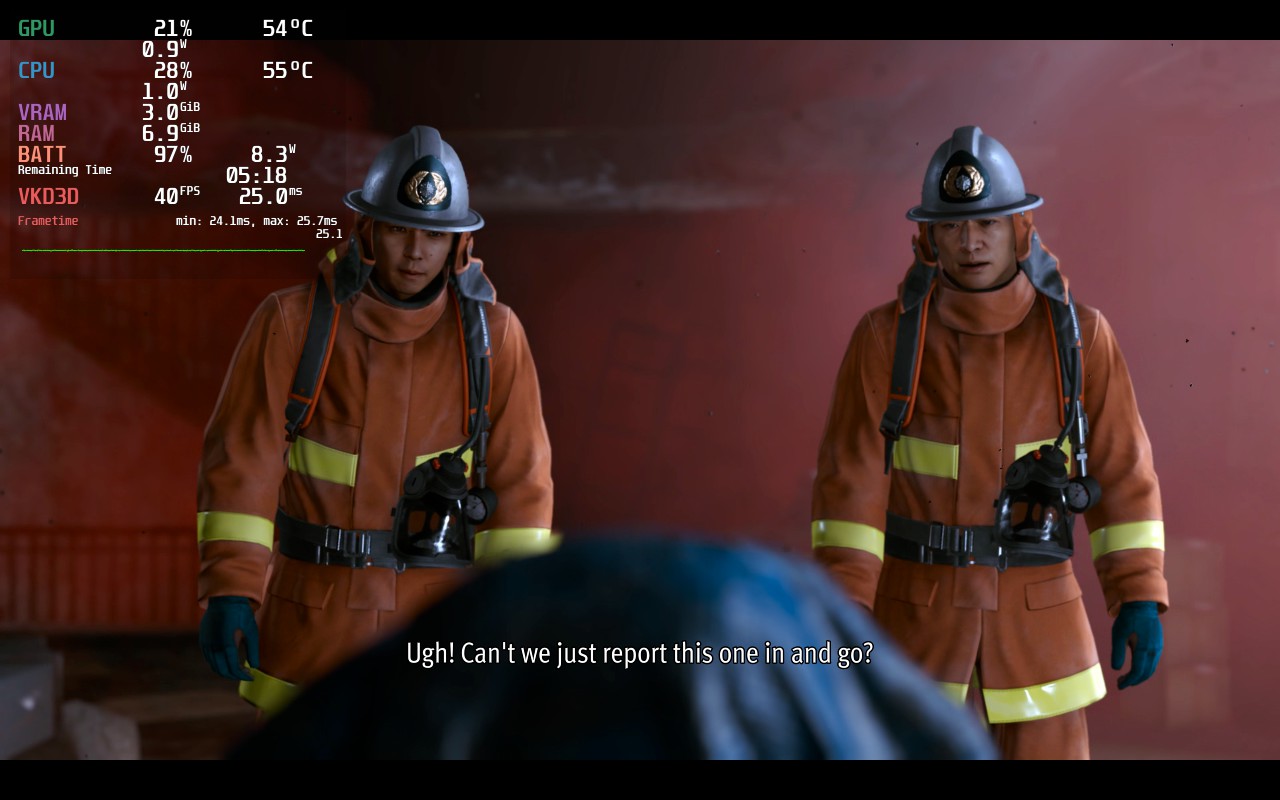
Lost Judgment also utilizes FSR 2.0, which helps it keep stable a lot, but does have a bit more of a blurring effect on the hair and faces of individuals. While I was okay with this blurriness to keep the temps and battery down with stability, it can become a bit of a nuisance.
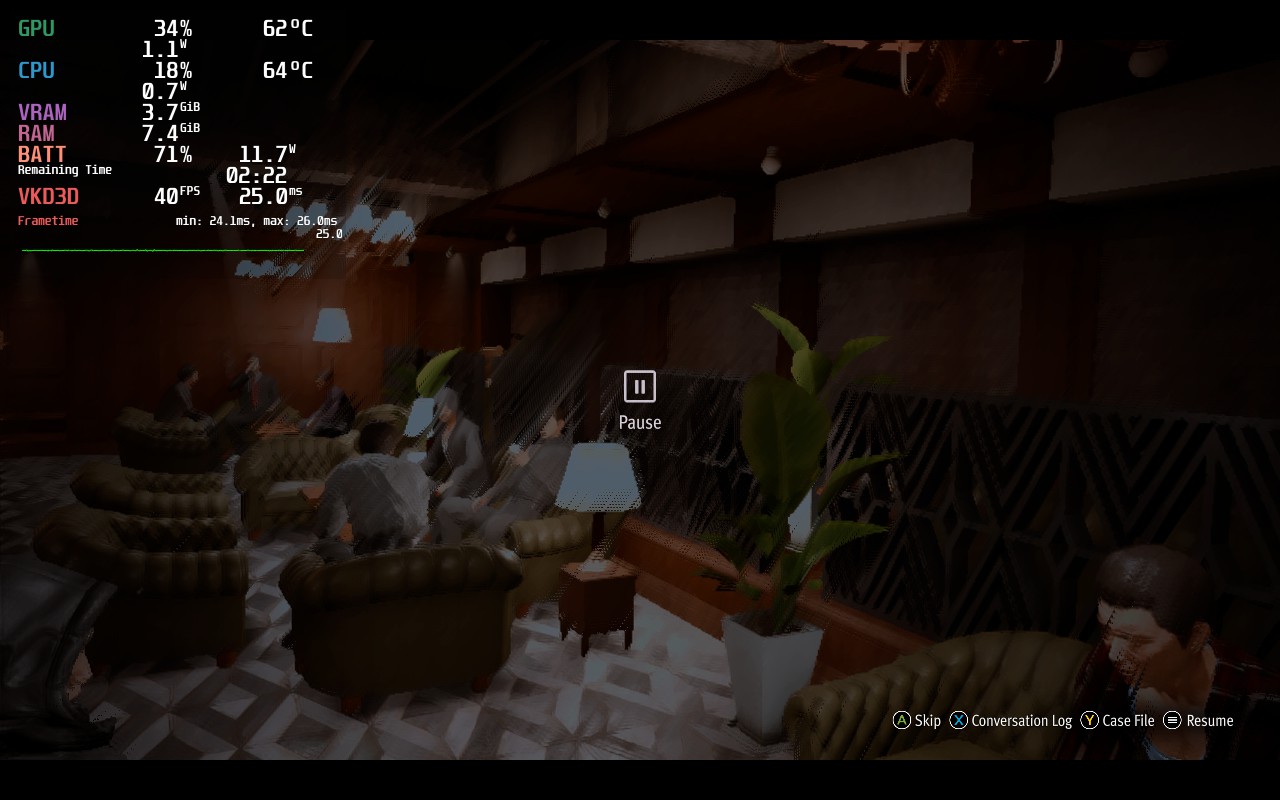
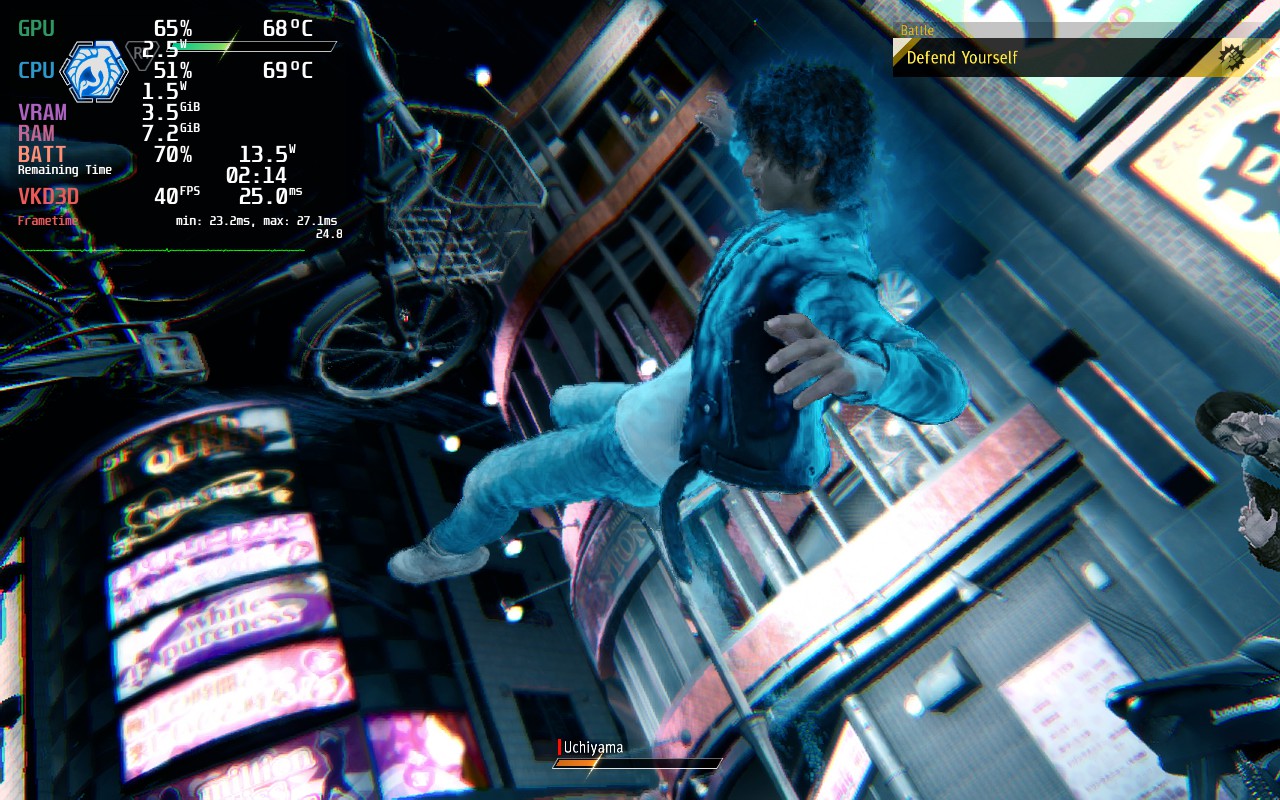
I did also notice that when the game pauses, it creates a smudging effect on any moving models on the screen. This was much more noticeable when paused in a cutscene, but it really only happens there and doesn't detract from the game itself.
I will be looking into how both of these issues can be solved and create an alternate build to solve these issues. It will come with higher battery drain though, which I was happy to try avoiding. I also will be testing the FSR 2.1 files and seeing if I can integrate those into Lost Judgment manually which could solve the issues.
Overall, the game does run and, especially on a smaller screen, is not nearly as noticeable. While I will be making a build that will eliminate this, and try to stay at 40 FPS as much as possible, the gameplay and story itself wasn't as impacted by these for me as much as it may seem.
Our review is based on the PC version of this game.
If you enjoyed this review, be sure to check out the rest of the content on SteamDeckHQ! We have a wide variety game reviews and news that are sure to help your gaming experience. Whether you're looking for news, tips and tutorials, game settings and reviews, or just want to stay up-to-date on the latest trends, we've got your back!
Fight for the truth and uncover the crime running beneath the surface of Tokyo. In this Yakuza series spinoff, you play as Takayuki Yagami, a defense attorney turned detective, who takes on whatever case he can get. As you take on more, you get sucked into working to uncover the truth in a string of horrible murders while clawing your way through the underground crime network.
As a spinoff of the Yakuza series, there are a lot of elements that translate over. The fighting mechanics are similar with 2 different styles of fighting, gaining SP to upgrade and unlock new skills, and the signature story-telling that works so well in the mainline games. Judgment offers a different enough perspective and a fantastic story that makes this spinoff a notable game just on its own!
So far, I am impressed by the performance on the Steam Deck. I expected some more hiccups than I actually ran into, but it worked quite well! I got the game running at a 90% stable 40 FPS, which I felt feels amazing in this game, though there are some compromises. Though, compared to trying to play this game on max quality settings, it is a night and day difference.
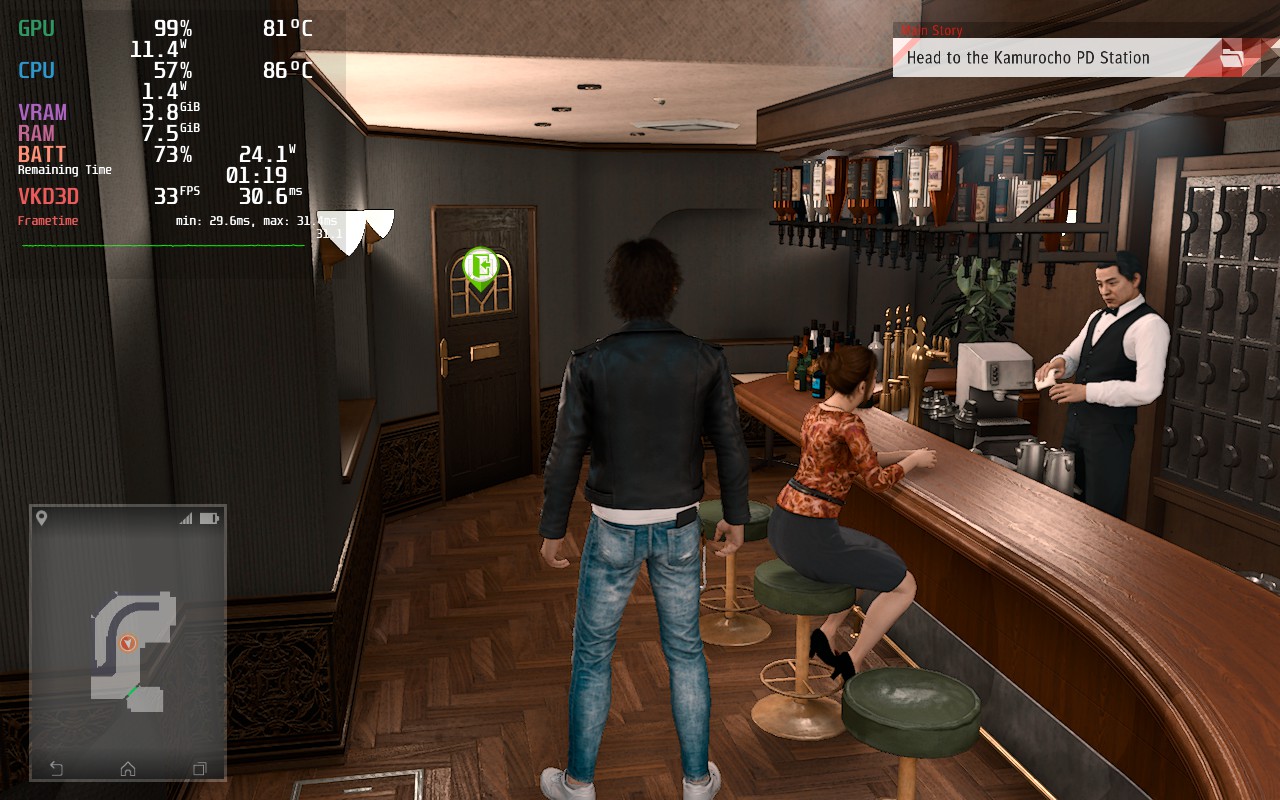
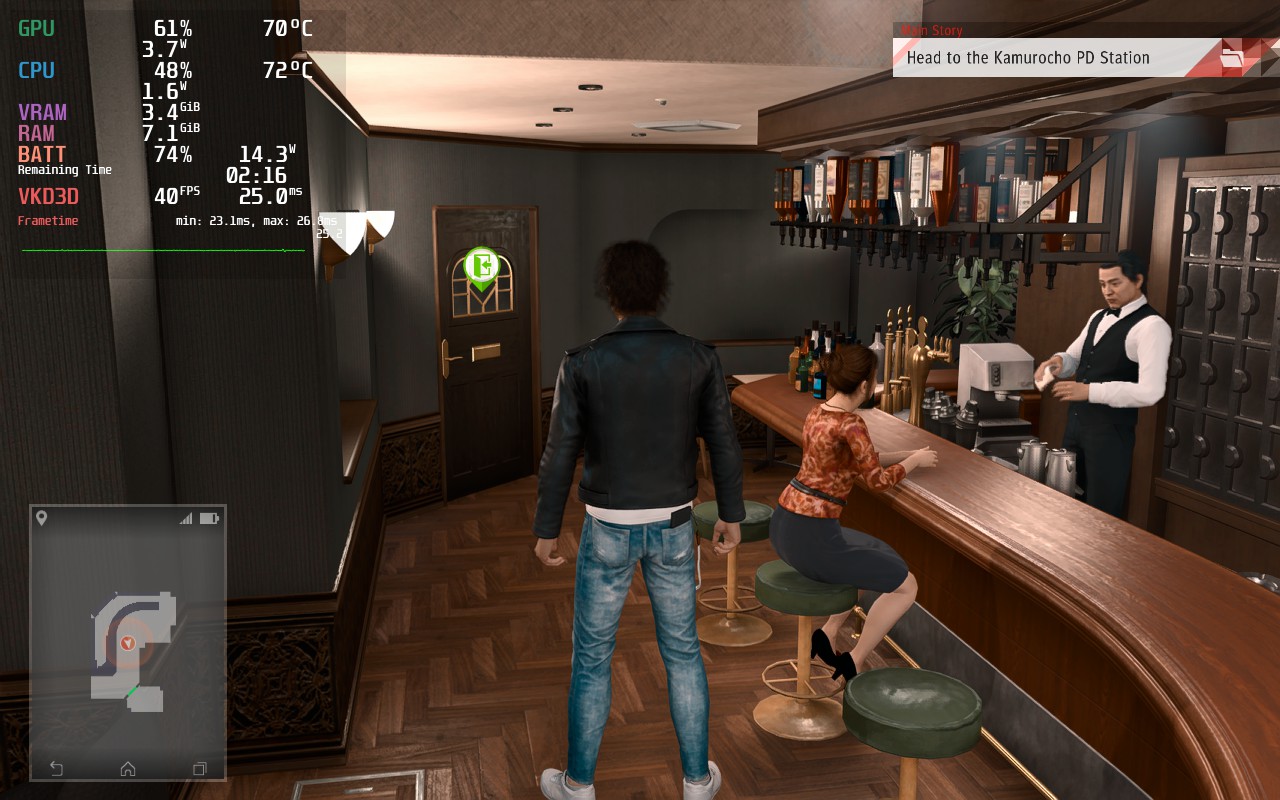
Thanks to FSR 2.0, lowering the game's settings doesn't take as much of a hit visually, even though battery and temps are saved dramatically!
Thankfully, the game does have FSR 2.0 integration, which helps significantly for stability, but there are still some slowdowns when running through the town and a lot is being loaded in. You can drop the framerate down to 30 and those drops won't feel as noticeable, but the smoothness of the game outweighs the less noticeable drops by far. I also did notice the game running slightly better using Proton GE 7-33.
Overall, I would say Judgment is fantastic on the Steam Deck. It runs at a pretty smooth 40 FPS and looks fantastic on the screen with around 3 hours of battery. The game does support Cloud Saves as well, which is always a BIG plus. If you are looking to play on the Deck, this game will definitely run and will be more than serviceable.
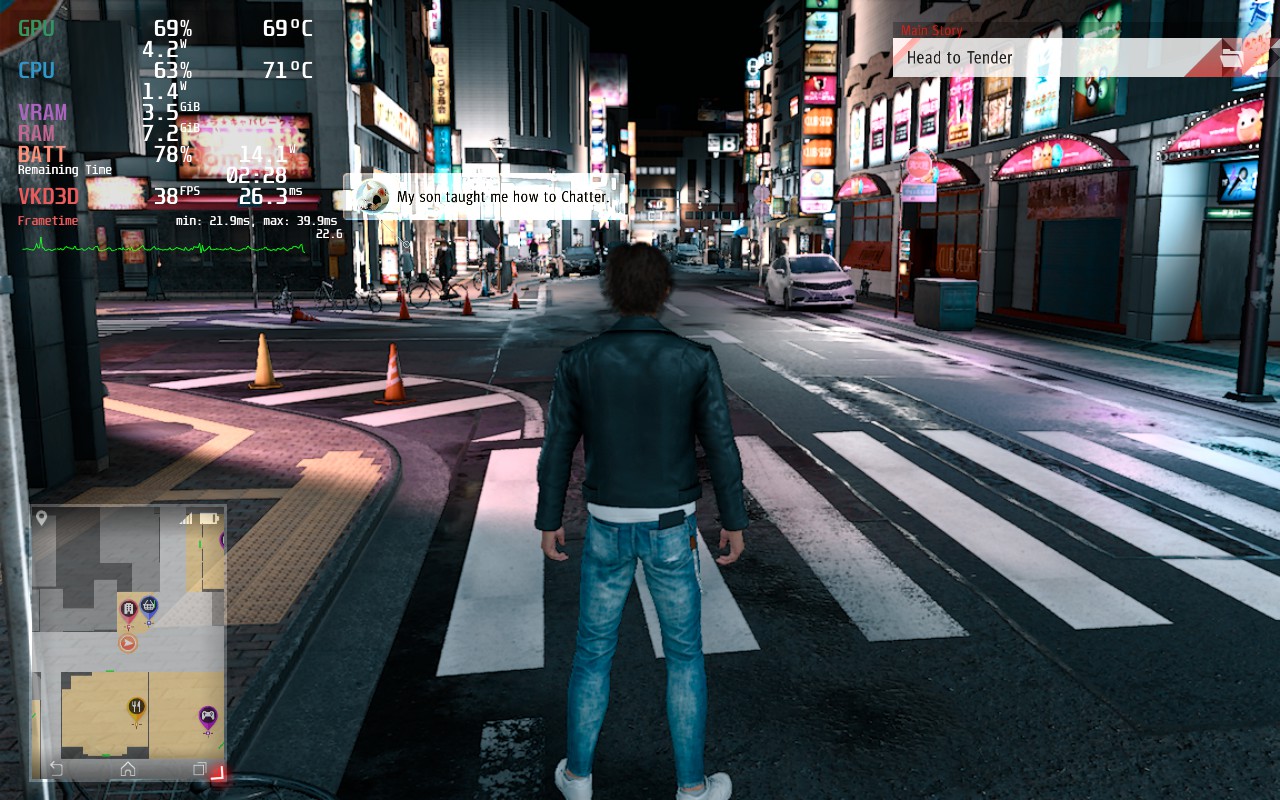
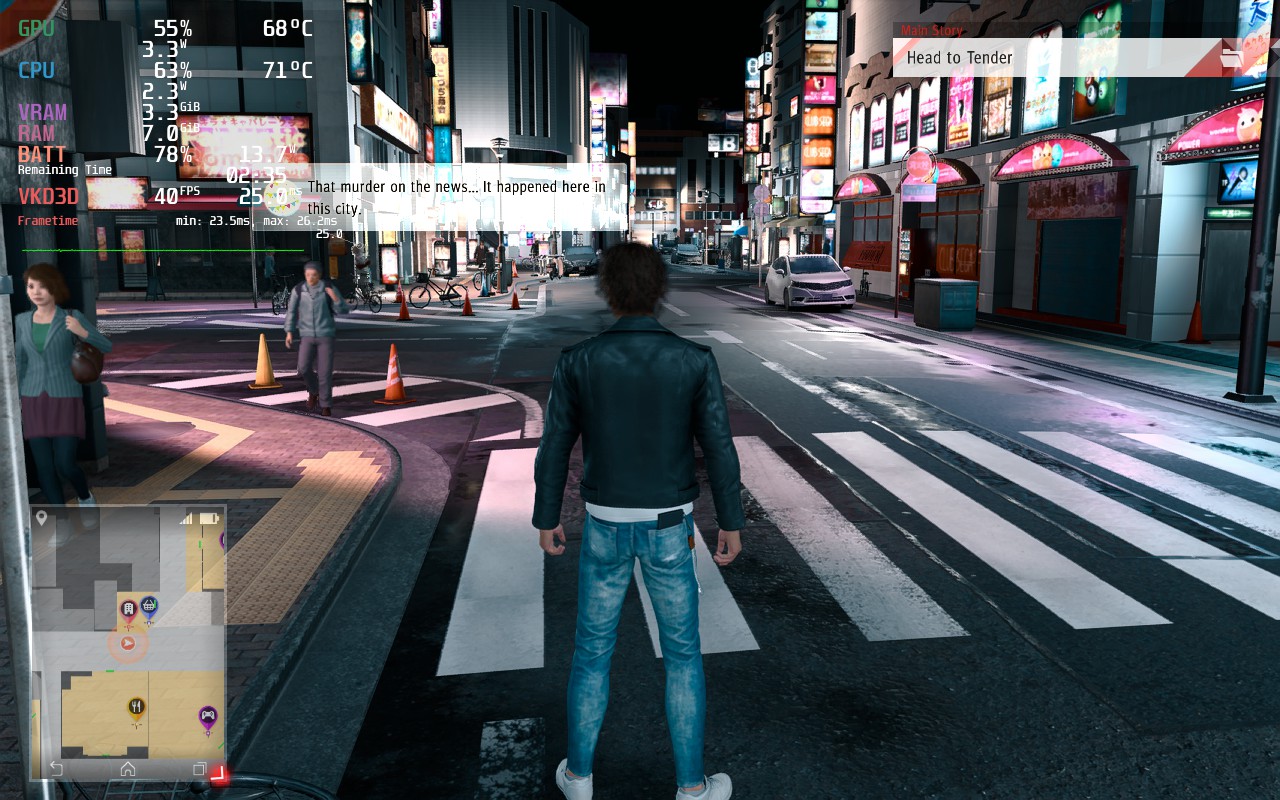
FSR 2.0 disabled and enabled. Honestly, it looks significantly better enabled and runs MUCH more stable.
Our review is based on the PC version of this game.
If you enjoyed this review, be sure to check out the rest of the content on SteamDeckHQ! We have a wide variety game reviews and news that are sure to help your gaming experience. Whether you're looking for news, tips and tutorials, game settings and reviews, or just want to stay up-to-date on the latest trends, we've got your back!
10 years ago, Toxic Games released a physics-based puzzle game which took us by surprise. Q.U.B.E. has a simple concept, solve puzzles by moving, you guessed it, cubes. You had different colored cubes that all interacted differently. Red cubes could move outwards incrementally, yellow created stepping stones, blue became a bounce pad, and so on. There was originally no story to it, but one was developed 2 years later with the Director's Cut.
Now, 10 years and 1 sequel later, the original game has been remade Q.U.B.E. 10th Anniversary includes both the original and director's cut, a new chapter with new puzzles, and developer commentary. The game looks more beautiful than ever, giving off a dystopian alternate reality Portal vibe. Now, with all these upgrades, one has to ask, how does it run on the Steam Deck? Well let me tell you...
Q.U.B.E. is a little bit odd when it comes to running at max settings. It can actually run very well in 60% of the game, but that other 40% drains the battery. The biggest parts we saw the most dips was in-between puzzle sections, where the battery drain would hit a high of 22W and 80c temps, or in certain puzzle chambers when looking at specific angles. The game can be playable like this, but it isn't as consistent as I would like. I know we can do better!
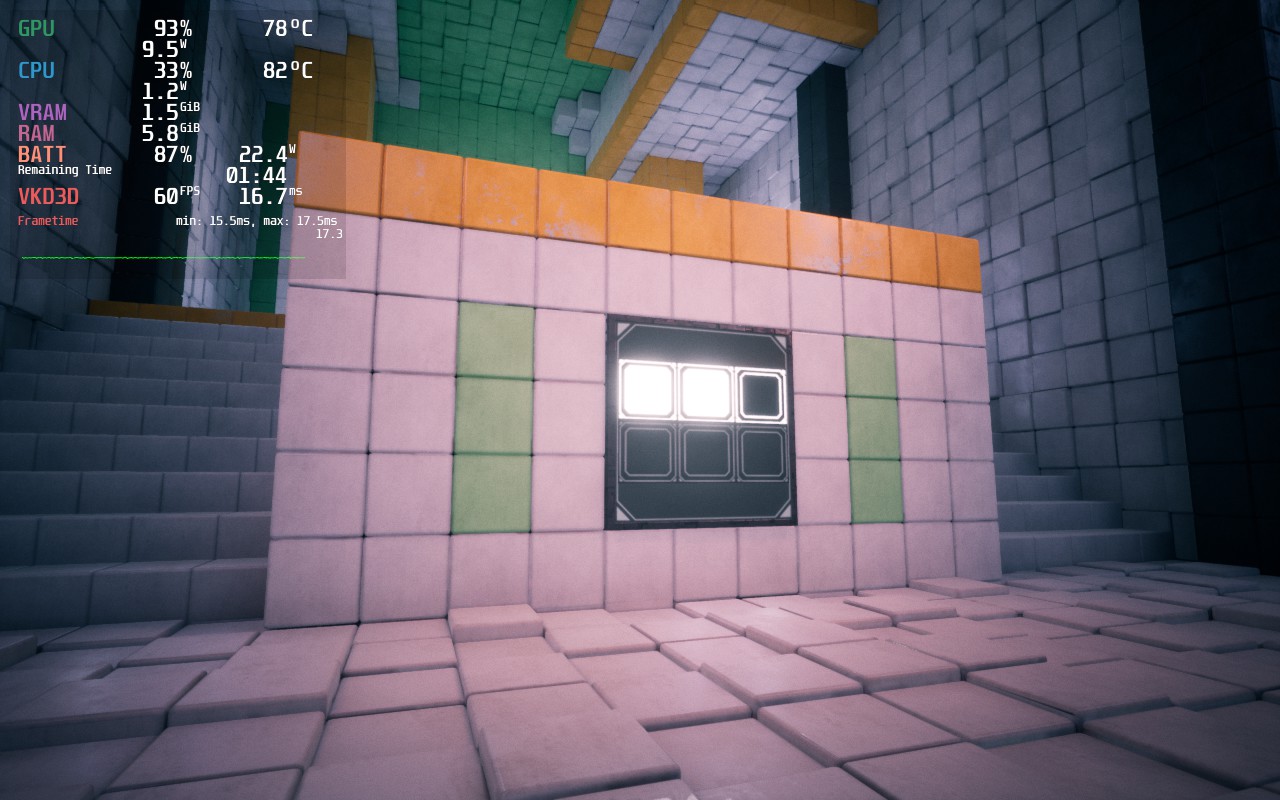
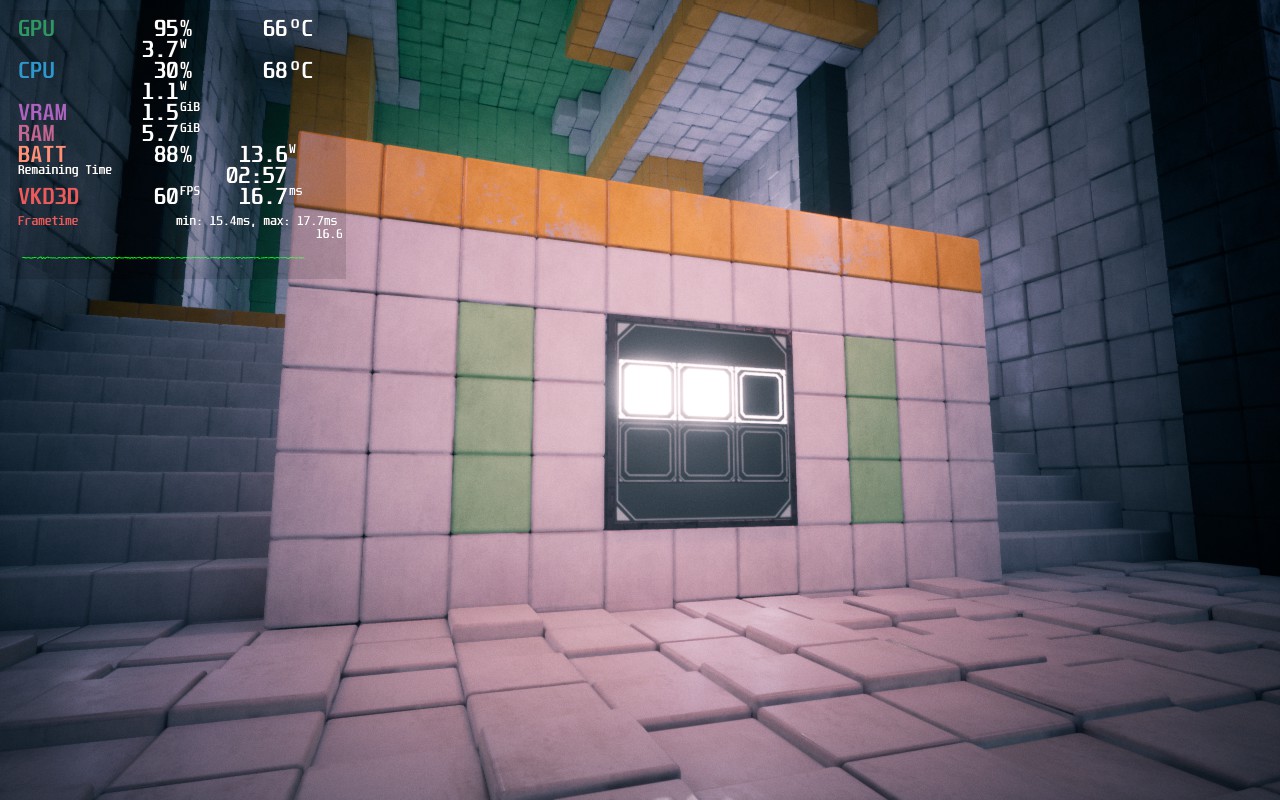
This is a spot in-between puzzle sections. As you can see, battery drain and temps are WAY higher than they need to be, especially compared to our recommended build and with almost no change to visuals.
Luckily, once some of the settings are changed, this game is very playable on Deck. Due to the way the game looks, I have a mix of medium and high settings to keep a stable 60 FPS the entire time, while dropping the resolution to 1152x720 with FSR Sharpness 0, I was able to get a consistent 60 FPS with a 14W drain for 3.5 hours of battery. This regularly dipped to 12.5W though, so hitting 4 hours is very achievable too.
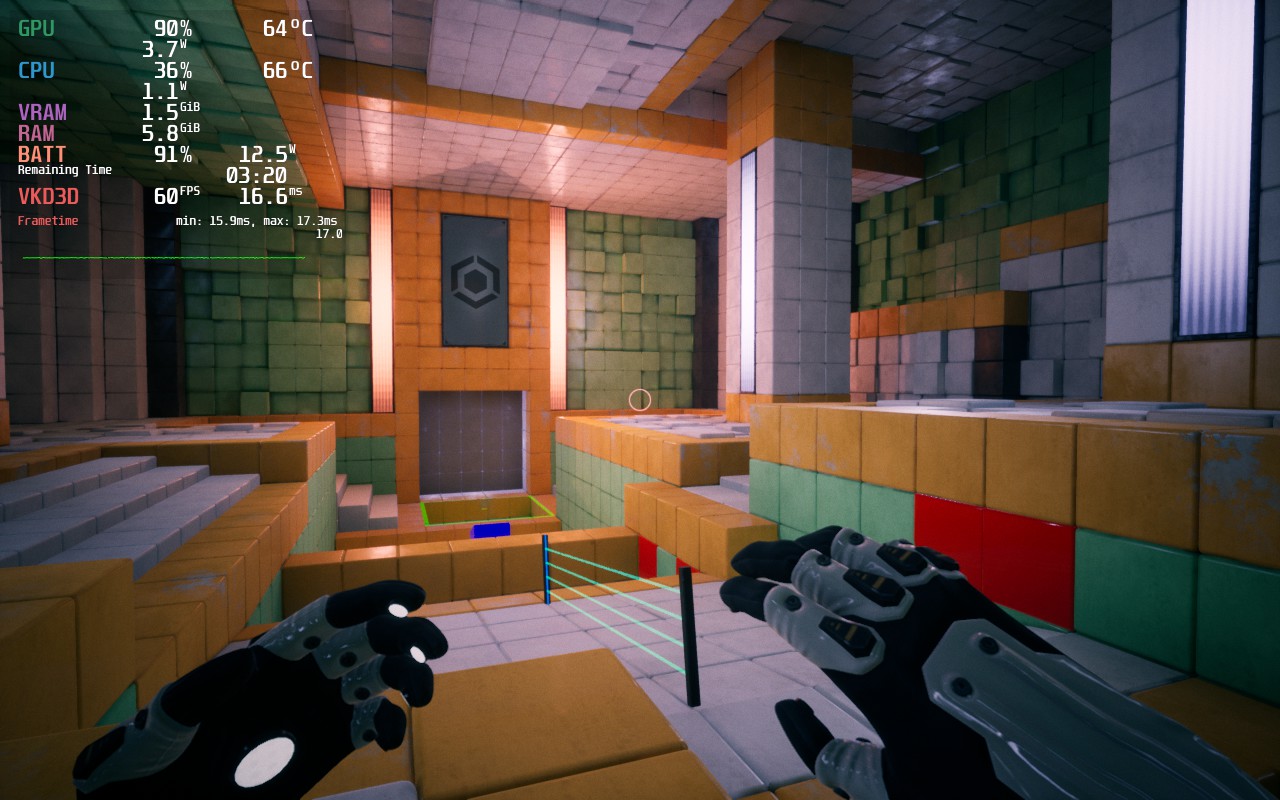
I love the game at these settings and I believe it is not only perfect for battery life, but to keep a consistent 60 FPS. And with temps under 70c, the Deck stays cool the entire time. But, for those who want pure quality, we were able to get it working at near-max settings to keep you satiated!
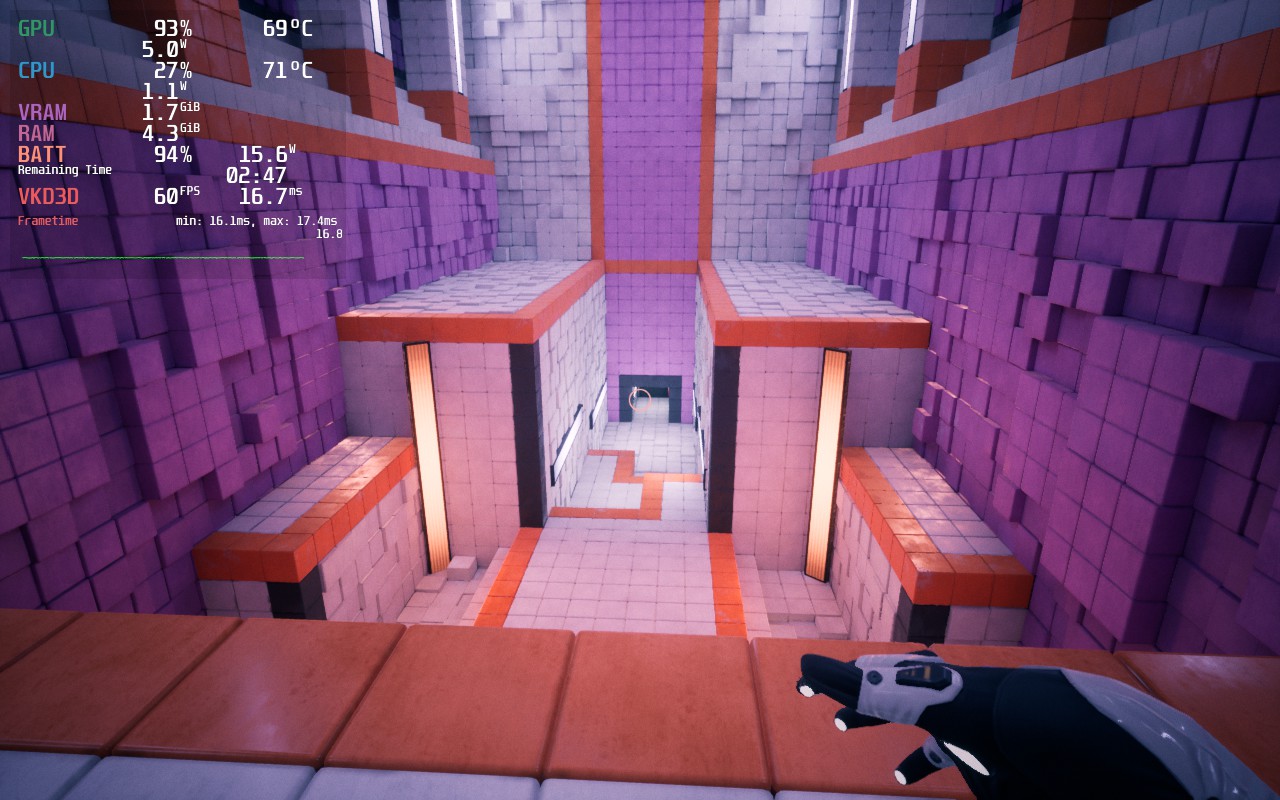
Luckily, there are pockets in the game where battery drain and temps go down. These aren't often, but they exist!
While I didn't encounter any bugs, I did find changing the in-game settings to be a slight nuisance. The settings don't auto-apply when you are done setting them, so you have to scroll down and hit apply for them to take effect. There were multiple times I forgot to hit apply as it wasn't super convenient. But otherwise, I had no negative experiences with any bugs.
It was really nice to go back down memory lane. I remember buying this game when it originally released and loving it, especially since I was obsessed with Portal 2's aesthetic at the time. Q.U.B.E. 10th Anniversary looks beautiful and runs like a charm on the Steam Deck, fitting right at home where it should be!
Our review is based on the PC version of this game.
If you enjoyed this review, be sure to check out the rest of the content on SteamDeckHQ! We have a wide variety game reviews and news that are sure to help your gaming experience. Whether you're looking for news, tips and tutorials, game settings and reviews, or just want to stay up-to-date on the latest trends, we've got your back!
Saints Row the Third: Remastered is a...well remaster of the original SR3 game. Think of this game like the crazy version of GTA. You run around in an open-world, kill whoever you want to, steal vehicles, and much more. You also have insane weapons like a dildo and...well I don't want to spoil TOO much, but it is a great game, my personal favorite in the series.
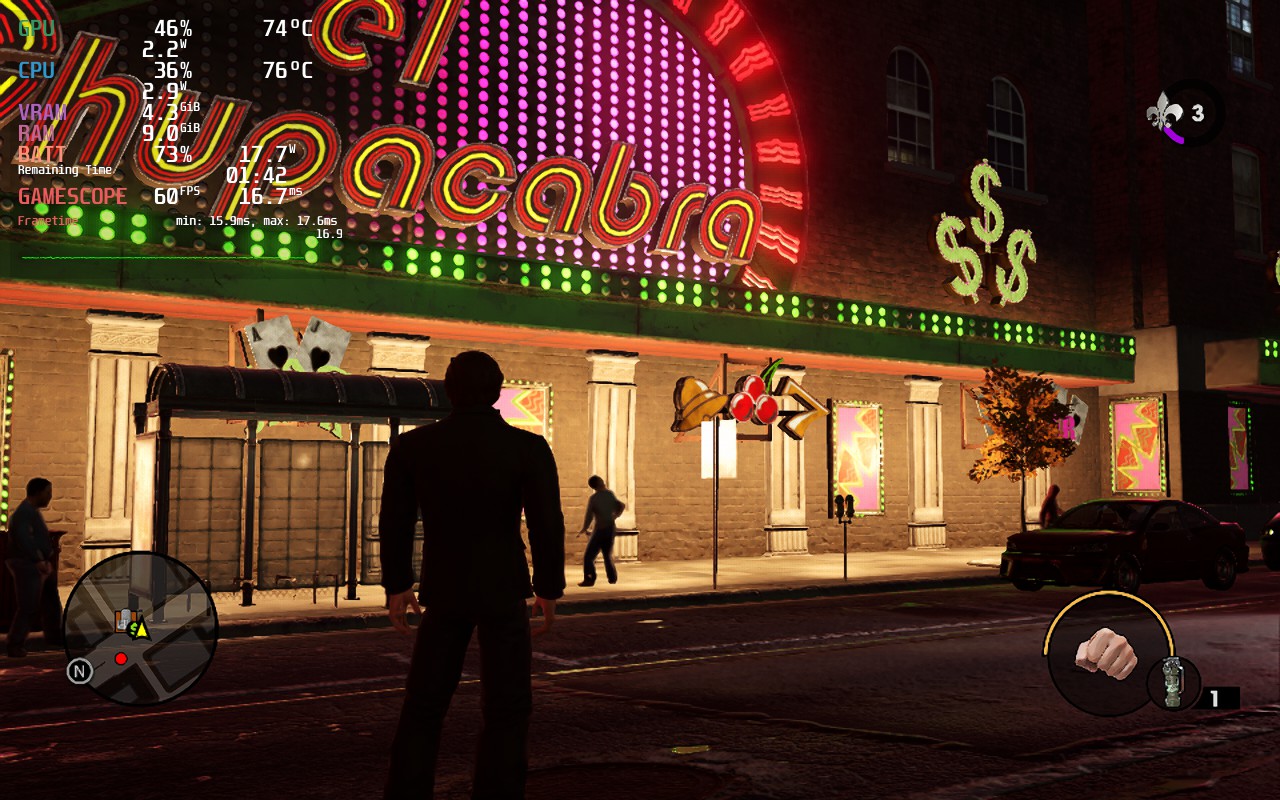
The game does seem to cap itself out at odd times when it comes to the settings. I found a nice couple builds that work well too, perfect for any scenario. The recommended build focuses on a mix of all of them with a slightly higher priority on battery life with primarily medium settings and a 50 FPS cap. The build keeps the game looking nice and sharp with silky smooth gameplay.
The other builds tend to have a couple odd issues, but work fine generally. There are some points where these builds will actually have better temps and battery drain than what I am reporting. I haven't figured out exactly why yet, but it doesn't last that long and everything will spike back up.
Overall, the game runs and looks wonderful on the Steam Deck. It's a great alternative...considering we can't play the new one on SteamOS (there's a possible workaround editing the EXE, but have not tried it yet).
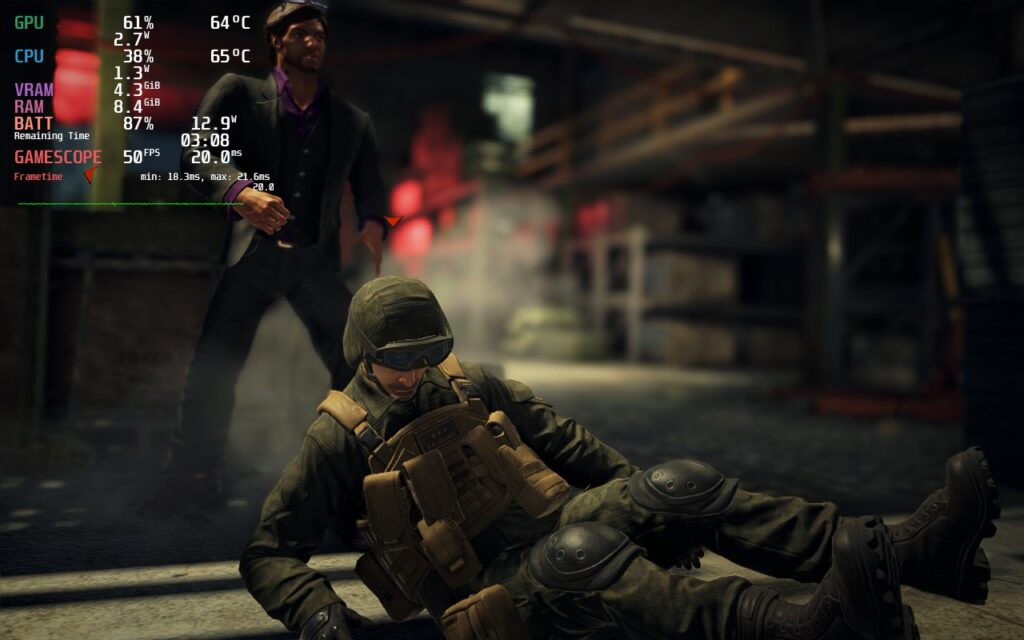
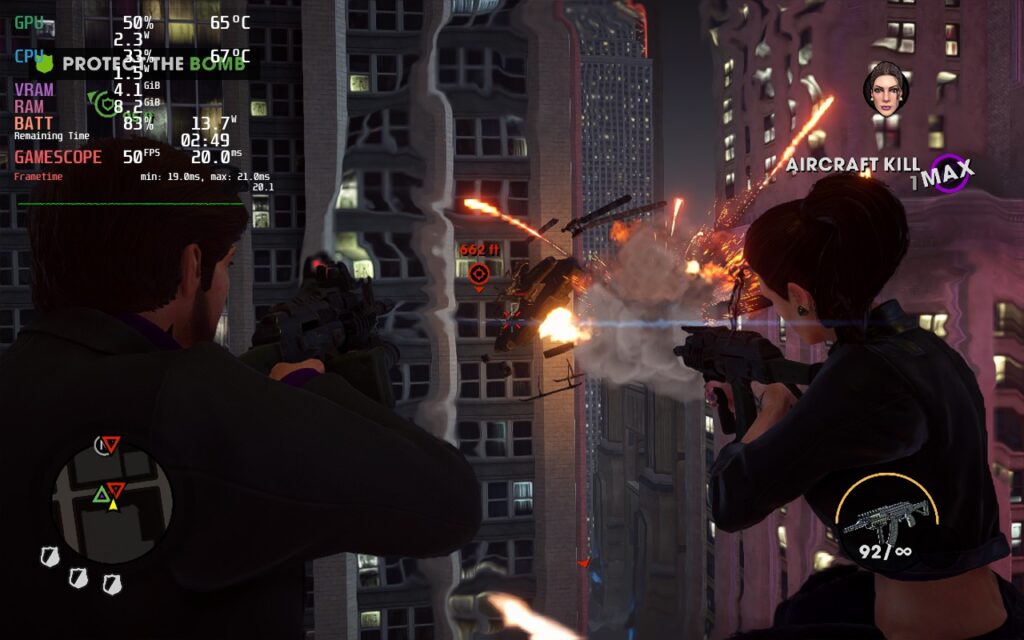
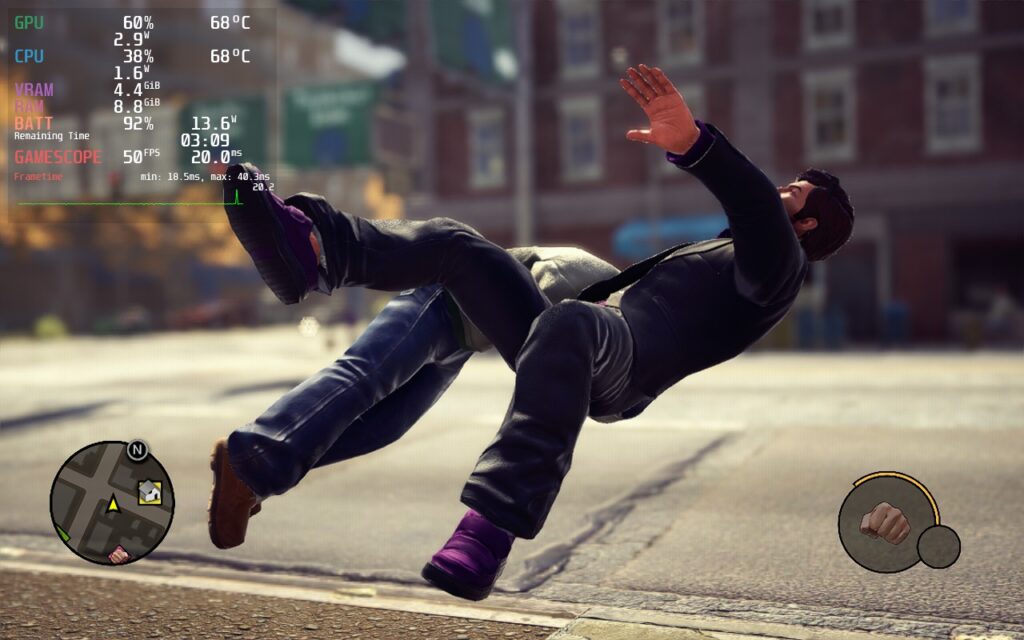
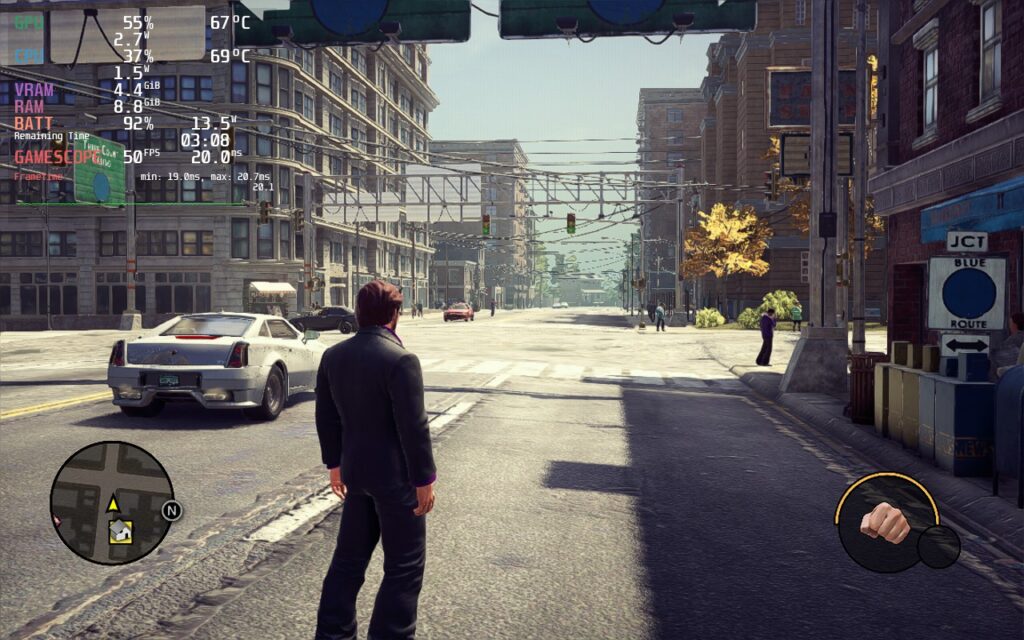
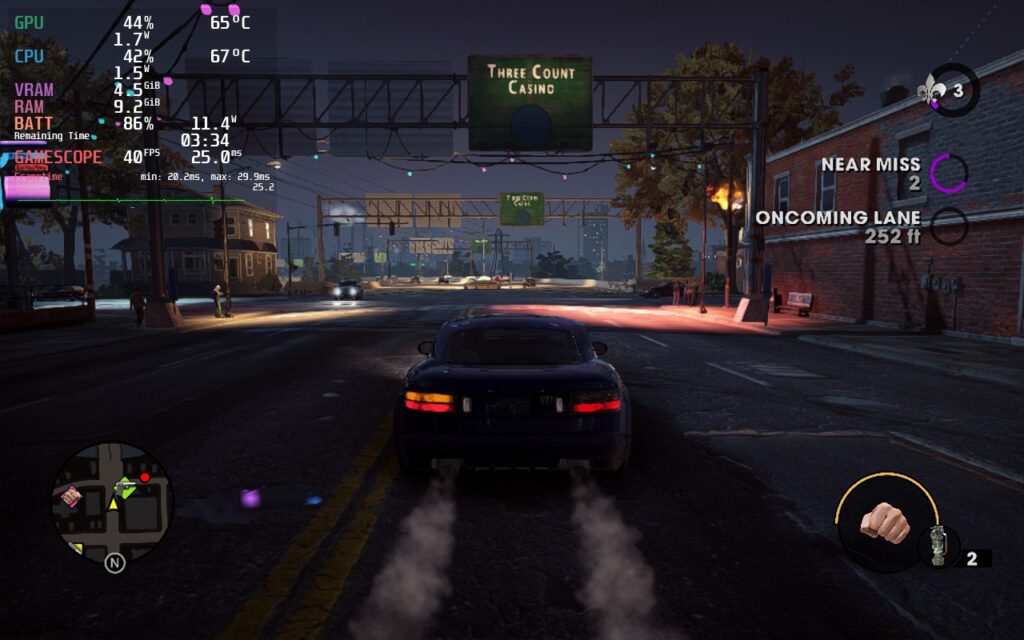
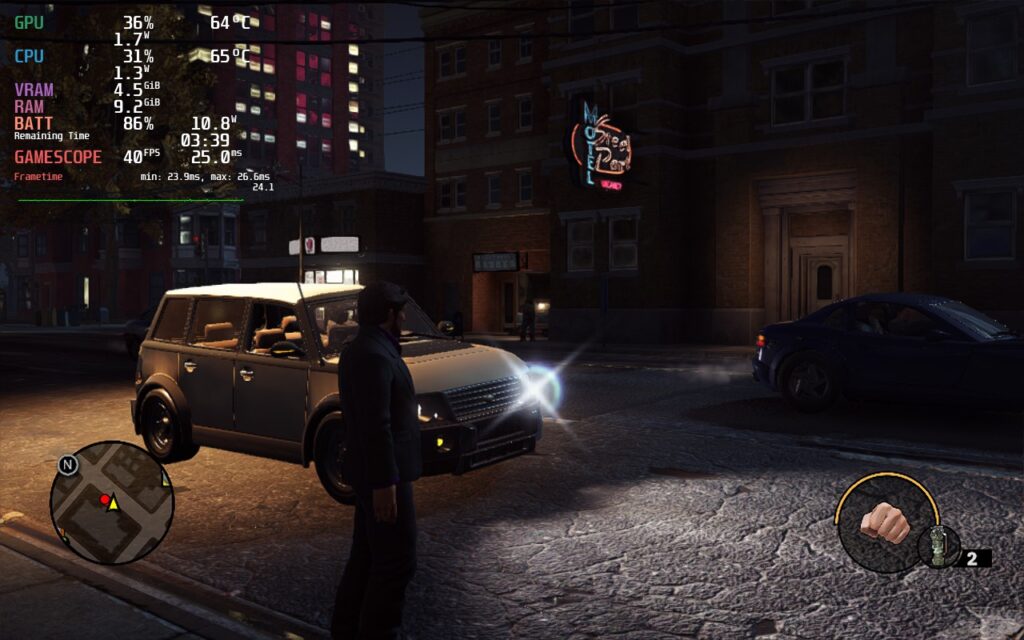
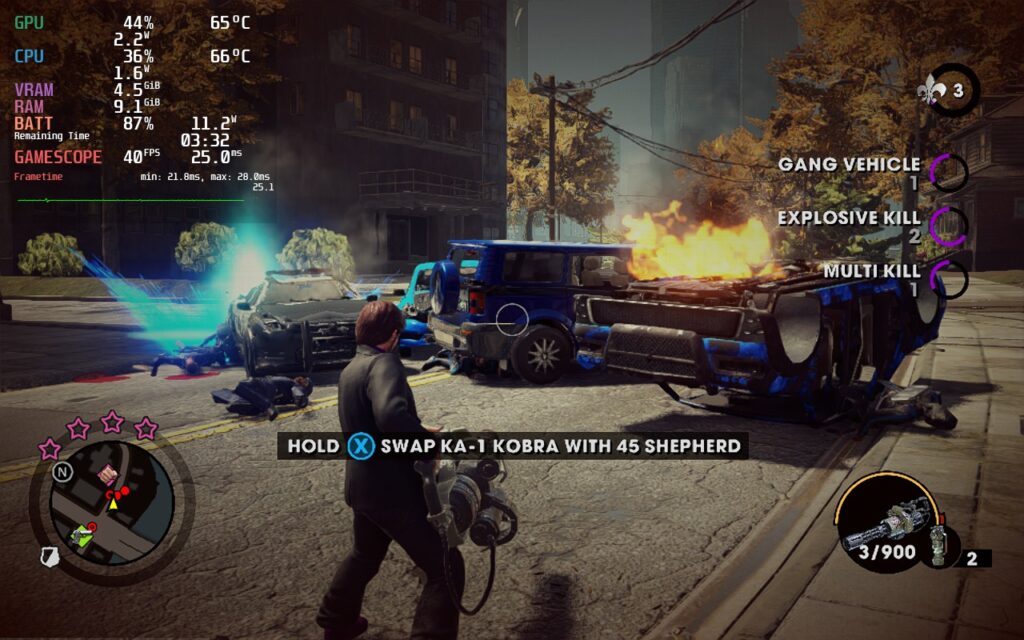
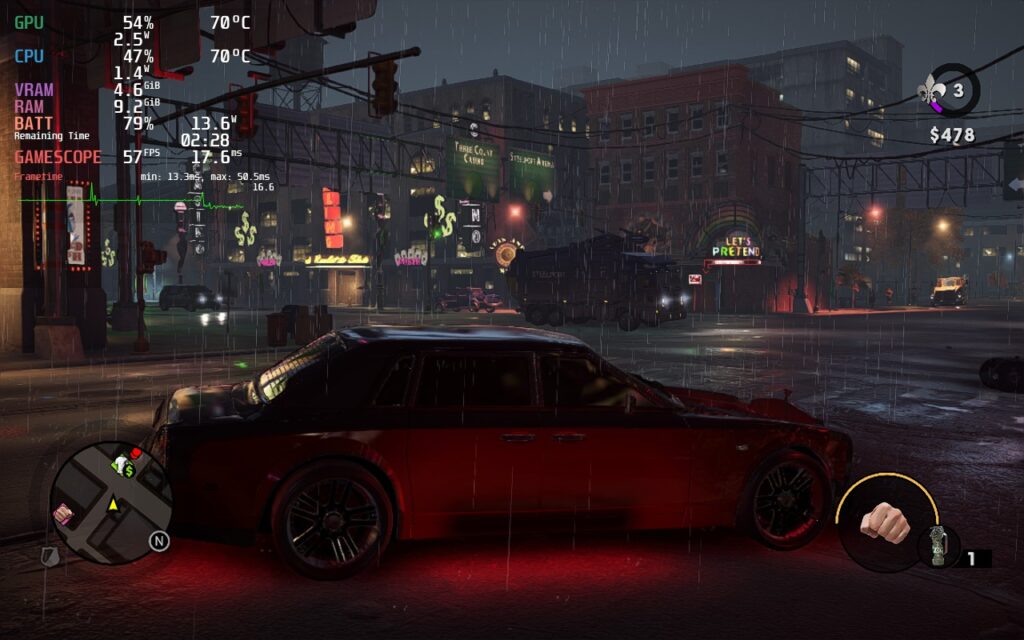
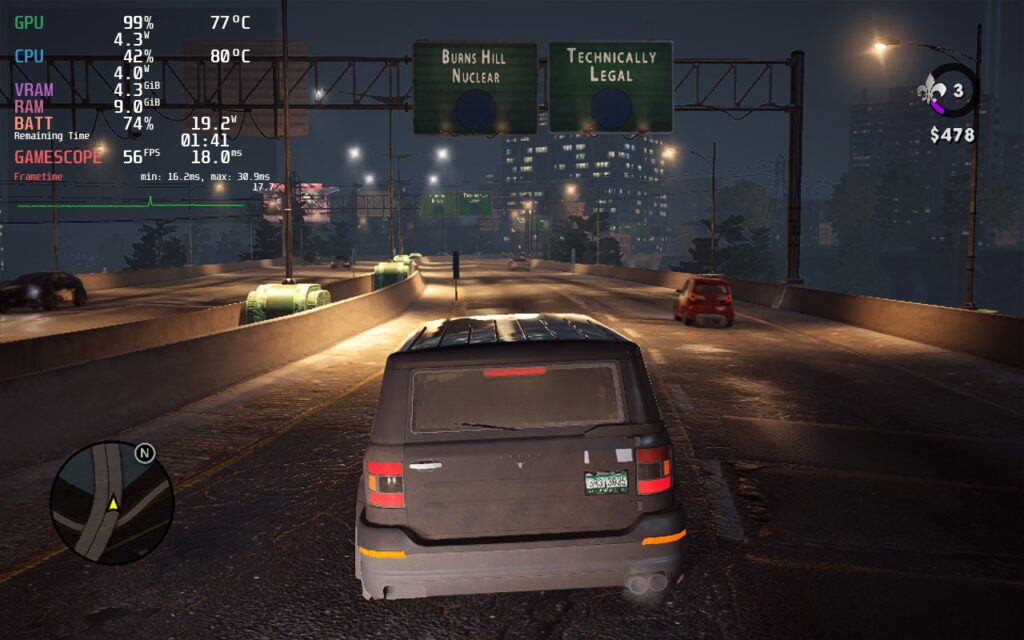

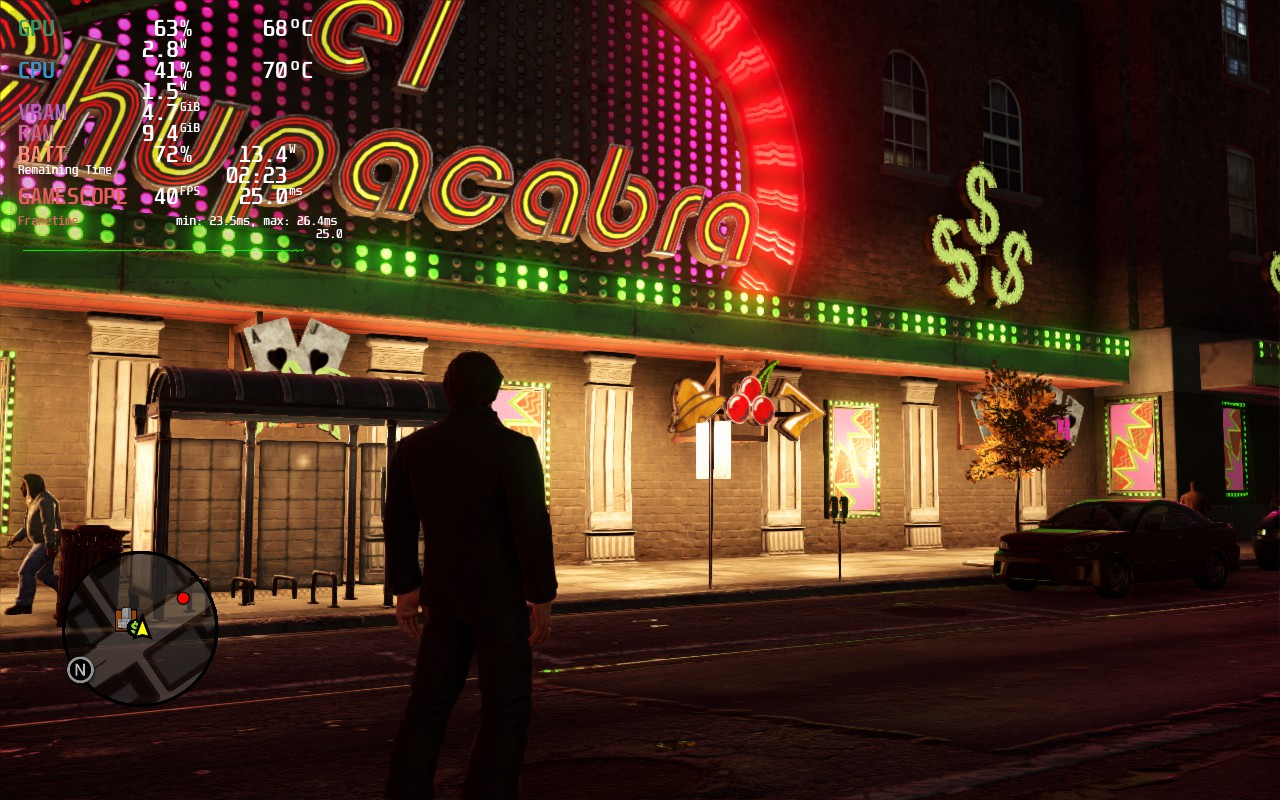
Note: This was one of the times the Quality build had lower temps, these shot up as soon as I moved away from this spot.
Our review is based on the PC version of this game.
If you enjoyed this review, be sure to check out the rest of the content on SteamDeckHQ! We have a wide variety game reviews and news that are sure to help your gaming experience. Whether you're looking for news, tips and tutorials, game settings and reviews, or just want to stay up-to-date on the latest trends, we've got your back!
Game was provided for free by THQ Nordic for review. Thank you!
In 2005, the world was introduced to Destroy All Humans. As an alien nicknamed Crypto, you arrive on Earth in the 1960s where you must harvest the brain stems of humans to continue cloning your species. With an assortment of crazy weapons, including an anal probe and PsychoKinesis (telekinesis), you would kill and fling humans, animals, and objects around, wreaking havoc and getting those sweet sweet stems. In 2020, the original game was remade, turned open-world, and expanded in almost every way conceivable, and 2 years later, the second game in the franchise has been remade.
Destroy All Humans 2 Reprobed is a massive expansion over the second game too. Set 10 years after the original game, Crypto is back and bigger than ever. With new weapons, new locations, a coop mode, and body-snatch humans, the crazy is cranked up to 11! The game looks gorgeous and, while it doesn't innovate from the original game much, the possibility of coop rampages is enticing. So while I know we would all love to probe humans on-the-go, we first have to find out how well we can do it. So, let's dive right in to performance on the Steam Deck.
At max settings, the game does look gorgeous and sharp, but your battery life will not thank you. The game will easily push the limit to a 25W drain for only around an hour of batter life with temps that will climb up to the 80c area. While this isn't terrible itself, framerate will not be stable and regularly dip under 30 FPS.
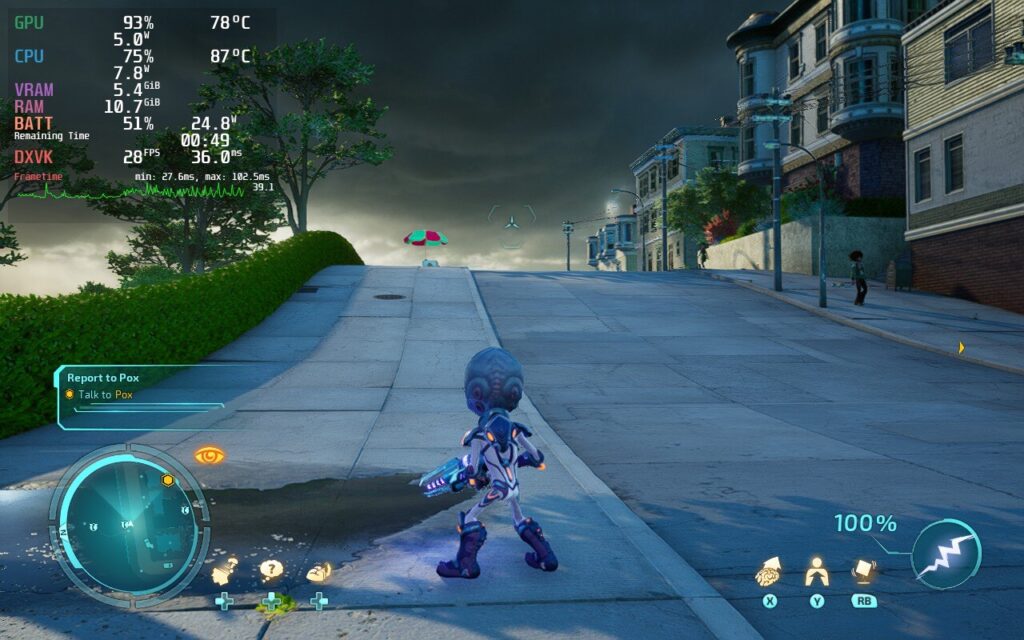
While Destroy All Humans 2 can look great, those temps and battery drain do not!
Destroy All Humans 2 has a solid amount of settings to play with, but these definitely needed some tweaking. There were a couple issues I noticed initially, with the first being ghosting. While I was playing with the settings, I noticed that there was a ghosting trail around me where I walked. Usually, this is a bi-product of FSR, but I didn't have it enabled yet for my testing. It turns out that the Anti-Aliasing setting was causing it though. Setting it to low or medium made the game way too sharp looking (especially the grass), whereas setting it to High caused the ghosting effect. The only way to get the best of both worlds was setting it to Ultra. Generally, I try to lower AA due to how taxing it can be on the system, but I had no choice in this case.
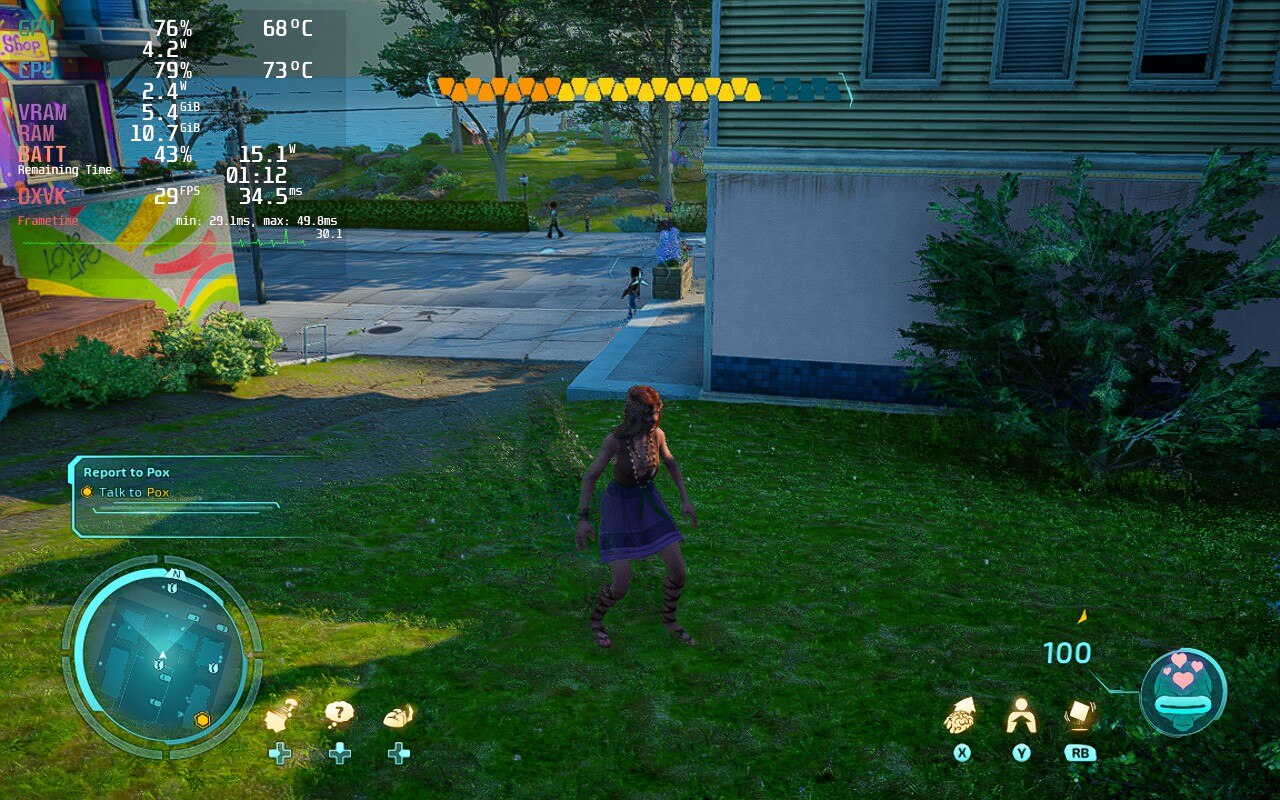
In the first image, you can see right behind the character are "reflections" of her. This ghosting is prevalent on Anti-Aliasing high setting. Anything below that setting gets rid of ghosting, but becomes way too sharp. If you look at the grass, it appears to be glowing on then tips a little, but this is actually over-sharpness at play.
The second issue I came across was shadows. Shadows can be really heavy on the system and turning them down can dramatically help the internals run the game better, but in this case, the settings dramatically changed shadows way more than I expected. Low got rid of almost all of them, medium turned them all into blobs, but high gave them just enough detail to look significantly better. It helped the overall atmosphere, so I kept the shadows at High as I felt they were a happy medium for what I was looking for.
While shadows can be taxing, the difference between the 2 is astounding. High heavily increases the overall quality of the game.
Once finished with my settings, I wanted to try turning FSR 2.0 on, though this gave me another weird effect. It is hard to take a screenshot of, but the ghosting was back...but it was transparent. This caused a weird bubbling that wasn't super noticeable, but I felt it was enough to mention. Keeping FSR 2.0 off eliminated that though, so I opted for not using it.
With the recommended settings, Destroy All Humans 2 looks gorgeous and runs smoothly at 30 FPS. I felt this was a great compromise between stability, battery, and graphics. It can push up to a mix of high/ultra settings with sacrifices to battery life, but I felt they were miniscule compared to what you are saving here. I will mention, however, if battery life is no issue to you at all, we will provide a build that will prioritize stability at 30 FPS at the highest quality settings possible.
The differences feel minimal visually, but the recommended gives a night-and-day difference to battery life and temps.
I wanted to put together a 40 FPS build as well, but holding a stable framerate was near impossible. The game is made with Unreal Engine 4, which does have some issues when loading in new assets and does provide some drops in framerate. This is prevalent even in our recommended build, but you can feel it much much more in 40 as it will drop all the way down to 32. Thankfully, the drops don't last long and quickly recover. This also comes with a reduction in quality and much more battery drain to even come close to holding it at 40. This is why I can't recommend it, but I feel we may have found a sweet spot that works 95% of the time, albeit with a much higher drain.
I did touch on a few of the weird settings earlier, like shadow and anti-aliasing quality, but I need to mention the Unreal Engine 4 aspect again. This game will have slowdowns as you are moving into a new area, no matter what settings. I have turned the settings all the way down and even still when walking into new areas, there will be some drop. The odd ghosting effects from anti-aliasing and FSR 2.0 are a bit jarring as well, it was either normal ghosting or transparent bubble ghosting with those 2.
Destroy All Humans 2 itself played really well and I didn't encounter any bugs in my playthrough of it. It was just the odd settings that I had to choose. The game also runs offline without any issues thankfully!
While I am critical of the settings, I had a lot of fun playing the game. It brought back the fond memories I had of playing the original games on the Xbox 15 years ago. I am so glad Destroy All Humans 2 Reprobed was able to run as well as it did on the Deck. There will be some unavoidable drops due to UE4, but it does recover fast. Overall though, even with the sacrifices being made, the game was a lot of fun to play on the Deck.
Our review is based on the PC version of this game.
If you enjoyed this review, be sure to check out the rest of the content on SteamDeckHQ! We have a wide variety game reviews and news that are sure to help your gaming experience. Whether you're looking for news, tips and tutorials, game settings and reviews, or just want to stay up-to-date on the latest trends, we've got your back!
God of War (2018) is the first game in the rebooted-ish God of War series. You play as angry man Kratos who, with his son Atreus, must honor his partner’s dying wish. Along the way, you will travel across the land, encountering the gods of the norse mythology, all while training his son to be an angry boy. This game detracts from its predecessors heavily, focusing on telling a compelling story in a third person view over a beat-em-up style game. The game is phenomenal all around and is easily one of the greatest games to have ever been made. Saying this was a worthwhile experience is an understatement, so I was praying this would run well on the Steam Deck.
Knowing how this would turn out, I started my benchmarking with everything set to max. Lo and behold, it was horrible. Everything set to max with native resolution and no caps resulted in a 20 FPS average with a 24W+ battery drain and temps that were rising up to the high 80s. And this was in one of the less heavy areas of the game. I had no intention of using max settings though and here is where the review gets a bit tricky.
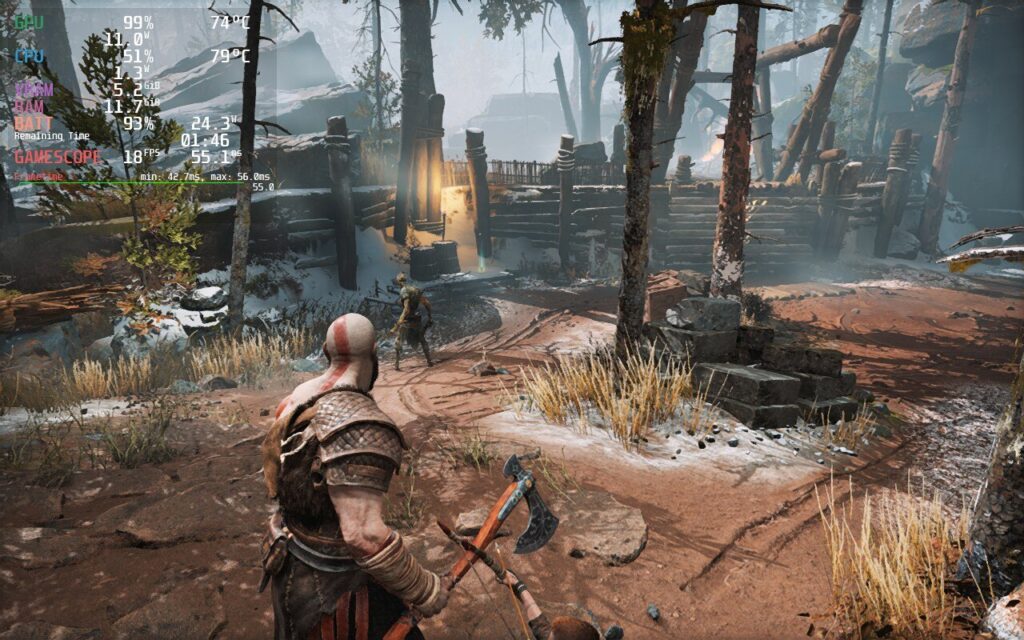
While God of War looks beautiful, battery drain and temps are high, as well as the framerate hanging around 20 FPS or lower.
God of War is a super intensive game and I feel there are two ways to play this: 30 FPS with a battery/quality focus and 40 FPS with a performance focus. In my testing, having a specific quality-focus build results in battery drain that hits a bit too hard, though it is possible to play.
Seeing as how draining God of War is, I wanted to see how far I could get the drain and temps down while keeping a stable 30. Thankfully, God of War does have FSR 2.0 integration, so I didn’t have to turn the resolution down as much to save battery. I set the TDP to 9 and started reducing some quality settings to make sure the stable framerate was hit. I ended up with a nice mix of original and high settings, with 3 of them being low. With those settings and a 1152x720 resolution with FSR 2.0 set to quality, we get a fairly nice picture with a mostly stable 30 FPS. There are some framerate spikes, but I don’t feel they are noticeable in general play without the graph there. I have seen some minor slowdowns too, but these tend to happen in cutscenes or entering new areas, which don’t impact gameplay as much. Turning up TDP could mitigate some of these, but will also drain everything much faster. Even when all the settings are set to low, I still experienced some form of spike, so while these settings may cause a little more, they still don’t feel noticeable and give more to the game while saving a significant amount of battery drain.
When it comes to 40 FPS, it is possible to achieve it while still looking quite good, though at a cost to stability. I would say overall, the game is 80% stable at 40 with these settings, though there are still mini spikes which are much more noticeable due to the increased framerate. On top of that, battery drains significantly more and temps get up to 80c, which in itself is still not that bad. It is also slightly blurrier as the resolution is changed down to 960x600, and FSR 2.0 set to balanced, but the smooth framerate does make up for this. It is still decent looking, though personally, the upgrades to quality and less noticeable spikes win out for me.
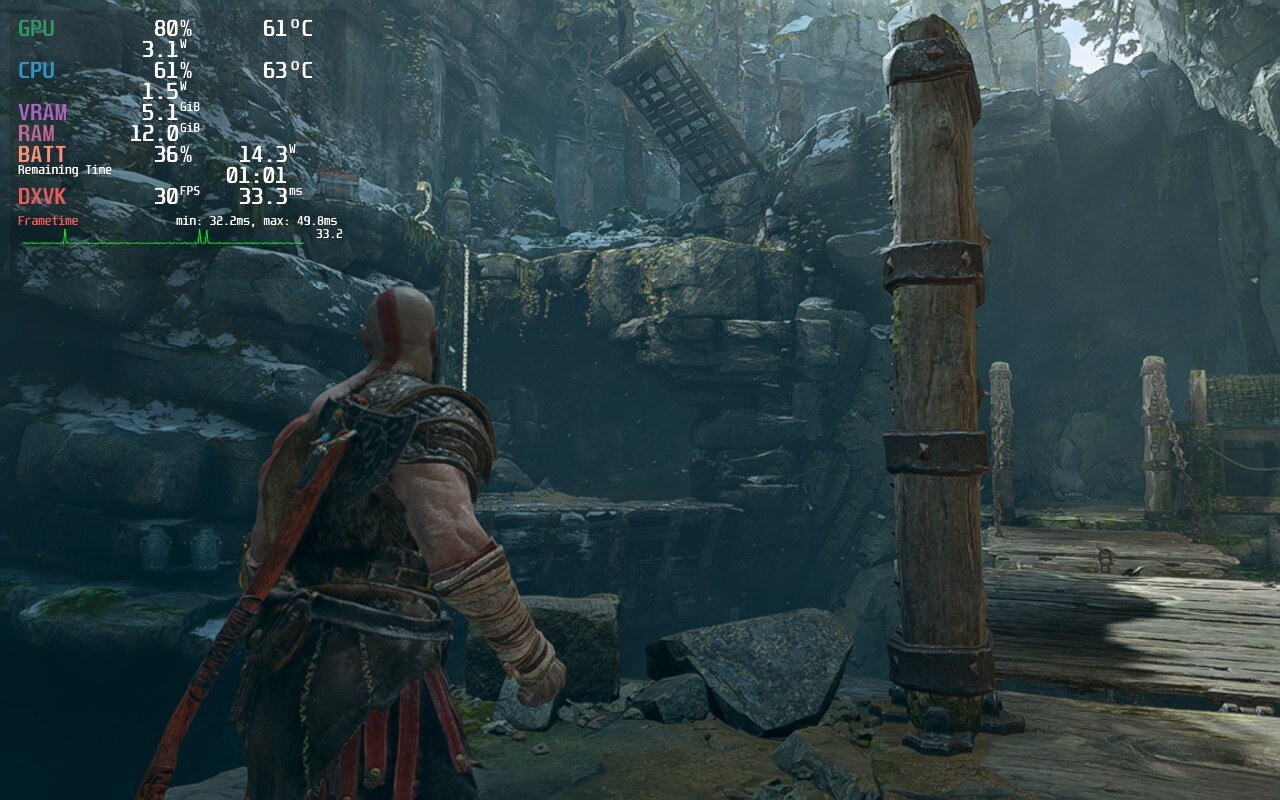
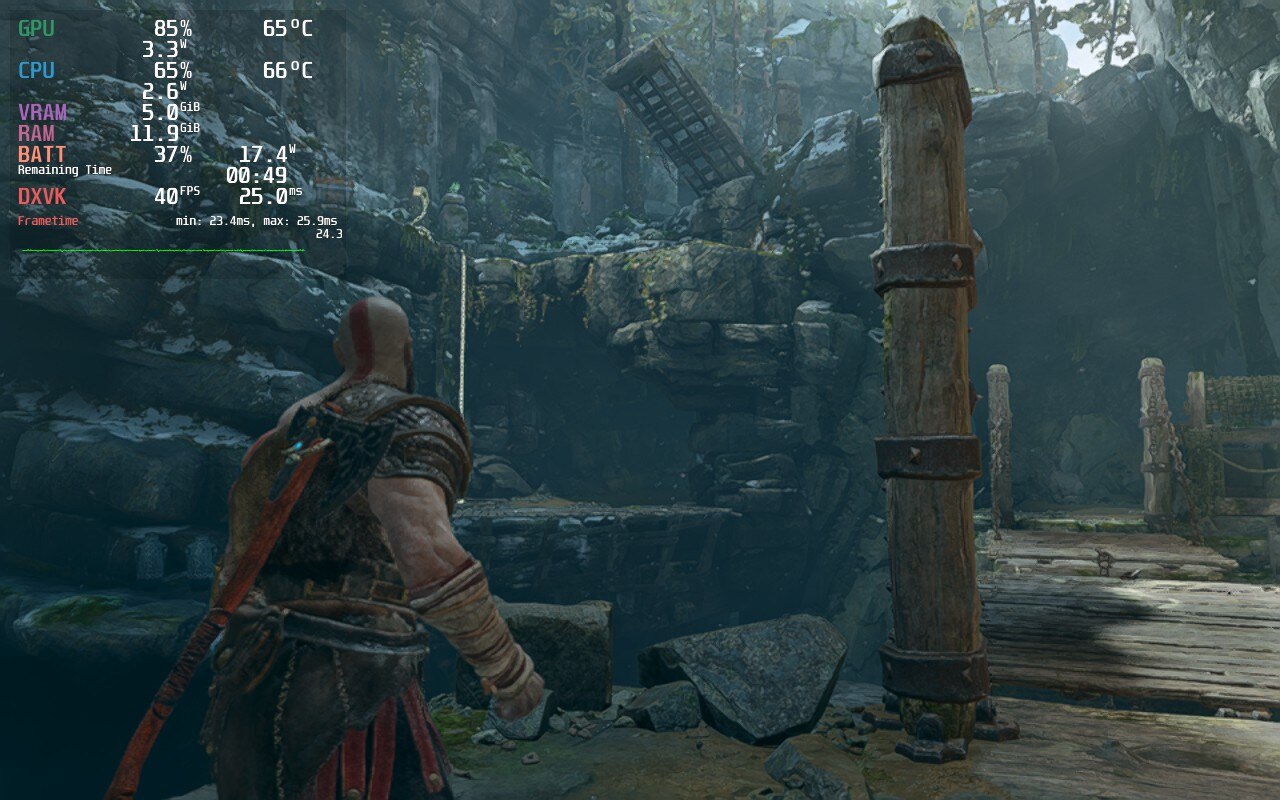
The difference in quality is clear and while 40 FPS can be hit, the temps and battery drain are massive.
There were no clear differences when using a different Proton version for God of War, so you can pick and choose which one you would like to use. I prefer using Proton GE when I can. If you don't know about it or want to install, you can follow our guide for it!
I did also encounter a couple bugs with the Deck. I noticed that after some cutscenes in God of War, my controls would stop working. This was easily fixed by hitting the "Steam" button and then going back into the game, but it was a bit annoying to deal with. I also did notice that moving the left analog stick has a very slight delay. I tested to see if this was due to SteamOS's cap, though even when Vsync in game was on with no cap, there was still that delay. It wasn't really noticeable when getting into the game though, just when I specifically stopped to test it.
I still am in shock as I tested and wrote this review, I was playing God of War on a handheld device. This game is so good and I was pleased with the performance. Of course, in terms of technicality, it could be better. It does still have framerate spikes and some bugs, but overall, this is a huge AAA game that has no business running as well as it does on Deck. If you haven't played the game before, or on the fence about it, do yourself a favor and grab the game. The compromises are well worth it.
Our review is based on the PC version of this game.
If you enjoyed this review, be sure to check out the rest of the content on SteamDeckHQ! We have a wide variety game reviews and news that are sure to help your gaming experience. Whether you're looking for news, tips and tutorials, game settings and reviews, or just want to stay up-to-date on the latest trends, we've got your back!



